
Day 26 of 30 days of Data Analytics with Projects Series — Power BI
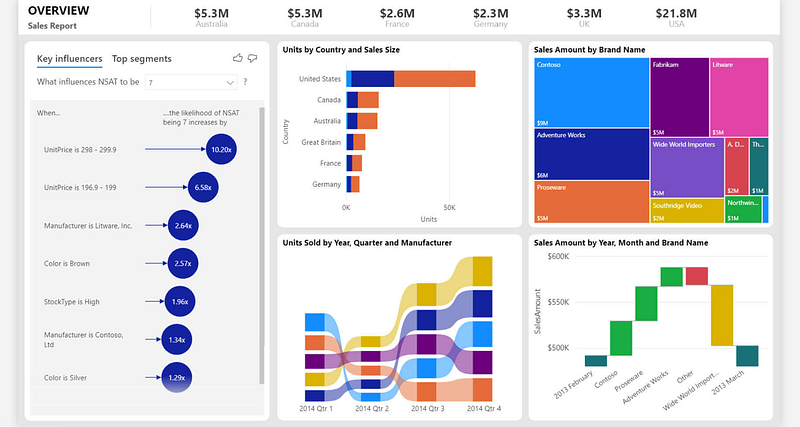
Welcome back peep. Hope all’s well. This is Day 26 of 30 days of data analytics where we will be covering Power BI.
What’s covered in 30 days of Data Analytics Series till now —
Day 1 : Data Analytics basics and kickstart of Data analytics with projects series
Day 3 : Data Analytics Ecosystem — Data Life Cycle, Data Analysis complete process ( most important things)
Day 5 : Statistics
Day 6 : Basic and Advanced SQL
Day 8 : Pandas and Numpy
Day 9 : Data Manipulation
Day 10 : Data Visualization — Part 1
Day 11 : Project 1 : Data Visualization — Part 2
Day 12 : Data Visualization — Part 3
Day 13: Tableau — Part 1
Day 14: Tableau — Part 2
Day 15: Tableau — Part 3
Day 16 : Data Analysis Project 2
Day 17 : Data Analysis Project 3
Day 18: Data Analysis Project 4
Day 20 : Data Analysis Project 6
Day 21 : Data Analysis Project 7
Take Complete Hands On Tableau Course : Link
Projects Videos —
All the projects, data structures, SQL, algorithms, system design, Data Science and ML , Data Analytics, Data Engineering, , Implemented Data Science and ML projects, Implemented Data Engineering Projects, Implemented Deep Learning Projects, Implemented Machine Learning Ops Projects, Implemented Time Series Analysis and Forecasting Projects, Implemented Applied Machine Learning Projects, Implemented Tensorflow and Keras Projects, Implemented PyTorch Projects, Implemented Scikit Learn Projects, Implemented Big Data Projects, Implemented Cloud Machine Learning Projects, Implemented Neural Networks Projects, Implemented OpenCV Projects,Complete ML Research Papers Summarized, Implemented Data Analytics projects, Implemented Data Visualization Projects, Implemented Data Mining Projects, Implemented Natural Leaning Processing Projects, MLOps and Deep Learning, Applied Machine Learning with Projects Series, PyTorch with Projects Series, Tensorflow and Keras with Projects Series, Scikit Learn Series with Projects, Time Series Analysis and Forecasting with Projects Series, ML System Design Case Studies Series videos will be published on our youtube channel ( just launched).
Subscribe today!
Tech Newsletter —
If you are interested, you can join my newsletter through which I send tech interview tips, techniques, patterns, hacks — Software Development, ML, Data Science, Startups and Technology projects to more than 30K readers. You can subscribe to Tech Brew :
In the last post we covered Data Visualization and in this post we will cover a project.
Pre-requisite —
Before starting, go through this post to understand charts/plots and which chart to use and when.
(Note : Zoom all the images)
Power BI is a tool for data and analytics reporting which lets users create report insights using different visualizations and dashboards.
Power BI is a UI based tool which allows to integrate with any data source and lets you work with large amount of data.
Power BI is a business intelligence and data visualization tool that allows users to connect to, analyze, and visualize data from various sources.
Here are some of the most important things and commands to know when using Power BI:
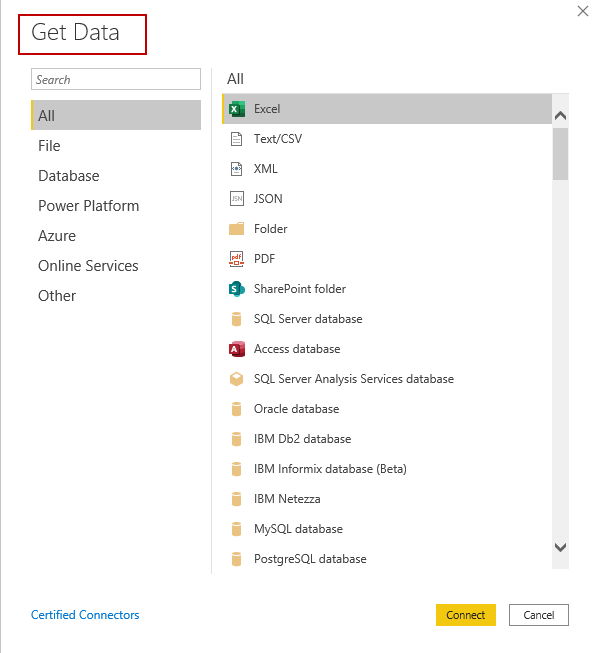
- Connecting to data: Power BI allows users to connect to a variety of data sources, including databases, Excel files, CSV files, and cloud-based platforms such as Azure and Google Analytics. The “Get Data” button in the Home tab is used to connect to these sources.
- Data modeling and relationships: Power BI allows users to create data models by defining relationships between tables, which can be used to create more complex visualizations. The “Manage Relationships” button in the Modeling tab is used to define these relationships.
- Creating visualizations: Power BI provides a wide variety of visualization types, including bar charts, line charts, scatter plots, and maps. These visualizations can be created by dragging and dropping fields onto the canvas, and can be customized using the Format pane.
- Filtering and slicing data: Power BI allows users to filter and slice data in visualizations using the Filters pane. Users can filter data based on specific values, ranges, or conditions, and can create cross-filtering relationships between visualizations.
- Creating dashboards: Power BI allows users to create dashboards by combining visualizations and other elements on a single page. Users can create multiple dashboards and switch between them using the Navigation pane.
- Publishing and sharing: Power BI allows users to publish and share their reports and dashboards with others. Reports can be published to the Power BI service and shared with others through a shareable link or embedded in a website or application.
- DAX (Data Analysis Expressions): DAX is a formula language that you can use to create custom calculations and aggregations that are not available out of the box. It is used to enhance the data model and improve the data analysis capabilities of Power BI.
- Power Query: Power Query is a data connection and transformation tool that allows you to connect to various data sources and manipulate the data. It can be used to filter, group, aggregate, join, and reshape data, among other things.
How to implement above —
Connecting to data:
Click on the “Get Data” button in the Home tab.
Choose the desired data source (e.g., Excel, CSV, database) and establish the connection.
Select the tables or data you want to import into Power BI.
Data modeling and relationships:
In the Modeling tab, click on the “Manage Relationships” button.
Define relationships between tables by specifying the related columns.
Power BI automatically detects and suggests relationships based on column names, but you can modify or create new relationships as needed.
Creating visualizations:
Drag and drop fields from your data tables onto the canvas or visualizations pane.
Choose the desired visualization type (e.g., bar chart, line chart, map) from the Visualizations pane.
Customize the visualization properties, such as colors, labels, and axes, using the Format pane.
Filtering and slicing data:
Use the Filters pane to add filters to visualizations.
Specify the filter criteria, such as selecting specific values, defining ranges, or applying conditions.
Cross-filtering allows you to filter multiple visualizations based on selections made in one visualization.
Creating dashboards:
Click on the “New Dashboard” button in the Home tab.
Drag and drop visualizations, images, and text boxes onto the dashboard canvas.
Arrange and resize the elements to create a visually appealing and informative dashboard.
Publishing and sharing:
Click on the “Publish” button in the Home tab to publish your report to the Power BI service.
Once published, you can share your reports and dashboards with others by generating a shareable link or embedding them in a website or application.
You can also control access and permissions for different users or groups.
DAX (Data Analysis Expressions):
DAX formulas can be written in the Power BI formula bar or directly in calculated columns and measures.
Use DAX functions and operators to create custom calculations, aggregations, and complex business logic.
DAX expressions can reference tables, columns, and measures within the data model.
Power Query:
Click on the “Edit Queries” button in the Home tab to open the Power Query Editor.
Use Power Query to perform data transformation tasks such as filtering, grouping, aggregating, joining, and reshaping data.
Apply various transformations and data cleaning operations using the intuitive interface of Power Query.
There are three main views in Power BI —
Data View — datasets associated with the reports are examined.
Model View — lets you establish relationship between different data.
Report View — lets you visualize data and create the reports and dashboards
Upload the data in the Power BI —
Once the data is uploaded, understand which chart best represents your data.
To present your data, there are four basic presentation types :
Composition : To show part-to-whole relationship of the data variables
Distribution : To show the spread of the data values
Relationship : To establish relationship between the different data variables
Comparison : To compare one value with the other ( i.e two or more data variables)
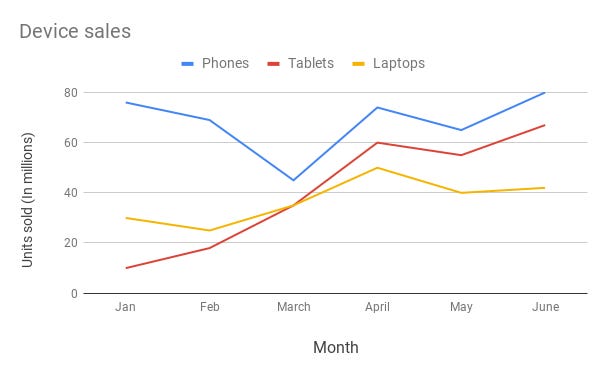
Line Chart —
Line chart are used to show trends over the period time or categories i.e to show changes in one variable value relative to another..
Example :
Column Chart —
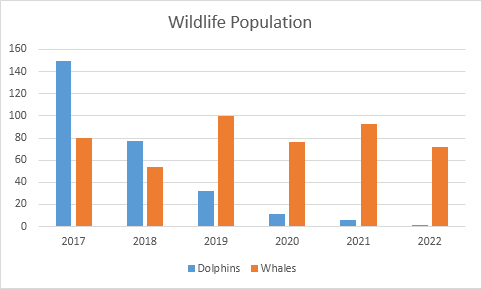
Column charts are used to show to show comparison between different variables or multiple categories over time. It’s plotted using vertical bars.
Example :
Stacked Column Chart —
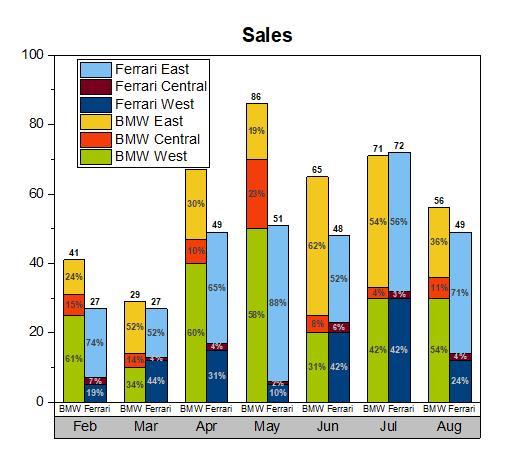
Stacked Column Chart is used to show relative percentage of multiple data categories or variables in stacked columns. It’s plotted using vertical bars.
Example :
Pie Chart —
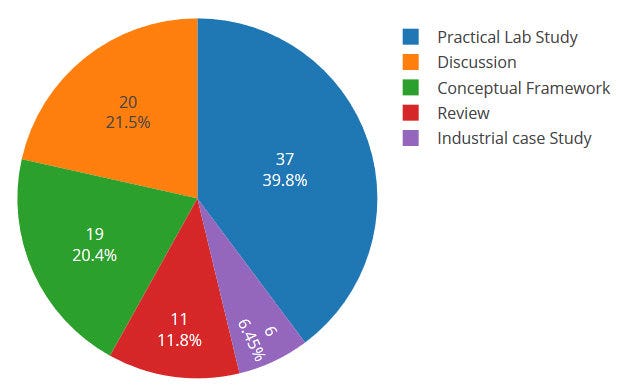
Pie charts are used to show data as a percentage of a whole i.e to let user compare the relationship between different categories/dimension in some context.
Example :
Donut Chart —
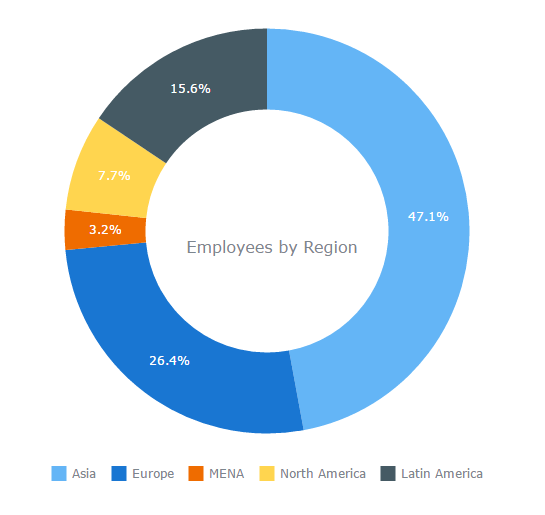
Just like pie chart but with a hole in the centre; donut chart is used to visualize the categories as arcs.
Example :
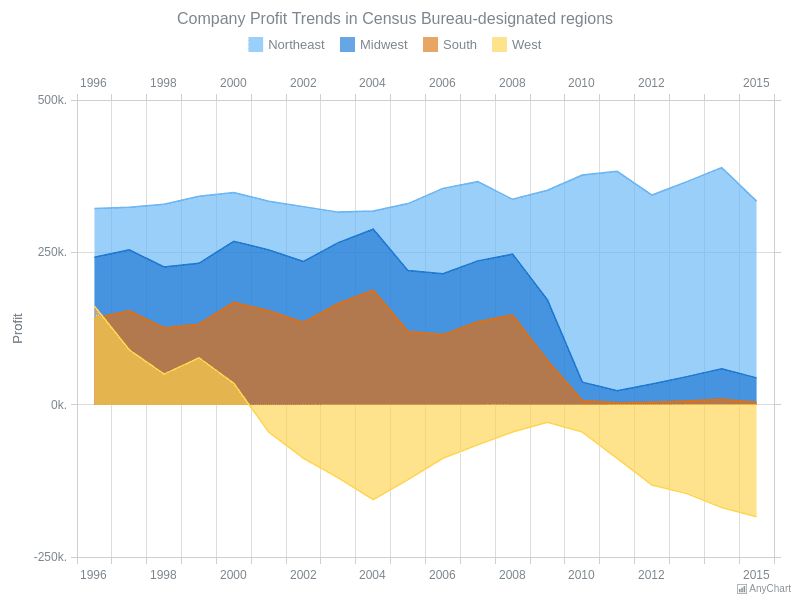
Area Chart —
Area Charts are used to present the accumulative value changes over time and draw attention to the total value across a trend.
Example :
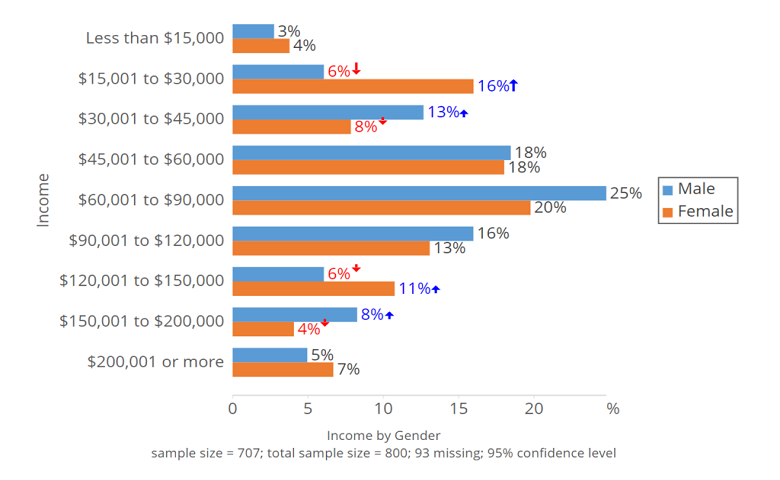
Bar Chart —
Bar charts are used to show to show values across different data variables/categories where values are represented on the x-axis and categories on the y-axis.
Example :
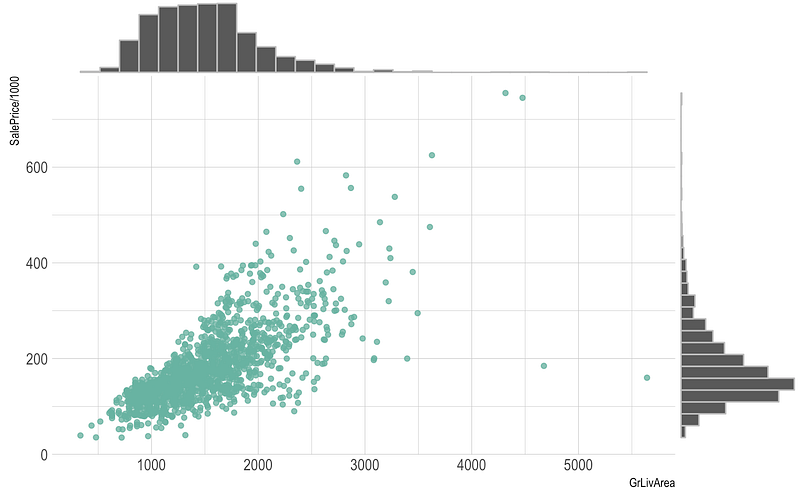
Scatter Plot —
Scatter plot are used to show distribution, correlation analysis and clustering trends.
Example :
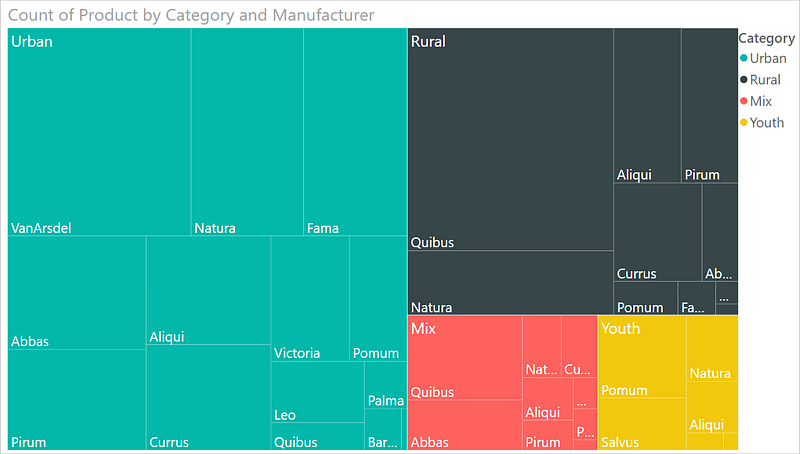
TreeMap —
It is used to visualize the categories with the colored rectangles which have size wrt to their values.
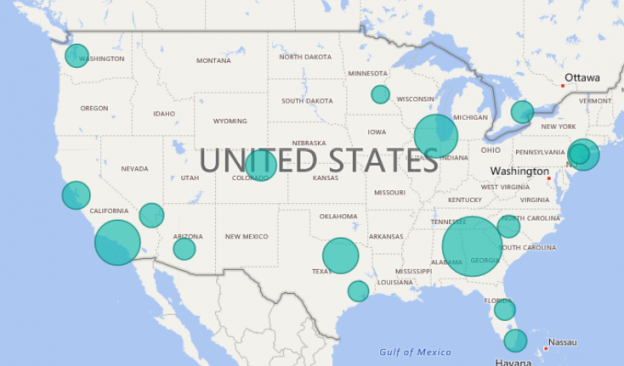
Maps —
It is used to map quantitative and categorical information for the different locations.
Data Analysis Expressions ( DAX)
It’s a language in Power BI which lets you create queries/calculations and do data analysis.
For aggregations, it uses below functions —
- sum(
) : To compute the sum of a specific Column. - min(
) : To compute minimum value of each Column - max(
) : To compute maximum value of each Column - median(
) : To compute median of each column - count(
) : To count elements by elements.
For logical functions it uses IF clause.
For text Functions, it uses —
LOWER() : to convert text into lowercase
UPPER() : to convert text into uppercase
REPLACE(): To replace the old text with new text
JOINS
Before we start with joins, one must understand the points explained below —
Primary Keys : These are fields/keys in a table which uniquely identifies each record. These are used to join tables.
Foreign Keys : These are fields/keys in a table which the references the primary key of the other table.
Relationships : Relations between the tables can be one to one, one to many and many to many. In one to one relationships, a record in one table is uniquely related to exactly one record in the other table. On the other side, One to many relationships, a record in one table can be related to one or more records in the other table. Lastly, in many to many one or more records in one table are related to one or more records in the other table.
What is a Join?
A join is nothing but a construct used to combine rows from two or more tables based on a related/common column between them. It matches the related columns values in two or more tables.
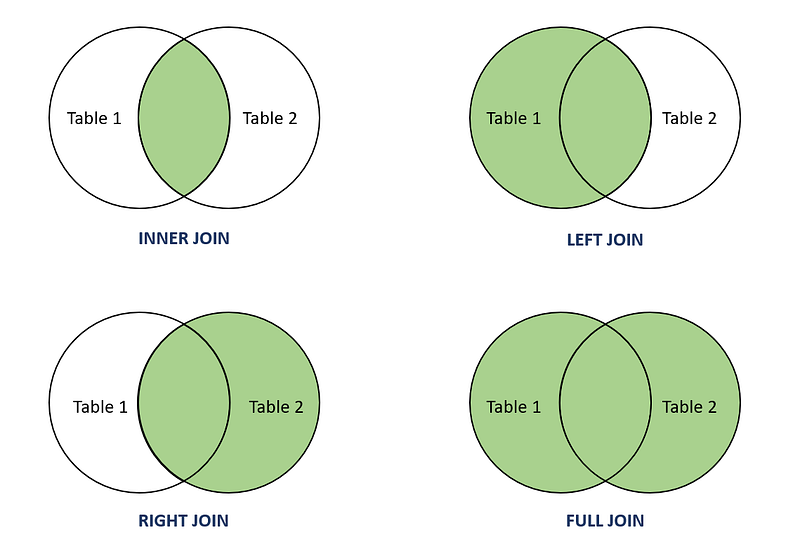
INNER JOIN: Select records that have matching values in both tables.
LEFT JOIN: Select records from the first (left-most) table with matching right table records.
RIGHT JOIN: Select records from the second (right-most) table with matching left table records.
CROSS JOIN : Select records in the first table multiplied by the records in the second table.
FULL JOIN: Selects all records that match either left or right table records.
Format —
SELECT column_names
FROM table1 JOIN table2
ON column_name1 = column_name2
WHERE condition
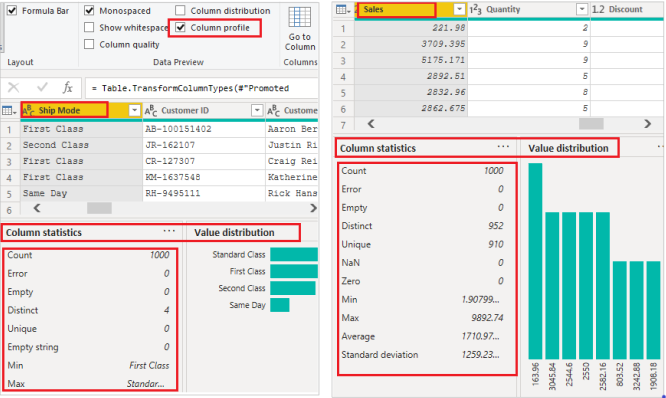
Data Profiling
You can also profile your data in order to get information about your data in Power BI.
Check the Column distribution and profile to see summary statistics of the data.
That’s it for now. Day 27 coming soon: Advanced Regression.
Let me know if you have questions in the comment section below. Subscribe/ Follow, Like/Clap as it would encourage me to write more in my free time
Stay Tuned!!
Read More —
11 most important System Design Base Concepts
6. Networking, How Browsers work, Content Network Delivery ( CDN)
13. System Design Template — How to solve any System Design Question
System Design Case Studies — In Depth
Complete Data Structures and Algorithm Series
Some of the other best Series —
30 days of Data Structures and Algorithms and System Design Simplified
Data Science and Machine Learning Research ( papers) Simplified **
100 days : Your Data Science and Machine Learning Degree Series with projects
Complete Data Visualization and Pre-processing Series with projects
Exceptional Github Repos — Part 1
Exceptional Github Repos — Part 2
Tech Newsletter —
If you are interested, you can join my newsletter through which I send tech interview tips, techniques, patterns, hacks — Software Development, ML, Data Science, Startups and Technology projects to more than 30K readers. You can subscribe to Tech Brew :
For Python Projects —
For complete 60 days of Data Science and ML : Day 1 — Day 60 : Quick Recap of 60 days of Data Science and ML
Follow for more updates. Stay tuned and keep coding!
For other projects, tune to —
Build Machine Learning Pipelines( With Code)
Recurrent Neural Network with Keras
Clustering Geolocation Data in Python using DBSCAN and K-Means
Facial Expression Recognition using Keras
Hyperparameter Tuning with Keras Tuner
Custom Layers in Keras


