
Blazor Server Project #13: How to Generate Identity Tables
An easy guide to integrating Identity tables into the database of the existing project
Table of Contents
- Introduction
- Downloading and Opening the BookApp Project
- Creating the BookDB Database
- Installing ASP.NET Core Identity
- Modifying the Code
- Generating Identity Database ▸ Creating migration ▸ Applying migration
- Summary
- References

This article is the thirteenth in a series covering the Blazor Server Project: (1) How to create a CRUD operation using Dapper (2) Building a dropdown list involves a 1:N relationship (3) How to implement a checkbox list involving an M:N relationships (4) Understanding URL routing and navigation (5) Creating and using page layout (6) How to create a reusable modal dialog component (7) Practical guide to making a master-detail page (8) Master-detail page using dynamic query (9) How to avoid SQL injection attacks (10) Hiding/showing HTML elements (11) Migrate to ASP.NET Core 6.0 (12) Installing ASP.NET Core Identity (13) Integrating Identity tables into the existing project database (14) Authentication and authorization (15) Role-based authorization (16) How to implement Google Authentication (17) Facebook Authentication and Authorization (18) How to configure Twitter Authentication (19) How to Customize Password Policy (20) Account Lockout Policy
These articles are for anyone who wants to learn how to build Blazor Server applications in a practical approach through some sample projects. It will be straightforward if you have some experience with C#, HTML, CSS, and SQL.
Introduction
In the Blazor Server Project #12 article, we discussed installing ASP.NET Core Identity and, by default, generating a separate identity database from the existing project database.
For now, we will cover how to add identity tables to the database of the existing project. So, the project has only one database, one DbContext, and one connection. The steps are: ⦁ download and open the BookApp project ⦁ create the BookDB database ⦁ install ASP.NET Core Identity ⦁ modify the code ⦁ generate Identity database.
Downloading and Opening the BookApp Project
- Please download the Blazor Server Project #11 via the link below.
- Open the project in Visual Studio 2022.
Creating the BookDB Database
Please read the Blazor Server Project #8 article in detail.
Installing ASP.NET Core Identity
The steps are similar to the Blazor Server Project #12.
- After selecting the options in the Add Identity dialog,
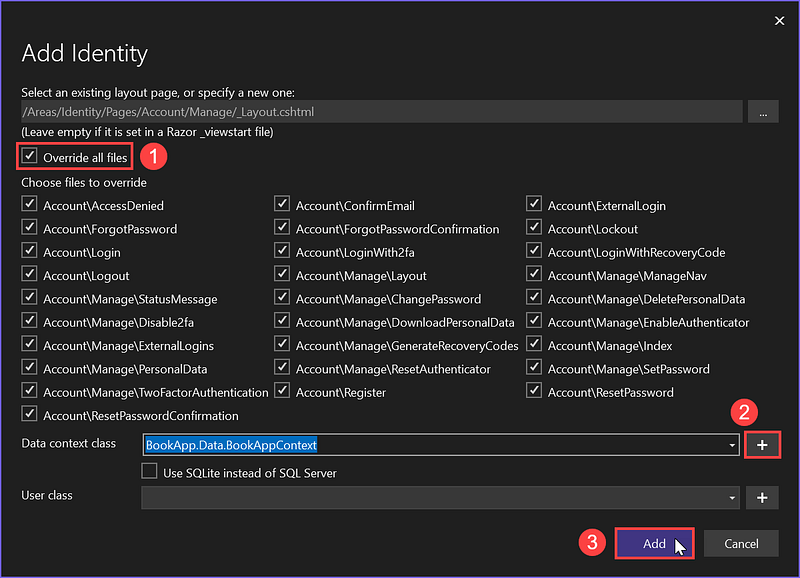
click + button to create a data context class.
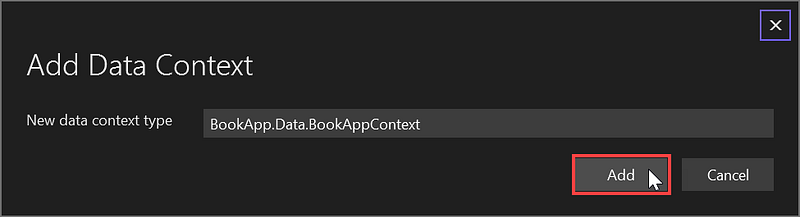
- Accept the default
BookAppContextdata context and click Add button.
Modifying the Code
The project must have only one database, one DbContext, and one connection string. You must update five files and delete one file. See Figure 3.
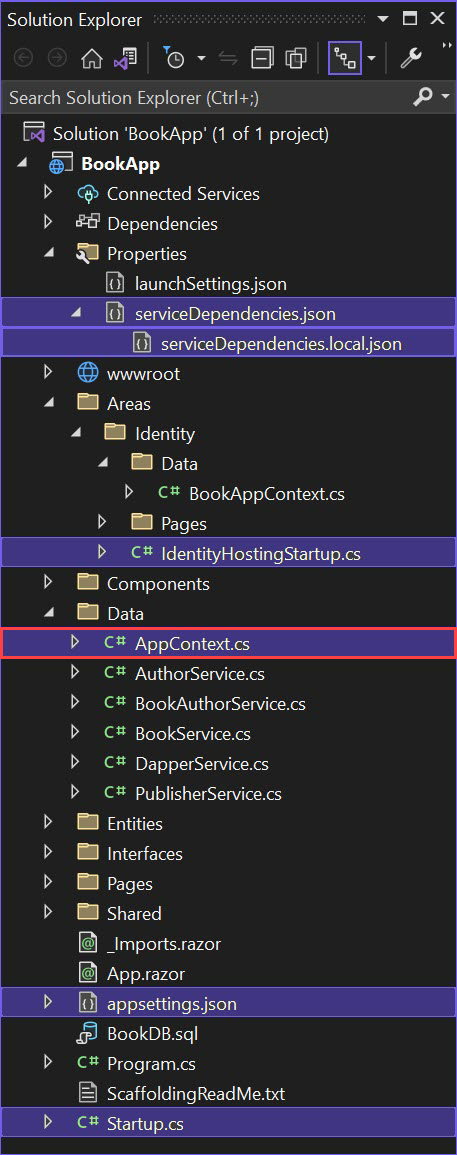
You can use the Find and Replace feature to update the code by selecting the menu: Edit > Find and Replace > Replace in Files.
(a) Use BookAppContext as the one and only DBContext
- In the
Startup.csfile, replaceAppContextwithBookAppContext. - Delete the
AppContext.csfile.
(b) Use "DefaultConnection" as the only connection string
- In the
IdentityHostingStartup.cs,serviceDepencies.jsonandserviceDependencies.local.jsonfiles, replaceBookAppContextConnectionwithDefaultConnection. - In the
appsetting.jsonfile, delete the"BookAppContextConnection"connection string. - In the
Startup.csfile, delete the statement:services.AddDbContext….
Generating Identity Database
The steps are creating and applying migration.
Creating migration
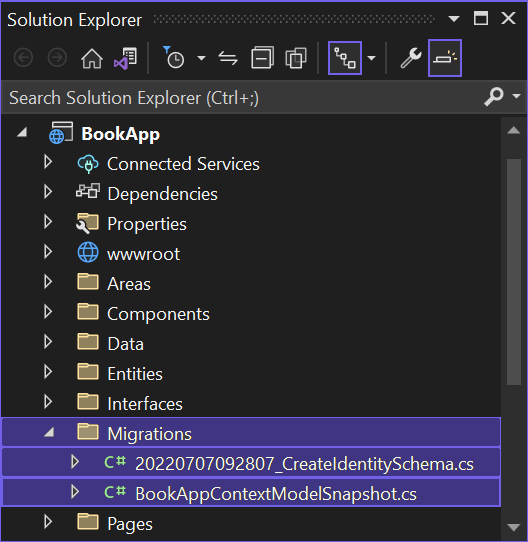
There is only one DBContext. The migration command does not require the Context parameter. Type the command below in the Package Manager Console.
Add-Migration CreateIdentitySchema
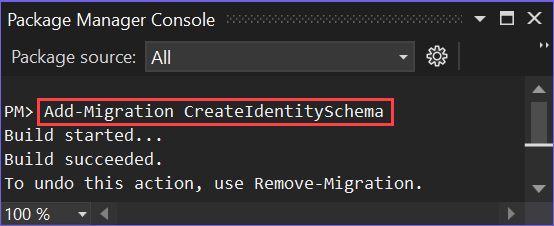
The results are two files in the Migrations folder.
Applying migration
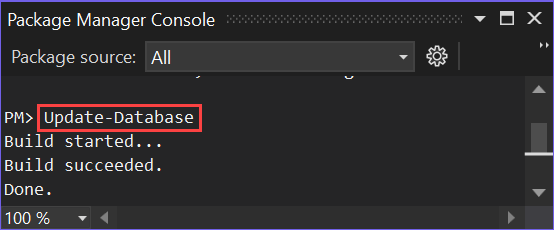
- In the Package Manager Console, type
Update-Database.
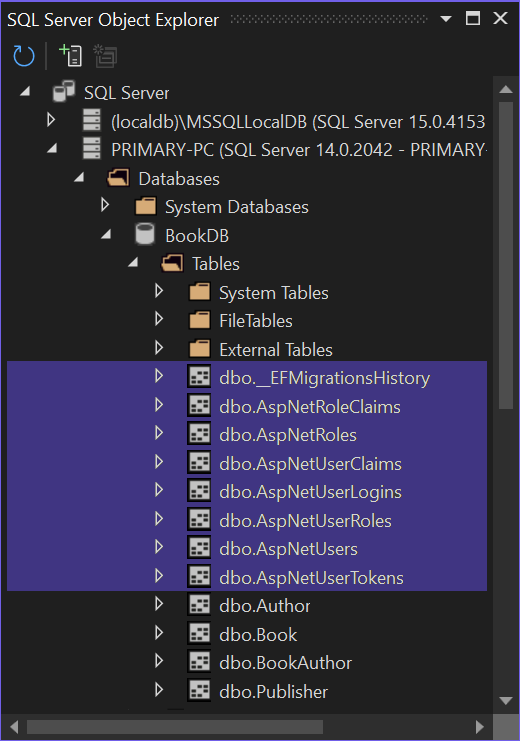
- The result is seven identity tables and one migration history added to the BookDB database.
Summary
With a slight modification so that the project has only one DBContext with one connection string, you can integrate the Identity tables into your existing project database.
Hopefully beneficial. Feel free to comment.


