
Blazor Server Project #1: How to Create CRUD Operation
For a single table using Dapper with SQL Server database
Table of Contents
- Overview
- SQL Server Installation
- Creating the BookDB Database ▸ Publisher Table: Add Data and Create Stored Procedures
- Creating a Blazor Server Project ▸ Deleting File ▸ Delete Lines of Codes ▸ Creating Database Connection Strings
- Package Installation ▸ Check installed packages ▸ Dapper Installation ▸ Microsoft.EntityFrameworkCore.SqlServer Installation ▸ List of Installed Packages
- Files Supporting CRUD Operation ▸ Entity File: Publisher.cs ▸ Interface Files ▸ Method Files ▸ Component Files *. Razor ▸ File Modification
- References

This article is the first in a series covering the Blazor Server Project: (1) How to create a CRUD operation using Dapper (2) Building a dropdown list involves a 1:N relationship (3) How to implement a checkbox list involving an M:N relationships (4) Understanding URL routing and navigation (5) Creating and using page layout (6) How to create a reusable modal dialog component (7) Practical guide to making a master-detail page (8) Master-detail page using dynamic query (9) How to avoid SQL injection attacks (10) Hiding/showing HTML elements (11) Migrate to ASP.NET Core 6.0 (12) Installing ASP.NET Core Identity (13) Integrating Identity tables into the existing project database (14) Authentication and authorization (15) Role-based authorization (16) How to implement Google Authentication (17) Facebook Authentication and Authorization (18) How to configure Twitter Authentication (19) How to Customize Password Policy (20) Account Lockout Policy
These articles are for anyone who wants to learn how to build Blazor Server applications in a practical approach through some sample projects. It will be straightforward if you have some experience with C#, HTML, CSS, and SQL.
Overview
CRUD must exist in a database application. Dapper and Entity Framework Core are two ORM (Object-Relational Mapping) that are normally used in .NET. Both of them map database query results to C# domain classes and vice versa. Dapper is preferred because it is lightweight, fast, simple, easy to use, and understand. Dapper is perfect for programmers who are accustomed to using SQL and procedures in SQL Server.
The application displays CRUD pages for the Publisher table.
- Select the Publishers menu to display a list of publishers.
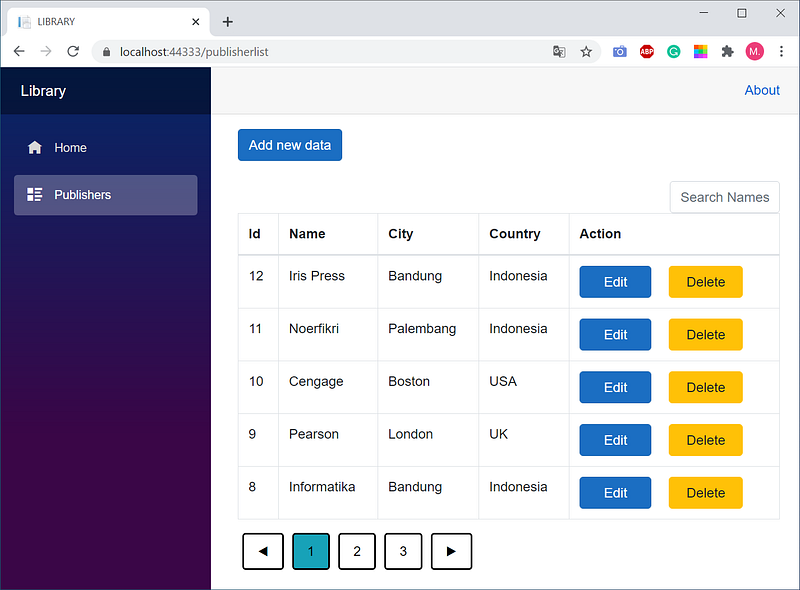
- The page above displays a list of publishers, sorted descending by Id. By clicking on the title column Id, the order changes from descending to ascending. The same applies to other columns.
- Navigation button:
◄go to the previous page►go to the next page1,2,3, ... page number - To search Publishers base on name criterium, type a name of a publisher in the search box. The name does not have to complete.
- To add new data, click
Add new data - To change existing data, click
Edit - To delete, click
Delete
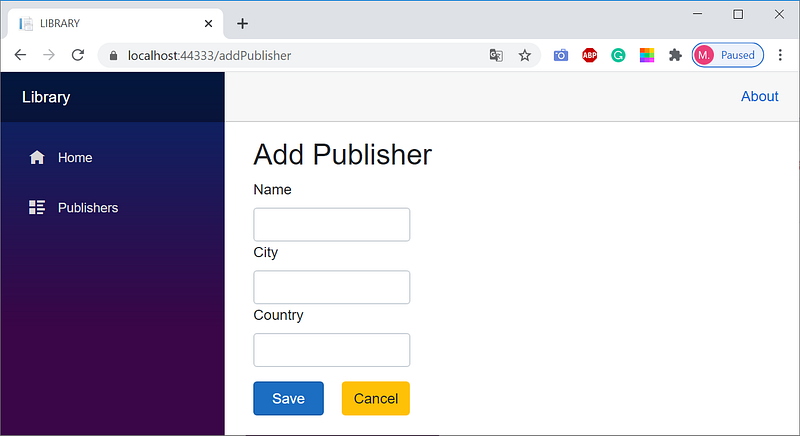
Below is a page to add a Publisher.
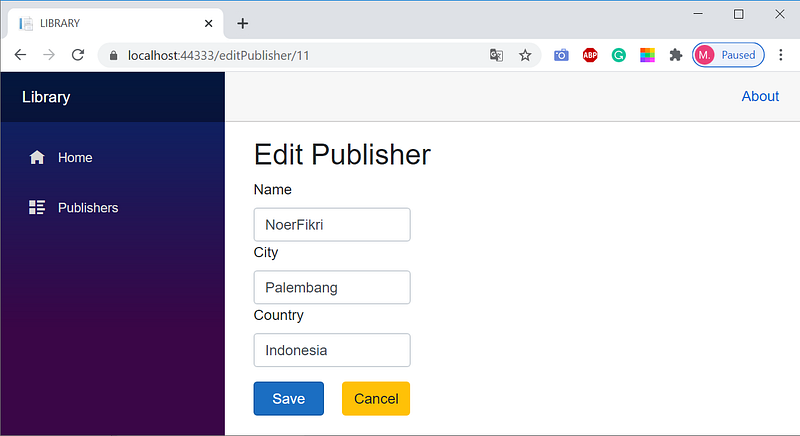
The following is a page to edit a Publisher.
SQL Server Installation
- Make sure SQL Server is installed on the computer. SQL Server 2019 is usually paired with SSMS (SQL Server Management Studio) version 18.x. Unfortunately, SSMS 18.x has a problem with the database diagram tool. I recommend using the older version, SQL Server 2017 Developer, which can be downloaded here.
- SSMS 18.x cannot be used for SQL Server 2017. Use SSMS 17.9.1, which can be downloaded here.
Creating the BookDB Database
- Open SSMS.
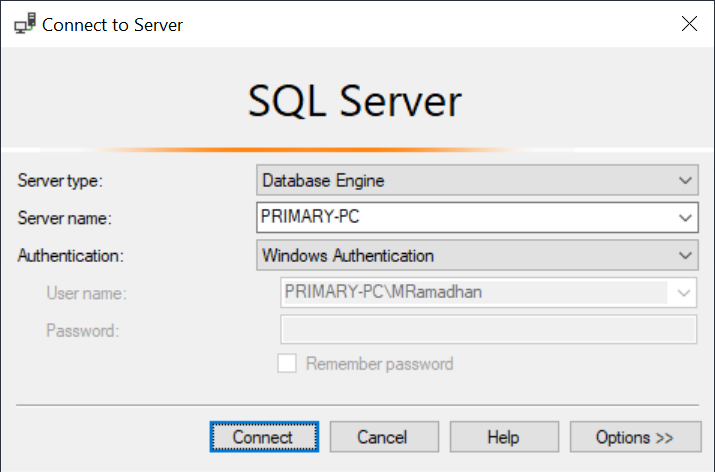
- Select the server name, click
Connect
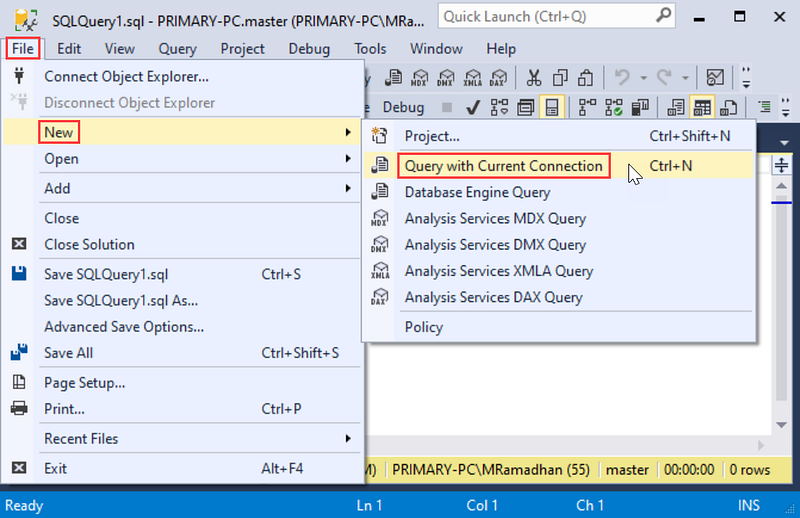
- Open a new query editor by pressing
Ctrl+Nor selecting menu:File|New|Query with Current Connection - Please copy the following SQL script, paste it into the query editor.
CREATE DATABASE [BookDB]
GO
USE [BookDB]
GOCREATE TABLE [dbo].[Publisher](
[Id] [int] IDENTITY(1,1) NOT NULL,
[Name] [varchar](20) NOT NULL,
[City] [varchar](20),
[Country] [varchar](20),
CONSTRAINT [pkPublisher] PRIMARY KEY ([Id])
)
GOCREATE TABLE [dbo].[Author](
[Id] [int] IDENTITY(1,1) NOT NULL,
[FName] [varchar](20) NOT NULL,
[LName] [varchar](20),
[Phone] [varchar](16) DEFAULT ('UNKNOWN'),
CONSTRAINT [pkAuthor] PRIMARY KEY ([Id])
)
GOCREATE TABLE [dbo].[Book](
[ISBN] [bigint] NOT NULL,
[Title] [varchar](80) NOT NULL,
[PubYear] [smallint],
[PurchDate] [date],
[PubId] [int],
CONSTRAINT [pkBook] PRIMARY KEY ([ISBN]),
CONSTRAINT [fkBookPub] FOREIGN KEY ([PubId])
REFERENCES [dbo].[Publisher]([Id])
)
GOCREATE TABLE [dbo].[BookAuthor](
[ISBN] [bigint] NOT NULL,
[AuthorId] [int] NOT NULL,
[AuthorOrd] [tinyint],
CONSTRAINT [pkBookAuthor] PRIMARY KEY ([ISBN],[AuthorId]),
CONSTRAINT [fkBookAuthor_Book] FOREIGN KEY([ISBN])
REFERENCES [dbo].[Book] ([ISBN]),
CONSTRAINT [fkBookAuthor_Author] FOREIGN KEY ([AuthorId])
REFERENCES [dbo].[Author] ([Id])
)
GO- Select menu:
Query|Execute, or pressF5to execute the SQL script and generate theBookDBdatabase. - The diagram is as follows.
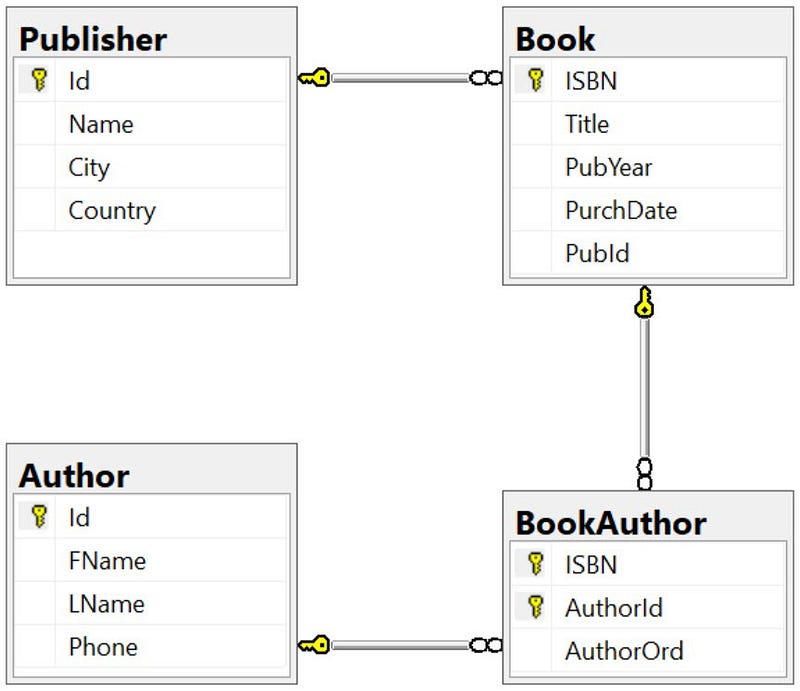
Publisher Table: Add Data and Create Stored Procedures
As a starting point, a CRUD will be created for the Publisher table. Here is a script for adding data, creating two stored procedures for creating new data, and updating data based on primary key value criterium.
USE [BookDB]
GOINSERT INTO Publisher([Name], [City], [Country])
VALUES ('Unsri Press', 'Palembang', 'Indonesia'),
('Gramedia', 'Jakarta', 'Indonesia'),
('Apress', 'New York', 'USA'),
('UIGM Press', 'Palembang', 'Indonesia'),
('Packt', 'Birmingham', 'UK'),
('Rafah Press', 'Palembang', 'Indonesia'),
('O’Reilly','Sebastopol','USA'),
('Informatika', 'Bandung', 'Indonesia'),
('Pearson', 'London', 'UK'),
('Cengage', 'Boston', 'USA'),
('Noerfikri', 'Palembang', 'Indonesia'),
('Iris Press','Bandung','Indonesia')
GO
CREATE PROCEDURE [dbo].[spAddPublisher]
@Name varchar(20),
@City varchar(20),
@Country varchar(20) AS
BEGIN
DECLARE @Id as Int;
INSERT INTO Publisher([Name], [City], [Country])
VALUES (@Name, @City, @Country);
SET @Id = SCOPE_IDENTITY();
SELECT @Id AS pubId;
END
GOCREATE PROCEDURE [dbo].[spUpdatePublisher]
@Id Int,
@Name varchar(20),
@City varchar(20),
@Country varchar(20)
AS
UPDATE Publisher
SET [Name] = @Name,
[City] = @City,
[Country] = @Country
WHERE [Id] = @Id
GO- Select menu:
Query|Execute, or pressF5key to execute the script above.
Creating a Blazor Server Project
- Open Visual Studio 2019.
- Create a Blazor Server project named BookApp. How to create a Blazor Server project was discussed in the previous post.
Deleting File
Because there are not needed, delete the following files.
⦁ Data/WeatherForecast.cs
⦁ Data/WeatherForecastService.cs
⦁ Pages/Counter.razor
⦁ Pages/FetchData.razor
⦁ Pages/SurveyPrompt.razor
Open the Solution Explorer pane.
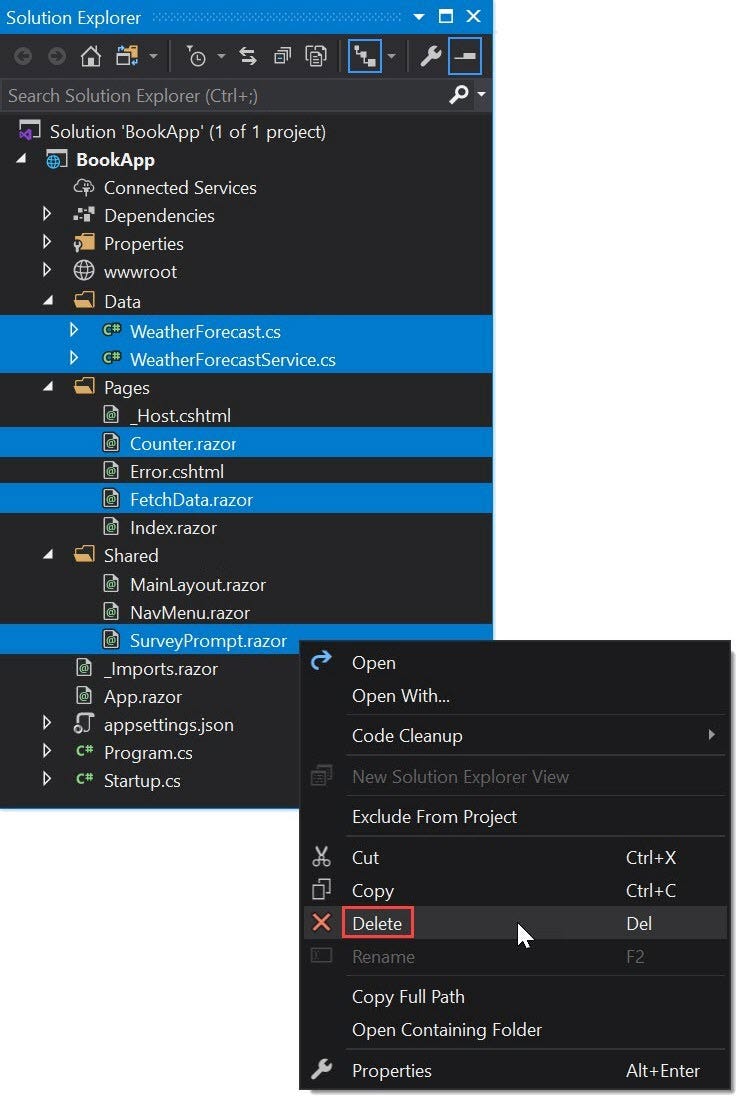
To delete the five files :
• Press the Ctrl key while clicking each file to be deleted.
• Right-click one of the files, for example, SurveyPrompt.razor.
• Click Delete
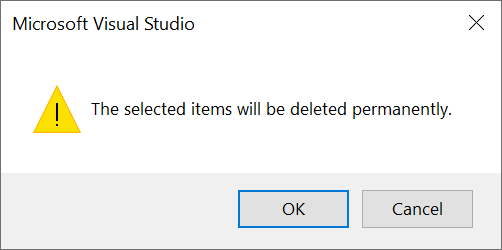
- Click
OK, the five files are permanently deleted.
Delete Lines of Codes
Related to the deleted files above, lines of codes in the related files must also be deleted.
Startup.cs, line 42
services.AddSingleton<WeatherForecastService>();
NavMenu.razor, lines 15 through 24
<li class="nav-item px-3">
<NavLink class="nav-link" href="counter">
<span class="oi oi-plus" aria-hidden="true"></span> Counter
</NavLink>
</li>
<li class="nav-item px-3">
<NavLink class="nav-link" href="fetchdata">
<span class="oi oi-list-rich" aria-hidden="true"></span> Fetch data
</NavLink>
</li>Index.razor, line 7
<SurveyPrompt Title="How is Blazor working for you?" />Creating Database Connection Strings
- Select menu:
View|SQL Server Object Explorer.
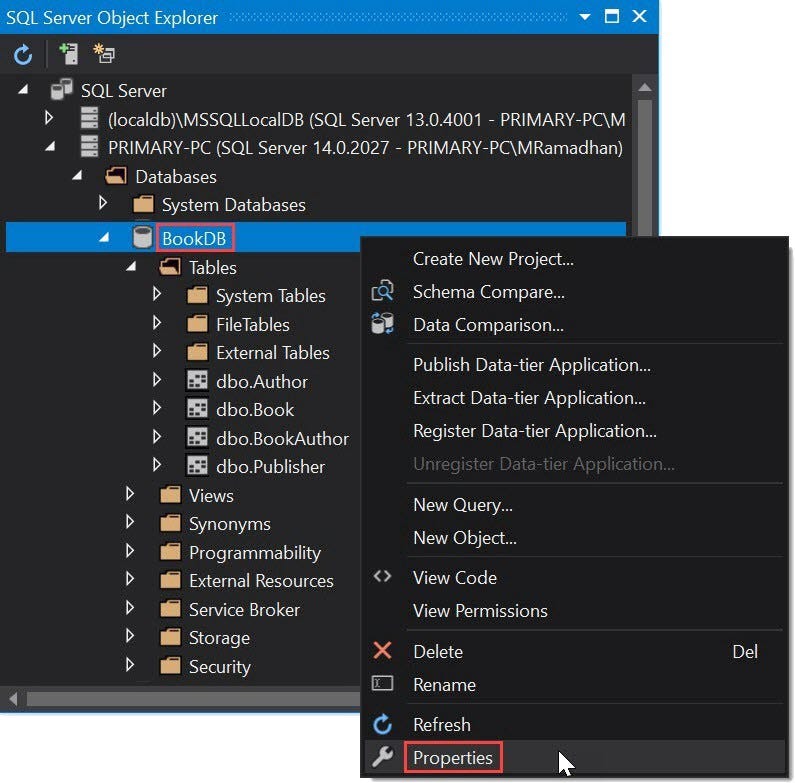
- Right-click
BookDB, clickProperties.
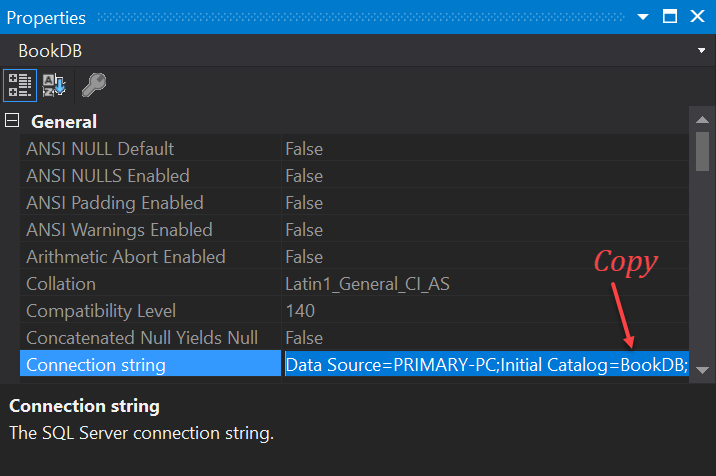
- In the
Propertiespane, copy the connection string.
Data Source=PRIMARY-PC;Initial Catalog=BookDB;
Integrated Security=True;Connect Timeout=30;Encrypt=False;
TrustServerCertificate=False;ApplicationIntent=ReadWrite;
MultiSubnetFailover=False- Open the
Solution Explorerpane.
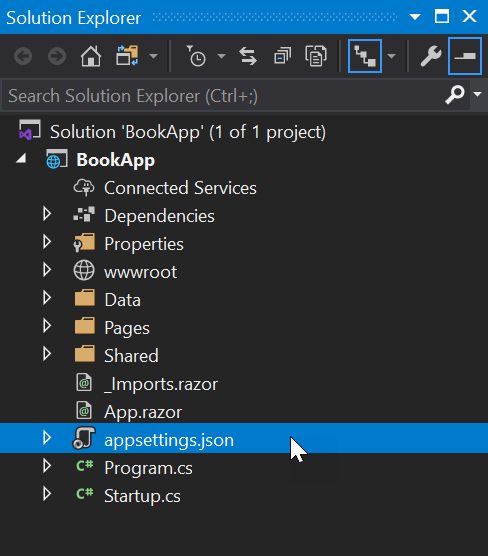
- Click
appsettings.jsonto open the file. - Add the following code to the
appsettings.jsonfile.
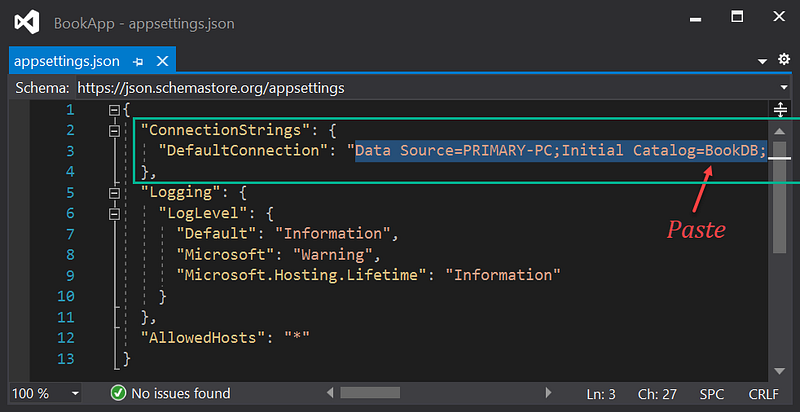
- To connect to the
BookDBdatabase on thePRIMARY-PCserver, paste the connection string that has been copied before. - Save file
appsettings.json
Package Installation
To make CRUD using Dapper, the following packages must be installed. 1. Dapper 2. Microsoft.EntityFrameworkCore.SqlServer
Check installed packages
- Use the Package Manager Console.
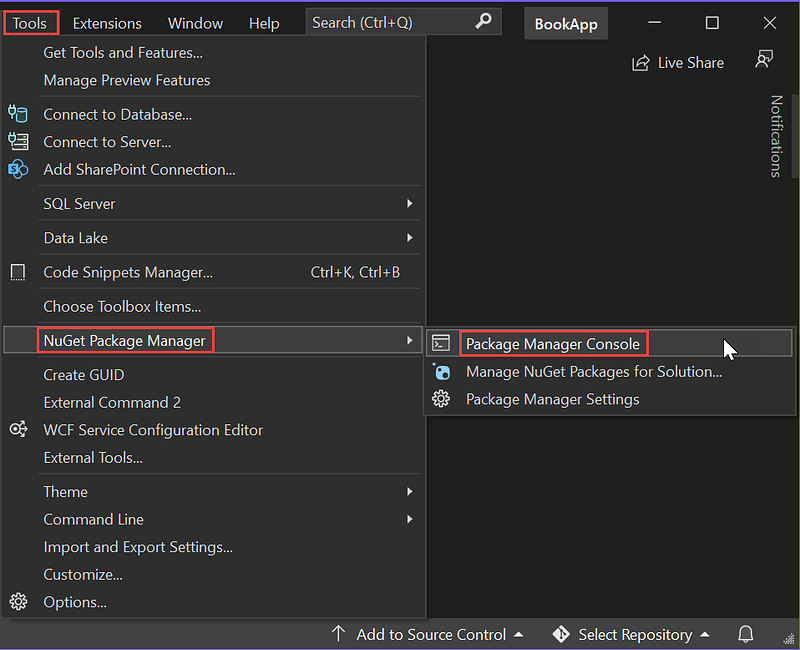
- Select menu:
Tools|NuGet Package Manager|Package Manager Console.
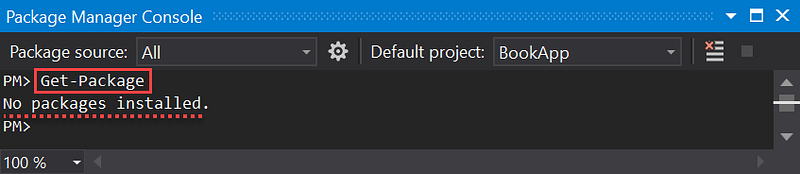
- Type
Get-Package⏎ - The figure above shows that there are no packages installed yet.
Dapper Installation
- Here is one way to install packages.
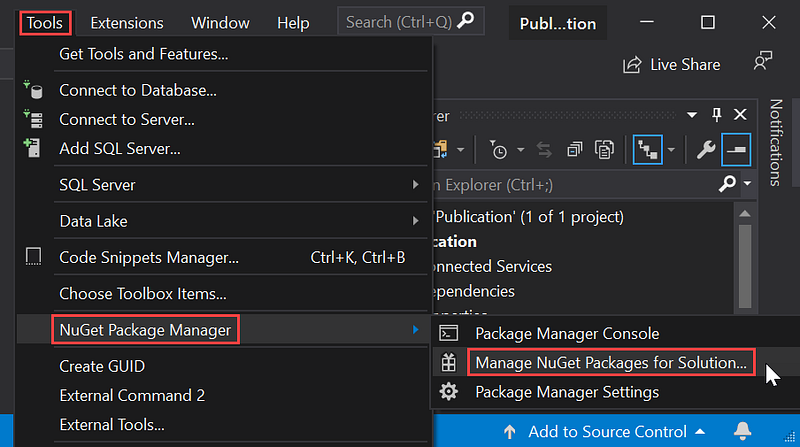
- Select menu:
Tools|NuGet Package Manager|Manage NuGet Packages Solution... - The NuGet Solution dialog appears.
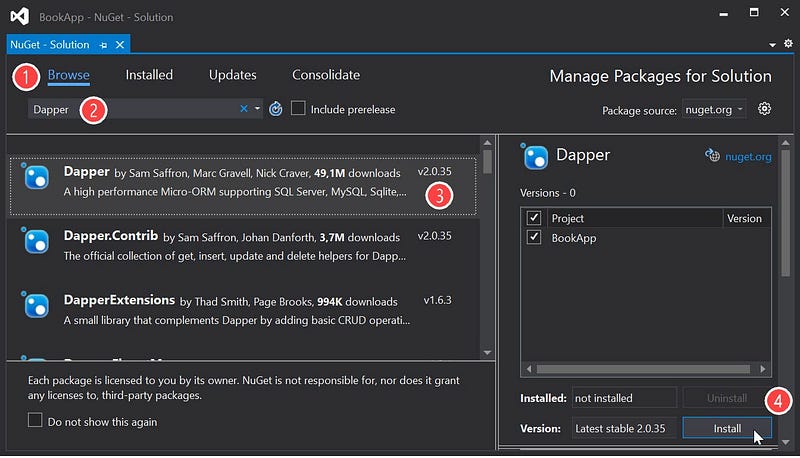
- Click
Browse. - In the
Searchbox, typeDapper. - From the package list, select
Dapper, clickInstall.
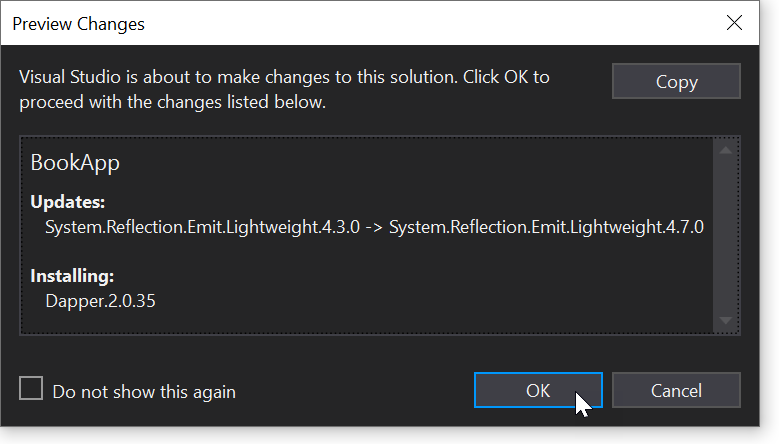
- Click
OK.
Microsoft.EntityFrameworkCore.SqlServer Installation
- Do the same for Microsoft.EntityFrameworkCore.SqlServer package, or use another method via the Solution Explorer pane.
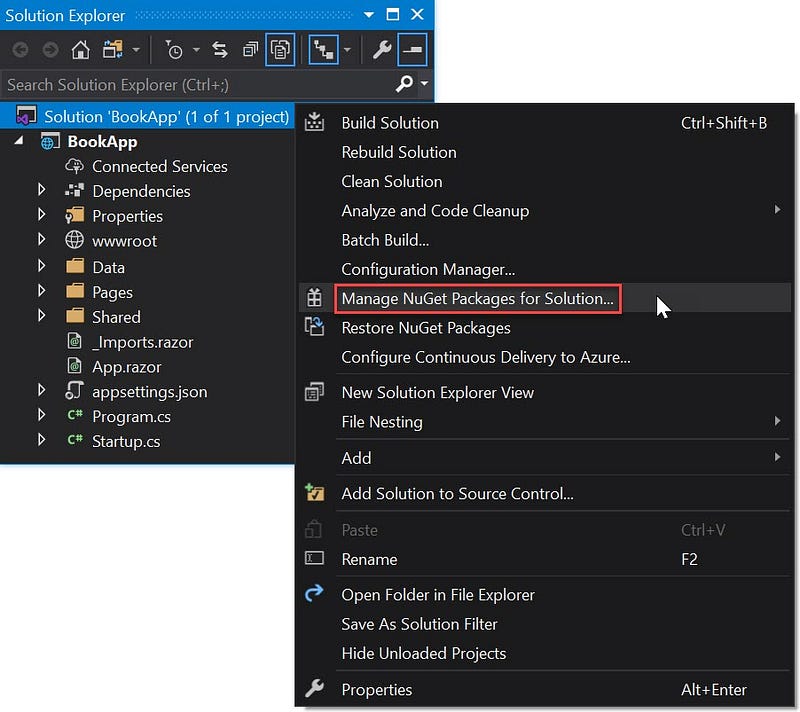
- Right-click
Solution 'BookApp', - Click
Manage NuGet Packages for Solution... - Furthermore, the same as in the Dapper package installation.
List of Installed Packages
- Besides through the menu:
Tools|NuGet Package Manager|Package Manager Console, the list of installed packages can be viewed via theSolution Explorerpane by selecting the menu:View|Solution Explorer.
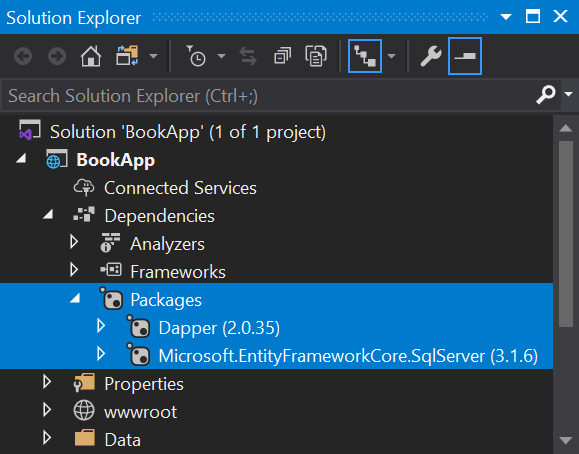
- Click
BookApp|Dependencies|Packages
Files Supporting CRUD Operation
CRUD operation needs files of entities, interfaces, methods, razor components, and code modification of some existing files.
Entity File: Publisher.cs
The Publisher model or entity class is a mapping of the Publisher table in the database. ThePublisher.cs file is placed in the Entities folder.
- Open the
Solution Explorerpane.
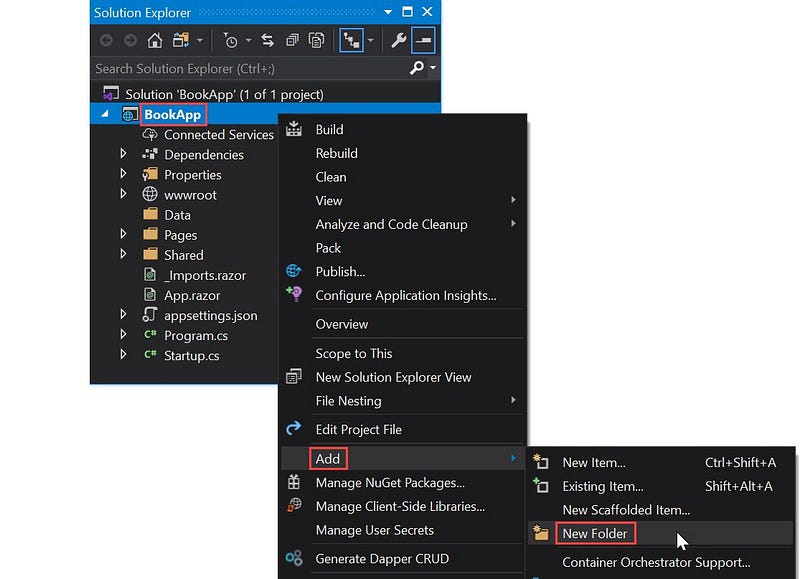
- Right-click
BookApp, then clickAdd|New Folder. - As the name of the folder, type
Entities. - Next, create a new class file.
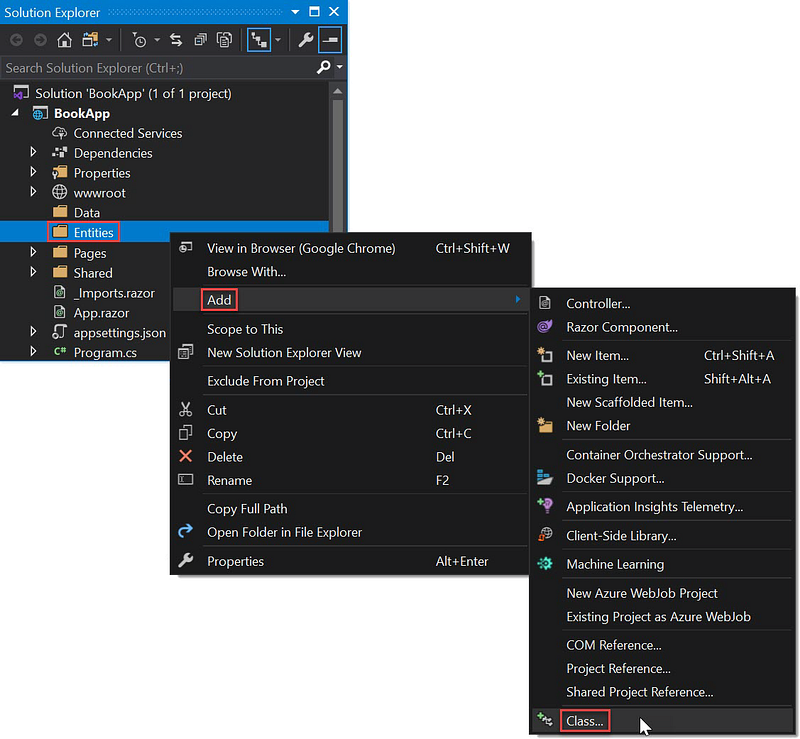
- Right-click
Entities, then clickAdd|Class.
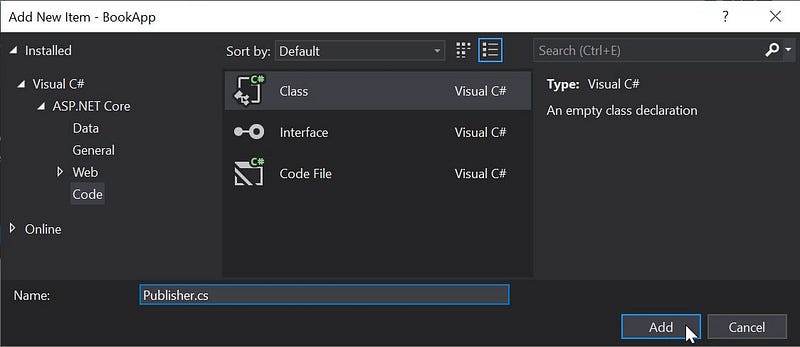
- Type
Publisher.csas the file name, clickAdd. - Click
Publisher.csto open the file, then copy and paste the following code.
using System.ComponentModel.DataAnnotations;
namespace BookApp.Entities
{
    public class Publisher
    {
        [Key]
        public int Id { get; set; }
        public string Name { get; set; }
        public string City { get; set; }
        public string Country { get; set; }
    }
}
Interface Files
The interface files declare methods. There are two interface files, IDapperService.csand IPublisherService.cs. Both are placed in the Interfaces folder.
IDapperService.cs
- Create a new folder named
Interfaces. - Create a file named
IDapperService.cs, then copy and paste the following code.
using Dapper;
using System;
using System.Collections.Generic;
using System.Data;
using System.Data.Common;
namespace BookApp.Interfaces
{
public interface IDapperService : IDisposable
{
DbConnection GetConnection();
T Get<T>(string sp, DynamicParameters parms,
CommandType commandType = CommandType.StoredProcedure);
List<T> GetAll<T>(string sp, DynamicParameters parms,
CommandType commandType = CommandType.StoredProcedure);
int Execute(string sp, DynamicParameters parms,
CommandType commandType = CommandType.StoredProcedure);
T Insert<T>(string sp, DynamicParameters parms,
CommandType commandType = CommandType.StoredProcedure);
T Update<T>(string sp, DynamicParameters parms,
CommandType commandType = CommandType.StoredProcedure);
}
}IPublisherService.cs
- Create a file, name it
IPulisherService.cs, then copy and paste the following code.
using BookApp.Entities;
using System.Collections.Generic;
using System.Threading.Tasks;
namespace BookApp.Interfaces
{
public interface IPublisherService
{
Task<int> Create(Publisher publisher);
Task<int> Delete(int Id);
Task<int> Count(string search);
Task<int> Update(Publisher publisher);
Task<Publisher> GetById(int Id);
Task<List<Publisher>> ListAll(int skip, int take,
string orderBy, string direction, string search);
}
}Method Files
The files implement the methods declared in the interface file. There are two method files, DapperService.csand PublisherService.cs. Both are placed in Data folder.
DapperService.cs
- In the
Datafolder, create theDapperService.csfile, then copy and paste the following code.
using BookApp.Interfaces;
using Dapper;
using Microsoft.Data.SqlClient;
using Microsoft.Extensions.Configuration;
using System;
using System.Collections.Generic;
using System.Data;
using System.Data.Common;
using System.Linq;
namespace BookApp.Data
{
public class DapperService : IDapperService
{
private readonly IConfiguration _config; public DapperService(IConfiguration config)
{
_config = config;
} public DbConnection GetConnection()
{
return new SqlConnection
(_config.GetConnectionString("DefaultConnection"));
} public T Get<T>(string sp, DynamicParameters parms,
CommandType commandType = CommandType.StoredProcedure)
{
using IDbConnection db = new SqlConnection
(_config.GetConnectionString("DefaultConnection"));
return db.Query<T>(sp, parms,
commandType: commandType).FirstOrDefault();
} public List<T> GetAll<T>(string sp, DynamicParameters parms,
CommandType commandType = CommandType.StoredProcedure)
{
using IDbConnection db = new SqlConnection
(_config.GetConnectionString("DefaultConnection"));
return db.Query<T>(sp, parms,
commandType: commandType).ToList();
} public int Execute(string sp, DynamicParameters parms,
CommandType commandType = CommandType.StoredProcedure)
{
using IDbConnection db = new SqlConnection
(_config.GetConnectionString("DefaultConnection"));
return db.Execute(sp, parms, commandType: commandType);
} public T Insert<T>(string sp, DynamicParameters parms,
CommandType commandType = CommandType.StoredProcedure)
{
T result;
using IDbConnection db = new SqlConnection
(_config.GetConnectionString("DefaultConnection"));
try
{
if (db.State == ConnectionState.Closed)
db.Open(); using var tran = db.BeginTransaction();
try
{
result = db.Query<T>(sp, parms, commandType:
commandType, transaction: tran).FirstOrDefault();
tran.Commit();
}
catch (Exception ex)
{
tran.Rollback();
throw ex;
}
}
catch (Exception ex)
{
throw ex;
}
finally
{
if (db.State == ConnectionState.Open)
db.Close();
}
return result;
} public T Update<T>(string sp, DynamicParameters parms,
CommandType commandType = CommandType.StoredProcedure)
{
T result;
using IDbConnection db = new SqlConnection
(_config.GetConnectionString("DefaultConnection"));
try
{
if (db.State == ConnectionState.Closed)
db.Open(); using var tran = db.BeginTransaction();
try
{
result = db.Query<T>(sp, parms, commandType:
commandType, transaction: tran).FirstOrDefault();
tran.Commit();
}
catch (Exception ex)
{
tran.Rollback();
throw ex;
}
}
catch (Exception ex)
{
throw ex;
}
finally
{
if (db.State == ConnectionState.Open)
db.Close();
}
return result;
} public void Dispose()
{
}
}
}PublisherService.cs
- In the
Datafolder, create thePublisherService.csfile, then copy and paste the following code.
using BookApp.Interfaces;
using BookApp.Entities;
using Dapper;
using System;
using System.Collections.Generic;
using System.Data;
using System.Threading.Tasks;
namespace BookApp.Data
{
public class PublisherService : IPublisherService
{
private readonly IDapperService _dapperService; public PublisherService(IDapperService dapperService)
{
this._dapperService = dapperService;
} public Task<int> Create(Publisher publisher)
{
var dbPara = new DynamicParameters();
dbPara.Add("Name", publisher.Name, DbType.String);
dbPara.Add("City", publisher.City, DbType.String);
dbPara.Add("Country", publisher.Country, DbType.String);
var publisherId = Task.FromResult
(_dapperService.Insert<int>("[dbo].[spAddPublisher]",
dbPara, commandType: CommandType.StoredProcedure));
return publisherId;
} public Task<Publisher> GetById(int id)
{
var publisher = Task.FromResult
(_dapperService.Get<Publisher>
($"select * from [Publisher] where Id = {id}", null,
commandType: CommandType.Text));
return publisher;
} public Task<int> Delete(int id)
{
var deletePublisher = Task.FromResult
(_dapperService.Execute
($"Delete [Publisher] where Id = {id}", null,
commandType: CommandType.Text));
return deletePublisher;
} public Task<int> Count(string search)
{
var totPublisher = Task.FromResult(_dapperService.Get<int>
($"select COUNT(*) from [Publisher]
WHERE Name like '%{search}%'", null,
commandType: CommandType.Text));
return totPublisher;
} public Task<List<Publisher>> ListAll (int skip, int take,
string orderBy,string direction="DESC",string search = "")
{
var publishers = Task.FromResult
(_dapperService.GetAll<Publisher>
($"SELECT * FROM [Publisher] WHERE Name like
'%{search}%' ORDER BY {orderBy}
{direction} OFFSET {skip} ROWS FETCH NEXT {take}
ROWS ONLY; ", null, commandType: CommandType.Text));
return publishers;
} public Task<int> Update(Publisher publisher)
{
var dbPara = new DynamicParameters();
dbPara.Add("Id", publisher.ID);
dbPara.Add("Name", publisher.Name, DbType.String);
dbPara.Add("City", publisher.City, DbType.String);
dbPara.Add("Country", publisher.Country, DbType.String);
var updatePublisher = Task.FromResult
(_dapperService.Update<int>("[dbo].[spUpdatePublisher]",
dbPara, commandType: CommandType.StoredProcedure));
return updatePublisher;
}
}
}AppContext.cs
Still in the Data folder, create AppContext.cs file, then copy and paste the following code.
using Microsoft.EntityFrameworkCore;namespace BookApp.Data
{
public class AppContext : DbContext
{
public AppContext() { } public AppContext(DbContextOptions<AppContext> options) :
base(options) { }
}
}Component Files *. Razor
There are three razor files added to the Page folder: AddPublisher.razor, EditPublisher.razor, and FetchPublisher.razor. All three files contain codes to display the CRUD page.
AddPublisher.razor
@page "/addPublisher"
@inject IPublisherService publisherService
@inject Microsoft.AspNetCore.Components.NavigationManager navigationManager
<h2>
   Add Publisher
</h2><div class="row">
<div class="col-md-4">
<form>
<div class="form-group">
<label for="Name" class="control-label">Name</label>
<input for="Name" class="form-control"
@bind-value="@publisher.Name" />
<label for="City" class="control-label">City</label>
<input for="City" class="form-control"
@bind-value="@publisher.City" />
<label for="Country"
class="control-label">Country</label>
<input for="Country" class="form-control"
@bind-value="@publisher.Country" />
</div>
<div class="form-group">
<button type="button" class="btn btn-primary"
@onclick="() => CreatePublisher()"> Save </button>
<button type="button" class="btn btn-warning"
@onclick="() => cancel()">Cancel</button>
</div>
</form>
</div>
</div>@code {
Publisher publisher = new Publisher(); protected async Task CreatePublisher()
{
await publisherService.Create(publisher);
navigationManager.NavigateTo("/publisherlist");
} void cancel()
{
navigationManager.NavigateTo("/publisherlist");
}
}EditPublisher.razor
@page "/editPublisher/{id:int}"
@inject IPublisherService publisherService
@inject Microsoft.AspNetCore.Components.NavigationManager navigationManager
<h2>
Edit Publisher
</h2>
<div class="row">
<div class="col-md-4">
<form>
<div class="form-group">
<label for="Name" class="control-label">Name</label>
<input for="Name" class="form-control"
@bind-value="@publisher.Name" />
<label for="City" class="control-label">City</label>
<input for="City" class="form-control"
@bind-value="@publisher.City" />
<label for="Country" class="control-label">
Country</la
<input for="Country" class="form-control"
@bind-value="@publisher.Country" />
</div>
<div class="form-group">
<button type="button" class="btn btn-primary"
@onclick="() => UpdatePublisher()"> Save </button>
<button type="button" class="btn btn-warning"
@onclick="() => cancel()">Cancel</button>
</div>
</form>
</div>
</div>
@code {
[Parameter]
public int id { get; set; }
Publisher publisher = new Publisher();
protected override async Task OnInitializedAsync()
{
publisher = await
publisherService.GetById(id);
}
protected async Task UpdatePublisher()
{
await publisherService.Update(publisher);
navigationManager.NavigateTo("/publisherlist");
}
   void cancel()
   {
      navigationManager.NavigateTo("/publisherlist");
   }
}FetchPublisher.razor
@page "/publisherlist"
@inject IPublisherService publisherService
<link href="https://stackpath.bootstrapcdn.com/font-awesome/4.7.0
/css/font-awesome.min.css" rel="stylesheet">
<style>
.sort-th {
cursor: pointer;
}
.fa {
float: right;
}
.btn-custom {
color: black;
float: left;
padding: 8px 16px;
text-decoration: none;
transition: background-color .3s;
border: 2px solid #000;
margin: 0px 5px 0px 5px;
}
</style>
<div>
<a class="btn btn-primary"
href='/addPublisher'>Add new data</a>
</div>
<br />
@if (publishers == null)
{
p><em>Loading...</em></p>
}
else
{
<div class="row col-md-3 pull-right">
<input type="text" id="txtSearch"
placeholder="Search Names..."
class="form-control" @bind="SearchTerm"
@bind:event="oninput" />
</div>
<table class="table table-bordered table-hover">
<thead>
<tr>
<th class="sort-th"
@onclick="@(() => SortTable("Id"))">
Id<span class="fa @(SetSortIcon("Id"))"></span>
</th>
<th class="sort-th"
@onclick="@(() => SortTable("Name"))">Name
<span class="fa @(SetSortIcon("Name"))"></span>
</th>
<th class="sort-th"
@onclick="@(() => SortTable("City"))">City
<span class="fa @(SetSortIcon("City"))"></span>
</th>
<th class="sort-th"
@onclick="@(() => SortTable("Country"))">Country
<span class="fa @(SetSortIcon("Country"))"></span>
</th>
<th>Action</th>
</tr>
</thead>
<tbody>
@if (publishers == null || publishers.Count == 0)
{
<tr>
<td colspan="3">No Records to display</td>
</tr>
}
else
{
foreach (var publisher in publishers)
{
<tr>
<td>@publisher.Id</td>
<td>@publisher.Name</td>
<td>@publisher.City</td>
<td>@publisher.Country</td>
<td>
<a class="btn btn-primary"
href='/editPublisher/@publisher.Id'>Edit</a>
<a class="btn btn-warning" @onclick=
"() => DeletePublisher(publisher.Id)">
Delete </a>
</td>
</tr>
}
}
</tbody>
</table>
<div class="pagination">
<button class="btn btn-custom"
@onclick=@(async ()=>await NavigateToPage ("previous"))>◀
</button>
@for (int i = startPage; i <= endPage; i++)
{
var currentPage = i;
<button class="btn btn-custom pagebutton
@(currentPage==curPage?"btn-info":"")"
@onclick=@(async () =>await refreshRecords
(currentPage))> @currentPage
</button>
}
<button class="btn btn-custom"
@onclick=@(async ()=>await NavigateToPage("next"))>▶
</button>
</div>
}@code {
private string searchTerm;
private string SearchTerm
{
get { return searchTerm; }
set { searchTerm = value; FilterRecords(); }
}
List<Publisher> publishers;
#region Pagination
int totalPages;
int totalRecords;
int curPage;
int pagerSize;
int pageSize;
int startPage;
int endPage;
string sortColumnName = "Id";
string sortDir = "DESC";
#endregion
protected override async Task OnInitializedAsync()
{
//display total page buttons
pagerSize = 3;
pageSize = 5;
curPage = 1;
publishers = await publisherService.ListAll((curPage - 1)
* pageSize, pageSize, sortColumnName, sortDir, searchTerm);
totalRecords = await publisherService.Count(searchTerm);
totalPages=(int)Math.Ceiling(totalRecords/(decimal)pageSize);
SetPagerSize("forward");
}
protected async Task DeletePublisher(int id)
{
await publisherService.Delete(id);
publishers = await publisherService.ListAll((curPage - 1)
* pageSize, pageSize, sortColumnName, sortDir, searchTerm);
}
private bool isSortedAscending;
private string activeSortColumn;
private async Task<List<Publisher>>
SortRecords(string columnName, string dir)
{
return await publisherService.ListAll((curPage - 1) *
pageSize, pageSize, columnName, dir, searchTerm);
}
private async Task SortTable(string columnName)
{
if (columnName != activeSortColumn)
{
publishers = await SortRecords(columnName, "ASC");
isSortedAscending = true;
activeSortColumn = columnName;
}
else
{
if (isSortedAscending)
{
publishers = await SortRecords(columnName, "DESC");
}
else
{
publishers = await SortRecords(columnName, "ASC");
}
isSortedAscending = !isSortedAscending;
}
sortColumnName = columnName;
sortDir = isSortedAscending ? "ASC" : "DESC";
}
private string SetSortIcon(string columnName)
{
if (activeSortColumn != columnName)
{
return string.Empty;
}
if (isSortedAscending)
{
return "fa-sort-up";
}
else
{
return "fa-sort-down";
}
}
public async Task refreshRecords(int currentPage)
{
publishers = await publisherService.ListAll
((currentPage-1)* pageSize, pageSize, sortColumnName,
sortDir, searchTerm);
curPage = currentPage;
this.StateHasChanged();
}
public void SetPagerSize(string direction)
{
if (direction == "forward" && endPage < totalPages)
{
startPage = endPage + 1;
if (endPage + pagerSize < totalPages)
{
endPage = startPage + pagerSize - 1;
}
else
{
endPage = totalPages;
}
this.StateHasChanged();
}
else if (direction == "back" && startPage > 1)
{
endPage = startPage - 1;
startPage = startPage - pagerSize;
}
else
{
startPage = 1;
endPage = totalPages;
}
}
public async Task NavigateToPage(string direction)
{
if (direction == "next")
{
if (curPage < totalPages)
{
if (curPage == endPage)
{
SetPagerSize("forward");
}
curPage += 1;
}
}
else if (direction == "previous")
{
if (curPage > 1)
{
if (curPage == startPage)
{
SetPagerSize("back");
}
curPage -= 1;
}
}
await refreshRecords(curPage);
}
public void FilterRecords()
{
endPage = 0;
this.OnInitializedAsync().Wait();
}
}File Modification
_Host.cshtml
Line 13: BookApp changed toLIBRARY.
NavMenu.razor Modify the code, so it becomes as follows.
<div class="top-row pl-4 navbar navbar-dark">
   <a class="navbar-brand" href="">Library</a>
   <button class="navbar-toggler" @onclick="ToggleNavMenu">
      <span class="navbar-toggler-icon"></span>
   </button>
</div>

<div class="@NavMenuCssClass" @onclick="ToggleNavMenu">
   <ul class="nav flex-column">
      <li class="nav-item px-3">
         <NavLink class="nav-link" href=""
            Match="NavLinkMatch.All">
            <span class="oi oi-home" aria-hidden="true">
            </span> Home
         </NavLink>
      </li>
      <li class="nav-item px-3">
         <NavLink class="nav-link" href="publisherlist">
            <span class="oi oi-plus" aria-hidden="true">
            </span> Publishers
         </NavLink>
      </li>
   </ul>
</div>

@code {
   bool collapseNavMenu = true;

   string NavMenuCssClass => collapseNavMenu ? "collapse" : null;

   void ToggleNavMenu()
   {
      collapseNavMenu = !collapseNavMenu;
   }
}
_Imports.razor Add the following namespace.
@using BookApp.Data
@using BookApp.Interfaces
@using BookApp.Entities
Startup.cs Add the following namespace.
using BookApp.Interfaces;
using BookApp.Data;
Add the following services.
services.AddDbContext<Data.AppContext>(options =>
   options.UseSqlServer
   (Configuration.GetConnectionString("DefaultConnection")));
//Publisher service
services.AddScoped<IPublisherService, PublisherService>();//Register dapper in scope
services.AddScoped<IDapperService, DapperService>();The following is the overall project structure.
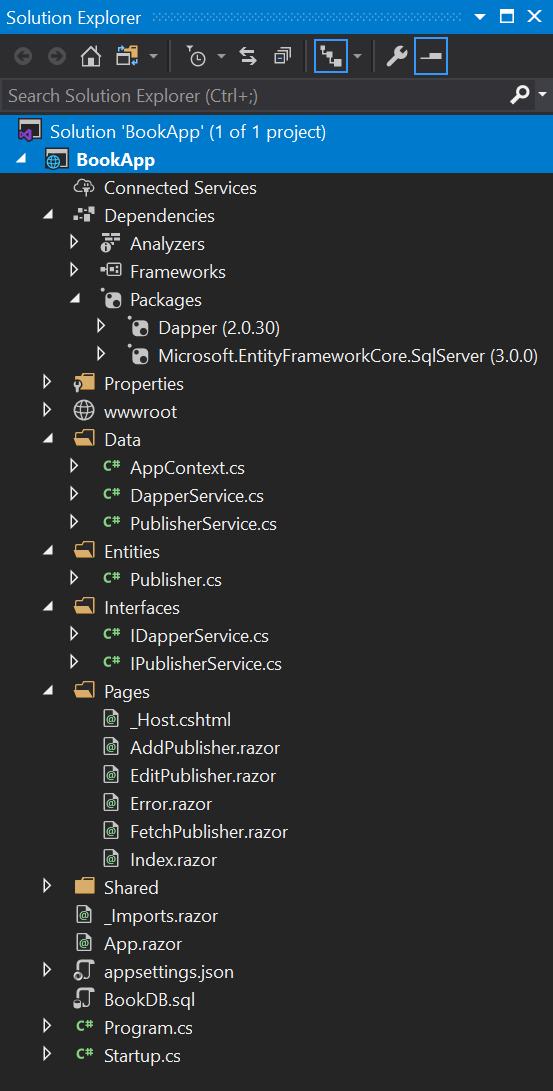
The next article discusses how to apply to CRUD operations: • dropdown lists involve N:1 (many to one) relationships. • checkbox lists involve M:N (many-to-many) relationships.


