
Blazor Server Project #6: How to Create Reusable Modal Dialog Component
Implemented to confirm deletion and update
Table of Contents
⦁ Overview ⦁ Creating Modal Dialog Component ⦁ Deletion Confirmation Implementation ⦁ Update Confirmation Implementation ⦁ How It Works ⦁ References
This article is the sixth in a series covering the Blazor Server Project: (1) How to create a CRUD operation using Dapper (2) Building a dropdown list involves a 1:N relationship (3) How to implement a checkbox list involving an M:N relationships (4) Understanding URL routing and navigation (5) Creating and using page layout (6) How to create a reusable modal dialog component (7) Practical guide to making a master-detail page (8) Master-detail page using dynamic query (9) How to avoid SQL injection attacks (10) Hiding/showing HTML elements (11) Migrate to ASP.NET Core 6.0 (12) Installing ASP.NET Core Identity (13) Integrating Identity tables into the existing project database (14) Authentication and authorization (15) Role-based authorization (16) How to implement Google Authentication (17) Facebook Authentication and Authorization (18) How to configure Twitter Authentication (19) How to Customize Password Policy (20) Account Lockout Policy
These articles are for anyone who wants to learn how to build Blazor Server applications in a practical approach through some sample projects. It will be straightforward if you have some experience with C#, HTML, CSS, and SQL.
All of the following discusses base on the source code in the previous article, Blazor Server Project #5. Would you please download the source code below.
Overview
Some users don’t like deletion confirmation and update confirmation. For them, this is useless; in fact, it only hinders the smooth running of the work. However, it is beneficial for some to prevent accidentally deleting or updating data. This article discusses implementing deletion and update confirmation using a reusable dialog component.
For example, here is a screenshot of a list of authors.
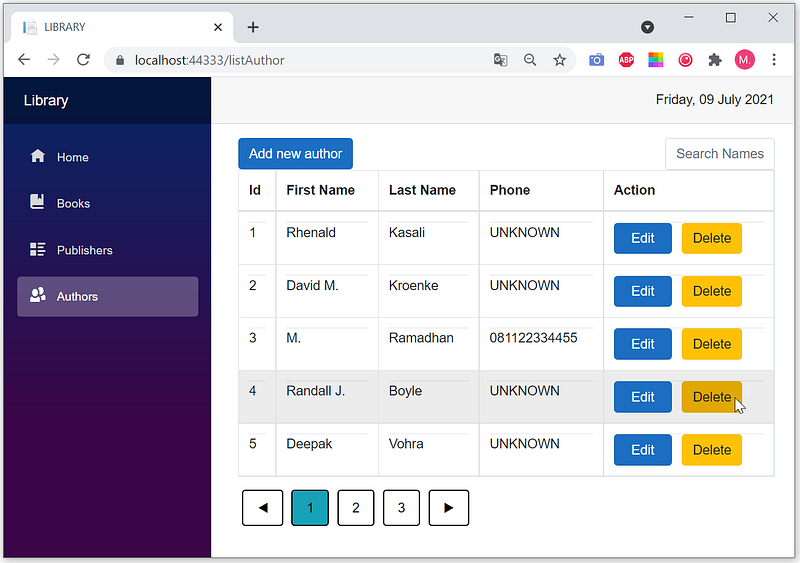
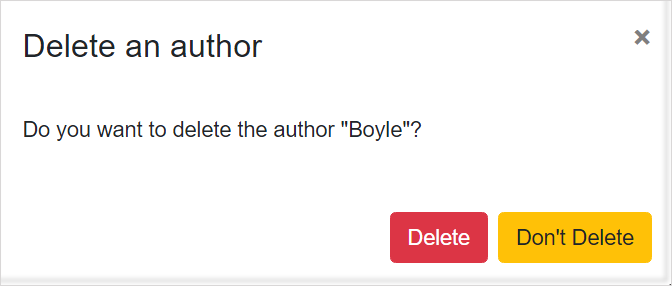
When a user clicks one of the Delete buttons, if there is no confirmation, the data is immediately deleted from the database, and there is no easy way to restore it. However, if there is confirmation, first, the following message appears.
The same applies to the following author data updates.

When the user clicks the Save button, the data is directly saved into the database without confirmation. If there is a typo or incorrect data, the user must re-edit the data. However, if there is confirmation, first, the following message appears.
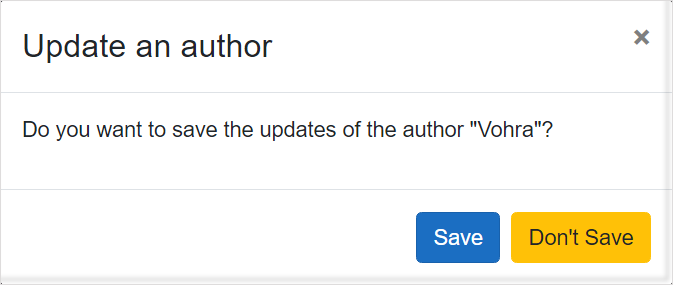
In addition to authors, books and publishers also require deletion and update confirmations; the total is six confirmations. Although it’s not wrong, making six confirmations from scratch is inefficient. There are similarities in the display format in the two confirmation examples above. Instead of creating six different dialog components, it is more efficient to develop only one dialog component that can be reused indefinitely.
Creating Dialog Components
(1) Opening BookApp Application.
- Open Visual Studio

- Click
BookApp.slnto open the application.
(2) Creating the Component folder.

- In the
Solution Explorerwindow, right-clickBookApp. - Select submenu:
Add|New Folder.
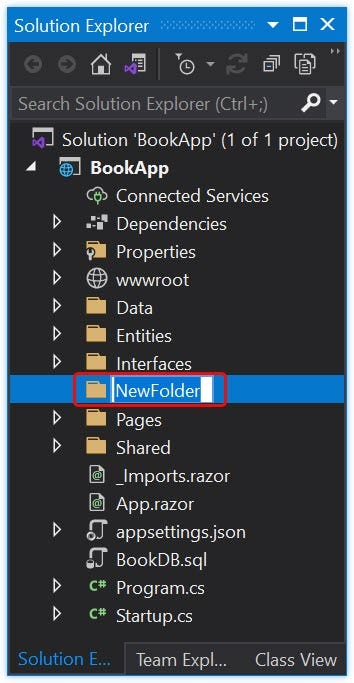
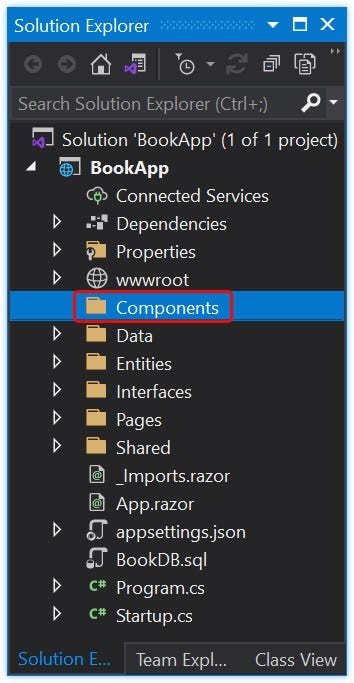
- Type
Componentsas the folder name.
(3) Creating the Dialog component file.

- In the
Solution Explorerwindow, right-click theComponentsfolder. - Select submenu:
Add|Razor Component...

- Click
Razor Component. - In the
Nametext box, typeDialog.razoras the component filename. - Click the
Addbutton.

- Double-click
Dialog.razorto open the file.
(4) Source code
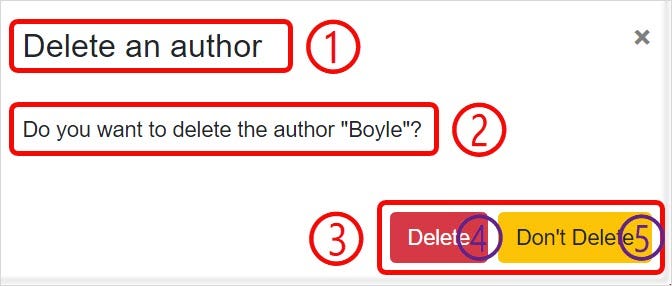

Based on the figure above, the dialog component contains the following properties: (1) Caption. (2) Message. (3) Category. It is a type of dialog.
Two buttons raise an event that triggers the method when clicked. Clicks the first button to agree with the action to be performed. On the other hand, click the second button to cancel it. Thus, in addition to the three properties above, the dialog component contains two methods: (4) OK method for executing the action. (5) Cancel method to cancel the action.
Here is the source code.
Dialog.razor
<div class="modal fade show" id="myModal" style="display:block; background-color: rgba(10,10,10,.8);" aria-modal="true" role="dialog">
<div class="modal-dialog">
<div class="modal-content">
<div class="modal-header">
<h4 class="modal-title">@Caption</h4>
<button type="button" class="close"
@onclick="@Cancel">×</button>
</div>
<div class="modal-body">
<p>@Message</p>
</div>
<div class="modal-footer">
@switch (Type)
{
case Category.Okay:
<button type="button" class="btn btn-primary"
@onclick=@Ok>OK</button>
break;
case Category.SaveNot:
<button type="button" class="btn btn-primary"
@onclick=@Ok>Save</button>
<button type="button" class="btn btn-warning"
@onclick="@Cancel">Don't Save</button>
break;
case Category.DeleteNot:
<button type="button" class="btn btn-danger"
@onclick=@Ok>Delete</button>
<button type="button" class="btn btn-warning"
@onclick="@Cancel">Don't Delete</button>
break;
}
</div>
</div>
</div>
</div>@code {
[Parameter] public string Caption { get; set; }
[Parameter] public string Message { get; set; }
[Parameter] public EventCallback<bool> OnClose { get; set; }
[Parameter] public Category Type { get; set; }private Task Cancel()
{
return OnClose.InvokeAsync(false);
}private Task Ok()
{
return OnClose.InvokeAsync(true);
}public enum Category
{
Okay,
SaveNot,
DeleteNot
}
}In the above source code, there is a 4th property called OnClose as EventCallback, so that Dialog.razor as a child component can pass the argument to the parent component. In the code above, the argument value is:
trueif the user clicks the first button and triggers theOk()methodfalseif the user clicks the second button, which then triggers theCancel()method.
To use the component Dialog.razor in the application, add the following code into _Imports.razor.
@using BookApp.ComponentsSo the complete code is as follows:
@using System.Net.Http
@using Microsoft.AspNetCore.Authorization
@using Microsoft.AspNetCore.Components.Authorization
@using Microsoft.AspNetCore.Components.Forms
@using Microsoft.AspNetCore.Components.Routing
@using Microsoft.AspNetCore.Components.Web
@using Microsoft.JSInterop
@using BookApp
@using BookApp.Shared
@using BookApp.Data
@using BookApp.Interfaces
@using BookApp.Entities
@using BookApp.Components
@using System.Numerics
The text in bold is the additional code.
Implementing Deletion Confirmation
For example, we will implement deletion confirmation of author data.
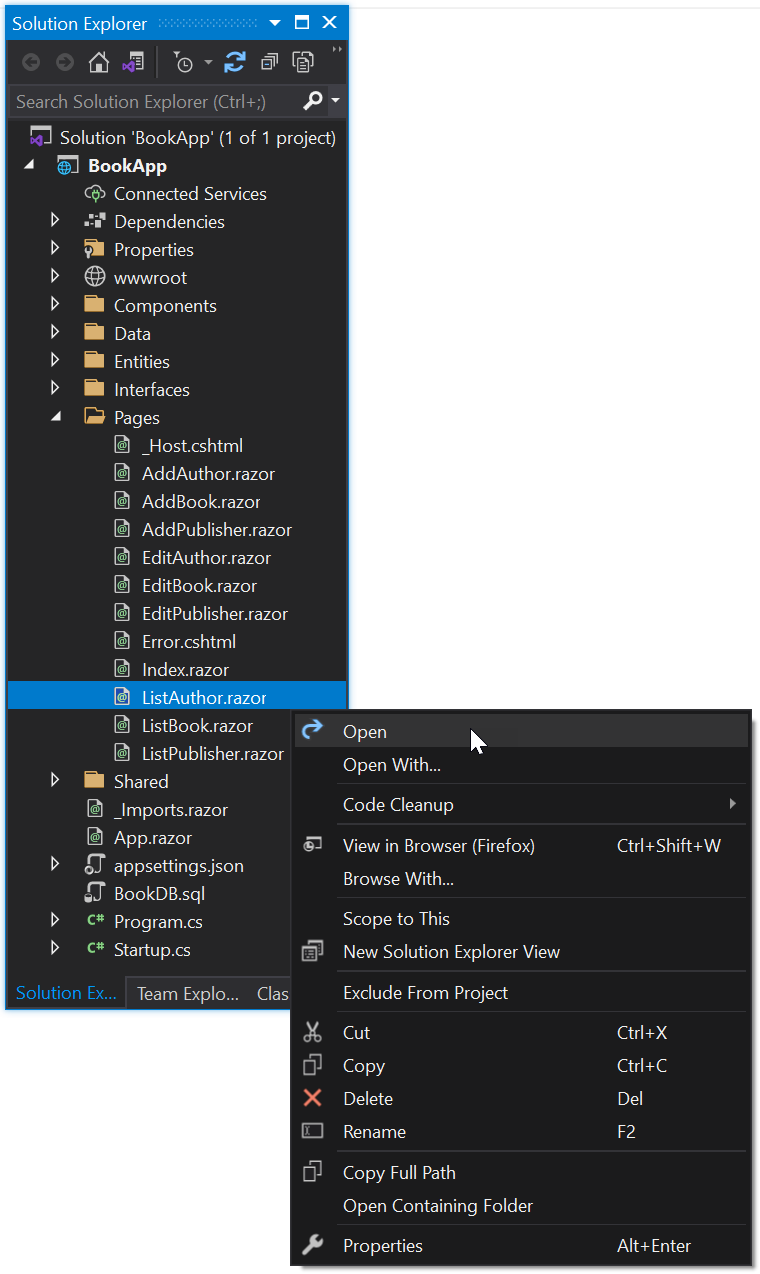
- In the
Solution Explorerwindow, open thePagesfolder. - Right-click
ListAuthor.razor, then select theOpensubmenu. - Modify the
ListAuthor.razorfile’s contents so that the complete code is as follows.
ListAuthor.razor
@page "/listAuthor"
@inject IAuthorService authorService
<link href="https://stackpath.bootstrapcdn.com/
font-awesome/4.7.0/css/font-awesome.min.css" rel="stylesheet"><style>
.sort-th {
cursor: pointer;
} .fa {
float: right;
} .btn-custom {
color: black;
float: left;
padding: 8px 16px;
text-decoration: none;
transition: background-color .3s;
border: 2px solid #000;
margin: 0px 5px 0px 5px;
}
</style><a class="btn btn-primary" href='/addAuthor/0'>Add new author</a>@if (authors == null)
{
<p><em>Loading...</em></p>
}
else
{
<div class="row col-md-3 pull-right">
<input type="text" id="txtSearch"
placeholder="Search Names..." class="form-control"
@bind="SearchTerm" @bind:event="oninput" />
</div>
<table class="table table-bordered table-hover">
<thead>
<tr>
<th class="sort-th" @onclick="@(() => SortTable("Id"))">
Id<span class="fa @(SetSortIcon("Id"))"></span>
</th>
<th class="sort-th"
@onclick="@(() => SortTable("FName"))">
First Name
<span class="fa @(SetSortIcon("FName"))"></span>
</th>
<th class="sort-th"
@onclick="@(() => SortTable("LName"))">
Last Name
<span class="fa @(SetSortIcon("LName"))"></span>
</th>
<th class="sort-th"
@onclick="@(() => SortTable("Phone"))">
Phone
<span class="fa @(SetSortIcon("Phone"))"></span>
</th>
<th>Action</th>
</tr>
</thead>
<tbody>
@if (authors == null || authors.Count == 0)
{
<tr>
<td colspan="3">
No Records to display
</td>
</tr>
}
else
{
foreach (var author in authors)
{
<tr>
<td>
<hr style="padding:0px; margin:0px;">
@author.Id
</td>
<td>
<hr style="padding:0px; margin:0px;">
@author.FName
</td>
<td>
<hr style="padding:0px; margin:0px;">
@author.LName
</td>
<td>
<hr style="padding:0px; margin:0px;">
@author.Phone
</td>
<td>
<hr style="padding:0px; margin:0px;">
<a class="btn btn-primary"
href='/editAuthor/@author.Id'>
 Edit 
</a> 
<a class="btn btn-warning" @onclick="() =>
OpenDialog(author.Id,author.LName)">
Delete</a>
</td>
</tr>
}
}
</tbody>
</table>
<div class="pagination">
<button class="btn btn-custom" @onclick=@(async ()=>
await NavigateToPage("previous"))>◀</button>
@for (int i = startPage; i <= endPage; i++)
{
var currentPage = i;
<button class="btn btn-custom pagebutton
@(currentPage==curPage?"btn-info":"")"
@onclick=@(async () =>
await refreshRecords(currentPage))>
@currentPage
</button>
}
<button class="btn btn-custom" @onclick=@(async ()=>
await NavigateToPage("next"))>▶</button>
</div>
}@if (DialogIsOpen)
{
<Dialog Caption="Delete an author"
Message="@message"
OnClose="@OnDialogClose"
Type="Dialog.Category.DeleteNot">
</Dialog>
}@code {
private string searchTerm;
private string SearchTerm
{
get { return searchTerm; }
set { searchTerm = value; FilterRecords(); }
} List<Author> authors;
private int idAuthor;
private string message;
private bool DialogIsOpen = false; #region Pagination int totalPages;
int totalRecords;
int curPage;
int pagerSize;
int pageSize;
int startPage;
int endPage;
string sortColumnName = "Id";
string sortDir = "ASC"; #endregion protected override async Task OnInitializedAsync()
{
//display total page buttons
pagerSize = 3;
pageSize = 5;
curPage = 1;
authors = await authorService.ListAll((curPage - 1) *
pageSize, pageSize, sortColumnName, sortDir, searchTerm);
totalRecords = await authorService.Count(searchTerm);
totalPages = (int)Math.Ceiling
(totalRecords / (decimal)pageSize);
SetPagerSize("forward");
} private void OpenDialog(int id, string title)
{
DialogIsOpen = true;
idAuthor = id;
message = "Do you want to delete the author \""
+ title + "\"?";
} private async Task OnDialogClose(bool isOk)
{
if (isOk)
{
await authorService.Delete(idAuthor);
authors = await authorService.ListAll((curPage - 1) *
pageSize, pageSize, sortColumnName, sortDir, searchTerm);
} DialogIsOpen = false;
} private bool isSortedAscending;
private string activeSortColumn; private async Task<List<Author>>
SortRecords(string columnName, string dir)
{
return await authorService.ListAll((curPage - 1) *
pageSize, pageSize, columnName, dir, searchTerm);
} private async Task SortTable(string columnName)
{
if (columnName != activeSortColumn)
{
authors = await SortRecords(columnName, "ASC");
isSortedAscending = true;
activeSortColumn = columnName;
}
else
{
if (isSortedAscending)
{
authors = await SortRecords(columnName, "DESC");
}
else
{
authors = await SortRecords(columnName, "ASC");
}
isSortedAscending = !isSortedAscending;
}
sortColumnName = columnName;
sortDir = isSortedAscending ? "ASC" : "DESC";
} private string SetSortIcon(string columnName)
{
if (activeSortColumn != columnName)
{
return string.Empty;
}
if (isSortedAscending)
{
return "fa-sort-up";
}
else
{
return "fa-sort-down";
}
} public async Task refreshRecords(int currentPage)
{
authors = await authorService.ListAll((currentPage - 1) *
pageSize, pageSize, sortColumnName, sortDir, searchTerm);
curPage = currentPage;
this.StateHasChanged();
} public void SetPagerSize(string direction)
{
if (direction == "forward" && endPage < totalPages)
{
startPage = endPage + 1;
if (endPage + pagerSize < totalPages)
{
endPage = startPage + pagerSize - 1;
}
else
{
endPage = totalPages;
}
this.StateHasChanged();
}
else if (direction == "back" && startPage > 1)
{
endPage = startPage - 1;
startPage = startPage - pagerSize;
}
else
{
startPage = 1;
endPage = totalPages;
}
} public async Task NavigateToPage(string direction)
{
if (direction == "next")
{
if (curPage < totalPages)
{
if (curPage == endPage)
{
SetPagerSize("forward");
}
curPage += 1;
}
}
else if (direction == "previous")
{
if (curPage > 1)
{
if (curPage == startPage)
{
SetPagerSize("back");
}
curPage -= 1;
}
}
await refreshRecords(curPage);
} public void FilterRecords()
{
endPage = 0;
this.OnInitializedAsync().Wait();
}
}The text in bold is the modified and additional code.
Implementing Update Confirmation
As an example, we will implement update confirmation of publisher data.
- In the
Solution Explorerwindow, open thePagesfolder. - Double-click
EditPublisher.razor. - Modify the
EditPublisher.razorfile’s contents so that the complete code is as follows.
EditPublisher.razor
@page "/editPublisher/{id:int}"
@inject IPublisherService publisherService
@inject Microsoft.AspNetCore.Components.NavigationManager navigationManager<h2>
Edit Publisher
</h2><form>
<table width="100%" cellpadding="0" cellspacing="0" border="0">
<tbody>
<tr>
<td>
<label for="Name" class="control-label">
Name
</label>
</td>
<td>
<input for="Name" class="form-control"
@bind="@publisher.Name" />
</td>
</tr>
<tr>
<td>
<label for="City" class="control-label">
City
</label>
</td>
<td>
<input for="City" class="form-control"
@bind="@publisher.City" />
</td>
</tr>
<tr>
<td>
<label for="Country" class="control-label">
Country
</label>
</td>
<td>
<input for="Country" class="form-control"
@bind="@publisher.Country" />
</td>
</tr>
<tr>
<td></td>
<td>
<br />
<button type="button" class="btn btn-primary"
@onclick="() => OpenDialog(publisher.Name)">
 Save 
</button> 
<button type="button" class="btn btn-warning"
@onclick="() => Cancel()">
  Cancel  
</button>
</td>
</tr>
</tbody>
</table>
</form>@if (DialogIsOpen)
{
<Dialog Caption="Update a publisher"
Message="@message"
OnClose="@OnDialogClose"
Type="Dialog.Category.SaveNot">
</Dialog>
}@code {[Parameter] public int id { get; set; }Publisher publisher = new Publisher();
private string message;
private bool DialogIsOpen = false;protected override async Task OnInitializedAsync()
{
publisher = await publisherService.ReadByPk(id);
}private void OpenDialog(string title)
{
DialogIsOpen = true;
message =
"Do you want to save the updates of the publisher \""
+ title + "\"?";
}private async Task OnDialogClose(bool isOk)
{
if (isOk)
{
await publisherService.Update(publisher);
navigationManager.NavigateTo("/listPublisher");
}
         DialogIsOpen = false;
}void Cancel()
{
navigationManager.NavigateTo("/listPublisher");
}
}The text in bold is the modified code and additional code.
How It Works
For example, we will discuss how deletion confirmation works in the following.
- Click
Authorsto open the author list page.
- On the author list page —
ListAuthor.razoras the parent component — click on theDeletebutton.
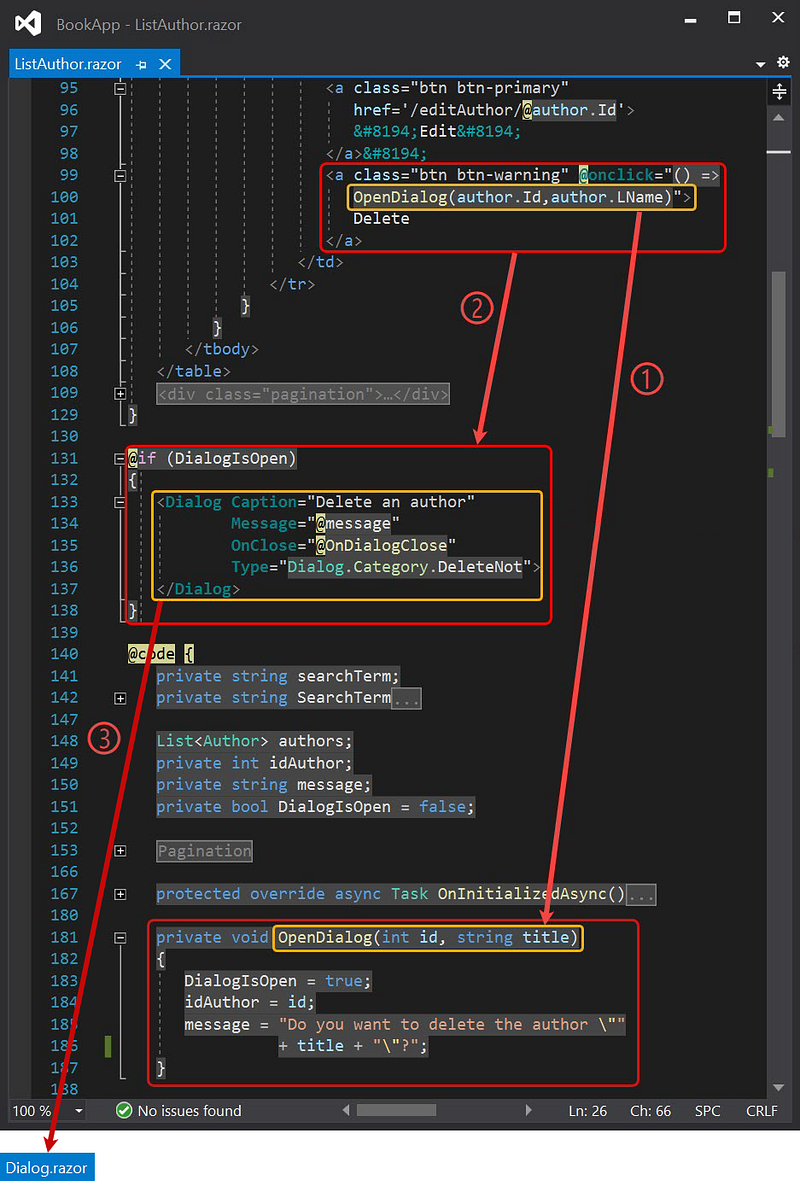
- The
onclickevent occurs which triggers theOpenDialog()method. TheDialogIsOpenvariable on line 131 and themessagevariable on line 134 automatically have values according to the processes in theOpenDialog()method. - Since the
DialogIsOpenvalue istrue, theListAuthor.razorcomponent executes statements lines 131 to 138, so the arguments (actual parameters) have values to pass to theDialog.razorcomponent. TheOnClose=”@OnDialogClose”statement creates theOnCloseevent in the child component (Dialog.razor) bound to theOnDialogClosemethod in the parent component (ListAuthor.razor). While the statementType=”Dialog.Category.DeleteNot”is useful for specifying the type of dialog. - Opening the dialog component
Dialog.razoras a child component accepts argument values from the parent component.
At this point, there are two options for the user:
- cancel the deletion by clicking the
Don’t Deletebutton or theXbutton. - approve the deletion by clicking
Delete.
Canceling deletion
The user clicks the Don’t Delete button or the X button.

- The
onclickevent occurs which triggers theCancel()method. - The
OnCloseevent as theEventCallbackpasses an argument that evaluates tofalsetoListAuthor.razor.
Approving deletion
The user clicks the Delete button.

- The
onclickevent occurs which triggers theOk()method. - The
OnCloseevent as theEventCallbackpasses an argument that evaluates totruetoListAuthor.razor.
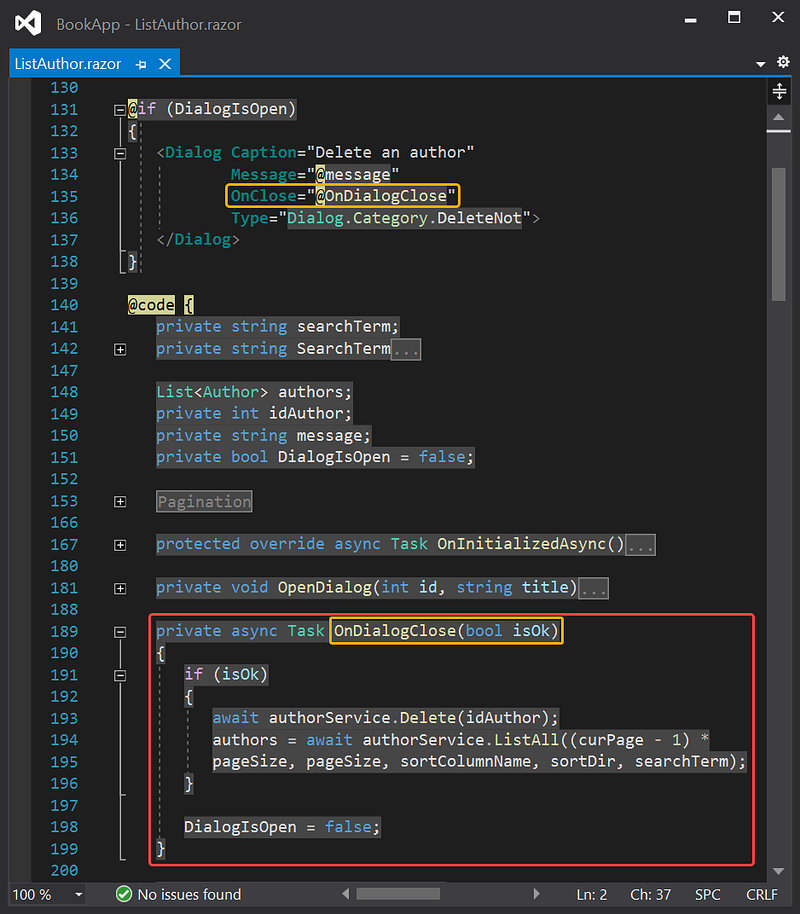
The OnClose event in the Dialog.razor triggers the OnDialogClose(bool isOk) method in ListAuthor.razor which will delete the data if and only if the argument is true.
Apart from confirming deletions and updates, we can also use the Dialog.razor component for other purposes, such as displaying error messages or simply displaying information.
There might be a better way to create a reusable modal dialog component and implement it on deletion confirmation and update confirmation. Please let me know if you find out.
Thanks for reading. I hope it’s helpful.


