
Blazor Server Project #10: Hiding/Showing HTML Elements
Using an HTML hidden attribute and one-way data binding
Table of Contents
• Overview • Using hidden Attributes and Data Binding • Setting Initial Value • Hiding/Showing Elements • Summary • Reference

This article is the tenth in a series covering the Blazor Server Project: (1) How to create a CRUD operation using Dapper (2) Building a dropdown list involves a 1:N relationship (3) How to implement a checkbox list involving an M:N relationships (4) Understanding URL routing and navigation (5) Creating and using page layout (6) How to create a reusable modal dialog component (7) Practical guide to making a master-detail page (8) Master-detail page using dynamic query (9) How to avoid SQL injection attacks (10) Hiding/showing HTML elements (11) Migrate to ASP.NET Core 6.0 (12) Installing ASP.NET Core Identity (13) Integrating Identity tables into the existing project database (14) Authentication and authorization (15) Role-based authorization (16) How to implement Google Authentication (17) Facebook Authentication and Authorization (18) How to configure Twitter Authentication (19) How to Customize Password Policy (20) Account Lockout Policy
These articles are for anyone who wants to learn how to build Blazor Server applications in a practical approach through some sample projects. It will be straightforward if you have some experience with C#, HTML, CSS, and SQL.
Overview
We've created the booklist page in projects #8 and #9 as follows.
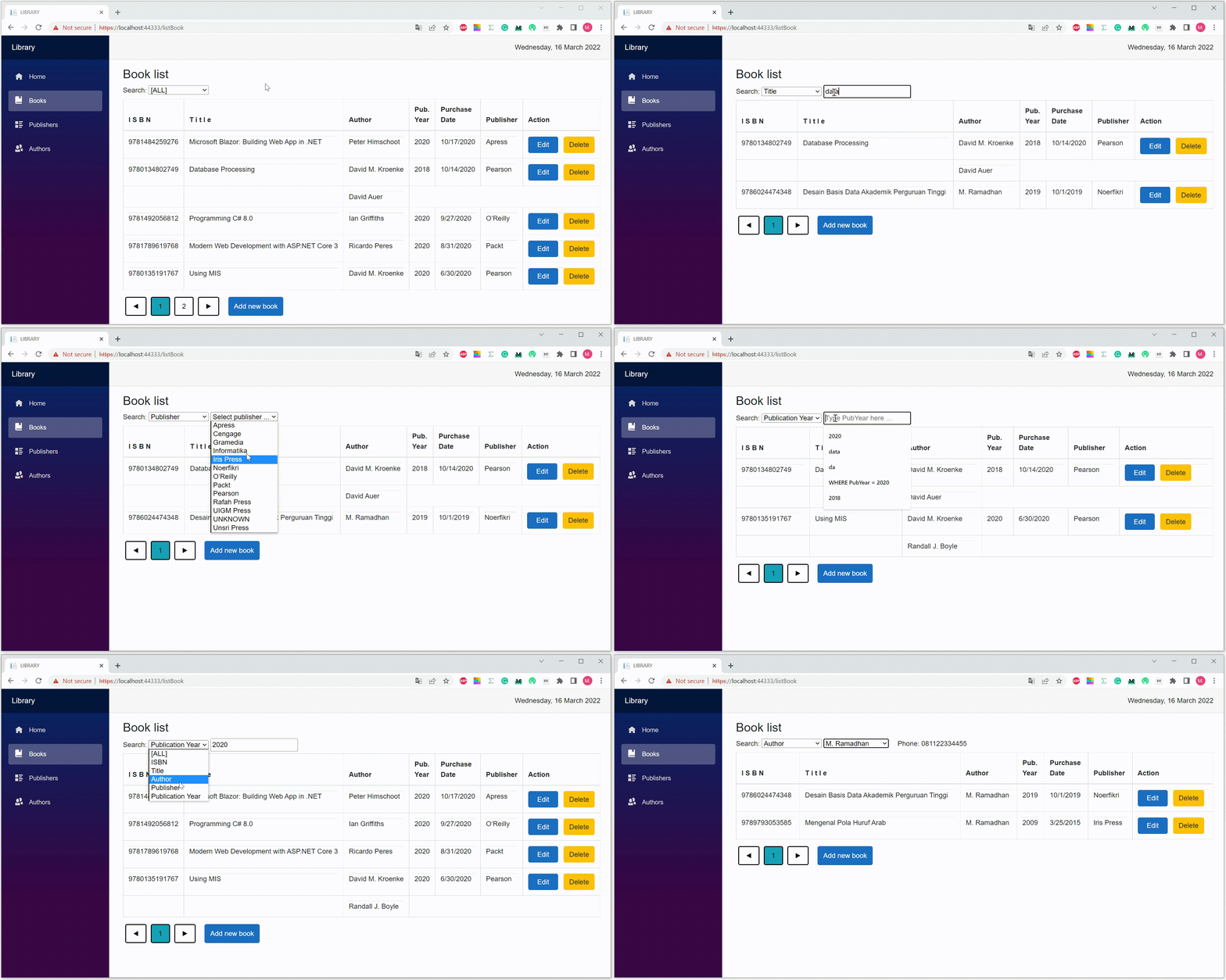
You can select criteria to display the booklist at the head of the page. As you see, some elements toggle from hidden to unhidden and vice versa.
This article uses the source code in the Blazor Server Project #8. You can download the code via the following link.
Using hidden Attribute and Data Binding
You can hide/show elements in real-time without Javascript. Just use a hidden attribute and data binding. The hidden is a boolean attribute. It can be used on any HTML element.
:
hidden="@booleanVariable"
:
:
@code {
   private bool booleanVariable;
:
:
The browser hides an element when the hidden attribute value is true. Conversely, if the value is false the browser shows it. The @code block set the value using one-way data binding.
Setting Initial Value

When you select the Books menu, the @code block sets the value of the five variables to true. The one-way data binding automatically makes the hidden attribute values of the five-element also true, and the browser hides them.
Hiding/Showing Elements

Furthermore, which elements are shown or hidden depends on which fields you select as criteria. For example, only the pubIsHidden variable evaluates to false — the publisher dropdown appears — if you choose the publisher as the criterion. Once you select a publisher, the pubDataIsHidden variable evaluates to false, and the City and Country of the publisher appear.
Summary
Using a hidden attribute and data binding you can hide/show elements in real-time without Javascript. The browser hides an element when the hidden attribute value is true. Conversely, if the value is false the browser shows it. The @code block set the value using one-way data binding.
That’s all for now, hopefully beneficial.


