
Blazor Server Project #11: Migrate to ASP.NET Core 6.0
The steps: delete bin and obj folders, update the target framework, update installed packages
Table of Contents
· Overview · Deleting bin and obj Folders · Updating the Target Framework · Updating Installed Packages · Summary · References

This article is the eleventh in a series covering the Blazor Server Project: (1) How to create a CRUD operation using Dapper (2) Building a dropdown list involves a 1:N relationship (3) How to implement a checkbox list involving an M:N relationships (4) Understanding URL routing and navigation (5) Creating and using page layout (6) How to create a reusable modal dialog component (7) Practical guide to making a master-detail page (8) Master-detail page using dynamic query (9) How to avoid SQL injection attacks (10) Hiding/showing HTML elements (11) Migrate to ASP.NET Core 6.0 (12) Installing ASP.NET Core Identity (13) Integrating Identity tables into the existing project database (14) Authentication and authorization (15) Role-based authorization (16) How to implement Google Authentication (17) Facebook Authentication and Authorization (18) How to configure Twitter Authentication (19) How to Customize Password Policy (20) Account Lockout Policy
These articles are for anyone who wants to learn how to build Blazor Server applications in a practical approach through some sample projects. It will be straightforward if you have some experience with C#, HTML, CSS, and SQL.
Overview
On 26 February 2022, I updated Visual Studio from version 2019 to 2022. When I ran the old BookApp project, I got the error message below.
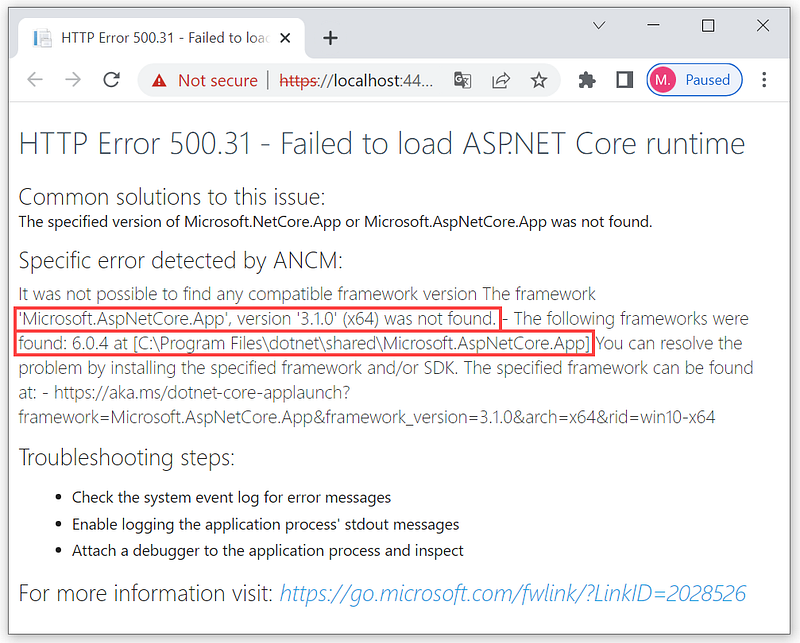
The error occurred because Visual Studio 2022 uses ASP.NET Core version 6.0 while the project is still using the old version. I have to do the migration process from version 3.1 to 6.0. The steps are: (1) delete bin and obj folders, (2) update the target framework, and (3) update installed packages. Prerequisites: Visual Studio 2022 with the ASP.NET and web development workload.
Deleting bin and obj Folders
- Select the
BookAppfolder in theFile Exporer.
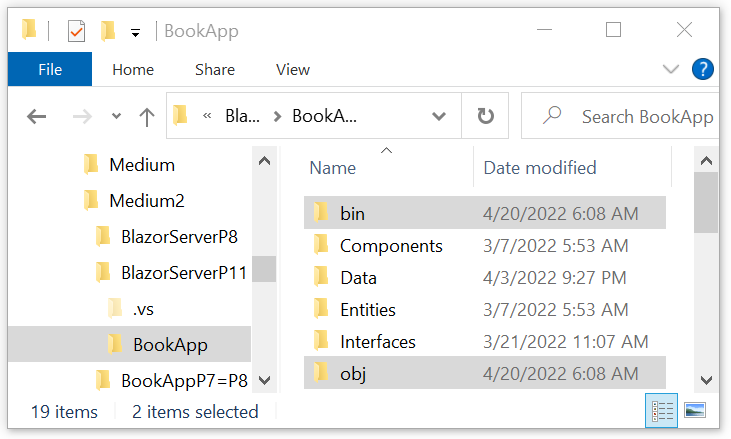
- Select
binandobjfolders. - Right-click on
binorobjfolders, and selectDelete. - You may need to delete the .vs folder as well.
Updating the Target Framework
- Open
Solution Explorerpane.
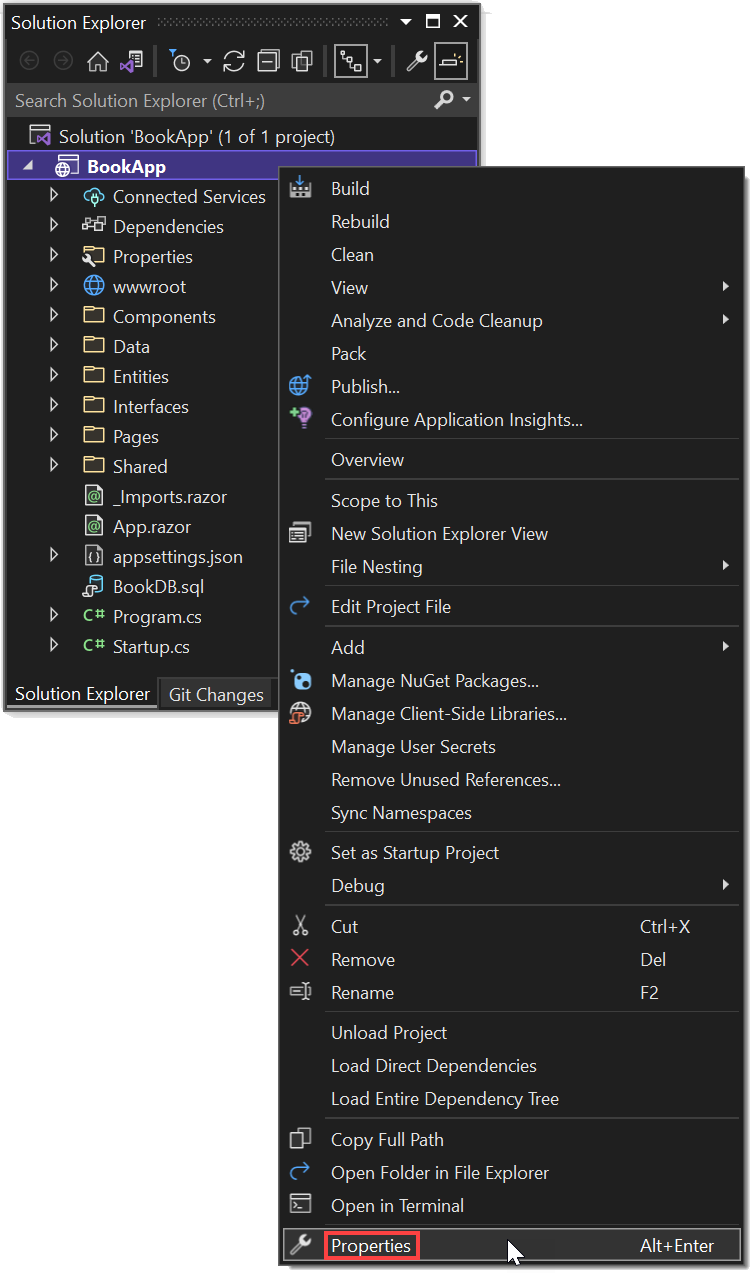
- Right-click on the BookApp project.
- Select the
Propertiesmenu, and the following dialog appears.
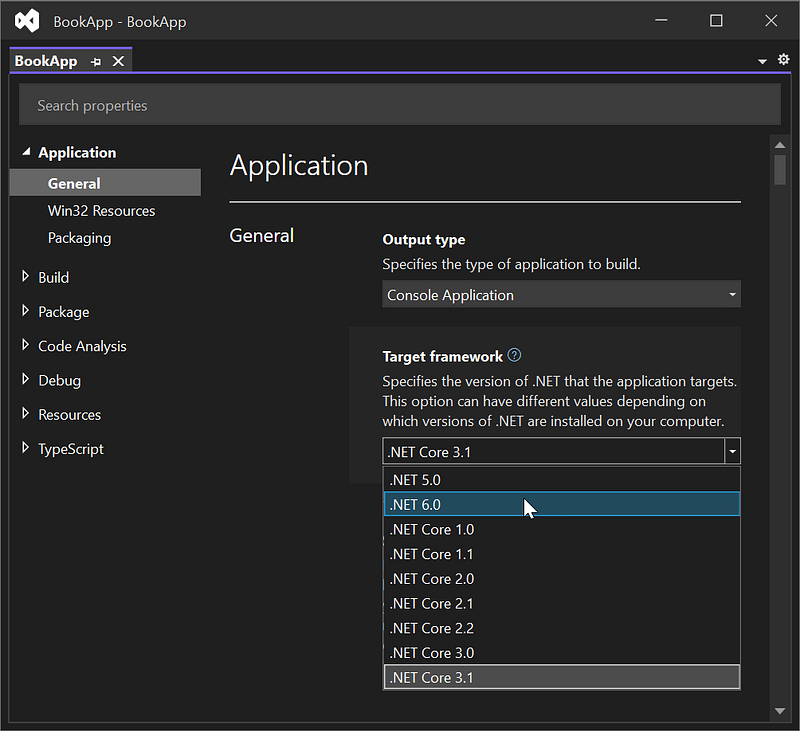
- Select the target framework to
.NET 6.0. - The Visual Studio updates the
BookApp.csprojfile.
Before
<Project Sdk="Microsoft.NET.Sdk.Web"> <PropertyGroup>
<TargetFramework>netcoreapp3.1</TargetFramework>
</PropertyGroup> <ItemGroup>
<PackageReference Include="Dapper" Version="2.0.30" />
<PackageReference Include=
"Microsoft.EntityFrameworkCore.SqlServer"
Version="3.0.0" />
<PackageReference Include=
"Microsoft.VisualStudio.Web.CodeGeneration.Design"
Version="3.1.5" />
</ItemGroup></Project>After
<Project Sdk="Microsoft.NET.Sdk.Web"> <PropertyGroup>
<TargetFramework>net6.0</TargetFramework>
</PropertyGroup> <ItemGroup>
<PackageReference Include="Dapper" Version="2.0.30" />
<PackageReference Include=
"Microsoft.EntityFrameworkCore.SqlServer"
Version="3.0.0" />
<PackageReference Include=
"Microsoft.VisualStudio.Web.CodeGeneration.Design"
Version="3.1.5" />
</ItemGroup></Project>- The texts in bold are the modified code.
- Of course, in addition to the above method, you can directly edit the
BookApp.csprojfile.
Updating Installed Packages
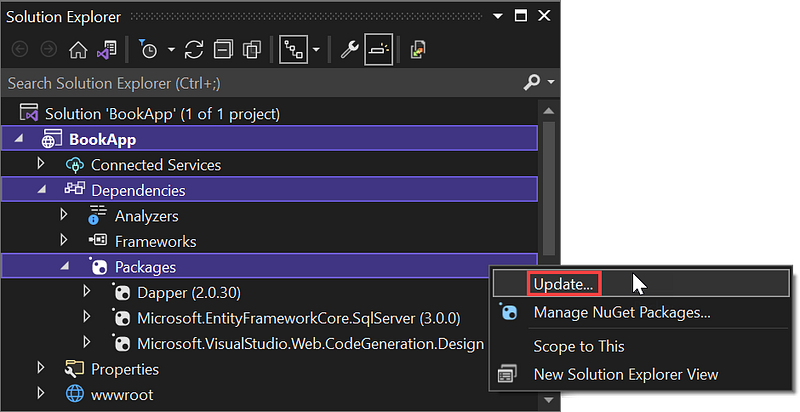
- Before updating, Microsoft recommends clearing the NuGet package cache. In the
Solution Explorerpane, select:BookApp|Dependencies
- Right-click
Packages, selectUpdate...
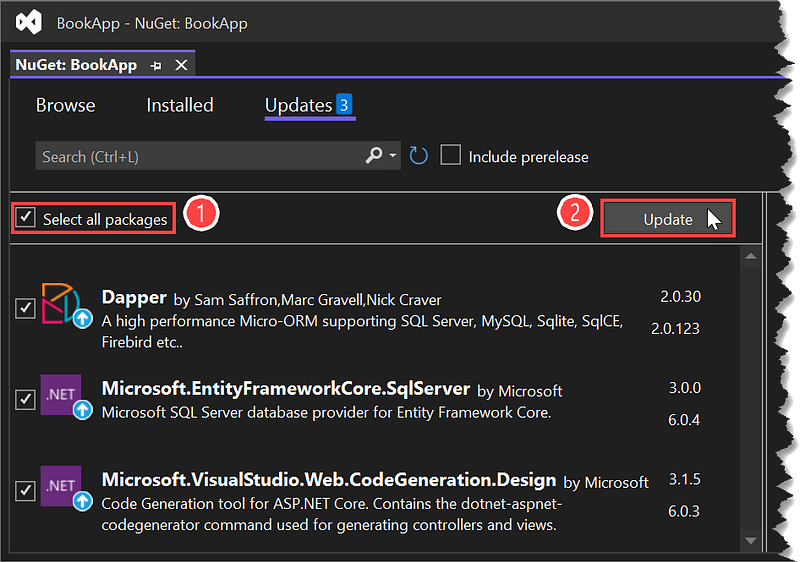
- Check
Select all packagescheckbox. - Click
Update. - The following confirmation screen appears.
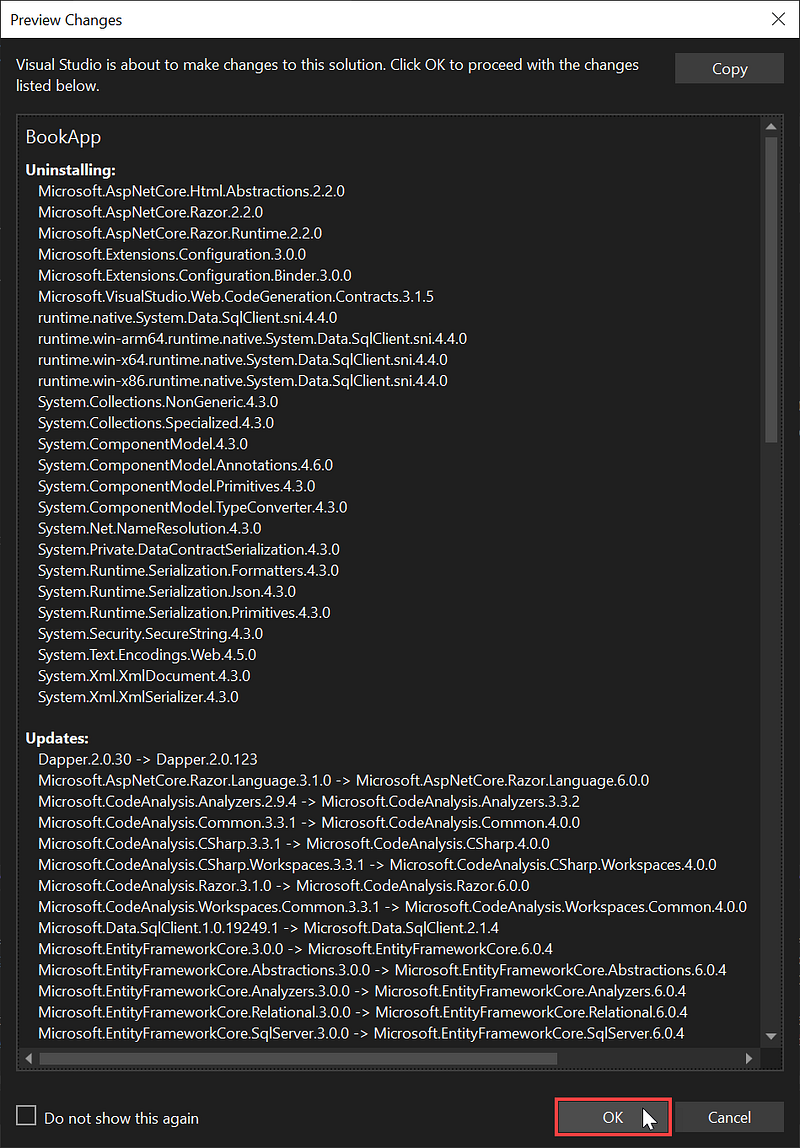
- Select
OK. - The installer displays the following
License Acceptanceconfirmation.
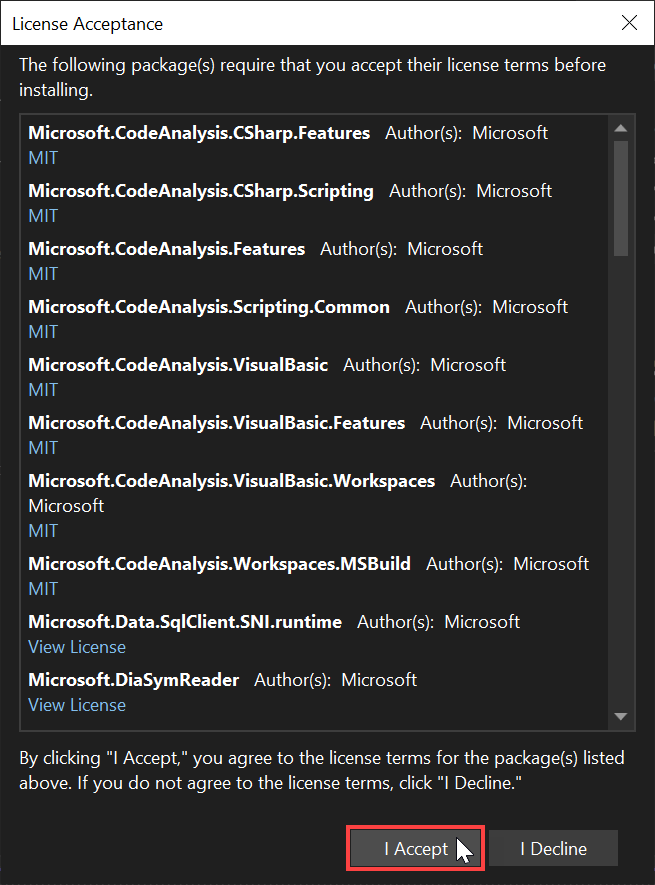
- Click
I Accept. - The contents of the
BookApp.csprojfile change to the following:
<Project Sdk="Microsoft.NET.Sdk.Web"> <PropertyGroup>
<TargetFramework>net6.0</TargetFramework>
<Nullable>enable</Nullable>
<ImplicitUsings>enable</ImplicitUsings>
</PropertyGroup> <ItemGroup>
<PackageReference Include="Dapper" Version="2.0.123" />
<PackageReference Include=
"Microsoft.EntityFrameworkCore.SqlServer" Version="6.0.4" />
<PackageReference Include=
"Microsoft.VisualStudio.Web.CodeGeneration.Design"
Version="6.0.3" />
</ItemGroup></Project>- The texts in bold are the modified code.
- Here is the list of updated packages in the Solution Explorer pane.
Summary
You will get an error message if you directly run an old project using Visual Studio 2022. You must first migrate from the old version of ASP.NET Core to the new one. The steps are: (1) delete bin and obj folders, (2) update the target framework, and (3) update installed packages.
Thanks for reading the article. Hopefully beneficial.


