
Day 11 of 30 days of Data Engineering Series with Projects
Welcome back peeps to Day 11 of Data Engineering Series with Projects! In this we will cover —
Scripting
Important commands
Linux commands
Pre-requisite to Day 11 is to complete Day 1–10( link below):
Day 3 : Complete Advanced Python for Data Engineering — Part 2
Projects Videos —
All the projects, data structures, SQL, algorithms, system design, Data Science and ML , Data Analytics, Data Engineering, , Implemented Data Science and ML projects, Implemented Data Engineering Projects, Implemented Deep Learning Projects, Implemented Machine Learning Ops Projects, Implemented Time Series Analysis and Forecasting Projects, Implemented Applied Machine Learning Projects, Implemented Tensorflow and Keras Projects, Implemented PyTorch Projects, Implemented Scikit Learn Projects, Implemented Big Data Projects, Implemented Cloud Machine Learning Projects, Implemented Neural Networks Projects, Implemented OpenCV Projects,Complete ML Research Papers Summarized, Implemented Data Analytics projects, Implemented Data Visualization Projects, Implemented Data Mining Projects, Implemented Natural Leaning Processing Projects, MLOps and Deep Learning, Applied Machine Learning with Projects Series, PyTorch with Projects Series, Tensorflow and Keras with Projects Series, Scikit Learn Series with Projects, Time Series Analysis and Forecasting with Projects Series, ML System Design Case Studies Series videos will be published on our youtube channel ( just launched).
Subscribe today!
Tech Newsletter —
If you are interested, you can join my newsletter through which I send tech interview tips, techniques, patterns, hacks — Software Development, ML, Data Science, Startups and Technology projects to more than 30K readers. You can subscribe to Ignito:
System Design Case Studies — In Depth
Design Instagram
Design Netflix
Design Reddit
Design Amazon
Design Messenger App
Design Twitter
Design URL Shortener
Design Dropbox
Design Youtube
Design API Rate Limiter
Design Web Crawler
Design Amazon Prime Video
Design Facebook’s Newsfeed
Design Yelp
Design Uber
Design Tinder
Design Tiktok
Design Whatsapp
Most Popular System Design Questions
Mega Compilation : Solved System Design Case studies
Pre-requisite to Day 11 is to complete Day 1–10( link below):
Day 1 of 30 days of Data Engineering can be found below —
Day 2 of 30 days of Data Engineering can be found below —
Day 3 of 30 days of Data Engineering can be found below —
This is Day 11 of 30 days of Data Engineering Series where we will be covering —
Shell Scripting and commands
Linux “touch” command
Let’s get started!
Shell scripting
It’s a computer program which runs in the CLI ( command line interpreter), used to manipulate files, execute child programs etc.
It is used to —
Automate and sync tasks ( tasks like bakcups, evaluate system logs etc)
Run scheduled cron jobs
To perform routine backups tasks
Some of the most important shell scripting commands include:
echo: used to display a message or the value of a variable on the screencat: used to display the contents of a file on the screencd: used to change the current working directorycp: used to copy files and directoriesmv: used to move or rename files and directoriesrm: used to delete files and directoriesmkdir: used to create a new directorytouch: used to create a new empty file or update the timestamp of an existing filefind: used to search for files and directoriesgrep: used to search for a specific pattern in a file or multiple filessed: used to perform basic text transformations on an input stream (a file or input from a pipeline)awk: powerful command line tool for text processingchmod: used to change the permissions of a file or directorychown: used to change the ownership of a file or directorydiff: used to compare the contents of two files or directoriestar: used to create or extract files from a tarball (a type of archive file)zip: used to compress or extract files from a ZIP archiveunzip: used to extract files from a ZIP archivecurl: used to transfer data from or to a serverwget: used to download files from the internetssh: used to securely connect to a remote serverscp: used to securely copy files between local and remote systems
#!/bin/bash

# echo
echo "Hello, world!"

# cat
cat filename.txt

# cd
cd /path/to/directory

# cp
cp source_file destination_file
cp -r source_directory destination_directory

# mv
mv old_file new_file
mv old_directory new_directory

# rm
rm filename.txt
rm -r directory

# mkdir
mkdir new_directory

# touch
touch filename.txt

# find
find /path/to/directory -name "*.txt"

# grep
grep "pattern" filename.txt

# sed
sed 's/old_string/new_string/' filename.txt

# awk
awk '{print $1}' filename.txt

# chmod
chmod 755 filename.txt

# chown
chown user:group filename.txt

# diff
diff file1.txt file2.txt

# tar
tar -cvf archive.tar file1 file2
tar -xvf archive.tar

# zip
zip archive.zip file1 file2
unzip archive.zip

# curl
curl https://example.com/file.txt -o local_file.txt

# wget
wget https://example.com/file.txt

# ssh
ssh user@hostname

# scp
scp local_file.txt user@remote_host:/path/to/destination
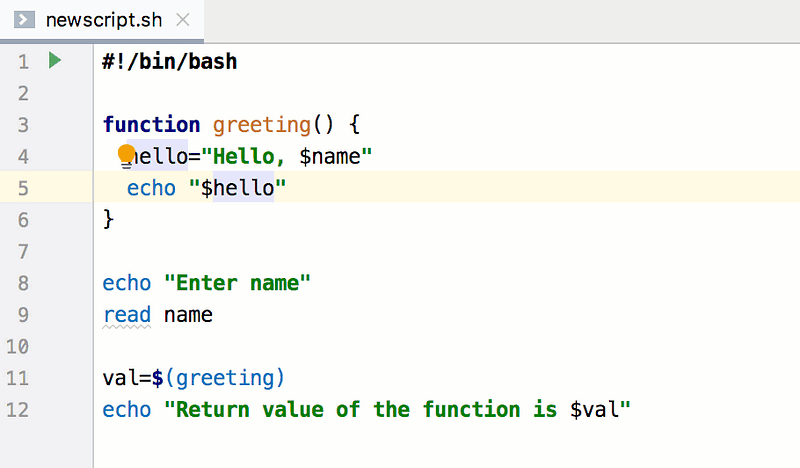
To create a shell script —
Open the vi editor and give the file name with .sh extension.
First line of the script should be #! /bin/sh
Once you are done writing the code, save and close it.
For example —
Let’s start with the most important that you must for writing a script —
ls -a : To list all the files and folders
ls -lh : To print the detailed list of files
ls l *.png : To list all the png files only
cd
cd / : To go to the root
cd .. : To go to one folder up
du -h : To get the disk usage of the folders
du -sh : To show only the disc usage of the folders
pwd : To print the working directory
history : To show history
!! : To execute last command again
whoami: To see the username
su
su -: To switch to root
sudo
finger
uname -a : To show kernel information
kill
killall
echo $varname : To checks a variable value
echo $$ : To print process ID of the current shell
echo $! : To print process ID of most recently job
echo $? : To display the exit status of last command
cmd1|cmd2 : To pipe the output of cmd1 to cmd2
Commands For File manipulation —
mkdir : To create a new folder
cat
cp filename filename : To copy and rename a file
mv filename foldername : To move file to a folder
mv foldername foldername : To move folder in folder
mv foldername/ .. : To move folder up in the hierarchy
grep
rm filename : To delete the file
rm -f filename : To force delete the file
rm -r foldername : To delete the folder
touch filename : To create or update a file
ln filename1 filename2 : To create physical link
ln -s filename1 filename2 : To create symbolic link
For Conditional Execution
git commit && git push
git commit || echo “task failed”
For Shell Execution
echo “ Get in $(pwd)”
For Loops
for ((n=1; n<200; n+2)); do
echo “$n”
done
For Functions
func1(){
local v = 4
echo “v”
}
For Raising Errors
func1(){
return 0
}
if func1; then
echo “false”
else
echo “true”
#!/bin/bash

# ls -a
ls -a

# ls -lh
ls -lh

# ls *.png
ls *.png

# cd <name>
cd directory_name

# cd /
cd /

# cd ..
cd ..

# du -h
du -h

# du -sh
du -sh

# pwd
pwd

# history
history

# !!
!!

# whoami
whoami

# su <user>
su username

# su -
su -

# sudo <command>
sudo command

# finger <user>
finger username

# uname -a
uname -a

# kill <ProcessID>
kill ProcessID

# killall <processname>
killall processname

# echo $varname
echo $varname

# echo $$
echo $$

# echo $!
echo $!

# echo $?
echo $?

# cmd1|cmd2
cmd1 | cmd2

# mkdir
mkdir new_folder

# cat <filename>
cat filename

# cp filename filename
cp filename new_filename

# mv filename foldername
mv filename foldername

# mv foldername foldername
mv foldername new_foldername

# mv foldername/ ..
mv foldername/ ..

# grep <pattern> <filename>
grep pattern filename

# rm filename
rm filename

# rm -f filename
rm -f filename

# rm -r foldername
rm -r foldername

# touch filename
touch filename

# ln filename1 filename2
ln filename1 filename2

# ln -s filename1 filename2
ln -s filename1 filename2

# git commit && git push
git commit && git push

# git commit || echo "task failed"
git commit || echo "task failed"
The touch command allows us to —
- Update the timestamps on existing files and directories
- Creating new, empty files, etc
Format —
touch [option] [file_name(s)]
1. Create Files using touch command —
The most basic usage of touch command is to create empty files. To create an empty file, type touch followed by the file name.

I created file test.txt above.

2.Create multiple files using touch
You can create multiple files at the same time from your terminal by using the touch command. Pass on the file names one after the other. These files would be empty while creation.
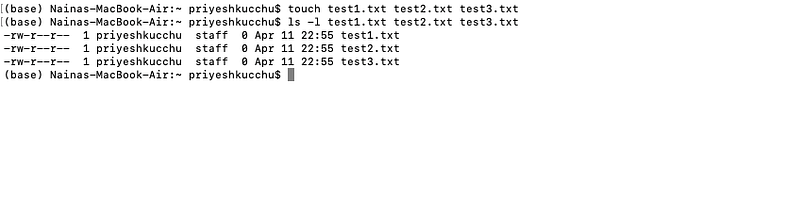
I created multiple files using the touch command.
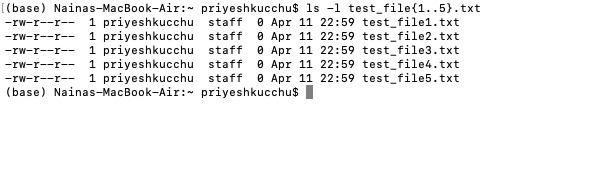
Another way of doing this is —

3. Change access time of a file
You can change or update the access time of a file.
To do this use ‘-a‘ option in touch command followed by file name as shown below —

Likewise, you can change the access time of the directory as well.
4. Change Modification time of a file
You can change or update the modification time of a file.
To do this use ‘-m‘ option in touch command followed by file name as shown below —

Likewise, you can change the modification time of the directory as well.
5. Change Date and Time to Current Time in one go
You can change both the access time and modification time of a file in one go.
To do this use ‘-am‘ option in touch command followed by file name as shown below —

6. Set the Access and modification time of a file to a specific date and time
Previously we have seen that whenever we do change access and modification time of a file using the touch command, then it sets the current time as access & modification time of that file.
We can set the access and modification time of a file to a specific date and time using touch using ‘-c’ & ‘-t’ option in touch command. The format to be followed should be — YYYYMMDDhhmm.ss
Where YYYY — Year, MM — Month, DD- Date, hh — hours, mm — minutes, ss — seconds
Let’s set the access & modification time of test_file1.txt file for future date and time as 2021 — year, 11th — Month, 04th — day of the month, 17th — hours and 16th — minute)

You can see that the access and modification time of the file test_file.txt has successfully been changed to Nov 4th, 2021, 17:16 hours.
7. Display Version
To check the version of the touch installed on your system, you can use —
touch --version8. Check for a file’s existence
You can check a file’s existence using -c or –no-create option of touch. You can omit the creation of a file using this command.

You can see that I tried to create test_file.txt, but with -c option I omitted the file’s existence.
9. Set the timestamps to a file using another file or a reference file
You can use ‘-r’ option with touch command to set the timestamp of a file using another file or a reference file.

You can see in the above screenshot that I set the timestamp of test1.txt using reference file test_file1.txt.
Here are some commonly used Linux commands:
- ls — used to list the files and directories in a directory
- cd — used to change the current working directory
- mkdir — used to create a new directory
- rm — used to remove files or directories
- pwd — used to print the current working directory
- cp — used to copy files or directories
- mv — used to move or rename files or directories
- cat — used to display the contents of a file
- grep — used to search for a specific pattern in a file or a group of files
- apt-get or yum — used to install and manage software packages
#!/bin/bash

# ls
ls

# cd
cd /path/to/directory

# mkdir
mkdir new_directory

# rm
rm filename.txt
rm -r directory

# pwd
pwd

# cp
cp source_file destination_file
cp -r source_directory destination_directory

# mv
mv old_file new_file
mv old_directory new_directory

# cat
cat filename.txt

# grep
grep "pattern" filename.txt

# apt-get (for Debian-based systems)
apt-get install package_name

# yum (for Red Hat-based systems)
yum install package_name
Code Implementation —

That’s it for now.
Find Day 12 Below:
Let me know if you have questions in the comment section below. Subscribe/ Follow, Like/Clap as it would encourage me to write more in my free time
Stay Tuned!!
Read more —
All the Complete System Design Series Parts —
6. Networking, How Browsers work, Content Network Delivery ( CDN)
Github —
Keep learning and coding ;)
Day 5 coming soon!
For Python Projects —
For complete 60 days of Data Science and ML : Day 1 — Day 60 : Quick Recap of 60 days of Data Science and ML
Follow for more updates. Stay tuned and keep coding! Disclosure: Some of the links are affiliates.
For other projects, tune to —
Build Machine Learning Pipelines( With Code)
Recurrent Neural Network with Keras
Clustering Geolocation Data in Python using DBSCAN and K-Means
Facial Expression Recognition using Keras
Hyperparameter Tuning with Keras Tuner
Custom Layers in Keras


