avatarWajiha Urooj

Free AI web copilot to create summaries, insights and extended knowledge, download it at here

5291

Abstract

port statements in alphabetical order.</li></ul><p id="a52e">Now let us take a look at how we can edit an existing project using the vs code.</p><h1 id="165a">Editing An Existing Project</h1><p id="1a4e">You can edit an existing project in visual studio code by simply navigating to the project in the command line, and then entering the following command.</p><figure id="9d75"><img src="https://cdn-images-1.readmedium.com/v2/resize:fit:800/1*mYNI0v5EcXrcjVXTyEdAWw.png"><figcaption></figcaption></figure><p id="2600">After you enter this command, the vs code will open with the existing project on the location and you can run the project or edit the code in the visual studio code.</p><figure id="1e9b"><img src="https://cdn-images-1.readmedium.com/v2/resize:fit:800/1*BOdIGkJmE-0cJCS9JmTPzQ.png"><figcaption></figcaption></figure><p id="51ef">Now that we know how we can edit the existing projects in visual studio code, let us understand linting.</p><h1 id="5e87">Linting</h1><p id="e1e4">It basically highlights the syntactic and styling problems in the python source code. To enable linters we can use the following approach, although the python extension comes enabled with a pylint linter as a default. Press “ctrl+shift+p” and select the python: select linter in the pallet.</p><figure id="2e51"><img src="https://cdn-images-1.readmedium.com/v2/resize:fit:800/1*fP5GQfXlgU2lFY1afv8y7Q.png"><figcaption></figcaption></figure><p id="a17a">Even though linting runs automatically when you save your file. You can run linting by selecting the following in the command palette.</p><figure id="459a"><img src="https://cdn-images-1.readmedium.com/v2/resize:fit:800/1*s1N9r84gIbW3yMhi5MXtow.png"><figcaption></figcaption></figure><p id="fad7">Following are a few specific linters:</p><ul><li>Pylint –</li><li>Flake8</li><li>mypy</li><li>pydocstyle</li><li>prospector</li><li>Pep8</li><li>pylama</li><li>bandit</li></ul><h1 id="d303">Debugging Support</h1><p id="b0f2">Let us try to understand how debugging works in our simple hello world program.</p><p id="fe98">Just click on the editor’s left gutter and set a breakpoint on the line, and press f5.</p><figure id="3f82"><img src="https://cdn-images-1.readmedium.com/v2/resize:fit:800/1*G0m3LS5PNe8-34Vk3aIs1A.png"><figcaption></figcaption></figure><p id="30aa">Select the configuration and it will open the debug toolbar shown below.</p><figure id="c3e6"><img src="https://cdn-images-1.readmedium.com/v2/resize:fit:800/1*61CuVWV9lf4hqEKyXOWN0w.png"><figcaption></figcaption></figure><p id="3093">Press the f5 key again to run the program to completion and you will see the output in the terminal. This is how we can debug a program in visual studio code, you can see a lot of options and a debug toolbar so that you can hover over the code as well.</p><p id="1bcd">Now that we are done with debugging, let us understand the jupyter notebook support in visual studio code.</p><h1 id="833f">Jupyter Notebook Support</h1><p id="4031">To open the jupyter notebook in vs code, open the command pallet and select the following</p><figure id="4d2a"><img src="https://cdn-images-1.readmedium.com/v2/resize:fit:800/1*efmmszhFWeMmIC-OpAzTew.png"><figcaption></figcaption></figure><p id="9383">After you open the notebook, you can simply run your code and save it.</p><figure id="d8dd"><img src="https://cdn-images-1.readmedium.com/v2/resize:fit:800/1*sxDRxEaLJSZT6dNpz7pWJA.png"><figcaption></figcaption></figure><p id="0954">Now that we know how we can use jupyter notebook in visual studio code, let us understand how we can use the interactive python in vs code.</p><h1 id="2c66">Interactive Python</h1><p id="dddf">You can simply add “#%%” in your code, and save it in a .py extension file. When you click the run cell button, it will open the python interactive panel and you can run your code directly using the python interactive window directly. Just type your code and press “ctrl+enter”.</p><figure id="7939"><img src="https://cdn-images-1.readmedium.com/v2/resize:fit:800/1*swEW70KgnUklAy7J2jcNpQ.png"><figcaption></figcaption></figure><h1 id="011c">Environments</h1><p id="48aa">Python extension usually looks for the environment and selects the first interpreter in the system path. To select a specific environment you can search for the environments using the command pallet.</p><figure id="02bc"><img src="https://cdn-images-1.readmedium.com/v2/resize:fit:800/1*0_ghxviT2K3rXQN75t0kkQ.png"><figcaption></figcaption></figure><p id="12e5">After you select this, it will show you the available interpreters you can choose from.</p><figure id="ce33"><img src="https://cdn-images-1.readmedium.com/v2/resize:fit:800/1*r5k5NBwZTVY7ptAqNYHaqA.png"><figcaption></figcaption></figure><p id="bc1e">This brings us to the end of this article where we have learned how we can use the visual studio code using the python extension. I hope you are clear with all that has been shared with you in this tutorial.</p><p id="79ea">If you wish to check out more articles on the market’s most trending technologies like Artificial Intelligence, DevOps, Ethical Hacking, then you can refer to <a href="https://www.edureka.co/blog/?utm_source=medium&amp;utm_medium=content-link&amp;utm_campaign=python-visual-studio">Edureka’s official site.</a></p><p id="

Options

d299">Do look out for other articles in this series which will explain the various other aspects of Python and Data Science.</p><blockquote id="97ab"><p>1. <a href="https://readmedium.com/machine-learning-classifier-c02fbd8400c9">Machine Learning Classifier in Python</a></p></blockquote><blockquote id="b2c5"><p>2. <a href="https://readmedium.com/python-scikit-learn-cheat-sheet-9786382be9f5">Python Scikit-Learn Cheat Sheet</a></p></blockquote><blockquote id="4810"><p>3. <a href="https://readmedium.com/python-libraries-for-data-science-and-machine-learning-1c502744f277">Machine Learning Tools</a></p></blockquote><blockquote id="1278"><p>4. <a href="https://readmedium.com/python-libraries-for-data-science-and-machine-learning-1c502744f277">Python Libraries For Data Science And Machine Learning</a></p></blockquote><blockquote id="72ff"><p>5. <a href="https://readmedium.com/how-to-make-a-chatbot-in-python-b68fd390b219">Chatbot In Python</a></p></blockquote><blockquote id="7947"><p>6. <a href="https://readmedium.com/collections-in-python-d0bc0ed8d938">Python Collections</a></p></blockquote><blockquote id="5f01"><p>7. <a href="https://readmedium.com/python-modules-abb0145a5963">Python Modules</a></p></blockquote><blockquote id="44fb"><p>8. <a href="https://readmedium.com/python-developer-skills-371583a69be1">Python developer Skills</a></p></blockquote><blockquote id="6c58"><p>9. <a href="https://readmedium.com/oops-interview-questions-621fc922cdf4">OOPs Interview Questions and Answers</a></p></blockquote><blockquote id="8956"><p>10. <a href="https://readmedium.com/python-developer-resume-ded7799b4389">Resume For A Python Developer</a></p></blockquote><blockquote id="086c"><p>11. <a href="https://readmedium.com/exploratory-data-analysis-in-python-3ee69362a46e">Exploratory Data Analysis In Python</a></p></blockquote><blockquote id="ed22"><p>12. <a href="https://readmedium.com/python-turtle-module-361816449390">Snake Game With Python’s Turtle Module</a></p></blockquote><blockquote id="2332"><p>13. <a href="https://readmedium.com/python-developer-salary-ba2eff6a502e">Python Developer Salary</a></p></blockquote><blockquote id="ab72"><p>14.<a href="https://readmedium.com/principal-component-analysis-69d7a4babc96"> Principal Component Analysis</a></p></blockquote><blockquote id="b16e"><p>15. <a href="https://readmedium.com/python-vs-cpp-c3ffbea01eec">Python vs C++</a></p></blockquote><blockquote id="c204"><p>16. <a href="https://readmedium.com/scrapy-tutorial-5584517658fb">Scrapy Tutorial</a></p></blockquote><blockquote id="3b19"><p>17. <a href="https://readmedium.com/scipy-tutorial-38723361ba4b">Python SciPy</a></p></blockquote><blockquote id="94f0"><p>18. <a href="https://readmedium.com/least-square-regression-40b59cca8ea7">Least Squares Regression Method</a></p></blockquote><blockquote id="075e"><p>19. <a href="https://readmedium.com/jupyter-notebook-cheat-sheet-88f60d1aca7">Jupyter Notebook Cheat Sheet</a></p></blockquote><blockquote id="9f0a"><p>20. <a href="https://readmedium.com/python-basics-f371d7fc0054">Python Basics</a></p></blockquote><blockquote id="96ac"><p>21. <a href="https://readmedium.com/python-pattern-programs-75e1e764a42f">Python Pattern Programs</a></p></blockquote><blockquote id="ac2e"><p>22. <a href="https://readmedium.com/generators-in-python-258f21e3d3ff">Generators in Python</a></p></blockquote><blockquote id="615c"><p>23. <a href="https://readmedium.com/python-decorator-tutorial-bf7b21278564">Python Decorator</a></p></blockquote><blockquote id="6877"><p>24.<a href="https://readmedium.com/spyder-ide-2a91caac4e46"> Python Spyder IDE</a></p></blockquote><blockquote id="4622"><p>25. <a href="https://readmedium.com/kivy-tutorial-9a0f02fe53f5">Mobile Applications Using Kivy In Python</a></p></blockquote><blockquote id="6861"><p>26. <a href="https://readmedium.com/best-books-for-python-11137561beb7">Top 10 Best Books To Learn & Practice Python</a></p></blockquote><blockquote id="6ceb"><p>27. <a href="https://readmedium.com/robot-framework-tutorial-f8a75ab23cfd">Robot Framework With Python</a></p></blockquote><blockquote id="e025"><p>28. <a href="https://readmedium.com/snake-game-with-pygame-497f1683eeaa">Snake Game in Python using PyGame</a></p></blockquote><blockquote id="d47c"><p>29. <a href="https://readmedium.com/django-interview-questions-a4df7bfeb7e8">Django Interview Questions and Answers</a></p></blockquote><blockquote id="3cb6"><p>30. <a href="https://readmedium.com/python-applications-18b780d64f3b">Top 10 Python Applications</a></p></blockquote><blockquote id="5076"><p>31. <a href="https://readmedium.com/hash-tables-and-hashmaps-in-python-3bd7fc1b00b4">Hash Tables and Hashmaps in Python</a></p></blockquote><blockquote id="e148"><p>32. <a href="https://readmedium.com/whats-new-python-3-8-7d52cda747b">Python 3.8</a></p></blockquote><blockquote id="1eae"><p>33. <a href="https://readmedium.com/support-vector-machine-in-python-539dca55c26a">Support Vector Machine</a></p></blockquote><blockquote id="1e6a"><p>34. <a href="https://readmedium.com/python-tutorial-be1b3d015745">Python Tutorial</a></p></blockquote><p id="b1d6"><i>Originally published at <a href="https://www.edureka.co/blog/python-visual-studio/">https://www.edureka.co</a> on October 18, 2019.</i></p></article></body>

Python Visual Studio- Learn How To Make Your First Python Program
Python programming language is a versatile language when it comes to extending support to and from other technologies. Visual studio code is one such code editor that extends support to the python programming language using the python extension. In this article, we will learn about how we can use visual studio code for python. The following topics are covered in this article.

  • What Is Visual Studio Code?
  • Visual Studio Code Installation
  • Python Extension In Visual Studio Code
  • Writing First Python Program In Visual Studio Code
  • Editing An Existing Project
  • Linting
  • Debugging Support
  • Jupyter Notebook Support
  • Interactive Python
  • Environments

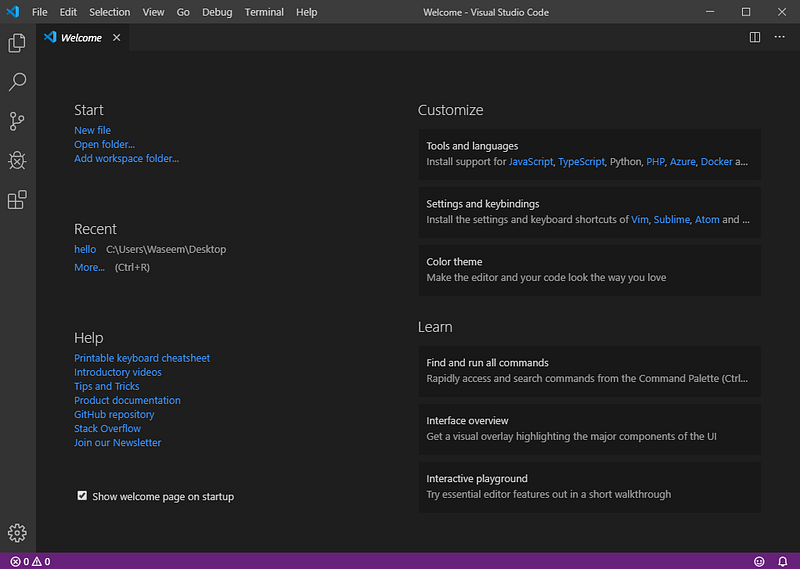
What Is Visual Studio Code?

The visual studio code is a lightweight yet powerful source code editor that runs on your desktop. It is available for Windows, macOS, and Linux.

It also comes with built-in support for node.js, javascript, and typescript with a wide range of external support for other languages like python, c, c++, etc.
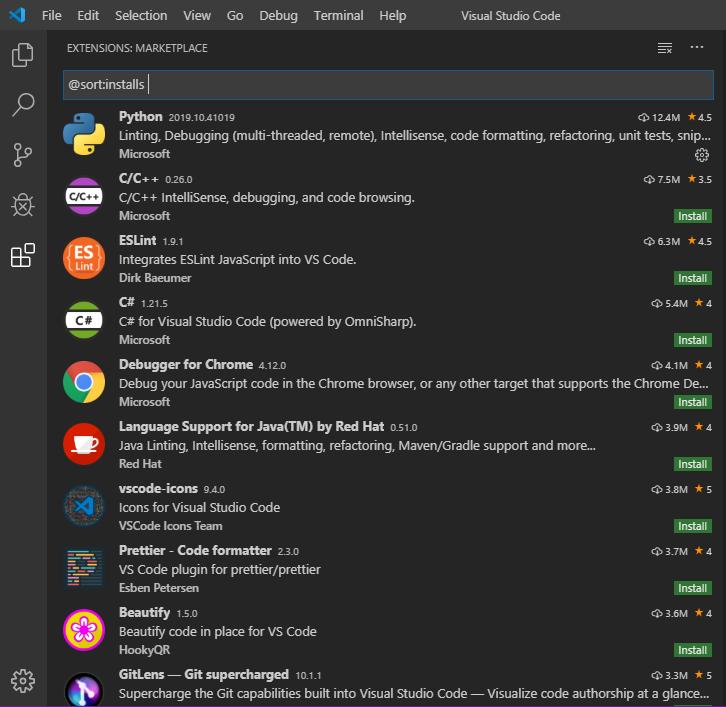
Extensions

Here are some of the most popular extensions for visual studio code.
Now that we have a vague idea about visual studio code, let’s take a look at how we can download and install visual studio code in our systems.

Visual Studio Code Installation
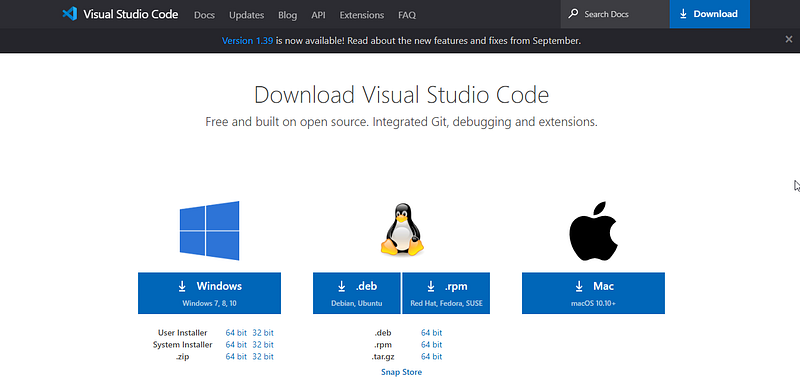
After you are finished with the installation, you can simply begin your journey for python in visual studio code.

Python Extension In Visual Studio Code

To work with python in visual studio you need to install python extension from the marketplace. It is quite easy to find the python extension in the marketplace.
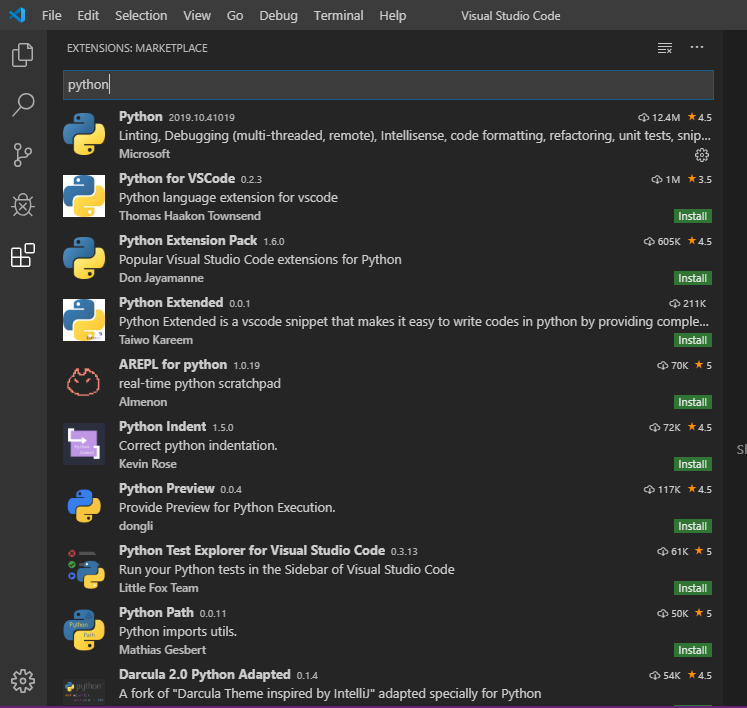
The python extension that you need to install is named python and is published by Microsoft. Let us take a look at a few features of python extension.

  • Intellisense
  • Linting
  • Code Formatting
  • Debugging
  • Testing
  • Jupyter Notebooks
  • Environments
  • Refactoring

After you’re done with the installation, you can start with your first python program.

Writing First Program In Visual Studio Code

To start with your first python program, go to the command prompt and type the following commands.
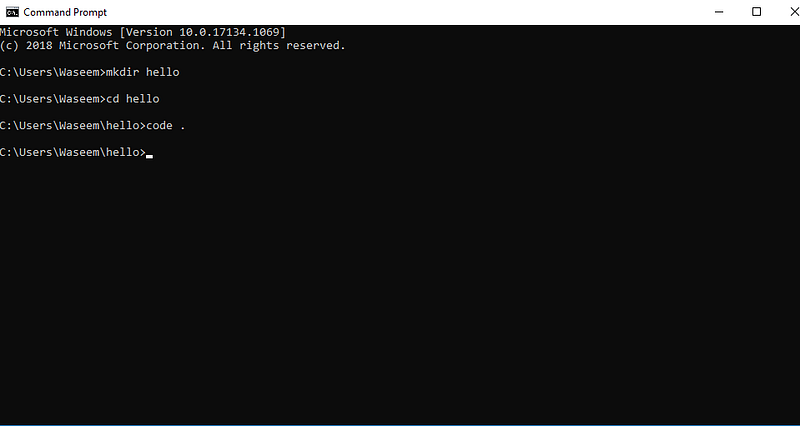
It will open the vs code with a hello directory, and then you can add a new file with a .py extension to write your first python program.
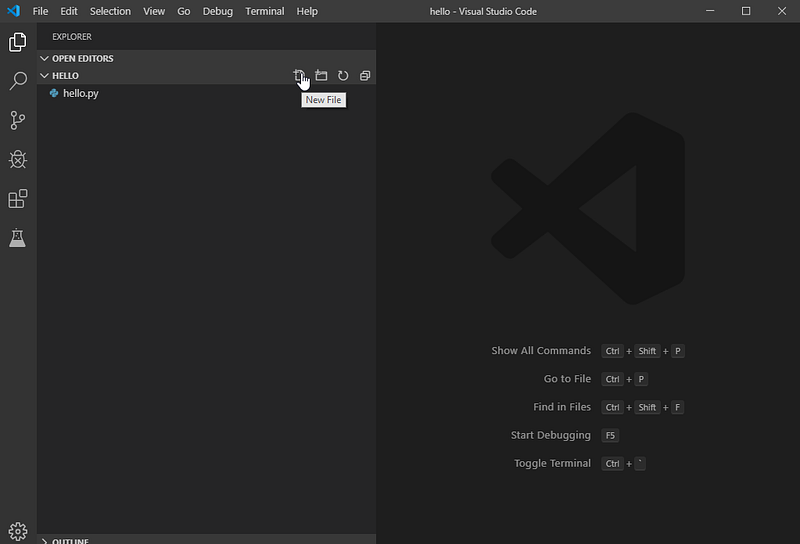
When you have made a new file, open the file and make a simple hello world program.
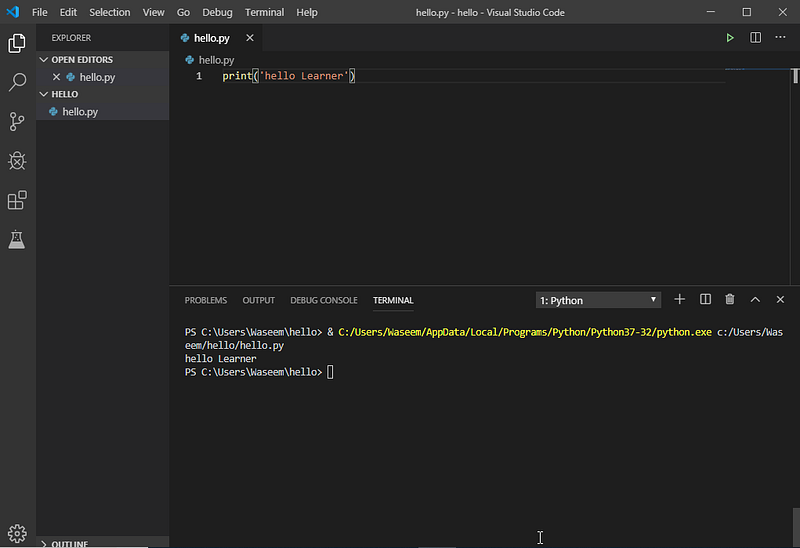
This is how we can make a simple hello world program in visual studio code using the python extension. Python extension provides many features for editing python source code in vs code.

Autocomplete and IntelliSense:

They are provided for all python packages stored at standard locations, you can right click on different identifiers to take advantage of the several commands.

  • Go to Definition
  • Peek Definition
  • Go to Declaration
  • Peek Declaration

Run Selection/line in Terminal:

It is used to take the selected line to the python terminal.

Formatting:

It makes the code readable and easier by implementing certain rules for indents, spacing around operators, line spacing, etc.

Refactoring:

The python extensions add the following refactoring commands

  • Extract Variable — It extracts all similar occurrences of the selected text within the current scope.
  • Extract Method — It extracts all similar occurrences of the selected expressions or block within the current scope
  • Sort Imports — Sort imports use the isort package to consolidate specific imports from the same module into a single import statement and to import statements in alphabetical order.

Now let us take a look at how we can edit an existing project using the vs code.

Editing An Existing Project

You can edit an existing project in visual studio code by simply navigating to the project in the command line, and then entering the following command.
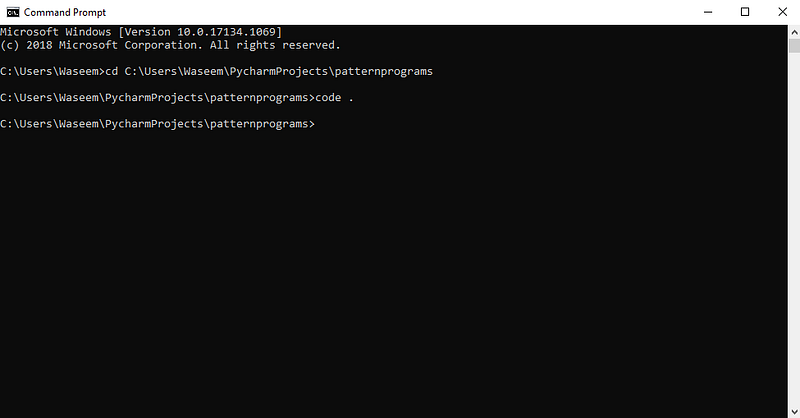
After you enter this command, the vs code will open with the existing project on the location and you can run the project or edit the code in the visual studio code.
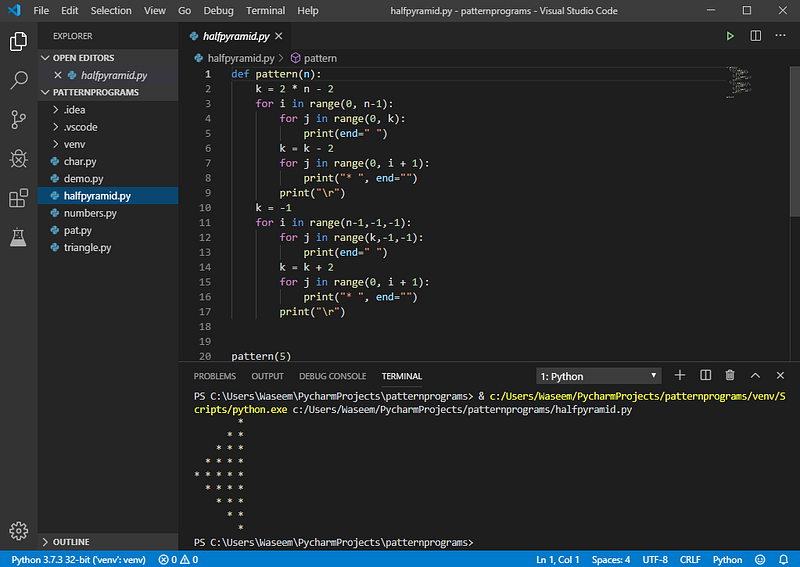
Now that we know how we can edit the existing projects in visual studio code, let us understand linting.

Linting

It basically highlights the syntactic and styling problems in the python source code. To enable linters we can use the following approach, although the python extension comes enabled with a pylint linter as a default. Press “ctrl+shift+p” and select the python: select linter in the pallet.
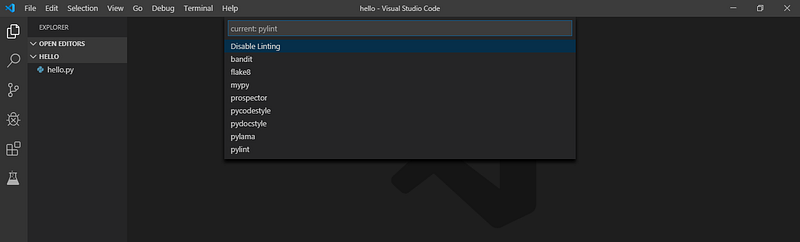
Even though linting runs automatically when you save your file. You can run linting by selecting the following in the command palette.
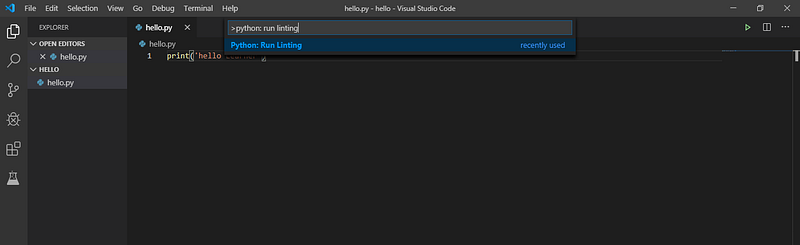
Following are a few specific linters:

  • Pylint –
  • Flake8
  • mypy
  • pydocstyle
  • prospector
  • Pep8
  • pylama
  • bandit

Debugging Support

Let us try to understand how debugging works in our simple hello world program.

Just click on the editor’s left gutter and set a breakpoint on the line, and press f5.
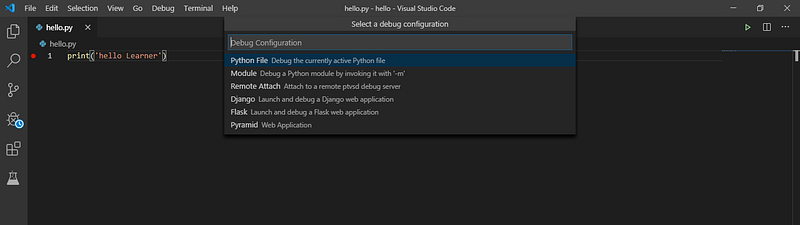
Select the configuration and it will open the debug toolbar shown below.
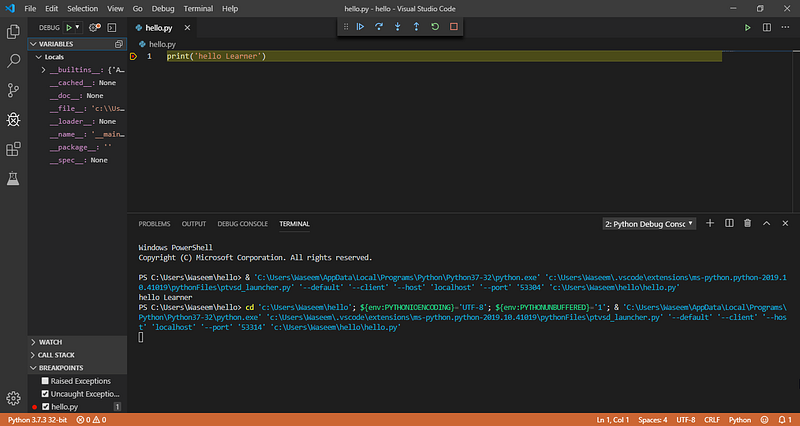
Press the f5 key again to run the program to completion and you will see the output in the terminal. This is how we can debug a program in visual studio code, you can see a lot of options and a debug toolbar so that you can hover over the code as well.

Now that we are done with debugging, let us understand the jupyter notebook support in visual studio code.

Jupyter Notebook Support

To open the jupyter notebook in vs code, open the command pallet and select the following
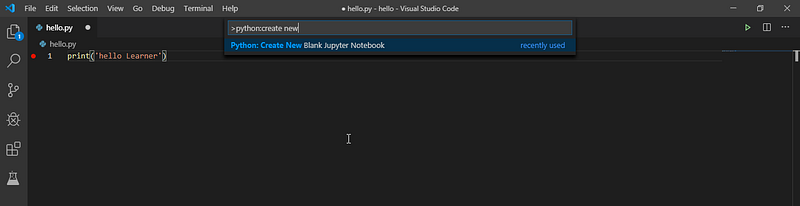
After you open the notebook, you can simply run your code and save it.
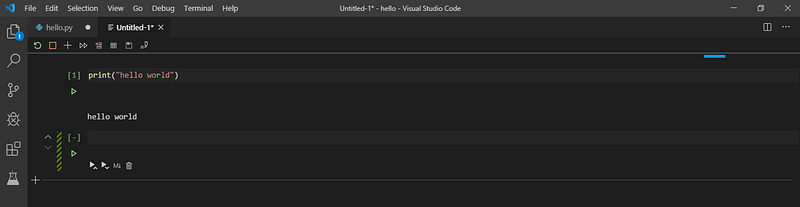
Now that we know how we can use jupyter notebook in visual studio code, let us understand how we can use the interactive python in vs code.

Interactive Python

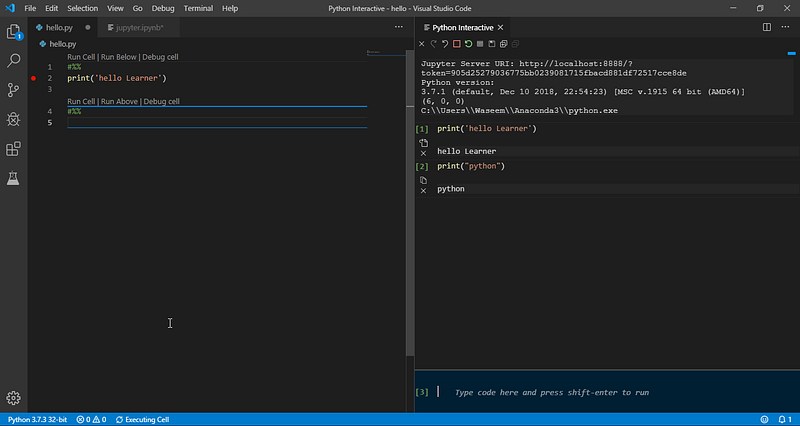
You can simply add “#%%” in your code, and save it in a .py extension file. When you click the run cell button, it will open the python interactive panel and you can run your code directly using the python interactive window directly. Just type your code and press “ctrl+enter”.
Environments

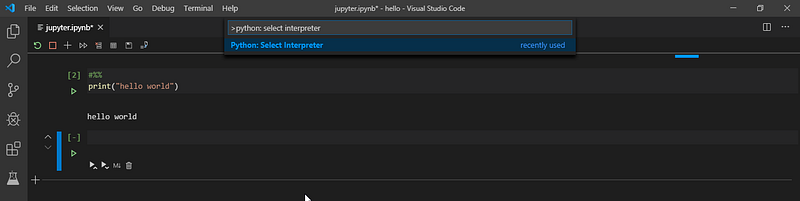
Python extension usually looks for the environment and selects the first interpreter in the system path. To select a specific environment you can search for the environments using the command pallet.
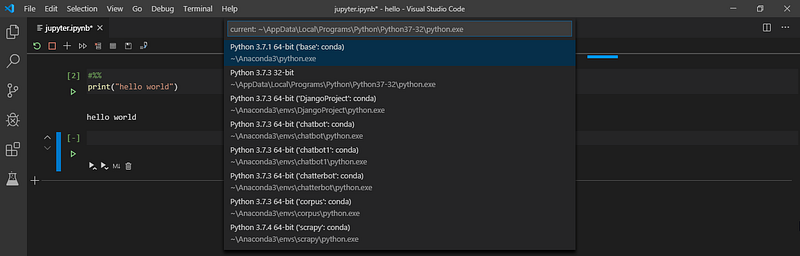
After you select this, it will show you the available interpreters you can choose from.
This brings us to the end of this article where we have learned how we can use the visual studio code using the python extension. I hope you are clear with all that has been shared with you in this tutorial.

If you wish to check out more articles on the market’s most trending technologies like Artificial Intelligence, DevOps, Ethical Hacking, then you can refer to Edureka’s official site.

Do look out for other articles in this series which will explain the various other aspects of Python and Data Science.

1. Machine Learning Classifier in Python

2. Python Scikit-Learn Cheat Sheet

3. Machine Learning Tools

4. Python Libraries For Data Science And Machine Learning

5. Chatbot In Python

6. Python Collections

7. Python Modules

8. Python developer Skills

9. OOPs Interview Questions and Answers

10. Resume For A Python Developer

11. Exploratory Data Analysis In Python

12. Snake Game With Python’s Turtle Module

13. Python Developer Salary

14. Principal Component Analysis

15. Python vs C++

16. Scrapy Tutorial

17. Python SciPy

18. Least Squares Regression Method

19. Jupyter Notebook Cheat Sheet

20. Python Basics

21. Python Pattern Programs

22. Generators in Python

23. Python Decorator

24. Python Spyder IDE

25. Mobile Applications Using Kivy In Python

26. Top 10 Best Books To Learn & Practice Python

27. Robot Framework With Python

28. Snake Game in Python using PyGame

29. Django Interview Questions and Answers

30. Top 10 Python Applications

31. Hash Tables and Hashmaps in Python

32. Python 3.8

33. Support Vector Machine

34. Python Tutorial

Originally published at https://www.edureka.co on October 18, 2019.

Python
Visual Code
Python Visual Code
Programming
Python3
Recommended from ReadMedium