
All You Need To Know About Robot Framework With Python
Python programming language has a robot framework that can use external libraries like selenium for web testing. In this article, we will learn about the test cases and various other terminologies related to robot framework in python with a use case for web testing using selenium library. The following topics are discussed in this blog:
- What is the Robot Framework In Python?
- Robot Framework Architecture
- Installation
- Standard Libraries
- Built-in Tools
- Test Cases
- Workflow Tests
- Higher-Level Tests
- Data-Driven Tests
- Keywords
- Library Keywords
- User Keywords
- Variables
- Defining Variables
- Using Variables
- Organizing Test Cases
- Robot Framework-Selenium Library
- Installation
- Browser Drivers
- Use Case — Web Testing With Robot Framework And SeleniumLibrary
What Is The Robot Framework?
Robot framework is a generic open-source automation framework for acceptance testing, acceptance test-driven development, and robotic process automation. It uses the keyword-driven testing technique approach. The capabilities can be extended by test libraries that can be implemented by either Java or Python.
Acceptance Testing
It is a testing technique in which the capability of a system is tested. The purpose of acceptance testing is to evaluate the capabilities of a system in accordance with the business requirements.
Acceptance Test-Driven Development
ATDD or acceptance test-driven development is a development methodology that is based on the communication between business customers, developers, and testers. They work in coordination and make acceptance tests in advance of implementing the functionality.
Robotic Process Automation
RPA or robotic process automation is the process of conveniently reducing human effort in resonance with software that uses machine learning and AI capabilities. RPA handles high-level repeatable tasks.
Robot Framework Architecture
The robot framework is platform-independent, Although the core framework is implemented using python it can also run on JPython(JVM) and IronPython(.NET).
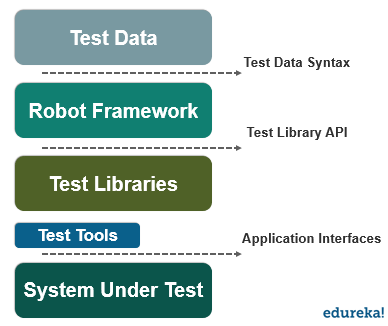
The test data is in an easy-to-edit format when the process starts the framework processes the test data and generates logs and reports. The interaction is handled by the libraries which can use additional test tools as drivers to test the target.
Installation
The recommended approach to install the robot framework on python is to use the pip. You can use the following command to install the framework.
pip install robotframeworkVerifying Installation
After the successful installation, you should be able to see both interpreter and robot framework versions using the -version option.
robot --version
rebot --version
Standard Libraries
The following test libraries are distributed with the robot framework.
- BuiiltIn
- Collections
- DateTime
- Dialogs
- OperatingSystem
- Process
- Remote
- Screenshot
- String
- Telnet
- XML
Built-in Tools
In addition to the core test execution engine, there are some supporting tools that are built-in the robot framework. The following built-in tools are present in the robot framework in python.
- Rebot
- Libdoc
- Testdoc
- Tidy
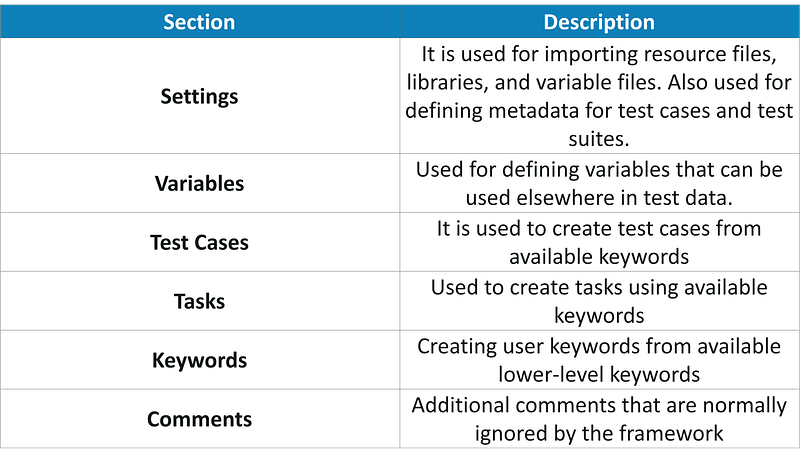
Robot framework test data is defined in different sections listed below.
Test Cases
The test cases can be categorized in the following tests.
- Workflow Tests
- Higher-level Tests
- Data-driven Tests
Workflow Tests
The robot framework test cases are normally written in tabular syntax. Let us take a look at the example to understand this.
- User can create an account and log in
- User cannot log in with bad password
*** Test Cases ***
User can create an account and log in
    Create Valid User    python    P4ssw0rd
    Attempt to Login with Credentials    python    P4ssw0rd
    Status Should Be    Logged In

User cannot log in with bad password
    Create Valid User    pytHon    P4ssw0rd
    Attempt to Login with Credentials    pytHon    wrong
    Status Should Be    Access Denied
The robot framework in python follows the test cases to be written in simple English language rather than automated test cases. It follows a keyword-driven approach that resonates with natural language in terms of actions and expectations.
The test cases are constructed with keywords and possible arguments.
Higher-Level Tests
The test cases in the robot framework can be constructed with only high-level keywords and no positional arguments. Let us take a look at an example below to understand high-level tests.
*** Test Cases ***
User can change password
    Given a user has a valid account
    When she changes her password
    Then she can log in with the new password
    And she cannot use the old password anymore
Data-Driven Tests
The data-driven tests allow the varying of test data without duplicating the workflow. The [Template] setting in the robot framework sets the test case into a data-driven test.
*** Test Cases ***
Invalid password
    [Template]    Creating user with invalid password should fail
    abCD5            ${PWD INVALID LENGTH}
    abCD56789    ${PWD INVALID LENGTH}
    123DEFG       ${PWD INVALID CONTENT}
    abcd56789      ${PWD INVALID CONTENT}
    abCdEfGh      ${PWD INVALID CONTENT}
    abCD56+        ${PWD INVALID CONTENT}
Keywords
The test cases in the robot framework are created with keywords that come from two sources.
- Library Keywords
- User Keywords
Library Keywords
All the lowest level keywords are defined in the standard libraries that can be implemented using programming languages like Python, Java, etc.
The robot framework comes with test libraries that can be divided into standard, external and custom libraries. Standard libraries are in the core framework such as builtin, screenshot, Operatingsystem, etc. External libraries are installed separately, like seleniumlibrary for web testing.
To use the keywords in the library, library settings must be imported. Let us take a look at an example to understand this.
*** Settings ***
Library           OperatingSystem
Library           lib/LoginLibrary.py
User Keywords
One of the powerful features of the robot framework is that we can make custom high-level keywords using other keywords. Let’s take a look at an example to understand how it works.
*** Keywords ***
Clear login database
    Remove file    ${DATABASE FILE}

Create valid user
    [Arguments]    ${username}    ${password}
    Create user    ${username}    ${password}
    Status should be    SUCCESS

Creating user with invalid password should fail
    [Arguments]    ${password}    ${error}
    Create user    example    ${password}
    Status should be    Creating user failed: ${error}

Login
    [Arguments]    ${username}    ${password}
    Attempt to login with credentials    ${username}    ${password}
    Status should be    Logged In

# Keywords below used by higher level tests. Notice how given/when/then/and
# prefixes can be dropped. And this is a comment.

A user has a valid account
    Create valid user    ${USERNAME}    ${PASSWORD}

She changes her password
    Change password    ${USERNAME}    ${PASSWORD}    ${NEW PASSWORD}
    Status should be    SUCCESS

She can log in with the new password
    Login    ${USERNAME}    ${NEW PASSWORD}

She cannot use the old password anymore
    Attempt to login with credentials    ${USERNAME}    ${PASSWORD}
    Status should be    Access Denied
User-defined keywords can include actions provided by other user-defined keywords or library keywords as well.
Variables
The variables are a very important part of any test case in a robot framework. Any data is the test case that is subject to variability or change is best defined using a variable.
Let us take a look at how we can define variables in a test case.
Defining Variables
*** Variables ***
${USERNAME}               janedoe
${PASSWORD}               J4n3D0e
${NEW PASSWORD}           e0D3n4J
${DATABASE FILE}          ${TEMPDIR}${/}robotframework-quickstart-db.txt
${PWD INVALID LENGTH}     Password must be 7-12 characters long
${PWD INVALID CONTENT}    Password must be a combination of lowercase and uppercase letters and numbers
In addition to the user-defined variables, there are built-in variables that are present in the robot framework like ${TEMPDIR} and ${/} that we have also used in the above example.
Using Variables
We can use the variables anywhere in the test case, they are most commonly used as arguments in the keywords. Let us take a look at the example to understand this.
*** Test Cases ***
User status is stored in database
    [Tags]    variables    database
    Create Valid User    ${USERNAME}    ${PASSWORD}
    Database Should Contain    ${USERNAME}    ${PASSWORD}    Inactive
    Login    ${USERNAME}    ${PASSWORD}
    Database Should Contain    ${USERNAME}    ${PASSWORD}    Active

*** Keywords ***
Database Should Contain
    [Arguments]    ${username}    ${password}    ${status}
    ${database} =     Get File    ${DATABASE FILE}
    Should Contain    ${database}    ${username}t${password}t${status}n
Now that we know, how we can make a test case using the keywords and variables. Let us try to understand how we are going to organize the test cases.
Organizing Test Cases
Robot test cases are created in test case files, but we can organize them into directories that create a test suite hierarchy.
Collections of test cases are called a test suite. Every file that contains the test cases also forms a test suite. It is possible to organize the test cases in a hierarchy using the directories, all these directories create high-level test suites that get their name from directory names.
Setups and Teardowns
If you want a specific keyword in a test to be executed before or after, you can use the “Test Setup” and “Test Teardown” settings in the settings table. You can also use “Suite Setup” and “Suite Teardown” to execute keywords before or after in a test suite as well.
You can also create custom [Setup] and [Teardown] in a test case just like [Template]. Let us take a look at an example to understand this.
*** Settings ***
Suite Setup       Clear Login Database
Test Teardown     Clear Login Database
Using Tags
The robot framework allows tags to give the test cases free metadata. The tags can be set in a file using “Force Tags” and “Default Tags”.
It is possible to give tags for a single test case using [Tags] just like [Template]. Let us take an example to understand how we use tags.
*** Settings ***
Force Tags        quickstart
Default Tags      example    smoke
After the execution, the report will have tags with test cases associated with them and statistics based on the tags.
Robot Framework-Selenium Library
The selenium library in the robot framework is a web testing library that uses the selenium tools internally. Selenium library works fine with python 2.7, 3.4 and newer versions. In addition to the standard python interpreter, it works with Pypy and JPython except for IronPython.
Installation
To install selenium library, we can follow the typical approach using the pip in python. Use the following command to install seleniumlibrary in python.
pip install robotframework-seleniumlibraryBrowser Drivers
After the installation is complete you still need to install relevant drivers for the operating systems and browsers that you want to use in the tests. The general approach is to install the browser driver like Chromedriver for chrome but alternatively, you can use the tool called Webdrivermanager.
It will find the latest version when required, it will download all the links/files in the right location. It supports all major operating systems and supports downloading of browsers like chrome, opera, etc.
You can use the following command to install WebdriverManager
pip install webdrivermanager
webdrivermanager firefox chrome --linkpath /usr/local/bin
How To Use Selenium Library
To use the selenium library, it has to be imported using the “Library” setting as any other library. It is recommended to use the robot framework high-level keywords to write the test cases that use the selenium low-level keywords internally.
Here is a simple example to show how you can use the selenium library in a test case.
*** Settings ***
Documentation     Simple example using SeleniumLibrary.
Library           SeleniumLibrary

*** Variables ***
${LOGIN URL}      http://localhost:7272
${BROWSER}        Chrome

*** Test Cases ***
Valid Login
    Open Browser To Login Page
    Input Username    demo
    Input Password    mode
    Submit Credentials
    Welcome Page Should Be Open
    [Teardown]    Close Browser

*** Keywords ***
Open Browser To Login Page
    Open Browser    ${LOGIN URL}    ${BROWSER}
    Title Should Be    Login Page

Input Username
    [Arguments]    ${username}
    Input Text    username_field    ${username}

Input Password
    [Arguments]    ${password}
    Input Text    password_field    ${password}

Submit Credentials
    Click Button    login_button

Welcome Page Should Be Open
    Title Should Be    Welcome Page
Use Case — Web Testing With Robot Framework And Selenium Library
In this example, we are going to make the following directories.
- application — it is a simple login application with a login page, welcome page, and an error page.
- tests — This will have all the test cases.
- tasks — This will have the tasks.
Application
HTML
- index.html
<!DOCTYPE html>
<html>
<head>
<title>Login Page</title>
<link href="demo.css" media="all" rel="stylesheet" type="text/css">
<script type="text/javascript">
function login(username, password) {
if (username == "demo" && password == "mode") {
window.location = "welcome.html";
} else {
window.location = "error.html";
}
}
</script>
</head>
<body>
<div id="container">
<h1>Login Page</h1>
<p>Please input your user name and password and click the login button.</p>
<form name="login_form" onsubmit="login(this.username_field.value, this.password_field.value); return false;">
<table>
<tr>
<td><label for="username_field">User Name:</label></td>
<td><input id="username_field" size="30" type="text"></td>
</tr>
<tr>
<td><label for="password_field">Password:</label></td>
<td><input id="password_field" size="30" type="password"></td>
</tr>
<tr>
<td> </td>
<td><input id="login_button" type="submit" value="LOGIN"></td>
</tr>
</table>
</form>
</div>
</body>
</html>- welcome.html
<!DOCTYPE html>
<html>
<head>
  <title>Welcome Page</title>
  <link href="demo.css" media="all" rel="stylesheet" type="text/css">
</head>
<body>

<div id='container'>

<h1>Welcome Page</h1>


Login succeeded. Now you can <a href=".">logout</a>.

</div>

</body>
</html>- error.html
<!DOCTYPE html>
<html>
<head>
  <title>Error Page</title>
  <link href="demo.css" media="all" rel="stylesheet" type="text/css">
</head>
<body>

<div id="container">

<h1>Error Page</h1>


Login failed. Invalid user name and/or password.

  </div>

</body>
</html>- demo.css
body {
    font-family: sans-serif;
    color: black;
    background: #DDDDDD;
}
#container {
    width: 30em;
    height: 15em;
    margin: 5em auto;
    background: white;
    border: 1px solid gray;
    padding: 0.5em 2em;
}- server.py
from __future__ import print_function

from os import chdir
from os.path import abspath, dirname, join
try:
    from SocketServer import ThreadingMixIn
    from BaseHTTPServer import HTTPServer
    from SimpleHTTPServer import SimpleHTTPRequestHandler
except ImportError:
    from socketserver import ThreadingMixIn
    from http.server import SimpleHTTPRequestHandler, HTTPServer


ROOT = join(dirname(abspath(__file__)), 'html')
PORT = 7272


class DemoServer(ThreadingMixIn, HTTPServer):
    allow_reuse_address = True

    def __init__(self, port=PORT):
        HTTPServer.__init__(self, ('localhost', int(port)),
                            SimpleHTTPRequestHandler)

    def serve(self, directory=ROOT):
        chdir(directory)
        print('Demo server starting on port %d.' % self.server_address[1])
        try:
            server.serve_forever()
        except KeyboardInterrupt:
            server.server_close()
        print('Demo server stopped.')


if __name__ == '__main__':
    import sys
    try:
        server = DemoServer(*sys.argv[1:])
    except (TypeError, ValueError):
        print(__doc__)
    else:
        server.serve()
Tests
- valid_login.robot
*** Settings ***
Documentation     A test suite with a single test for valid login.
...
...               This test has a workflow that is created using keywords in
...               the imported resource file.
Resource          resource.robot

*** Test Cases ***
Valid Login
    Open Browser To Login Page
    Input Username    demo
    Input Password    mode
    Submit Credentials
    Welcome Page Should Be Open
[Teardown] Close Browser- invalid_login.robot
*** Settings ***
Documentation     A test suite containing tests related to invalid login.
...
...               These tests are data-driven by their nature. They use a single
...               keyword, specified with Test Template setting, that is called
...               with different arguments to cover different scenarios.
...
...               This suite also demonstrates using setups and teardowns in
...               different levels.
Suite Setup       Open Browser To Login Page
Suite Teardown    Close Browser
Test Setup        Go To Login Page
Test Template     Login With Invalid Credentials Should Fail
Resource          resource.robot

*** Test Cases ***               USER NAME        PASSWORD
Invalid Username                 invalid          ${VALID PASSWORD}
Invalid Password                 ${VALID USER}    invalid
Invalid Username And Password    invalid          whatever
Empty Username                   ${EMPTY}         ${VALID PASSWORD}
Empty Password                   ${VALID USER}    ${EMPTY}
Empty Username And Password      ${EMPTY}         ${EMPTY}

*** Keywords ***
Login With Invalid Credentials Should Fail
    [Arguments]    ${username}    ${password}
    Input Username    ${username}
    Input Password    ${password}
    Submit Credentials
    Login Should Have Failed

Login Should Have Failed
    Location Should Be    ${ERROR URL}
Title Should Be Error Page- resource.robot
*** Settings ***
Documentation     A resource file with reusable keywords and variables.
...
...               The system specific keywords created here form our own
...               domain specific language. They utilize keywords provided
...               by the imported SeleniumLibrary.
Library           SeleniumLibrary

*** Variables ***
${SERVER}         localhost:7272
${BROWSER}        Firefox
${DELAY}          0
${VALID USER}     demo
${VALID PASSWORD}    mode
${LOGIN URL}      http://${SERVER}/
${WELCOME URL}    http://${SERVER}/welcome.html
${ERROR URL}      http://${SERVER}/error.html

*** Keywords ***
Open Browser To Login Page
    Open Browser    ${LOGIN URL}    ${BROWSER}
    Maximize Browser Window
    Set Selenium Speed    ${DELAY}
    Login Page Should Be Open

Login Page Should Be Open
    Title Should Be    Login Page

Go To Login Page
    Go To    ${LOGIN URL}
    Login Page Should Be Open

Input Username
    [Arguments]    ${username}
    Input Text    username_field    ${username}

Input Password
    [Arguments]    ${password}
    Input Text    password_field    ${password}

Submit Credentials
    Click Button    login_button

Welcome Page Should Be Open
    Location Should Be    ${WELCOME URL}
Title Should Be Welcome Page- gherkin_login.robot
*** Settings ***
Documentation     A test suite with a single Gherkin style test.
...
...               This test is functionally identical to the example in
...               valid_login.robot file.
Resource          resource.robot
Test Teardown     Close Browser

*** Test Cases ***
Valid Login
    Given browser is opened to login page
    When user "demo" logs in with password "mode"
    Then welcome page should be open

*** Keywords ***
Browser is opened to login page
    Open browser to login page

User "${username}" logs in with password "${password}"
    Input username    ${username}
    Input password    ${password}
Submit credentials- tasks.py
from pathlib import Path
import shutil

from docutils.core import publish_cmdline
from invoke import task
from rellu.tasks import clean


assert Path.cwd() == Path(__file__).parent

@task
def project_docs(ctx):
    """Generate project documentation.

    These docs are visible at http://robotframework.org/WebDemo/.
    """
    args = ['--stylesheet=style.css,extra.css',
            '--link-stylesheet',
            'README.rst',
            'docs/index.html']
    publish_cmdline(writer_name='html5', argv=args)
    print(Path(args[-1]).absolute())

@task
def move_docs(ctx):
    """Move report.html and log.html to docs

    These docs are visible http://robotframework.org/WebDemo/.
    """
    log = Path('./log.html')
    report = Path('./report.html')
    dest = Path('.') / 'docs'
    print(log.absolute())
    shutil.copy(log.absolute(), str(dest))
    print(report.absolute())
    shutil.copy(report.absolute(), str(dest))
To run our application, simply run the server.py file, and the login page will open at https//:localhost:7272
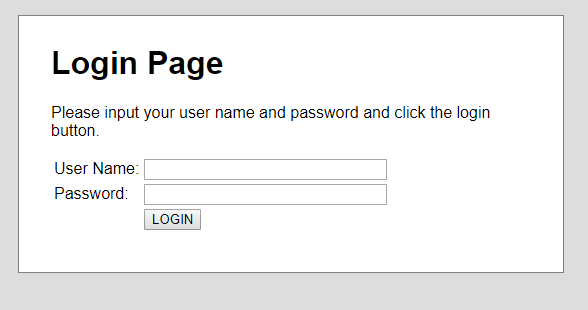
When the demo is running, you can execute the tests, using the command
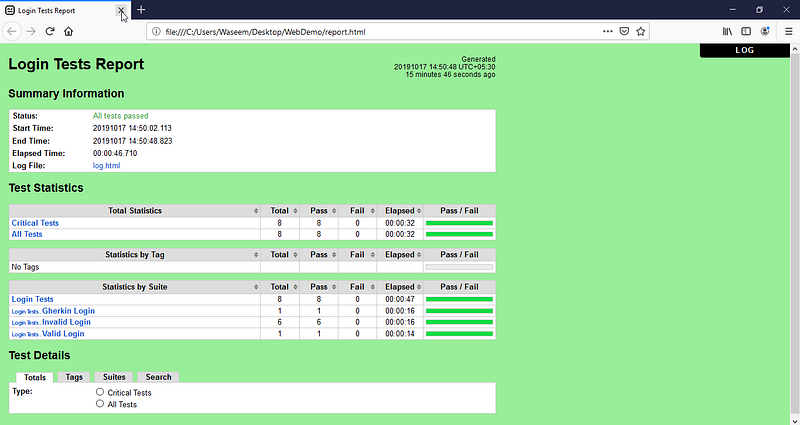
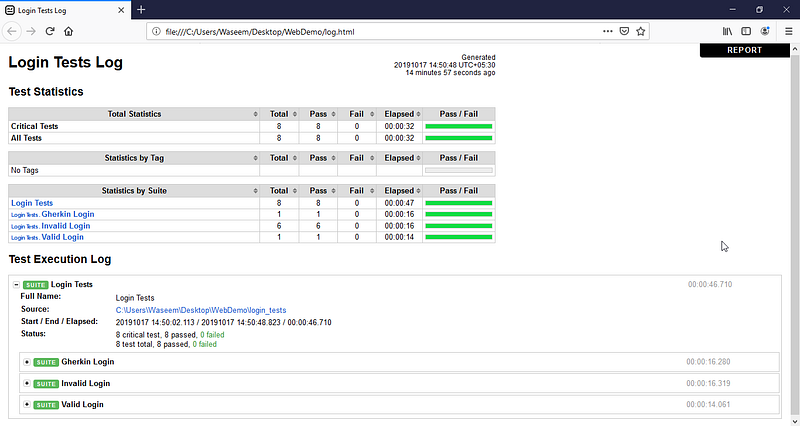
robot testsAfter running the tests, you will get a report and log files in an HTML format.
report.html
log.html
This brings us to the end of this article where we have learned how we can use robot framework in python with seleniumlibrary to perform web testing on a login page. I hope you are clear with all that has been shared with you in this tutorial.
If you wish to check out more articles on the market’s most trending technologies like Artificial Intelligence, DevOps, Ethical Hacking, then you can refer to Edureka’s official site.
Do look out for other articles in this series which will explain the various other aspects of Python and Data Science.
15. Python vs C++
16. Scrapy Tutorial
17. Python SciPy
20. Python Basics
23. Python Decorator
32. Python 3.8
34. Python Tutorial
Originally published at https://www.edureka.co on October 17, 2019.


