
How To implement Snake Game in Python using PyGame?
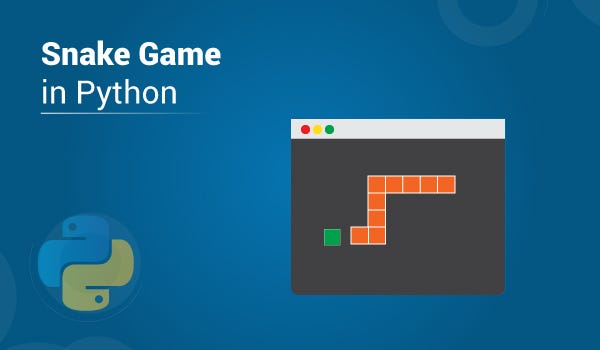
Yes, I know you all have played the Snake Game and definitely, you never wanted to lose. As kids, we all loved looking for cheats in order to never see the “Game Over” message but as techies, I know you would want to make this ‘Snake’ dance to your beats. This is what I will be showing you all in this article on Snake Game in Python. Before moving on, let’s have a quick look at all the sub-bits that build the Snake Game in Python:
- Installing Pygame
- Create the Screen
- Create the Snake
- Moving the Snake
- Game Over when Snake hits the boundaries
- Adding the Food
- Increasing the Length of the Snake
- Displaying the Score
Installing Pygame:
The first thing you will need to do in order to create games using Pygame is to install it on your systems. To do that, you can simply use the following command:
pip install pygame
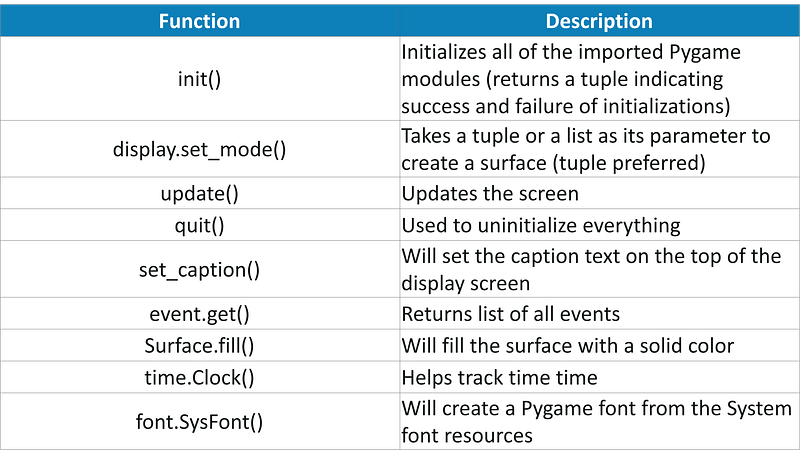
Once that is done, just import Pygame and start off with your game development. Before moving on, take a look at the Pygame functions that have been used in this Snake Game along with their descriptions.
Create the Screen:
To create the screen using Pygame, you will need to make use of the display.set_mode() function. Also, you will have to make use of the init() and the quit() methods to initialize and uninitialize everything at the start and the end of the code. The update() method is used to update any changes made to the screen. There is another method i.e flip() that works similarly to the update() function. The difference is that the update() method updates only the changes that are made (however, if no parameters are passed, updates the complete screen) but the flip() method redoes the complete screen again.
CODE:
import pygame
pygame.init()
dis=pygame.display.set_mode((400,300))
pygame.display.update()
pygame.quit()
quit()
OUTPUT:
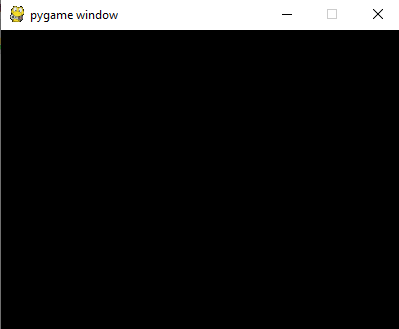
But when you run this code, the screen will appear, but it will immediately close as well. To fix that, you should make use of a game loop using the while loop before I actually quit the game as follows:
import pygame
pygame.init()
dis=pygame.display.set_mode((400,300))
pygame.display.update()
pygame.display.set_caption('Snake game by Edureka')
game_over=False
while not game_over:
    for event in pygame.event.get():
        print(event)   #prints out all the actions that take place on the screen

pygame.quit()
quit()
When you run this code, you will see that the screen that you saw earlier does not quit and also, it returns all the actions that take place over it. I have done that using the event.get() function. Also, I have named the screen as “Snake Game by Edureka” using the display.set_caption() function.
OUTPUT:
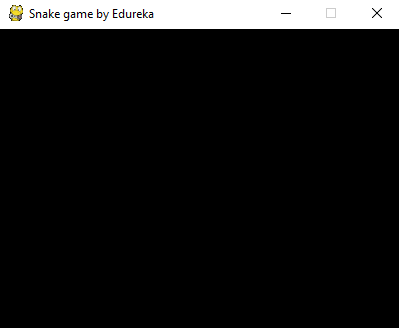
Now, you have a screen to play your Snake Game, but when you try to click on the close button, the screen does not close. This is because you have not specified that your screen should exit when you hit that close button. To do that, Pygame provides an event called “QUIT” and it should be used as follows:
import pygame
pygame.init()
dis=pygame.display.set_mode((400,300))
pygame.display.update()
pygame.display.set_caption('Snake game by Edureka')
game_over=False
while not game_over:
    for event in pygame.event.get():
        if event.type==pygame.QUIT:
            game_over=True

pygame.quit()
quit()
So now your screen is all set. The next part is to draw our snake on the screen which is covered in the following topic.
Create the Snake:
To create the snake, I will first initialize a few color variables in order to color the snake, food, screen, etc. The color scheme used in Pygame is RGB i.e “Red Green Blue”. In case you set all these to 0’s, the color will be black and all 255’s will be white. So our snake will actually be a rectangle. To draw rectangles in Pygame, you can make use of a function called draw.rect() which will help yo draw the rectangle with the desired color and size.
import pygame
pygame.init()
dis=pygame.display.set_mode((400,300))

pygame.display.set_caption('Snake game by Edureka')

blue=(0,0,255)
red=(255,0,0)

game_over=False
while not game_over:
    for event in pygame.event.get():
        if event.type==pygame.QUIT:
            game_over=True
    pygame.draw.rect(dis,blue,[200,150,10,10])
    pygame.display.update()
pygame.quit()
quit()
OUTPUT:
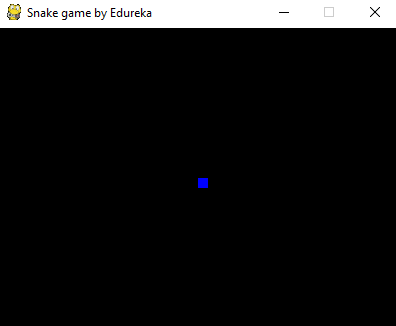
As you can see, the snakehead is created as a blue rectangle. The next step is to get your snake moving.
Moving the Snake:
To move the snake, you will need to use the key events present in the KEYDOWN class of Pygame. The events that are used over here are, K_UP, K_DOWN, K_LEFT, and K_RIGHT to make the snake move up, down, left and right respectively. Also, the display screen is changed from the default black to white using the fill() method.
I have created new variables x1_change and y1_change in order to hold the updating values of the x and y coordinates.
import pygame

pygame.init()

white = (255, 255, 255)
black = (0, 0, 0)
red = (255, 0, 0)

dis = pygame.display.set_mode((800, 600))
pygame.display.set_caption('Snake Game by Edureka')

game_over = False

x1 = 300
y1 = 300

x1_change = 0
y1_change = 0

clock = pygame.time.Clock()

while not game_over:
    for event in pygame.event.get():
        if event.type == pygame.QUIT:
            game_over = True
        if event.type == pygame.KEYDOWN:
            if event.key == pygame.K_LEFT:
                x1_change = -10
                y1_change = 0
            elif event.key == pygame.K_RIGHT:
                x1_change = 10
                y1_change = 0
            elif event.key == pygame.K_UP:
                y1_change = -10
                x1_change = 0
            elif event.key == pygame.K_DOWN:
                y1_change = 10
                x1_change = 0

    x1 += x1_change
    y1 += y1_change
    dis.fill(white)
    pygame.draw.rect(dis, black, [x1, y1, 10, 10])

    pygame.display.update()

    clock.tick(30)

pygame.quit()
quit()
OUTPUT:
Game Over when Snake hits the boundaries:
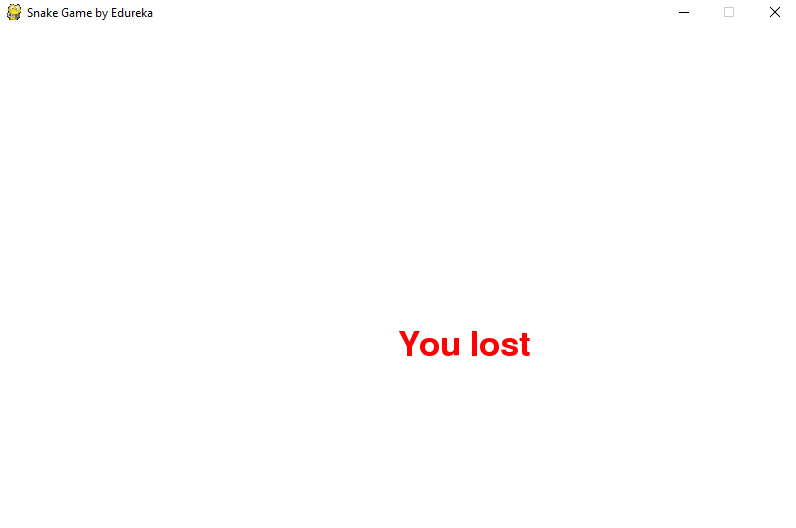
In this snake game, if the player hits the boundaries of the screen, then he loses. To specify that, I have made use of an ‘if’ statement that defines the limits for the x and y coordinates of the snake to be less than or equal to that of the screen. Also, make a not over here that I have removed the hardcodes and used variables instead so that it becomes easy in case you want to make any changes to the game later on.
import pygame
import time
pygame.init()

white = (255, 255, 255)
black = (0, 0, 0)
red = (255, 0, 0)

dis_width = 800
dis_height  = 600
dis = pygame.display.set_mode((dis_width, dis_width))
pygame.display.set_caption('Snake Game by Edureka')

game_over = False

x1 = dis_width/2
y1 = dis_height/2

snake_block=10

x1_change = 0
y1_change = 0

clock = pygame.time.Clock()
snake_speed=30

font_style = pygame.font.SysFont(None, 50)

def message(msg,color):
    mesg = font_style.render(msg, True, color)
    dis.blit(mesg, [dis_width/2, dis_height/2])

while not game_over:
    for event in pygame.event.get():
        if event.type == pygame.QUIT:
            game_over = True
        if event.type == pygame.KEYDOWN:
            if event.key == pygame.K_LEFT:
                x1_change = -snake_block
                y1_change = 0
            elif event.key == pygame.K_RIGHT:
                x1_change = snake_block
                y1_change = 0
            elif event.key == pygame.K_UP:
                y1_change = -snake_block
                x1_change = 0
            elif event.key == pygame.K_DOWN:
                y1_change = snake_block
                x1_change = 0

    if x1 >= dis_width or x1 < 0 or y1 >= dis_height or y1 < 0:
        game_over = True

    x1 += x1_change
    y1 += y1_change
    dis.fill(white)
    pygame.draw.rect(dis, black, [x1, y1, snake_block, snake_block])

    pygame.display.update()

    clock.tick(snake_speed)

message("You lost",red)
pygame.display.update()
time.sleep(2)

pygame.quit()
quit()
OUTPUT:
Adding the Food:
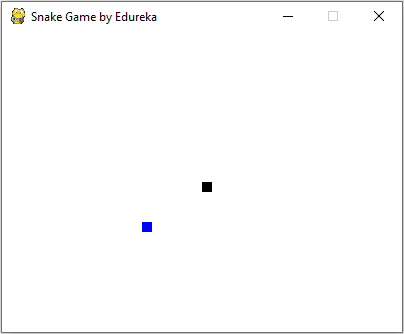
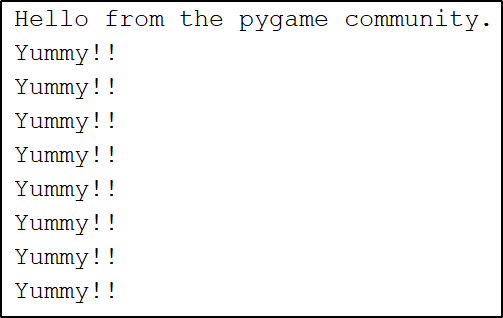
Here, I will be adding some food for the snake and when the snake crosses over that food, I will have a message saying “Yummy!!”. Also, I will be making a small change wherein I will include the options to quit the game or to play again when the player loses.
import pygame
import time
import random

pygame.init()

white = (255, 255, 255)
black = (0, 0, 0)
red = (255, 0, 0)
blue = (0, 0, 255)

dis_width = 800
dis_height = 600

dis = pygame.display.set_mode((dis_width, dis_height))
pygame.display.set_caption('Snake Game by Edureka')

clock = pygame.time.Clock()

snake_block = 10
snake_speed = 30

font_style = pygame.font.SysFont(None, 30)


def message(msg, color):
    mesg = font_style.render(msg, True, color)
    dis.blit(mesg, [dis_width/3, dis_height/3])


def gameLoop():  # creating a function
    game_over = False
    game_close = False

    x1 = dis_width / 2
    y1 = dis_height / 2

    x1_change = 0
    y1_change = 0

    foodx = round(random.randrange(0, dis_width - snake_block) / 10.0) * 10.0
    foody = round(random.randrange(0, dis_width - snake_block) / 10.0) * 10.0

    while not game_over:

        while game_close == True:
            dis.fill(white)
            message("You Lost! Press Q-Quit or C-Play Again", red)
            pygame.display.update()

            for event in pygame.event.get():
                if event.type == pygame.KEYDOWN:
                    if event.key == pygame.K_q:
                        game_over = True
                        game_close = False
                    if event.key == pygame.K_c:
                        gameLoop()

        for event in pygame.event.get():
            if event.type == pygame.QUIT:
                game_over = True
            if event.type == pygame.KEYDOWN:
                if event.key == pygame.K_LEFT:
                    x1_change = -snake_block
                    y1_change = 0
                elif event.key == pygame.K_RIGHT:
                    x1_change = snake_block
                    y1_change = 0
                elif event.key == pygame.K_UP:
                    y1_change = -snake_block
                    x1_change = 0
                elif event.key == pygame.K_DOWN:
                    y1_change = snake_block
                    x1_change = 0

        if x1 >= dis_width or x1 < 0 or y1 >= dis_height or y1 < 0:
            game_close = True

        x1 += x1_change
        y1 += y1_change
        dis.fill(white)
        pygame.draw.rect(dis, blue, [foodx, foody, snake_block, snake_block])
        pygame.draw.rect(dis, black, [x1, y1, snake_block, snake_block])
        pygame.display.update()

        if x1 == foodx and y1 == foody:
            print("Yummy!!")
        clock.tick(snake_speed)

    pygame.quit()
    quit()


gameLoop()
OUTPUT:
Terminal:
Increasing the Length of the Snake:
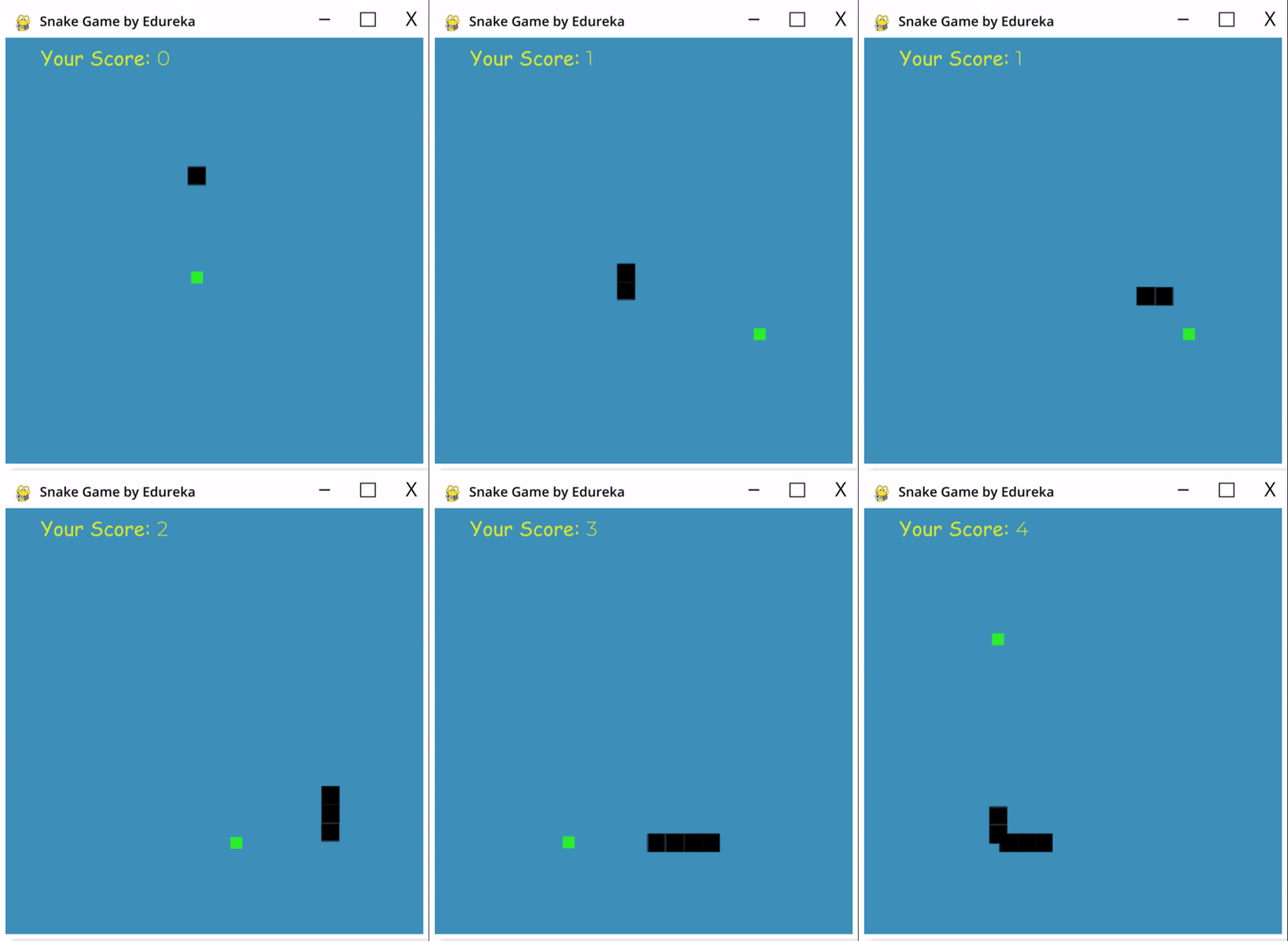
The following code will increase the size of our sake when it eats the food. Also, if the snake collides with his own body, the game is over and you ill see a message as “You Lost! Press Q-Quit or C-Play Again”. The length of the snake is basically contained in a list and the initial size that is specified in the following code is one block.
import pygame
import time
import random

pygame.init()

white = (255, 255, 255)
yellow = (255, 255, 102)
black = (0, 0, 0)
red = (213, 50, 80)
green = (0, 255, 0)
blue = (50, 153, 213)

dis_width = 600
dis_height = 400

dis = pygame.display.set_mode((dis_width, dis_height))
pygame.display.set_caption('Snake Game by Edureka')

clock = pygame.time.Clock()

snake_block = 10
snake_speed = 15

font_style = pygame.font.SysFont("bahnschrift", 25)
score_font = pygame.font.SysFont("comicsansms", 35)

def our_snake(snake_block, snake_list):
    for x in snake_list:
        pygame.draw.rect(dis, black, [x[0], x[1], snake_block, snake_block])


def message(msg, color):
    mesg = font_style.render(msg, True, color)
    dis.blit(mesg, [dis_width / 6, dis_height / 3])


def gameLoop():
    game_over = False
    game_close = False

    x1 = dis_width / 2
    y1 = dis_height / 2

    x1_change = 0
    y1_change = 0

    snake_List = []
    Length_of_snake = 1

    foodx = round(random.randrange(0, dis_width - snake_block) / 10.0) * 10.0
    foody = round(random.randrange(0, dis_height - snake_block) / 10.0) * 10.0

    while not game_over:

        while game_close == True:
            dis.fill(blue)
            message("You Lost! Press C-Play Again or Q-Quit", red)

            pygame.display.update()

            for event in pygame.event.get():
                if event.type == pygame.KEYDOWN:
                    if event.key == pygame.K_q:
                        game_over = True
                        game_close = False
                    if event.key == pygame.K_c:
                        gameLoop()

        for event in pygame.event.get():
            if event.type == pygame.QUIT:
                game_over = True
            if event.type == pygame.KEYDOWN:
                if event.key == pygame.K_LEFT:
                    x1_change = -snake_block
                    y1_change = 0
                elif event.key == pygame.K_RIGHT:
                    x1_change = snake_block
                    y1_change = 0
                elif event.key == pygame.K_UP:
                    y1_change = -snake_block
                    x1_change = 0
                elif event.key == pygame.K_DOWN:
                    y1_change = snake_block
                    x1_change = 0

        if x1 >= dis_width or x1 < 0 or y1 >= dis_height or y1 < 0:
            game_close = True
        x1 += x1_change
        y1 += y1_change
        dis.fill(blue)
        pygame.draw.rect(dis, green, [foodx, foody, snake_block, snake_block])
        snake_Head = []
        snake_Head.append(x1)
        snake_Head.append(y1)
        snake_List.append(snake_Head)
        if len(snake_List) > Length_of_snake:
            del snake_List[0]

        for x in snake_List[:-1]:
            if x == snake_Head:
                game_close = True

        our_snake(snake_block, snake_List)


        pygame.display.update()

        if x1 == foodx and y1 == foody:
            foodx = round(random.randrange(0, dis_width - snake_block) / 10.0) * 10.0
            foody = round(random.randrange(0, dis_height - snake_block) / 10.0) * 10.0
            Length_of_snake += 1

        clock.tick(snake_speed)

    pygame.quit()
    quit()


gameLoop()
OUTPUT:
Displaying the Score:
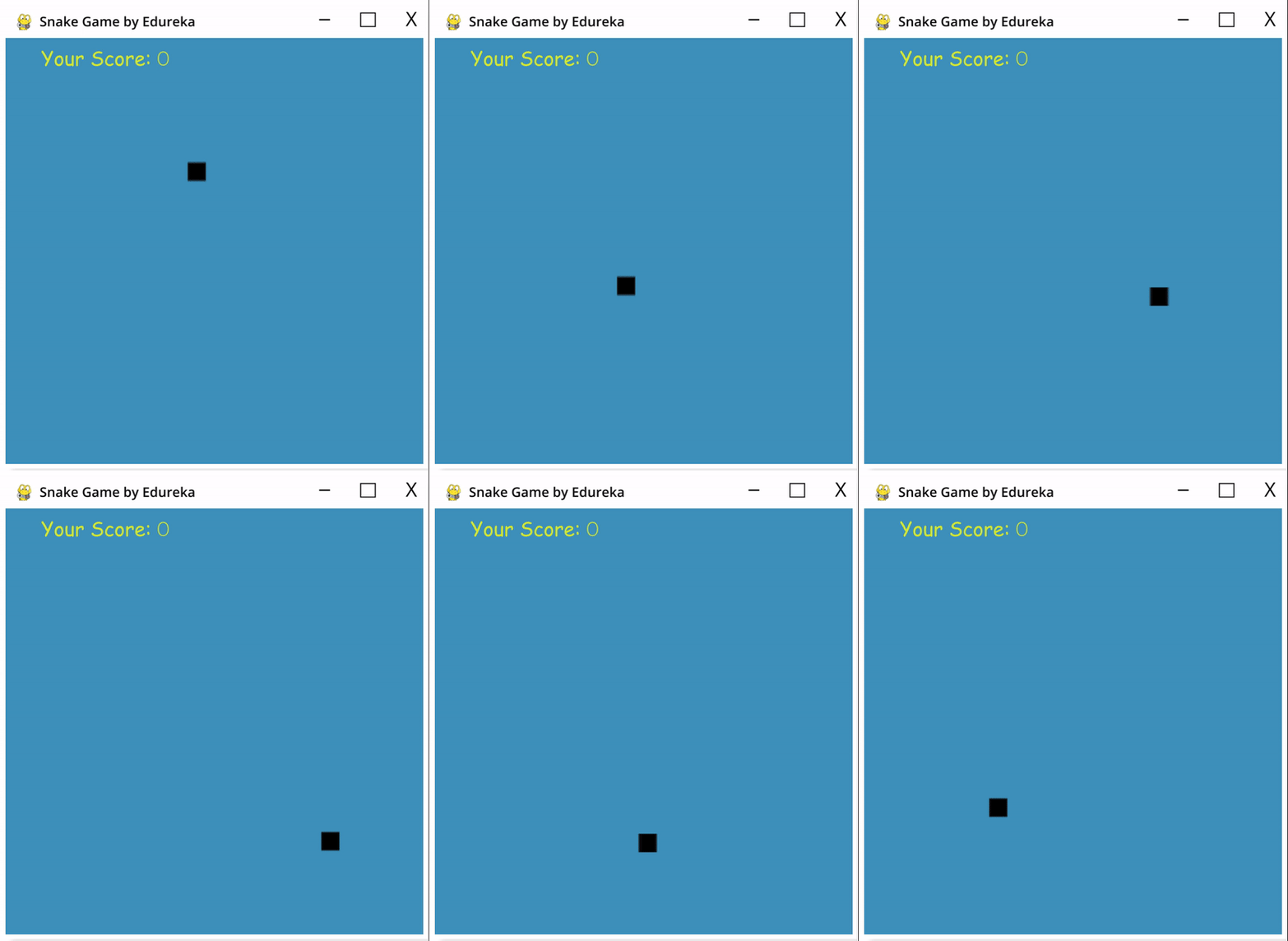
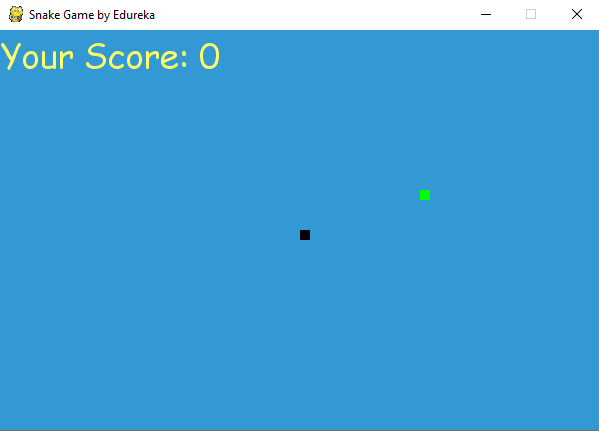
Last but definitely not the least, you will need to display the score of the player. To do this, I have created a new function as “Your_score”. This function will display the length of the snake subtracted by 1 because that is the initial size of the snake.
import pygame
import time
import random

pygame.init()

white = (255, 255, 255)
yellow = (255, 255, 102)
black = (0, 0, 0)
red = (213, 50, 80)
green = (0, 255, 0)
blue = (50, 153, 213)

dis_width = 600
dis_height = 400

dis = pygame.display.set_mode((dis_width, dis_height))
pygame.display.set_caption('Snake Game by Edureka')

clock = pygame.time.Clock()

snake_block = 10
snake_speed = 15

font_style = pygame.font.SysFont("bahnschrift", 25)
score_font = pygame.font.SysFont("comicsansms", 35)


def Your_score(score):
    value = score_font.render("Your Score: " + str(score), True, yellow)
    dis.blit(value, [0, 0])


def our_snake(snake_block, snake_list):
    for x in snake_list:
        pygame.draw.rect(dis, black, [x[0], x[1], snake_block, snake_block])


def message(msg, color):
    mesg = font_style.render(msg, True, color)
    dis.blit(mesg, [dis_width / 6, dis_height / 3])


def gameLoop():
    game_over = False
    game_close = False

    x1 = dis_width / 2
    y1 = dis_height / 2

    x1_change = 0
    y1_change = 0

    snake_List = []
    Length_of_snake = 1

    foodx = round(random.randrange(0, dis_width - snake_block) / 10.0) * 10.0
    foody = round(random.randrange(0, dis_height - snake_block) / 10.0) * 10.0

    while not game_over:

        while game_close == True:
            dis.fill(blue)
            message("You Lost! Press C-Play Again or Q-Quit", red)
            Your_score(Length_of_snake - 1)
            pygame.display.update()

            for event in pygame.event.get():
                if event.type == pygame.KEYDOWN:
                    if event.key == pygame.K_q:
                        game_over = True
                        game_close = False
                    if event.key == pygame.K_c:
                        gameLoop()

        for event in pygame.event.get():
            if event.type == pygame.QUIT:
                game_over = True
            if event.type == pygame.KEYDOWN:
                if event.key == pygame.K_LEFT:
                    x1_change = -snake_block
                    y1_change = 0
                elif event.key == pygame.K_RIGHT:
                    x1_change = snake_block
                    y1_change = 0
                elif event.key == pygame.K_UP:
                    y1_change = -snake_block
                    x1_change = 0
                elif event.key == pygame.K_DOWN:
                    y1_change = snake_block
                    x1_change = 0

        if x1 >= dis_width or x1 < 0 or y1 >= dis_height or y1 < 0:
            game_close = True
        x1 += x1_change
        y1 += y1_change
        dis.fill(blue)
        pygame.draw.rect(dis, green, [foodx, foody, snake_block, snake_block])
        snake_Head = []
        snake_Head.append(x1)
        snake_Head.append(y1)
        snake_List.append(snake_Head)
        if len(snake_List) > Length_of_snake:
            del snake_List[0]

        for x in snake_List[:-1]:
            if x == snake_Head:
                game_close = True

        our_snake(snake_block, snake_List)
        Your_score(Length_of_snake - 1)

        pygame.display.update()

        if x1 == foodx and y1 == foody:
            foodx = round(random.randrange(0, dis_width - snake_block) / 10.0) * 10.0
            foody = round(random.randrange(0, dis_height - snake_block) / 10.0) * 10.0
            Length_of_snake += 1

        clock.tick(snake_speed)

    pygame.quit()
    quit()


gameLoop()
OUTPUT:
With this, we have reached the end of this article on Snake Game in Python. I hope you are clear with all that has been shared with you in this article. Make sure you practice as much as possible and revert your experience.
If you wish to check out more articles on the market’s most trending technologies like Artificial Intelligence, DevOps, Ethical Hacking, then you can refer to Edureka’s official site.
Do look out for other articles in this series which will explain the various other aspects of Python and Data Science.
15. Python vs C++
16. Scrapy Tutorial
17. Python SciPy
20. Python Basics
23. Python Decorator
32. Python 3.8
34. Python Tutorial
Originally published at https://www.edureka.co on October 22, 2019.


