avatarJ3

Free AI web copilot to create summaries, insights and extended knowledge, download it at here

4186

Abstract

be1"><img src="https://cdn-images-1.readmedium.com/v2/resize:fit:800/0*8LMNqoCrUxyT6uPN.jpg"><figcaption>Fig 2. From <a href="https://www.google.com/url?sa=i&amp;url=https%3A%2F%2Fwww.dreamstime.com%2Fillustration%2Fart-silkscreen.html&amp;psig=AOvVaw3ZJNmU4ZIPjy8QUdWdFFcF&amp;ust=1601902444173000&amp;source=images&amp;cd=vfe&amp;ved=0CA0QjhxqFwoTCND72On9muwCFQAAAAAdAAAAABAO">Art Silkscreen Stock Illustrations — 546 Art Silkscreen Stock Illustrations, Vectors & Clipart — Dreamstime</a></figcaption></figure><p id="f62b">We will apply the same principle here.</p><p id="877b">Let’s separate the three channels from the puppy image above and see what happens.</p><p id="78e0">Let’s begin by creating a copy of our original image:</p><div id="b77f"><pre><span class="hljs-attr">pic_copy</span> = pic_arr.copy()</pre></div><p id="ccf1">Now let’s filter only the Red Channel Values(<b>R=0</b>, G=1, B=2):</p><div id="4eca"><pre><span class="hljs-comment"># *R G B</span> <span class="hljs-comment"># RED CHANNEL VALUES (0–255)</span> ptl.imshow(pic_copy[:,:,0], <span class="hljs-attribute">cmap</span>=’gray’)</pre></div><figure id="b52c"><img src="https://cdn-images-1.readmedium.com/v2/resize:fit:800/1*h0ksiyYO3DpaNB_Qtf0SUA.png"><figcaption>Fig 3. We are just mapping the image to show gray. If you were using screen printing techniques (silkscreen) you would probably use this filtered image to apply the red color (see that in carrots, the <b>red</b> color will be used a lot…)</figcaption></figure><p id="ff88">Up to here we just select the RED channel.</p><p id="993b">The Python Slicing techniques can be learned in this very simple <a href="https://readmedium.com/numpy-init-python-review-f5362abbaaf9">post</a>.</p><p id="e351">Now repeat the same procedures to filters out the other two colors.</p><p id="ceec">For Green (1):</p><div id="852e"><pre><span class="hljs-comment"># R *G B</span> <span class="hljs-comment"># GREEN CHANNEL VALUES(0–255)</span> ptl.imshow(pic_copy[:,:,1], <span class="hljs-attribute">cmap</span>=’gray’)</pre></div><figure id="5388"><img src="https://cdn-images-1.readmedium.com/v2/resize:fit:800/1*QC4FIwGpcQTTrXC0RtiIRw.png"><figcaption>Fig 4. See that the <b>green </b>is painted on the grass, with a little more intensity on the puppy’s hind legs …</figcaption></figure><p id="3aaf">For Blue (2):</p><div id="f0b3"><pre><span class="hljs-comment"># R G *B</span> <span class="hljs-comment"># BLUE CHANNEL VALUES(0–255)</span> ptl.imshow(pic_copy[:,:,2], <span class="hljs-attribute">cmap</span>=’gray’)</pre></div><figure id="b50c"><img src="https://cdn-images-1.readmedium.com/v2/resize:fit:800/1*K2HEtgbAMxeKZyFLOpnHDw.png"><figcaption>Fig 5. We painted the entire iron structure behind the puppy in pure <b>blue</b></figcaption></figure><p id="64f2">This last image is very illustrative: when we apply blue, see that in the steel structure behind the puppy there is a good amount of blue paint (thinking of the silkscreen technique).</p><p id="5616">In compensation, in the grass, in which green predominates, it does not pass not much blue. Got it?</p><p id="51ea">I found it all really incredible in Python. Just a few lines of code and the sea opens… don't you think so, Captain?</p><p id="f71b">Now let’s apply a technique to isolate only the red:</p><div id="759d"><pre><span class="hljs-comment"># Got rid of Green Channel</span> <span class="hljs-attribute">pic_copy</span>[:,:,<span class="hljs-number">1</span>] = <span class="hljs-number">0</span> <span class="hljs-attribute">ptl</span>.imshow(pic_copy)</pre></div><figure id="fd93"><img src="https://cdn-images-1.readmedium.com/v2/resize:fit:800/1*n2JObdwaVCcpMLglhu3p_A.png"><figcaption>Fig 6. Two colors predominate here: <b>red </b>and <b>blue</b>; the green vanished!</figcaption></figure><div id="ab15"><pre><span class="hljs-comment"># Got rid of Blue Channel</span> <span class="hljs-attribute">pic_copy</span>[:,:,<span class="hljs-number">2</span>] = <span class="hljs-number">0</span> <span class="hljs-attribute">ptl</span>.imshow(pic_copy)</pre></div><figure id="edb7"><img src="https://cdn-images-1.readmedium.com/v2/resize:fit:800/1*OD91TOf-ZmzjlXrdwiIBQw.

Options

png"><figcaption>Fig 7. Now only the red color.</figcaption></figure><p id="714b">The <i>pic_copy</i> still has the info about all 3 channels except cleverly we went ahead and zeroed G & B channels!</p><div id="08cc"><pre>ic_copy.<span class="hljs-keyword">shape </span><span class="hljs-comment"># Look!</span> pic_copy</pre></div><div id="6861"><pre>(<span class="hljs-number">551</span><span class="hljs-punctuation">,</span> <span class="hljs-number">789</span><span class="hljs-punctuation">,</span> <span class="hljs-number">3</span>)</pre></div><p id="1a12">And That’s it!</p><div id="280d"><pre><span class="hljs-built_in">print</span>(“That’s it<span class="hljs-comment">! Python support for opening, manipulating, and saving many different image file formats. See you in the next PyVisionSeries Episode!”)</span></pre></div><div id="8853"><pre>That<span class="hljs-comment">'s it! Python support for opening, manipulating, and saving many different image file formats. See you in the next PyVisionSeries Episode!</span></pre></div><p id="03b2">See the deforestation of the Amazon!</p><p id="85c9">Shall we understand more about how to work with satellite images?</p><figure id="6013"><img src="https://cdn-images-1.readmedium.com/v2/resize:fit:800/0*6YyyyTR_3Wzb0P5b"><figcaption>Fig 8. Please, let’s protect the <b>Amazon Rain Forest</b> for future generations! This is a paradise in terms of <b>biodiversity</b>! I lived in <b>Rondonia</b>, and you can clearly see the destructive trail of highway <a href="https://en.wikipedia.org/wiki/BR-364"><b>BR-364</b></a><b> </b>(center-left)…</figcaption></figure><p id="f276">Be tuned for the next episode of <b>#PyVisionSeries</b>! See you soon!</p><p id="16f5">Bye o/</p><p id="6992">Drive <a href="https://drive.google.com/drive/folders/1usJXEkA88je9VqinMCpBbcqOo8JakhIX?usp=sharing">Link</a></p><h1 id="cc30">Credits & References:</h1><p id="a67d">Jose Portilla — <a href="https://www.udemy.com/course/python-for-computer-vision-with-opencv-and-deep-learning/">Python for Computer Vision with OpenCV and Deep Learning </a>— Learn the latest techniques in computer vision with Python, OpenCV, and Deep Learning!</p><p id="8a4c"><a href="https://pillow.readthedocs.io/en/stable/">https://pillow.readthedocs.io/en/stable/</a></p><p id="7e75"><a href="https://en.wikipedia.org/wiki/Image_resolution">https://en.wikipedia.org/wiki/Image_resolution</a></p><p id="a9b1"><a href="https://en.wikipedia.org/wiki/Computer_vision">https://en.wikipedia.org/wiki/Computer_vision</a></p><h1 id="9275">Posts Related:</h1><p id="6350"><b>00</b> Episode#Hi Python Computer Vision — PIL! —<a href="https://readmedium.com/hi-python-computer-vision-pil-786a1da7b2d4"> <b>An Intro To Python Imaging Library</b></a> #PyVisionSeries</p><p id="6097"><b>01</b> Episode# Jupyter-lab — Python — <a href="https://readmedium.com/jupyter-lab-python-opencv-c55de86ec557"><b>OpenCV</b> </a>— Image Processing Exercises #PyVisionSeries</p><p id="6373"><b>02</b> Episode# OpenCV — <a href="https://readmedium.com/opencv-image-basics-2e63d973851a"><b>Image Basics </b></a>— Create Image From Scratch #PyVisionSeries</p><p id="a8bf"><b>03</b> Episode# OpenCV — <a href="https://readmedium.com/opencv-morphological-operations-54f861eeb532"><b>Morphological Operations</b></a> — How To Erode, Dilate, Edge Detect w/ Gradient #PyVisionSeries</p><p id="c7fd"><b>04</b> Episode# OpenCV — <a href="https://readmedium.com/histogram-equalization-34149fc299a6"><b>Histogram Equalization</b></a> — HOW TO Equalize Histograms Of Images — #PyVisionSeries</p><p id="2a75"><b>05</b> Episode# OpenCV — OpenCV —<b> <a href="https://readmedium.com/opencv-resize-an-image-54df7680e828">Resize an Image </a></b>— How To Resize Without Distortion</p><p id="6420"><b>07</b> Episode# <a href="https://readmedium.com/yolo-object-detection-2828800fd2a2"><b>YOLO — Object Detection</b> </a>— The state of the art in object detection Framework!</p><p id="9a37"><b>08</b> Episode# OpenCV — <a href="https://readmedium.com/opencv-object-detection-7edf30c1fabf"><b>HaashCascate — Object Detection</b></a> — Viola–Jones object detection framework — #PyVisionSeries</p></article></body>

Hi Python Computer Vision— PIL!

An Intro To Python Imaging Library #PyVisionSeries — Episode #00

Python support for opening, manipulating, and saving many different image file formats.

Let’s get started with Python Computer Vision!

print(‘Hello Python Computer Vision!’)
Hello Python Computer Vision!

Python image libraries, like many others, are on top of the NumPy library and also depend on matplotlib too. Go ahead and import them now!

import numpy as np
import matplotlib.pyplot as ptl

In order to ensure that the matplotlib lib runs on a single line add this piece of code as well:

%matplotlib inline

Now, Pillow!

Pillow is the friendly PIL fork by Alex Clark and Contributors.

PIL is the Python Imaging Library by Fredrik Lundh and Contributors.

from PIL import Image

In order to get started let’s import any image .jpg (you can download the image from my google drive link 00_puppy.jpg:)

Here I’ll be using Google Colab (colab.research.google.com)!

Open a new project and click on hamburger icon > Files > Upload to Section Storage the 00_puppy.jpg (or any you’d like):

pic = Image.open(‘00_puppy.jpg’)

Let’s see what type of image this is:

type(pic)
PIL.JpegImagePlugin.JpegImageFile

To work with an image, let’s cast it to NumPy array:

pic_arr = np.asarray(pic)
type(pic_arr)
numpy.ndarray

Let’s see the Pixel resolution.

The term resolution is often considered equivalent to pixel count in digital imaging.

pic_arr.shape
(551, 789, 3)

Here Python is telling us that the image is 551 x 789 long and there are 3 channels available: Red, Green, and Blue (RGB).

So far, so Good!

Let`s see the picture.

ptl.imshow(pic_arr)
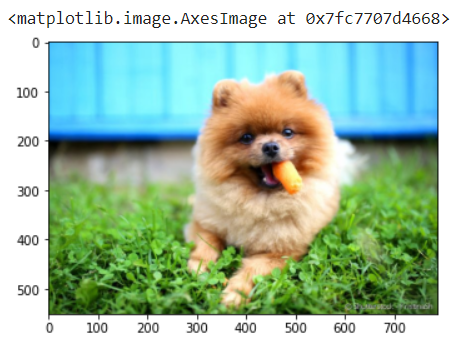
Fig 1. Note that when transforming into a NumPy array, we map the image automatically. Now each pixel is on our command! Perfect!

I think you’ve heard about screen printing.

The Silkscreen is the technique that consists of separating the screens in primary colors to print them one-by-one.
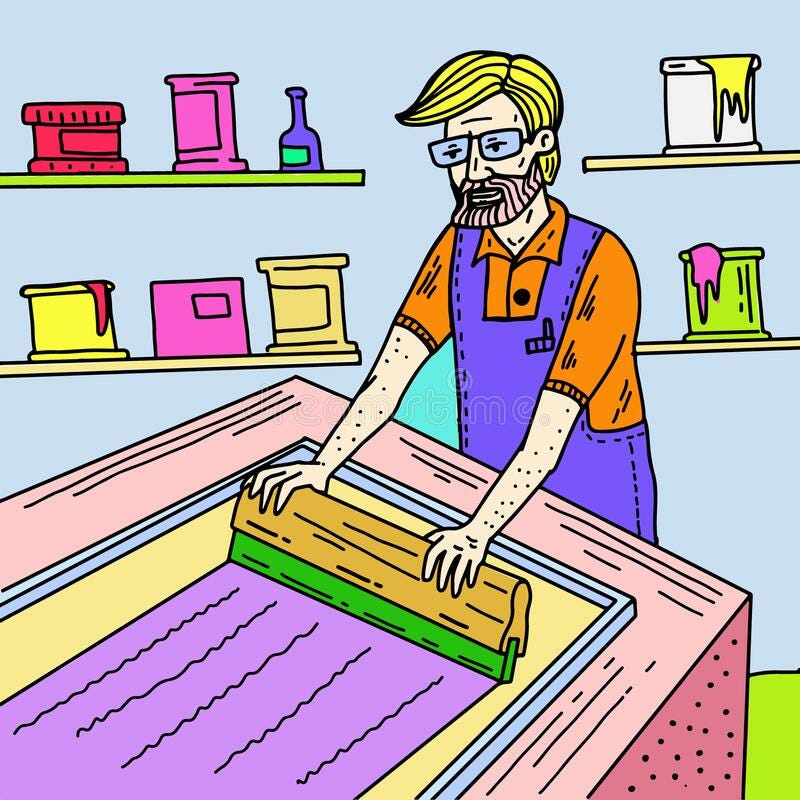
Fig 2. From Art Silkscreen Stock Illustrations — 546 Art Silkscreen Stock Illustrations, Vectors & Clipart — Dreamstime

We will apply the same principle here.

Let’s separate the three channels from the puppy image above and see what happens.

Let’s begin by creating a copy of our original image:

pic_copy = pic_arr.copy()

Now let’s filter only the Red Channel Values(R=0, G=1, B=2):

# *R G B
# RED CHANNEL VALUES (0–255)
ptl.imshow(pic_copy[:,:,0], cmap=’gray’)
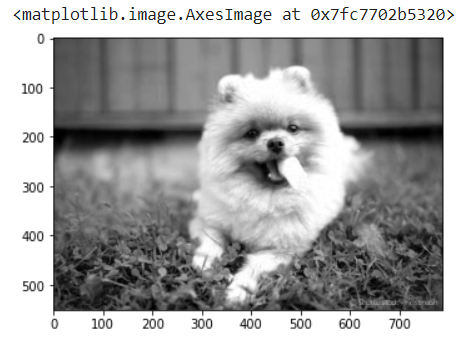
Fig 3. We are just mapping the image to show gray. If you were using screen printing techniques (silkscreen) you would probably use this filtered image to apply the red color (see that in carrots, the red color will be used a lot…)

Up to here we just select the RED channel.

The Python Slicing techniques can be learned in this very simple post.

Now repeat the same procedures to filters out the other two colors.

For Green (1):

# R *G B
# GREEN CHANNEL VALUES(0–255)
ptl.imshow(pic_copy[:,:,1], cmap=’gray’)
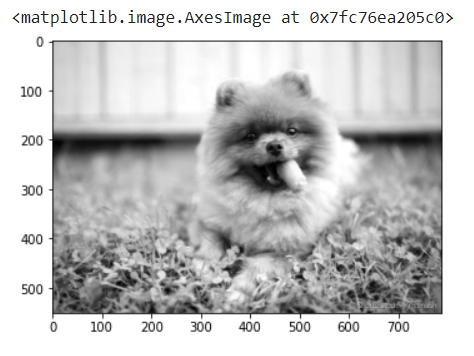
Fig 4. See that the green is painted on the grass, with a little more intensity on the puppy’s hind legs …

For Blue (2):

# R G *B
# BLUE CHANNEL VALUES(0–255)
ptl.imshow(pic_copy[:,:,2], cmap=’gray’)
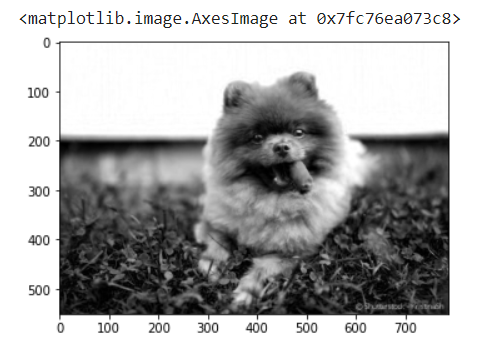
Fig 5. We painted the entire iron structure behind the puppy in pure blue

This last image is very illustrative: when we apply blue, see that in the steel structure behind the puppy there is a good amount of blue paint (thinking of the silkscreen technique).

In compensation, in the grass, in which green predominates, it does not pass not much blue. Got it?

I found it all really incredible in Python. Just a few lines of code and the sea opens… don't you think so, Captain?

Now let’s apply a technique to isolate only the red:

# Got rid of Green Channel
pic_copy[:,:,1] = 0
ptl.imshow(pic_copy)
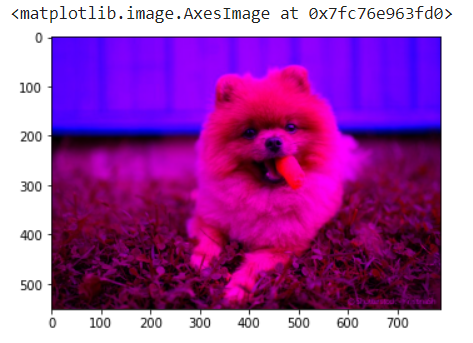
Fig 6. Two colors predominate here: red and blue; the green vanished!
# Got rid of Blue Channel
pic_copy[:,:,2] = 0
ptl.imshow(pic_copy)
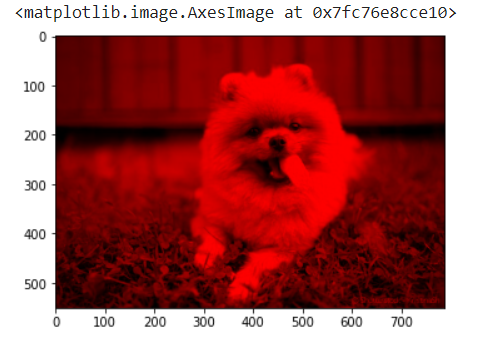
Fig 7. Now only the red color.

The pic_copy still has the info about all 3 channels except cleverly we went ahead and zeroed G & B channels!

ic_copy.shape
# Look!
pic_copy
(551, 789, 3)

And That’s it!

print(“That’s it! Python support for opening, manipulating, and saving many different image file formats. See you in the next PyVisionSeries Episode!”)
That's it! Python support for opening, manipulating, and saving many different image file formats. See you in the next PyVisionSeries Episode!

See the deforestation of the Amazon!

Shall we understand more about how to work with satellite images?
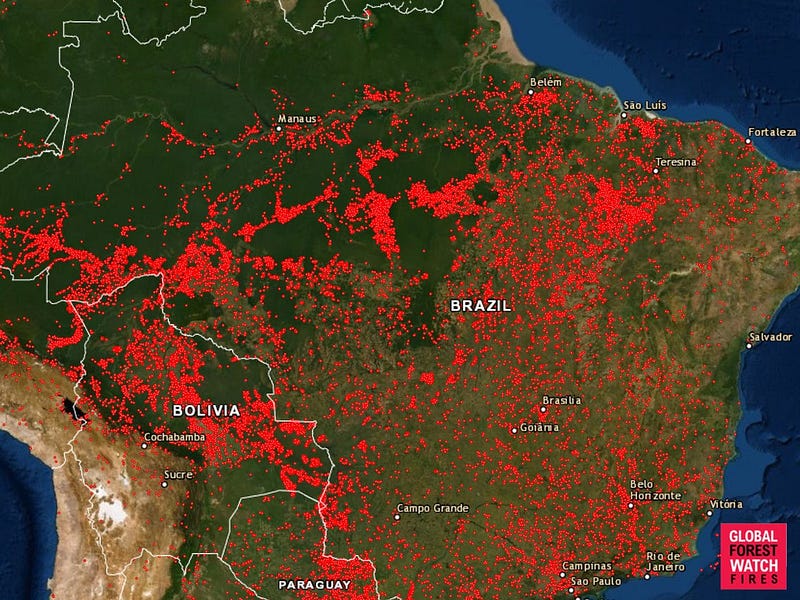
Fig 8. Please, let’s protect the Amazon Rain Forest for future generations! This is a paradise in terms of biodiversity! I lived in Rondonia, and you can clearly see the destructive trail of highway BR-364 (center-left)…

Be tuned for the next episode of #PyVisionSeries! See you soon!

Bye o/

Drive Link

Credits & References:

Jose Portilla — Python for Computer Vision with OpenCV and Deep Learning — Learn the latest techniques in computer vision with Python, OpenCV, and Deep Learning!

https://pillow.readthedocs.io/en/stable/

https://en.wikipedia.org/wiki/Image_resolution

https://en.wikipedia.org/wiki/Computer_vision

Posts Related:

00 Episode#Hi Python Computer Vision — PIL! — An Intro To Python Imaging Library #PyVisionSeries

01 Episode# Jupyter-lab — Python — OpenCV — Image Processing Exercises #PyVisionSeries

02 Episode# OpenCV — Image Basics — Create Image From Scratch #PyVisionSeries

03 Episode# OpenCV — Morphological Operations — How To Erode, Dilate, Edge Detect w/ Gradient #PyVisionSeries

04 Episode# OpenCV — Histogram Equalization — HOW TO Equalize Histograms Of Images — #PyVisionSeries

05 Episode# OpenCV — OpenCV — Resize an Image — How To Resize Without Distortion

07 Episode# YOLO — Object Detection — The state of the art in object detection Framework!

08 Episode# OpenCV — HaashCascate — Object Detection — Viola–Jones object detection framework — #PyVisionSeries

Python3
Computer Vision
Numpy
Python Matplotlib
Python Image Library
Recommended from ReadMedium