avatarJ3

Free AI web copilot to create summaries, insights and extended knowledge, download it at here

4696

Abstract

tlib.<span class="hljs-built_in">image</span>.AxesImage <span class="hljs-built_in">at</span> <span class="hljs-number">0x1664fba8730</span>></pre></div><figure id="f374"><img src="https://cdn-images-1.readmedium.com/v2/resize:fit:800/1*TagDZgHZSZy1F3IBDSgQ7w.png"><figcaption></figcaption></figure><p id="41f1">03 step # Basic Drawing: Lines, Rect & Circles</p><p id="22fb">For rect:</p><div id="0d18"><pre><span class="hljs-attribute">cv2</span>.rectangle(blank_img, pt1=(<span class="hljs-number">100</span>,<span class="hljs-number">100</span>), pt2=(<span class="hljs-number">400</span>,<span class="hljs-number">400</span>), color=(<span class="hljs-number">0</span>,<span class="hljs-number">255</span>,<span class="hljs-number">0</span>), thickness=<span class="hljs-number">10</span>);</pre></div><p id="b604">The semicolon is to get rid of the output.</p><div id="756b"><pre>plt.imshow<span class="hljs-comment">(blank_img)</span></pre></div><div id="9819"><pre><matplotlib.<span class="hljs-built_in">image</span>.AxesImage <span class="hljs-built_in">at</span> <span class="hljs-number">0x16650f3d2b0</span>></pre></div><figure id="4439"><img src="https://cdn-images-1.readmedium.com/v2/resize:fit:800/1*X8qhNjo1i4n3KSeYxOwZsQ.png"><figcaption></figcaption></figure><p id="23b3">For circle:</p><div id="a84d"><pre><span class="hljs-attribute">cv2</span>.circle(blank_img, center=(<span class="hljs-number">250</span>,<span class="hljs-number">250</span>), radius=<span class="hljs-number">220</span>, color=(<span class="hljs-number">255</span>,<span class="hljs-number">0</span>,<span class="hljs-number">0</span>), thickness=<span class="hljs-number">8</span>);</pre></div><p id="ef43">Showing image:</p><div id="6e7d"><pre>plt.imshow<span class="hljs-comment">(blank_img)</span></pre></div><div id="48da"><pre><matplotlib.<span class="hljs-built_in">image</span>.AxesImage <span class="hljs-built_in">at</span> <span class="hljs-number">0x16650f9b5b0</span>></pre></div><figure id="9832"><img src="https://cdn-images-1.readmedium.com/v2/resize:fit:800/1*cvoMRlsHKkLiJOq2OB2KfQ.png"><figcaption></figcaption></figure><p id="d339">For line(s):</p><div id="44f4"><pre><span class="hljs-attribute">cv2</span>.line(blank_img, pt1=(<span class="hljs-number">200</span>,<span class="hljs-number">100</span>), pt2=(<span class="hljs-number">200</span>, <span class="hljs-number">400</span>), color=(<span class="hljs-number">0</span>,<span class="hljs-number">0</span>,<span class="hljs-number">255</span>), thickness=<span class="hljs-number">10</span>);</pre></div><div id="4e6a"><pre><span class="hljs-attribute">cv2</span>.line(blank_img, pt1=(<span class="hljs-number">100</span>,<span class="hljs-number">250</span>), pt2=(<span class="hljs-number">200</span>, <span class="hljs-number">400</span>), color=(<span class="hljs-number">0</span>,<span class="hljs-number">0</span>,<span class="hljs-number">255</span>), thickness=<span class="hljs-number">10</span>);</pre></div><div id="3440"><pre><span class="hljs-attribute">cv2</span>.line(blank_img, pt1=(<span class="hljs-number">300</span>,<span class="hljs-number">100</span>), pt2=(<span class="hljs-number">400</span>, <span class="hljs-number">200</span>), color=(<span class="hljs-number">0</span>,<span class="hljs-number">0</span>,<span class="hljs-number">255</span>), thickness=<span class="hljs-number">10</span>);</pre></div><div id="4375"><pre><span class="hljs-attribute">cv2</span>.line(blank_img, pt1=(<span class="hljs-number">400</span>,<span class="hljs-number">200</span>), pt2=(<span class="hljs-number">300</span>, <span class="hljs-number">250</span>), color=(<span class="hljs-number">0</span>,<span class="hljs-number">0</span>,<span class="hljs-number">255</span>), thickness=<span class="hljs-number">10</span>);</pre></div><div id="8707"><pre><span class="hljs-attribute">cv2</span>.line(blank_img, pt1=(<span class="hljs-number">300</span>,<span class="hljs-number">250</span>), pt2=(<span class="hljs-number">400</span>, <span class="hljs-number">350</span>), color=(<span class="hljs-number">0</span>,<span class="hljs-number">0</span>,<span class="hljs-number">255</span>), thickness=<span class="hljs-number">10</span>);</pre></div><div id="2b68"><pre><span class="hljs-attribute">cv2</span>.line(blank_img, pt1=(<span class="hljs-number">400</span>,<span class="hljs-number">350</span>), pt2=(<span class="hljs-number">300</span>, <span class="hljs-number">400</span>), color=(<span class="hljs-number">0</span>,<span class="hljs-number">0</span>,<span class="hljs-number">255</span>), thickness=<span class="hljs-number">10</span>);</pre></div><p id="f536">Showing image:</p><d

Options

iv id="e29b"><pre>plt.imshow<span class="hljs-comment">(blank_img)</span></pre></div><div id="27e4"><pre><matplotlib.<span class="hljs-built_in">image</span>.AxesImage <span class="hljs-built_in">at</span> <span class="hljs-number">0x16650ff87f0</span>></pre></div><figure id="e8fa"><img src="https://cdn-images-1.readmedium.com/v2/resize:fit:800/1*kmTVUcwTgafPMFU7aHciyA.png"><figcaption></figcaption></figure><p id="ae41">04 step # Put Text on Image</p><div id="c846"><pre><span class="hljs-attribute">font</span> <span class="hljs-operator">=</span> cv2.FONT_HERSHEY_SIMPLEX</pre></div><div id="1d24"><pre>cv2.putText(blank_img, <span class="hljs-attribute">text</span>=<span class="hljs-string">'J3'</span>,org=(400,500), <span class="hljs-attribute">fontFace</span>=font, <span class="hljs-attribute">fontScale</span>=3, color=(255,255,255), <span class="hljs-attribute">thickness</span>=5, <span class="hljs-attribute">lineType</span>=cv2.LINE_AA );</pre></div><p id="658a">Showing image:</p><div id="5d93"><pre>plt.imshow<span class="hljs-comment">(blank_img)</span></pre></div><div id="a342"><pre><matplotlib.<span class="hljs-built_in">image</span>.AxesImage <span class="hljs-built_in">at</span> <span class="hljs-number">0x16651058280</span>></pre></div><figure id="6d06"><img src="https://cdn-images-1.readmedium.com/v2/resize:fit:800/1*XiAm85nQsTccC2Gc5Vg6uA.png"><figcaption></figcaption></figure><p id="9c2a">05 step # Saving an Image</p><p id="4723"># To a Filename</p><p id="7e99"># Using cv2.imwrite() method

Saving the image</p><div id="3f50"><pre>cv<span class="hljs-number">2.</span>imwrite<span class="hljs-comment">(filename, blank_img)</span></pre></div><div id="3719"><pre><span class="hljs-literal">True</span></pre></div><p id="c421">An image must have been saved inside /DATA folder.</p><p id="0d0e">06 step # Run It All Together & Check out</p><p id="79c7">Run and Check it out!</p><div id="798d"><pre><span class="hljs-function"><span class="hljs-title">openImg</span><span class="hljs-params">(<span class="hljs-string">'PUPPY'</span>, <span class="hljs-string">'DATA/savedImage.jpg'</span>)</span></span></pre></div><p id="8432">And finally:</p><div id="2eec"><pre><span class="hljs-function"><span class="hljs-title">print</span><span class="hljs-params">(<span class="hljs-string">"That´s it! Thank you once again!\nI hope will be helpful."</span>)</span></span></pre></div><div id="644d"><pre>That´s it! Thank you once again!

I hope will be helpful.</pre></div><p id="b3d3">👉Jupiter notebook <a href="https://drive.google.com/file/d/1pMesA2LfRKdCdwsDVib-OdT4jQNRt-lW/view?usp=sharing">link</a> :)</p><p id="b69f">👉<a href="https://github.com/giljr/pyImage">Github</a> (EX_02)</p><h1 id="106f">Credits & References:</h1><p id="5616">Jose Portilla — <a href="https://www.udemy.com/course/python-for-computer-vision-with-opencv-and-deep-learning/">Python for Computer Vision with OpenCV and Deep Learning </a>— Learn the latest techniques in computer vision with Python, OpenCV, and Deep Learning!</p><h1 id="f59a">Posts Related:</h1><p id="1b8e">00 Episode#Hi Python Computer Vision — PIL! — <a href="https://readmedium.com/hi-python-computer-vision-pil-786a1da7b2d4"><b>An Intro To Python Imaging Library</b></a> #PyVisionSeries</p><p id="42bf"><b>01</b> Episode# Jupyter-lab — Python — <a href="https://readmedium.com/jupyter-lab-python-opencv-c55de86ec557"><b>OpenCV</b> </a>— Image Processing Exercises #PyVisionSeries</p><p id="2b81"><b>02</b> Episode# OpenCV — <a href="https://readmedium.com/opencv-image-basics-2e63d973851a"><b>Image Basics </b></a>— Create Image From Scratch #PyVisionSeries</p><p id="ff16"><b>03</b> Episode# OpenCV — <a href="https://readmedium.com/opencv-morphological-operations-54f861eeb532"><b>Morphological Operations</b></a> — How To Erode, Dilate, Edge Detect w/ Gradient #PyVisionSeries</p><p id="fa88"><b>04</b> Episode# OpenCV — <a href="https://readmedium.com/histogram-equalization-34149fc299a6"><b>Histogram Equalization</b></a> — HOW TO Equalize Histograms Of Images — #PyVisionSeries</p><p id="4e92"><b>05</b> Episode# OpenCV — OpenCV — <a href="https://readmedium.com/opencv-resize-an-image-54df7680e828"><b>Resize an Image </b></a>— How To Resize Without Distortion</p><p id="ee7f"><b>07</b> Episode# <a href="https://readmedium.com/yolo-object-detection-2828800fd2a2"><b>YOLO — Object Detection</b> </a>— The state of the art in object detection Framework!</p><p id="8129"><b>08</b> Episode# OpenCV — <a href="https://readmedium.com/opencv-object-detection-7edf30c1fabf"><b>HaashCascate — Object Detection</b></a> — Viola–Jones object detection framework — #PyVisionSeries</p></article></body>

OpenCV — Image Basics

Create Image From Scratch — #PyVisionSeries — Episode #02

Hi, This is all about OpenCV. Welcome!

Index:

01 step # Open & closing Windows
02 step # Create a New Black Image
03 step # Basic Drawing: Lines, Rect & Circles
04 step # Put Text on Image
05 step # Saving an Image
06 step # Run It All Together & Check out

Image BASIC w/ OpenCV

OpenCV library already contains many popular algorithms for computer vision, including object detection and tracking algorithms already built into the library.

To guarantee that OpenCV is up and running, Go to the Anaconda Prompt window, CTRL + C, and type:

conda install -c menpo opencv

Let's get your feet wet!

00step # This is a continuation of this post

Again, to guarantee that OpenCV is up and running, Go to the Anaconda Prompt window, CTRL + C, and type:
conda install -c menpo opencv

01 step # Open & Closing Windows

Let´s define a safe method of working with images on the window.

Importing libs:

import cv2
import numpy as np
import matplotlib.pyplot as plt
%matplotlib inline

Here is the util method:

def openImg(title, img):
  img = cv2.imread(img)
  while True:
    cv2.imshow(title, img)
    #if we waited at least 1 sec AND we´ve pressed the ESC
    if cv2.waitKey(1) & 0xFF == 27:
      break
cv2. destroyAllWindows()

Please, hit ESC to close the external window.

openImg('PUPPY', 'DATA/00_puppy.jpg')

This will open an external window to work images inside OpenCV.

02 step # Create a New Black Image

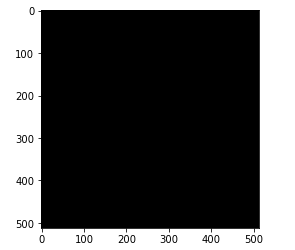
A Blank new image (actually, a black:)

blank_img = np.zeros(shape=(512,512,3), dtype=np.int16)

Shaped as:

blank_img.shape
(512, 512, 3)

Showing using MatPlotLib lib:

plt.imshow(blank_img)
<matplotlib.image.AxesImage at 0x1664fba8730>
03 step # Basic Drawing: Lines, Rect & Circles

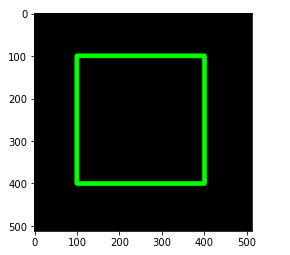
For rect:

cv2.rectangle(blank_img, pt1=(100,100), pt2=(400,400), color=(0,255,0), thickness=10);

The semicolon is to get rid of the output.

plt.imshow(blank_img)
<matplotlib.image.AxesImage at 0x16650f3d2b0>
For circle:

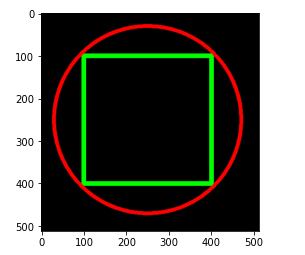
cv2.circle(blank_img, center=(250,250), radius=220, color=(255,0,0), thickness=8);

Showing image:

plt.imshow(blank_img)
<matplotlib.image.AxesImage at 0x16650f9b5b0>
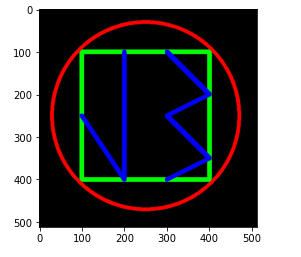
For line(s):

cv2.line(blank_img, pt1=(200,100), pt2=(200, 400), color=(0,0,255), thickness=10);
cv2.line(blank_img, pt1=(100,250), pt2=(200, 400), color=(0,0,255), thickness=10);
cv2.line(blank_img, pt1=(300,100), pt2=(400, 200), color=(0,0,255), thickness=10);
cv2.line(blank_img, pt1=(400,200), pt2=(300, 250), color=(0,0,255), thickness=10);
cv2.line(blank_img, pt1=(300,250), pt2=(400, 350), color=(0,0,255), thickness=10);
cv2.line(blank_img, pt1=(400,350), pt2=(300, 400), color=(0,0,255), thickness=10);

Showing image:

plt.imshow(blank_img)
<matplotlib.image.AxesImage at 0x16650ff87f0>
04 step # Put Text on Image

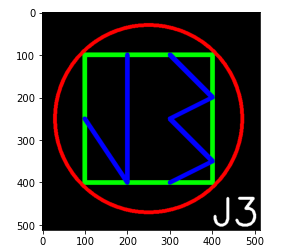
font = cv2.FONT_HERSHEY_SIMPLEX
cv2.putText(blank_img, text='J3',org=(400,500), fontFace=font, fontScale=3, color=(255,255,255), thickness=5, lineType=cv2.LINE_AA );

Showing image:

plt.imshow(blank_img)
<matplotlib.image.AxesImage at 0x16651058280>
05 step # Saving an Image

# To a Filename

# Using cv2.imwrite() method # Saving the image

cv2.imwrite(filename, blank_img)
True

An image must have been saved inside /DATA folder.

06 step # Run It All Together & Check out

Run and Check it out!

openImg('PUPPY', 'DATA/savedImage.jpg')

And finally:

print("That´s it! Thank you once again!\nI hope will be helpful.")
That´s it! Thank you once again!
I hope will be helpful.

👉Jupiter notebook link :)

👉Github (EX_02)

Credits & References:

Jose Portilla — Python for Computer Vision with OpenCV and Deep Learning — Learn the latest techniques in computer vision with Python, OpenCV, and Deep Learning!

Posts Related:

00 Episode#Hi Python Computer Vision — PIL! — An Intro To Python Imaging Library #PyVisionSeries

01 Episode# Jupyter-lab — Python — OpenCV — Image Processing Exercises #PyVisionSeries

02 Episode# OpenCV — Image Basics — Create Image From Scratch #PyVisionSeries

03 Episode# OpenCV — Morphological Operations — How To Erode, Dilate, Edge Detect w/ Gradient #PyVisionSeries

04 Episode# OpenCV — Histogram Equalization — HOW TO Equalize Histograms Of Images — #PyVisionSeries

05 Episode# OpenCV — OpenCV — Resize an Image — How To Resize Without Distortion

07 Episode# YOLO — Object Detection — The state of the art in object detection Framework!

08 Episode# OpenCV — HaashCascate — Object Detection — Viola–Jones object detection framework — #PyVisionSeries

Opencv Python
Jupyter Notebook
Image Processing
Creating Images On The Go
Opencv
Recommended from ReadMedium