
OpenC V— Jupyter-lab — Python
Image Processing Exercises — #PyVisionSeries — Episode #01
Let´s create a conda environment for running python OpenCV code.
We are working with Jupyter Notebook :)
Please, first, download Anaconda package for Data Science.
Download all the files for this project.
Now folow theses steps:
00step — Create Directory to work with
Create anywhere on your windows computer a directory (python_opencv)
Now type on prompt:
cd Downloads
mkdir python_opencv
cd python_opencv
cdand paste these file inside:
DATA [Directory containing the images]
Yml file will import all the libs that you will need for OpenCV via Conda.
01step — Create a Virtual Environment
In your prompt (inside python_opencv dir):
conda env create -f python_opencv.yml02 step— Run Jupyter Notebook:
jupyter-labIf all goes well, you will find this screen open in your browse:

Before we dive into OpenCV, Let´s see how to manipulate Image w/ Pure Python!
GOTO
File > New > Notebook
[Python3 ipykernel]
Rename it as 01_cv_00.ipynb,
and Type:
PILLOW LIB
import numpy as npImporting Numpy as well Matplotlib:
import matplotlib.pyplot as plt%matplotlib inlineImporting Pillow lib:
from PIL import ImageSave this image DATA to your directory: 00_puppy.jpg (or whatever you like:)
pic = Image.open('DATA/00_puppy.jpg')Type:
pic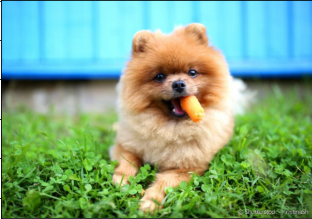
type(pic)PIL.JpegImagePlugin.JpegImageFileTo work with Numpy we must convert JPEG image into Numpy Array. Here is how to:
pic_arr = np.asanyarray(pic)This now is a Numpy Array:
type(pic_arr)numpy.ndarray
It’s Shaped as:
pic_arr.shape(551, 789, 3)Use MatPlotLib to show the image:
plt.imshow(pic_arr)
<matplotlib.image.AxesImage at 0x23b0bf38eb0>
It’s Shaped as:
pic_arr.shape
(551, 789, 3)
Note that there’s three channels here, the red, the green and the blue.
Each one has its array, (551, 789) for Red , (551, 789) for Green and, (551, 789) for Blue. 3-D arrays.
Let’s actually access one of these channels by itself:
For RED:
pic_red = pic_arr[:,:,0]Showing the img:
# RED CHANNEL VALUES 0-255 0 = NO COLOR ALUE 255 = FULL COLORplt.imshow(pic_red, cmap='gray')<matplotlib.image.AxesImage at 0x23b0beb99a0>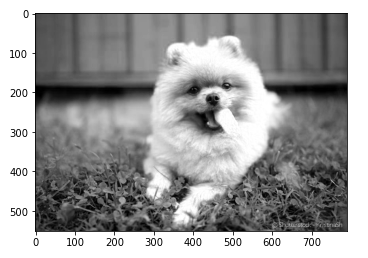
So that means when we’re actually viewing this in grayscale, the closer to white that means more red for this particular image.
For GREEN:
pic_green = pic_arr[:,:,1]plt.imshow(pic_green, cmap='gray')<matplotlib.image.AxesImage at 0x23b0d18a2b0>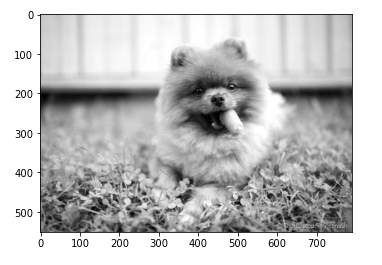
For BLUE:
pic_blue = pic_arr[:,:,2]plt.imshow(pic_blue, cmap='gray')<matplotlib.image.AxesImage at 0x23b0d1d8490>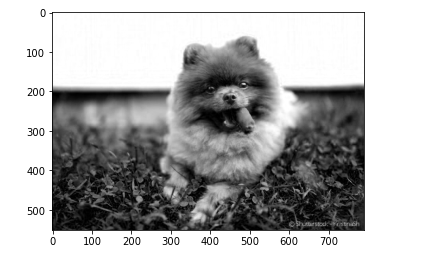
So, here we’re displaying the three different channels as grayscale.
Now let´s zeroed GB and stick with R channel
pic_copy = pic_arr.copy()Zeroed out the Green Channel:
pic_copy[:,:,1] = 0Zeroed out the Blue Channel:
pic_copy[:,:,2] = 0Shows up the RED channel:
plt.imshow(pic_copy)
We went ahead and zeroed out the Green Channel as well as the Blue Channel, which is why this picture only shows up with the red.
pic_copy.shape(1044, 1000, 3)There are 3 channel, yet! because we’re seeing all three channels at once instead of just one channel.
What we did was zeroed two channels, but the arrays remain intact even if their values have been set to zero
print("That's it! Thanks for reading. Next Episode: OpenCV Basics\nSee you soon!")That's it! Thanks for reading. Next Episode: OpenCV Basics See you soon!
👉Jupiter notebook link :)
👉Github (EX_01)
Credits & References:
Jose Portilla — Python for Computer Vision with OpenCV and Deep Learning — Learn the latest techniques in computer vision with Python, OpenCV, and Deep Learning!
Posts Related:
00 Episode#Hi Python Computer Vision — PIL! — An Intro To Python Imaging Library #PyVisionSeries
01 Episode# Jupyter-lab — Python — OpenCV — Image Processing Exercises #PyVisionSeries
02 Episode# OpenCV — Image Basics — Create Image From Scratch #PyVisionSeries
03 Episode# OpenCV — Morphological Operations — How To Erode, Dilate, Edge Detect w/ Gradient #PyVisionSeries
04 Episode# OpenCV — Histogram Equalization — HOW TO Equalize Histograms Of Images — #PyVisionSeries
05 Episode# OpenCV — OpenCV — Resize an Image — How To Resize Without Distortion
07 Episode# YOLO — Object Detection — The state of the art in object detection Framework!
08 Episode# OpenCV — HaashCascate — Object Detection — Viola–Jones object detection framework — #PyVisionSeries


