
[Terraform] Deploy Azure Virtual Machine with AAD enabled
Follow up on my blogs regarding Azure AD (Microsoft Entra ID) login to Azure Virtual Machines
- Login to a Virtual Machine using Azure AD Account on Linux
- [Terraform] Deploy Azure Virtual Machine with AAD enabled
- AzureAD support for Azure VMSS (virtual machine scale set)
- Azure Centralized Bastion Solution
- Configure Local Group Policy to Disable NLA in Windows Server 2019 for AzureAD-Ready Logins.
Several series for the topic:
- Stage 1 — Login to a Azure Virtual Machine (VM) using Azure AD Account on Linux , in the blog
- Stage 2 — AzureAD support for Azure VMSS (virtual machine scale set), in the blog
- Stage 3 — [Terraform] Deploy Azure Virtual Machine with AAD enabled, in current blog
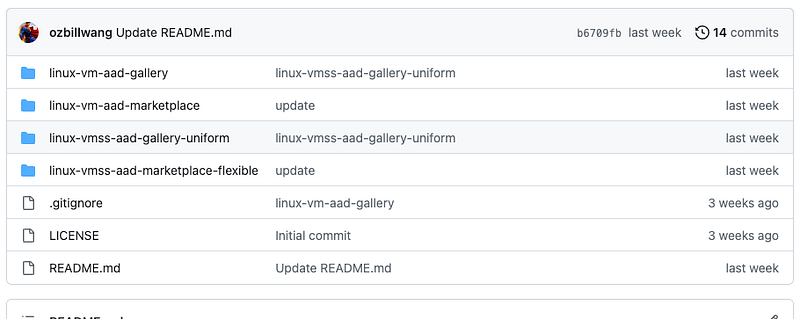
Reference repository: https://github.com/ozbillwang/terraform-azurerm-virtual-machine-aad
Background
In many scenarios, Azure Virtual Machines are created using images obtained from the Azure Marketplace. However, this isn’t always the norm.
In large organizations, it’s often necessary to manage custom ‘Golden’ images. These images are tailored to meet specific requirements, such as applying CIS (center for internet security) hardening, installing the latest patches, configuring anti-virus agents, and adding other necessary applications unique to the organization.
Once these custom images are ready, they are shared through Azure Compute Gallery (formerly known as Shared Image Gallery) across all subscriptions within the same Azure Tenant.
Secondly, in line with security compliance requirements, we avoid creating local accounts or sharing private SSH keys. Therefore, AzureAD login is essential for the new virtual machines we create.
Terraform the IaC is our preferred tool for deploying these virtual machines, with the following key requirements:
- Enabling Azure Active Directory (AzureAD / AAD) , now it is called Microsoft Entra ID, for enhanced security.
- Creating virtual machines using our own ‘Golden’ images, which have been built and shared within the Azure Compute Gallery.
- Manage Azure groups that have permissions to log in to virtual machines with AzureAD accounts. It is strongly advised not to assign roles to individual users. Even if only one user needs access to the VM, it’s recommended to create a group, include the users, and assign permissions to that group.
In my previous blog, I introduced the manual process of enabling Azure Active Directory (AAD) for virtual machines. This time, I’ll demonstrate the automated approach using Infrastructure as Code (IaC).
Prerequsites
- terraform
- azure cli
- Azure Bastion is created with type of Standard
Get shared image id from azure computer gallery
terraform {

  required_version = ">= 1.2"

  required_providers {
    azurerm = {
      source  = "hashicorp/azurerm"
      version = ">= 3.11, < 4.0"
    }
  }
}

provider "azurerm" {
  features {
    resource_group {
      prevent_deletion_if_contains_resources = false
    }
  }
}

# Configuration for the "secondary" subscription
# Share image gallery from master subscription, where the images are built
provider "azurerm" {
  alias           = "secondary"
  subscription_id = var.subscription_secondary

  features {
    resource_group {
      prevent_deletion_if_contains_resources = false
    }
  }

}

data "azurerm_shared_image_version" "this" {
  provider            = azurerm.secondary
  name                = "latest"
  image_name          = var.image_name
  gallery_name        = var.gallery_name
  resource_group_name = var.gallery_rg
}
Explanation:
- name is
latest, so when new images are ready, you don’t need update your terraform codes, it will always pick up the latest image. - image_name is azure image definition name
- gallery_name is the azure computer gallery name
- resource_group_name is the computer gallery’s resource group name
- normally images are built in a master subscription, and shared to client subscripotions. Secondard provider defines the access to master subscrioption
Save the file to main.tf , prepare variables.tf ( refer the code ) dry-run ( terraform plan ) to check if you can get the image id.
az account set --subscription <replace_with_your_subscrption_id>
az account show

terraform fmt
terraform init -reconfigure
terraform validate

terraform plan
If the command is fine, you should see the output of the image id.
Then you can move on
Deploy VM with the shared image id
module "linux-vm-aad" {
  source = "git::https://github.com/Azure/terraform-azurerm-virtual-machine.git"

  location            = var.location
  image_os            = "linux"
  resource_group_name = local.name
  #checkov:skip=CKV_AZURE_50:Demo for extension
  allow_extension_operations = true
  boot_diagnostics           = false

  identity = var.identity

  new_network_interface = {
    ip_forwarding_enabled = false
    ip_configurations = [
      {
        primary = true
      }
    ]
  }
  admin_username = "azureuser"
  admin_ssh_keys = [
    {
      public_key = tls_private_key.this.public_key_openssh
    }
  ]
  name = local.name
  os_disk = {
    caching              = "ReadWrite"
    storage_account_type = "Standard_LRS"
  }

  source_image_id = data.azurerm_shared_image_version.this.id

  size      = var.size
  subnet_id = data.azurerm_subnet.this.id
  extensions = [
    {
      name                 = "AADSSHLoginForLinux"
      publisher            = "Microsoft.Azure.ActiveDirectory",
      type                 = "AADSSHLoginForLinux",
      type_handler_version = "1.0"
    },
  ]
}

resource "azurerm_role_assignment" "this" {
  principal_id         = data.azuread_groups.this.object_ids[0]
  role_definition_name = "Virtual Machine Administrator Login"
  scope                = azurerm_resource_group.this.id
}
Explanations
- Use Azure official terraform module to create virtual machine
- Enable “System assigned” identity with code:
identity = var.identity - Enable AzureAD extension with part of code:
extensions = [
    {
      name                 = "AADSSHLoginForLinux"
      publisher            = "Microsoft.Azure.ActiveDirectory",
      type                 = "AADSSHLoginForLinux",
      type_handler_version = "1.0"
    },
]- use image id we got from shared gallery:
source_image_id = data.azurerm_shared_image_version.this.id - Assign role of
Virtual Machine Administrator Login, so any one in that group can login the vm with AzureAD account and sudo to root
resource "azurerm_role_assignment" "this" {
  principal_id         = data.azuread_groups.this.object_ids[0]
  role_definition_name = "Virtual Machine Administrator Login"
  scope                = azurerm_resource_group.this.id
}
While there are other virtual machine related roles to assign, for the sake of simplicity, I typically grant administrator login directly to everyone allowed to access that VM. This minimizes the need for additional permission requests later on. :-)
- Virtual Machine User Login — View Virtual Machines in the portal and login as a regular user.
- Virtual Machine Administrator Login — View Virtual Machines in the portal and login as administrator
Set Variable Definitions (.tfvars) Files
$ cat dev.tfvars

# adjust with your environment
location="australiaeast"
subnet_name="AppSubnet"
vnet_name="vnet-dev"
vnet_rg="vnet-rg"
image_name="Golden_Image_Redhat_RHEL_9"
gallery_name="Golden_Images_prod"
gallery_rg="Golden_Image-Builder"
Dry-run the codes
#! /usr/bin/env bash

az account set --subscription <replace_with_your_subscrption_id>
az account show

terraform fmt
terraform init -reconfigure
terraform validate

terraform plan -var-file=dev.tfvars -out='planfile'
# terraform apply "planfile"
If it works as expect, you can apply the change by command
terraform apply "planfile"Login the VM with AAD account
$ cat aad-login-vm.sh

# adjust with your environment
subscription=<replace_with_your_subscrption_id>
az account set -s ${subscription}
az account show

bastionName="<replace_with_bastion_name>"
bastionRG="<replace_with_bastion_resource_group>"

# replace with the virtual machine name and its resource group.
vmName="vm-dev-4134"
vmRG="vm-dev-4134"

vmId=$(az vm list --resource-group ${vmRG} --query "[?name=='$vmName'].id" --output tsv)
echo $vmId

az network bastion ssh --name "${bastionName}" --resource-group "${bastionRG}" --target-resource-id "${vmId}" --auth-type AAD
If everything is fine, you should be fine to run it and login the vm with your AzureAD account
./aad-login-vm.sh

...

[bill.wang@example.au@vm-dev-fc30-vm000000 ~]$
If you’ve been successful, after logging in, your AzureAD account (typically your Outlook mailbox) should appear as the login account in the shell prompt.
Reference
ACCESSING MULTIPLE AZURE SUBSCRIPTIONS IN A SINGLE TERRAFORM RUN
[github repo for this blog] Terraform Azure RM Virtual Machine Module