
Configure Local Group Policy to Disable NLA in Windows Server for AzureAD-Ready Logins.
Follow up on my blogs regarding Azure AD (Microsoft Entra ID) login to Azure Virtual Machines
- Login to a Virtual Machine using Azure AD Account on Linux
- [Terraform] Deploy Azure Virtual Machine with AAD enabled
- AzureAD support for Azure VMSS (virtual machine scale set)
- Azure Centralized Bastion Solution
- Configure Local Group Policy to Disable NLA in Windows Server 2019 for AzureAD-Ready Logins.
Prerequesites
Several configurations for a successful AzureAD login to a Azure Windows Virtual machine
- Azure Bastion with Standard Tier (highest and most expensive tier)
- Enable System-assigned managed identity
- Assign users or groups in Access control (IAM) with build-in role of “Virtual Machine Administrator Login”
- Install the AADLoginForWindows extension on the VM
- Disable NLA (for Windows system only)
Background
I can work out the setting with Terraform automation code for the other four (for detail , take reference in Login to a Virtual Machine using Azure AD Account on Linux), but I’m facing challenges in implementing the last one “Disable NLA ( Network Level Authentication)” through scripts
I managed it by manually changing two registry keys in the Local Group Policy.
- Open gpedit.msc applet.
- Navigate to Computer Configuration -> Administrative Templates -> Windows Components -> Remote Desktop Services -> Remote Desktop Session Host -> Security.
- Enable Require use of specific security layer for remote (RDP) connections and select RDP as Security Layer.
- Disable Require user authentication for remote connections by using Network Level Authentication policy.
- run command
gpupdate /forceto update your Group Policies
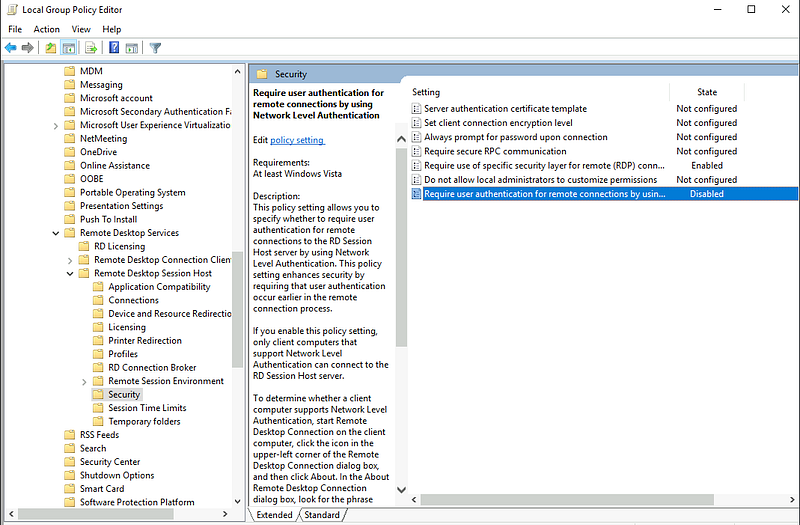
However, this is done manually. I’m aiming to take it a step further by creating a Windows Golden image with “Disable NLA” ready or start up Windows Virtual Machine with custom-data or user-data script to “Disable NLA”
It took me two years to figure this out.
Challenges
- Challenge #1: In each Azure Windows VM, there is a Azure Run Command, called “Disable NLA”. But it doesn’t work. I still can’t login via AzureAD after run that command with reboot.
- Challenge #2: Research on Manage group policy with Domain services. This is beyond my permission. As member of an application team, we have only local administrator permission on the VM, and our VMs aren’t Corporate Domain-Joined. Main reason is, we don’t have AD server in Azure Platform yet.
- Challenge #3: Difference between Registry and local group policy
Get-Item -LiteralPath $registryPath

    Hive: HKEY_LOCAL_MACHINE\SOFTWARE\Policies\Microsoft\Windows NT


Name                           Property
----                           --------
Terminal Services              KeepAliveEnable       : 1
                               KeepAliveInterval     : 1
                               DeleteTempDirsOnExit  : 1
                               DisablePasswordSaving : 1
                               fAllowToGetHelp       : 0
                               fAllowUnsolicited     : 0
                               fDisableCdm           : 1
                               fEncryptRPCTraffic    : 1
                               MinEncryptionLevel    : 3
                               PerSessionTempDir     : 1
                               UserAuthentication    : 0
With help of this official document [Download Group Policy Settings Reference for Windows and Windows Server] I know two registry keys I need target:
- HKLM:\SOFTWARE\Policies\Microsoft\Windows NT\Terminal Services\SecurityLayer
- HKLM:\SOFTWARE\Policies\Microsoft\Windows NT\Terminal Services\UserAuthentication
Got help from another document [Require use of specific security layer for remote (RDP) connections]
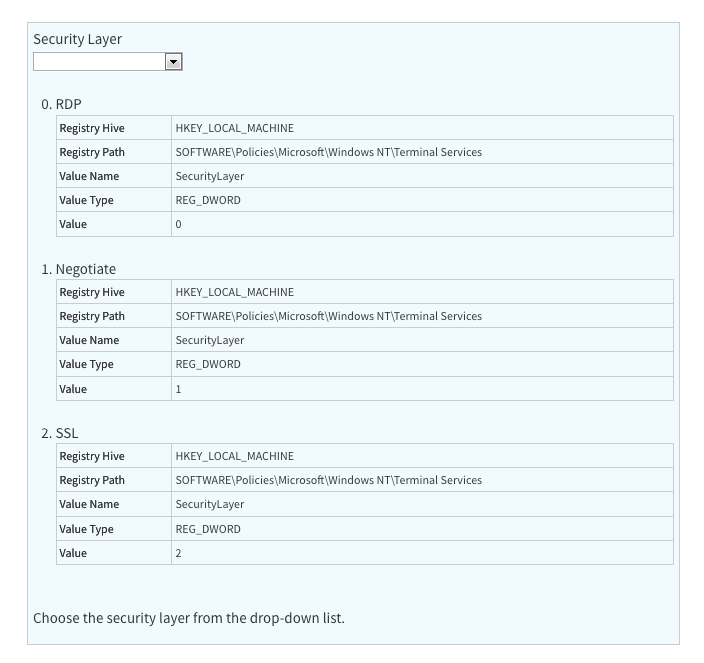
I understood, the value of SecurityLayer need be set to 0 (it is RDP)
With this document Why gpedit and the corresponding registry entries are not synchronized?, I realized, Registry keys and Local Grou policy are different layers to manage the registry keys.
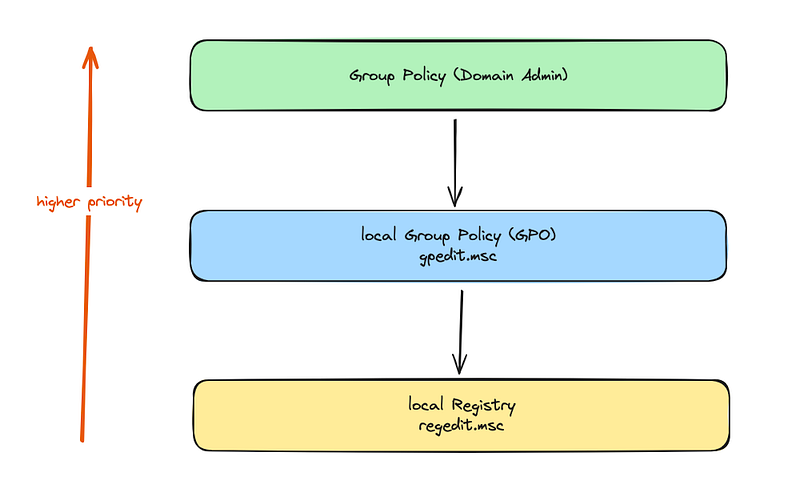
Our VMs are not Domain-Joined, so the Domain-Layer Group policy would not be able to override the setting in registry keys.
But the changes I did on local Registry, after gpupdate /force or VM reboot, these settings are always rolled back.
So we have to do the settting on Local Group Policy via PowerShell Script.
Local group policy settings are stored in registry.pol files located in ”$env:windir\system32\GroupPolicy\Machine\registry.pol”. These files overwrite the corresponding keys in the registry every time the system performs a group policy refresh. The local group policy never actually reads the registry to see what settings it contains.
Let’s focus on Local Group Policy Editor
Group Policy Editor
Unlocky, Microsoft doens’t have the module in PowerShell to manage local group policy. Finally I worked it out with a third-party tool, called PolicyFileEditor
PolicyFileEditor is a PowerShell module to manage local GPO registry.pol files.
Then I wrote the script and successfully run it to disable NLA, and keep the setting after VM rebooted as well.
Write-Host "### Disable Network Level Authentication (NLA)  ### "

# Group Policy Settings Reference for Windows and Windows Server
# https://www.microsoft.com/en-us/download/confirmation.aspx?id=25250
# https://download.microsoft.com/download/8/F/B/8FBD2E85-8852-45EC-8465-92756EBD9365/Windows10andWindowsServer2016PolicySettings.xlsx
#
# HKLM\SOFTWARE\Policies\Microsoft\Windows NT\Terminal Services!SecurityLayer
# HKLM\SOFTWARE\Policies\Microsoft\Windows NT\Terminal Services!UserAuthentication

# Group Policy File Editor
# https://github.com/dlwyatt/PolicyFileEditor

# Function to configure policies on Terminal Server
function Configure-TerminalServerPolicies {

    $UserDir = "$env:windir\system32\GroupPolicy\Machine\registry.pol"
    # Navigate to the specified path in the registry

    # Enable specific security layer for RDP connections
    $RegPath = 'Software\Policies\Microsoft\Windows NT\Terminal Services'
    $RegName = 'SecurityLayer'
    $RegData = '0'
    $RegType = 'DWORD'
    Set-PolicyFileEntry -Path $UserDir -Key $RegPath -ValueName $RegName -Data $RegData -Type $RegType

    # Disable Network Level Authentication (NLA)
    $RegPath = 'Software\Policies\Microsoft\Windows NT\Terminal Services'
    $RegName = 'UserAuthentication'
    $RegData = '0'
    $RegType = 'DWORD'
    Set-PolicyFileEntry -Path $UserDir -Key $RegPath -ValueName $RegName -Data $RegData -Type $RegType
}

# Force install the third-party module PolicyFileEditor
Install-Module -Name PolicyFileEditor -Force

# Configure policies on Terminal Server
Configure-TerminalServerPolicies

# Force update Group Policies
gpupdate /force

Write-Host "Check the values, both should be 0"
$registryPath = "HKLM:\SOFTWARE\Policies\Microsoft\Windows NT\Terminal Services"
Get-ItemProperty -Path $registryPath  -Name "securitylayer"
Get-ItemProperty -Path $registryPath  -Name "UserAuthentication"

Write-Host "### Disable Network Level Authentication (NLA)  - Done ### "
With this script, I can put it in when bake the Windows Golden Image or create a new VM with User data script. Finally I can create a new Azure Windows VM and login with AzureAD ( AzureAD\<your_mail_box> )directly without any manual tasks.
Reference
github repo for PolicyFileEditor
Useful usage about PolicyFileEditor
RDP to a Windows Azure VM using Microsoft Entra ID (Azure AD)
Why gpedit and the corresponding registry entries are not synchronized?
Learning is fun
# Azure # AzureAD # Microsoft Entra ID # DevOps # Group Policy # Azure VM # Best Practices


