
AzureAD support for Azure VMSS (virtual machine scale set)
Follow up on my blogs regarding Azure AD (Microsoft Entra ID) login to Azure Virtual Machines
- Login to a Virtual Machine using Azure AD Account on Linux
- [Terraform] Deploy Azure Virtual Machine with AAD enabled
- AzureAD support for Azure VMSS (virtual machine scale set)
- Azure Centralized Bastion Solution
- Configure Local Group Policy to Disable NLA in Windows Server 2019 for AzureAD-Ready Logins.
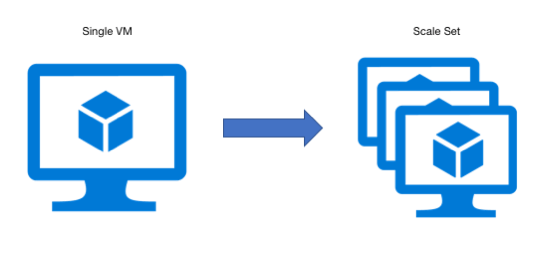
Several series for the topic:
- Stage 1 — Login to a Azure Virtual Machine (VM) using Azure AD Account on Linux (in this blog)
- Stage 2 — AzureAD support for Azure VMSS (virtual machine scale set), in this blog
Background
To avoid to setup local accounts or share with SSH private keys, my team requires the ability to log in to Azure VMSS (virtual machine scale sets) instances using Azure AD (AAD) accounts. While we have documentation on setting up AAD on Azure Virtual Machines, but not sure how to do that on instances created by VMSS
It’s important to note that instances created by VMSS are generated automatically and do not involve human interactions.
Scopes
- Linux/RHEL instances only.
- Do not allow public IPs for access.
- Login with Azure AD (AAD) accounts only, and these should be your Microsoft Outlook accounts.
If the solution works well for Linux VMSS, I will follow a similar solution for Windows VMSS later.
Research
To make a virtual machine ready for AAD login, we need to follow three main steps:
- Enable the “system assigned” identity on VMs.
Sample command for reference: az vmss identity assign -g myResourceGroup -n myVMSS
2. Install the AAD extension in it.
Sample command for reference: az vm extension set --publisher Microsoft.Azure.ActiveDirectory --name AADSSHLoginForLinux --resource-group AzureADLinuxVM --vm-name myVM
3. Assign the IAM role of “Virtual Machine Administrator Login” on it (or its resource group).
Sample command for reference: az role assignment create --assignee "{assignee}" --role "{roleNameOrId}" --resource-group "{resourceGroupName}"
Confirmed with AzureAD support team:
- There is no way to enable and install AAD Extension in golden images directly.
- There is no option to set “System assigned” Identity on Azure Portal, when create VMSS
Prerequsite
- Azure Bastion with Standard tier is ready in the VNET.
- VMSS’s resource group has been created.
- You have assigned the role of “Virtual Machine Administrator Login” to specific users or groups (preferably) on the above resource group.
- Azure VMSS has been created.
Environment I run the test:
subscription: dev01-nonprod
bastion name: dev01-nonprod-VNET-bastion
bastion resource group name : Shared-RG
VMSS name: test-aad-vmss
VMSS resource group name: test-1234
Post-steps
- set AAD extension on Azure VMSS
Reference: az vmss extension
az account set -s dev01-nonprod

az vmss extension set -n AADSSHLoginForLinux --publisher Microsoft.Azure.ActiveDirectory --vmss-name test-aad-vmss -g test-1234
Confirmed on Azure Portal
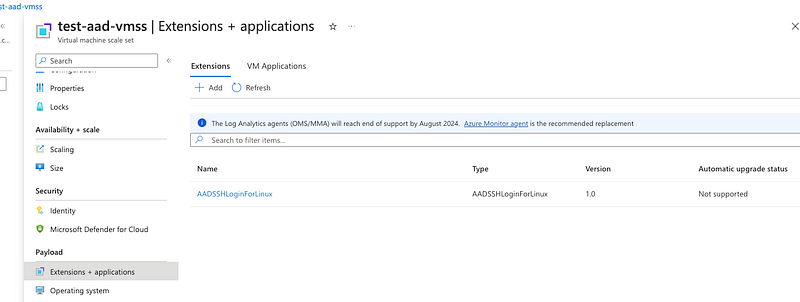
- Enable Identity
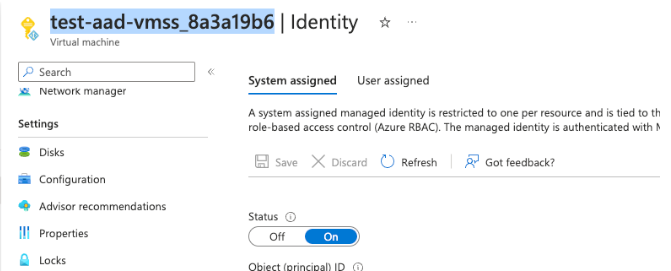
There is no way to confirm this VMSS identity setting from the Azure Portal. From my test results, by default, Managed Assigned Identity is enabled on instances created by VMSS already. You can confirm this on these running instances:
Virtual machine -> Security -> Identity -> System assigned should be “ON.” If they are not identity-enabled, you can still manually enable it.
- Sample command for reference:
az vmss identity assign -g test-1234 -n test-aad-vmss
- Terminate running instances. Existing running instances can’t get the AAD extension installed after you set it. The easy way is to scale down VMSS to 0; it will terminate all running instances. Then scale VMSS up to 2 or 3. With new instances created, they will have the AAD extension installed automatically.
Connect the VMSS instances
Currently, there is no way to log in with an AAD account via the Azure Portal. So I wrote a script to log in.
$ cat test-vmss.sh

# replace these variables with your environment
subscription=dev01-nonprod
bastionName="${subscription}-VNET-bastion"
bastionRG="Shared-RG"
vmName="test-aad-vmss_8a3a19b6"
vmRG="test-1234"

az account set -s ${subscription}
az account show

vmId=$(az vm list --resource-group ${vmRG} --query "[?name=='$vmName'].id" --output tsv)
echo $vmId

az network bastion ssh --name "${bastionName}" --resource-group "${bastionRG}" --target-resource-id "${vmId}" --auth-type AAD
If everything is fine, you should be able to log in with your Microsoft Outlook account.
Reference documents:
Configure managed identities on virtual machine scale set — Azure CLI