
Creating a space-saving Slicer Panel — Power BI
Having a lot of slicers in your report page takes up space which you could put to better use. A simple solution for this is to have a slicer panel which can be expanded only when needed. Let’s see how to create just that!
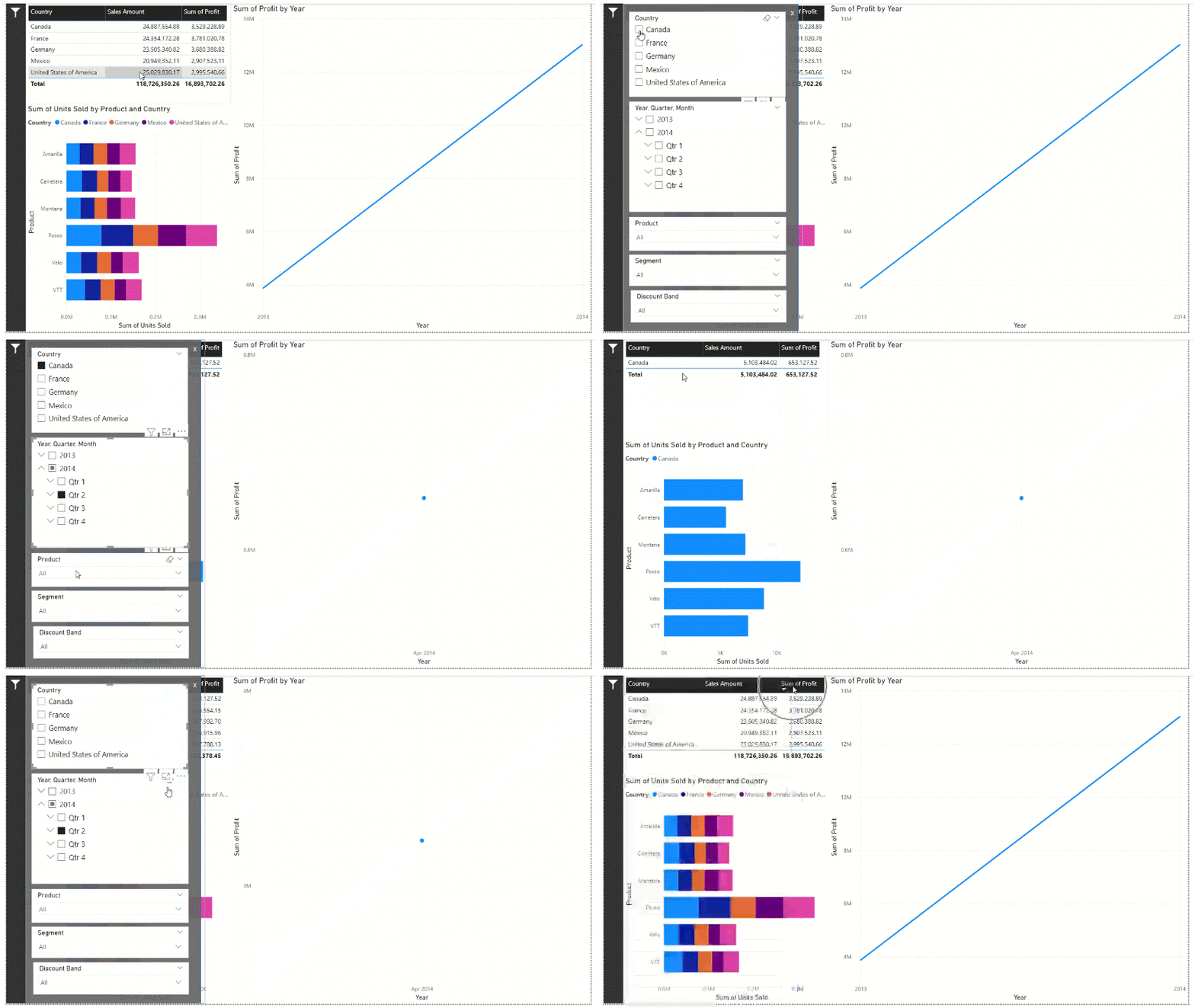
This is what you will end up creating…
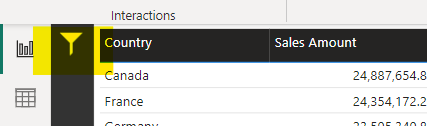
- Add “Filter Panel” button — Insert a blank button from the “Insert” tab and set an icon by selecting the “Custom” icon type and browsing for an icon.

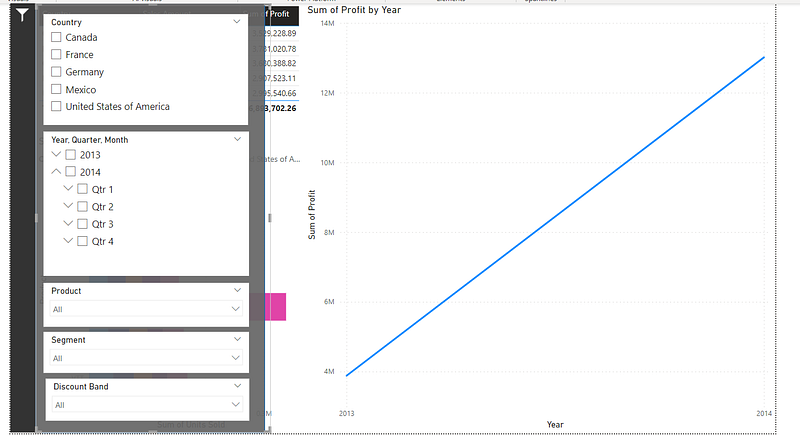
2. Create the Filter Panel — Insert a Rectangle from “Shapes” and place your slicers on top of that Rectangle
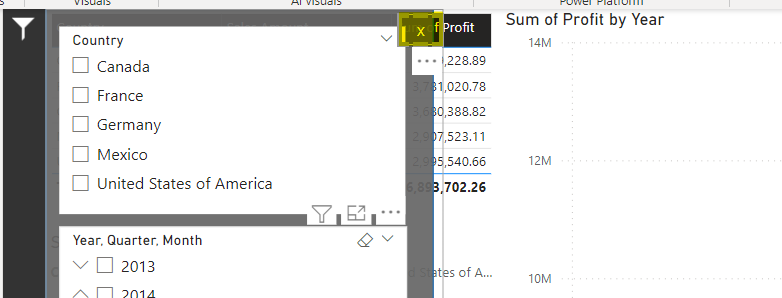
3. Add a “Close” button by adding a blank button and inserting an “X” as the text
4. Group all the elements in the slicer panel by selecting all the elements, right-clicking and selecting the “Group” option. Give the group a meaningful name
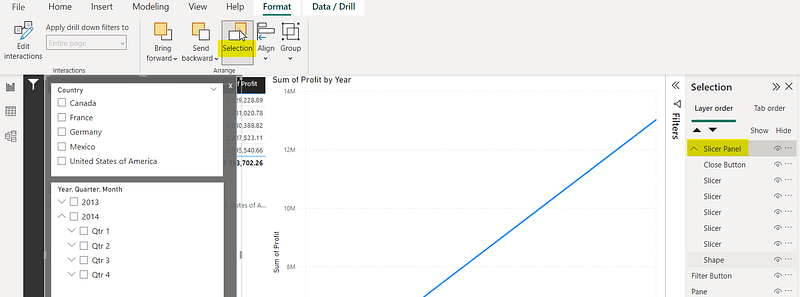
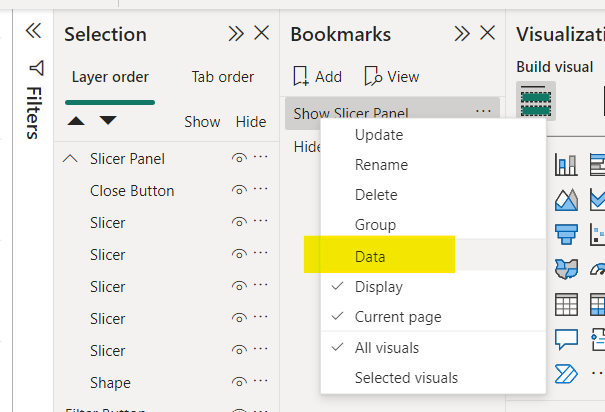
5. Create bookmarks — 2 bookmarks must be created. One showing the slicer panel and one hiding. Make sure to right-click and deselect the “data” option in both the bookmarks (Check out this article to see this process in detail).
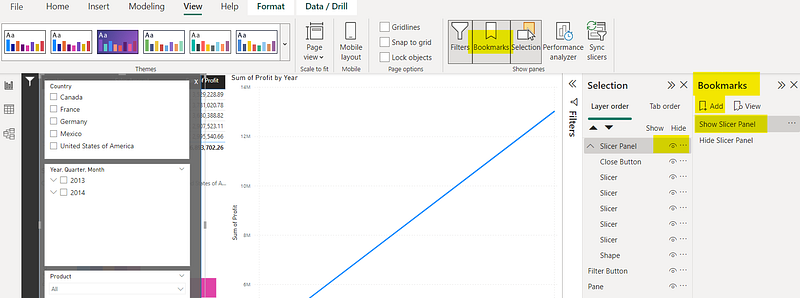
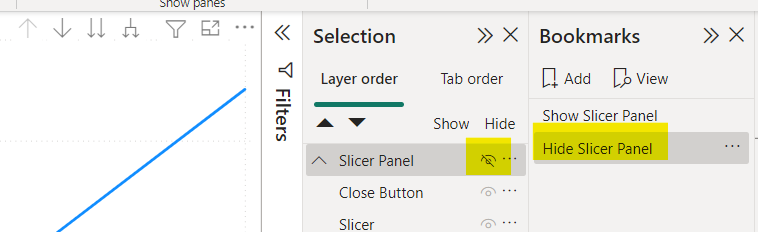
6. Finally, set actions to the buttons
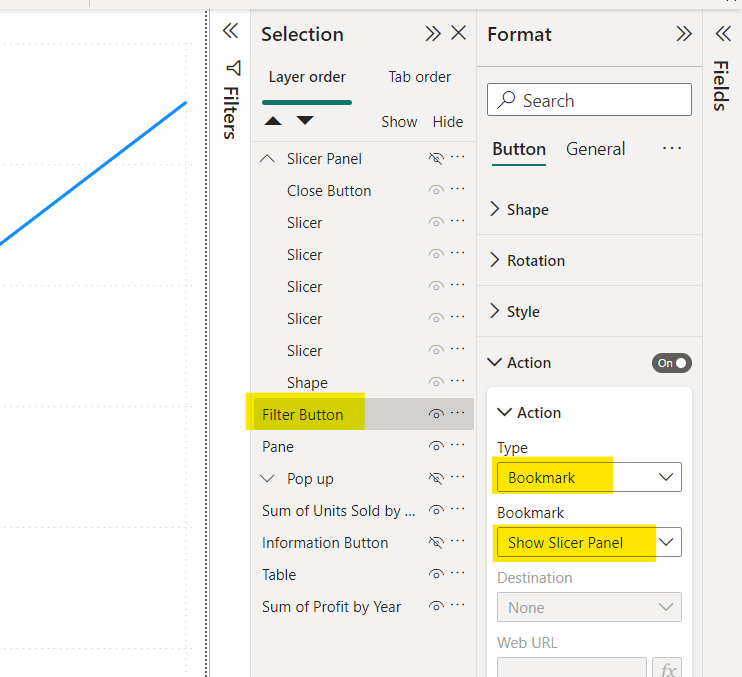
- The filter panel should show when clicking the “Filter Button”. For this, select the “filter button”, go to “Actions” and select the type as “Bookmark” from the dropdown. Now set the Bookmark to “Show Slicer Panel” bookmark you created
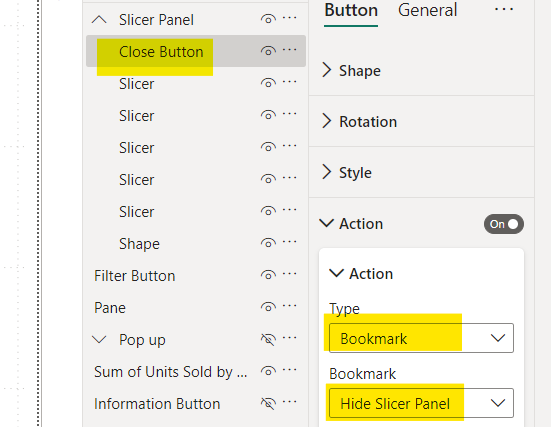
- Follow the same process for the “Close” button and set the Bookmark to “Hide Slicer Panel” bookmark you created.
That’s it!
Hope this was useful! Thanks for reading and do let me know any other Power BI topics/features you need me to cover in the comments!
More articles on Power BI (full list here),
- Custom Tooltips in Power BI — 5 Minute Tutorials
- Creating a pop up window in Power BI
- Sending emails using Power Automate for Power BI — ZERO CODING
- How to create a Power BI report in 15 mins : For absolute beginners
- Power BI: Filtering using Slicers
- How to Show/Hide fields dynamically in Power BI
If you are interested in Machine Learning, check out this list.
Subscribe to DDIntel Here.
Visit our website here: https://www.datadriveninvestor.com
Join our network here: https://datadriveninvestor.com/collaborate


