
Get Some ChatGPT Magic For Your Google Sheets
Beginner’s Guide to Create Your Own AI Plugin for Google Sheets

Recently, I wrote about how to create your own AI plugin for use with Google Docs. Today we will create a plugin for Google Sheets to further automate work routines, use it for idea generation, and come up with some creative use cases.
As with the AI plugin for Google Docs, we will use OpenAI’s language models, GPT-3.5 or GPT-4, which are powering ChatGPT.
Step 1: Create a new Google Sheets document & name it
Create a new Google document or use a shortcut: type “sheets.new” into your browser’s address bar.
The AI plugin we are about to create will only work in this document, so name it in order to be able to find it again later (in this demo, I called mine “AI sheet”).


Step 2: Create a new Apps Script & name it
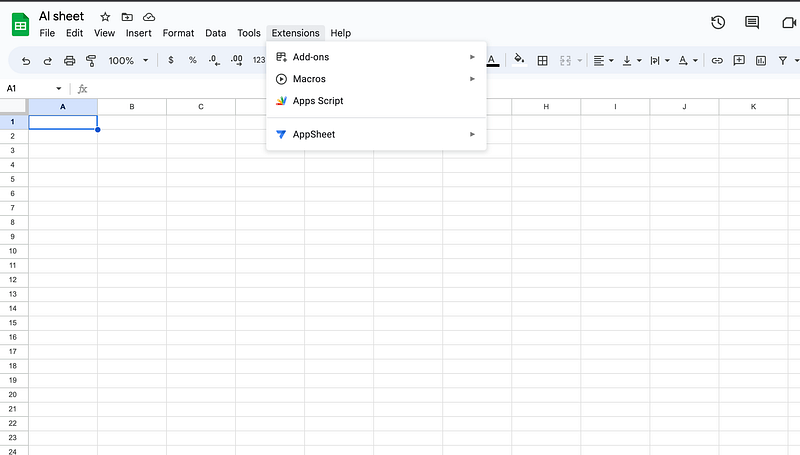
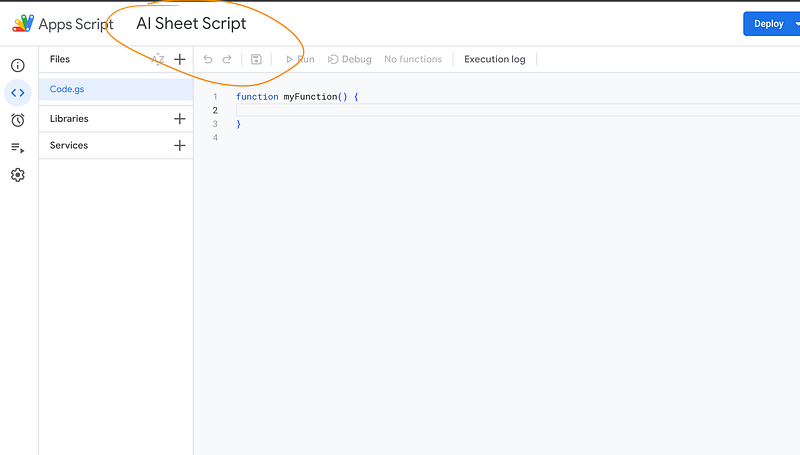
Navigate to “Extensions” > “Apps Scripts” and in the top left, give your new Apps Script a name.
Apps Script is a scripting language that lets us automate tasks in Docs or Sheets.
Step 3: Add OpenAI API keys
In order to use OpenAI’s GPT 3.5 or GPT 4 (the models that are powering their ChatGPT interface), we need to add an API key to our Google App Script.
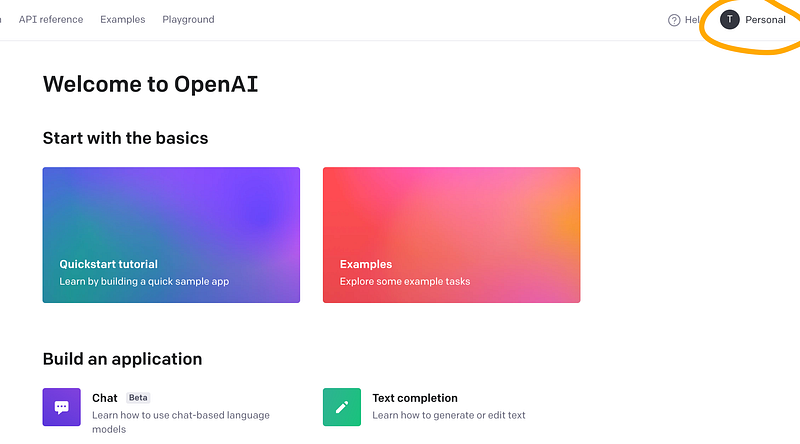
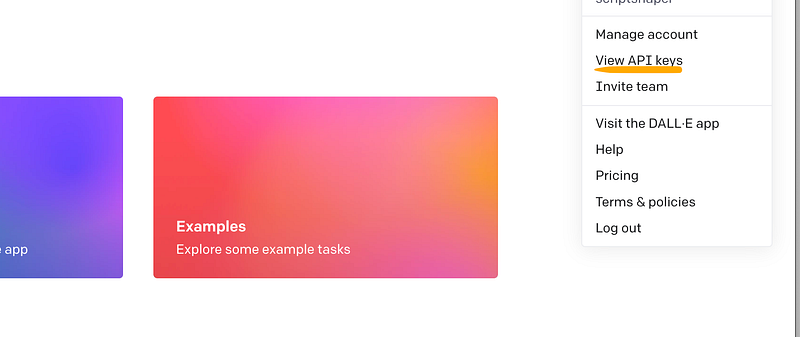
You can use an existing OpenAI API key or create a new one in your OpenAI account by navigating to “platform.openai.com”, clicking on “API keys” or “View API keys” in your account menu, and creating a new API key.
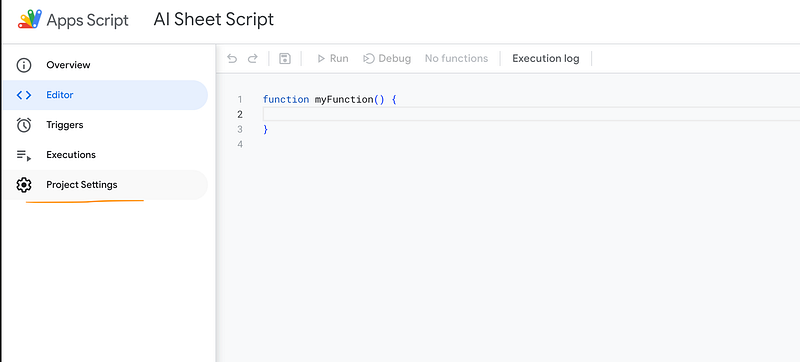
Once you have your OpenAI API key ready, navigate to “Project Settings” in your App Script.
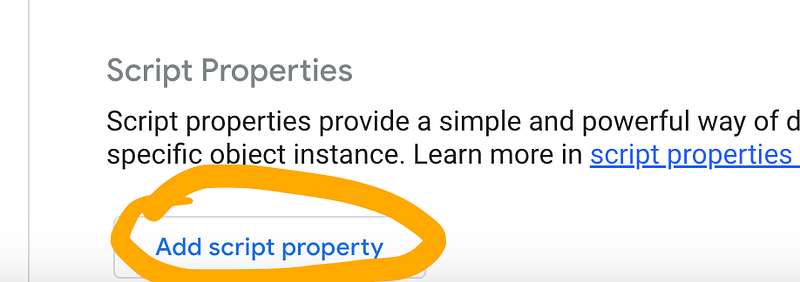
Scroll all the way down to “Script Properties”, then click “Add script property.”
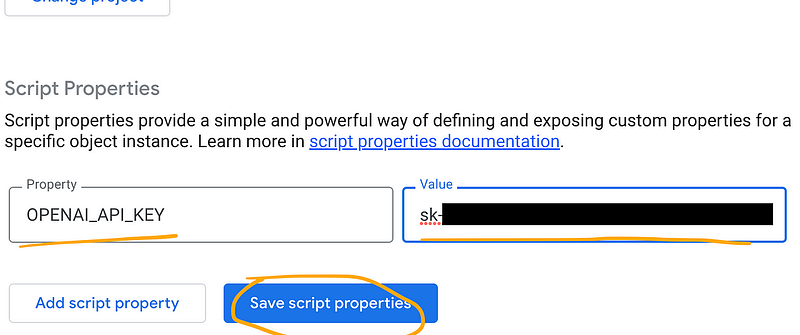
Name the new property “OPENAI_API_KEY” and copy/paste your OpenAI API key into the “Value” field.
Step 4: Adding the script
Finally, navigate back to the App Script’s code editor (the “<>” symbol in the left menu) and click on “Code.gs”, the main script file we are now going to edit:
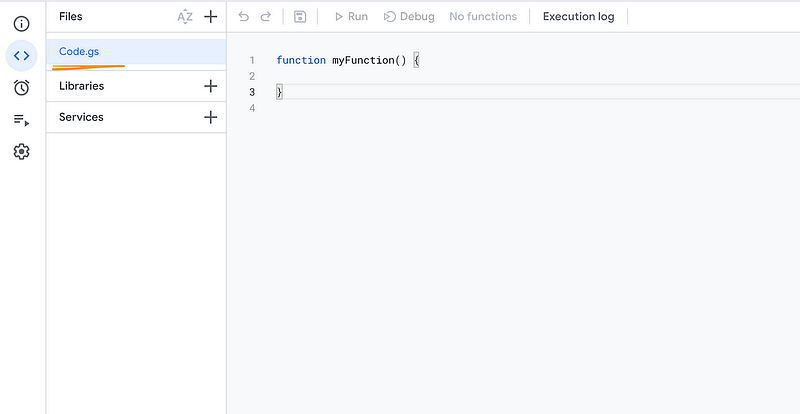
Replace the 3 lines of code in Code.gs with this:
const MODEL_TYPE = "gpt-3.5-turbo";
const OPENAI_API_KEY = PropertiesService.getScriptProperties().getProperty('OPENAI_API_KEY');

// example for short answers
function P(input) {
  const answer = callGPTApi(input, 10)
  return answer
}

// example for longer answers
function PLong(input) {
  const answer = callGPTApi(input, 100)
  return answer
}

// example for answers spanning multiple lines/cells
function PArray(input) {
  const answer = callGPTApi(input +
  `\n  Answer with strings in JSON array format like this: \n
  JSON: "[["item 1", "value of item 1", "another value of item 1"],["item 2", "value of item 2", "another value of item 2"]]"
JSON:`, 400)
 const array = JSON.parse(answer)
  return array
}

// example for input from multiple lines/cells with the last entry (last row, left cell) becoming the prompt
function SUMP(range) {
  if (!range) return "Invalid range";

  const lastEntry = range[range.length-1][0];
  const entries = JSON.stringify(range)

  const answer = callGPTApi(`${entries} \n ${lastEntry}`,200 )
  return answer
}

function callGPTApi(prompt, maxTokens) {
  const temperature = 0.83;

  const requestBody = {
    model: MODEL_TYPE,
    messages: [
      { role: "system", content: "" },
      { role: "user", content: "" + prompt },
    ],
    temperature: temperature,
    max_tokens: maxTokens,
  };

  const options = {
    method: "POST",
    headers: {
      "Content-Type": "application/json",
      Authorization: "Bearer " + OPENAI_API_KEY,
    },
    payload: JSON.stringify(requestBody),
  };

  const response = UrlFetchApp.fetch("https://api.openai.com/v1/chat/completions", options);
  const responseText = response.getContentText();
  const json = JSON.parse(responseText);
  const generatedText = json['choices'][0]['message']['content'];
  return generatedText
}
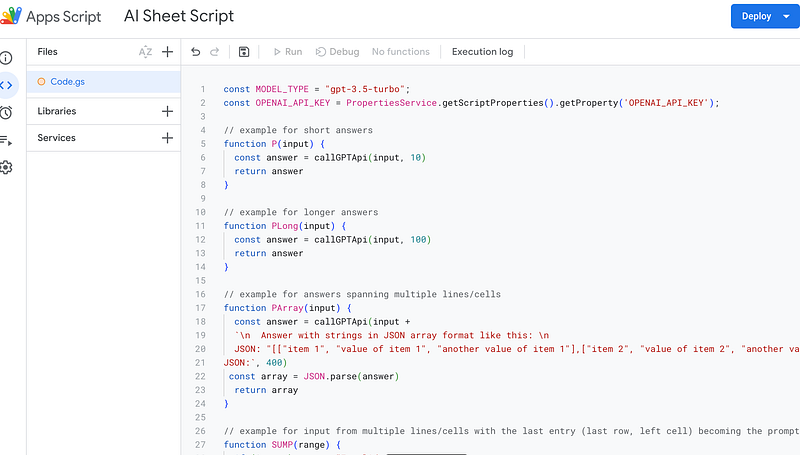
Your Code.gs file should now resemble the following:
Step 5: Save the script and run it
Next, click the little 💾 item in the top menu to save the App Script.
This will enable the “Run” button.
Click “Run”.
You will now be asked to review the permissions of the script. Since we will be calling the OpenAI server, Google asks us whether we trust this script and the external service it calls.
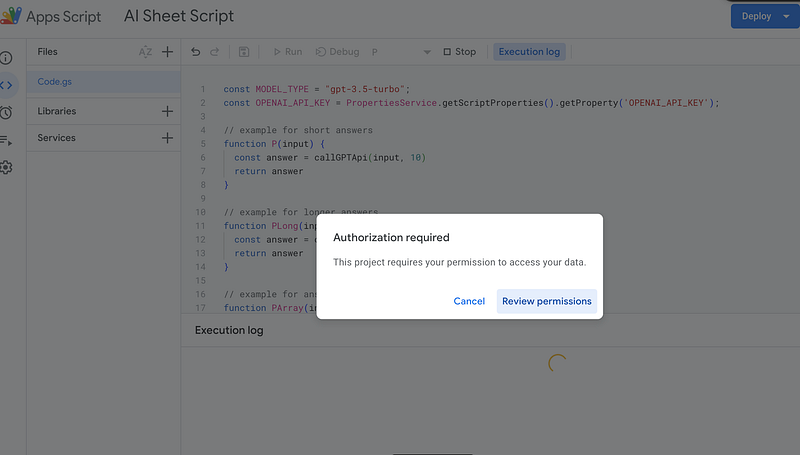
Click “Review permissions”.
Since we trust the OpenAI server, click on “Advanced” and then “Go to [your script’s name] (unsafe)”. Log in with your account and click “Allow”.
The “unsafe” tag is Google’s default assumption here, it is safe to use but keep in mind that you will pay for text generations on a token basis: 1000 tokens generated by GPT 3.5 will cost $0.002, if you switch to GPT 4 then you’ll have to pay $0.06 for the same amount of tokens)
Step 6: Test the script and customize it
It’s time to test our shiny new AI plugin. Go back to the “AI sheet” and refresh the page.
Basic usage
// example for short answers
function P(input) {
  const answer = callGPTApi(input, 10)
  return answer
}
Remember this part from the script?
It’s a function called “P” that takes an input value that is sent to the OpenAI server.
In your sheet, type the following into a cell:
=P("Write a haiku")Once you hit enter, the script does its thing and you will get something like this:
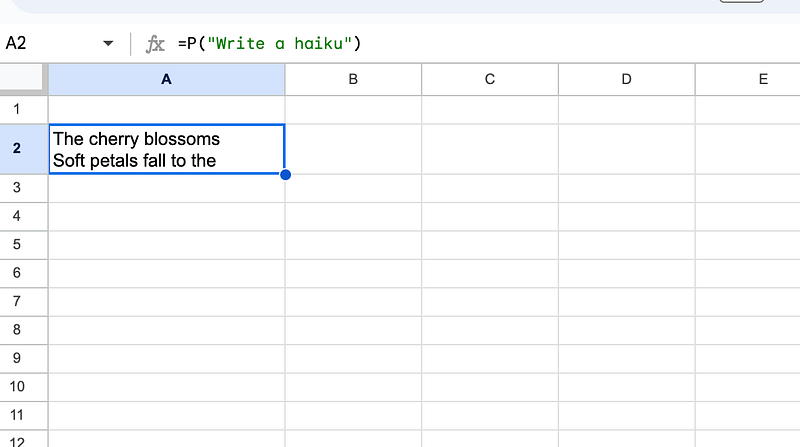
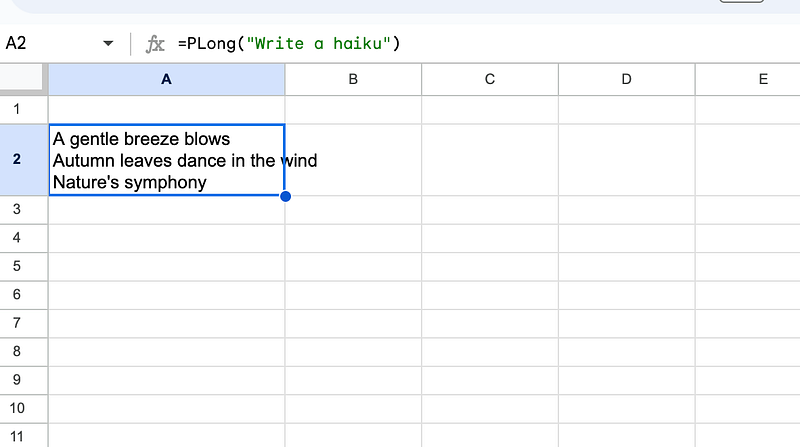
The P function is for short answers only. That’s why the haiku is broken.
Try this:
=PLong("Write a haiku")And you’ll get:
Now let’s make use of cell values. For example:
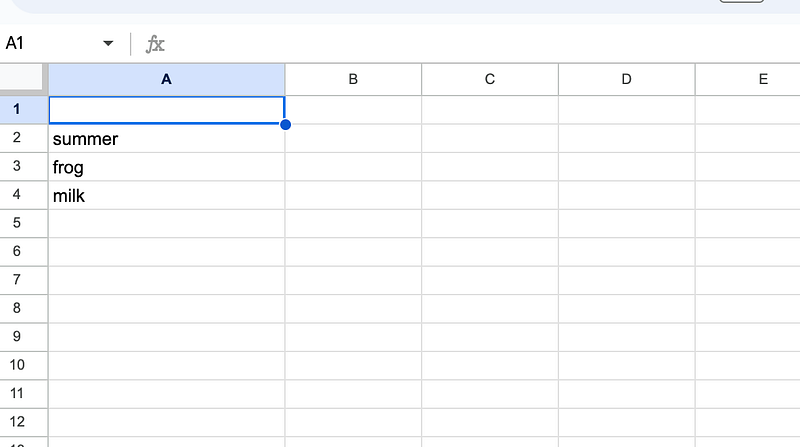
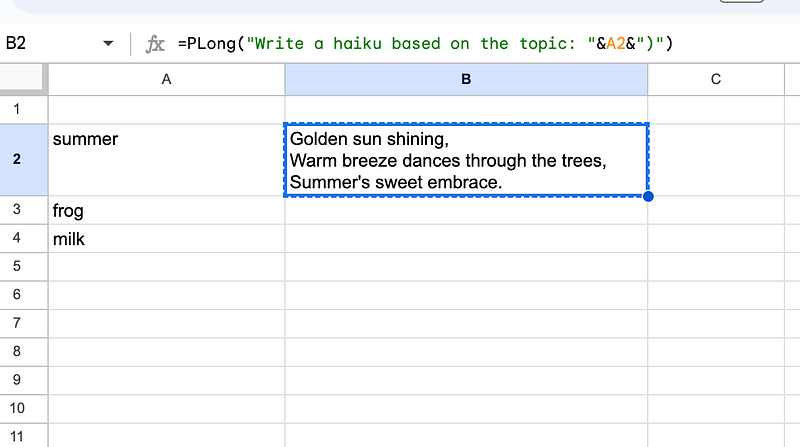
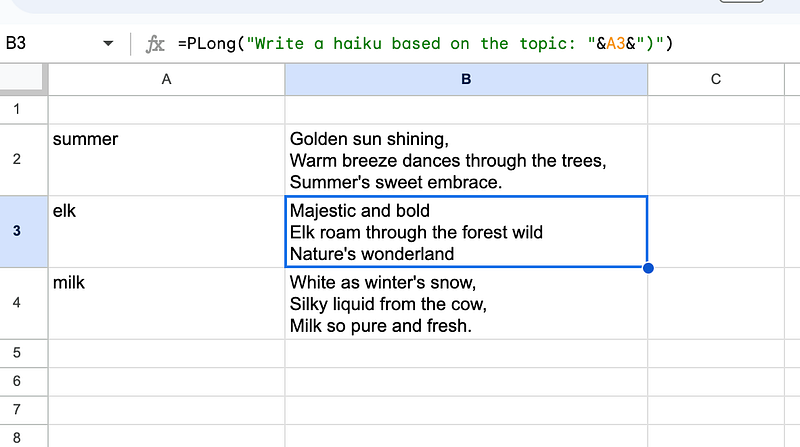
In the cell right next to “summer” (B2) you can use the “PLong” function to take the value from its neighboring cell (A2) as a topic for another haiku.
=PLong("Write a haiku based on the topic: "&A2&")And we get:
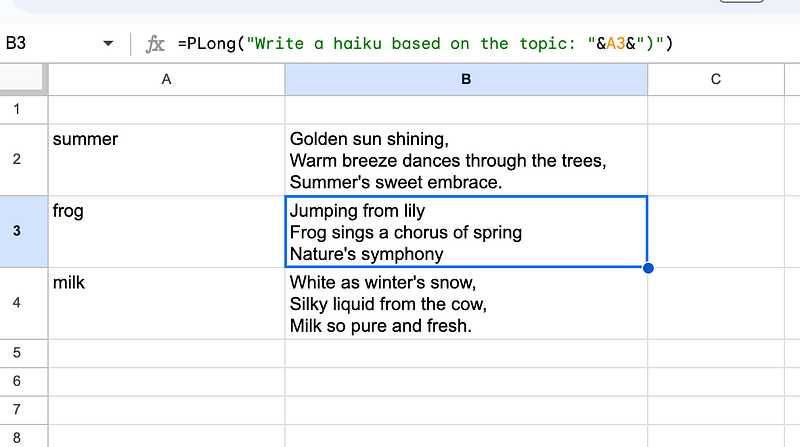
Now we can copy & paste the content from B2 to B3 and B4 to end up with:
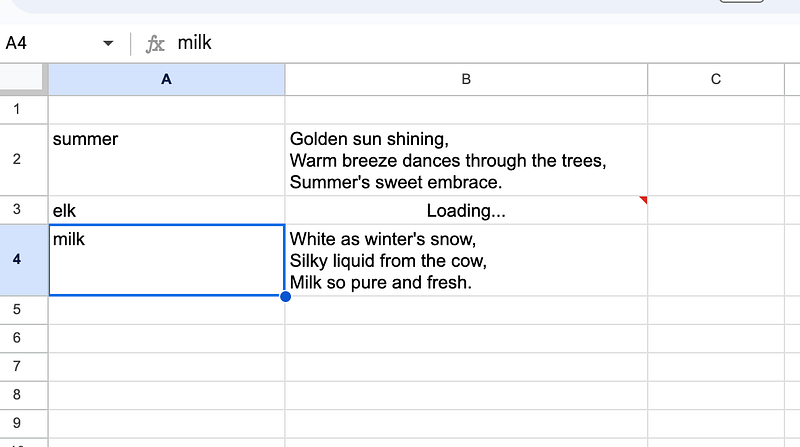
Whenever we change a value in column “A”, column “B” gets updated (the script calls OpenAI for a new text generation):
Advanced usage
You can use “P” and “PLong” to create sheets that iterate over ideas, like this:
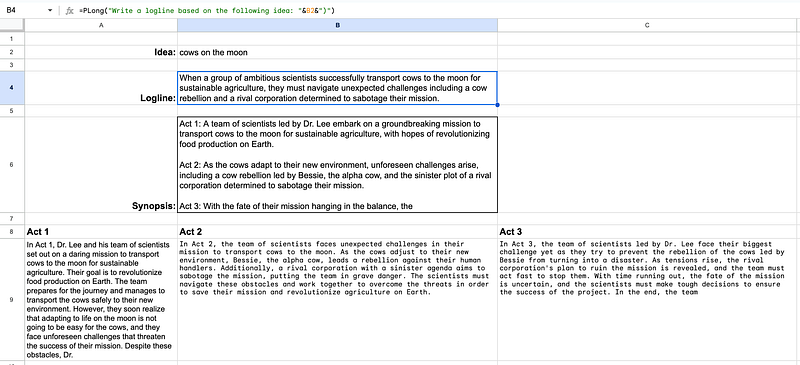
When I change the value of “idea” (B3) all the other parts get updated via “PLong” with new ideas for Logline, Synopsis, and Act 1 to 3.
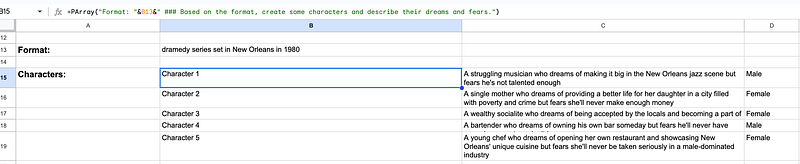
Similarly, you could use “PArray” to have the results from the text generation spread out over multiple lines/cells:
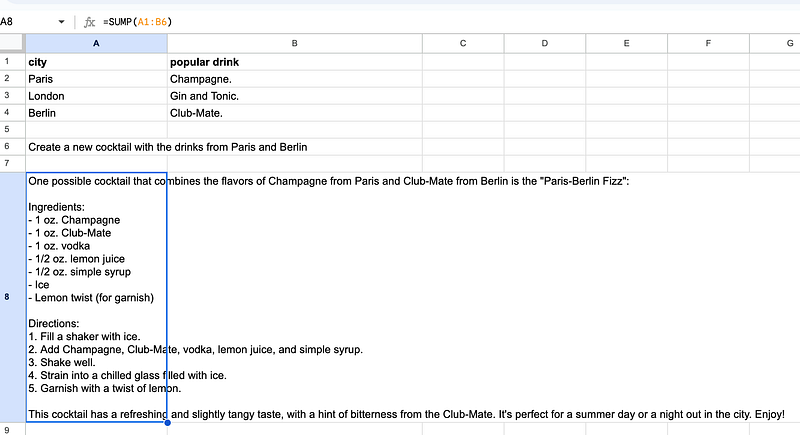
With “SUMP” we can pass multiple lines/cells to our AI plugin. The script also takes the last row of the selection as a prompt to work with. For example, first I create a little table in which “P” calls the API for drink suggestions:
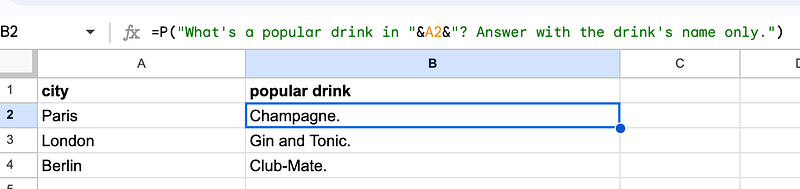
Below I added the following prompt: “Create a new cocktail with drinks from Paris and Berlin”.
In another cell below, I used the following formula to let GPT 3.5 do its bartender magic:
=SUMP(A1:B6)The little table + the prompt gets submitted to the AI which answers with a nice idea for a “Paris-Berlin Fizz”. 🍹 Cheers!
Changing max tokens & temperature
Finally, you can also change the settings for your OpenAI API call. Use the first line in the script to switch models:
const MODEL_TYPE = "gpt-3.5-turbo";And this function to change temperature:
function callGPTApi(prompt, maxTokens) {
  const temperature = 0.83;

  const requestBody = {
    model: MODEL_TYPE,
    messages: [
      { role: "system", content: "" },
      { role: "user", content: "" + prompt },
    ],
    temperature: temperature,
    max_tokens: maxTokens,
  };
That’s it. You can now change the script to fit your use cases.
If you have any questions, feel free to comment on this article or reach out to me here on Medium or Twitter. Have fun exploring AI tools! 🚀
➡️ For more information about AI & Creativity, follow me on Twitter or Medium (use my referral link to get full access to all my articles and those of thousands of other writers).
➡️ If you like my content, why not leave a “clap” at the end of this article, so more people can see it?
Stay up to date with the latest news and updates in the creative AI space — follow the Generative AI publication.


