

Flutter — Microsoft API Management secured with AD — MSAL for Android
This is the fifth part of a mini series to show how to secure your Flutter applications using Microsoft technologies:
- Web API — Setting up your Web API with Visual Studio.
- APIM Service — Creating an API management service in Azure.
- Secure Gateway — Securing requests through the API gateway.
- MSAL — Authenticating your Flutter app on iOS.
- MSAL — Authenticating your Flutter app on Android.
- MSAL — Authenticating your Flutter app on the Web.
- Hosted API — Hosting your Web API’s in Azure.
- Secure Hosted API — Secure requests with the APIM Gateway
In this article we show how to get an access token by authenticating against an Azure AD on an Android phone or tablet.

Step 1: Declare MSAL as a dependency
Add the following entries to your app gradle android/app/src/build.gradle:
dependencies {
    implementation 'com.microsoft.identity.client:msal:3.0.+'
}
allprojects {
repositories {
mavenCentral()
maven {
url 'https://pkgs.dev.azure.com/MicrosoftDeviceSDK/DuoSDK-Public/_packaging/Duo-SDK-Feed/maven/v1'
}
}
}Step 2: Add a signing certificate to the debug Keystore
Azure AD requires the app’s package name and the Base64-encoded representation of your app’s signature to setup a redirect for authentication.
The first step is to create and add a new certificate to our debug keystore:
keytool -exportcert -alias androiddebugkey -keystore ~/.android/debug.keystore | openssl sha1 -binary | openssl base64Password prompt and output:
Enter keystore password:  <KeyPassword>
<New KeyHash>
Step 3: Configure debug signing
Use the androiddebugkey we created in the previous step to sign our debug build in the app gradle android/app/src/build.gradle:
signingConfigs {
        debug {
            storeFile file("~/.android/debug.keystore")
            storePassword '<YourPassword>'
            keyAlias 'androiddebugkey'
            keyPassword '<YourPassword>'
        }
    }

    buildTypes {
        release {
            // TODO: Add your own signing config for the release build.
            // Signing with the debug keys for now, so `flutter run --release` works.
            //signingConfig signingConfigs.release
            signingConfig signingConfigs.debug
        }
        debug {
            signingConfig signingConfigs.debug
        }
    }
Step 4: Register the redirect URL in Azure AD
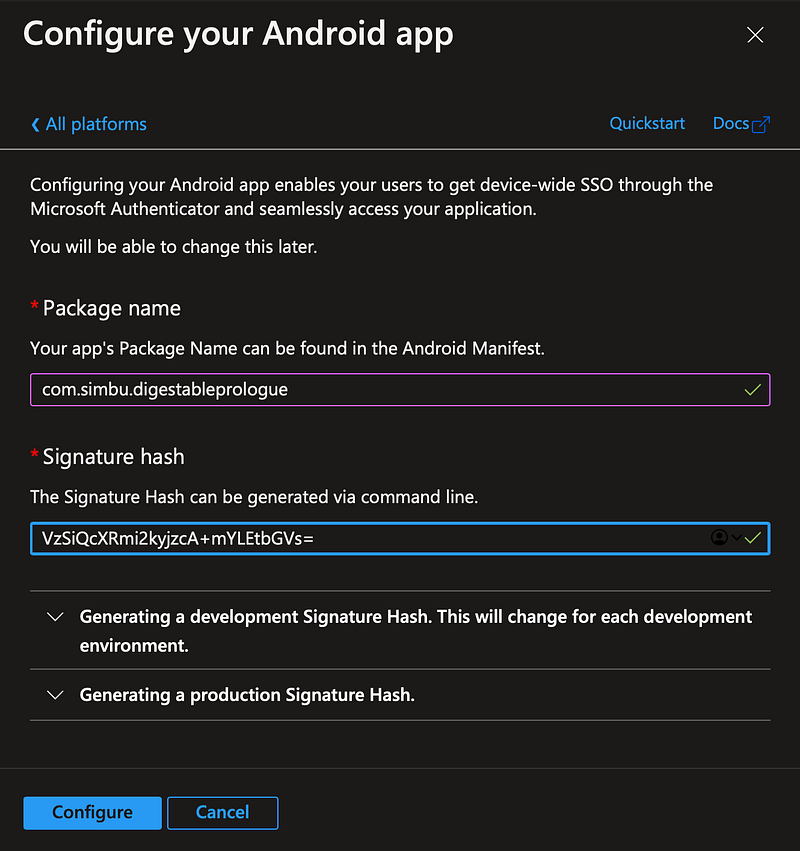
Login into your Azure Portal and select Azure Active Directory..App registrations from the menu and open the DigestableMe registration we created in the last article, select Authentication from the sub menu and add the Android platform:

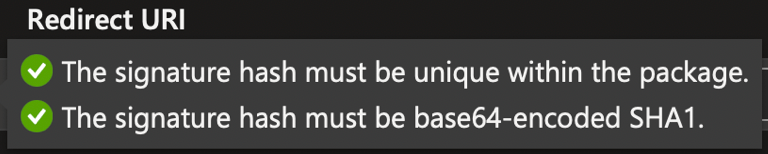
Use the signature hash created in the previous step:

Step 5: Configure permissions and redirect in AndroidManifest.xml
Request the following permissions in your Android Manifest file(android/app/src/main/AndroidManifest.xml):
<uses-permission android:name="android.permission.INTERNET"/>
<uses-permission android:name="android.permission.ACCESS_NETWORK_STATE"/>
And configure redirect:
<activity android:name="com.microsoft.identity.client.BrowserTabActivity"
    android:launchMode="singleTask">
    <intent-filter>
        <action android:name="android.intent.action.VIEW" />
        <category android:name="android.intent.category.DEFAULT" />
        <category android:name="android.intent.category.BROWSABLE" />

        <data
            android:host="com.simbu.digestableprologue"
            android:path="<YourSigHashKey from prev step>"
            android:scheme="msauth" />
    </intent-filter>
</activity>
Step 6: Create MSAL config file
Create the file:

Add the config:
{
  "client_id": "<ClientId Find it in Azure App Registration>",
  "redirect_uri": "msauth://com.simbu.digestableprologue/<YourSigHashKey from prev step>",
  "authorities": [
    {
      "type": "AAD",
      "audience": {
        "type": "AzureADMyOrg",
        "tenant_id": "<TennantId Find it in Azure App Registration>"
      },
      "default": true
    }
  ],
  "authorization_user_agent": "DEFAULT",
  "minimum_required_broker_protocol_version": "3.0",
  "multiple_clouds_supported": false,
  "broker_redirect_uri_registered": true,
  "web_view_zoom_controls_enabled": true,
  "web_view_zoom_enabled": true,
  "environment": "Production",
  "power_opt_check_for_network_req_enabled": true,
  "handle_null_taskaffinity": false,
  "authorization_in_current_task": false,
  "http": {
    "connect_timeout": 10000,
    "read_timeout": 30000
  },
  "logging": {
    "pii_enabled": false,
    "log_level": "WARNING",
    "logcat_enabled": true
  },
  "account_mode": "MULTIPLE",
  "browser_safelist": [
    {
      "browser_package_name": "com.android.chrome",
      "browser_signature_hashes": [
        "7fmduHKTdHHrlMvldlEqAIlSfii1tl35bxj1OXN5Ve8c4lU6URVu4xtSHc3BVZxS6WWJnxMDhIfQN0N0K2NDJg=="
      ]
    },
    {
      "browser_package_name": "org.mozilla.firefox",
      "browser_signature_hashes": [
        "2gCe6pR_AO_Q2Vu8Iep-4AsiKNnUHQxu0FaDHO_qa178GByKybdT_BuE8_dYk99G5Uvx_gdONXAOO2EaXidpVQ=="
      ]
    },
    {
      "browser_package_name": "com.sec.android.app.sbrowser",
      "browser_signature_hashes": [
        "ABi2fbt8vkzj7SJ8aD5jc4xJFTDFntdkMrYXL3itsvqY1QIw-dZozdop5rgKNxjbrQAd5nntAGpgh9w84O1Xgg=="
      ]
    },
    {
      "browser_package_name": "com.cloudmosa.puffinFree",
      "browser_signature_hashes": [
        "1WqG8SoK2WvE4NTYgr2550TRhjhxT-7DWxu6C_o6GrOLK6xzG67Hq7GCGDjkAFRCOChlo2XUUglLRAYu3Mn8Ag=="
      ]
    },
    {
      "browser_package_name": "com.duckduckgo.mobile.android",
      "browser_signature_hashes": [
        "S5Av4cfEycCvIvKPpKGjyCuAE5gZ8y60-knFfGkAEIZWPr9lU5kA7iOAlSZxaJei08s0ruDvuEzFYlmH-jAi4Q=="
      ]
    },
    {
      "browser_package_name": "com.explore.web.browser",
      "browser_signature_hashes": [
        "BzDzBVSAwah8f_A0MYJCPOkt0eb7WcIEw6Udn7VLcizjoU3wxAzVisCm6bW7uTs4WpMfBEJYf0nDgzTYvYHCag=="
      ]
    },
    {
      "browser_package_name": "com.ksmobile.cb",
      "browser_signature_hashes": [
        "lFDYx1Rwc7_XUn4KlfQk2klXLufRyuGHLa3a7rNjqQMkMaxZueQfxukVTvA7yKKp3Md3XUeeDSWGIZcRy7nouw=="
      ]
    },
    {
      "browser_package_name": "com.microsoft.emmx",
      "browser_signature_hashes": [
        "Ivy-Rk6ztai_IudfbyUrSHugzRqAtHWslFvHT0PTvLMsEKLUIgv7ZZbVxygWy_M5mOPpfjZrd3vOx3t-cA6fVQ=="
      ]
    },
    {
      "browser_package_name": "com.opera.browser",
      "browser_signature_hashes": [
        "FIJ3IIeqB7V0qHpRNEpYNkhEGA_eJaf7ntca-Oa_6Feev3UkgnpguTNV31JdAmpEFPGNPo0RHqdlU0k-3jWJWw=="
      ]
    },
    {
      "browser_package_name": "com.opera.mini.native",
      "browser_signature_hashes": [
        "TOTyHs086iGIEdxrX_24aAewTZxV7Wbi6niS2ZrpPhLkjuZPAh1c3NQ_U4Lx1KdgyhQE4BiS36MIfP6LbmmUYQ=="
      ]
    },
    {
      "browser_package_name": "mobi.mgeek.TunnyBrowser",
      "browser_signature_hashes": [
        "RMVoXuK1sfJZuGZ8onG1yhMc-sKiAV2NiB_GZfdNlN8XJ78XEE2wPM6LnQiyltF25GkHiPN2iKQiGwaO2bkyyQ=="
      ]
    },
    {
      "browser_package_name": "org.mozilla.focus",
      "browser_signature_hashes": [
        "L72dT-stFqomSY7sYySrgBJ3VYKbipMZapmUXfTZNqOzN_dekT5wdBACJkpz0C6P0yx5EmZ5IciI93Q0hq0oYA=="
      ]
    },
    {
      "browser_package_name": "com.cake.browser",
      "browser_signature_hashes": [
        "442kvSdZT1fEAewzSi8Wre73x4mWmHBhOFtQ-9T9N6ExZzUdsELUmaaS0edsI7ur2nY-bjbWX7IpluFOyvKkOA=="
      ]
    },
    {
      "browser_package_name": "com.brave.browser",
      "browser_signature_hashes": [
        "wIwX1v_1TfPxHm5qn-_jdGoH3Pa9VVMR5dtVz0Y0xqPkyM_KlavjWPSgOolrVH05AVO1cHWoLPqMzCH04Pw8LQ=="
      ]
    },
    {
      "browser_package_name": "com.kiwibrowser.browser",
      "browser_signature_hashes": [
        "kmPeixKA04JcDuWNBMUPu_6WaODr6a9ofROUIHIGxiiFGvH8Y92MonrDQmsNqEJO2DQkpEQc425WmAYB4NlD3Q=="
      ]
    },
    {
      "browser_package_name": "com.mi.globalbrowser.mini",
      "browser_signature_hashes": [
        "6FEWlPfWn-omfES2ZYDj5bZUIR5au_nfyRr-o_1R3fesjfoV1JptBMumtvVIo0q37abcMRWQt9RUSNXpzKpNdA=="
      ]
    },
    {
      "browser_package_name": "mark.via.gp",
      "browser_signature_hashes": [
        "oTJf5e5nB1NinkdBpkkmhPnwbVRmDlHZ-s_QhvyuGKM5nq5XtjA439O31wxrkL6ReHyyKfDHFUHpQnoXoj--Ig=="
      ]
    }
  ]
}
I lost quite a bit of time to a bool null exception around authorizationInCurrentTask, but eventually found the answer here, thanks Low Chen Thye.
Ta Da


XP
Keystore Commands
List Keystore contents:
keytool -list -keystore ~/.android/debug.keystoreChange the Keystore password:
keytool -storepasswd -keystore ~/.android/debug.keystoreChange a key’s password:
keytool -keypasswd -alias androiddebugkey -keystore ~/.android/debug.keystoreRemove alias (key):
keytool -delete -alias androiddebugkey  -keystore ~/.android/debug.keystore
# Silent
keytool -delete -noprompt -alias ${cert.alias}  -keystore ${keystore.file} -storepass password
Create a new Keystore
keytool -genkey -v -keystore debug.keystore -alias debugkeys -keyalg RSA -keysize 2048 -validity 10000MSAL Config Authority Types
// Example AzureAD and Personal Microsoft Account
{
    "type": "AAD",
    "audience": {
        "type": "AzureADandPersonalMicrosoftAccount"
    },
    "default": true // Indicates that this is the default to use if not provided as part of the acquireToken call
},
// Example AzureAD My Organization
{
    "type": "AAD",
    "audience": {
        "type": "AzureADMyOrg",
        "tenant_id": "contoso.com" // Provide your specific tenant ID here
    }
},
// Example AzureAD Multiple Organizations
{
    "type": "AAD",
    "audience": {
        "type": "AzureADMultipleOrgs"
    }
},
//Example PersonalMicrosoftAccount
{
    "type": "AAD",
    "audience": {
        "type": "PersonalMicrosoftAccount"
    }
}
BackBurner
App Signing and Auth Redirection Improvements
This is just a quick and dirty debug key and key store to allow the Azure AD redirects to work.
We need to enable/create keys and keystrokes for other environments and pass in the secret values from a config file as opposed to hard coding them.
And harden encryption to avoid the the SHA1withRSA vulnerabilities whilst remaining compatible with the Azure AD redirect rules.
Warning:
<androiddebugkey> uses the SHA1withRSA signature algorithm which is considered a security risk. This algorithm will be disabled in a future update.
MSAL Config values
Inject the tenant_id, client_id, redirect_url into MSAL config file(msal_default_config.json) to protect the secrets.


