avatarTristan Wolff

Free AI web copilot to create summaries, insights and extended knowledge, download it at here

4877

Abstract

t your image to 4k at least, which means one side of your image needs to be 4000px.</p><p id="caed">Here’s why (left: Midjourney image result, right: upscaled to 4k):</p><figure id="f5e9"><img src="https://cdn-images-1.readmedium.com/v2/resize:fit:800/1*7b_xd80XPysAU6nPbo22Gg.png"><figcaption></figcaption></figure><figure id="fc09"><img src="https://cdn-images-1.readmedium.com/v2/resize:fit:800/1*tVmUrwCqYoyZYt4wpEhOpg.png"><figcaption>Images created by the author and <a href="https://readmedium.com/midjourney-v5-next-gen-ai-image-generation-is-almost-here-d7c3d08bf262">Midjourney</a>, left: Midjourney image result, right: upscaled to 4k</figcaption></figure><p id="4a9a">If you want to find out how to use chaiNNER (and some other neat tools for AI image generation), check out this article:</p><div id="8bdd" class="link-block"> <a href="https://bootcamp.uxdesign.cc/7-essential-tools-every-ai-artist-should-have-in-their-arsenal-d87b08f542a8"> <div> <div> <h2>7 Essential Tools Every AI Artist Should Have in Their Arsenal</h2> <div><h3>From ideation to editing to automation, these tools will help any AI artist improve their project pipeline</h3></div> <div><p>bootcamp.uxdesign.cc</p></div> </div> <div> <div style="background-image: url(https://miro.readmedium.com/v2/resize:fit:320/1*tVf-nOgabwOKWAllxU51Rw.png)"></div> </div> </div> </a> </div><p id="8578">Additionally, here’s a list of some online services to upscale your images, most of them are free: <a href="https://www.codingem.com/best-ai-image-upscalers/">https://www.codingem.com/best-ai-image-upscalers/</a></p><h2 id="965e">Step 3: Produce</h2><p id="50b5">Once you have an upscaled version of your image, go to the print-on-demand service of your choice (<a href="https://www.tech21century.com/sites-like-red-bubble/">here’s a list</a>) and start transferring your design to a product.</p><figure id="4876"><img src="https://cdn-images-1.readmedium.com/v2/resize:fit:800/1*ImHpse3hmNQ1Ae4pBuXGdA.png"><figcaption>Images created by the author and <a href="https://readmedium.com/midjourney-v5-next-gen-ai-image-generation-is-almost-here-d7c3d08bf262">Midjourney</a></figcaption></figure><h1 id="91fe">Creating a motif with transparent background</h1><h2 id="3e5f">Step 1: Create an image with a solid color background</h2><p id="0b13">Using this approach, you will eventually convert your design to a transparent PNG file. For this to work, you need to tell Midjourney to use a solid background color so that you can easily make the design transparent later.</p><p id="f4c4">To do this, you could, for example, instruct Midjourney to create a white background. Adding the “ — no background” parameter reduces the likelihood of white background objects, i.e. we don’t want “white walls” or “white mountains” but a solid white background.</p><div id="0656"><pre>white <span class="hljs-attribute">background</span> <span class="hljs-attr">--no</span> <span class="hljs-attribute">background</span></pre></div><p id="1fad">Here’s an example:</p><div id="6ac2"><pre>illustration of <span class="hljs-selector-tag">a</span> DJ, cyberpunk, portrait shot, minimalism, white <span class="hljs-attribute">background</span> <span class="hljs-attr">--no</span> <span class="hljs-attribute">background</span></pre></div><figure id="6f1e"><img src="https://cdn-images-1.readmedium.com/v2/resize:fit:800/0*nf2ZYY94CmUby39E.png"><figcaption>Images created by the author and <a href="https://readmedium.com/midjourney-v5-next-gen-ai-image-generation-is-almost-here-d7c3d08bf262">Midjourney</a></figcaption></figure><p id="6cee">Sometimes when you are aiming for transparent background designs, the following might happen:</p><div id="2a0c"><pre>Space labrador, white <span class="hljs-attribute">background</span> <span class="hljs-attr">--no</span> <span class="hljs-attribute">background</span></pre></div><figure id="89bc"><img src="https://cdn-images-1.readmedium.com/v2/resize:fit:800/0*o8juAzuzJBWtCAYo.png"><figcaption>Images created by the author and <a href="https://readmedium.com/midjourney-v5-next-gen-ai-image-generation-is-almost-here-d7c3d08bf262">Midjourney</a></figcaption></figure><p id="c6d0">Frames appear! In some cases, they can look quite cool. However, if you want to get rid of them, change the prompt as follows:</p><div id="77e6"><pre>Space labrador, white <span class="hljs-attribute">background</span> <span class="hljs-attr">--no</span> <span class="hljs-attribute">background</span> frame <span class="hljs-attribute">border</span></pre></div><figure id="ac66"><img src="https://cdn-images-1.readmedium.com/v2/resize:fit:800/0*68JGJsZkoMxtMwQD.png"><figcaption>Images created by the author and <a href="https:

Options

//readmedium.com/midjourney-v5-next-gen-ai-image-generation-is-almost-here-d7c3d08bf262">Midjourney</a></figcaption></figure><p id="bc1c">Keep in mind: Creating with AI is an exploratory task. So tweak your prompts and iterate until you find an image you want to work with. And always have fun roaming the latent space!</p><h2 id="8efc">Step 2: Remove the background</h2><p id="8086">Now it’s time to remove that background completely to create a transparent PNG. You can use your favorite graphic processing tool (Photoshop, GIMP, etc.) or use an online solution like <a href="http://www.removal.ai">www.removal.ai</a> (which, by the way, is very good at removing non-solid backgrounds as well)</p><p id="ffc1">Your result will look similar to this:</p><figure id="22ec"><img src="https://cdn-images-1.readmedium.com/v2/resize:fit:800/1*ihv3qSmI4dntFILEKyCZEA.png"><figcaption></figcaption></figure><figure id="e097"><img src="https://cdn-images-1.readmedium.com/v2/resize:fit:800/1*3vCpPiQ6DRSDiuWCI9Di6w.png"><figcaption>Images created by the author and <a href="https://readmedium.com/midjourney-v5-next-gen-ai-image-generation-is-almost-here-d7c3d08bf262">Midjourney</a></figcaption></figure><h2 id="2a60">Step 3: Upscale & Produce</h2><p id="fe46">Again, you’ll need to upscale and upload to a print-on-demand service, as before.</p><h1 id="8c0a">Creating a motif with tiles</h1><h2 id="cdb4">Step 1: Create an image and use the “tile” parameter</h2><p id="d160">If you want to repeat your image seamlessly over a given product, e.g. to create a pattern or to fill up space that would otherwise be blank, you can either use third-party tools to do so or use a <a href="http://Images created by the author and Midjourney">Midjourney</a> parameter.</p><p id="0eb3">Unfortunately, the option is currently not supported with Midjourney’s latest model (V4), so we have to switch back to the previous V3 model.</p><p id="9be1">You can switch models with the “ — v” parameter:</p><div id="4800"><pre><span class="hljs-comment">--v 3</span></pre></div><p id="eee1">For better results with “V3”, I would recommend also adding the following parameters that will help the model deviate from the standard V3 vibe and have a more photorealistic/artistic look:</p><div id="f7f0"><pre><span class="hljs-literal">--</span><span class="hljs-comment">test</span> <span class="hljs-literal">--</span><span class="hljs-comment">creative</span></pre></div><p id="f125">Here’s an example:</p><div id="84ec"><pre><span class="hljs-comment">vintage flowers and roses</span> <span class="hljs-literal">--</span><span class="hljs-comment">test</span> <span class="hljs-literal">--</span><span class="hljs-comment">creative</span> <span class="hljs-literal">--</span><span class="hljs-comment">tile</span></pre></div><figure id="0691"><img src="https://cdn-images-1.readmedium.com/v2/resize:fit:800/0*IpE_1m2I2ke3Ya00.png"><figcaption></figcaption></figure><figure id="64be"><img src="https://cdn-images-1.readmedium.com/v2/resize:fit:800/1*AiQJ8WjFG7qWEcl2YJ4mPw.png"><figcaption></figcaption></figure><figure id="7a85"><img src="https://cdn-images-1.readmedium.com/v2/resize:fit:800/1*aDb4YgepkK6UpayI2yme6w.png"><figcaption>Images created by the author and <a href="https://readmedium.com/midjourney-v5-next-gen-ai-image-generation-is-almost-here-d7c3d08bf262">Midjourney</a></figcaption></figure><p id="8c1c">The left image is the raw Midjourney result, in the middle you see the same image used as a 1:1 square motif, and on the right we activate “tiling” (a feature that most print-on-demand services are offering, e.g. Redbubble).</p><h2 id="51f9">Steps 2 & 3: Upscaling and Produce</h2><p id="ba4c">Again, these are the same as before.</p><p id="0426">➡️ For more information about <a href="https://fabulous-maker-2733.ck.page/da150f448e">AI & Creativity</a>, follow me on <a href="http://twitter.com/tristwolff">Twitter</a> or Medium (<a href="https://medium.com/@tristwolff/membership">use my referral link to get full access to all my articles</a> and those of thousands of other writers).</p><div id="f204" class="link-block"> <a href="https://medium.com/@tristwolff/membership"> <div> <div> <h2>Join Medium with my referral link — Tristan Wolff</h2> <div><h3>Read every story from Tristan Wolff (and thousands of other writers on Medium). Your membership fee directly supports…</h3></div> <div><p>medium.com</p></div> </div> <div> <div style="background-image: url(https://miro.readmedium.com/v2/resize:fit:320/0*DCquahEDbF5hKbpo)"></div> </div> </div> </a> </div><p id="bcc9">➡️ If you like my content, why not leave a “clap” at the end of this article, so more people can see it?</p></article></body>

Your Style, Your Rules: Creating Fashion & Accessories with AI (Midjourney)

How to create personalized everyday items with AI
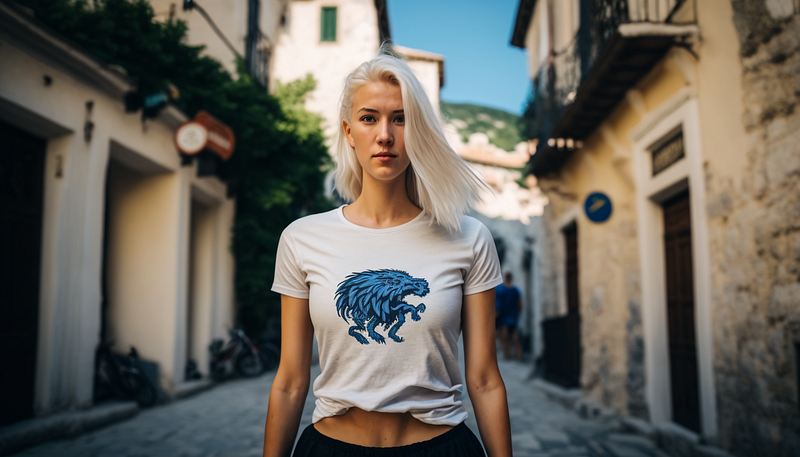
Image created by the author and Midjourney

Seriously, why spend money on expensive designer t-shirts or accessories when you can create your own unique everyday items using AI image generators like Midjourney?

In this post, you’ll learn

  • how to create your own designs with Midjourney,
  • how to upscale images and make them production-ready (and which tools will do it for you),
  • how to get your unique fashion & accessories manufactured using print-on-demand services

Prerequisites

To get started, all you need is a Midjourney account. If you don’t have one yet, check out this step-by-step guide (beginner accounts are free!). If you’re just starting to use Midjourney for AI image generation, you can get some ideas for your work here and here.

Choosing your design style

When working on images to be used as fashion or accessory designs, you basically have three options to keep in mind:

  • creating a rectangular or square motif
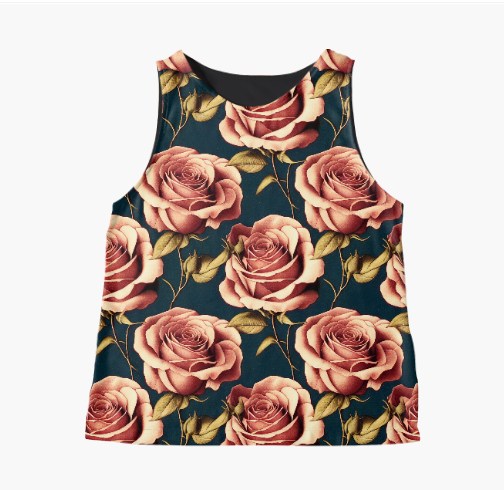
  • creating a motif with tiles
  • creating a motif with transparent background

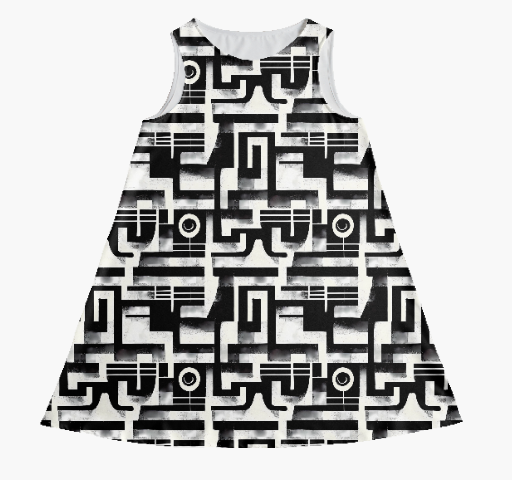
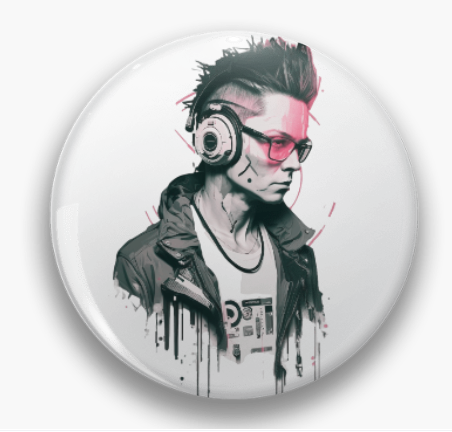
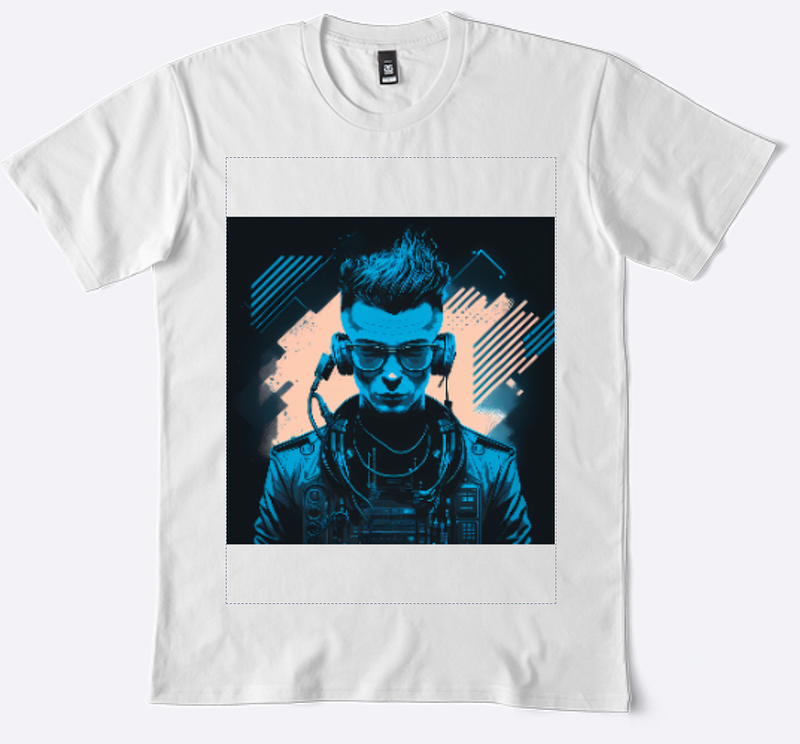
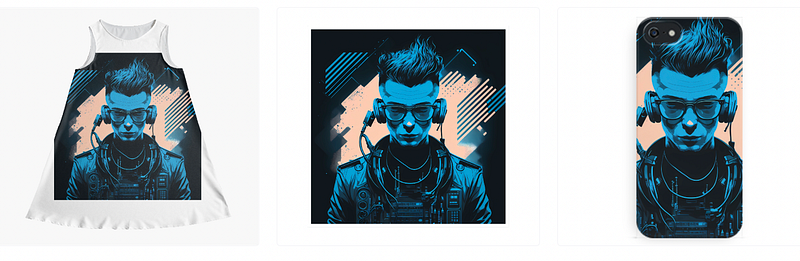
Depending on the item, you can choose one or the other. Here are some examples:
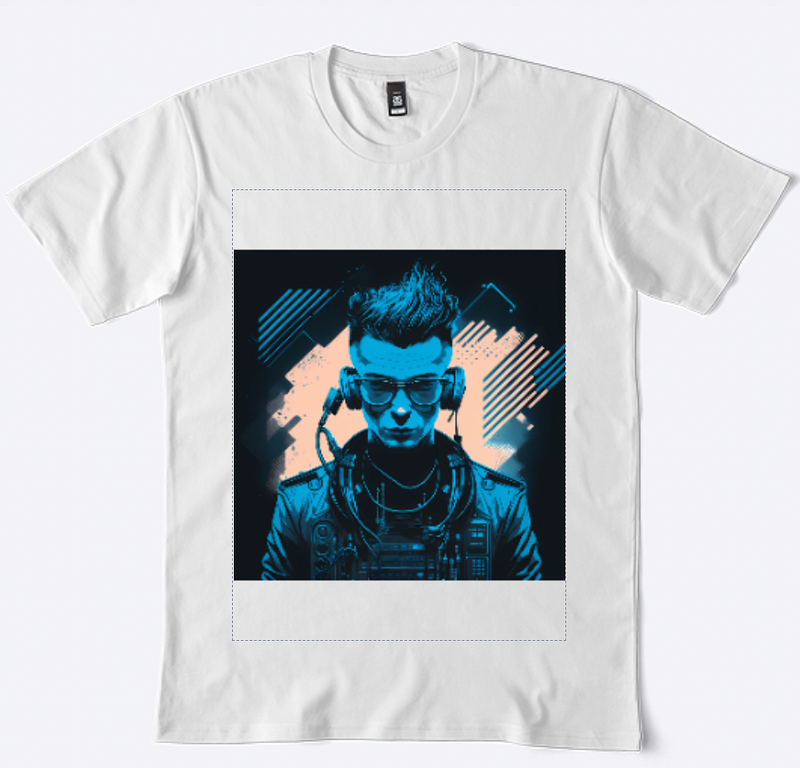
Images created by the author and Midjourney, left to right: Square motif 1:1 on a shirt, tile motif on a dress, transparent background motif on a button

Let’s go through each of them step by step.

Creating a rectangular or square motif

Step 1: Create an image (and set the aspect ratio)

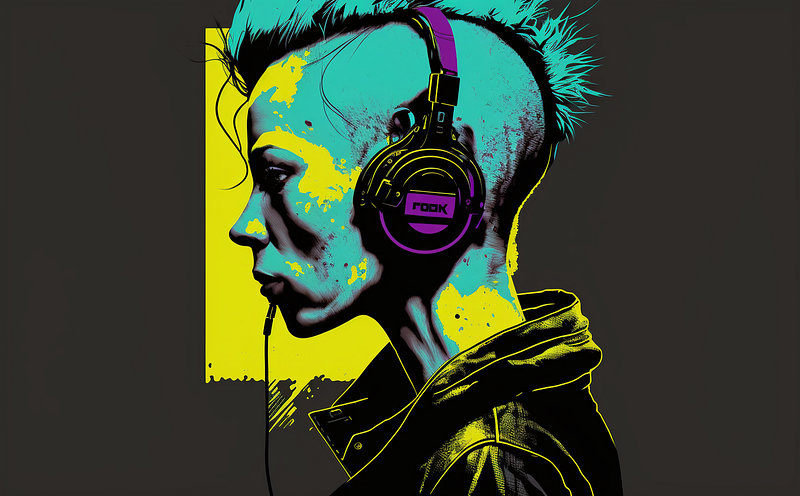
This is the most straightforward approach you can take: use any image prompt you want and set an aspect ratio of your choice (or take the default 1:1 ratio). Depending on the product you’re designing for, you should change the aspect ratio accordingly to match a t-shirt, smartphone case, or another accessory.

Examples:

illustration of a DJ, cyberpunk, portrait shot, minimalism

or with a custom aspect ratio:

illustration of a DJ, cyberpunk, portrait shot, minimalism --ar 32:20
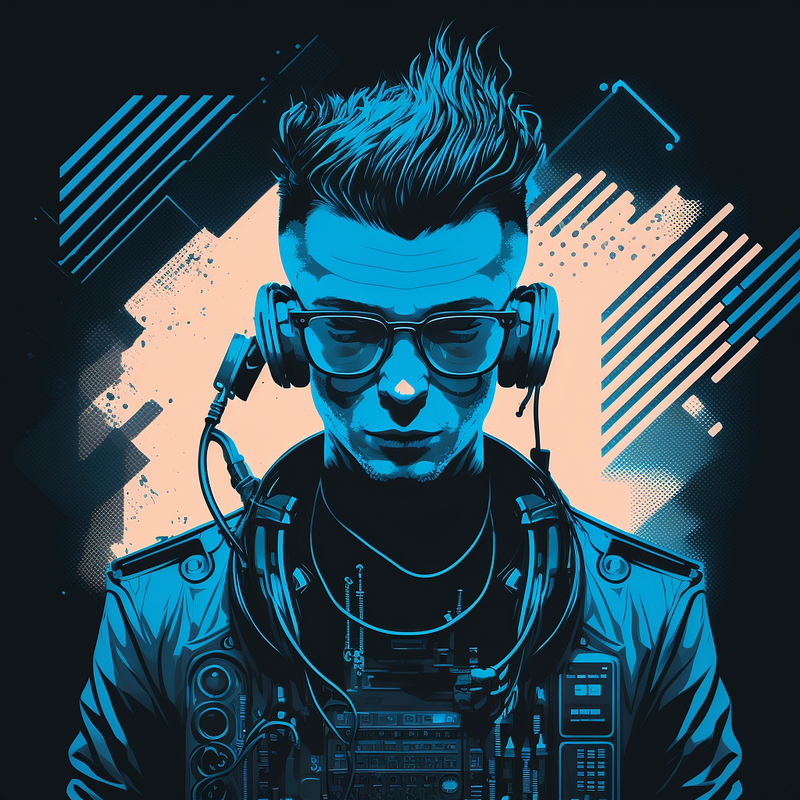
Images created by the author and Midjourney

Step 2: Upscale your image

Next, you need to upscale your image so it can be used with print-on-demand services. My weapon of choice here is an open-source tool called chaiNNER, but there are also many online options, such as www.bigjpg.com. Whichever tool you choose, you’ll need to get your image to 4k at least, which means one side of your image needs to be 4000px.

Here’s why (left: Midjourney image result, right: upscaled to 4k):
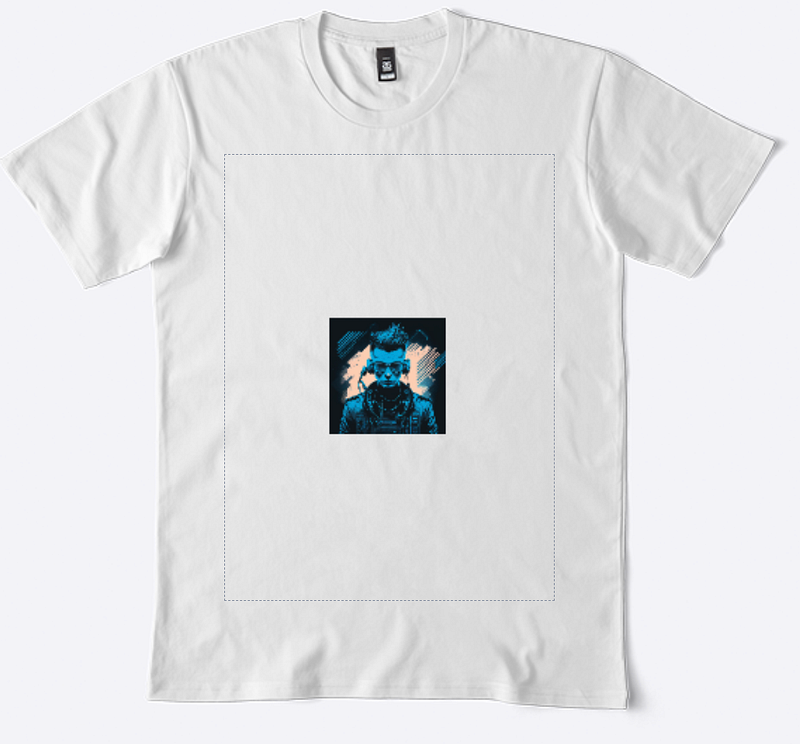
Images created by the author and Midjourney, left: Midjourney image result, right: upscaled to 4k

If you want to find out how to use chaiNNER (and some other neat tools for AI image generation), check out this article:

Additionally, here’s a list of some online services to upscale your images, most of them are free: https://www.codingem.com/best-ai-image-upscalers/

Step 3: Produce

Once you have an upscaled version of your image, go to the print-on-demand service of your choice (here’s a list) and start transferring your design to a product.
Images created by the author and Midjourney

Creating a motif with transparent background

Step 1: Create an image with a solid color background

Using this approach, you will eventually convert your design to a transparent PNG file. For this to work, you need to tell Midjourney to use a solid background color so that you can easily make the design transparent later.

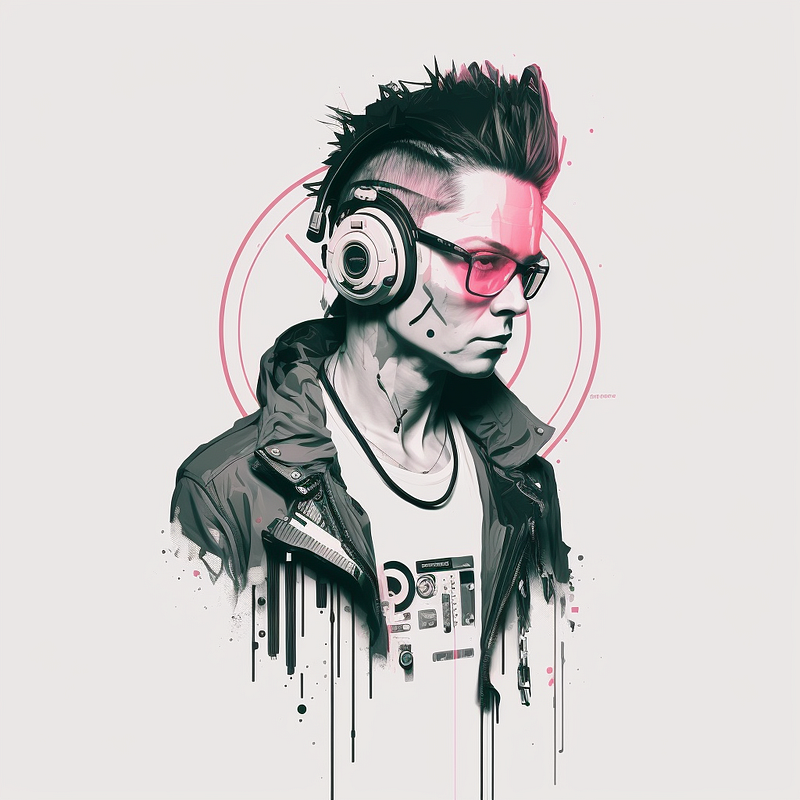
To do this, you could, for example, instruct Midjourney to create a white background. Adding the “ — no background” parameter reduces the likelihood of white background objects, i.e. we don’t want “white walls” or “white mountains” but a solid white background.

white background --no background

Here’s an example:

illustration of a DJ, cyberpunk, portrait shot, minimalism, 
white background --no background
Images created by the author and Midjourney

Sometimes when you are aiming for transparent background designs, the following might happen:

Space labrador, white background --no background
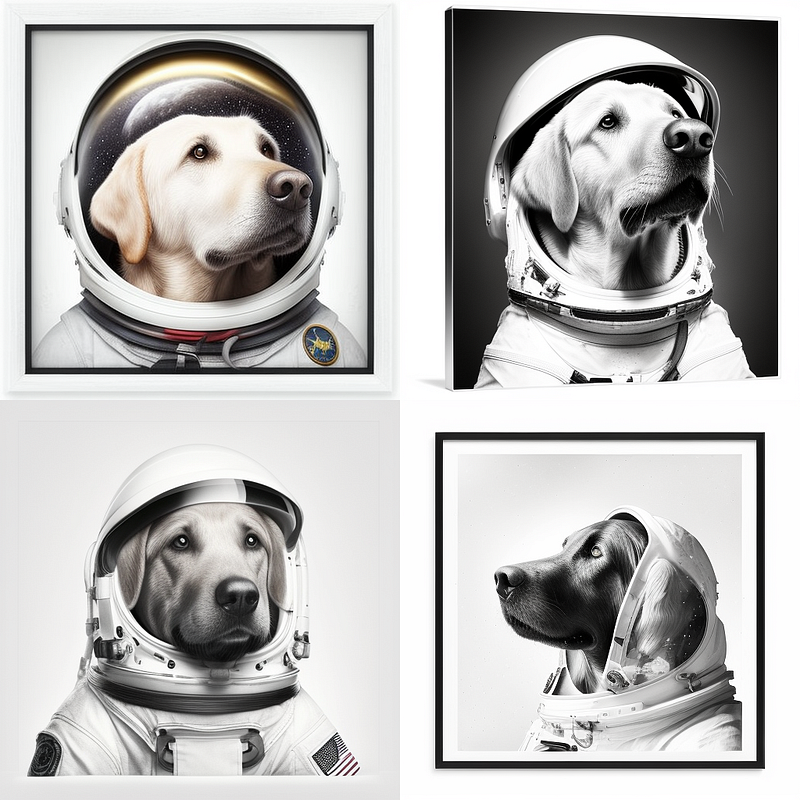
Images created by the author and Midjourney

Frames appear! In some cases, they can look quite cool. However, if you want to get rid of them, change the prompt as follows:

Space labrador, white background --no background frame border
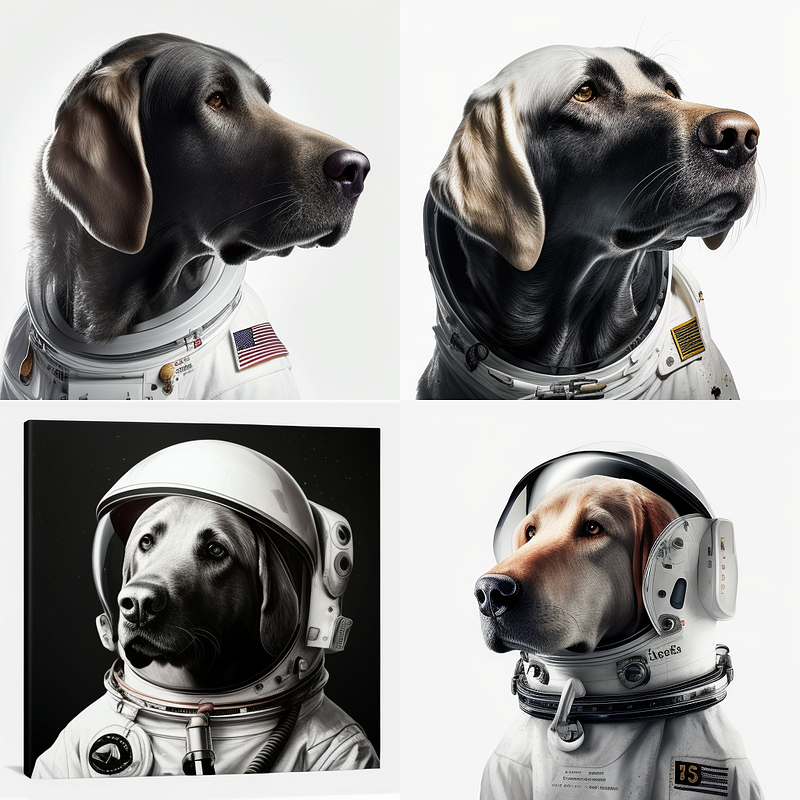
Images created by the author and Midjourney

Keep in mind: Creating with AI is an exploratory task. So tweak your prompts and iterate until you find an image you want to work with. And always have fun roaming the latent space!

Step 2: Remove the background

Now it’s time to remove that background completely to create a transparent PNG. You can use your favorite graphic processing tool (Photoshop, GIMP, etc.) or use an online solution like www.removal.ai (which, by the way, is very good at removing non-solid backgrounds as well)

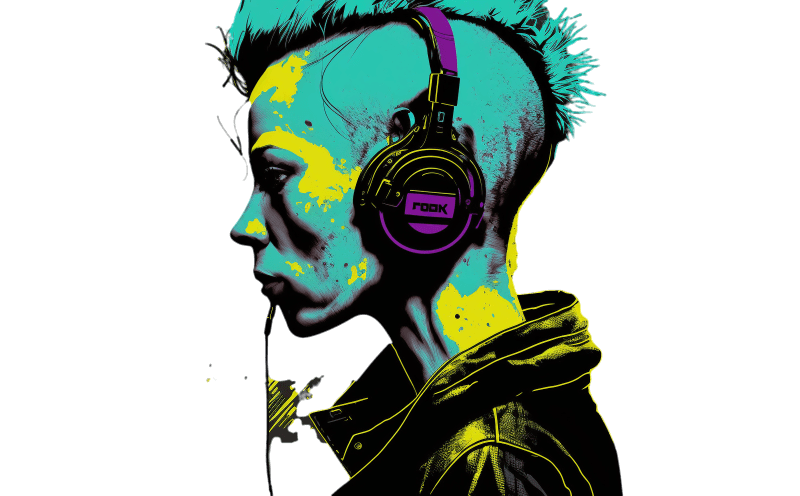
Your result will look similar to this:
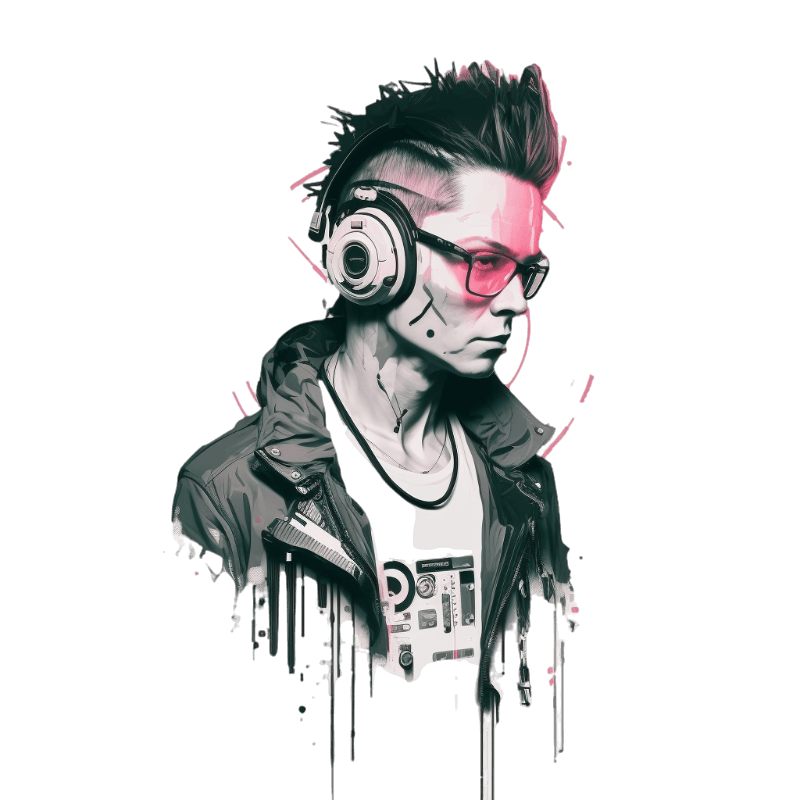
Images created by the author and Midjourney

Step 3: Upscale & Produce

Again, you’ll need to upscale and upload to a print-on-demand service, as before.

Creating a motif with tiles

Step 1: Create an image and use the “tile” parameter

If you want to repeat your image seamlessly over a given product, e.g. to create a pattern or to fill up space that would otherwise be blank, you can either use third-party tools to do so or use a Midjourney parameter.

Unfortunately, the option is currently not supported with Midjourney’s latest model (V4), so we have to switch back to the previous V3 model.

You can switch models with the “ — v” parameter:

--v 3

For better results with “V3”, I would recommend also adding the following parameters that will help the model deviate from the standard V3 vibe and have a more photorealistic/artistic look:

--test --creative

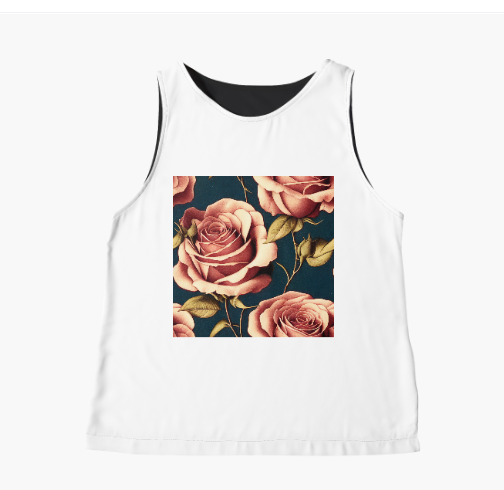
Here’s an example:

vintage flowers and roses --test --creative --tile
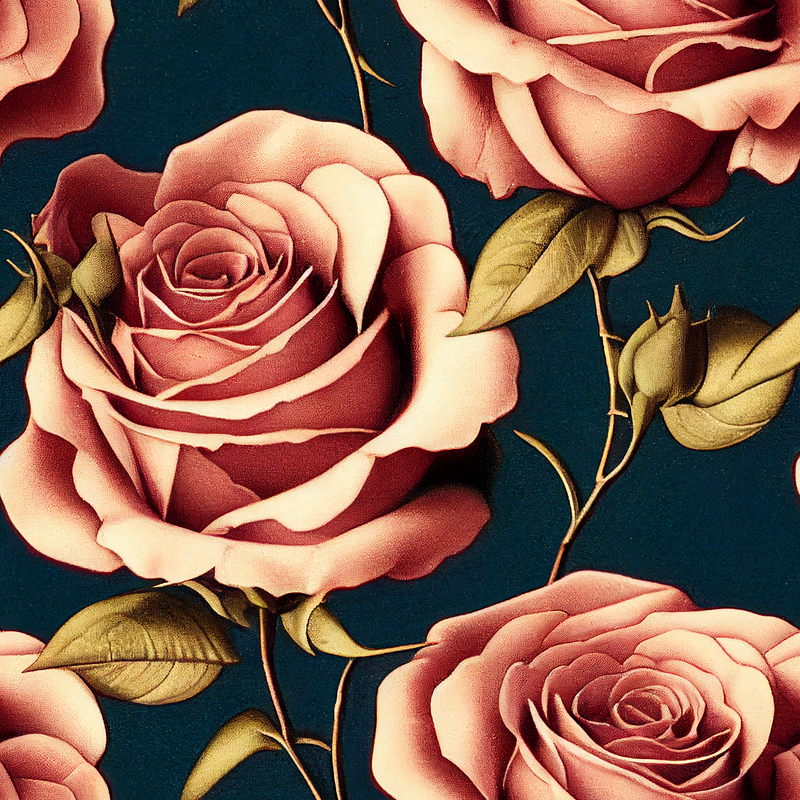
Images created by the author and Midjourney

The left image is the raw Midjourney result, in the middle you see the same image used as a 1:1 square motif, and on the right we activate “tiling” (a feature that most print-on-demand services are offering, e.g. Redbubble).

Steps 2 & 3: Upscaling and Produce

Again, these are the same as before.

➡️ For more information about AI & Creativity, follow me on Twitter or Medium (use my referral link to get full access to all my articles and those of thousands of other writers).

➡️ If you like my content, why not leave a “clap” at the end of this article, so more people can see it?

Artificial Intelligence
Design
Creativity
Fashion
Ideas
Recommended from ReadMedium