avatarTristan Wolff

Free AI web copilot to create summaries, insights and extended knowledge, download it at here

2270

Abstract

on.</p><h2 id="a53a">Installation:</h2><p id="0ff0">Memory Profiler can be installed from PyPl using:</p><div id="de37"><pre>pip <span class="hljs-keyword">install</span> -U memory_profiler</pre></div><p id="d187">and can be imported using</p><div id="3752"><pre><span class="hljs-keyword">from</span> memory_profiler <span class="hljs-keyword">import</span> profile</pre></div><h2 id="6156">Usage:</h2><p id="2314">After everything is set up, it's pretty easy to use this module to track the memory consumption of the function. <code>@profile</code> decorator can be used before every function that needs to be tracked. This will track the memory consumption line-by-line in the same way as of <a href="https://pypi.org/project/line-profiler/">line-profiler</a>.</p><p id="f468">After decorating all the functions with <code>@profile</code> execute the python script with a specific set of arguments.</p> <figure id="b96f"> <div> <div>

            <iframe class="gist-iframe" src="/gist/satkr7/0102b4e5e2acff9db15809298e77a1d1.js" allowfullscreen="" frameborder="0" height="undefined" width="undefined">
          </div>
        </div>
    </figure></iframe></div></div></figure><p id="7b9f">Execute the above Python script using bypassing <code>-m memory profiler</code> to the Python interpreter. This will load the memory_profiler module and print the memory consumption line-by-line.</p><p id="ebf8">Use the below to execute the Python script along with the memory profiler.</p><div id="f938"><pre><span class="hljs-keyword">python</span> -<span class="hljs-keyword">m</span> memory_profiler <span class="hljs-symbol">&lt;filename&gt;</span>.<span class="hljs-keyword">py</span></pre></div><figure id="8ba9"><img src="https://cdn-images-1.readmedium.com/v2/resize:fit:800/1*--WZVx_xXuDeyE2slwvmjA.png"><figcaption>(Image by Author)</figcaption></figure><p id="6a84">After successful execution, you will get a line-by-line memory consumption report, similar to the above image. The report has 5 columns:</p><ul><li><b>Line #</b>: Line Number</li><li><b>Line Contents</b>: Python code at each line number</li><li><b>Mem usage</b>: Memory usage by the Python interpreter after every execution of the li

Options

ne.</li><li><b>Increment</b>: Difference in memory consumption from the current line to the last line. It basically denotes the memory consumed by a particular line of Python code.</li><li><b>Occurrences</b>: Number of times a particular line of code is executed.</li></ul><p id="fd15">Mem Usage can be tracked to observe the total memory occupancy by the Python interpreter, whereas the Increment column can be observed to see the memory consumption for a particular line of code. By observing the memory usage one can optimize the memory consumption to develop a production-ready code.</p><h1 id="f44f">Conclusion:</h1><p id="dbbd">Optimizing the memory consumption is as important as optimizing the time complexity of the Python code. By optimizing the memory consumption, one can speed up the execution to some extent and avoid memory crashes.</p><p id="9278">One can also try custom <code>@profile</code> decorators to specify the precision of the argument. Read the <a href="https://pypi.org/project/memory-profiler/">documentation</a> of the memory profiler module for better understanding.</p><h1 id="3c87">References:</h1><p id="e914">[1] Memory Profiler Documentation: <a href="https://pypi.org/project/memory-profiler/">https://pypi.org/project/memory-profiler/</a></p><p id="ff83"><i>Loved the article? Become a <a href="https://satyam-kumar.medium.com/membership">Medium member</a> to continue learning without limits. I’ll receive a small portion of your membership fee if you use the following link, with no extra cost to you.</i></p><div id="fbae" class="link-block"> <a href="https://satyam-kumar.medium.com/membership"> <div> <div> <h2>Join Medium with my referral link - Satyam Kumar</h2> <div><h3>As a Medium member, a portion of your membership fee goes to writers you read, and you get full access to every story…</h3></div> <div><p>satyam-kumar.medium.com</p></div> </div> <div> <div style="background-image: url(https://miro.readmedium.com/v2/resize:fit:320/0*sp1Stkiu2tDeRpx8)"></div> </div> </div> </a> </div><p id="e94c" type="7">Thank You for Reading</p></article></body>

AI Image Generation Basics — How to Create a Midjourney Account and Run Your Own Private Discord Server to Create AI Images

Spoiler 🚨

This one is for absolute beginners. If you’re already using Midjourney, you’ll find this article very boring. Try reading one of my others instead, e.g.

Let’s get started…

In this part of the tutorial we’ll cover how to set up a Midjourney account and start creating awesome AI images in your own Discord server.

Step1 : Create a Discord Account

(if you already have a Discord account, you can skip this)

Midjourney runs on Discord, an instant messaging platform, so you need to get a Discord account first. Go to www.discord.com click “Login” and follow the instructions. You can then choose to download the Discord app or run Discord in your browser window.


Setting up a Discord account is easy :)

Step 2: Connect Your Discord Account to Midjourney

Visit www.midjourney.com and click “Join the Beta”. You will get a Discord server invite, that’s basically just a redirection to a URL where you have to agree to join the Discord server.
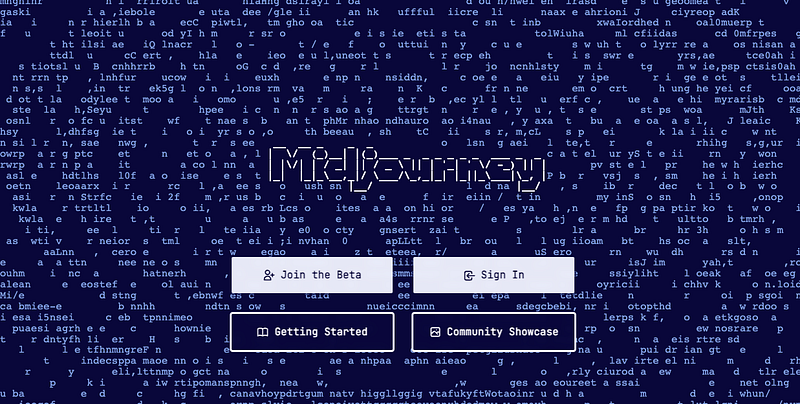
www.midjourney.com

Once you did, you’ll see a new Discord server in your Discord app or in the browser window where you’re running Discord (the white logo with the sailboat, that’s the Midjourney server)
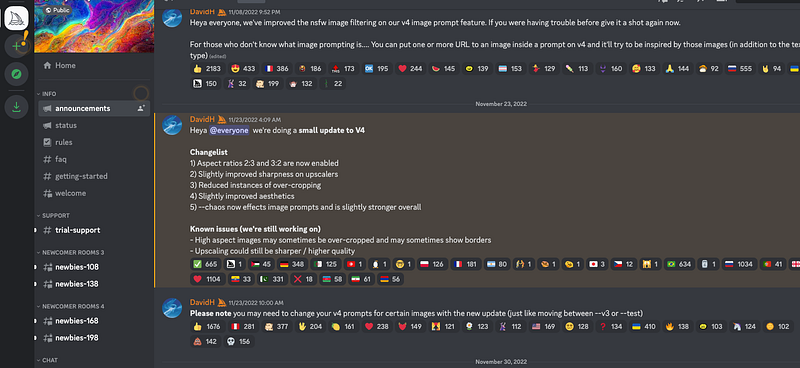
The Midjourney Discord server

You can now start creating images! Go to one of the Newbie Channels (named something like “newbie-103” or similar) and have a look what’s happening there!
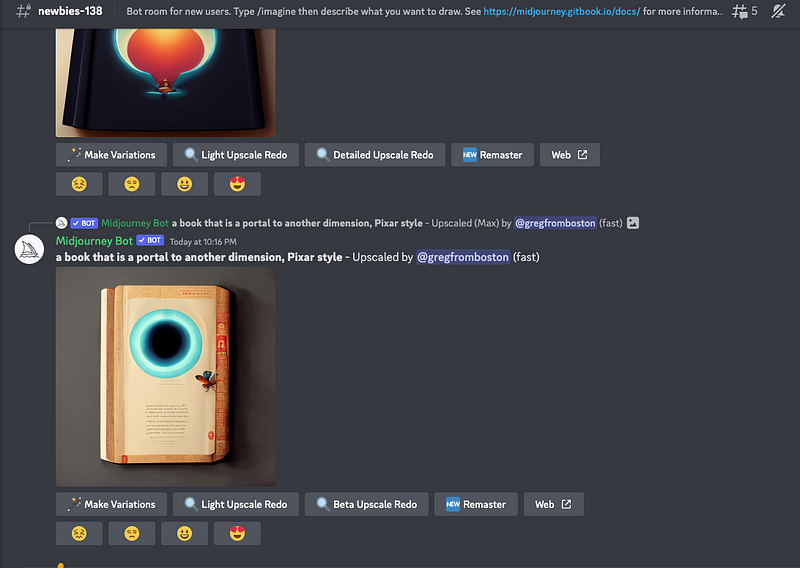
Image creation in one of Midjourney’s newbie channels

You’ll notice that there’s quite a lot of people generating images — important note: by default, your images are all public! To set them to private, you’ll have to become a subscriber (see Step 5).

Try creating some images by typing the command:

/imagine [prompt]

(in Discord servers slash commands call for so-called Discord Bots to do stuff… in this case you’ll tell the Midjourney Bot to set your creation to private)

Replace [prompt with a description of what you want the image to be like, for example:

/imagine film still from an 80s comedy, wide shot

Step 3: Create your own server

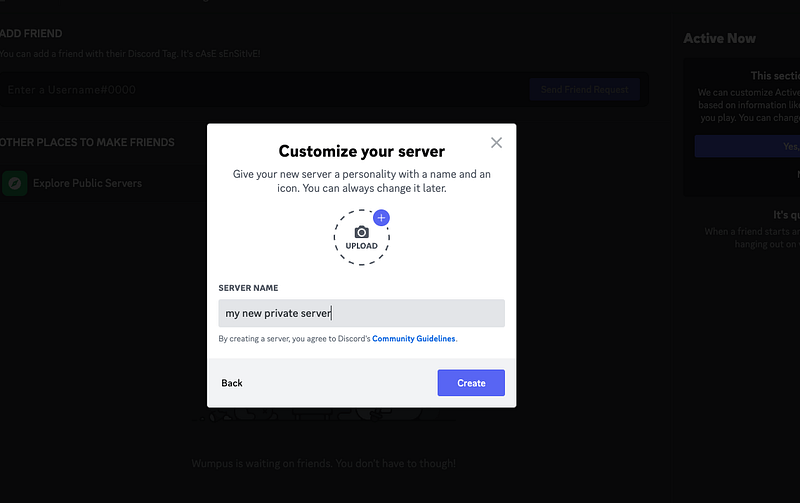
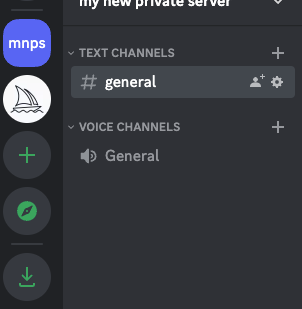
Next you want to have your own little server to keep your images organized — you’ll create a lot of them, believe me. To do that, click the “plus”-button in the server list on the left, right next to the Midjourney server — then click “Create my own” and give your new server a name. You can then skip the template stuff (it’s asking you whether you’re server is for you or a community, which basically just leads to different server layouts.. we don’t have to worry about that now):
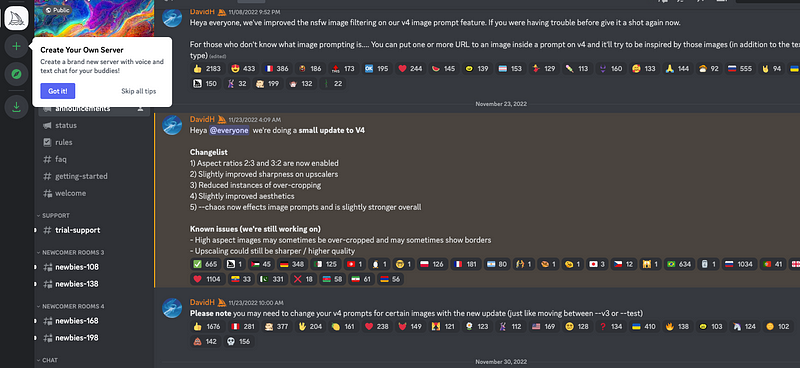
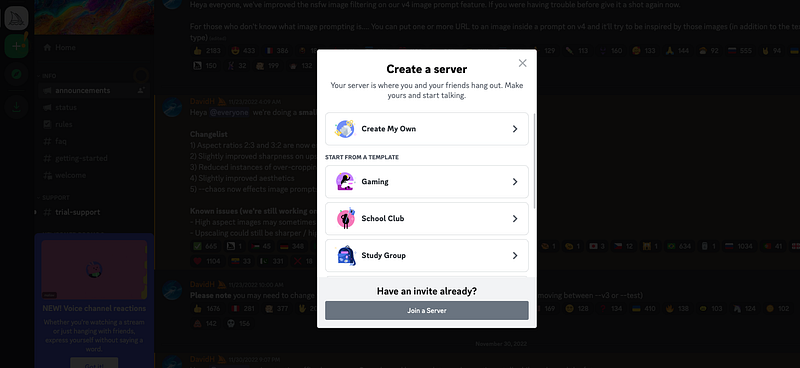
Congrats! You’re now running your own Discord server! 🔥 🚀

Step 4: Invite the Midjourney Bot

Remember how you created images in the Midjourney newbie channel? You called for the Midjourney Bot to imagine stuff.

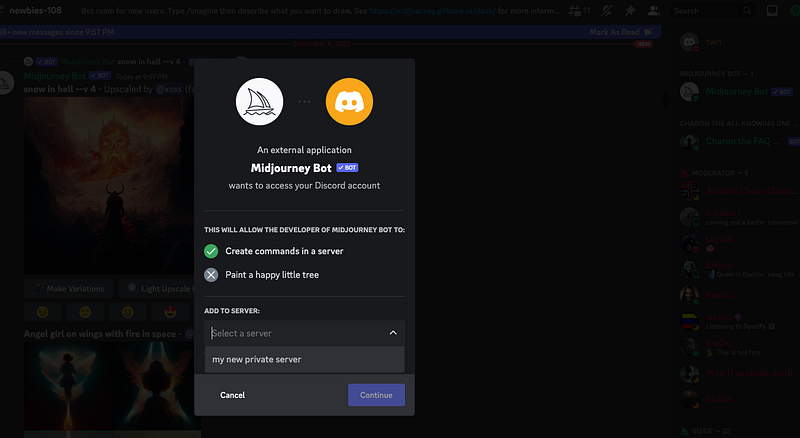
So now we will invite the Midjourney Bot to your own server in order to be using it from there (and eventually organize our creations in different channels and categories, but that’s nothing to worry about right now). To do that, head over to the Midjourney server (in the server list on the left, click the Midjourney logo). Then go to the newbie channel once again and click the little “Show server members” button (👥 )in the upper right of your screen or swipe from the right when you’re on a mobile device — from the server member list, click the “Midjourney Bot” and then “Add to server”. Now choose your server and that’s a wrap!
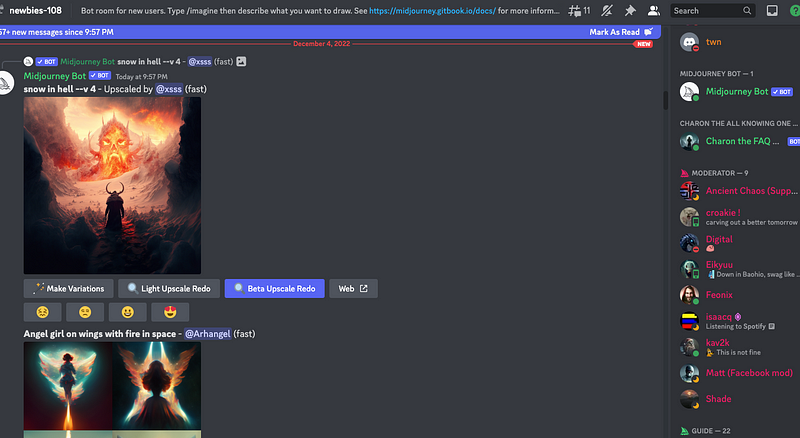
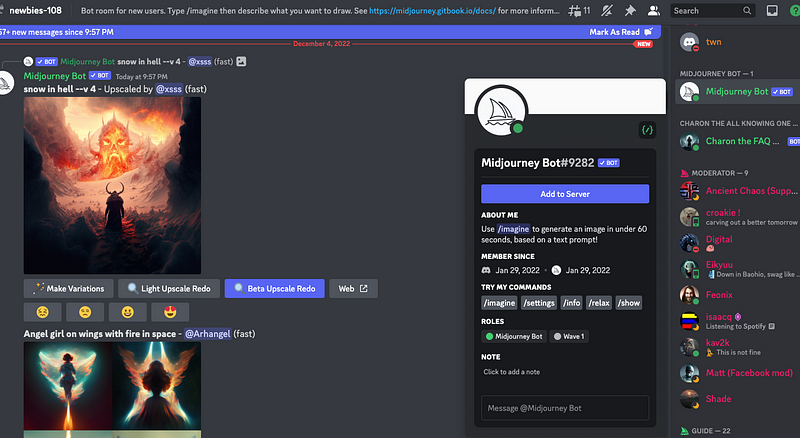
If you go back to your own server (you know how to use the server list on the left side by now), you’ll see the bot joined!
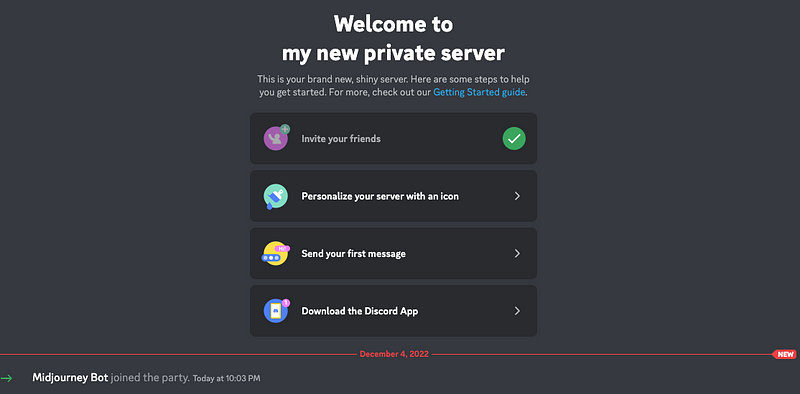
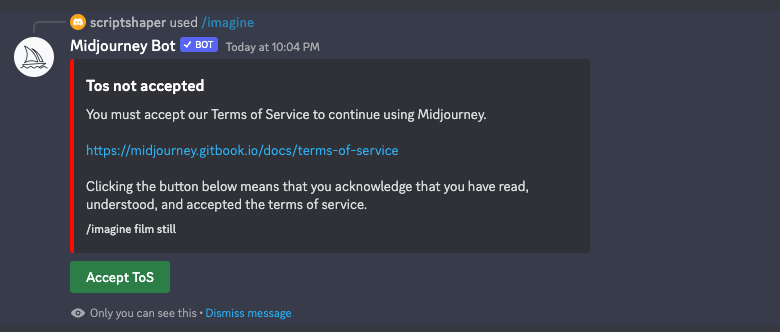
Now if you try to generate an image with the slash command “/imagine” it’ll fail because you have to accept Midjourney’s Terms of Service first. Once you did that, you can start creating!

Step 5 (optional): Switch to V4 and become a subscriber

Last but not least you may want to set your creations to “private” so that they are not publicly viewable by default. To do that, use the slash command

/subscribe

and choose a subscription plan. Then set your account to private with

/private

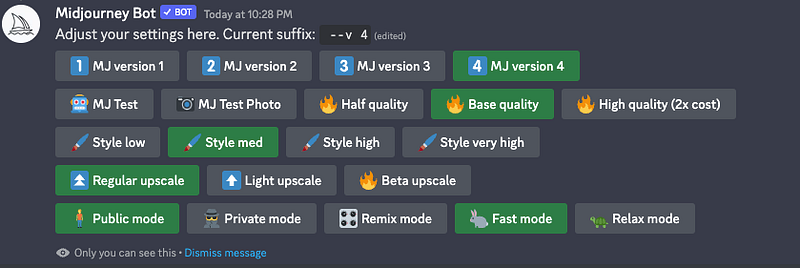
I also recommend you switch to the latest model by typing

/settings

and choosing “MJ version 4”
And that’s it! Have fun creating awesome stuff!

Maybe this gives you some additional inspiration:

Midjourney
Ai Art
AI
Image Generation
Discord
Recommended from ReadMedium