8 Essential Tools Every AI Artist Should Have in Their Arsenal
From ideation to editing to automation, these tools will help any AI artist improve their project pipeline
1. ChaiNNer
Probably one of the most useful discoveries for me in 2022. Have you ever gone through the tedious process of manually upscaling dozens of images, one at a time, or did you have to crop, tile, filter, or flip an entire directory of images? Well, we don’t have that problem anymore. Thanks to ChaiNNer!
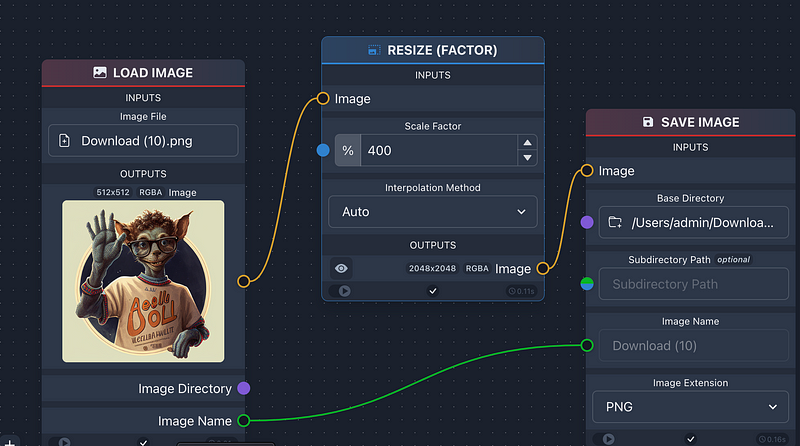
With an intuitive workspace where you drag and drop elements and connect them together, you create “chains” that automate your processes and can easily be integrated into your pipeline.
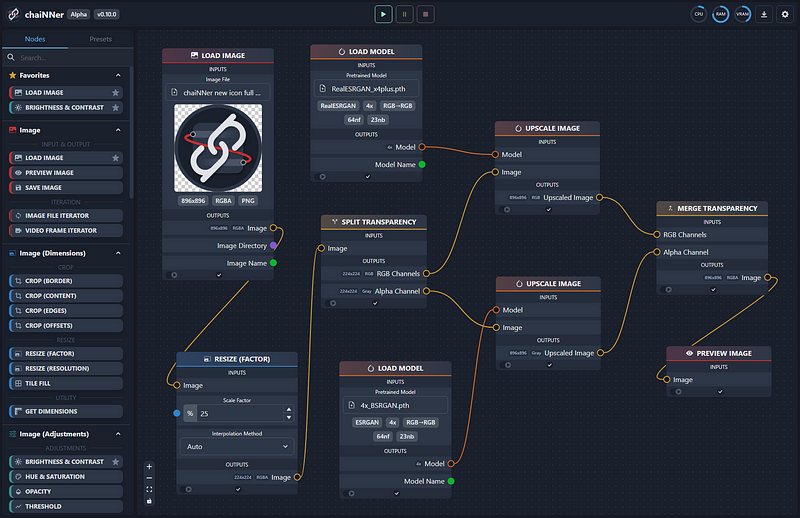
I use ChaiNNer every day to upscale and convert. But it’s so much more than that, as you’ll see if you visit their Discord where people create amazing workflow automation for specific needs. You can also request a chain from one of the more experienced users there. Give it a try. You won’t regret it.
How to set it up:
- Go to the ChaiNNer Release Page on GitHub and select the version for the operating system you are using.
- Follow installation instructions and tips for basic usage on the ChaiNNer GitHub main page
2. VectorJourney
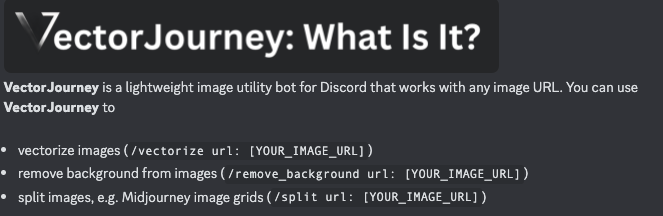
This one is a handy lightweight utility bot that runs on Discord and lets you remove backgrounds, split image grids (great for Midjourney users) and even vectorize images. It works with any image URL you provide. Give it a try.
How to set it up:
- Join their Discord server: https://discord.gg/DH7MqHkkEq and follow the instructions to use the bot
3. CLIP Interrogator
Useful tool for reverse engineering prompts from images. Upload an image and you get a prompt that you can then use with an AI image generator to create a specific kind of image/style.
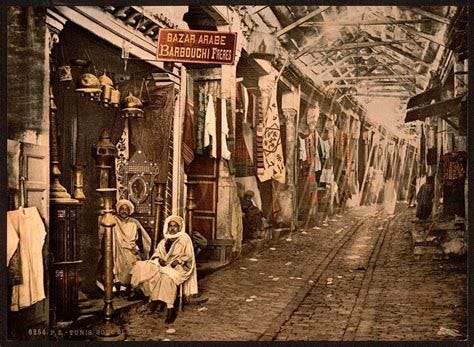
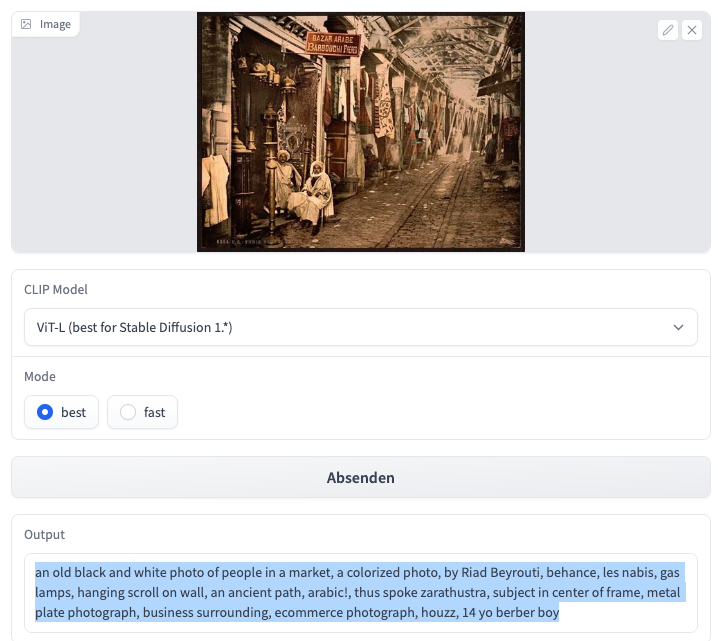
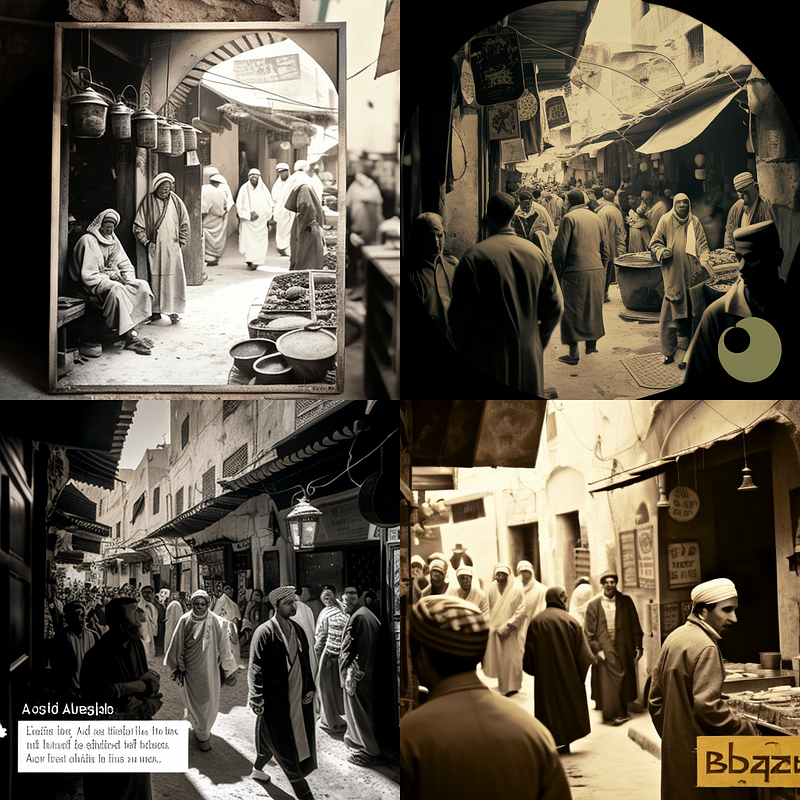
How to set it up:
- Create an account with Huggingface
- Got to https://huggingface.co/spaces/pharma/CLIP-Interrogator & upload image
4. Promptomania Grid Splitter
This is pretty handy if you’re developing ideas and need individual images, but don’t want to scale up the Midjourney results.
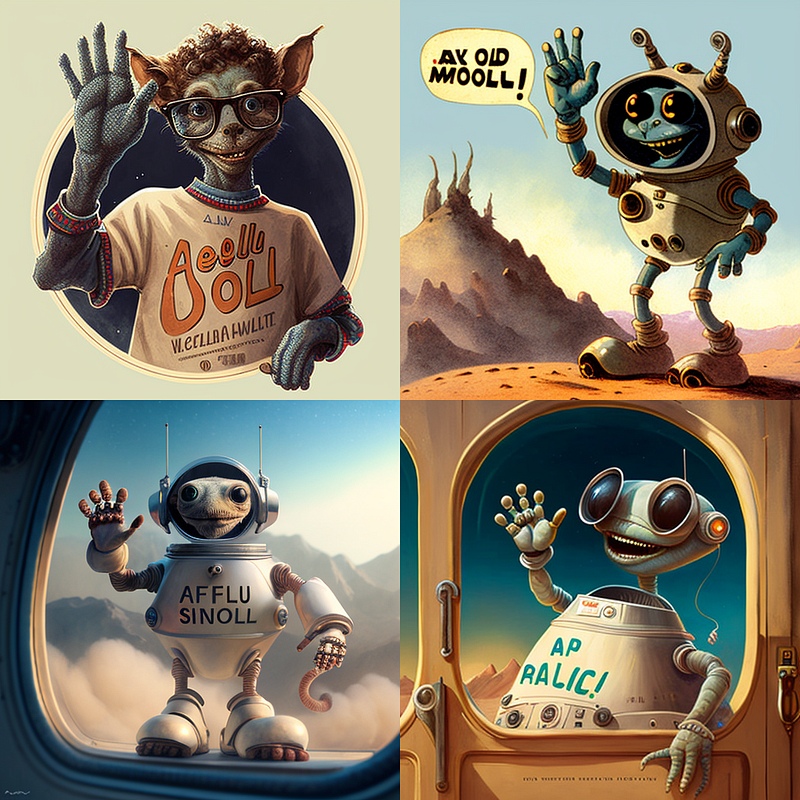
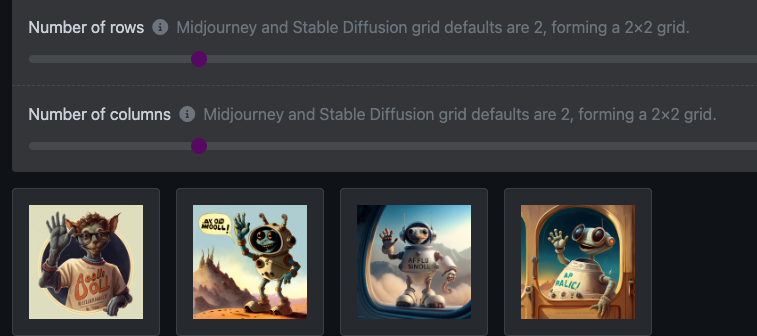
Link: https://promptomania.com/grid-splitter/
5. Open Library of Styles
This Google Doc is an immense source of knowledge and inspiration! Kudos to the team behind it and to the Midjourney community for constantly adding and updating artists which let’s you currently browse a list of nearly 2000 artists (and growing!). Research artists and styles or get inspired by random artists shown to you.
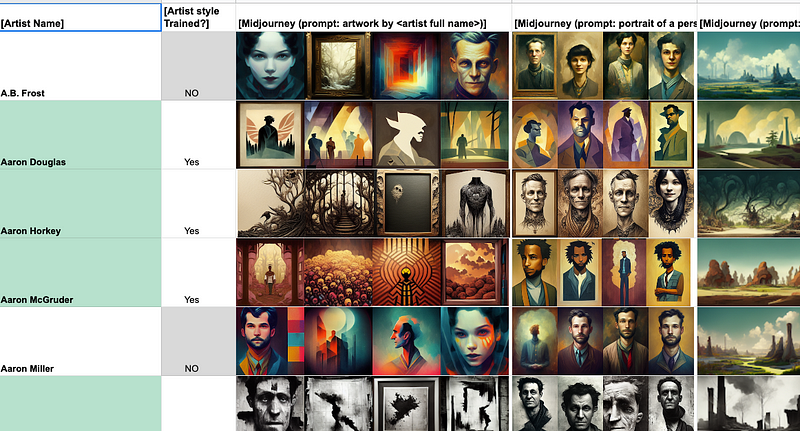
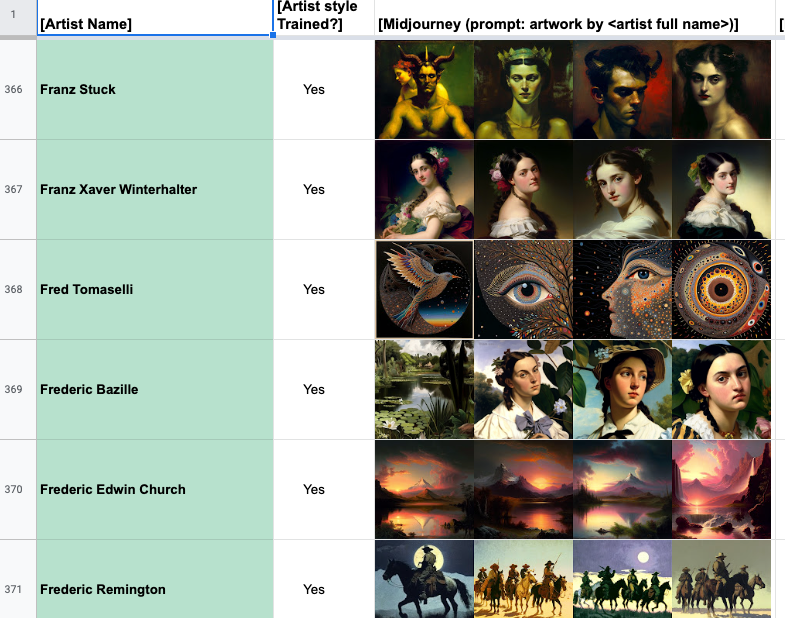
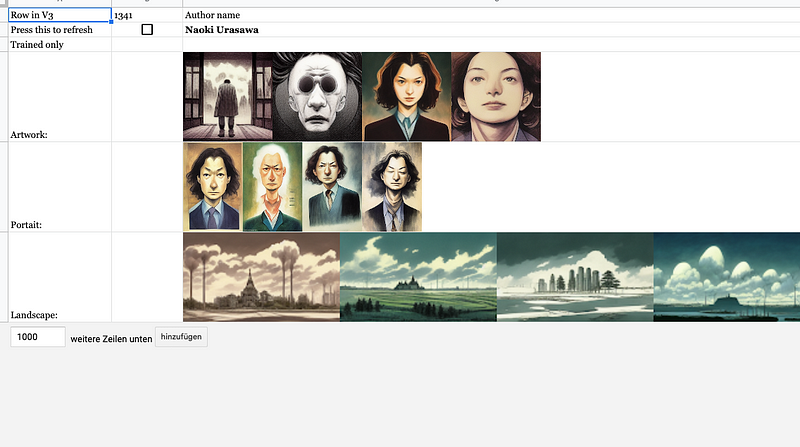
How to set it up:
- Go to this Google Doc: https://docs.google.com/spreadsheets/d/1cm6239gw1XvvDMRtazV6txa9pnejpKkM5z24wRhhFz0/edit#gid=438712621
- Select “File -> Save as Copy”.
6. DALL-E Editor
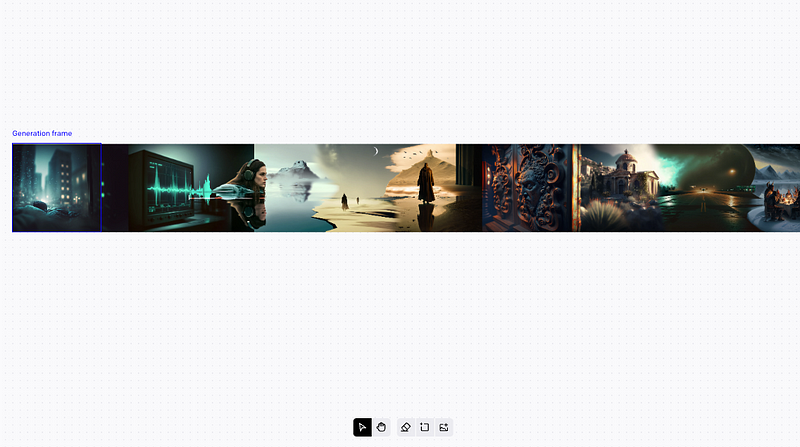
In my experience, this is still the best tool for inpainting/outpainting currently available. It’s expensive, but worth the money if your project requires a lot of these tasks and you have the budget to use DALL-E. Fortunately, buying credits is easy and works with both credit cards and Paypal.
How to set up:
- Get an account with OpenAI
- Open the DALL-E Editor and create/upload images you want to add in/out-painting to.
7. Removal.ai
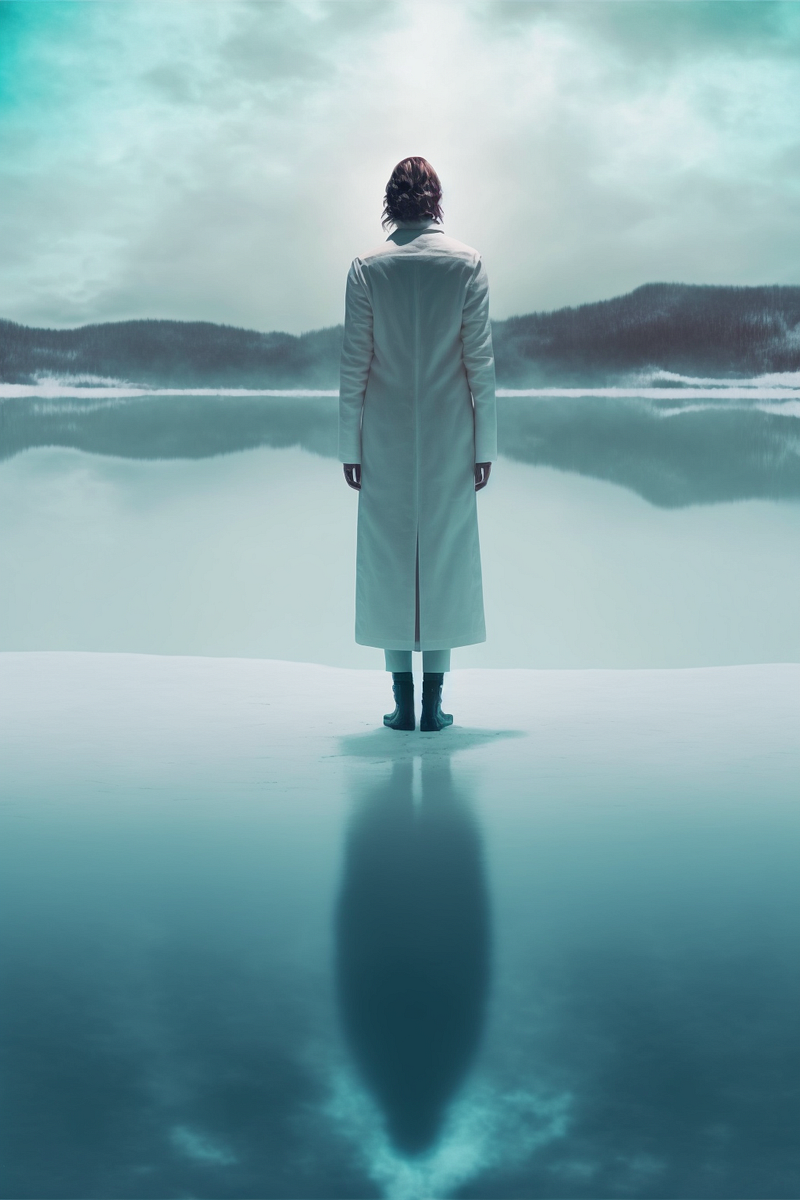
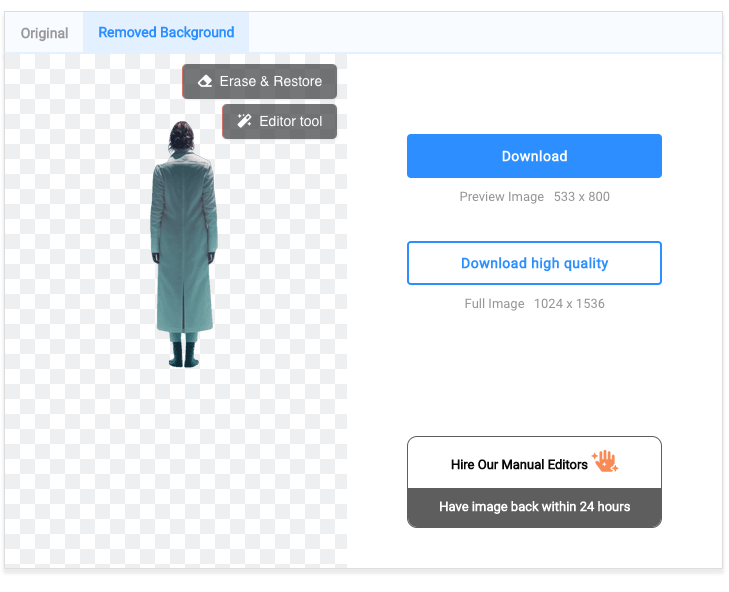
Another useful little tool if you need to automatically remove backgrounds from your low-resolution images for ideation or demo purposes. Again, you can download high-resolution versions, which is expensive, but worth the time saved if your project has the budget for it. It also offers bulk removal and API access.
How to set up:
- Create a free account with removal.ai
- Upload your image
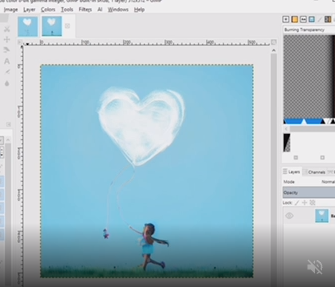
8. Stable Diffusion Plugin for GIMP
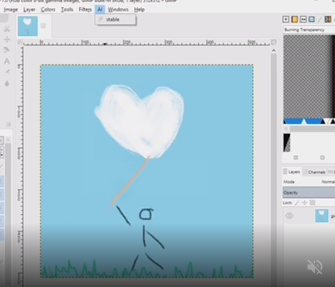
If you work with GIMP, this plugin is a must-have. It allows you to use inpainting directly in your GIMP sketches! Setting this up requires a bit more work than the ones above, but it might be worth it if your project requires a lot of drawing/sketching and image-to-image processing.
How to set up:
- Create a Google account if you don’t have one already (you will need this in step 3 to run a colab server)
- Create a Huggingface account if you don’t have one already (you will need this in step3 to download the stable diffusion model)
- Go to https://github.com/blueturtleai/gimp-stable-diffusion and follow the installation instructions.