avatarBill WANG

Free AI web copilot to create summaries, insights and extended knowledge, download it at here

1616

Abstract

enterprise workloads, including Azure Virtual Machines, SQL and SAP databases, and Azure file shares.</p><p id="f690">It is useful and simple for us to take backup for our Virtual machine (VM) running in Azure.</p><h1 id="0647">Setup backup on virtual machine</h1><p id="6e4a">Here is a step-by-step guide to setting up backup for your azure VM:</p><ol><li>After creating the VM, search for “<b>backup</b>” and choose “<b>Standard</b>” for non-production environments and “<b>Enhanced</b>” for production VMs.</li><li>Enable backup. Once enabled, the backup will be initiated in the background. It’s typical to wait for one night to ensure the status becomes stable.</li><li>You still need to check the backup status later. I will explain the reason behind this shortly.</li><li>You can also view jobs to confirm if the backup was successful.</li></ol><figure id="0d29"><img src="https://cdn-images-1.readmedium.com/v2/resize:fit:800/1*yg1rvq9DDDpN5LkTclvJoA.png"><figcaption></figcaption></figure><h1 id="28ea">Backup job is failed</h1><p id="c9d7">There are several reasons for a backup job to fail, discussing in this document. If you get other cases, please report.</p><h2 id="862e">Case #1</h2><p id="c01c">The operating system is not supported by Azure Backup.</p><p id="bcbf">I confirmed this with the Azure support team. If the operating system is not standard, such as RHEL8, Windows, etc., Azure Backup cannot back up the VM. The workaround is to back up only its storage (raw backup). I encountered this issue when trying to back up <b>Palo Alto</b> Panorama instances and <b>Zscaler Cloud Connector</b> i

Options

nstances because their operating systems are highly customized.</p><h2 id="4d4e">Case #2</h2><p id="7cd6">Recently, my team implemented a feature in Azure Policy. All resource groups created in Azure need to have a tag “<b>cost-center-id</b>” set. Without this tag, you cannot create the resource group.</p><p id="6f44">This can cause issues with the backup jobs.</p><p id="0f3c">When we enable Azure Backup, the backup service will automatically create a resource group called “<b>AzureBackupRG_<region_name>1.</b>” However, due to the new Azure Policy feature, the backup job can fail, preventing successful VM backup.</p><p id="d9c4">If you find that the backup job failed on your VM, it’s possible that the resource group “<b>AzureBackupRG<region_name>_1</b>” was not created successfully. If this is the case, I recommend creating it manually with the tag “<b>cost-center-id</b>” .</p><h1 id="73cf">🐥 Related articles</h1><div id="d055" class="link-block"> <a href="https://learn.microsoft.com/en-us/azure/backup/backup-center-overview"> <div> <div> <h2>Overview of Backup center for Azure Backup and Azure Site Recovery - Azure Backup</h2> <div><h3>This article provides an overview of Backup center for Azure.</h3></div> <div><p>learn.microsoft.com</p></div> </div> <div> <div style="background-image: url(https://miro.readmedium.com/v2/resize:fit:320/0*cb2wcA_vDTixa5T4)"></div> </div> </div> </a> </div></article></body>

Set Backup on Azure Virtual Machine

Follow up on my Virtual machine blogs about

Background

Azure Backup is a managed service, but I have recently encountered several issues with it. Allow me to share the findings and solutions.

What’s Azure Backup?

Azure Backup is a cost-effective, secure, one-click backup solution that’s scalable based on your backup storage needs. The centralized management interface makes it easy to define backup policies and protect a wide range of enterprise workloads, including Azure Virtual Machines, SQL and SAP databases, and Azure file shares.

It is useful and simple for us to take backup for our Virtual machine (VM) running in Azure.

Setup backup on virtual machine

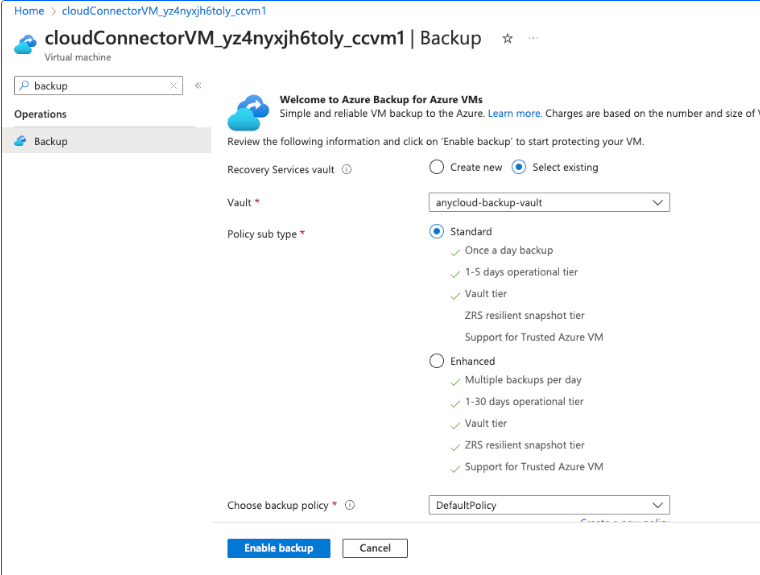
Here is a step-by-step guide to setting up backup for your azure VM:

  1. After creating the VM, search for “backup” and choose “Standard” for non-production environments and “Enhanced” for production VMs.
  2. Enable backup. Once enabled, the backup will be initiated in the background. It’s typical to wait for one night to ensure the status becomes stable.
  3. You still need to check the backup status later. I will explain the reason behind this shortly.
  4. You can also view jobs to confirm if the backup was successful.
Backup job is failed

There are several reasons for a backup job to fail, discussing in this document. If you get other cases, please report.

Case #1

The operating system is not supported by Azure Backup.

I confirmed this with the Azure support team. If the operating system is not standard, such as RHEL8, Windows, etc., Azure Backup cannot back up the VM. The workaround is to back up only its storage (raw backup). I encountered this issue when trying to back up Palo Alto Panorama instances and Zscaler Cloud Connector instances because their operating systems are highly customized.

Case #2

Recently, my team implemented a feature in Azure Policy. All resource groups created in Azure need to have a tag “cost-center-id” set. Without this tag, you cannot create the resource group.

This can cause issues with the backup jobs.

When we enable Azure Backup, the backup service will automatically create a resource group called “AzureBackupRG_<region_name>_1.” However, due to the new Azure Policy feature, the backup job can fail, preventing successful VM backup.

If you find that the backup job failed on your VM, it’s possible that the resource group “AzureBackupRG_<region_name>_1” was not created successfully. If this is the case, I recommend creating it manually with the tag “cost-center-id” .

🐥 Related articles

Azure
DevOps
Azure Backup
Best Practices
Recommended from ReadMedium