
[Packer] The new design to build golden images for multiple cloud platforms
Follow up on my Virtual machine blogs about
- Azure Virutal Machine’s Identity — Zero credentials solution
- Set Backup on Azure Virtual Machine
- Implement CIS Hardening Build Kit On RHEL9 — Stage 1
- Review scan report with AWS Inspector V2 — Stage 2
- [Packer] The new design to build golden images for multiple cloud platforms
Faced with the challenge of managing two cloud platforms (AWS and Azure) for the Golden Image service, there is a need for a new design aimed at minimizing maintenance time.
The document would be generic to cover other cloud platforms and on-prem as well.
Problem statements
- Currently my Ops team need prepare the Golden Images monthly (automation builds) for both AWS and Azure Cloud platforms
- Within AWS, my team uses the AWS managed service EC2 Image Builder for creating golden images has proven challenging. The service is unfriendly and less effective design, particularly when troubleshooting issues. Debugging is difficult due to a lack of comprehensive logs. Currently, I am still unable to reserve the building EC2 instances, I can’t login and perform manual checks to identify issues.
- Within Azure, there’s a managed service known as VM Image Builder, built on HashiCorp Packer. However, the Azure documentation is unclear, prompting us to opt for direct implementation using HashiCorp Packer.
- In many cases, updating something requires duplicating the same changes to another cloud platform. Due to differences in the two image build environments, extra time to adjust codes are necessary as well.
- CIS hardening poses an additional challenge as we must maintain two sets of hardening codes for different cloud platforms, even though the codes are essentially the same.
Research insights
We have built Azure golden images with HashiCorp Packer, I’d like to use the same tool to build golden images in AWS as well.
- We can achieve consistent solutions by using Packer templates for both Azure and AWS
- Both sets of build codes can be merged into one and managed in the same Git repository.
- We get benifits from exist Azure Packer template, most codes can be re-used for AWS packer templates
- We can use the centralized source codes for CIS hardening as well.
- Furthermore, the installation scripts can be shared between Azure and AWS, requiring only one-time writing and updating for both platforms
- As a bonus, convert exist Packer json template to HCL2 offers advantages such as avoiding the need for verbose JSON syntax, allowing for comments, and providing flexibility in adjusting codes. For instance, disabling specific provisioners becomes easier by commenting them out, saving both build and test time.
Solution diagram
Here is the updated diagram, with the shared component centralized in the middle, serving both AWS and Azure.
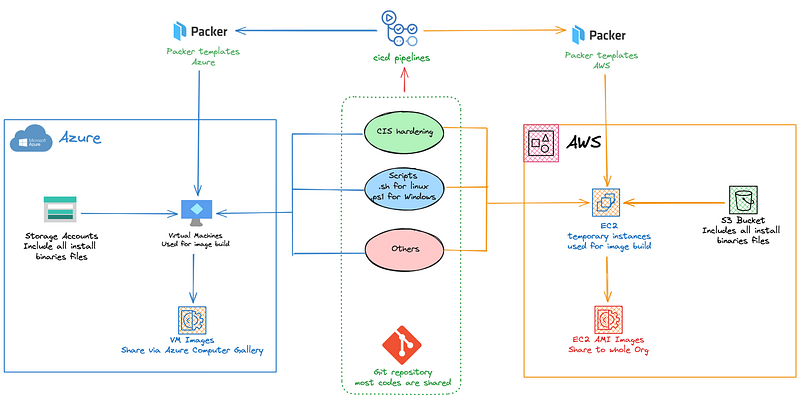
You can refer this link to view above diagram on excalidraw
Git code’s folders for reference
Git repo root for codes of image builder
|- CIS        # put all CIS hardening scripts, share between AWS and Azure
  |- AL2023
  |- RHEL8
  |- RHEL9
  |- Win2019
  |- Win2022
|-Scripts    # put all install scripts, share between AWS and Azure
  |-Linux
    |- CloudWatchAgent.sh
    |- SplunkAgent.sh
    |- CrowdStrike.sh
    |- CIS-hardening.sh
    |- AzureVMAgent.sh
  |-Windows
    |- CloudWatchAgent.ps1
    |- SplunkAgent.ps1
    |- CrowdStrike.ps1
    |- CIS-hardening.ps1
    |- AzureVMAgent.ps1
|- Pipelines  # Azure DevOps Pipeline supports multiple pipeline files
  |- aws-pipeline.yaml
  |- azure-pipeline.yaml
|- PackerTemplates  # Prepare packer template for each linux and Windows system
  |- rhel8-aws.pkr.hcl
  |- rhel9-aws.pkr.hcl
  |- al2023-aws.pkr.hcl
  |- amaz2-aws.pkr.hcl
  |- win2019-aws.pkr.hcl
  |- rhel8-azure.pkr.hcl
  |- rhel9-azure.pkr.hcl
  |- win2019-azure.pkr.hcl
Four main folders in the source codes
- CIS — put all CIS hardening scripts, group for different OS systems, share between AWS and Azure
- Scripts — put all install and configuration scripts, write for both Linux Bash script and Windows PowerShell scripts, share between AWS and Azure
- Pipelines — two pipelines for both AWS and Azure
- PackerTemplates — Prepare packer templates for each linux and Windows system on AWS and Azure
Explanation and general rules
- No agent binary packages should be saved in git repository directly. Copy from AWS s3 bucket or Azure Storage Account. This is for some agent install packages, which can’t be downloaded from public links directly
- If you have software active codes, license IDs, recommends to save to AWS SSM parameter/secret manager, or Azure Key/Vault.
- When image building, all configuration files and binary packages, could be copied to same destination, for exmaple, C:\temp (Windows) or /tmp (Linux) , in the build instances
- All commands should not be directly put in packer templates, always called from shell or powershell script. With this way, same scripts can be shared between AWS and Azure image Builds. Remeber to put a comments in the script, so we know the build stages. For example
# Packer code:

provisioner "powershell" {
  scripts = ["Scripts/SplunkAgent.ps1"]
}

provisioner "powershell" {
  scripts = ["Scripts/CloudWatchAgent.ps1"]
}

# style of the script

$ cat flexeraInstall.ps1

Write-Host 'Stage: Install Flexera Agent ...'

Expand-Archive -LiteralPath C:\temp\TfNSW-Flex-Windows-Agents.zip -DestinationPath c:\temp
& "C:\temp\Windows Agents\Server Agent\setup.exe" /S /v/qn

Write-Host 'Stage: Install Flexera Agent, is done ...'
Other improvements
Share images via AWS Orgazinations
AWS has new feature ready to share AMI image to Orgaziations directly, so we don’t need to clollect AWS account IDs and add permission to them one by one, if your AWS enviroinment has been AWS Org ready.
Second, it will be convenience to manage alive accounts, when new accounts to be added or old accounts to be suspended, these accounts’ permission on golden images will be managed at Org layer automatically
Python code for reference
import boto3

imageId="<ami id>"
organizationArn="<org root arn>"

ec2=boto3.client('ec2')

ec2.modify_image_attribute(
    ImageId = imageId,
    LaunchPermission = {
        'Add' : [{ 'OrganizationArn': organizationArn}]
    }
)
Share images in Azure via Computer Gallery
In Azure, it is not easy task, you can’t share the images directly to other subscriptions, you need manage them via Azure computer Gallery.
Follow azure official document , general tasks are
- create computer gallery. Make sure all clients who want to use the images, has read permission to access the computer gallery.
- create VM image definiations, you need create the definiations for each OS, such as RHEL8, RHEL9, Ubuntu20.04, Ubuntu22.04, Windows2019, Windows2022, etc.
- Share images you built with pipelines, save it as image versions
- Azure Computer Gallery will mark the latest image you shared as latest version, so it would be convenience for you in your IaC (infrastrucure as code).
Mark the image to be Ops Team owned
In last image build stage, we touch a file with below format into images
- Windows: C:\Windows\OpsTeam.json
- Linux: /etc/OpsTeam.json
{
   "ImageCreatedBy": "OpsTeamXXX",
   "ImageCreatedDate": "2023-05-06",
   "soureImageId": "ami-0dd7b8072b9ecxxxx"
}
With this way, we know the image is built by my Ops team.
Learning is fun
#DevOps #AWS #Azure #BestPractices #Clouds #Packer #Hashicorp #Solutions