
CREATING BETTER CONTENT: SEVEN-PART SERIES
Part 6. Creating Better Content: Photos and Graphics, Weblinks
A seven-part series that explains why it’s important to create your best content, not just any content
In parts one, two, three, four and five of this series we’ve covered; Beginning your journey, The challenges editors face, Why You’re writing, Self-publishing vs publications, The challenge of good writing, plus Language, spelling, punctuation and capitalisation, Understanding grammar, Using the right words, Online tools to aid your writing, Creating your content, Page structure, styling and using images.
In this, part six, we’ll look at Photos, graphics, and Web links.

Photos and graphics
One of the best ways to add visual interest to your article is to include images. As a minimum, insert a strong image below the title section. If your article is long, insert supporting visual content to break it up.
If you use photos throughout your article, choose those relevant to the text as they add context — but try to be selective. There are 40,000–50,000 articles added to Medium every day, so there’s a strong possibility you’ll select images other writers have used.
It’s not a crime to use popular photos, but when you see two entirely different articles using the same phot, it weakens the message the photo is conveying.
Below is an example of an article I wrote (on the right) about using social media in business, and an article Lon Shapiro wrote (on the left) about being responsible for the quality of your work.
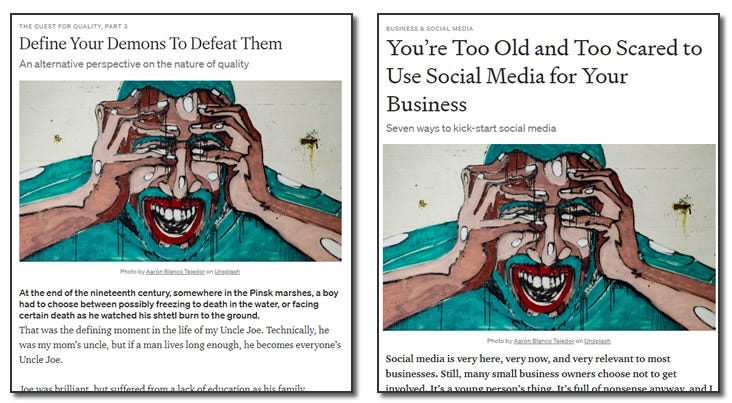
I happened to come across this by chance and realised we had chosen the same photo (although I did get there eight days before him 😉), so I changed the image in my article to something different.
How to use less-common images
If you’re going to the trouble of inserting content from a photo library (such as Unsplash, Pixabay, etc.), it’s way too easy to search and click on the first thing that grabs your attention. Instead, try looking beyond the first couple of pages of results when you enter your search term.
If your article is about organic farming, you don’t have to show a photo of vegetables. It could be a happy family instead. Modify your search terms and dig deeper into the recommendations to find something less likely to be used elsewhere. It’s not a surefire way to prevent duplication, but it will help.
Protected content
People are often confused by how external content, such as photos and graphics, is protected by copyright. But it is quite confusing, so why should they know?
Being unsure of what to use often leads to using whatever comes to hand, which may be a problem because it can inadvertently create a legal situation.
The protection I’m referring to is copyright.
The copyright for every piece of content created belongs to its creator. It includes all creative work such as drawings, paintings, writing, sculptures, photographs, etc.
The copyright owner may charge (license) people to use their content or allow its use for free. You will need to be clear about how the content you include in your articles is protected, and you can know this more easily if you know exactly where it originated.
Photo libraries
Professional photo libraries, such as Getty Images and Shutterstock, commission professional photographers for much of their content. License fees for subsequent usage were calculated according to criteria such as intended use, geographical region and volume of distribution.
Before the internet’s existence, distribution was easier to control. A photo may appear in a magazine with a fixed geographical distribution and subscriber numbers. The larger the audience, the greater the exposure (no pun intended), the higher the fee. It was easy.
With websites, it’s impossible to control distribution or exposure.
Licence-free photo libraries
As more people created content for websites, the high cost of images became prohibitive. Amateur photo libraries began to spring up everywhere. Dreamstime, iStock (owned by Getty), Deposit Photos, etc., included millions of images and charged a small, one-off fee for almost unrestricted use.
By the early 2000s, the model changed again. New photo libraries began appearing, listing millions of images that were entirely free to use. Pixabay, Pexels and Unsplash are the most popular of these and frequently include photos from professional photographers looking to expand their reach.
Professional photographers are also more likely to provide images that can only be used in editorial content because they may want to sell them to newspapers and magazine. These images are not for commercial use.
Editorial use is “…an exception of copyright law where copyrighted work can be used without authorisation for purposes of news reporting, criticism, education, etc.” You can read more here.
Note: You may think the content on Medium is naturally editorial in nature and that you can, therefore, use images designated for editorial use. If you are not part of the Medium Partner Program, this may be true. Otherwise, your content is there for commercial gain (you get paid), so you must not use images designated for editorial use, or you will risk legal action.
Most commonly used licence-free photo libraries
Many of the ‘free’ photo libraries have come and gone, but the following are the most popular:
Unsplash, Pixabay, Pexels, PxHere, Getty Images (free), Stockvault, Gratisphotography, Wikimedia Commons.
Creative Commons
The Creative Commons organisation provides a mechanism that allows anyone to make use of creative and academic works through simplified licenses and tools. If you create something and want others to be able to use it and share it, you can do so through a Creative Commons licence.
In the context of finding images to use for your Medium articles, Creative Commons is effectively an asset library. It includes multiple content types, including photos, logos, PDFs and documents that, with the correct citations, can be freely used within your articles. Creative Commons content is, “for free and legal sharing, use, repurposing, and remixing.”
Credits and citations:
The free image libraries do not generally require you to cite (credit) the source of each image placed in your article.
However, most Medium publications will require that you cite the source of every image, mainly because Medium cannot be responsible for unknowingly illegally distributing content. Publication editors may reject your submission if image citations are not present in your articles.
Whether you use the free image libraries or Creative Commons, you will find the citation details as you download each image.
On Unsplash, for example, you will see the following when you click to download a photo:
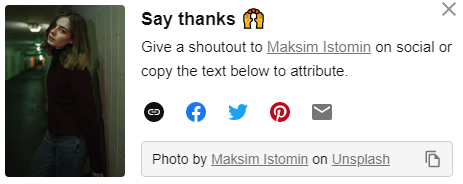
You’ll need to copy the entire ‘Photo by…’ text and also the links on the underlines sections.
Note: The editors of Medium publications will not check the validity of your citations. If the citations are incorrect, the responsibility will be entirely yours if and when an external third party challenges you.
Make it a habit to include the correct citation for every image you insert, even if you own the image you’re inserting.
You may use your own personal photos or graphics, but Editors won’t know if they belong to you, so make sure you cite yourself if you own the image: “Photo courtesy of the author” (or similar).
Images from Google.
Google displays images in a convenient library-like way, so you could be forgiven for believing they are all free to use. They’re not.
Most of the photos or graphics Google shows you are content from other websites, and you cannot use them without first seeking permission. In the majority of cases, the owner would not grant permission.
An open copyright notice appears on the page to warn you that ‘Some images may be copyrighted’ (although the notice is not always obvious).
Among the results will be images distributed under an open licence such as Creative Commons, but you will need to work this out yourself, and you will need to add the correct citation.
TIP: It’s possible to have the correctly formatted citation added automatically to an image from the Unsplash library. See ‘Unsplash integration with Medium’ below for details.
Around 2.5 billion images are stolen every year and illegally used, according to Copytrack. I would hazard a guess that many of these were not wilfully stolen, simply because of people’s lack of understanding about what they can and cannot use. Think of images in Google like items in a shop — just because they are there, doesn’t mean you can take them.
Presentations and other graphics
You may want to use a slide in a presentation you created in PowerPoint, for example. You may not realise it, but copyright protection applies here too, although it’s implied rather than being stated.
Whether you are employed or are a freelancer, the company, not you, is likely to own the copyright to any content you create (details of ownership of all content created whilst being paid by a company will be in your contract). Without their permission, you’re breaking the law if you use this content in your private articles.
Inserting images into your articles
It’s extremely easy to insert photos and graphics into your articles using Medium’s pop-up toolbar.
If the files you want to insert are saved locally on your PC, simply press return to create a new entry point, and click on the circled cross to invoke the pop-up toolbar.

Click on the camera icon. A dialogue box will open to enable you to navigate to and select the image or graphic you want to insert.
There are restrictions on how images can be displayed in your article, based entirely on their physical size. For example, you cannot place a small, low-resolution photo as a full-width banner.
Fortunately, the toolbar will automatically detect the file size. You will see only the option icons that are available for that particular image.
See Part 5 of this series for more information on inserting images:
Alternatively, more information is available in Medium’s help files, here: https://help.medium.com/hc/en-us/articles/215679797-Using-images
Unsplash integration with Medium
To make the process of inserting free library images easier, Medium provides full integration with Unsplash.
To insert Unsplash images directly into your article, press return to create a new entry point, then click the circled cross to invoke the pop-up toolbar:
Click on the search icon (magnifying glass) and type a photo search term, such as beach or bus.

After typing your search term, press enter, and you will see a selection of images from thousands available, like this:
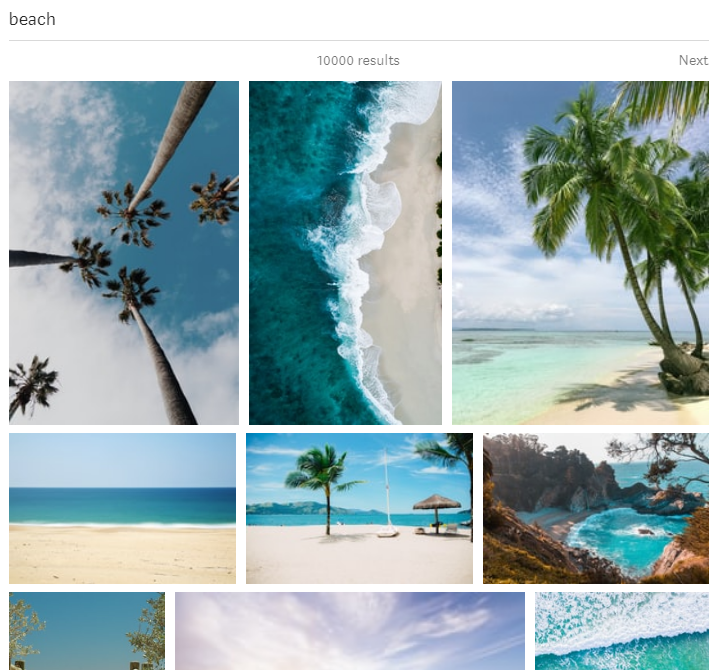
Scroll through the images and navigate to additional pages. When you find the image you want to use, click the picture to insert it into your article.
The correct citation will be added below, like this:
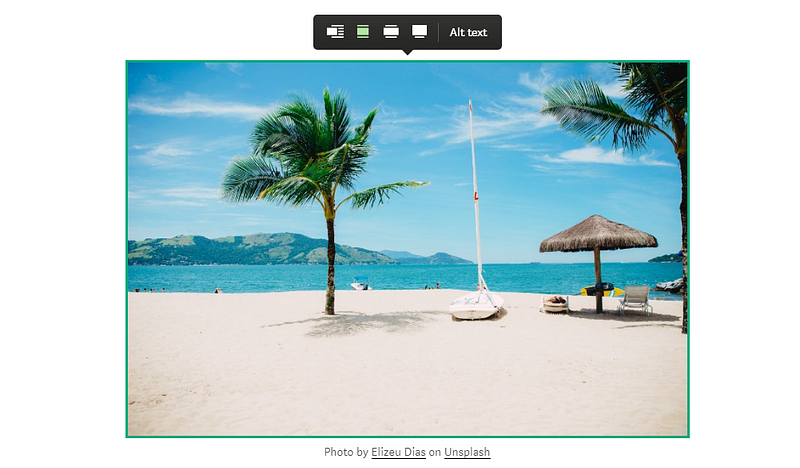
You will also see all four options for positioning the image, as it will be imported at the larger size.
Video content
Using videos in your content is very ‘now’, but it’s not entirely plain sailing.
It’s possible to use personal video content, but this must be available on a platform that’s available to the internet (such as your own YouTube or Vimeo channel). Doing so is not for the faint-hearted and is beyond most people’s skills, and is why you see so little video content on Medium.
TIP: If you want to use a specific YouTube video, you can insert it directly from the toolbar. Use the forward-facing triangle ‘play’ icon, and paste in the address (URL) of the video. You will see the video appear in a neat placeholder so people can play it directly in your article.
Note: Copyright protects videos too, but YouTube is slightly different because YouTube videos don’t have an author in the conventional sense.
However, when you insert a YouTube video using the toolbar and URL, no citation is added below the video, you should follow common courtesy and cite the video in the following format, courtesy of the APL:
Screen name. (year, month day). Title of video [Video file]. Retrieved
     from http://xxxxx
You can see this entered correctly for the above BMW video. My apologies if this advert makes you want to buy a BMW.
Weblinks
Sometimes we want to provide links directly in our articles to another website, or a specific web page, or another Medium article.
It’s easy enough to do, but inserting external links is risky. Why? Because if it’s an external link to another website and something about that website changes (things always change externally), it’s entirely out of your control. One minute your link works, the next minute, it’s gone.
What’s the problem with broken links?
Firstly, they’re a quick way to irritate your readers.
Ideally, when someone clicks the link, you want it to open in another tab or another window. However, Medium doesn’t have any facility for modifying the inserted URL to include the html code: ‘target= _blank’. So, when someone clicks your weblink, the new page replaces the page they’re currently on (your article) instead of opening it in a new tab or window (that’s what the ‘blank’ part refers to).
Secondly, Google hates broken links.
When Google scans your page of content, it checks all the links. If a broken link is present, Google technically downgrades the quality of your content. The more broken links there are, the worse it gets. I appreciate this is an oversimplification, but in essence, it’s what happens. In any case, it’s never good to leave broken links in an article.
Before you submit your article to be published, check and double-check that all web links are solid and working.
TIP. You will have seen some articles with a link to another Medium article nicely boxed with a title and photo. The link is automatically styled when you insert a Medium link on a separate line, not embedded as part of the body text. Once you paste-in the new link, within a few seconds, Medium will automatically insert your nicely formatted article box, like this:
If you only embed the link in the text, it will look like this:
Can a Pseudo-Medieval Fantasy Help Make Us Better People?
As you can see in the Creative Commons link above, this neat layout trick will usually work for external websites too, but only if the full website URL is included in the link. So, www.bbc.co.uk will not display in the neat graphic layout format, but https://www.bbc.co.uk will.
Summary — part six
It’s very easy to be fooled into believing the billions of pieces of content available online are free for us to use just because they’re presented to you.
They’re not, and you should understand there are potential legal implications for not using content that you don't have permission to use.
In European law (at least), it’s generally accepted that not knowing something is illegal is not enough.
Ignorantia legis neminem excusat
Roughly translated as ‘ignorance is no defence’
Aside from this, there is the common courtesy of asking permission or giving due credit.
If you must use direct links to external sources, be mindful that they may not always remain intact, especially if you are targeting a specific page, not just the website’s home page.
Coming up in part seven:
Part seven of this series will look at Duplicate content and plagiarism, Additional settings, Pre-flight checks and Looking after your editors.
Series links:
Part 1. Your ‘Why’ Journey, Editors’ Challenges, and Why Are You Writing?
Part 4. Outline and Structure, Clichés and Jargon, Audience, Editing and Reading Aloud
Part 5. Page Structure and Styling, Main Headings and Subheadings, and Using images
About the author: Clive Wilson


