avatarJ3

Free AI web copilot to create summaries, insights and extended knowledge, download it at here

7200

Abstract

d in the <b>C:\Program Files\mosquitto\ directory</b></figcaption></figure><p id="db01">If we open this new file as text, <b>passwordfile.pwd,</b> we will see the <b>admin user </b>credentials:</p><div id="2547"><pre>admin:<span class="hljs-variable">6</span><span class="hljs-variable">sEorGWHKkOfEI8qJ</span><span class="hljs-variable">$nxEMynuvKuguXqbYq7TWBsSAxEDon</span>/MuK0pFo4Cm0yOK29m/I0yi6y3zFzuJeFXRT9DgyVVLDS/<span class="hljs-attribute">wO72CADlIaw</span>==</pre></div><p id="271d">3 °Step — Now open C:\Program Files\mosquitto<b>mosquitto.conf.</b></p><p id="f950">At <b>line 651</b>, <b>uncomment </b>it and <b>set </b>it to <b>false,</b> like this:</p><div id="d78d"><pre><span class="hljs-attribute">allow_anonymous</span> <span class="hljs-literal">false</span></pre></div><figure id="39d9"><img src="https://cdn-images-1.readmedium.com/v2/resize:fit:800/1*qzDRNC3JjxB5twNmIMNaYA.png"><figcaption>Fig 8. in the conf file, please comment this line and type: <b>allow_anonymous false</b></figcaption></figure><p id="312a">4 °Step — Scrolling down enough until <b>line 669</b>, <b>uncomment it </b>and set it to the directory <b>location </b>of<b> password file config</b>, like this:</p><div id="fbd2"><pre><span class="hljs-attribute">password_file</span> <span class="hljs-string">"C:\Program Files\mosquitto\passwordfile.pwd"</span></pre></div><figure id="6cdc"><img src="https://cdn-images-1.readmedium.com/v2/resize:fit:800/1*oHSFYTkBj_CBngmGGXpnCg.png"><figcaption>Fig 9. Tell the mosquitto server where to find the password file</figcaption></figure><p id="b5e2">Save the file and now start the server again.</p><p id="eb41">5 °Step — At <b>Terminal 1</b>, <b>type </b>(run as Administrator, please):</p><div id="76c3"><pre><Ctrl + C> <span class="hljs-comment">// To stop the server</span> mosquitto -c mosquitto.<span class="hljs-keyword">conf</span> -v <span class="hljs-comment">// to run it with loaded file</span></pre></div><p id="3fd2">This will <b>break the connection of the anonymous client:</b></p><figure id="c88d"><img src="https://cdn-images-1.readmedium.com/v2/resize:fit:800/1*6-QArZEAIqP653aZ9ib_2g.png"><figcaption>Fig 10. See this message in the second terminals: <b>Connection error: Connection Refused: not authorised.</b> (sic)</figcaption></figure><p id="33b1">6°Step — Now let’s test if the admin user can <b>subscribe </b>topic:</p><p id="889c">At <b>Terminal 2</b>, <b>type</b>:</p><div id="a9df"><pre><span class="hljs-attribute">mosquitto_sub</span> -h localhost -p <span class="hljs-number">1883</span> -u admin -P <span class="hljs-number">123</span> -t temperature</pre></div><figure id="c033"><img src="https://cdn-images-1.readmedium.com/v2/resize:fit:800/1*7iKsNAAi9XZEnbcQOd2iRg.png"><figcaption>Fig 11. Admin user <b>subscribing </b>at the second terminal</figcaption></figure><p id="0ada">7°Step — Now let’s test if the admin user can <b>publish </b>to the same topic.</p><p id="862f">At <b>Terminal 3</b>, <b>type </b>(run as Administrator, please):</p><div id="32a3"><pre><span class="hljs-attribute">mosquitto_pub</span> -h localhost -p <span class="hljs-number">1883</span> -u admin -P <span class="hljs-number">123</span> -t temperature -m <span class="hljs-number">45</span></pre></div><figure id="2e7d"><img src="https://cdn-images-1.readmedium.com/v2/resize:fit:800/1*VwD2kW3mFOQL3ft-w7JW4A.png"><figcaption>Fig 12. Admin user <b>publishing </b>at the third terminal</figcaption></figure><p id="a436">And there you have it! <b>no more anonymous user!</b></p><div id="7103"><pre><span class="hljs-number">1578789217</span>: New client connected <span class="hljs-keyword">from</span> ::<span class="hljs-number">1</span> <span class="hljs-keyword">as</span> mosq-EEOo25jUO0f6IGxaTP (p2, c1, k60, <span class="hljs-string">u'admin'</span>).</pre></div><p id="01d7">In the next MQTT episode, let’s use <b>ACL (Access Control List).</b></p><p id="1c27">Thanks and bye, for now, o/</p><p id="2e75"><a href="https://drive.google.com/open?id=14NUsp4GwCPNeA4tBg9p4_X-LGLXTFPj-">Download All Files For This Project</a></p><h1 id="6852">MQTT Related Posts</h1><p id="b9c9">01# Episode — <b>Mosquitto </b><a href="https://readmedium.com/mosquitto-intro-to-mqtt-ea4f7ea589ba"><b>Intro To MQTT </b></a>— It is Suitable for the Internet of Things Applications — MQTT</p><p id="cf9d">02# Episode — Mosquitto — User Access Configurations Setups — Editing mosquitto.conf File to Configure SSL Authentications — MQTT (this one)</p><p id="64c0">03# Episode — Mosquitto — <a href="https://readmedium.com/mosquitto-acls-ac062aea3f9"><b>Mosquitto</b><b>ACLs — Wildcards & ACL — access control lists</b></a> — MQTT</p><p id="2ecf">04# Episode — Mosquitto — <a href="https://readmedium.com/mqtt-qos-ef1ef4498405"><b>MQTT QoS </b></a>— How To Set QoS at Mosquitto Broker — MQTT</p><p id="efeb">05# Episode — Mosquitto — <a href="https://readmedium.com/bulletproof-tls-ssl-mosquitto-e662c62a269b"><b>Bulletproof TLS & SSL Mosquitto</b></a> — How To Set Up Mosquitto Broker/Client Keys & Certificates — MQTT</p><p id="7ed4">06# Episode — Mosquitto — <a href="https://readmedium.com/mosquitto-bridge-5b44e9687fb3"><b>Mosquitto Bridge</b></a><b> </b>— How To Bridge Two Mosquitto Brokers — MQTT</p><p id="38eb">07…<b>be tuned</b> for the upcoming post about MQTT and IoT o/</p><h1 id="3872">References & Credits</h1><p id="48e5"><a href="https://mosquitto.org/">Eclipse Mosquitto™</a> An open source MQTT broker</p><p id="dcc6"><a href="https://ead.microgenios.com.br/">Microgênios — Treinamento em Sistemas Embarcados — Microchip Regional Partner</a> — Microchip Certified Brazilian Training Education Company & a Simplício-Owned enterprise o/</p><div id="510d" class="link-block"> <a href="https://www.cnet.com/how-to/how-to-change-your-computers-name-in-windows-10/"> <div> <div> <h2>How to change your computer's name in Windows 10</h2> <div><h3>There are plenty of reasons to change your computer's name -- especially if you bought it directly from a manufacturer…</h3></div> <div><p>www.cnet.com</p></div> </div> <div> <div style="background-image: url(https://miro.readmedium.com/v2/resize:fit:320/0*OiSlv3n_ehuOFHrF)"></div> </div> </div> </a> </div><div id="b8a5" class="link-block"> <a href="http://www.steves-internet-guide.com/mossquitto-conf-file/"> <div> <div> <h2>Quick Guide to The Mosquitto.conf File With Examples</h2> <div><h3>You can configure the mosquitto broker using a configuration file. The default configuration file is called…</h3></div> <div><p>www.steves-internet-guide.com</p></div> </div> <div> <div style="background-image: url(https://miro.readmedium.com/v2/resize:fit:320/0*gqmBO2sekXuw8-XE)"></div> </div> </div> </a> </div><h2 id="da50">Notes About mosquitto</h2><div id="9012"><pre>- After installation <spa

Options

n class="hljs-keyword">and</span> <span class="hljs-built_in">every</span> PC <span class="hljs-built_in">restart</span>, the mosquitto <span class="hljs-built_in">program</span> starts automatically;</pre></div><div id="38a5"><pre>- Mosquitto runs as <span class="hljs-selector-tag">a</span> service and operates in the <span class="hljs-attribute">background</span>;</pre></div><div id="d8b8"><pre>- <span class="hljs-keyword">If</span> a <span class="hljs-built_in">new</span> <span class="hljs-keyword">configuration</span> <span class="hljs-keyword">is</span> made <span class="hljs-keyword">in</span> mosquitto it <span class="hljs-keyword">is</span> common <span class="hljs-keyword">to</span> STOP <span class="hljs-keyword">and</span> <span class="hljs-keyword">START</span> the mosquitto MQTT service;</pre></div><div id="6e8f"><pre>- Through shell, <span class="hljs-keyword">it</span> <span class="hljs-keyword">is</span> possible <span class="hljs-keyword">to</span> reconfigure mosquitto <span class="hljs-keyword">without</span> restarting <span class="hljs-keyword">the</span> service;</pre></div><div id="63bc"><pre>- The clients are constatlly sending PING <span class="hljs-built_in">to</span> <span class="hljs-keyword">the</span> server, that respond <span class="hljs-keyword">at</span> about <span class="hljs-keyword">each</span> <span class="hljs-number">60</span> <span class="hljs-built_in">seconds</span> intervals (); follow <span class="hljs-keyword">an</span> extract:</pre></div><div id="3fad"><pre><span class="hljs-number">1578781078</span>: Sending PINGRESP <span class="hljs-keyword">to</span> mosq-nSDsiy1MZKG4ShY5D0 <span class="hljs-number">1578781138</span>: Received PINGREQ <span class="hljs-keyword">from</span> mosq-nSDsiy1MZKG4ShY5D0</pre></div><div id="b1af"><pre>- This <span class="hljs-keyword">is</span> because HTPP protocol, which mosquitto <span class="hljs-keyword">is</span> under, tends <span class="hljs-keyword">to</span> <span class="hljs-keyword">disconnect</span> the clients;</pre></div><h2 id="4d6b">Sintaxe</h2> <figure id="9818"> <div> <div>

            <iframe class="gist-iframe" src="/gist/giljr/01cab1c30da0b081bdb4b3d2f681da33.js" allowfullscreen="" frameborder="0" height="undefined" width="undefined">
          </div>
        </div>
    </figure></iframe></div></div></figure><h2 id="92e6">Notes About This Post</h2><p id="8444"><b>Daemon</b> (computing)</p><p id="e996">From Wikipedia, the free encyclopedia</p><figure id="3a00"><img src="https://cdn-images-1.readmedium.com/v2/resize:fit:800/0*Sukm3dE3ppJJnqHA.png"><figcaption>Components of some <a href="https://en.wikipedia.org/wiki/Linux">Linux</a> <a href="https://en.wikipedia.org/wiki/Desktop_environment">desktop environments</a> that are daemons include <a href="https://en.wikipedia.org/wiki/D-Bus">D-Bus</a>, <a href="https://en.wikipedia.org/wiki/NetworkManager">NetworkManager</a> (here called <i>unetwork</i>), <a href="https://en.wikipedia.org/wiki/PulseAudio">PulseAudio</a> (<i>usound</i>), and <a href="https://en.wikipedia.org/wiki/Avahi_(software)">Avahi</a>.</figcaption></figure><p id="481b">In <a href="https://en.wikipedia.org/wiki/Computer_multitasking">multitasking</a> computer <a href="https://en.wikipedia.org/wiki/Operating_system">operating systems</a>, a <b>daemon</b> (<a href="https://en.wikipedia.org/wiki/Help:IPA/English">/ˈdiːmən/</a> or <a href="https://en.wikipedia.org/wiki/Help:IPA/English">/ˈdeɪmən/</a>)<a href="https://en.wikipedia.org/wiki/Daemon_(computing)#cite_note-jargon-1">[1]</a> is a <a href="https://en.wikipedia.org/wiki/Computer_program">computer program</a> that runs as a <a href="https://en.wikipedia.org/wiki/Background_process">background process</a>, rather than being under the direct control of an interactive user. Traditionally, the process names of a daemon end with the letter <i>d</i>, for clarification that the process is in fact a daemon, and for differentiation between a daemon and a normal computer program. For example, <a href="https://en.wikipedia.org/wiki/Syslogd">syslogd</a> is the daemon that implements the system logging facility, and sshd is a daemon that serves incoming <a href="https://en.wikipedia.org/wiki/Secure_Shell">SSH</a> connections. (from <a href="https://en.wikipedia.org/wiki/Daemon_(computing)">https://en.wikipedia.org/wiki/Daemon_(computing)</a>)</p><h2 id="4ec2">Review</h2><p id="e8f7">All commands in this post: [Open 3 terminals as Administrator]</p><p id="8ab5"><i>Subtitles: [terminal number/file] command description</i></p><div id="bedc"><pre><span class="hljs-built_in">For</span> <span class="hljs-built_in">Anonymous</span> <span class="hljs-variable">access</span><span class="hljs-operator">:</span></pre></div><div id="7792"><pre><span class="hljs-selector-attr">[1]</span><span class="hljs-selector-attr">[2]</span><span class="hljs-selector-attr">[3]</span> cd C:\Program Files\mosquitto     

<span class="hljs-selector-attr">[1]</span><span class="hljs-selector-attr">[2]</span><span class="hljs-selector-attr">[3]</span> cls <span class="hljs-selector-attr">[1]</span> mosquitto -v <span class="hljs-selector-attr">[2]</span> mosquitto_sub -h localhost -<span class="hljs-selector-tag">p</span> <span class="hljs-number">1883</span> -t temperature <span class="hljs-selector-attr">[3]</span> mosquitto_pub -h localhost -<span class="hljs-selector-tag">p</span> <span class="hljs-number">1883</span> -t temperature -m <span class="hljs-number">45</span> </pre></div><div id="f508"><pre><span class="hljs-built_in">For</span> <span class="hljs-variable">Secure</span> <span class="hljs-variable">Access</span><span class="hljs-operator">:</span> <span class="hljs-punctuation">[</span><span class="hljs-number">1</span><span class="hljs-punctuation">]</span> <span class="hljs-type">mosquitto_passwd</span> <span class="hljs-operator">-</span><span class="hljs-variable">c</span> <span class="hljs-built_in">C</span><span class="hljs-operator">:</span><span class="hljs-variable">ProgramFiles</span><span class="hljs-variable">mosquitto</span><span class="hljs-variable">passwordfile</span><span class="hljs-operator">.</span><span class="hljs-variable">pwd</span> <span class="hljs-variable">admin</span></pre></div><div id="0469"><pre><span class="hljs-selector-attr">[mosquitto.conf]</span> allow_anonymous false <span class="hljs-selector-attr">[mosquitto.conf]</span> password_file C:\Program Files\mosquitto\passwordfile<span class="hljs-selector-class">.pwd</span>

<span class="hljs-selector-attr">[1]</span> mosquitto -c mosquitto<span class="hljs-selector-class">.conf</span> -v <span class="hljs-selector-attr">[2]</span> mosquitto_sub -h localhost -<span class="hljs-selector-tag">p</span> <span class="hljs-number">1883</span> -u admin -P <span class="hljs-number">123</span> -t temperature <span class="hljs-selector-attr">[3]</span> mosquitto_pub -h localhost -<span class="hljs-selector-tag">p</span> <span class="hljs-number">1883</span> -u admin -P <span class="hljs-number">123</span> -t temperature -m <span class="hljs-number">45</span></pre></div></article></body>

Mosquitto — User Access Configurations Setups

Editing mosquitto.conf File to Configure Simple Authentication— MQTT — Episode #02

Hi, let’s see first the mosquitto anonymous access communications. This post continues MQTT — Episode #01:)

In the end, we will force access to mosquitto's broker via login/password only.
Fig 1. What are the procedures to set login/password access to mosquitto’s broker?

Let us begin by not editing this file(I’m using mosquitto v 1.6.8):

C:\Program Files\mosquitto\mosquitto.conf

The mosquitto.conf is the configuration file for mosquitto. In this first configuration, a similar internal file will be loaded by mosquito broker automatically, and its default configuration authorizes anonymous access:/

Fig 2. On Windows mosquitto.conf are located at C:\Program Files\mosquitto

In anonymous access, we will now up the default broker configuration, remember, without modification of mosquitto.conf :)

Here are the steps:

0° Step — Install mosquitto broker in your machine & reconfigure its service in Win10 so we can start & stop it manually;

Consider following this post:)

Preparing 3 Prompters Terminals

Open Three Terminals; type these commands in each one:

cd.. (2x)                       // go to c:/> directory
cd C:\Program Files\mosquitto   // change to mosquitto directory
cls                             // clear the screen;)

First, anonymous access:

Anonymous Acess

1° Step —Let’s run the server:

On Term1, in C:\Program Files\mosquitto\ directory, type:

mosquitto -v
Fig 3. As we run the server with -v (verbose) all event will be dump to the terminal

2 Step — At others two terminals in sequence for sub & pub clients, type:

Term_2, For _sub, in C:\Program Files\mosquitto\ directory, type:

mosquitto_sub -h localhost -p 1883 -t temperature

Term_3, For _pub, in C:\Program Files\mosquitto\ directory, type:

mosquitto_pub -h localhost -p 1883 -t temperature -m 45
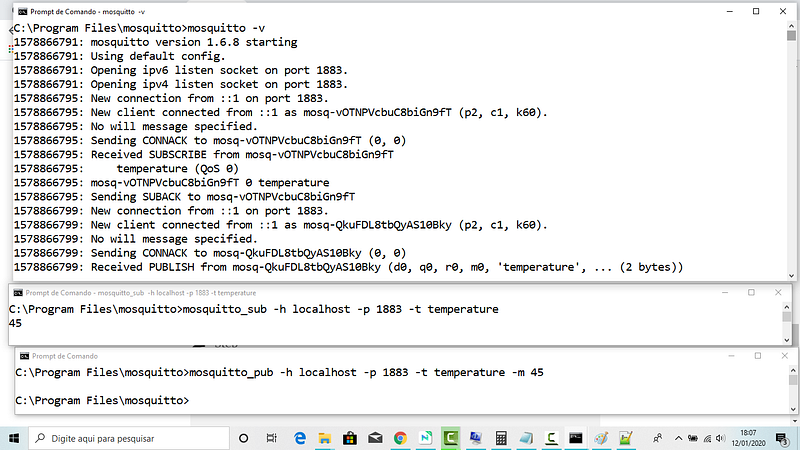
Fig 4. All three terminals running together!

See the dump file in the admin broker terminal above. See that the clients are anonymous this is very dangerous on the internet:/

1578781497: New client connected from ::1 as mosq-5eKhup3oVmPBaNaZnW (p2, c1, k60).

Simple Authentication Access

Now let’s fix anonymous access by setting a login/passwd connection.

Anonymous clients will be refused to connect.

For this, we will have to edit, as administrator credentials, the mosquitto.conf file. Here is the structure of it:
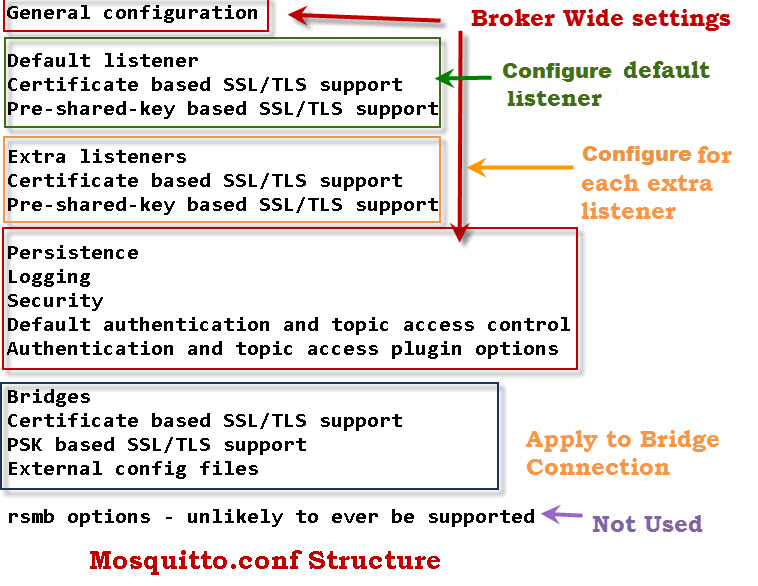
Fig 5. Here is the global structure of the mosquitto.conf file (from Quick Guide to The Mosquitto.conf File With Examples)

As you know, this file is located at system file, so we need to open this file in notepad++ editor like administrator:

Fig 6. We will use notepad ++ for mosquitto.conf editting — Note: You can configure a broker to listen on a port and require SSL and also to listen on another port and not use SSL.

To create a password file you need to use the mosquitto_passwd utility that comes with the client tools when installing the mosquitto broker.

To initialize the configuration of authenticated access, at Term_01, we will need to stop the server (ctrl + C) and use the command below to create passwordfile.pwd file that will be located at C:\Program Files\mosquitto directory; our administrator will be admin user and our password will be 123;

1º Step —On Term 1, on C:\Program Files\mosquitto\ directory, type:

mosquitto_passwd -c "C:\Program Files\mosquitto\passwordfile.pwd" admin

and hit <enter> and enter 2 x the chosen password (123);

This command creates passwordfile.pwd file and set as our administrator admin user, password 123;)

Your file for user configuration is ready at C:\ProgramFiles\mosquitto\ directory!

Admin is the name of our first and our main user;

2 ° Step — Go to C:\Program Files\mosquitto directory and see the file created there:
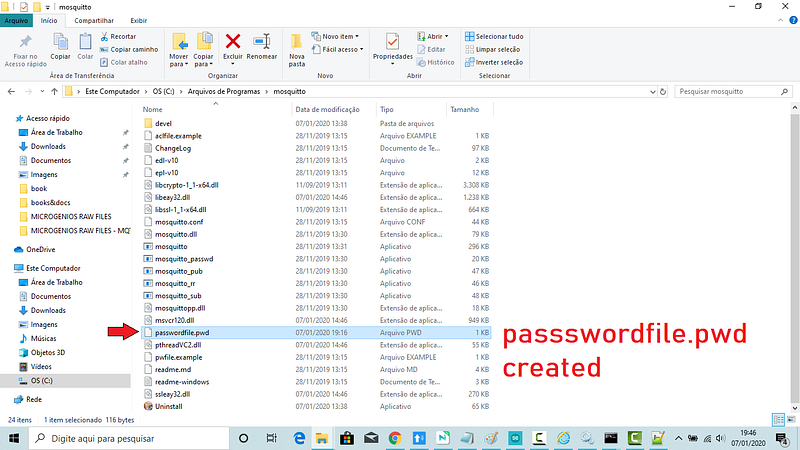
Fig 7. the password file will be created in the C:\Program Files\mosquitto\ directory

If we open this new file as text, passwordfile.pwd, we will see the admin user credentials:

admin:$6$sEorGWHKkOfEI8qJ$nxEMynuvKuguXqbYq7TWBsSAxEDon/MuK0pFo4Cm0yOK29m/I0yi6y3zFzuJeFXRT9DgyVVLDS/wO72CADlIaw==

3 °Step — Now open C:\Program Files\mosquitto\mosquitto.conf.

At line 651, uncomment it and set it to false, like this:

allow_anonymous false
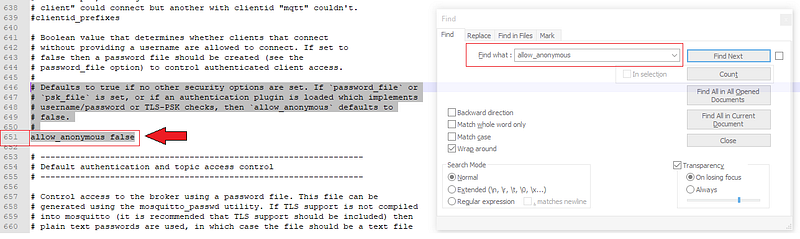
Fig 8. in the conf file, please comment this line and type: allow_anonymous false

4 °Step — Scrolling down enough until line 669, uncomment it and set it to the directory location of password file config, like this:

password_file "C:\Program Files\mosquitto\passwordfile.pwd"
Fig 9. Tell the mosquitto server where to find the password file

Save the file and now start the server again.

5 °Step — At Terminal 1, type (run as Administrator, please):

<Ctrl + C>                             // To stop the server
mosquitto -c mosquitto.conf -v         // to run it with loaded file

This will break the connection of the anonymous client:
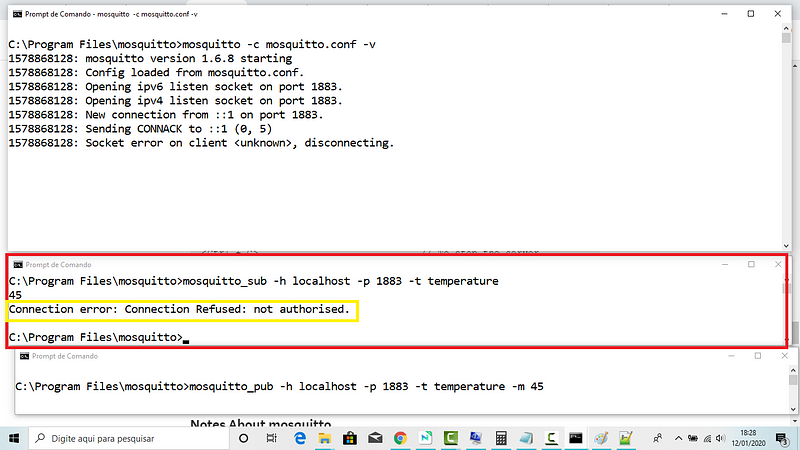
Fig 10. See this message in the second terminals: Connection error: Connection Refused: not authorised. (sic)

6°Step — Now let’s test if the admin user can subscribe topic:

At Terminal 2, type:

mosquitto_sub -h localhost -p 1883 -u admin -P 123 -t temperature
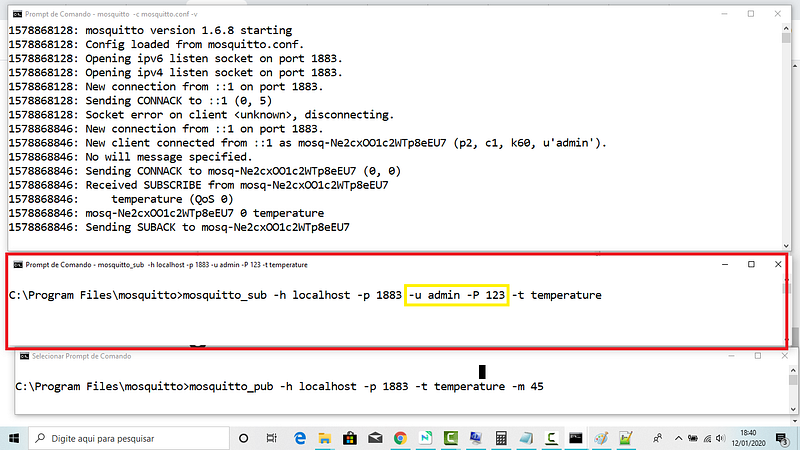
Fig 11. Admin user subscribing at the second terminal

7°Step — Now let’s test if the admin user can publish to the same topic.

At Terminal 3, type (run as Administrator, please):

mosquitto_pub -h localhost -p 1883 -u admin -P 123 -t temperature -m 45
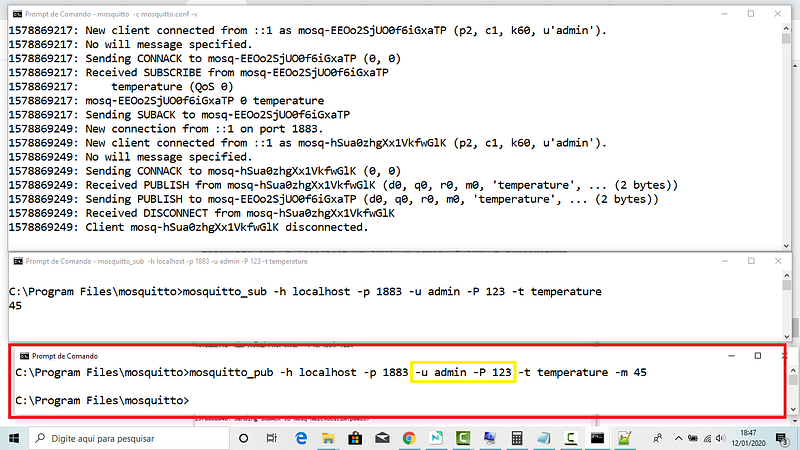
Fig 12. Admin user publishing at the third terminal

And there you have it! no more anonymous user!

1578789217: New client connected from ::1 as mosq-EEOo25jUO0f6IGxaTP  (p2, c1, k60, u'admin').

In the next MQTT episode, let’s use ACL (Access Control List).

Thanks and bye, for now, o/

Download All Files For This Project

MQTT Related Posts

01# Episode — Mosquitto Intro To MQTT — It is Suitable for the Internet of Things Applications — MQTT

02# Episode — Mosquitto — User Access Configurations Setups — Editing mosquitto.conf File to Configure SSL Authentications — MQTT (this one)

03# Episode — Mosquitto — MosquittoACLs — Wildcards & ACL — access control lists — MQTT

04# Episode — Mosquitto — MQTT QoS — How To Set QoS at Mosquitto Broker — MQTT

05# Episode — Mosquitto — Bulletproof TLS & SSL Mosquitto — How To Set Up Mosquitto Broker/Client Keys & Certificates — MQTT

06# Episode — Mosquitto — Mosquitto Bridge — How To Bridge Two Mosquitto Brokers — MQTT

07…be tuned for the upcoming post about MQTT and IoT o/

References & Credits

Eclipse Mosquitto™ An open source MQTT broker

Microgênios — Treinamento em Sistemas Embarcados — Microchip Regional Partner — Microchip Certified Brazilian Training Education Company & a Simplício-Owned enterprise o/

Notes About mosquitto

- After installation and every PC restart, the mosquitto program starts automatically;
- Mosquitto runs as a service and operates in the background;
- If a new configuration is made in mosquitto it is common to STOP and START the mosquitto MQTT service;
- Through shell, it is possible to reconfigure mosquitto without restarting the service;
- The clients are constatlly sending PING to the server, that respond at about each 60 seconds intervals (); follow an extract:
1578781078: Sending PINGRESP to mosq-nSDsiy1MZKG4ShY5D0
1578781138: Received PINGREQ from mosq-nSDsiy1MZKG4ShY5D0
- This is because HTPP protocol, which mosquitto is under, tends to disconnect the clients;

Sintaxe

Notes About This Post

Daemon (computing)

From Wikipedia, the free encyclopedia
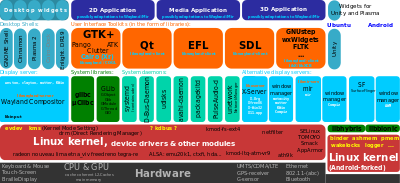
Components of some Linux desktop environments that are daemons include D-Bus, NetworkManager (here called unetwork), PulseAudio (usound), and Avahi.

In multitasking computer operating systems, a daemon (/ˈdiːmən/ or /ˈdeɪmən/)[1] is a computer program that runs as a background process, rather than being under the direct control of an interactive user. Traditionally, the process names of a daemon end with the letter d, for clarification that the process is in fact a daemon, and for differentiation between a daemon and a normal computer program. For example, syslogd is the daemon that implements the system logging facility, and sshd is a daemon that serves incoming SSH connections. (from https://en.wikipedia.org/wiki/Daemon_(computing))

Review

All commands in this post: [Open 3 terminals as Administrator]

Subtitles: [terminal number/file] command description

For Anonymous access:
[1][2][3] cd C:\Program Files\mosquitto     
[1][2][3] cls
[1] mosquitto -v
[2] mosquitto_sub -h localhost -p 1883 -t temperature
[3] mosquitto_pub -h localhost -p 1883 -t temperature -m 45
For Secure Access:
[1] mosquitto_passwd -c C:\ProgramFiles\mosquitto\passwordfile.pwd admin
[mosquitto.conf] allow_anonymous false
[mosquitto.conf] password_file C:\Program Files\mosquitto\passwordfile.pwd

[1] mosquitto -c mosquitto.conf -v
[2] mosquitto_sub -h localhost -p 1883 -u admin -P 123 -t temperature
[3] mosquitto_pub -h localhost -p 1883 -u admin -P 123 -t temperature -m 45
Mqtt
Mqtt Broker
Mqtt Secure Broker
How To
Step By Step Guide
Recommended from ReadMedium