
Medium Publications
Medium Publication Navigation Bar
How to add a navigation bar (menu) and pages to your Medium publication
What is The Medium Publication Navigation Bar?
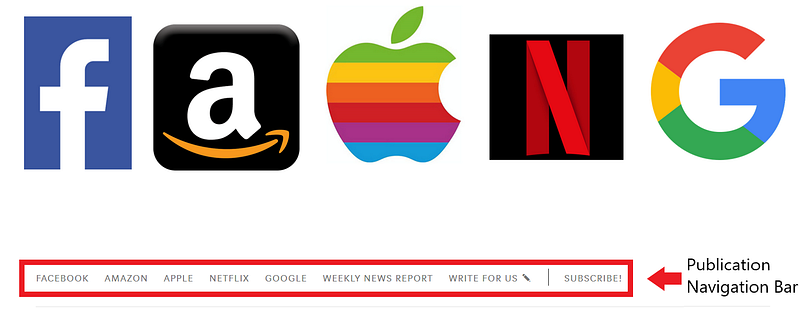
The Medium Publication Navigation Bar is the menu at the top of your Medium publication. You can add a navigation bar to your publication for quick access to your publication’s feature pages, tag pages, and featured articles. You can also add one off-site link to your navigation bar. Below are three examples:
From Blogging Guide:

From FAANG:
From Strategic Communications:
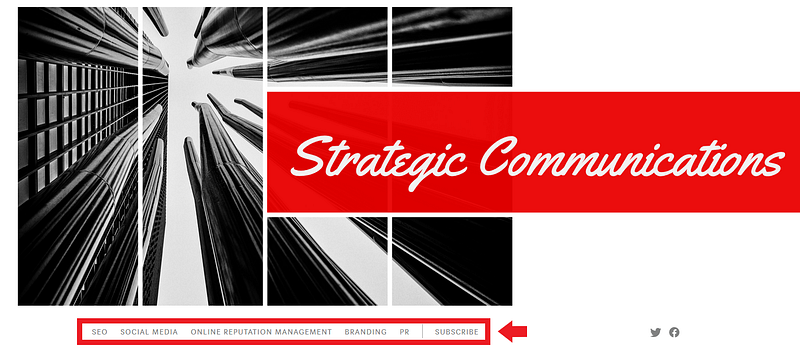
Depending on the color selection of your publication, your navigation bar will appear slightly differently. But it generally will look like the examples above. The navigation bar will be shown on homepage and stories within your publication.
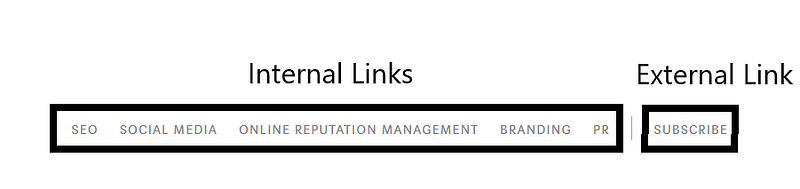
The publication navigation bar consists of two sections:
- Internal Links (Tabs) — Tabs are labels which point to tagged content or individual stories to create navigation. Navigation will be shown on homepage and stories within your publication.
- A Single External Link — The publication navigation bar contains a single link to an external website (can be content outside of Medium). I’ve described this section in more detail in the Medium Publication Offsite Navigation Link article.
These two sections are illustrated below, using the Strategic Communications publication as an example:
How to Create The Homepage Navigation Bar
Step 1.
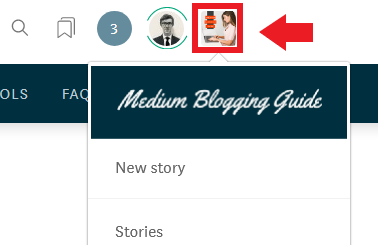
Go to your publication homepage and click your publication avatar in the top-right corner of the page.
Step 2.
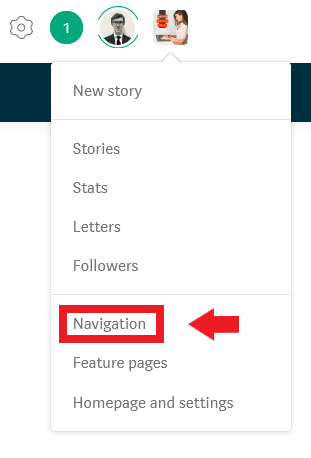
Click the navigation button from the drop down menu.
Step 3.
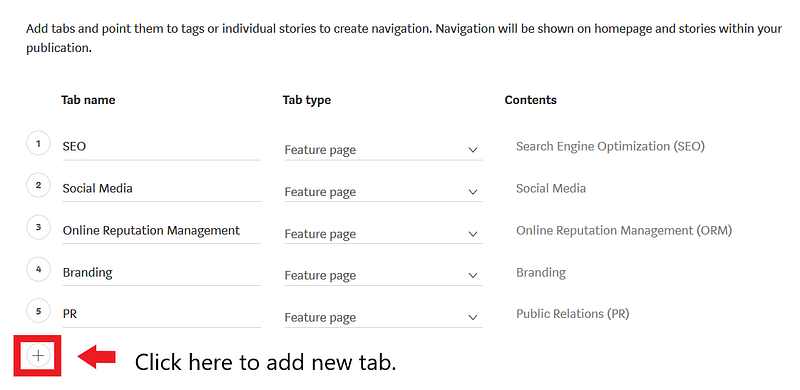
Click to create a new navigation element.
Step 4.
Choose what to display in that tab. There are five options:
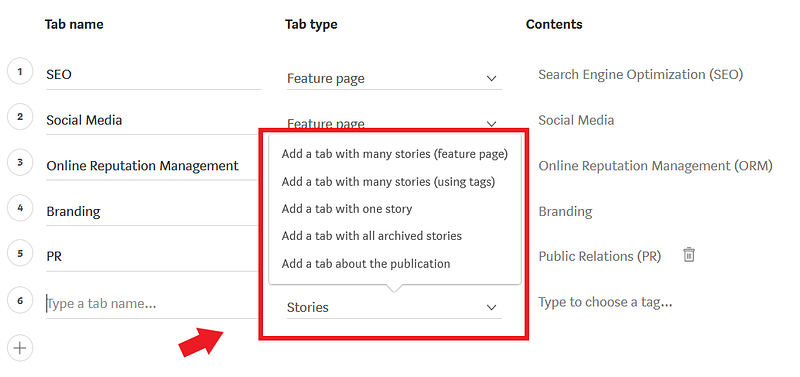
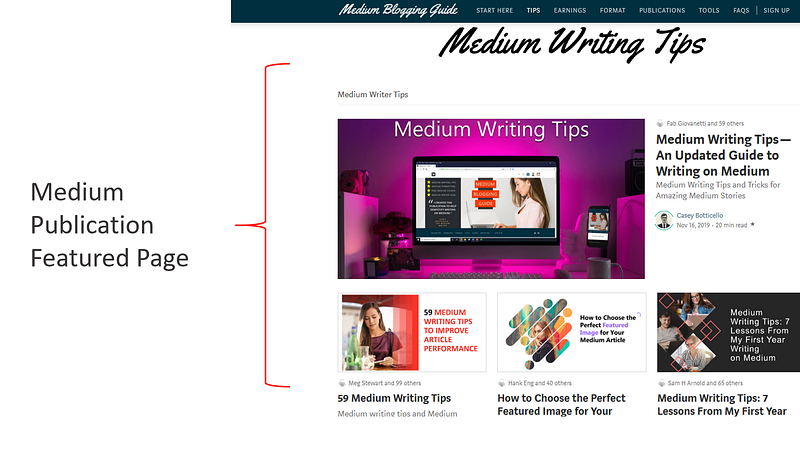
- Add a tab with many stories (feature page) — This option allows you to add a feature page. Note: you have to create the feature page before adding it to the navigation bar as a tab.
Medium Publication Feature Pages
How to create a feature page for your Medium publication
medium.com
An example is seen below:
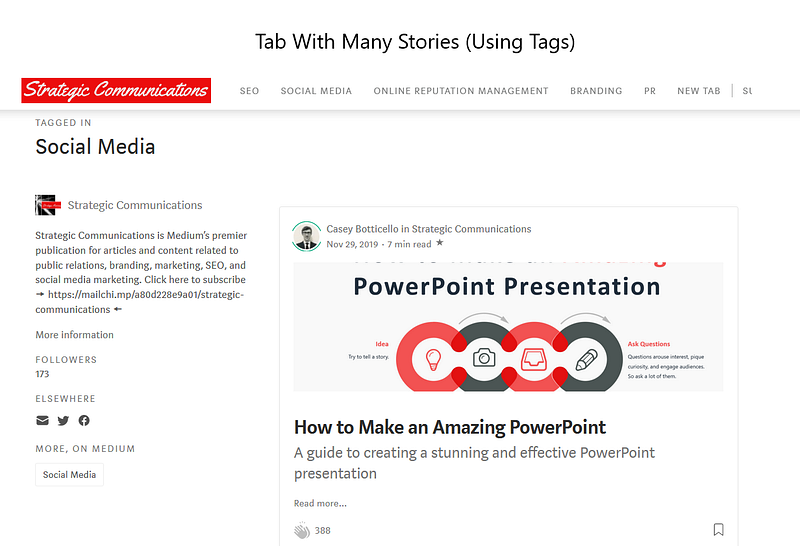
2. Add a tab with many stories (using tags) — This will create a page which automatically includes all articles from that publication which contain a specified tag. An example is seen below:
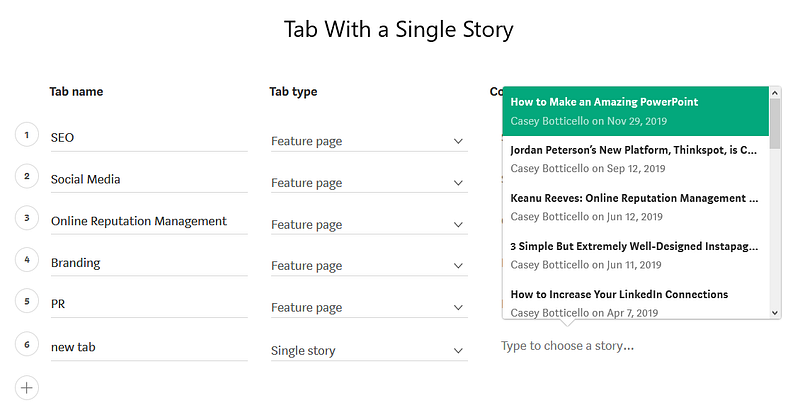
3. Add a tab with one story — This will add a tab that links directly to a single story from your publication. Once you select Add a tab with one story, you will see a list of your publication’s stories to pick from. An example is seen below:
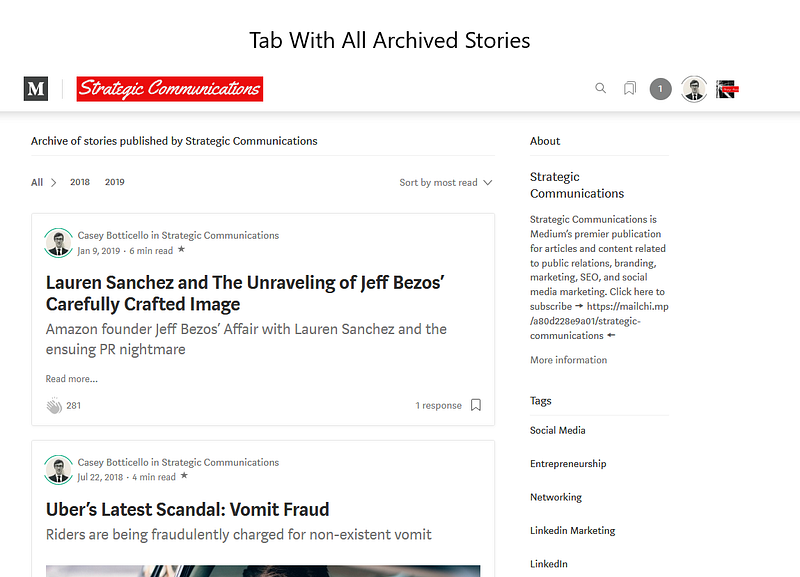
4. Add a tab with all archived stories — This will create a page containing all of your publication’s stories. It will also allow readers to sort by year, tag, by most read, or most recent. An example is seen below:
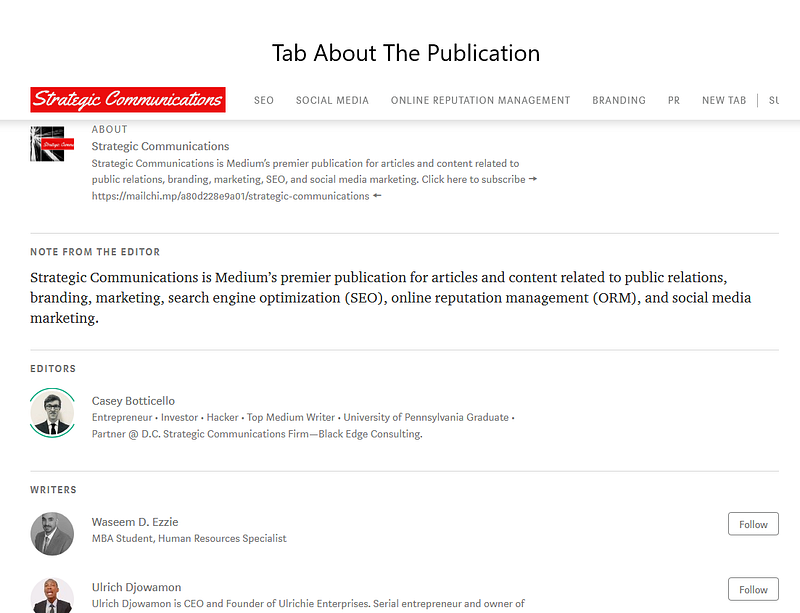
5. Add a tab about the publication — This option will add a tab that includes the about description of your publication. It also shows the Notes From The Editor section and a list of the publication’s writers and editors.
Step 5.
Save your changes.

Thanks for reading this article! Leave a comment below if you have any questions. Be sure to sign up for the Blogging Guide newsletter, to get the latest tips, tricks, and news about writing on Medium and to join our Facebook group, Medium Writing, to share your latest Medium posts and connect with other writers.
If you liked this article, here are some other articles you may enjoy:

Casey Botticello is a partner at Black Edge Consulting. Black Edge Consulting is a strategic communications firm, specializing in online reputation management, digital marketing, and crisis management. Prior to founding Black Edge Consulting, he worked for BGR Group, a bipartisan lobbying and strategic communications firm.
Casey is the founder of the Cryptocurrency Alliance, a Super PAC dedicated to cryptocurrency and blockchain advocacy. He is a graduate of The University of Pennsylvania, where he received his B.A. in Urban Studies.
You can connect with him on LinkedIn, Twitter, Facebook, or by visiting his website, Blogging Guide.


