
Mastering Midjourney V5 (Part 2): The Stylize Parameter
From adding detail to compositional shifts
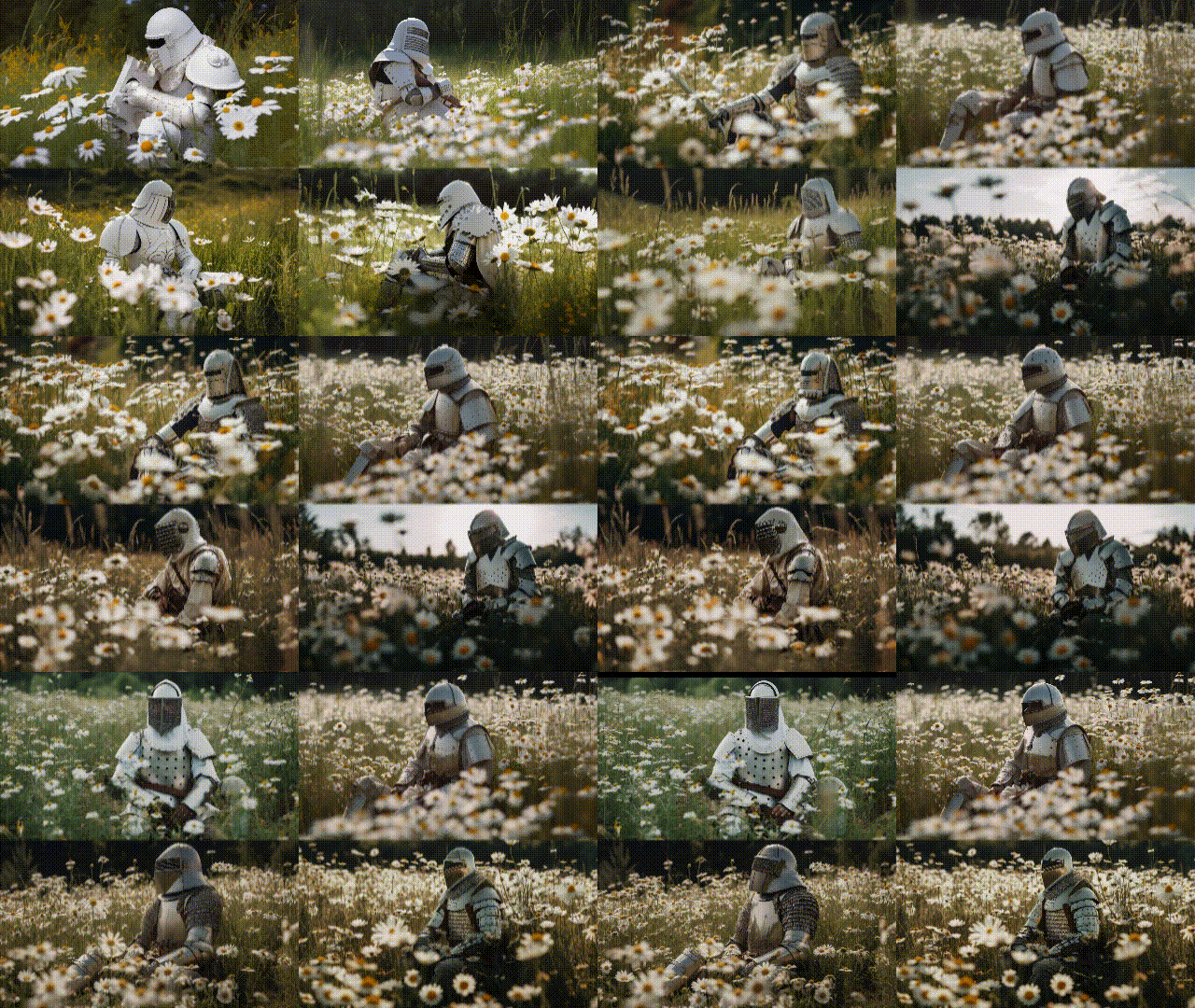
Now that Midjourney V5 prioritizes photorealistic images, it’s interesting to take a closer look at the Stylize parameter. How does the tool work with the new model?
Let’s take a look at some examples.
Recap: How to use the Stylize parameter
To use the parameter simply add
--stylize [VALUE FROM 0 TO 1000]to your prompt, or use the abbreviated version
--s [VALUE FROM 0 TO 1000]Stylize effects in detail
We will examine the Stylize effect with a constant prompt and a constant Seed value. With the arbitrary Seed value of “1000”, the noise pattern from which our image is created remains the same as we change the Stylize value to observe its behavior.
If you are not familiar with using the Seed command, see this tutorial.
As in Midjourney V4, “100” is the default Stylize value in V5 if you do not explicitly use the parameter in your prompt. The range (0–1000) has also remained the same.

To get started, let’s look at the example from the official Midjourney documentation (available here):
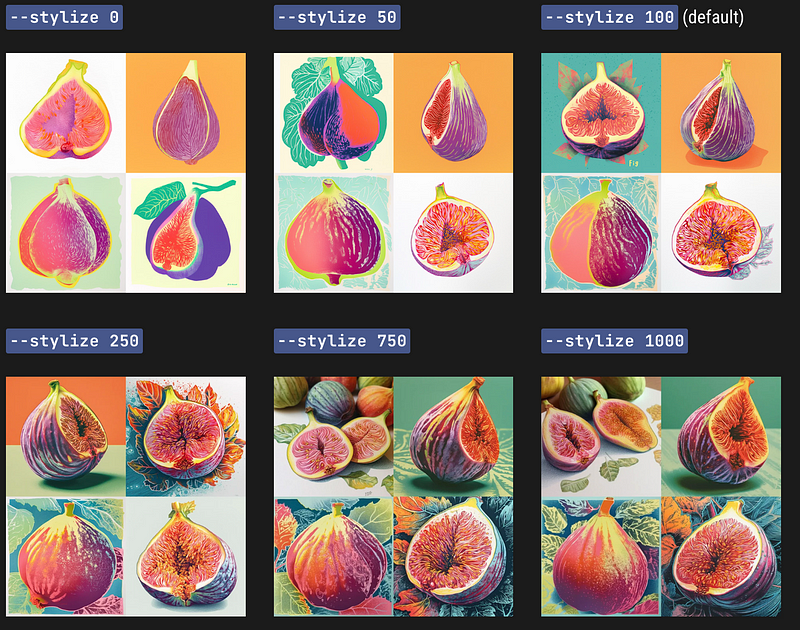
Stylize & Details
The name “stylize” is a bit unfortunate, I think. It doesn’t really add or change style in a strict sense. Rather, at first sight, it adds detail and finesse to your image. The higher the value, the more details.
But that’s not the whole story.
Let’s take a look at this dude:
photography of a knight in white armor sitting in a field of daisies
--ar 16:9 --seed 1000 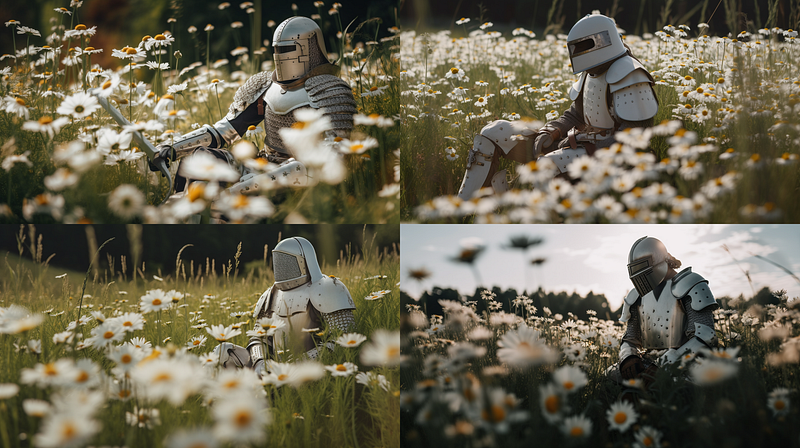
The above grid uses no explicit “stylize” parameter, so a value of “100” is added to this prompt internally.
Let’s see what happens if we change the Stylize value to “0”:
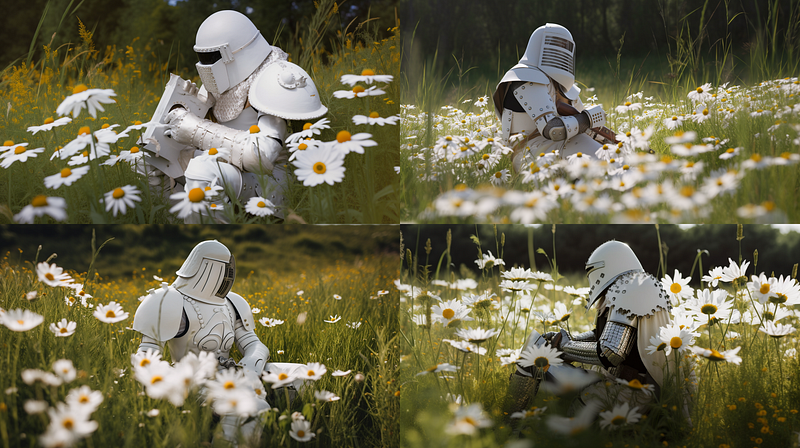
Unlike the example from the Midjourney documentation, we’re not really really losing any detail but rather experiencing a shift in compositional density.
It becomes more obvious when turning it up a bit to “50”:
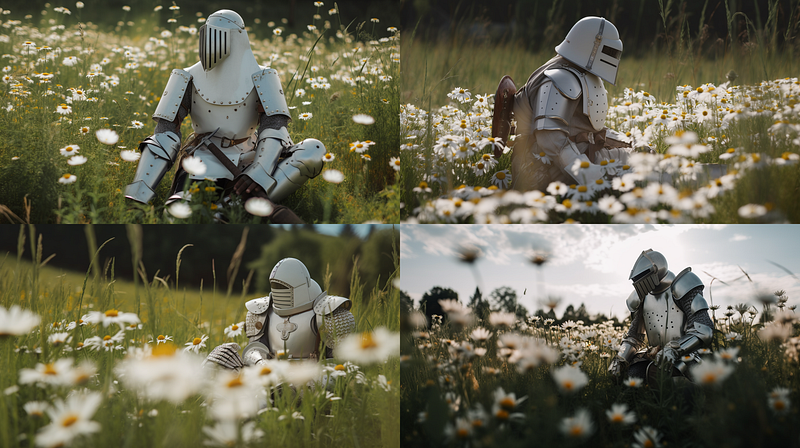
More “daisies” and more “knight” (more armor ornaments).
Now, compare “50” to “100”:
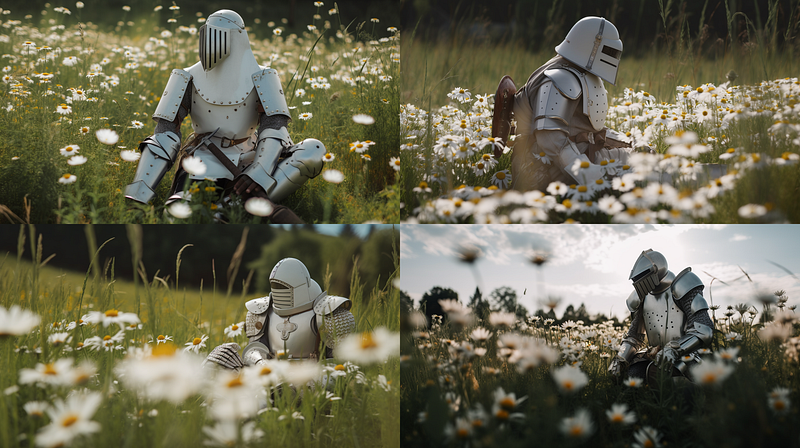
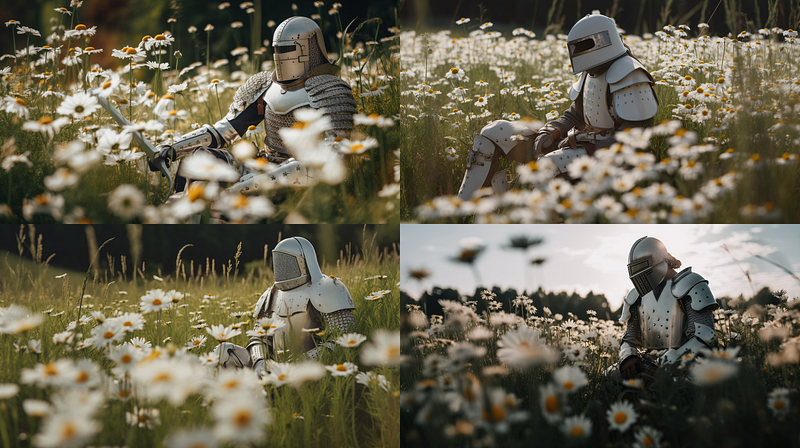
The higher the Stylize value the more the model “wants to do something” with the composition by adding elements from the prompt. But since we only gave it “a knight in white armor” and “daisies” it has to work with that.
It’s actually not adding details, but just “more stuff”.
So let’s alter the prompt to study the model’s behavior when there is more stuff to work with:
photography of a knight in white armor sitting in a field of daisies,
it's early summer and the knight takes a break from the nearby battle field
where he lost his horse and comrades --ar 16:9 --seed 1000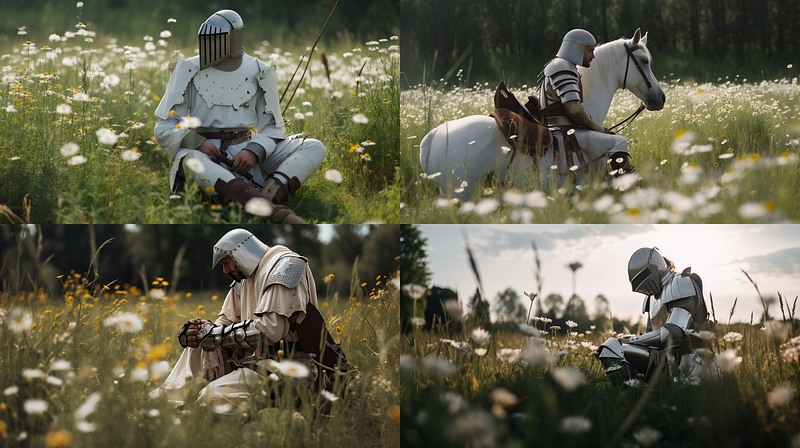
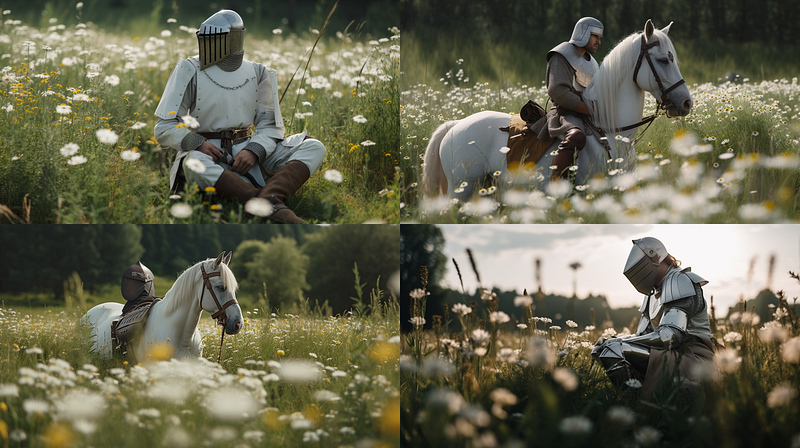
This, again, shows the “50” to “100” comparison.
While with the first prompt, the model only had the option to add more “daisies” and more “knight” (make it ornamented), in the second prompt there’s no sudden spike in daisies anymore.
The model has more stuff to work with, e.g. bringing another horse into the initial grid (keep in mind this is “50” to “100”, changes are subtle in this range)
So, for the sake of the argument, let’s look at “0” to “1000”, the extremes of the Stylize spectrum.
First, with knight and daisies only (first prompt):
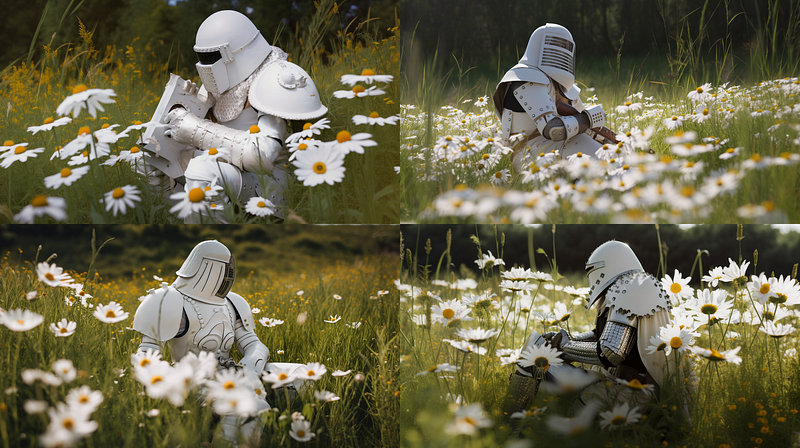
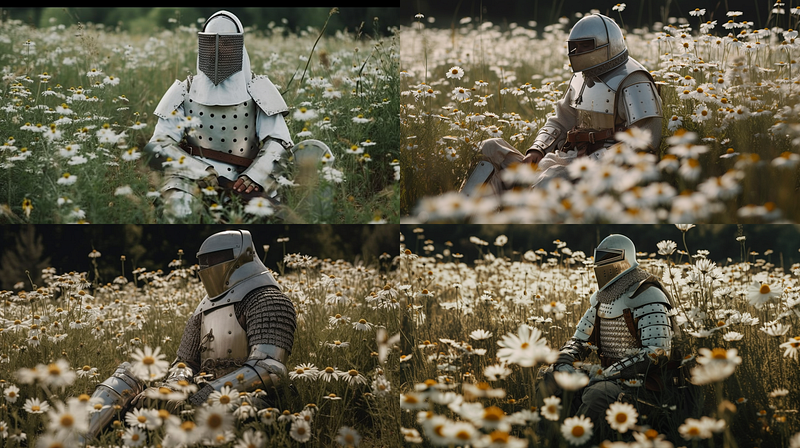
Once again, it’s obvious that the model adds many more daisies and knightly stuff (armor decorations).
Now let’s look at the same increase of Stylize value (0 to 1000) but with the longer second prompt (i.e. more “stuff”):
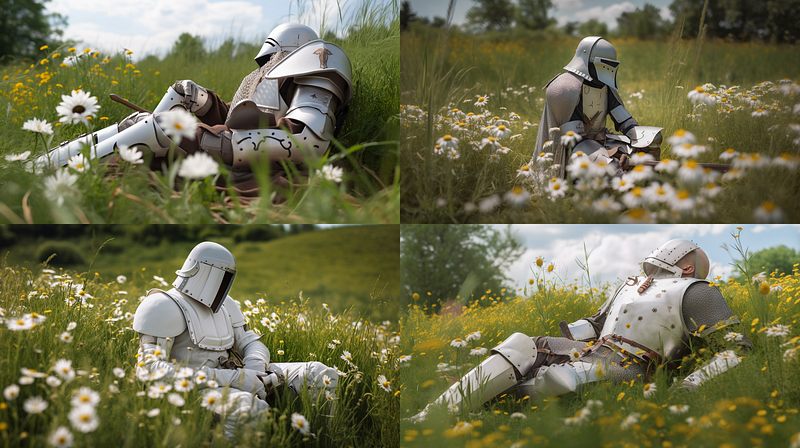
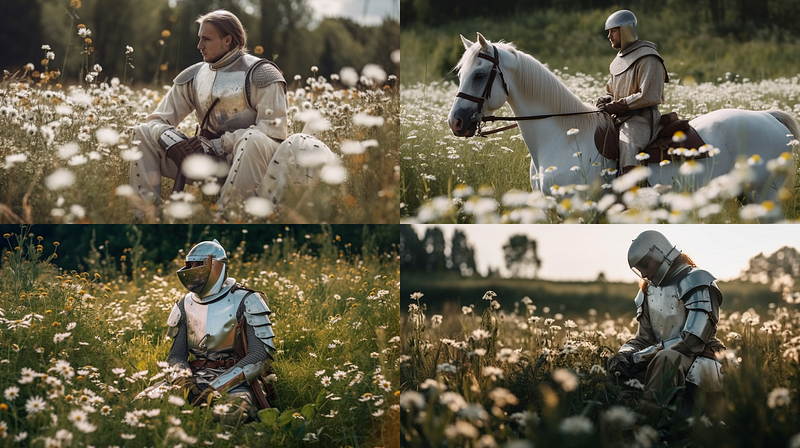
I think the “Stylize” value not only adds detail but also defines how much the model tries to add the semantics it discovers. More “daisy”, more “horse”, more effort to visualize emotions.
Stylize like a Pro: Utilizing chaos
If we really want to go into varying the “style”, then we can use the combined effect of the Stylize and Chaos parameters (for some other advanced techniques with Chaos, see this and this).
We will use our first prompt at chaos=0 and stylize=0.
Keeping stylize at “0” but bringing chaos up to 10, 20 and 80 is defintely more of a style change now.
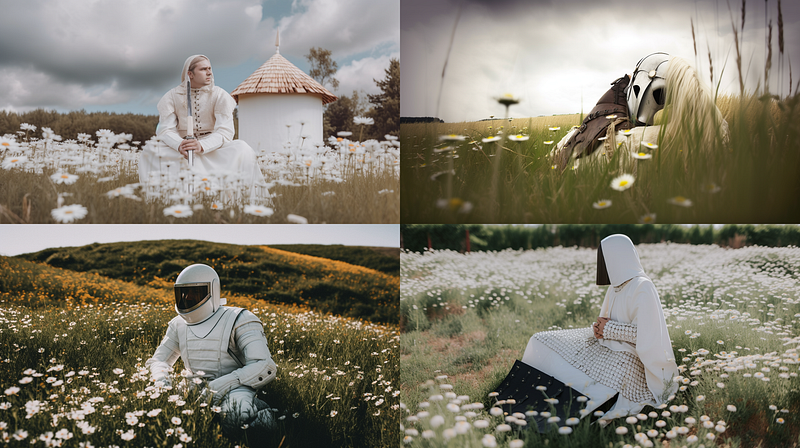
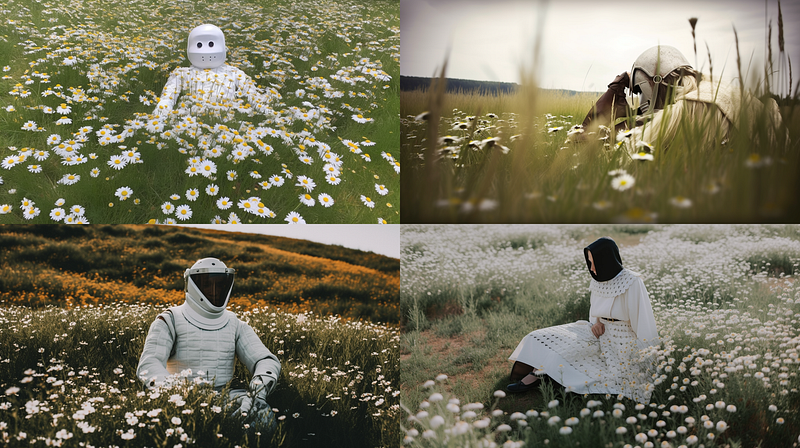
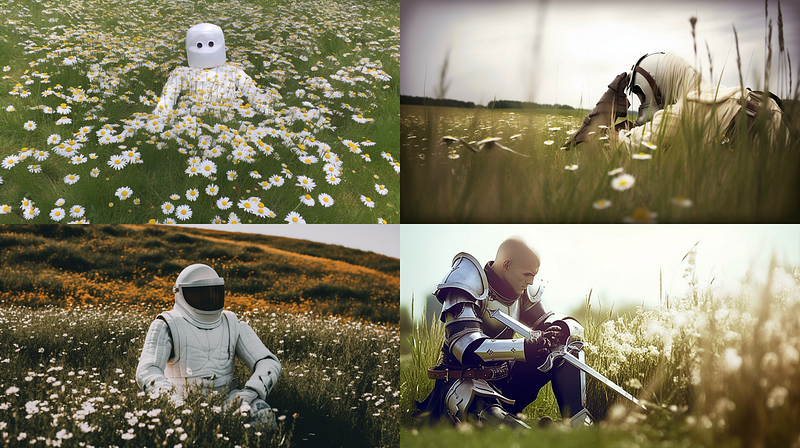
Next, reset to chaos=0 but stylize=500
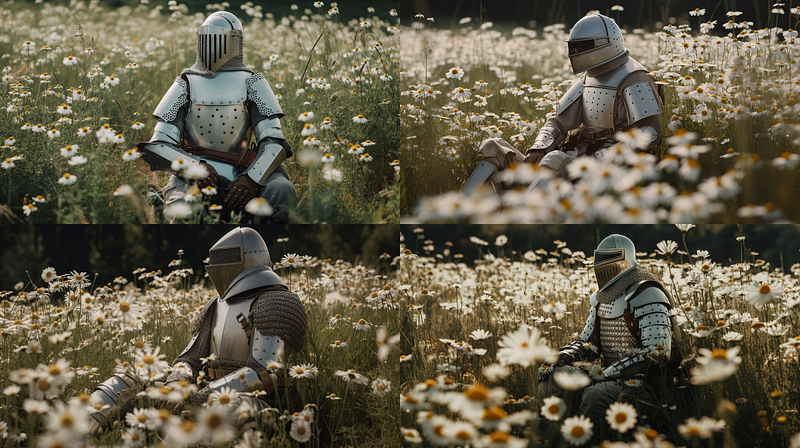
Again, keeping stylize at 500 and changing chaos to 10, 20 and 80:
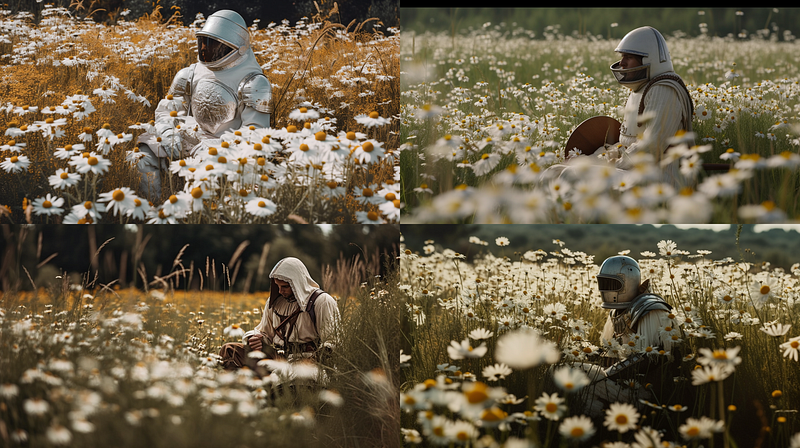
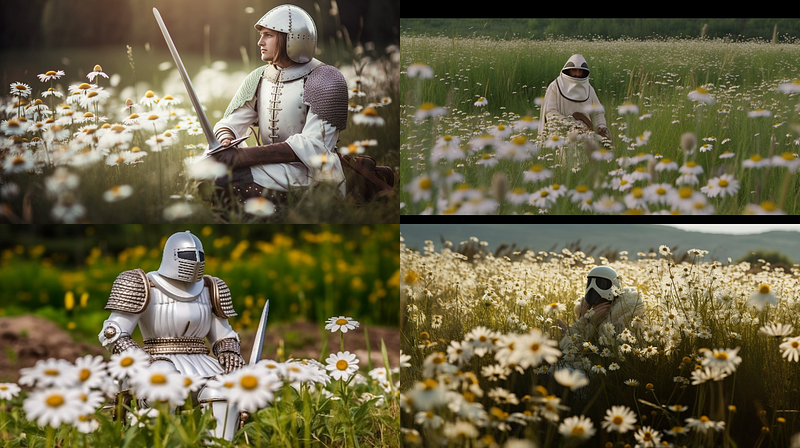
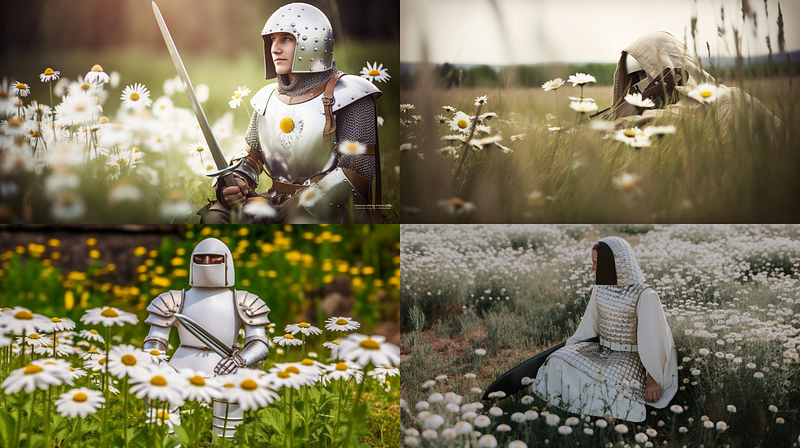
Next: stylize=1000, chaos=0
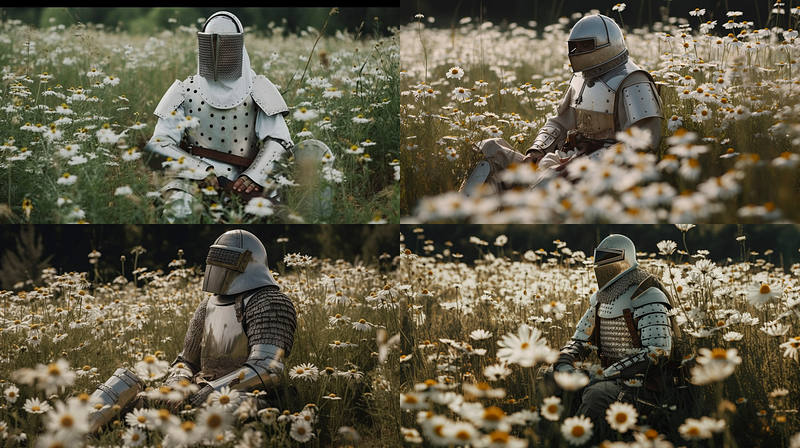
Again, keeping stylize at 1000 and changing chaos to 10, 20 and 80:
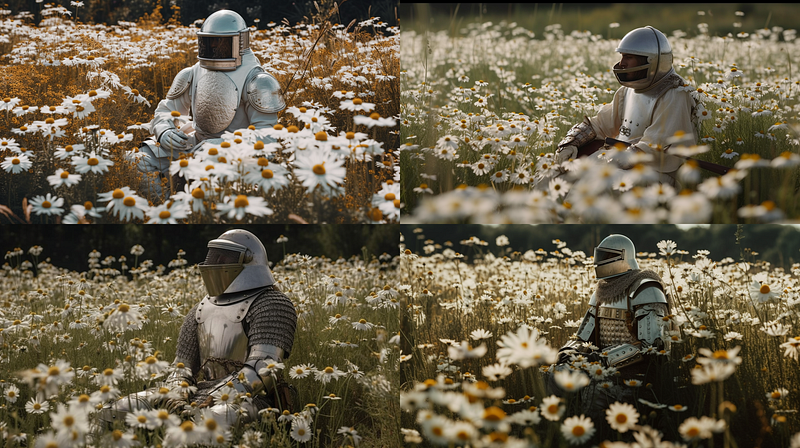
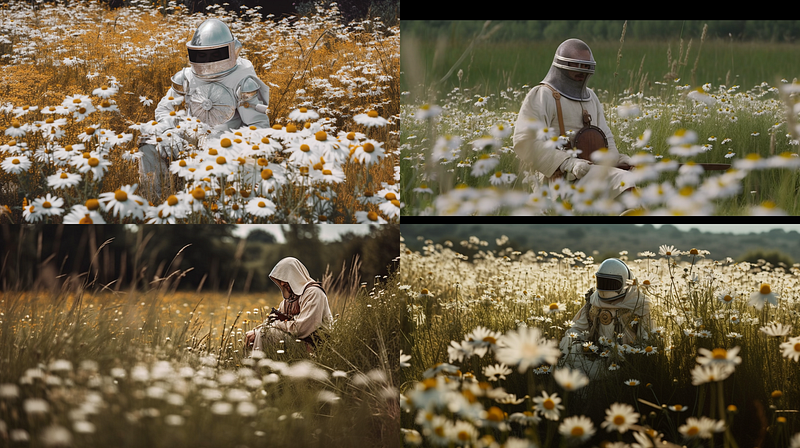
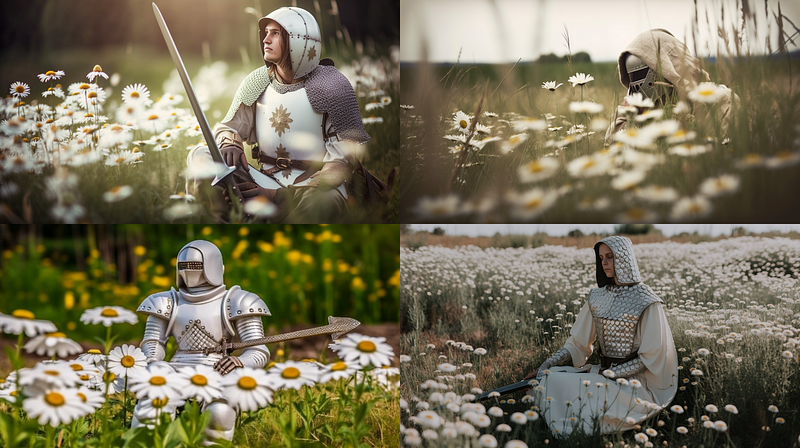
➡️ For more information about AI & Creativity, follow me on Twitter or Medium (use my referral link to get full access to all my articles and those of thousands of other writers).
➡️ If you like my content, why not leave a “clap” at the end of this article, so more people can see it?