avatarTristan Wolff

Summary

Midjourney's chaos parameter is a feature that allows users to control the variability in image generation, enabling exploration of different interpretations of a prompt.

Abstract

The Midjourney platform offers a unique "chaos" parameter that enables users to manipulate the level of randomness in the images they generate. By adjusting the chaos value between 0 and 100, users can subtly alter the composition of an image or introduce significant changes in content and structure. This feature is particularly useful for those looking to push creative boundaries, find new inspiration, or avoid repetitive results. The article provides visual examples demonstrating how varying levels of chaos impact the output, from minor tweaks to drastic transformations, and discusses how the effectiveness of the chaos parameter can depend on the chosen seed value.

Opinions

  • The chaos parameter is praised for its ability to introduce unexpected elements or refresh familiar imagery.
  • It is suggested that the chaos parameter can be a double-edged sword; while it can lead to interesting results, it may not be suitable when precision and accuracy are required.
  • The article implies that experimenting with different chaos values is a recommended approach for creative exploration and inspiration.
  • The effectiveness of the chaos parameter is noted to be influenced by the seed value used, with some seeds yielding more variation than others when chaos is applied.
  • The article encourages readers to explore advanced uses of the chaos command for altering scenic compositions and character traits, hinting at a deeper level of control and creativity.

Exploring the Possible Interpretations of a Prompt with Midjourney: How to Use the Chaos Command

Midjourney has a great parameter feature that allows you to explore the possibilities of a prompt. The “chaos parameter” allows us to control the degree of variation in our image creations by adding a little “chaos” to Midjourney’s image generation algorithms.

--chaos [value from 0 to 100]

By entering integer values on a scale of 0 to 100 (higher values lead to more unusual and varied images), you can use this feature to explore different possible interpretations of your prompt, or add something unexpected or new to your images if you feel they have become too familiar.

For example:
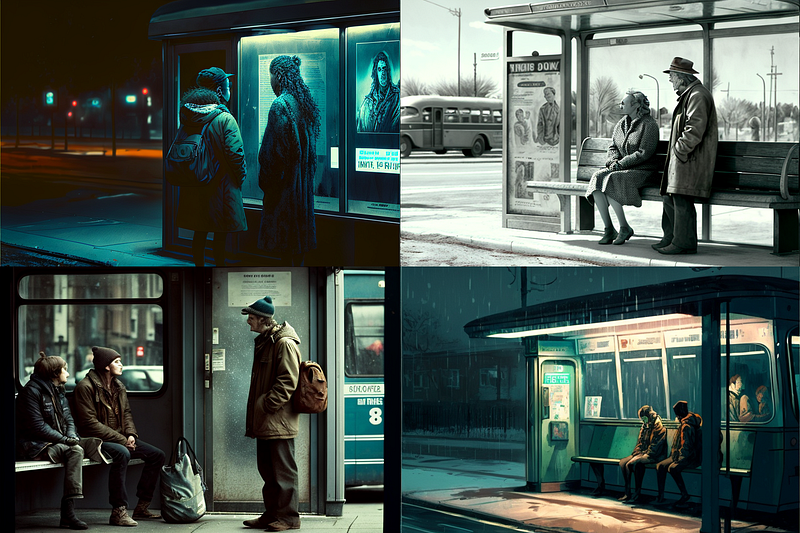
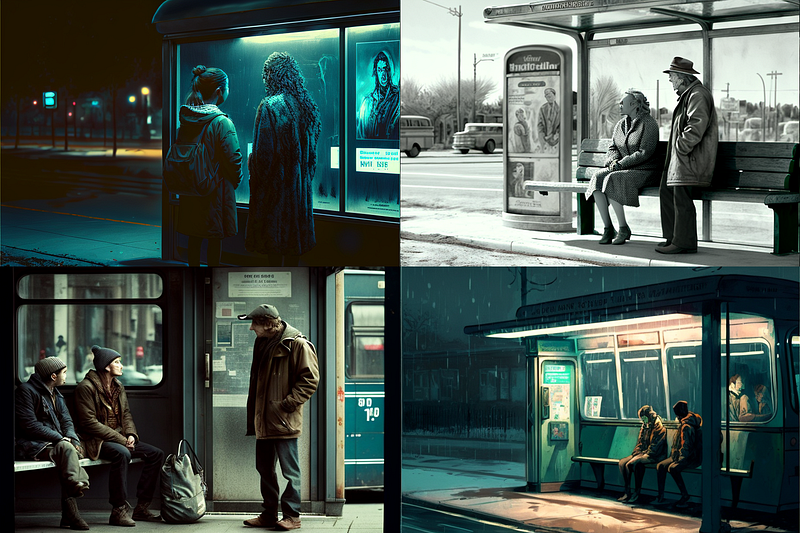
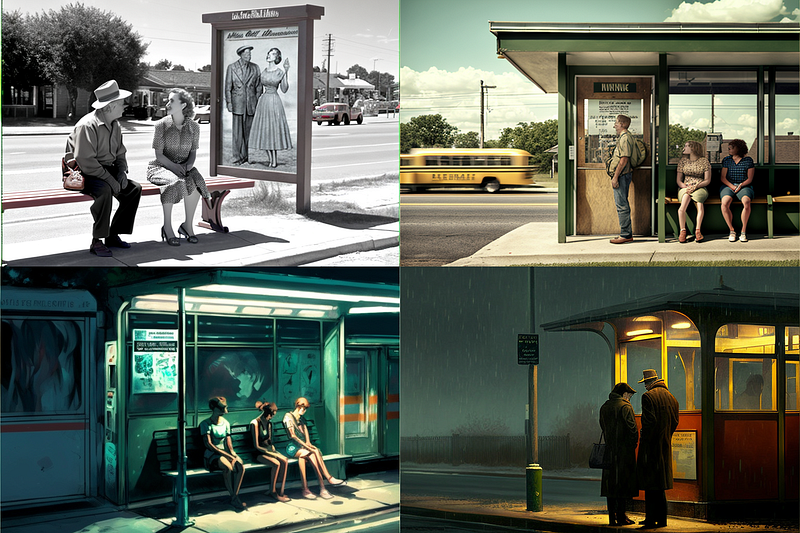
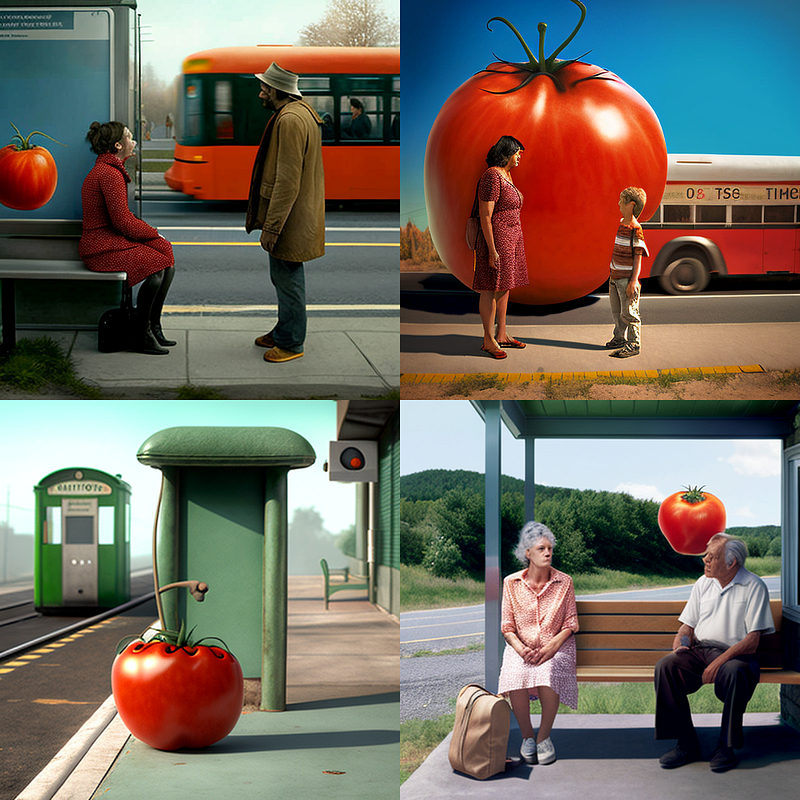
same prompt (“film still, bus stop scene — seed 12729 — ar 3:2”) plus different chaos values: left = chaos 0, middle = chaos 1 , right = chaos 5)
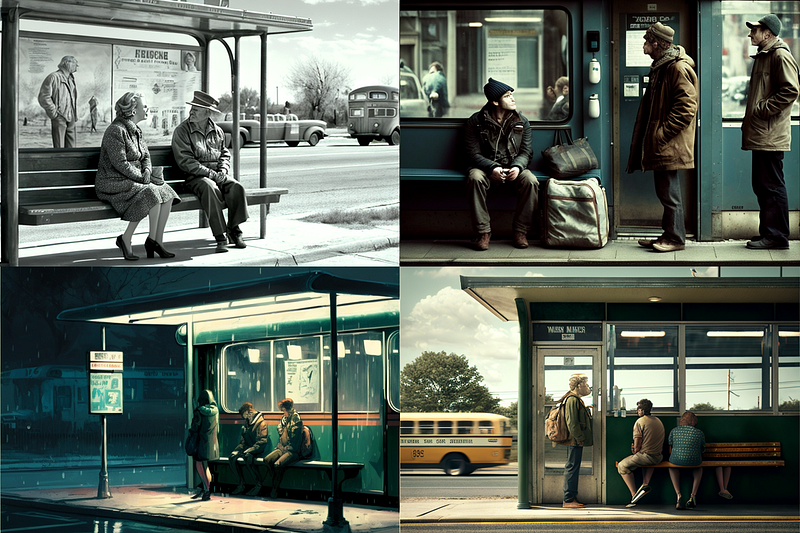
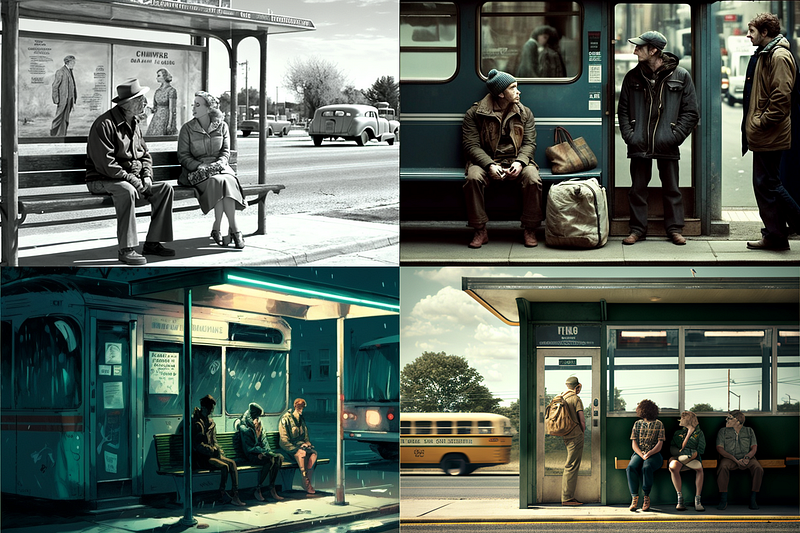
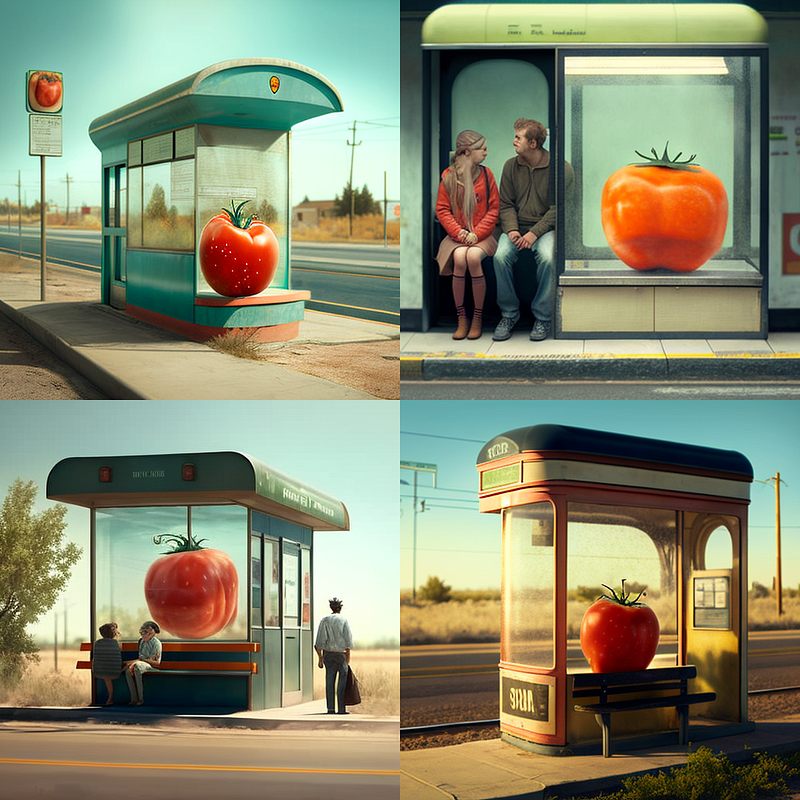
same prompt (“film still, bus stop scene — seed 12729 — ar 3:2”) plus different chaos values: left = chaos 60, middle = chaos 63, right = chaos 65)
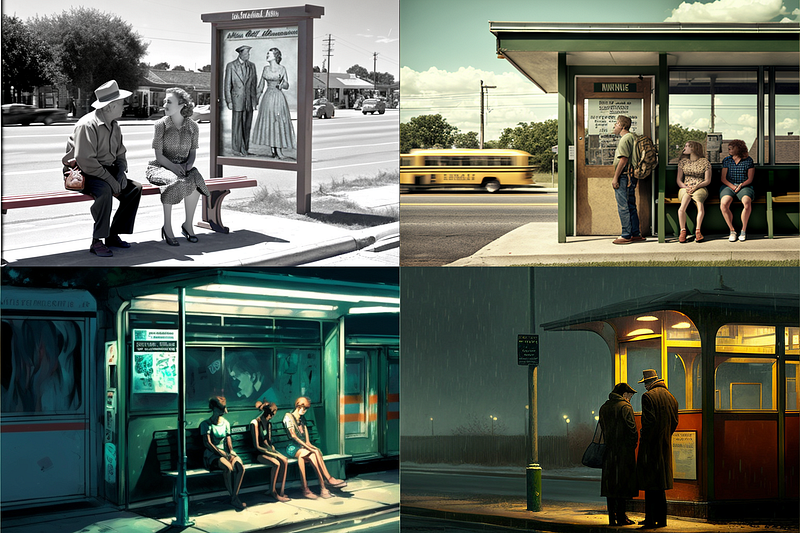
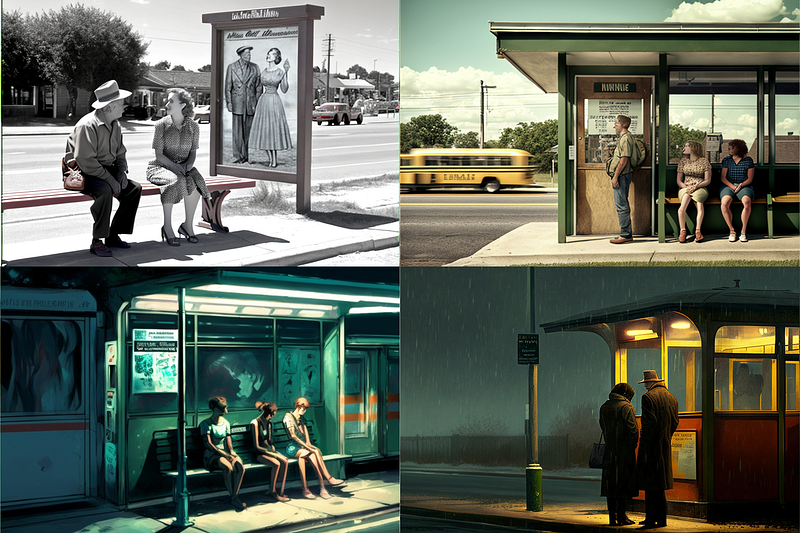
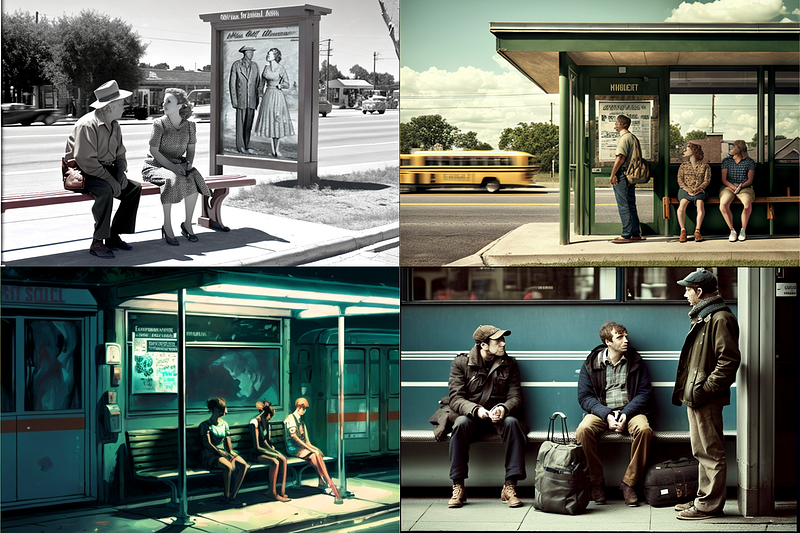
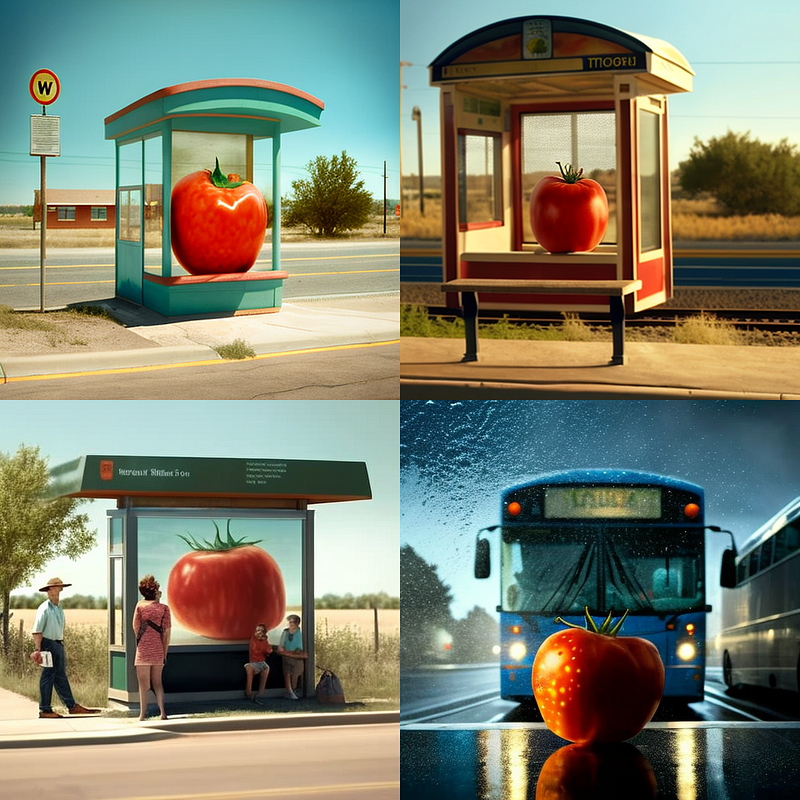
same prompt (“film still, bus stop scene — seed 12729 — ar 3:2”) plus different chaos values: left = chaos 10, middle = chaos 50, right = chaos 100)

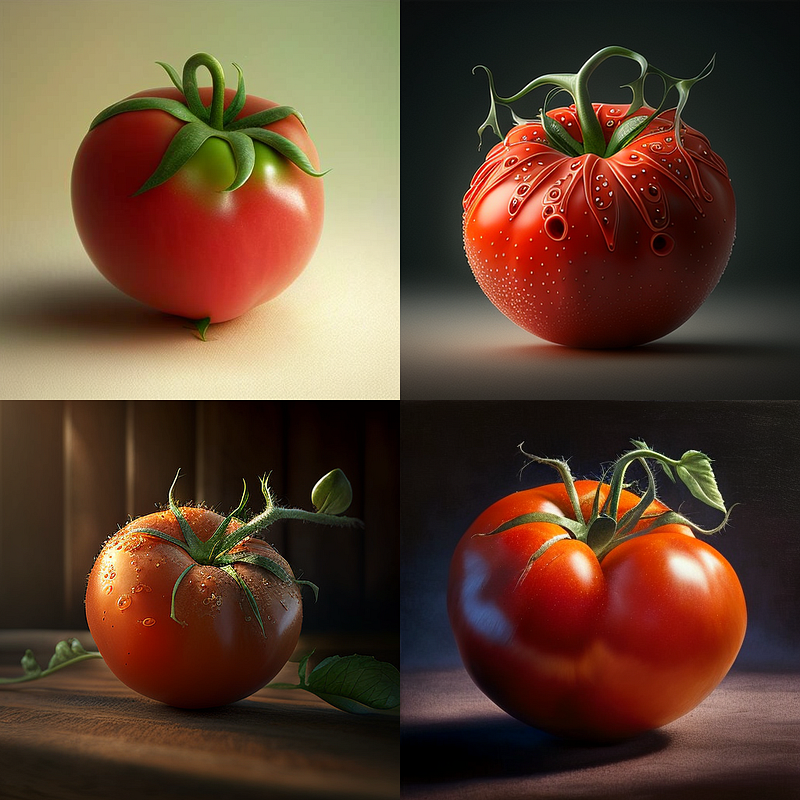
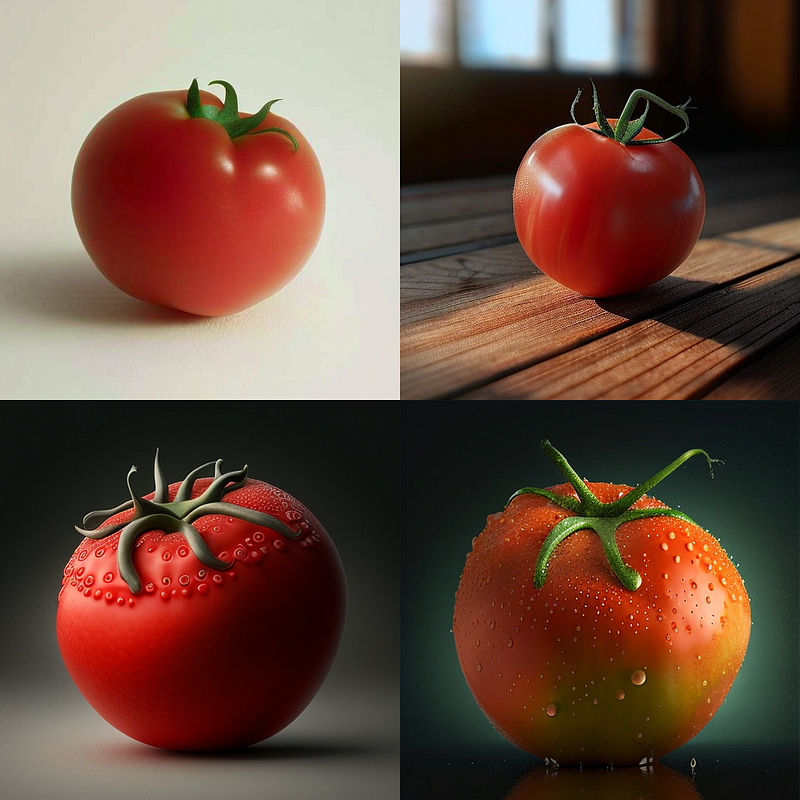
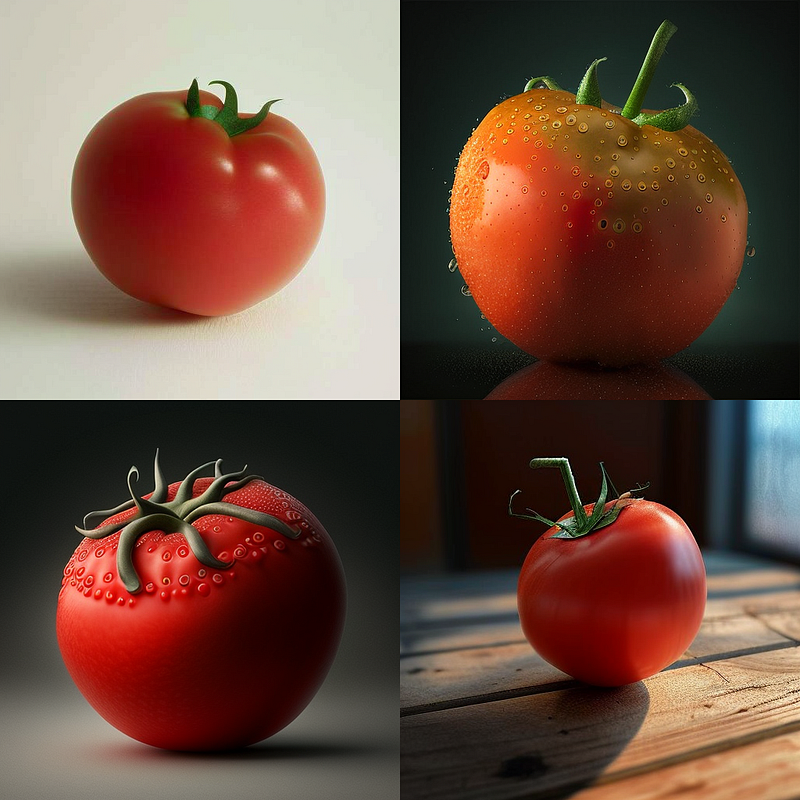
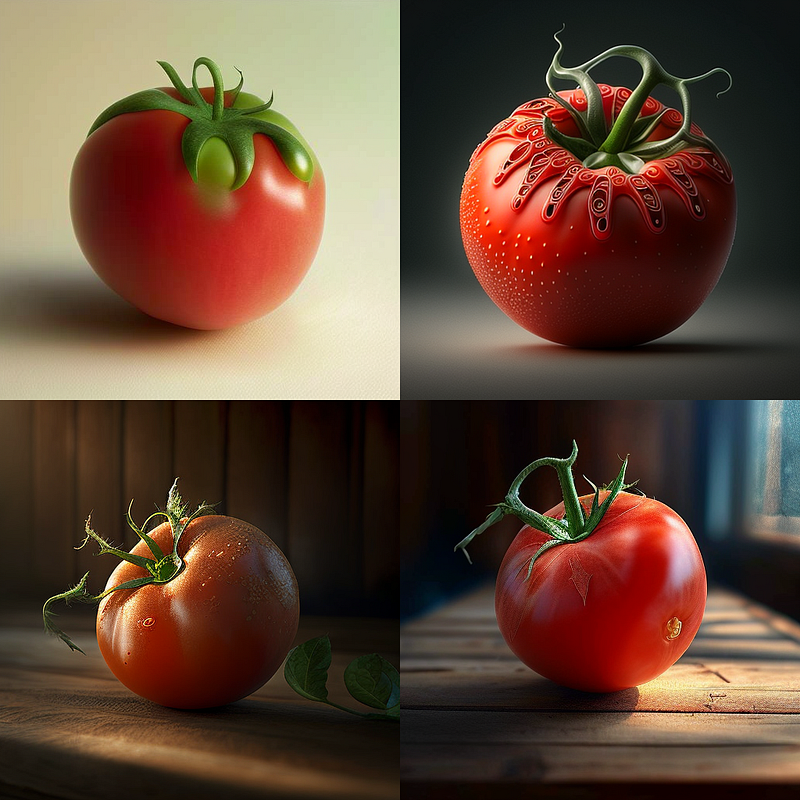
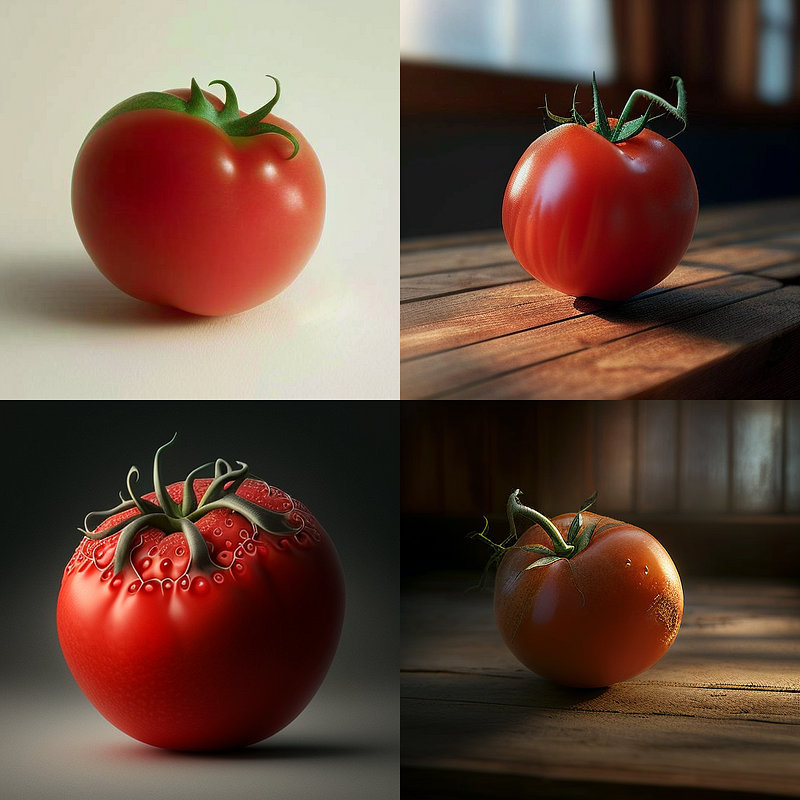
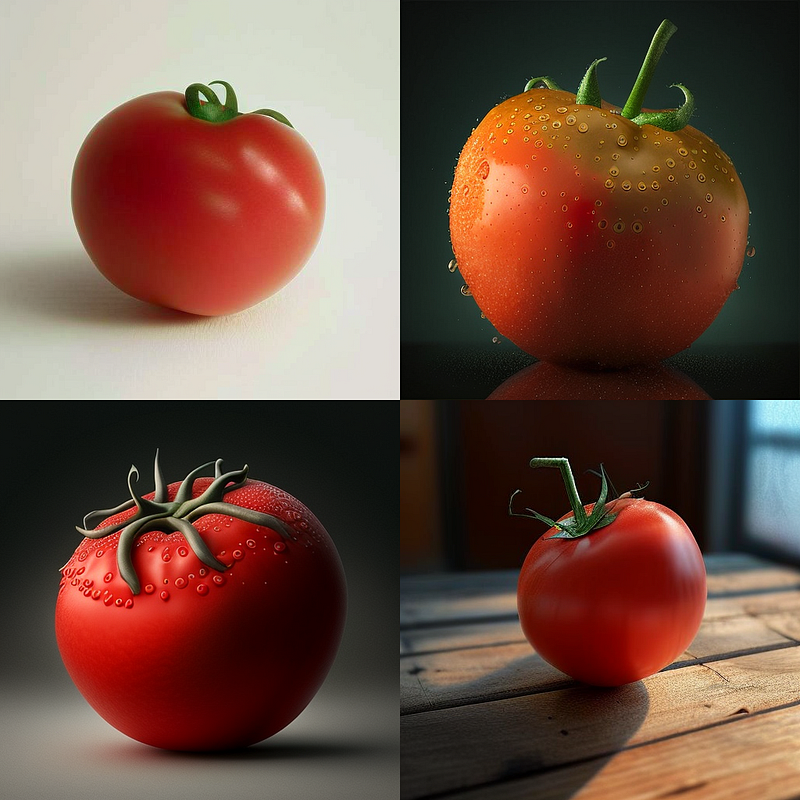
It turns out that with small changes in the chaos value one gets subtle changes in the image composition, while larger steps lead to changes both in terms of the content of the images and in the composition of the results.
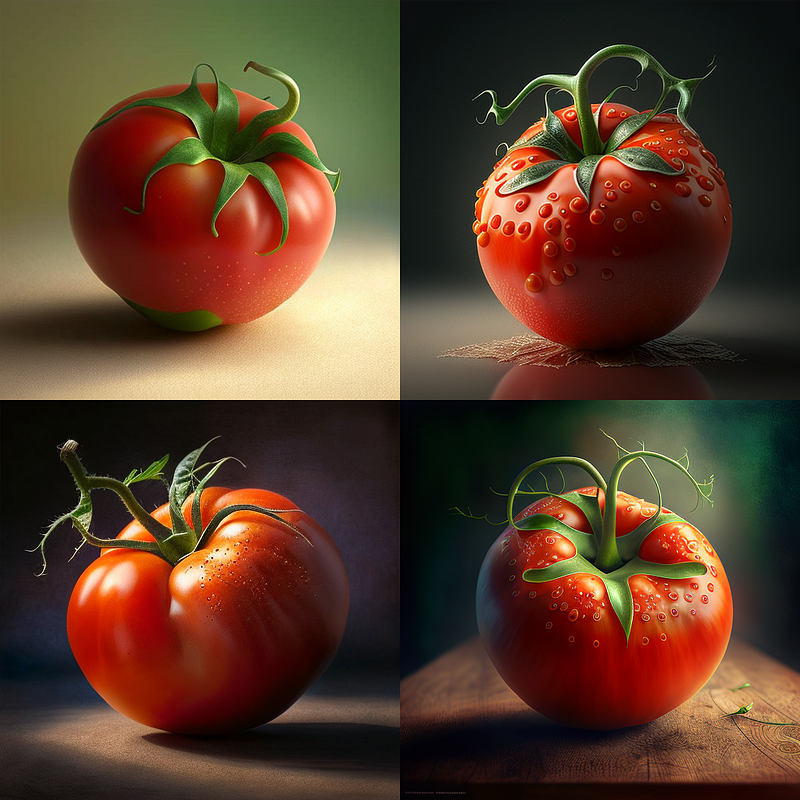
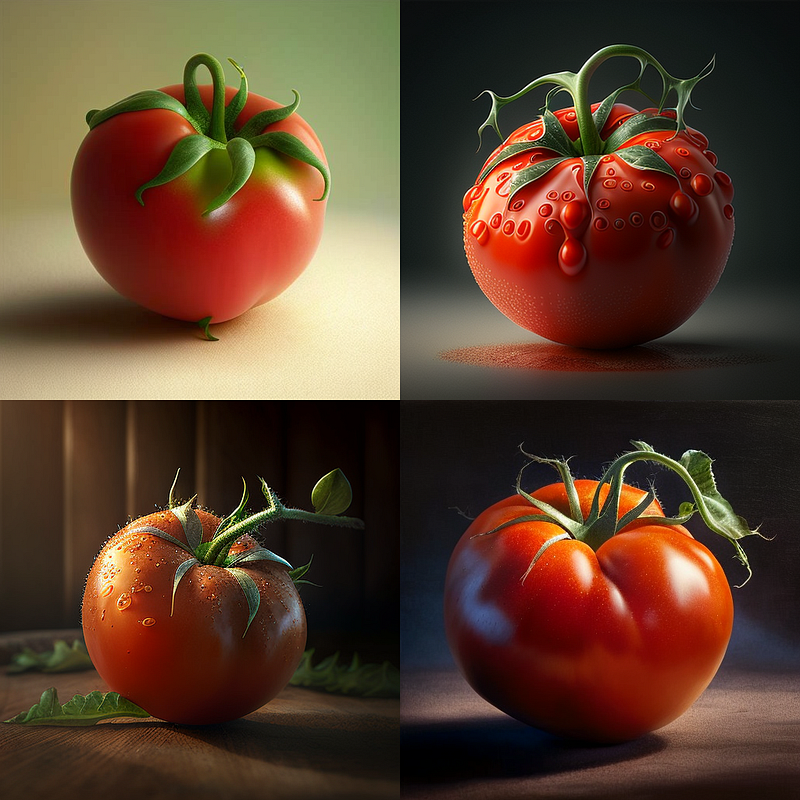
same prompt (“a tomato — seed 23768”) plus different chaos values: left = chaos 0, middle = chaos 3, right = chaos 5)
same prompt (“a tomato — seed 23768”) plus different chaos values: left = chaos 80, middle = chaos 83, right = chaos 85)
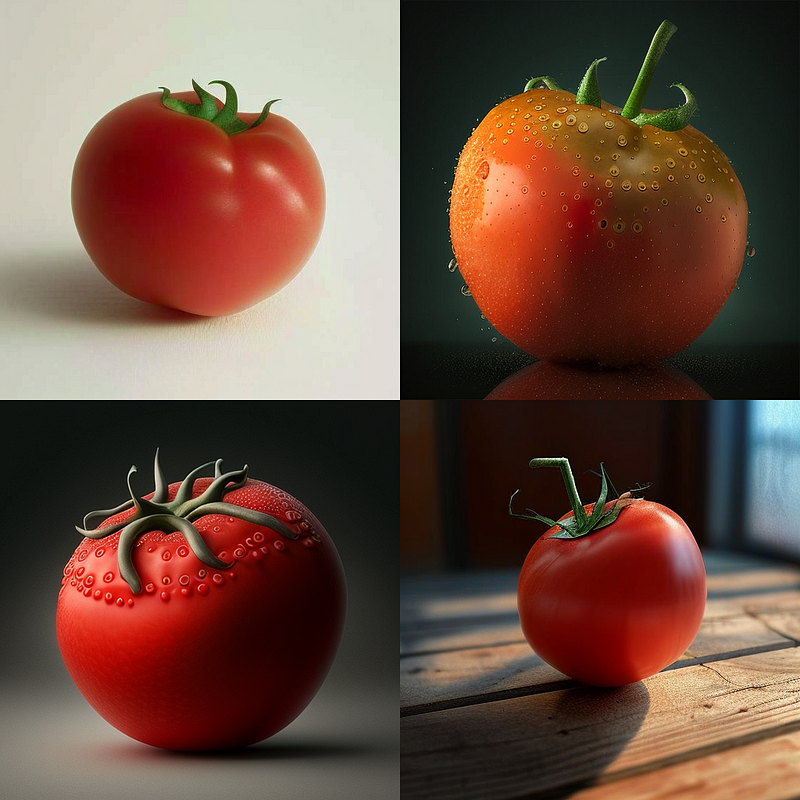
same prompt (“a tomato — seed 23768”) plus different chaos values: left = chaos 10, middle = chaos 50, right = chaos 100)

The use of the chaos parameter depends largely on what you are trying to achieve. If precision and accuracy are important, adding chaos may not be the best option. However, if the goal is to explore different possibilities, find inspiration and push the limits of your imagination, then it can be a great way to achieve interesting or unexpected results.
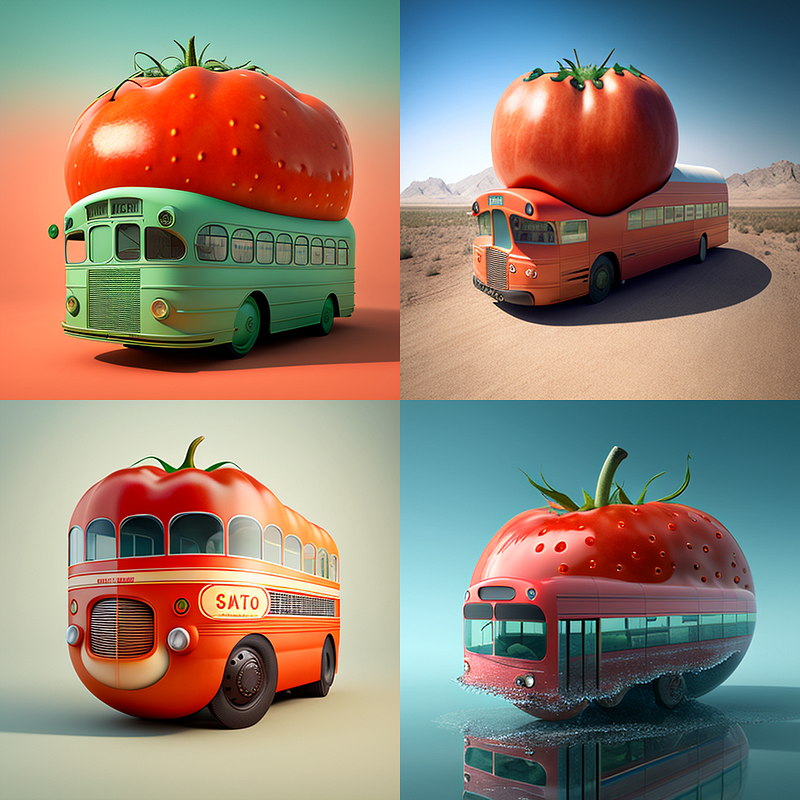
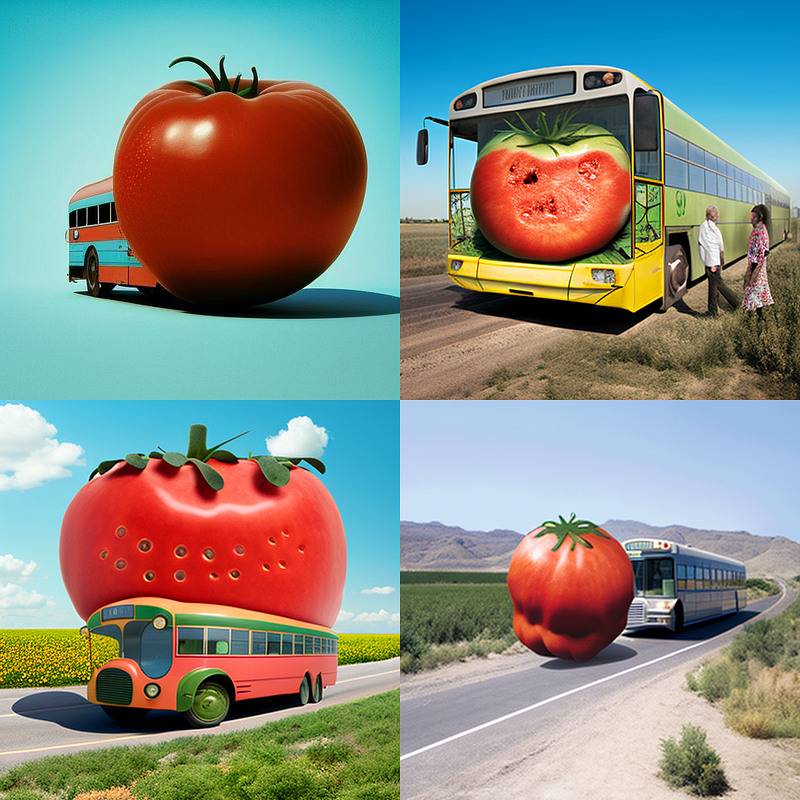
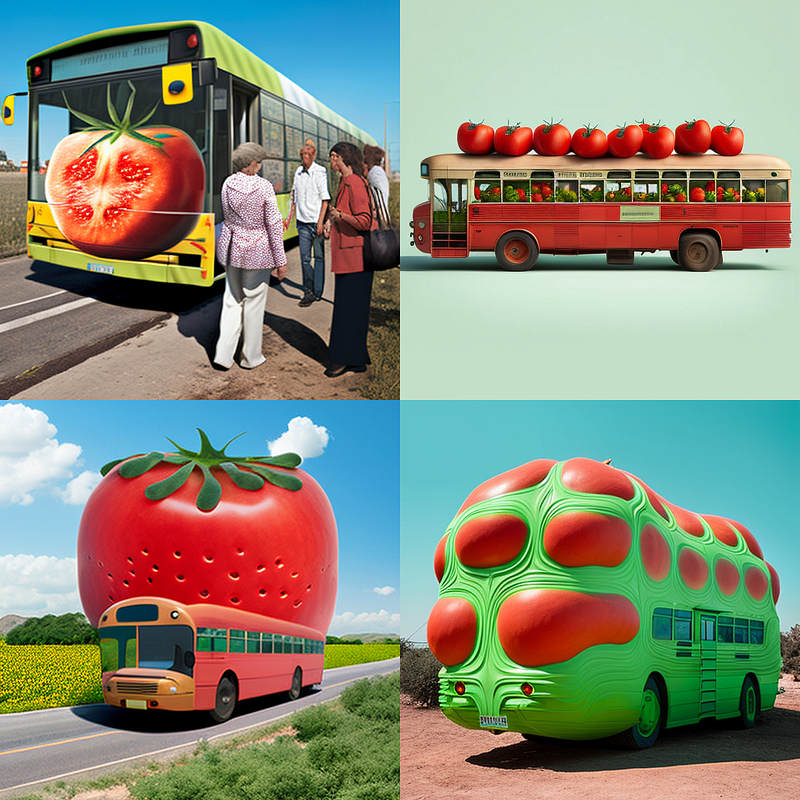
same prompt (“bus, tomato — seed 39”) plus different chaos values: left = chaos 0, middle = chaos 50, right = chaos 100)

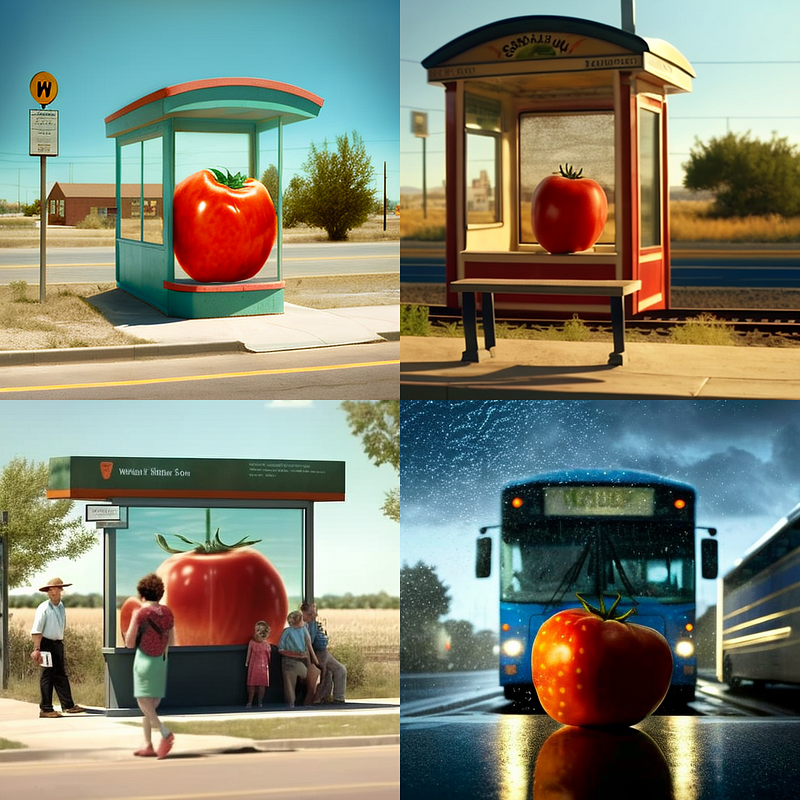
Note that the chaos parameter works differently for different seed values. Some seeds result in more variation when “chaos” is applied, while others give more consistent results despite the use of the parameter.
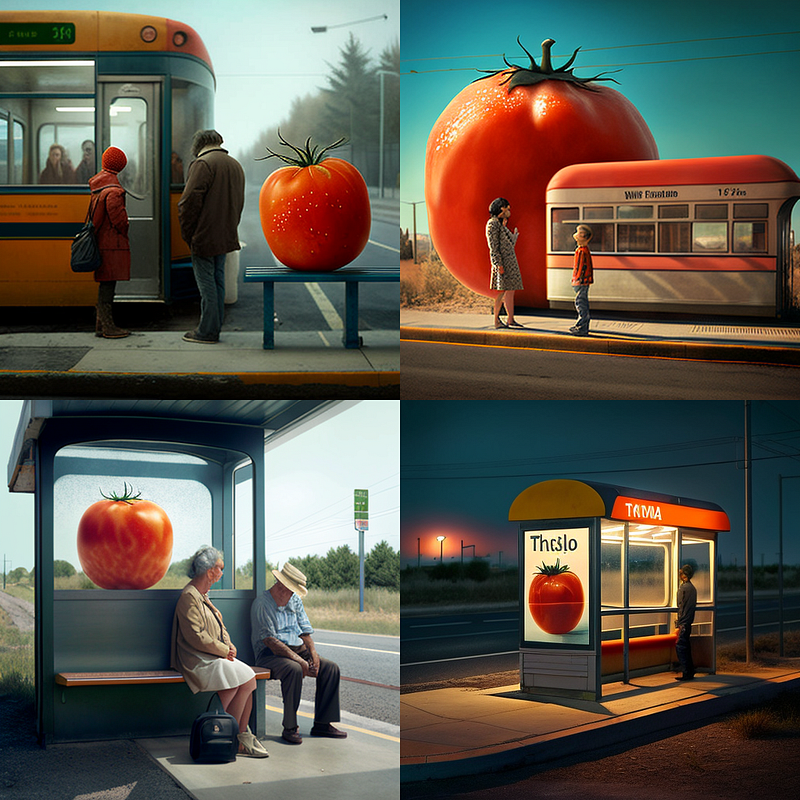
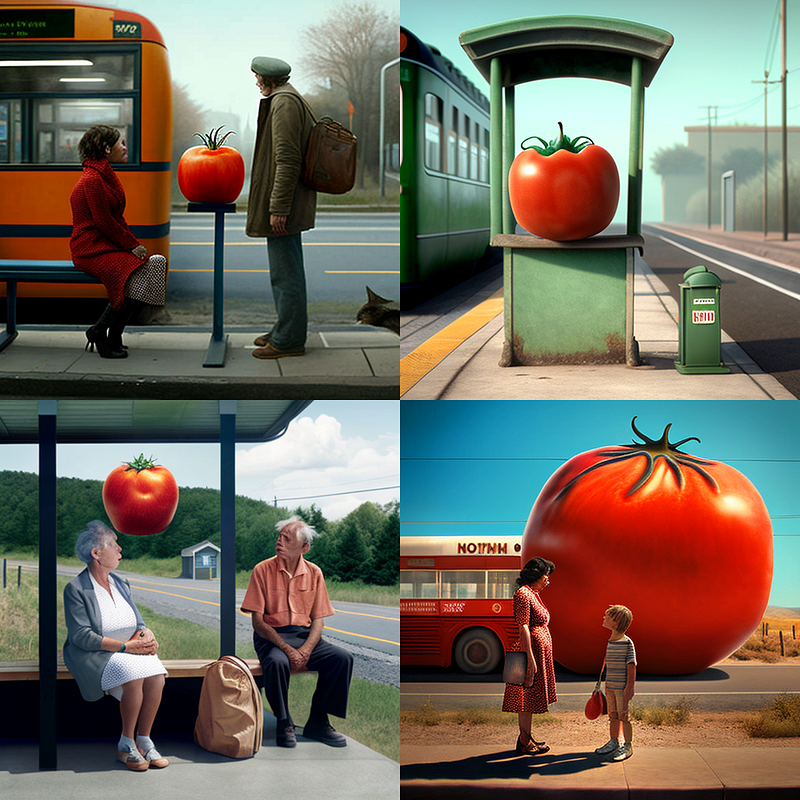
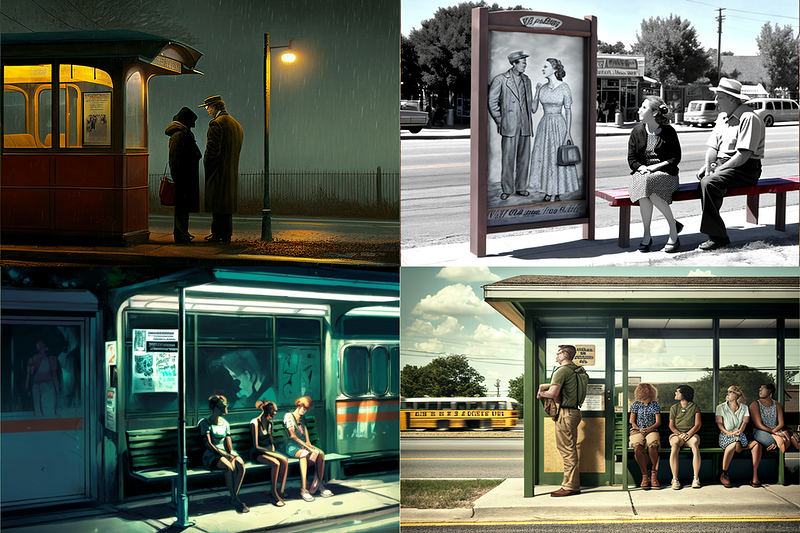
same prompt (“film still, bus stop scene, tomato — seed 39”) plus different chaos values: left = chaos 0, middle = chaos 50, right = chaos 100)
same prompt (“film still, bus stop scene, tomato — seed 5000”) plus different chaos values: left = chaos 0, middle = chaos 50, right = chaos 100)

For an advanced usage of the chaos command to alter your scenic composition and make subtle changes to character traits, have a look at this article:

More about creative image generation using Midjourney:

AI
Ai Art
Midjourney
How To
Ml So Good
Recommended from ReadMedium