
How do I migrate require.js modules from ScriptBundle to Webpack on ASP .NET?

Introduction
I tried to use npm, babel, Webpack to build a ReactJS side project before. We can get many tutorials and documents from the internet.
However, the new challenge is to migrate modules from ScriptBundle to Webpack for ASP .NET project.
Why do I want to migrate the bundler?
ASP .NET provides a convenient bundler called ScriptBundle. However, it has several disadvantages.
- ScriptBundle has no module dependency management. Developers have to include modules into bundles by themselves.
- There are a few common dependency modules between ScriptBundle’s bundles.
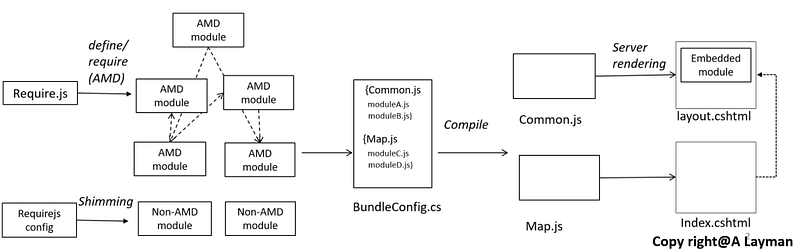
Efforts and effects
The loading depends on the previous JS modules (e.g., AMD modules , non-AMD modules, and embedded modules), previous module system’s configuration (e.g., requirejs.config), and the previous bundler system (e.g., ScriptBundle).
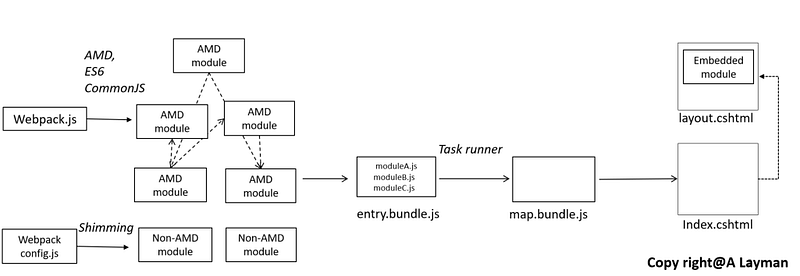
In this case, developers would have the following efforts.
- All embedded modules have to transform into a stand-alone JS file
- We have to replace require.js APIs
However, Webpack has the following strength.
- There is only one entry bundle for a page
- It becomes easier to maintain bundles with dependency management
- Duplicated modules handling
- It has flexible plugins (e.g., To attach the bundle to the page automatically)
Menu
There’re several points for this topic.
- The ways to run JavaScript code in the HTML page
- The introduction to the ScriptBundle
- The environment setting for Webpack
- The common settings of the webpack.config.js
- Integration of Gulp with Visual studio
- Notes to migrate require.js modules from ScriptBundle to WebPack on ASP .NET
- Modularize the embedded scripts from the HTML/CSHTML files
- Put require.js modules in the bundle
- Steps to attach Webpack bundles to .cshtml files
- Some warning messages from Webpack during packaging
- References
Let’s begin a long journey!
The ways to run JavaScript code in the HTML page
That’s review the way’s browser runs the JavaScript code.
1.Blocking/synchronous
The browser will render the page until executing the JavaScript code. The executing order is from top to bottom.
<html>
    <head>
    </head>
    <body>
        <!--something-->
        <script></script>
    </body>
</html>
2. Asynchronous
There’re two asynchronous ways in HTML 5. The order of executing depends on the loading order.
- defer - The browser renders and downloads JavaScript files at the same time. - The browser will execute JavaScript code after rendering.
- async - The browser renders and downloads JavaScript files at the same time. - The browser will execute JavaScript code before rendering.
<html>
    <head>
    </head>
    <body>
        <!--something-->
        <script src="file.js" defer></script>
        <script src="file.js" async></script>
    </body>
</html>
3.AMD (Asynchronous Module Definition)
require.js is a library that implements AMD (Asynchronous Module Definition).
require.js solves the problems we discussed before.
- It loads modules asynchronously. The order of loading is not fixed
- It won’t run modules until all dependencies were loaded.
require(['a','b'],function(a, b) {
    a.doSomething();
});
We can modularize the JavaScript file to require.js modules. The next question is to reduce the request number. This is one of the reasons why we have packaging tools like ScriptBundle, Webpack to package them.
Back to the menu
The introduction to the ScriptBundle
- ScriptBundle is the native packaging tool in ASP .NET. It concatenates JavaScript modules together. It means that we have to manage JavaScript modules by ourselves. We can generate a new bundle by the following way in Bundle.cs.
bundles.Add(new ScriptWithSourceMapBundle("~/bundles/jquery.js").Include(
    "~/Scripts/jquery-{version}.js",
    "~/Scripts/jquery-migrate-{version}.js",
    "~/Scripts/jquery-ui-{version}.js",
    "~/Scripts/jquery.browser.js",
    "~/Scripts/jquery.validate*",
    "~/Scripts/jquery.unobtrusive*",
    "~/scripts/underscore.js",
    "~/Scripts/jquery.fileDownload.js",
    "~/Scripts/AjaxOverrides.js"
));- Then we attach this bundle on the cshtml file.
@Scripts.Render("~/bundles/jquery.js")Enable ScriptBundle
- The bundle works only on the release mode in ASP .NET. We can also modify the web.config to enable it.
<compilation debug="false" targetFramework="4.5" />Bundles types
- GetBabelBundle
- ScriptWithSourceMapBundle
Back to the menu
The environment setting for Webpack
- Install Node.js.
- Open command line and type the following commands to install required packages with npm.
npm install -save webpack webpack-merge webpack-stream @babel/core @babel/plugin-proposal-class-properties @babel/preset-env @babel/preset-react babel-loader babel-preset-es2015 expose-loader imports-loadernpm install --save-dev webpack-dev-server3. Edit package.json for dev-server
{
    ...
    "scripts": {
         "start": "webpack-dev-server --open",
    }
    ...
}
Back to the menu
The common settings of the webpack.config.js
Create webpack.config in the root folder. You can also refer to the official documents.
mode
Providing the
modeconfiguration option tells webpack to use its built-in optimizations accordingly.
mode: 'development'devtool
This option controls if and how source maps are generated.
devtool: 'cheap-module-source-map'devServer
webpack-dev-server can be used to quickly develop an application. See the development guide to get started.
- content-base: devServer will look the bundle from this path
devServer: {
        contentBase: './Scripts/bundle/'
    }
performance
These options allows you to control how webpack notifies you of assets and entry points that exceed a specific file limit
- hint: false(turn off), warning, error
- maxEntrypointSize: maximum entry point size in bytes
- maxAssetSize: individual asset size in bytes.
performance: {
        hints: false,
        maxEntrypointSize: 512000,
        maxAssetSize: 512000
    }
module
- loader: add babel-loader to transpile JavaScript files
- options: - @babel/preset-env: transpile the latest JavaScript files - @babel/preset-env: transpile the latest JSX files - @babel/plugin-proposal-class-properties: transpile ES6 class syntax like arrow functions
module: {
        unknownContextCritical: false,
        rules: [
        {
            test: /\.(js|jsx)$/,
            exclude: /node_modules/,
            use: {
                loader: 'babel-loader',
                options: {
                    presets: [
                        '@babel/preset-env',
                        '@babel/preset-react', {
                             'plugins': ['@babel/plugin-proposal-class-properties']
                         }
                    ]
                 }
              }
          }
        ]
     }
resolve:
These options change how modules are resolved. webpack provides reasonable defaults, but it is possible to change the resolving in detail.
- It helps us when importing require.js module in the project
plugins
- It help us when exports modules to the global (webpack.ProvidePlugin)
- It helps us when attaching Webpack bundles to .cshtml files (Html-Webpack-Plugin)
The template file for the webpack.config.js
Back to the menu
Integration of Gulp with Visual studio

Gulp is a toolkit that can help us to automate tasks in the deploymentflow. One of ways to execute Webpack to generate bundles is to use Gulp. There’re steps to integrate Gulp with Visual Studio.
- Install Gulp
npm install gulp -g- Add a new gulpfile.js in the root folder
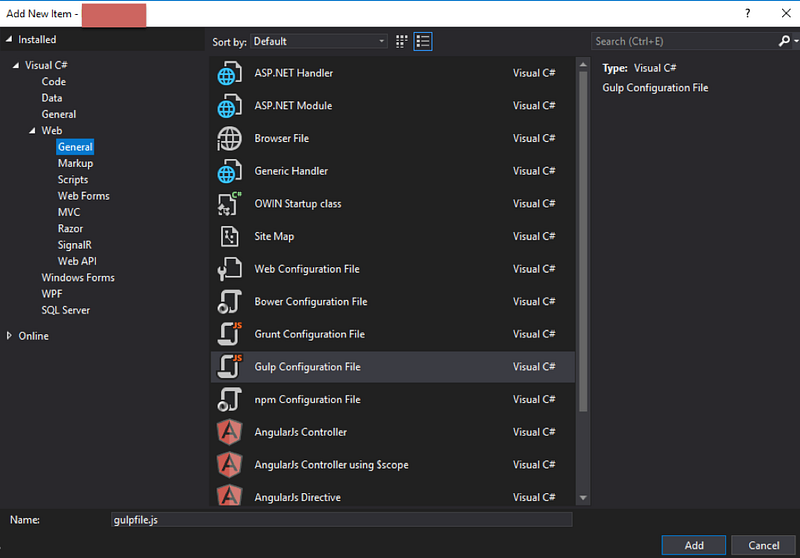
- Edit gulpfile.js
const webpack = require("webpack-stream"),
    WEBPACK_CONFIG = require('./webpack.config.js'),
    src = require('gulp').src,
    dest = require('gulp').dest,
    pipeline = require('readable-stream').pipeline;
function webpack_bundle(conf) {
return pipeline(
src('./Scripts/webpack/*.js'),
webpack(conf),
dest('Scripts/bundle/'));
}exports.webpack = () => webpack_bundle(WEBPACK_CONFIG);- Trigger webpack task from the command line.
gulp -b "D:\work\project" --color --gulpfile "D:\work\project\Gulpfile.js" webpack- Trigger webpack task from the Task runner from Visual Studio.

Back to the menu
Notes to migrate require.js modules from ScriptBundle to WebPack on ASP .NET

- Map requirejs.config to webpack.config.js for modules search path
- Turn require.js modules to Webpack compatible modules
- Exports modules to the global: use webpack.ProvidePlugin / expose-loader instead of requirejs.config.shim
1. Map requirejs.config to webpack.config.js for modules search path
- Use resolve.modules and resolve.alias
//requirejs.config
requirejs.config({
    baseUrl: '/Scripts/',
    paths: {
        'knockout': 'knockout-3.0.0.debug',
        'koMapper': 'knockout.mapping-latest'
    }
});
//webpack.config.js
const path = require('path');
const config = {
    resolve: {
        extensions: ['.js', '.jsx'],
        modules: [
            path.resolve(__dirname, './Scripts'),
            'node_modules'
        ],
        alias: {
            knockout: "knockout-3.2.0",
            koMapper: 'knockout.mapping',
            ...
        }
    }
};
module.exports = config;- Then we can import these modules in the Webpack bundle
Import 'knockout';
Import 'koMapper';- Note 1: The order of the module’s name should be prior than folder’s name.
Module not found: Error: Can’t resolve ‘common/svgSpriteSheet’
- Note 2: It lead conflicts if the node module has the same name as the local library’s name
- Solution:
- Remove that module in the package.json.
- npm install again.
- Put AMD modules’ name and path on the alias field
2. Turn require.js modules to Webpack compatible modules
- Webpack only provides basic functions to support AMD modules. For example, the following code uses require.js APIs.
define('someModule',
 [],
 function ()
 {
    ...
    if (require.defined('otherModule') && require('otherModule').IsPublic) {
        successCallback && successCallback([]);
        return (completeCallback && completeCallback());
    }
...- We can remove the require.js APIs which Webpack doesn’t support. We can refactor it to the following code.
define('someModule',
 ['otherModule'],
 function (otherModule)
 {
    ...
    if (otherModule.IsPublic) {
        successCallback && successCallback([]);
        return (completeCallback && completeCallback());
    }
    ...
3.Exports modules to the global: use webpack.ProvidePlugin / expose-loader instead of requirejs.config.shim
requirejs.config.shim
When we use require.js. We use require.js shim to make non AMD-compatible modules AMD compatible. The following code is an example for require.js shimming.
- The exports value has to be identical to the value exported by the js file.
- Notice that we have to specify dependencies in the deps fields.
requirejs.config({
    baseUrl: '/Scripts/',
    shim: {
        'jquery': {
            exports: 'jQuery'
        },
        'leaflet': {
            exports: 'L'
        },
        'leafletDeferred':{
            deps: ['leaflet']
        }
    },
    paths: paths,
});
Webpack shimming
- Webpack can understand ES6(so called ES2015), CommonJS, or AMD. However, some third party libraries (broken modules) may expect global dependencies.
- We can use webpack.ProvidePlugin or expose-loader to export modules to the global. The following example is to export jQuery and $ to the global.
Solution 1. Use webpack.ProvidePlugin
module.exports = {
    ...,
    resolve: {
        alias: {
            'jquery': path.resolve(__dirname, './Scripts/jQuery.js'),
            ...
        }
    },
    plugins: [
        new webpack.ProvidePlugin({
            $: "jquery",
            jQuery: "jquery",
            ...
        })
    ]
}
Solution 2. Use expose-loader
require("expose-loader?leaflet!leaflet");
define('leaflet', [],
    function () {
        return leaflet;
    }
);
Back to the menu
Modularize the embedded scripts from the HTML/CSHTML files
- Webpack will rename the modules’ name and variables’ name. The Webpack module can’t recognize them outside the bundle. The target is to move all embedded modules to stand-alone JavaScript file.
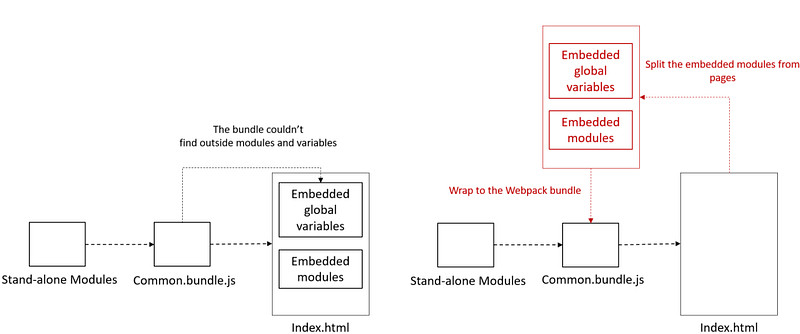
Move embedded AMD modules to stand-alone JavaScript files
The following example is a partial view with a embedded require.js module.
<script type="text/javascript">
define('config', function () {
  var config = {
    lat: @Model.Lat,
    lon: @Model.Lon,
    Types: @Html.Raw(Newtonsoft.Json.JsonConvert.SerializeObject(Model.Types)),
    Marks: @Html.Raw(Newtonsoft.Json.JsonConvert.SerializeObject(Model.Marks)),
    Data: @Html.Raw(Newtonsoft.Json.JsonConvert.SerializeObject(Model.Data))
   }
  return config;
});
</script>
Solution
1.Partial view: put the data in the hidden fields
@{
    dynamic jsonObject = new Newtonsoft.Json.Linq.JObject();
    jsonObject.lat = Model.Lat;
    jsonObject.lon = Model.Lon;
    jsonObject.data = Newtonsoft.Json.JsonConvert.SerializeObject(Model.Data) == "null" ?
  null : Newtonsoft.Json.Linq.JObject.FromObject(Model.Data);
    jsonObject.marks = Newtonsoft.Json.JsonConvert.SerializeObject(Model.Marks) == "null" ?
     null : Newtonsoft.Json.Linq.JArray.FromObject(Model.Marks);
    jsonObject.MessageTypes = Newtonsoft.Json.JsonConvert.SerializeObject(Model.Types) == "null" ?
     null : Newtonsoft.Json.Linq.JArray.FromObject(Model.Types);
string mapConfig = Newtonsoft.Json.JsonConvert.SerializeObject(jsonObject).ToString();
}@Html.Hidden("config", @config);2.JavaScript file: get the value from hidden fields with jQuery
define('config', function () {
 L_PREFER_CANVAS = true;
 return JSON.parse($("#config").val());
});
3.Add JavaScript file in the bundle from BundleConfig.cs (if did not use Webpack yet)
- It may warn if the jQuery fetch data before the partial view renders.
Uncaught SyntaxError: Unexpected token u in JSON at position 0
Update on July.26.2020: A Better Process to Move Embedded AMD modules from the HTML/CSHTML files to Webpack Bundles
Back to the menu
Put require.js modules in the bundle
- Webpack can understand ES6(so called ES2015), CommonJS, or AMD. However, some third party libraries (broken modules) may expect global dependencies.
- AMD require: We can move the logic from a require.js module to a bundel.js
require(['mapStart', 'react'], function (mapStart, React) {
        mapStart.init('inner-map-container');
    }
);
2. CommonJS require
- Synchronous loading
var mapStart = require('mapStart');
var react = require('React');
mapStart.init('inner-map-container');- Code splitting: the following code will generate a new chunk which contains ‘maspStart’ and ‘React’
require.ensure([], function (require) {
        var mapStart = require('mapStart');
        var react = require('React');
        mapStart.init('inner-map-container');
    }
);- Lazy loading: Wepack won’t evaluate modules until it require the module
require.ensure(['mapStart', 'react'], function (require) {
        var mapStart = require('mapStart');
        var react = require('React');
        mapStart.init('inner-map-container');
    }
);
3. ES6 import
import mapStart from './mapStart';
import react from './React';
mapStart.init('inner-map-container');
Back to the menu
Steps to attach Webpack bundles to .cshtml files
1.Install Html-Webpack-Plugin
npm install Html-Webpack-Plugin --save-dev2.Add Html-Webpack-Plugin in the plugin field in the webpack.config.js
plugins: [
    ...,
    new HtmlWebpackPlugin({
        new HtmlWebpackPlugin({
            filename: './Views/_home.bundle.cshtml',
            template: './Views/BundlesTemp/_JsTemplate.cshtml',
            chunks: ['home'],
            inject: false
        })
    })
]
3.Create a template file (./Views/BundlesTemp/_JsTemplate.cshtml)
<% for (var chunk in htmlWebpackPlugin.files.chunks) { %>
<script src="<%=htmlWebpackPlugin.files.chunks[chunk].entry %>"></script>
<%}%>
4.Render the generated file from the original view
@Html.Partial("~/Views/Bundle/_home.bundle.cshtml")Back to the menu
Some warning messages from Webpack during packaging
1. Can’t resolve ‘vertx’
- solution
new webpack.IgnorePlugin(/vertx/)2.Uncaught (in promise) ChunkLoadError: Loading chunk 3 failed.
- Solution: add publicPath
module.exports = {
    entry: {
        home: './Scripts/es6/home.js',
        map: './Scripts/es6/map.js',
        common: './Scripts/es6/common.js',
    },
    output: {
        filename: '[name].bundle.js',
        publicPath: 'Scripts/bundle/'
    },
Back to the menu
3.Critical dependency: the request of a dependency is an expression
- The point is that I require a module bt using a variable as the module’s name in my original code
define('', function () {
    var viewModel = {};
    viewModel.loadViewModel = function (module) {
        return function (callback) {
            require([module], function (ViewModel) {
                callback(new ViewModel());
            });
         };
    };
    return viewModel;
});- After much hit and trial found the solution. What I did is to turn the module’s name from a variable into a string
define('', function () {
    var viewModel = {};
    viewModel.loadViewModel = function (module) {
        return function (callback) {
            require([`${module}`], function (ViewModel) {
                callback(new ViewModel());
            });
         };
    };
    return viewModel;
});
4. WARNING in ./Scripts/users/Messages.html 1:0 Module parse failed: Unexpected token (1:0) You may need an appropriate loader to handle this file type, currently no loaders are configured to process this file. See https://webpack.js.org/concepts#loaders
- Install html-loader
npm install --save-dev html-loader- modify the webpack.config
module: {
    rules: [
        ...,
        {
            test: /\.html$/i,
            use: {
                loader: 'html-loader',
                options: {
                    attributes: false
                }
             }
         },
         ...
     ]
}
5. module parse failed unexpected character ‘ ‘ png
- Install file-loader
npm install --save-dev file-loader- modify the webpack.config
module: {
    rules: [
        ...,
        {
            test: /\.(png|svg|jpe?g|gif)$/,
            use: {
                loader: 'file-loader',
                options: {
                    name: '[name].[ext]'
                }
             }
         },
         ...
     ]
}
6.There are multiple modules with names that only differ in casing. This can lead to unexpected behavior when compiling on a filesystem with other case-semantic. Use equal casing
- It may be caused by importing/requiring the same module with different alias in different files
References
- 在瀏覽器第一次渲染之前
- HTML 中 JavaScript 的載入問題
- ASP.NET MVC4 Bundle and Minify 輕鬆最佳化和打包你的 CSS 與 JS
- Using NPM and Gulp in Visual Studio 2017
- Can’t resolve ‘vertx’
- React | 那個在 Class Component 中的 Arrow function (箭頭函式)
- [webpack] devtool里的7种SourceMap模式是什么鬼?
- 使用 Html-Webpack-Plugin 引入 Bundle 檔案
- Webpack教學 (四):JavaScript 與 Babel
- JavaScript Module(4) — Webpack (Module Bundler)
- 【webpack】的基本工作流程
- 從無到有建立 webpack 設定檔(一)
- Passing serialized C# object in JSON to Razor Page
- Webpack Code Splitting ‘Loading chunk failed’ error wrong file path
- webpack解惑:require的五种用法
- From Require.js to Webpack — Part 1 (the reasons)
- xjamundx/blog-webpack-2.md
- 使用 Gulp 打包 JavaScript 解決循環相依 (Circular dependencies) 問
- RequireJS进阶:配置文件的学习
- 使用 Html-Webpack-Plugin 引入 Bundle 檔案
- 修复Critical dependency: the request of a dependency is an expression警告
Summary
Thanks for your patient. I am Sean. I work as a software engineer.
This article is my note. Please feel free to give me advice if any mistakes. I am looking forward to your feedback.
Please feel free to clap if this article can help you. Thank you.
You can also subscribe my page on Facebook.
Related topics
How to use the two-way binding in Knout.js and ReactJS?
Learn how to use SignalR to build a chatroom application
My reflection of
IT & Network:
Database:
Software testing:
Debugging:
DevOps:


