
Service Fabric part.1 — How to install and create Service Fabric cluster and nodes?

Introduction
Microsoft Azure Service Fabric is a distributed platform that makes it easy to build large-scale and easily manageable services.
Our team is trying to apply this technology. It’s a new architecture and concept for me.
I also encounter many problems in the process. So I decided to write this article. I expect that it can help the guy who also uses this technology.
1.Install Service Fabric Standalone Package and Service Fabric Runtime
The first step you need to do is to visit here to download Service Fabric Standalone Package and Service Fabric Runtime.
Unzip Service Fabric Standalone Package and move the folder to the location you prepare for it (e.g., C:\\fabric). You can also place the Service Fabric Runtime file in the folder.
The version of files I use in this article:
- Service Fabric Standalone Package: Microsoft.Azure.ServiceFabric.WindowsServer.6.4.644.9590.zip
- Service Fabric Runtime: MicrosoftAzureServiceFabric.6.4.644.9590.ca.
2. 1. Edit ClusterConfig.json (ClusterConfig.X509.OneNode.json)
There are many templates of ClusterConfig.json in the folder. Choose which you need and edit it.
For example, I would like to create an one node cluster with SSL certification. I use ClusterConfig.X509.OneNode.json.
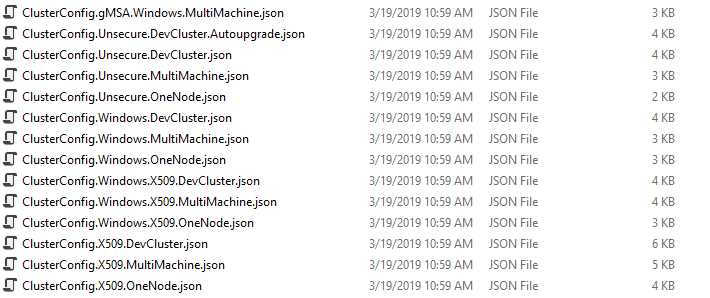
There are a few things that you need to do:
Step 1. Modify the value of nodes.
- nodeName: Use computer’s domain name to be the value.
- iPAddress: Use computer’s IP to be the value.
- nodeTypeRef: You can define a new node type in the properties/nodeTypes.
- faultDomain: Define an unique value if you have a few nodes.
- upgradeDomain: Define an unique value if you have a few nodes.
Step 2.Define new node type in property/nodeTypes: (Optional)
- You can create a new type. Primary node type cannot be deleted or changed for existing clusters. The default node type is true for one node cluster template.
Step 3.Add a new setting in property/fabricSettings:
Generate self-sign certification
- You can generate a self-sign certification for testing. makecert is a powerful tool for this task.
makecert -r -pe -n "CN=localhost" -b 01/01/2016 -e 01/01/2020 -eku 1.3.6.1.5.5.7.3.1 -sky exchange -a sha256 -len 2048 -ss my -sr localMachine
- Type Manage computer certificates in the Windows Search to open the certification management. Find the certification you generate before for Personal. Right-click this certification and select Copy.

- Select Trusted Root Certification Authorities. Right-click on the Certification and select Paste.

Step 4.Modify the value of properties/security/CertificateInformation/ClusterCertificate, properties/security/CertificateInformation/ServerCertificate, properties/security/CertificateInformation/ReverseProxyCertificate, and property/fabricSettings/parameters :
- Type Manage computer certificates in the Windows Search to open the certification management. Select Trusted Root Certification Authorities. Check the Thumbprint of the certification you would like to use in the detail tab.

- Copy the Thumbprint and paste it to properties/security/CertificateInformation/ClusterCertificate, properties/security/CertificateInformation/ServerCertificate, properties/security/CertificateInformation/ReverseProxyCertificate, and property/fabricSettings/ApplicationGateway/Http/parameters. Delete ThumbprintSecondary. For example:
Step 5. Modify the value of properties/security/CertificateInformation/ClientCertificateThumbprints:
- Type certmgr in the Windows Search to open the certification management. Select Trusted Root Certification Authorities. Check the Thumbprint of the certification you would like to use in the detail tab.
- Copy the Thumbprint and paste it toproperties/security/CertificateInformation/ClientCertificateThumbprints.
- Modify IsAdmin to true. For example:
Step 6.Remove properties/security/CertificateInformation/ClientCertificateCommonNames.
Step 7.Modify the path in property/fabricSettings/Setup/parameters. The value of FabricDataRoot is the where Service Fabric executes. The value of FabricLogRoot is the path where Service Fabric stores its logs.
2. 2. Edit ClusterConfig.json (ClusterConfig.Unsecure.MultiMachine.json)
There are some notes for multi-machine.
- Step 2. You have yo notice that at least one node’s isPrimary is true.
- Step 4. You have to install ClusterCertificate to each nodes.
3. Create the Service Fabric cluster
- To create a Service Fabric cluster, open Windows PowerShell ISE and use the following command:
cd {the path of your Service Fabric Standalone Package}.\CreateServiceFabricCluster.ps1 -ClusterConfigFilePath ..\ClusterConfig.json -AcceptEULA -FabricRuntimePackagePath ..\MicrosoftAzureServiceFabric.6.4.622.9590.cab“Create Cluster failed. For more information please look at traces in FabricRoot”

- Follow this instruction then you can find the message “Previous Fabric installation detected on machine. Please clean the machine.” from FabricRoot folder.
- You can go to the [HKEY_LOCAL_MACHINE\SOFTWARE\Microsoft\Service Fabric] and remove all the value in this path and try again.

- Another way is to use test connection script before creating a cluster:
cd {the path of your Service Fabric Standalone Package}.\TestConfiguration.ps1 -ClusterConfigFilePath .\ClusterConfig- Then it will tell you which stage you failed:
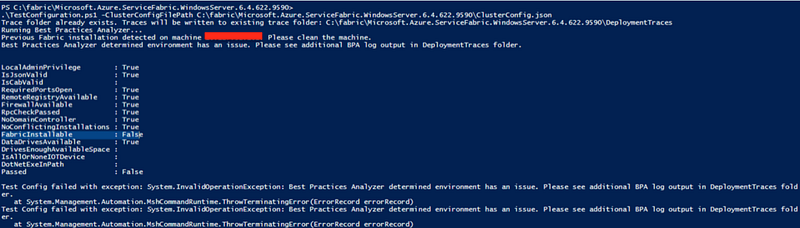
“Resolve-Path : Cannot find path ‘C:\fabric\….cab’ because it does not exist.”
- However, the file exactly exists in the path. You can check the C:\Program Files\Microsoft Service Fabric. Delete it if this folder exists.
“Previous Fabric installation detected on machine xxx . Please clean the machine.
Data Root node exists on machine xxx in C:\ProgramData\SF\xxx. This is an artifact from a previous installation — please delete the directory corresponding to this node.”
- You can go to the [HKEY_LOCAL_MACHINE\SOFTWARE\Microsoft\Service Fabric] and remove all the value in this path and try again.
- Use .\CleanFabric.ps1 to clean data.
“Remove-Item : Cannot remove item C:\Program Files\Microsoft Service Fabric\bin\Fabric\Fabric.Code\KtlLogger.sys”

- Stop the following services:
sc.exe stop KtlLogger
sc.exe stop LeasLayr
Useful commands
- You can try to connect to the cluster after you complete creating it.
Connect-ServiceFabricCluster
- You can get the cluster configuration by using the following command.
Get-ServiceFabricClusterConfiguration
- You can get the cluster’s health condition by using the following command.
Get-ServiceFabricClusterHealth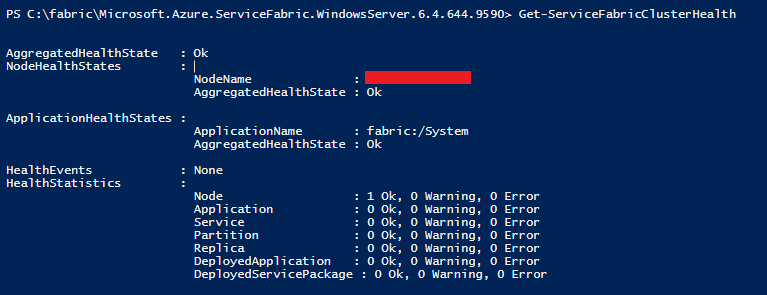
4. Update the Service Fabric cluster
- If you have ever created a Service Fabric cluster and now you want to update the ClusterConfig.json, open PowerShell and use the following command:
cd {the path of your Service Fabric Standalone Package}
Connect-ServiceFabricCluster
Start-ServiceFabricClusterConfigurationUpgrade -ClusterConfigPath .\ClusterConfig.json
Maybe you will get some error message:
”Start-ServiceFabricClusterConfigurationUpgrade : System.Runtime.InteropServices.COMException (-2147017627)
ValidationException: A configuration upgrade with identical configuration version is not allowed.”

It mean that you have to modify the value of clusterConfigurationVersion in the ClusterConfig.json. For example, change the value from 1.0.0 to 1.0.1. For example:
Maybe you will get some error message:
“Start-ServiceFabricClusterConfigurationUpgrade : Could not ping any of the provided Service Fabric gateway endpoints.”

It mean that you have not connected to your cluster. Try to connect to you cluster.
Connect-ServiceFabricCluster5.Open the Service Fabric Explorer
- Establish an SSH tunnel and open Service Fabric Explorer from the client’s browser.
ssh -C -L 0.0.0.0:12345:{IP}:19080 {account name}@{host name}- Then the browser will open and redirect to https://localhost:12345. Choose the certification you have pasted in the ClusterConfig.json. Then you can see the dashboard for the cluster.

Summary
Thanks for your patient. I am Sean. I work as a software engineer.
This article is my note. Please feel free to give me advice if any mistakes. I am looking forward to your feedback.
Please feel free to clap if this article can help you, thank you.
You can also subscribe my page on Facebook.
Related topics
Database:
Debugging:
Software testing:
DevOps:


