avatarJ3

Free AI web copilot to create summaries, insights and extended knowledge, download it at here

2330

Abstract

id="6983"><b>Alt + G</b> and you’ll be redirected for iom328p.h. Right below copy OCIE1A and past in the code above n’you’ll get:</p><div id="ea19"><pre>TIMSK1 <span class="hljs-string">|= (1 << OCIE1A);</span></pre></div><p id="c4a2">Step#<b>03</b> → Use the same technique to find the <b>Comp</b>are <b>vect</b>or <b>A</b>; Place the cursor inside TIMER1_OVF_vect:</p><div id="a2ff"><pre><span class="hljs-title function_">ISR</span>(<span class="hljs-params">TIMER1_COMPA_vect</span>) { <span class="hljs-title class_">LedToggle</span>; }</pre></div><p id="0984">Step#<b>04 </b>→ Now the function representing the frequency we wanted to overflow at:</p><div id="5617"><pre><span class="hljs-function"><span class="hljs-type">void</span> <span class="hljs-title">Timer_Frequency</span><span class="hljs-params">(<span class="hljs-type">uint8_t</span> freq)</span> </span>{}</pre></div><p id="57d2">Step#<b>05</b> → Transfer this part from Main inside this brand new function:</p><div id="fc29"><pre><span class="hljs-function"><span class="hljs-type">void</span> <span class="hljs-title">Timer_Frequency</span><span class="hljs-params">(<span class="hljs-type">uint8_t</span> freq)</span> </span>{ TCCR1B |= (<span class="hljs-number">1</span> << CS12) | (<span class="hljs-number">1</span> << WGM12); TIMSK1 |= (<span class="hljs-number">1</span> << OCIE1A); }</pre></div><p id="8026">You can clear the code up! <b>Good</b>!</p><p id="3269">Step#<b>06</b>→ Rearrage the formula found on page 123 and you’ll get:</p><div id="3725"><pre>OCRnA = (<span class="hljs-name">F_CPU/</span>(<span class="hljs-name">Frequency</span> * 2 * N) - <span class="hljs-number">1</span>)</pre></div><p id="7afc">OCRnA — Output Compare pin we want to set it’s frequency;</p><p id="4612">F_CPU — our Arduino 16MHz cycle;</p><p id="97a9">N — Prescale used (246)</p><p id="df81">And put this right in our code make we remember what we’ll need to do ;-)</p><p id="6a5a">Step#<b>07</b> → substitute the real values in the formula and…</p><div id="e253"><pre><span class="hljs-attribute">OCR1A</span> <span class="hljs-operator">=</span> (F_CPU/(freq * <span class="hljs-number">2</span> * <span class="hljs-number">256</span>) - <span class="hljs-number">1</span>)<span class="hljs-comment">;</span></pre></div><p id="16a

Options

f">Step#<b>08</b> → And finally make a call to this methods in main:</p><div id="3c65"><pre><span class="hljs-function"><span class="hljs-type">int</span> <span class="hljs-title">main</span><span class="hljs-params">(<span class="hljs-type">void</span>)</span> </span>{ <span class="hljs-built_in">Timer_Frequency</span>(<span class="hljs-number">10</span>); ... }</pre></div><p id="13c3">Step#<b>09</b> → There you have it!</p><p id="0032">Just F7, and Sendo To Arduino UNO.</p><p id="c01b">Code?</p><p id="86ec"><a href="https://github.com/giljr/avr/tree/master/atmel">https://github.com/giljr/avr/tree/master/atmel</a></p><p id="3931">There you have it!</p><p id="31ff">Look for Episode #7:-)</p><p id="00c6">In the next post we will use AVRs timers to generate some <b>PWM</b>!</p><p id="e48d">Take care!See you soon!</p><h2 id="522c">References & Credits</h2><p id="6997"><a href="https://github.com/giljr/avr/tree/master/atmel">Atmel Code base Github</a></p><p id="09ea">Follow along with the entire ‘Getting Started with AVR’ series: <a href="https://www.youtube.com/redirect?event=video_description&amp;v=gLrMgKGZtHg&amp;q=http%3A%2F%2Fbit.ly%2FGettingStartedwithAVR&amp;redir_token=7jbgaQLTZaAq1GzO5JFmMEIPaBt8MTUyNzk1Nzg0NUAxNTI3ODcxNDQ1">http://bit.ly/GettingStartedwithAVR</a></p><h2 id="11a8">→Goto Episode#08</h2><p id="2413">Complete Serie:</p><p id="8f40"><a href="https://readmedium.com/atmel-studio-7-uno-ep-00-969b9cc3cf7b">#<b>00</b> HowTo-Load-Into-Arduino-AS7</a></p><p id="7cce"><a href="https://readmedium.com/atmel-studio-7-uno-serie-9508c1e89ace">#01_Hello-World</a></p><p id="12ad"><a href="https://readmedium.com/atmel-studio-7-uno-episode-02-42a006338c3c">#02_Presents-AVR-Freaks</a></p><p id="8af6"><a href="https://readmedium.com/atmel-studio-7-uno-serie-ep-03-9882f3c246ed">#03_Pressing-Button</a></p><p id="d400"><a href="https://readmedium.com/atmel-studio-7-uno-episode-04-92967d0f4d79">#04_Pin-Change-Interrup</a></p><p id="341e"><a href="https://readmedium.com/atmel-studio-7-uno-serie-episode-05-9ae1543f7b86">#05_Battery-Driven-App</a></p><p id="92aa"><a href="https://readmedium.com/timer-counter-w-atmel-studio-7-uno-serie-episode-06-6dfda5a8c7c3">#06_Timer Counter</a></p><p id="babe">#07_Compare Mode</p><p id="4222">#08</p><p id="d027">#09</p><p id="b0df">#10</p></article></body>

Compare Mode w/ Atmel Studio 7 & UNO (Episode#07)

If we look at the CCP Module we have Capture (as Input) allows us to measure the time between two events; Compare (as Output) allows the generation of a signal on the CCPx pin at predefined time intervals: it is useful if we want to generate a programmable width pulse on the pin (example control a drone) and lastly PWM (output) generation of a pulsed square wave signal with ON and OFF cycle width control (10-bit resolution). Well in the previous episodes we saw the common mode via Timer1 interrupt; now we will enter the CCP module for good! In this post we’ll cover COMPARE! welcome!

Step#01→ As usual in this serie Copy/Paste the previous code to a new project on Atmel Studio 7. Good!

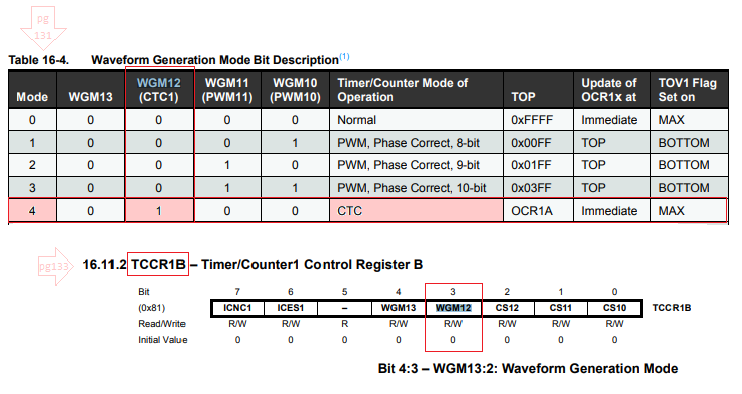
In order to change the nomal mode to compare mode look at data sheet page 132 upward; Table 16–4. Waveform Generation Mode Bit Description.

All we need to set is the bit WGM12 that is on TCCR1B byte:

TCCR1B |=   (1 << CS12) | (1 << WGM12);
Step#02→ If you look again the main caracteristics of Atmega ATmega/328/P you’ll understand there are two channel on Compare outputs on OCxA and OCxB. [more detail see my post about ATtiny85].

We should also change the kind of interruption we need. We had the Overflow Timer1 Interrupt and we will switch to Output Compare on Channel 1. Now here’s a new technique in Atmel Studio 7; Follow this tip with me! Place the cursor over the TOIE1 in:

TIMSK1 |= (1 << TOIE1);

Alt + G and you’ll be redirected for iom328p.h. Right below copy OCIE1A and past in the code above n’you’ll get:

TIMSK1 |= (1 << OCIE1A);

Step#03 → Use the same technique to find the Compare vector A; Place the cursor inside TIMER1_OVF_vect:

ISR(TIMER1_COMPA_vect) 
{
  LedToggle;
}

Step#04 → Now the function representing the frequency we wanted to overflow at:

void Timer_Frequency(uint8_t freq)
{}

Step#05 → Transfer this part from Main inside this brand new function:

void Timer_Frequency(uint8_t freq)
{
TCCR1B |=   (1 << CS12) | (1 << WGM12);
TIMSK1 |= (1 << OCIE1A);
}

You can clear the code up! Good!

Step#06→ Rearrage the formula found on page 123 and you’ll get:

OCRnA = (F_CPU/(Frequency * 2 * N) - 1)

OCRnA — Output Compare pin we want to set it’s frequency;

F_CPU — our Arduino 16MHz cycle;

N — Prescale used (246)

And put this right in our code make we remember what we’ll need to do ;-)

Step#07 → substitute the real values in the formula and…

OCR1A = (F_CPU/(freq * 2 * 256) - 1);

Step#08 → And finally make a call to this methods in main:

int main(void)
{
  Timer_Frequency(10);
...
}

Step#09 → There you have it!

Just F7, and Sendo To Arduino UNO.

Code?

https://github.com/giljr/avr/tree/master/atmel

There you have it!

Look for Episode #7:-)

In the next post we will use AVRs timers to generate some PWM!

Take care!See you soon!

References & Credits

Atmel Code base Github

Follow along with the entire ‘Getting Started with AVR’ series: http://bit.ly/GettingStartedwithAVR

→Goto Episode#08

Complete Serie:

#00 HowTo-Load-Into-Arduino-AS7

#01_Hello-World

#02_Presents-AVR-Freaks

#03_Pressing-Button

#04_Pin-Change-Interrup

#05_Battery-Driven-App

#06_Timer Counter

#07_Compare Mode

#08

#09

#10

Recommended from ReadMedium