avatarJ3

Free AI web copilot to create summaries, insights and extended knowledge, download it at here

1913

Abstract

id="86bb"><pre><span class="hljs-attribute">PRR</span> <span class="hljs-operator">=</span><span class="hljs-number">0</span>xFF<span class="hljs-comment">;</span></pre></div><p id="f74c">Step#<b>03</b>→ Now using LibC on the <b><i>top </i></b>and Right <b><i>before while</i></b> method:</p><div id="8393"><pre><span class="hljs-meta">#<span class="hljs-keyword">include</span> <span class="hljs-string"><avr/sleep.h></span></span></pre></div><div id="f327"><pre><span class="hljs-built_in">sei</span>(); <span class="hljs-built_in">while</span>(...)</pre></div><p id="45bd">Step#<b>04</b>→ Set and call sleep mode:</p><div id="c17f"><pre>(…) <span class="hljs-attribute">PRR</span> <span class="hljs-operator">=</span><span class="hljs-number">0</span>xFF<span class="hljs-comment">;</span> set_sleep_mode()<span class="hljs-comment">;</span></pre></div><div id="5725"><pre><span class="hljs-built_in">while</span>(){ <span class="hljs-built_in">sleep_mode</span>();<span class="hljs-comment">//call it!</span> </pre></div><figure id="f1ed"><img src="https://cdn-images-1.readmedium.com/v2/resize:fit:800/1*dUB3ELDAAruY6j0Dh4MVKQ.png"><figcaption>Atmel Power-saving Technologies</figcaption></figure><p id="cf59">Step#<b>05</b>→ Add a parameter to this last method, like this:</p><div id="9690"><pre><span class="hljs-function"><span class="hljs-title">set_sleep_mode</span><span class="hljs-params">( SLEEP_MODE_PWR_DOWN)</span></span></pre></div><p id="3e0d">The 6 different modes are (sleep.h):</p><ol><li>* SLEEP_MODE_IDLE — the least power saving</li><li>* SLEEP_MODE_ADC</li><li>* SLEEP_MODE_PWR_SAVE</li><li>* SLEEP_MODE_STANDBY</li><li>* SLEEP_MODE_EXT_STANDBY</li><li>* SLEEP_MODE_PWR_DOWN — the most power savings</li></ol><p id="15b0">Step#<b>06</b>→ Load & Run the app by selecting, first <b><i>hit F7</i></b> then <b><i>Tool >Send to Arduino UNO</i></b> and see if you have the same fun

Options

cionality as before: when switch on Pin 8 was pressed the LED on Pin 7 are toggle.</p><p id="4ec6">But now in a much slower asleep. We are now really saving power!</p><p id="1166">Here is the complete code till now:</p><p id="91d3"><a href="https://github.com/giljr/avr/tree/master/atmel">https://github.com/giljr/avr/tree/master/atmel</a></p><p id="aed5">look for Episode #05.</p><p id="49e6">Bye!</p><h2 id="d6d0">References & Credits</h2><p id="6997"><a href="https://github.com/giljr/avr/tree/master/atmel">Atmel Code base Github</a></p><p id="09ea">Follow along with the entire ‘Getting Started with AVR’ series: <a href="https://www.youtube.com/redirect?event=video_description&amp;v=gLrMgKGZtHg&amp;q=http%3A%2F%2Fbit.ly%2FGettingStartedwithAVR&amp;redir_token=7jbgaQLTZaAq1GzO5JFmMEIPaBt8MTUyNzk1Nzg0NUAxNTI3ODcxNDQ1">http://bit.ly/GettingStartedwithAVR</a></p><h2 id="c30b">→Goto Episode#06</h2><p id="2413">Complete Serie:</p><p id="8f40"><a href="https://readmedium.com/atmel-studio-7-uno-ep-00-969b9cc3cf7b">#<b>00</b> HowTo-Load-Into-Arduino-AS7</a></p><p id="7cce"><a href="https://readmedium.com/atmel-studio-7-uno-serie-9508c1e89ace">#01_Hello-World</a></p><p id="12ad"><a href="https://readmedium.com/atmel-studio-7-uno-episode-02-42a006338c3c">#02_Presents-AVR-Freaks</a></p><p id="8af6"><a href="https://readmedium.com/atmel-studio-7-uno-serie-ep-03-9882f3c246ed">#03_Pressing-Button</a></p><p id="d400"><a href="https://readmedium.com/atmel-studio-7-uno-episode-04-92967d0f4d79">#04_Pin-Change-Interrup</a></p><p id="341e">#05_Battery-Driven-App</p><p id="92aa"><a href="https://readmedium.com/timer-counter-w-atmel-studio-7-uno-serie-episode-06-6dfda5a8c7c3">#06_Timer Counter</a></p><p id="babe"><a href="https://readmedium.com/compare-mode-w-atmel-studio-7-uno-episode-07-129ee964689b">#07_Compare Mode</a></p><p id="4222">#08</p><p id="d027">#09</p><p id="b0df">#10</p></article></body>

Battery-Driven-App w/Atmel Studio 7 & UNO Serie(Episode #05)

In the last post we used a pin change interrupt to detect whether a switch was pressed.

Now the main benefit of using interrupts as opposed to polling is that we’re not keeping the processor occupied just with one task but besides to be able to put the CPU down to low-power and reduce dramatically the power consumption of an application.

It’s particularly important for battery-driven app and the like.

Now low-power is really one of Atmel core’s technologies.

In this post we will apply one of this technology to put the processor in sleep mode!

Let’s get started!

Step#01→ Notice first of all in page one of the datasheet:

https://www.sparkfun.com/datasheets/Components/SMD/ATMega328.pdf

Low Power Consumption at 1 MHz, 1.8V, 25°C for ATmega48P/88P/168P:

— Active Mode: 0.3 mA

— Power-down Mode: 0.1 µA — Power-save Mode: 0.8 µA (Including 32 kHz RTC)

See the consumption of power-down mode is little as 100 nA (micro down to nano ampere! that’s awesome!) so let’s see if we can use power down mode, right?

Step#02→ Head over to page 75, PRR — Power Reduction Register.

This provides a way to stop the clock to individual peripherals to reduce power consumptions.

You turn off everything you’re not using.

So, to turn everything off put this on setup:

PRR =0xFF;

Step#03→ Now using LibC on the top and Right before while method:

#include <avr/sleep.h>
sei();
while(...)

Step#04→ Set and call sleep mode:

(…)
PRR =0xFF;
set_sleep_mode();
while(){
sleep_mode();//call it!
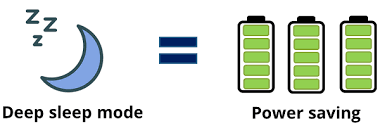
Atmel Power-saving Technologies

Step#05→ Add a parameter to this last method, like this:

set_sleep_mode( SLEEP_MODE_PWR_DOWN)

The 6 different modes are (sleep.h):

  1. * SLEEP_MODE_IDLE — the least power saving
  2. * SLEEP_MODE_ADC
  3. * SLEEP_MODE_PWR_SAVE
  4. * SLEEP_MODE_STANDBY
  5. * SLEEP_MODE_EXT_STANDBY
  6. * SLEEP_MODE_PWR_DOWN — the most power savings

Step#06→ Load & Run the app by selecting, first hit F7 then Tool >Send to Arduino UNO and see if you have the same funcionality as before: when switch on Pin 8 was pressed the LED on Pin 7 are toggle.

But now in a much slower asleep. We are now really saving power!

Here is the complete code till now:

https://github.com/giljr/avr/tree/master/atmel

look for Episode #05.

Bye!

References & Credits

Atmel Code base Github

Follow along with the entire ‘Getting Started with AVR’ series: http://bit.ly/GettingStartedwithAVR

→Goto Episode#06

Complete Serie:

#00 HowTo-Load-Into-Arduino-AS7

#01_Hello-World

#02_Presents-AVR-Freaks

#03_Pressing-Button

#04_Pin-Change-Interrup

#05_Battery-Driven-App

#06_Timer Counter

#07_Compare Mode

#08

#09

#10

Recommended from ReadMedium