avatarJ3

Summary

This web content is a tutorial guide for using Atmel Studio 7 with an Arduino UNO to create a simple circuit where pressing a touch button turns on an LED, focusing on energy-saving methods through the use of sleep modes and interrupts.

Abstract

The article titled "Pressing-Button w/ Atmel Studio 7 & UNO Serie (Episode#03)" provides a step-by-step guide on how to set up an Arduino UNO with Atmel Studio 7 to use a touch button for activating an LED. The tutorial emphasizes energy efficiency by exploring methods of sleep for microcontrollers, starting with the selection of pins for the LED and switch key. It details the use of direct port manipulation for efficiency and demonstrates how to detect a button press using a pull-up resistor and a grounded button. The article also provides macro definitions for LED control and shares the complete code via a GitHub gist. The author teases the next post, which will cover the use of interruptions as an alternative to polling techniques, and encourages readers to follow the entire series for more learning on AVR microcontrollers.

Opinions

  • The author believes that using interrupts is a "secret" technique for efficient button input detection.
  • The article suggests that using direct port manipulation and macros can clear up and simplify the code.
  • The author finds the concept of waiting for the button to send zero volts to the pin as a method of triggering an action to be "cool."
  • There is an emphasis on the importance of following the series to gain a comprehensive understanding of AVR microcontrollers and Atmel Studio 7.

Pressing-Button w/ Atmel Studio 7 & UNO Serie (Episode#03)

By pressing the touch button (Arduino Pin 7), turn on LED (Arduino Pin 8).

Let’s get started!
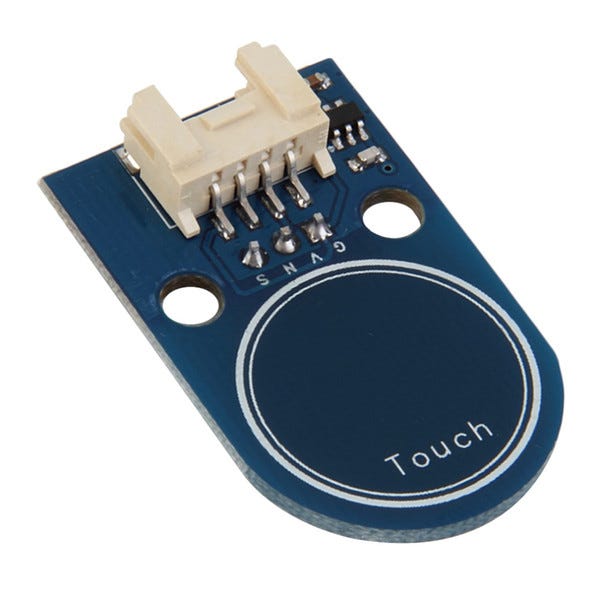
In order to use the interrupt, we will choose a button to begin the whole process in our search for the methods of sleep (energy saving).

Step#01→ choose 2 pins: LED Attach -> Pin 0 of PORTB (Arduino Digital 8); Switch Key -> Pin 7 of PORTD (Arduino Digital 7) ;

By looking in datasheet he is the code:

The first we are setting Pin 0, Port B (Arduino Digital 8); The second clearing Pin 7, Port D (Arduino Digital 7)

DDRB |= (1<<DDB0);
DDRD &= ~(1<<DDD7);

Step #02→ Defining the basics macros for clears the code:


#define LedOn PORTB |= (1<<PORTB0)
#define LedOff PORTB &= ~(1<<PORTB0)
#define LedToggle PINB |= (1<<PINB0)

Step #03→ The secret is that fragment:

if (!(PIND & (1<<PIND7)))

The button sends zero volts to pin D7; so we wait just this moment … cool is not it?

Step #04→ Here is the complete code;

https://gist.github.com/giljr/3788f45584feb4c5146af7fc70326fe4

In the next post we are using Interruptions instead of polling techniques. Stay Tuned!

See all the serie:

Atmel Studio 7 & UNO Serie (Ep#00) @giljrE https://readmedium.com/atmel-studio-7-uno-ep-00-969b9cc3cf7b

References & Credits

Atmel Code base Github

Follow along with the entire ‘Getting Started with AVR’ series: http://bit.ly/GettingStartedwithAVR

→Goto Episode#04

Complete Serie:

#00 HowTo-Load-Into-Arduino-AS7

#01_Hello-World

#02_Presents-AVR-Freaks

#03_Pressing-Button

#04_Pin-Change-Interrup

#05_Battery-Driven-App

#06_Timer Counter

#07_Compare Mode

#08

#09

#10

Recommended from ReadMedium