
A Guide To Midjourney’s New Style Settings (Niji Model)
Comparison, stylizing, and style transfer with “cute”, “expressive” and “scenic” style tags
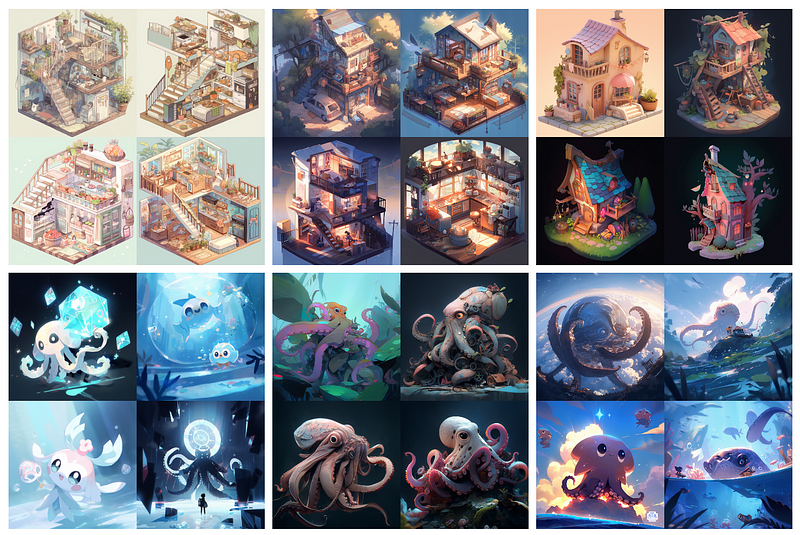
Midjourney has released five updates to their models in the past couple of days. In this post, we’ll take a closer look at the anime-trained NIJI model, specifically focusing on:
- Comparing the newly added style settings: “cute,” “expressive,” and “scenic”
- Exploring the effects of the stylize parameter
- Examining examples of “style transfers”
Furthermore, I’ll share a workflow that has helped me a lot in exploring Midjourney settings and parameters using permutations. Let’s dive in.
Setting up test runs
We will be using Midjourney’s permutation feature to quickly generate images for comparison. Let’s start with:
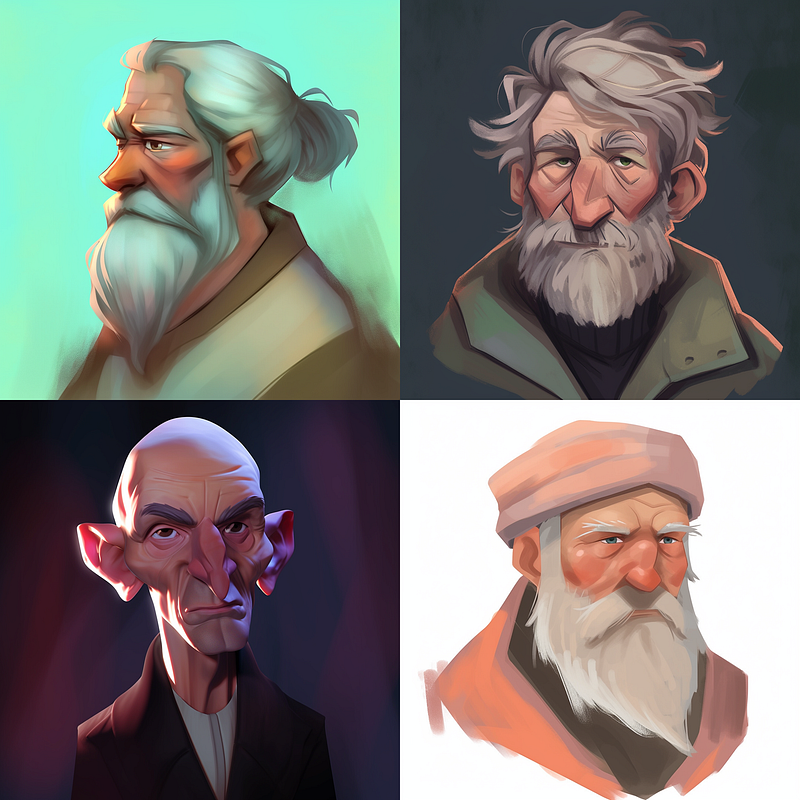
portrait of an old manBefore the introduction of Midjourney’s permutation feature we had to run this image prompt four times, each time with one of these four settings:
default (no style setting)

and

--style cute
--style expressive
--style scenic
Thanks to the permutation feature we can do this with one single prompt by applying a permutation on the style parameter:
--style {scenic, expressive, cute}To account for the default case where we want no style setting applied, we modify the permutation by enclosing it in curly brackets and placing an empty permutation at the beginning (represented by a comma with no preceding element).
{,--style {scenic, expressive, cute}}So our prompt becomes:
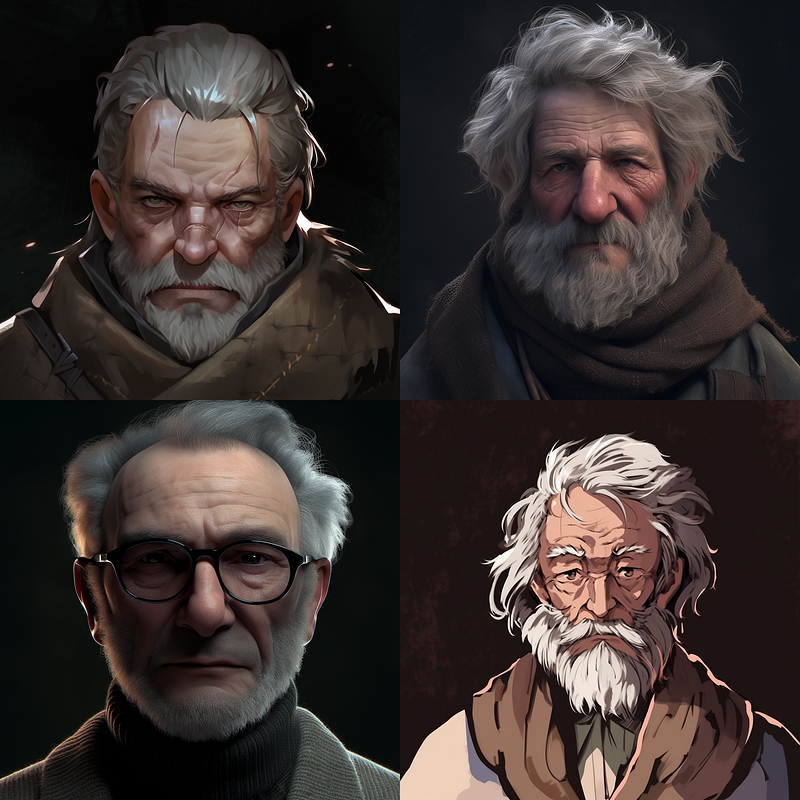
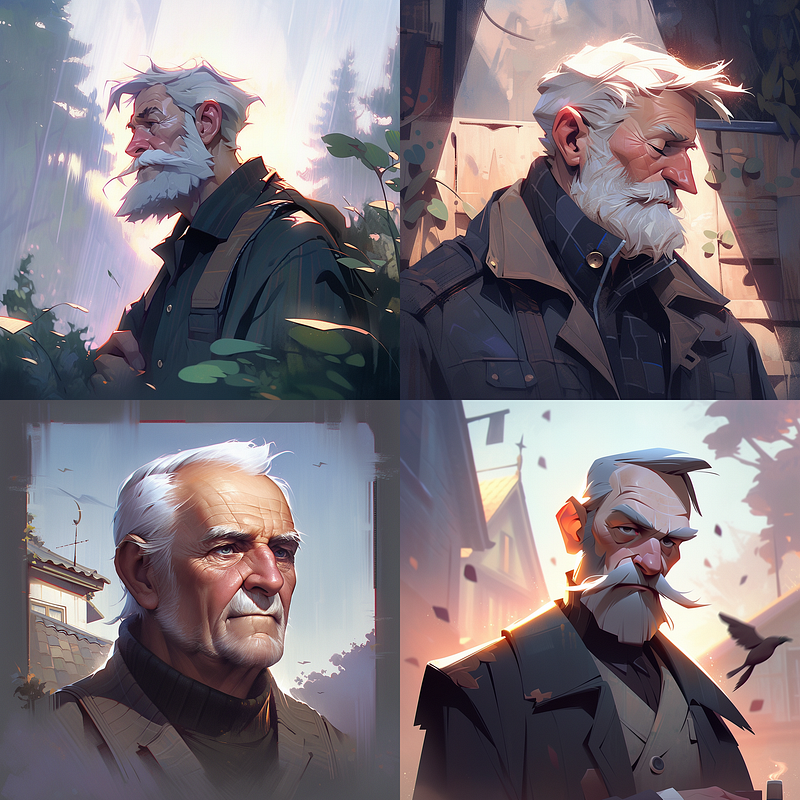
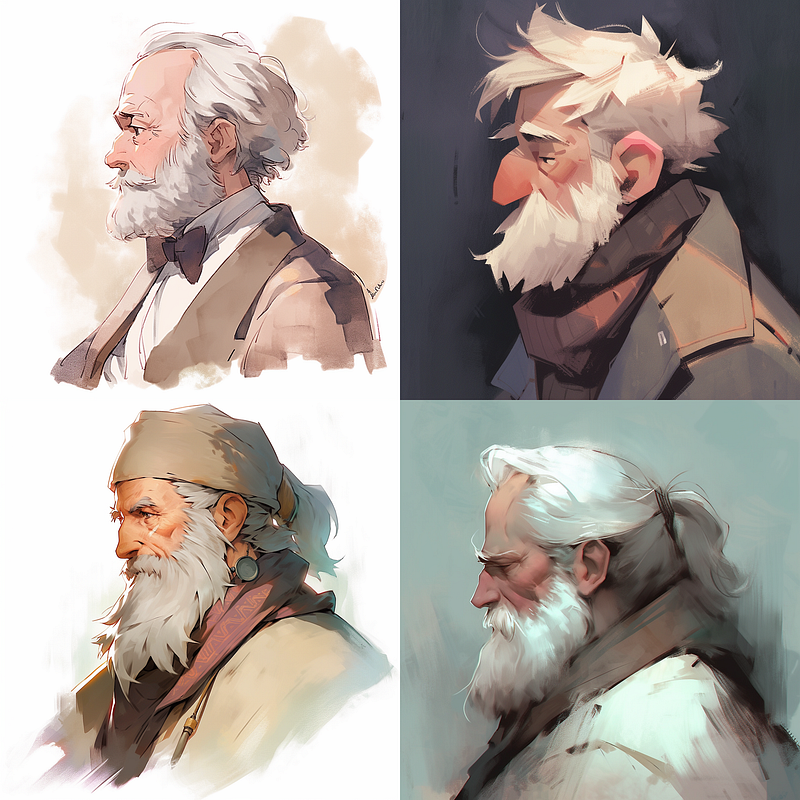
portrait of an old man {,--style {scenic, expressive, cute}}
--seed 1000 --niji 5
As expected, Midjourney translates the above prompt + permutation into four single prompts:
portrait of an old man --seed 1000 --niji 5  --v 5.1
portrait of an old man --style scenic --seed 1000 --niji 5  --v 5.1
portrait of an old man --style expressive --seed 1000 --niji 5  --v 5.1
portrait of an old man --style cute --seed 1000 --niji 5  --v 5.1
(note that we are fixing the seed value with “ — seed 1000” and the model specification with “ — niji 5”)
Comparison, Stylizing Effects & Style Transfer
Comparison
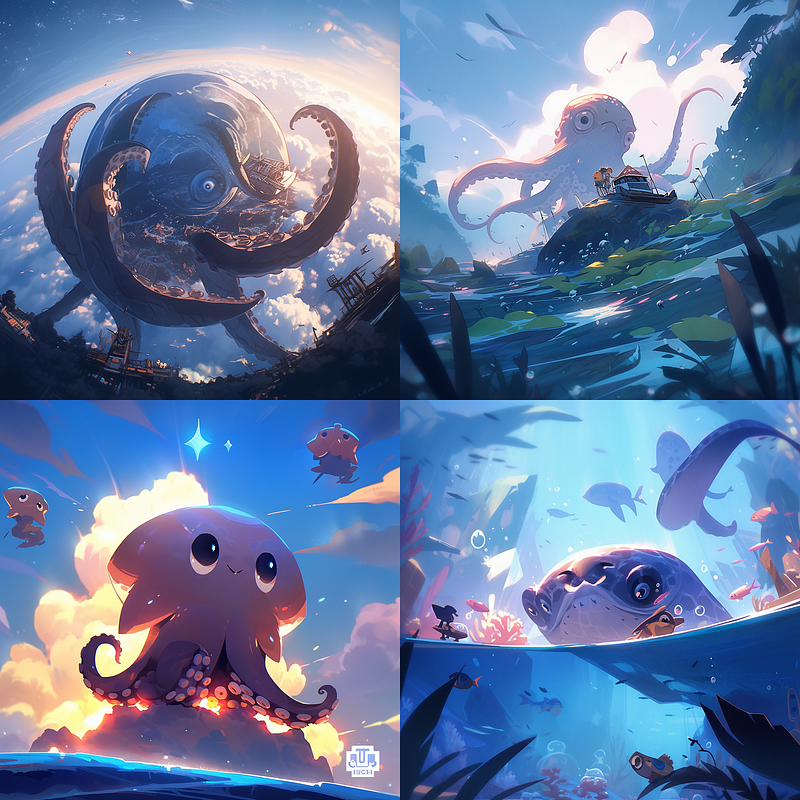
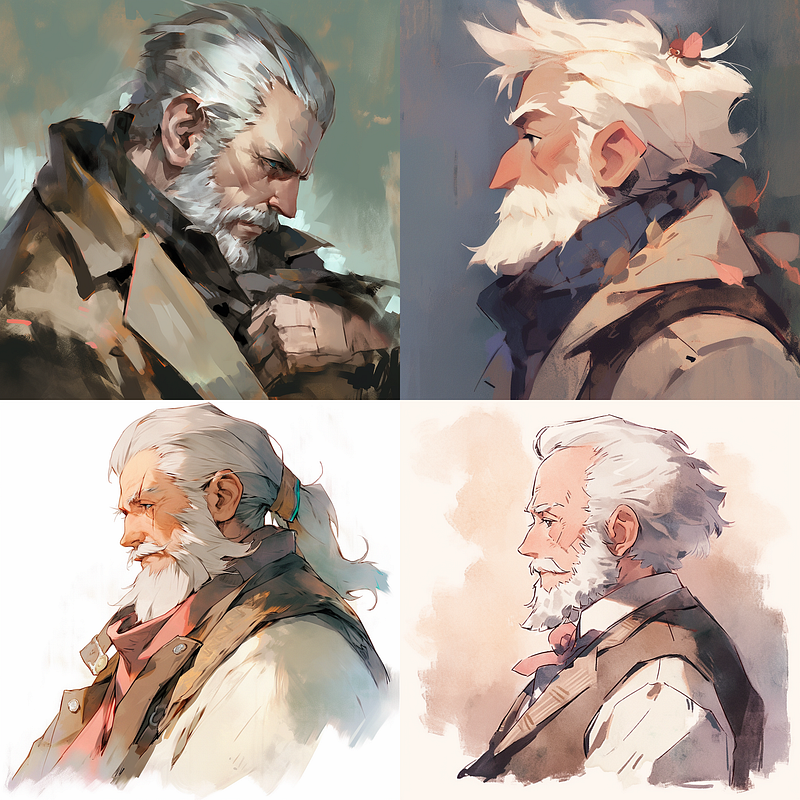
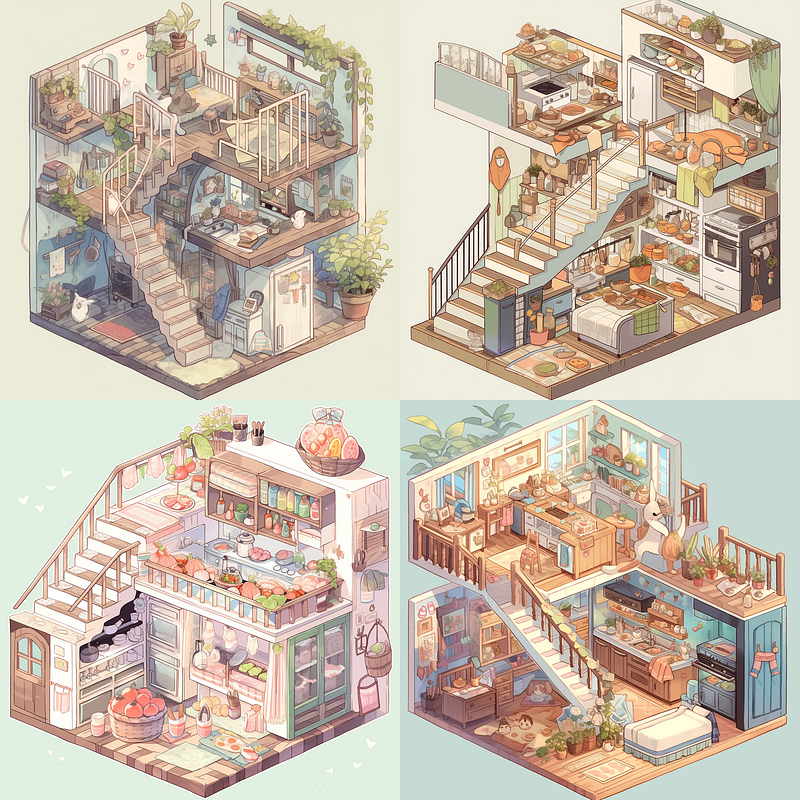
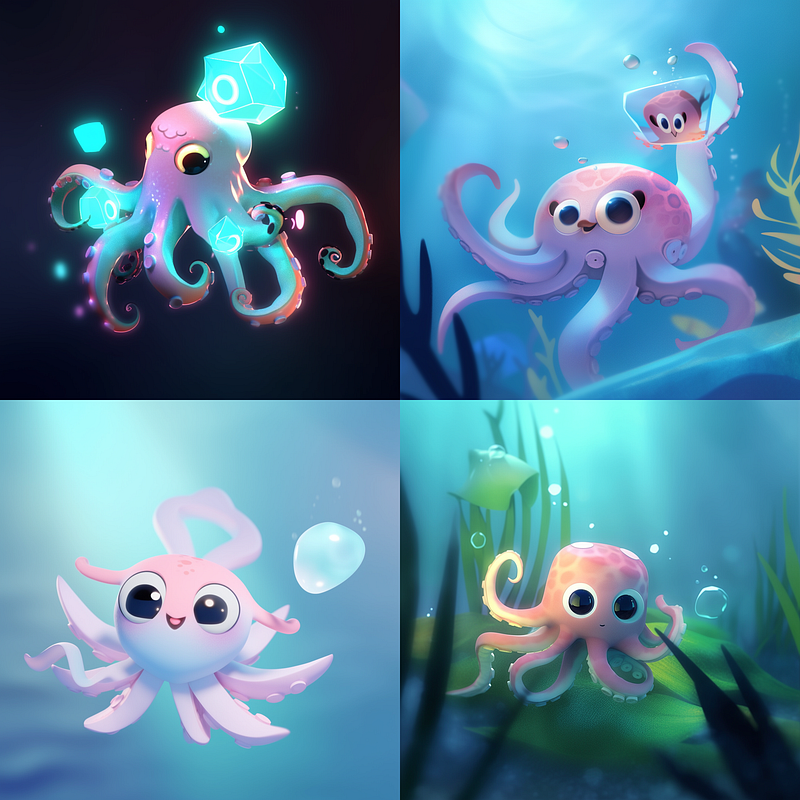
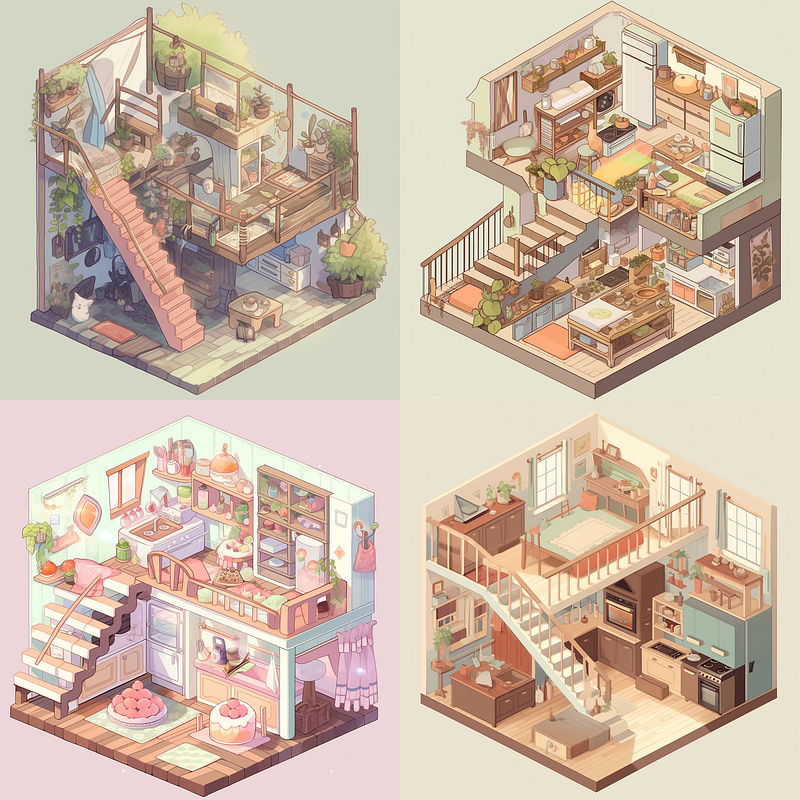
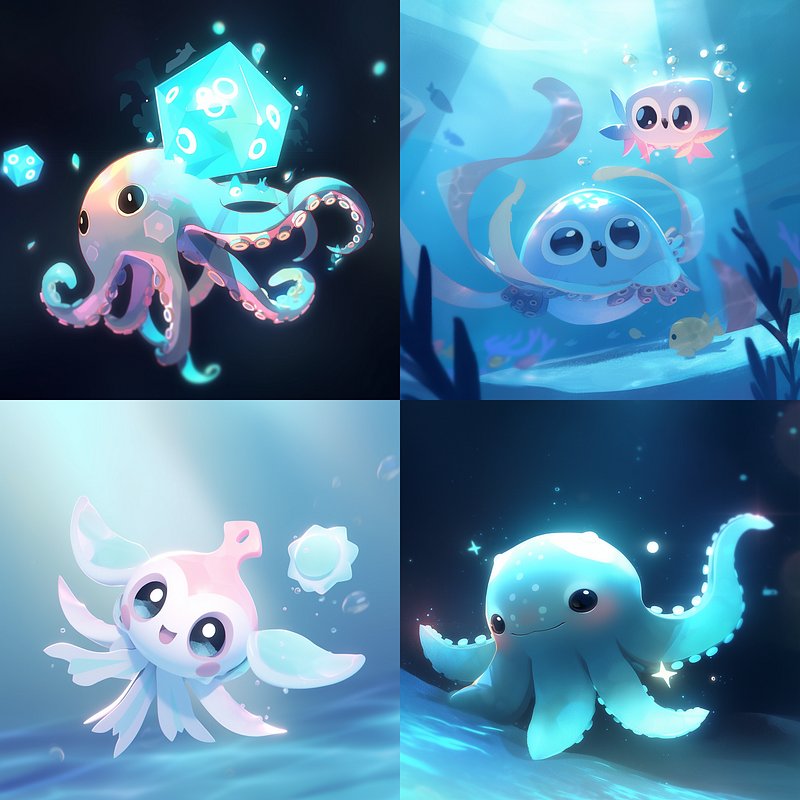
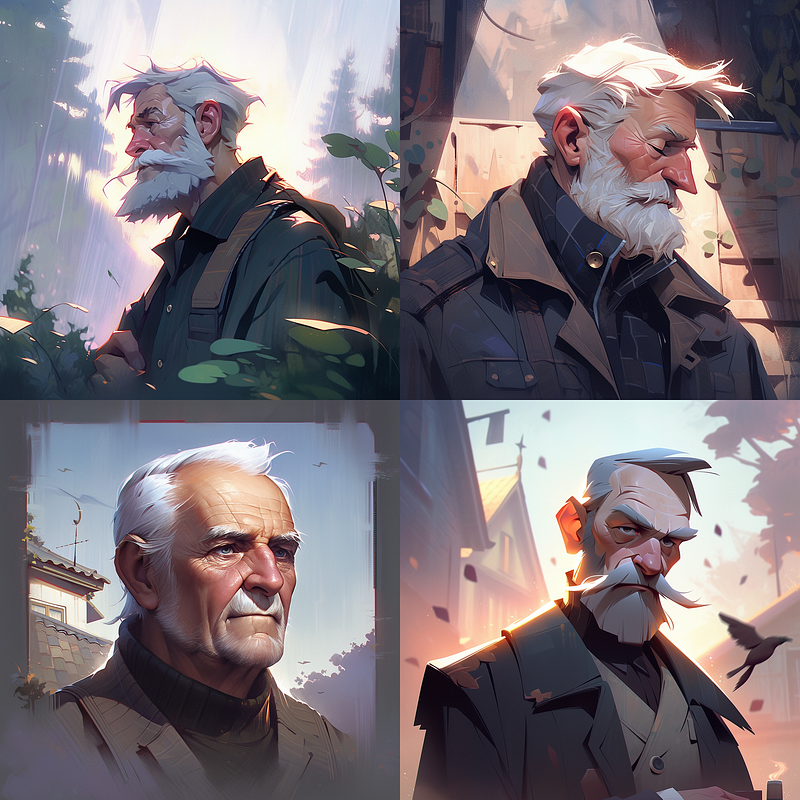
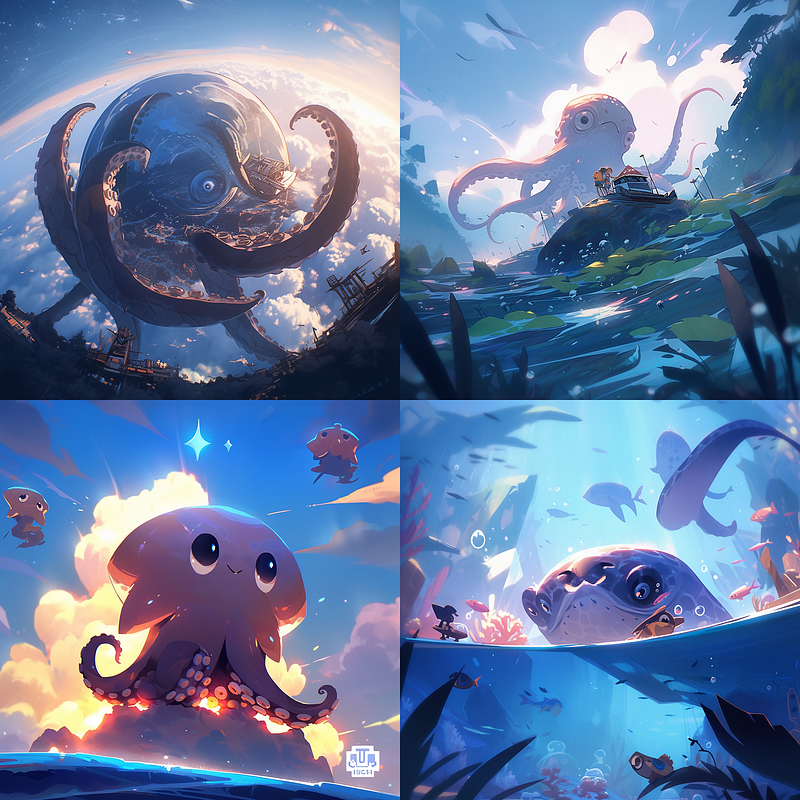
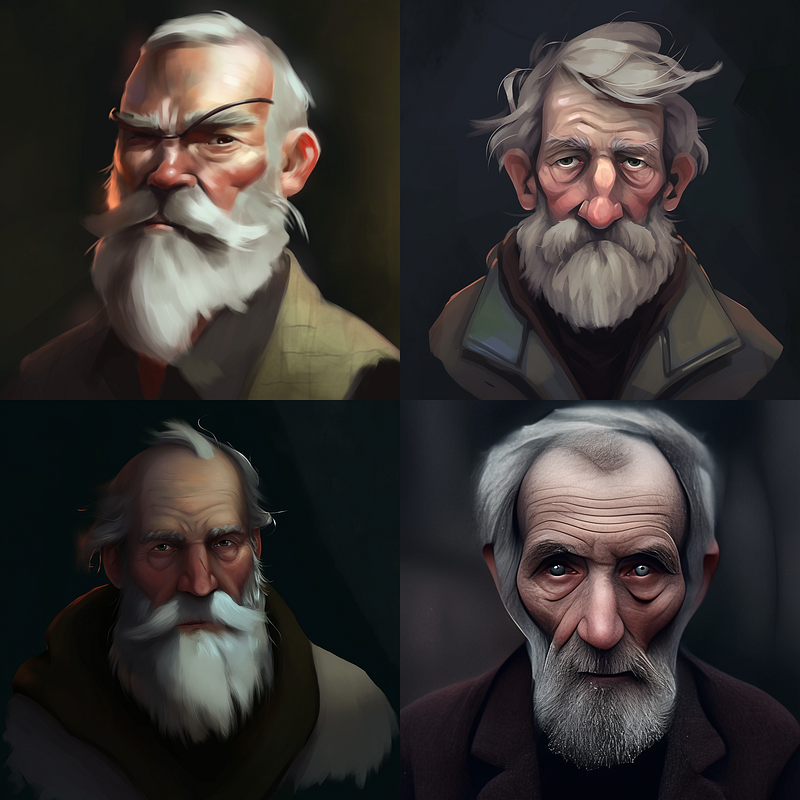
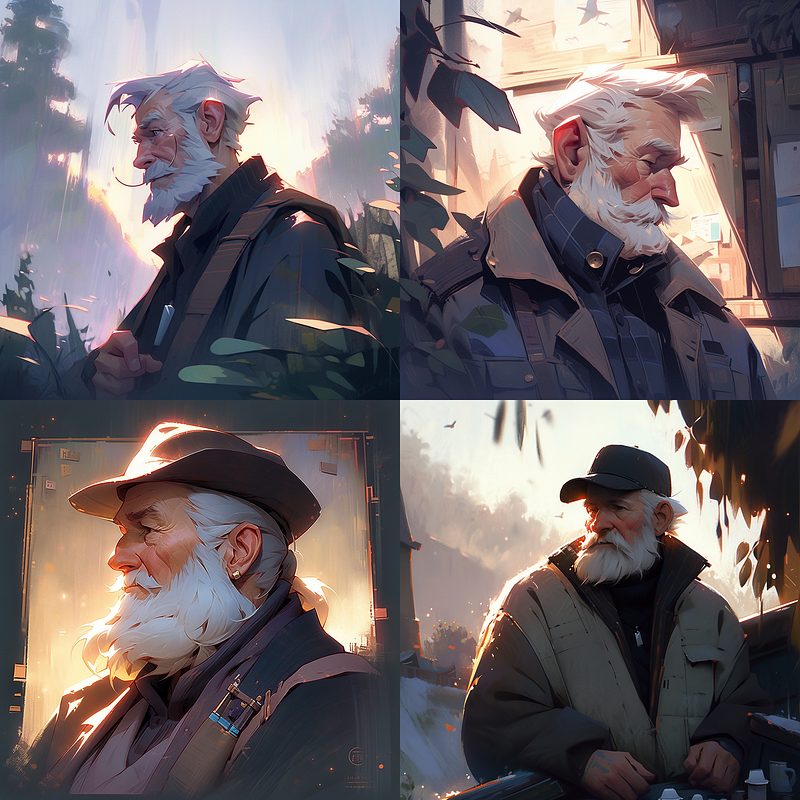
From left to right and top to bottom, the above prompt gives us the “portrait of an old man” with a default, cute, expressive, and scenic style setting.
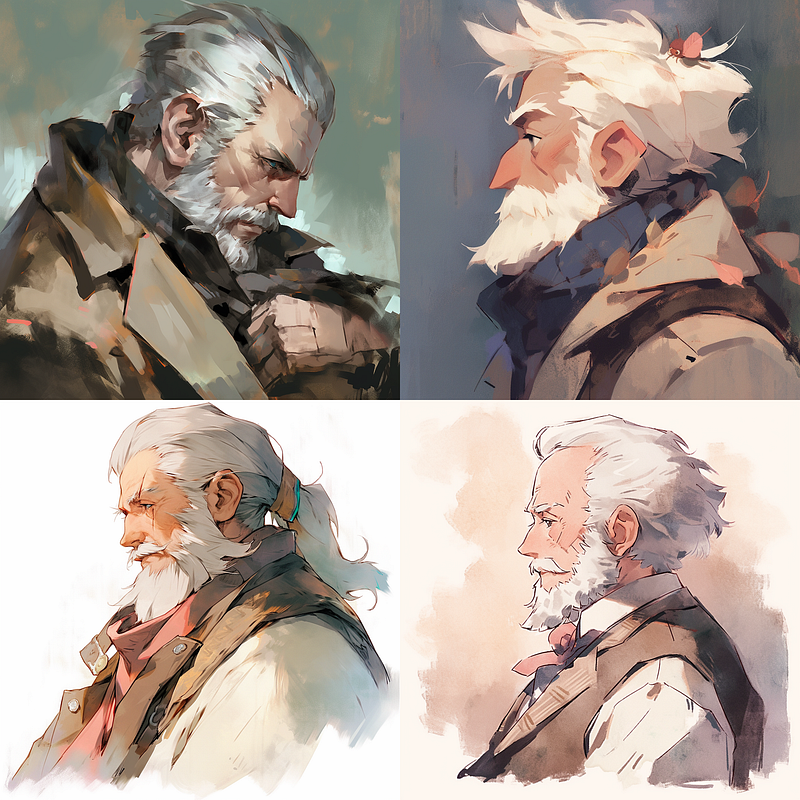
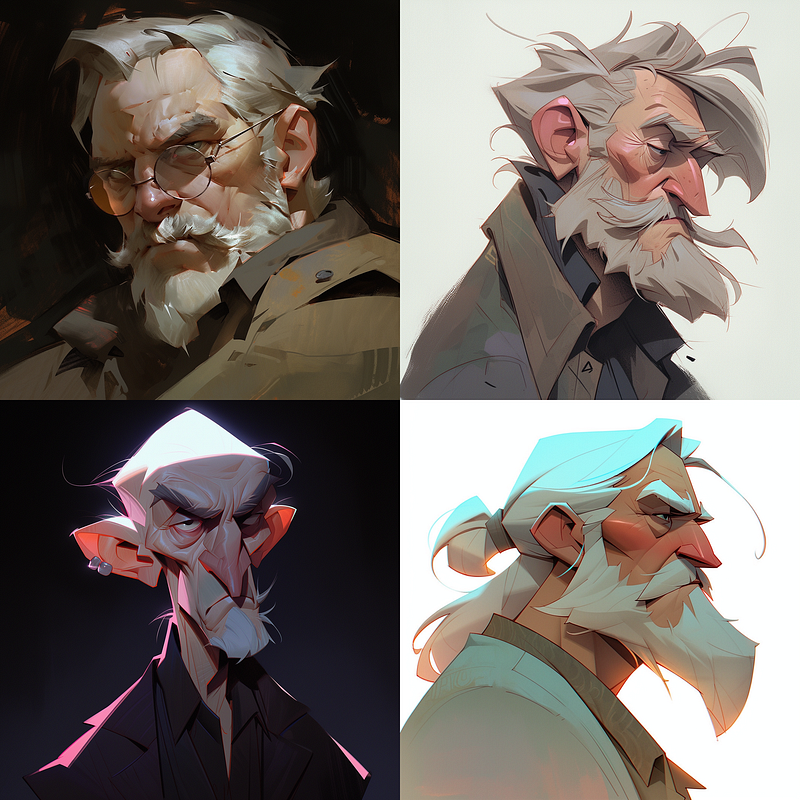
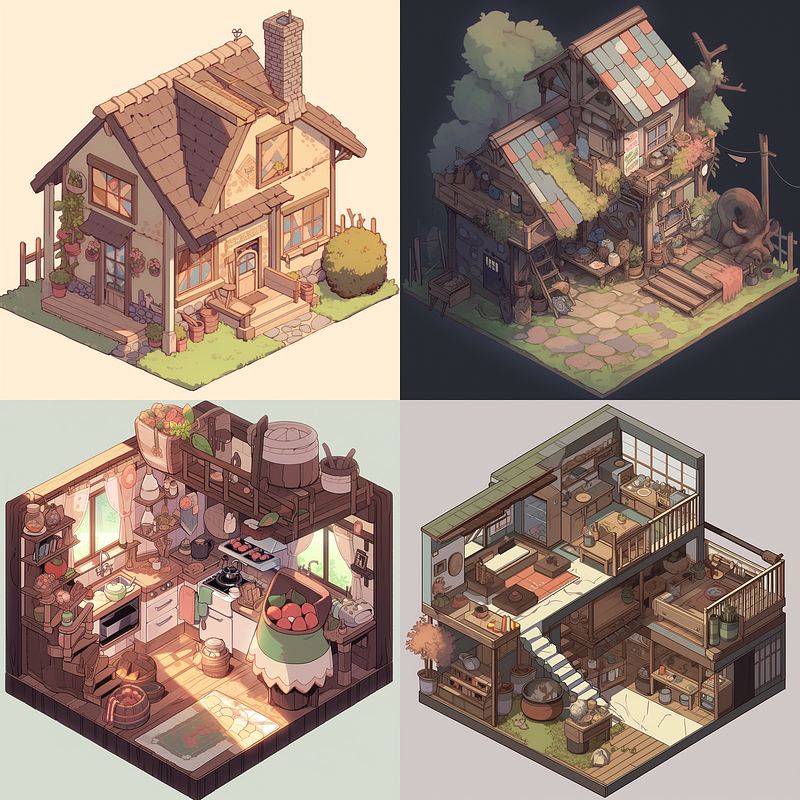
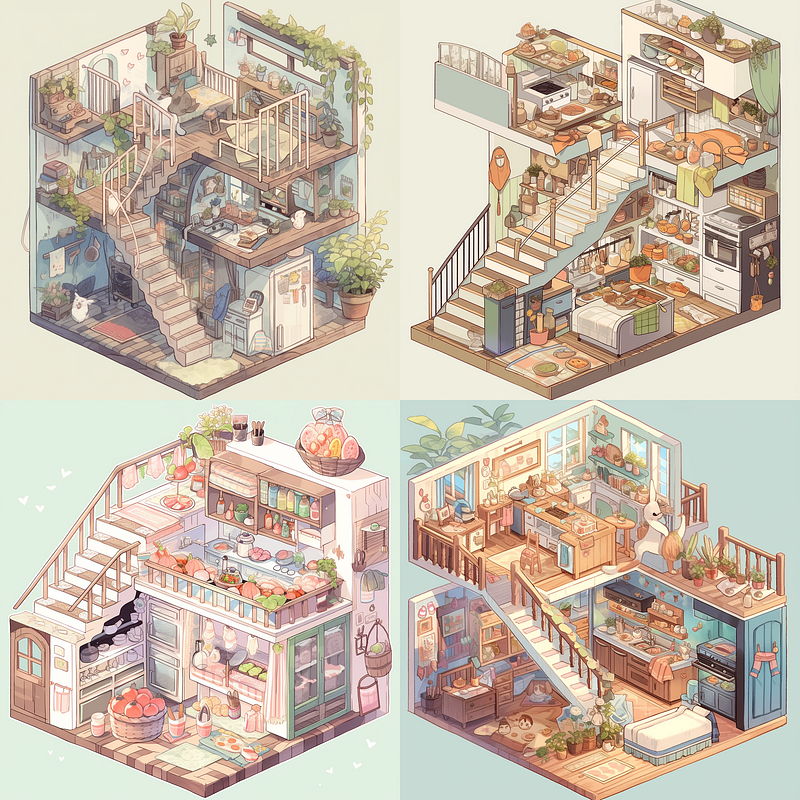
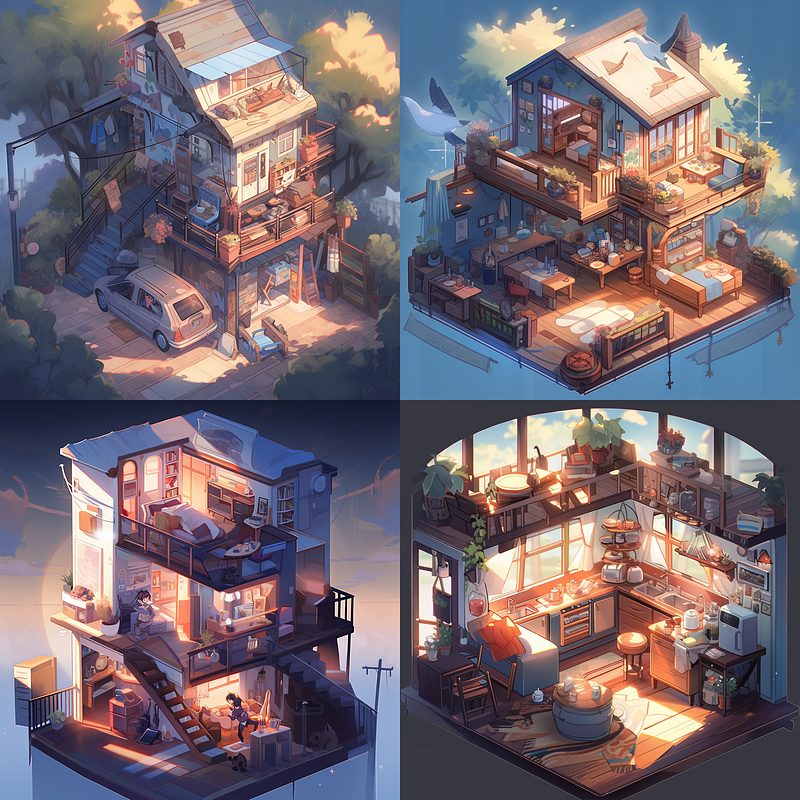
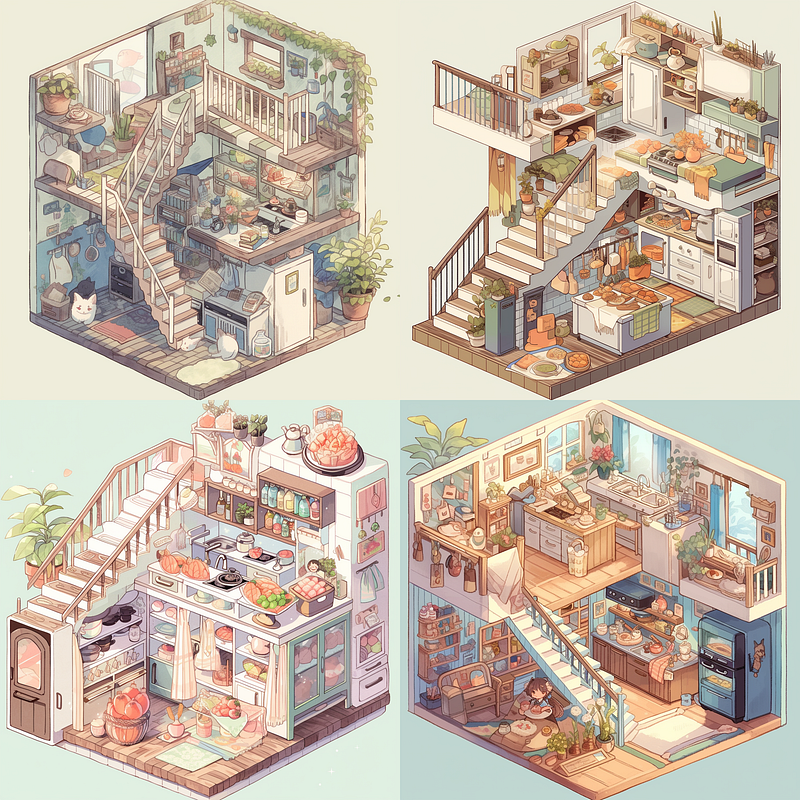
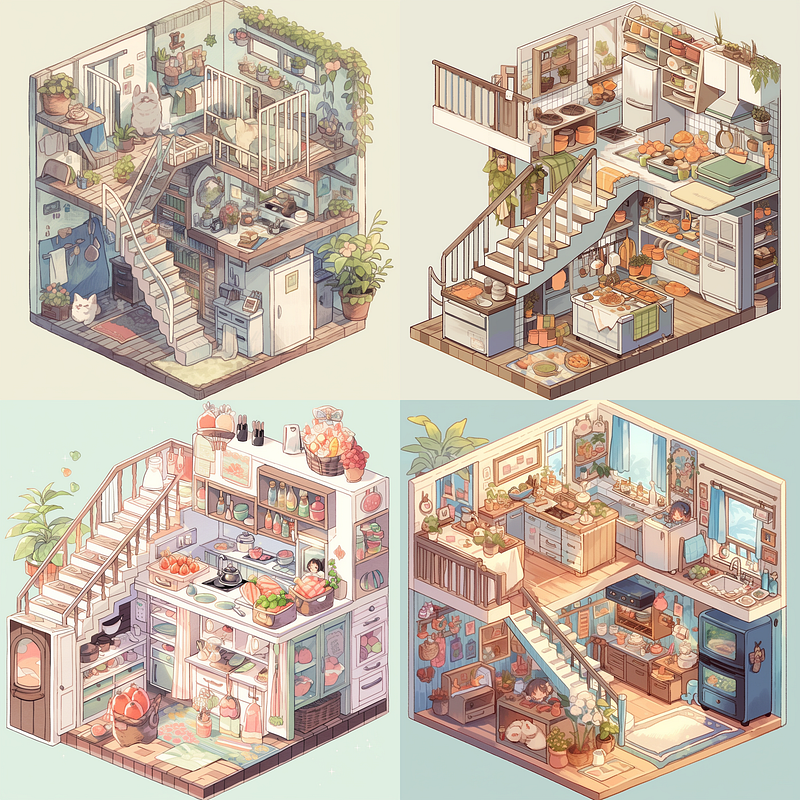
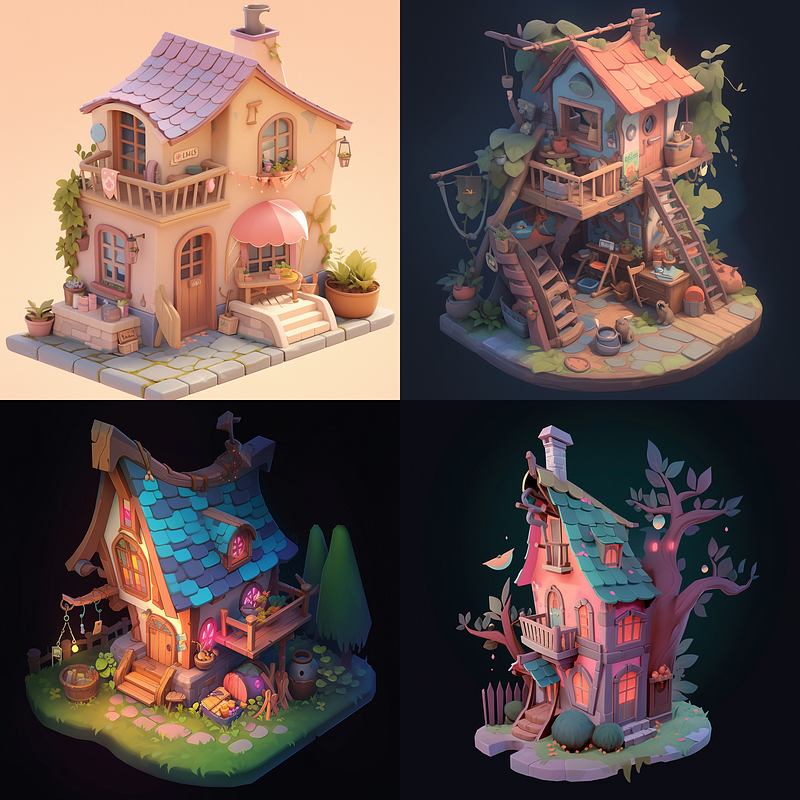
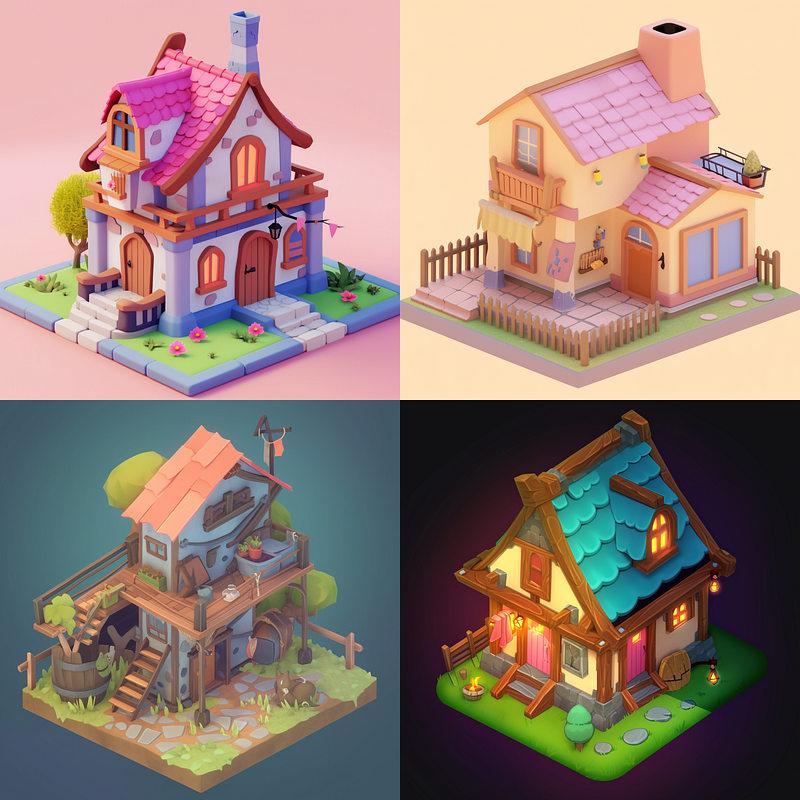
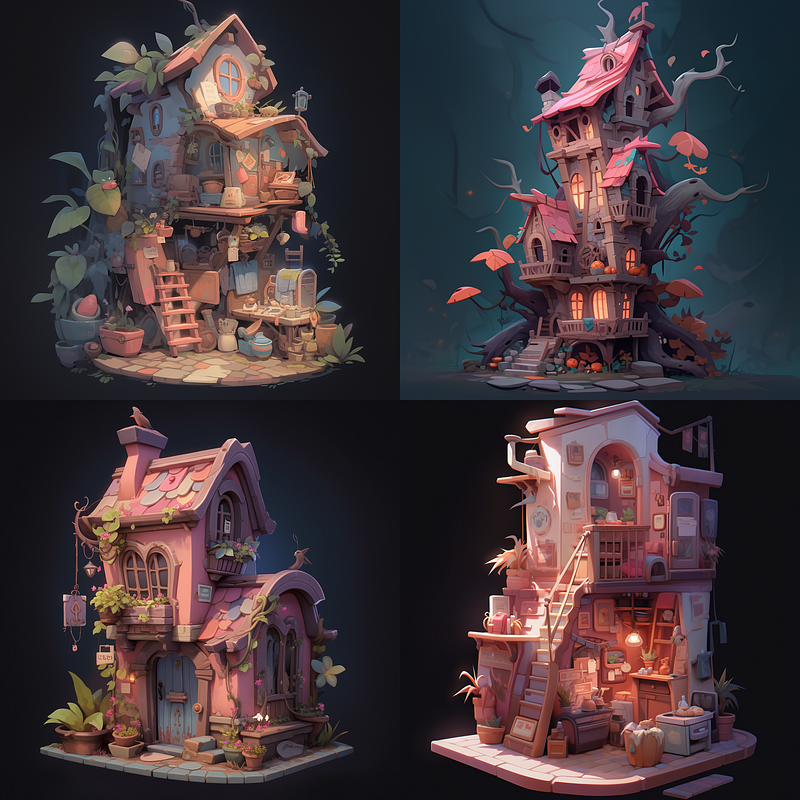
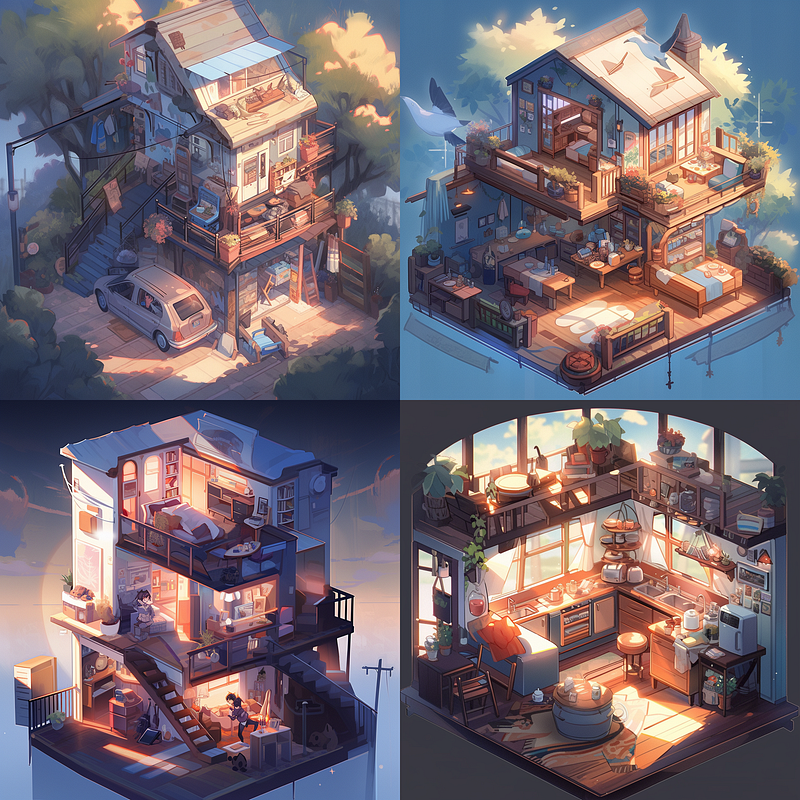
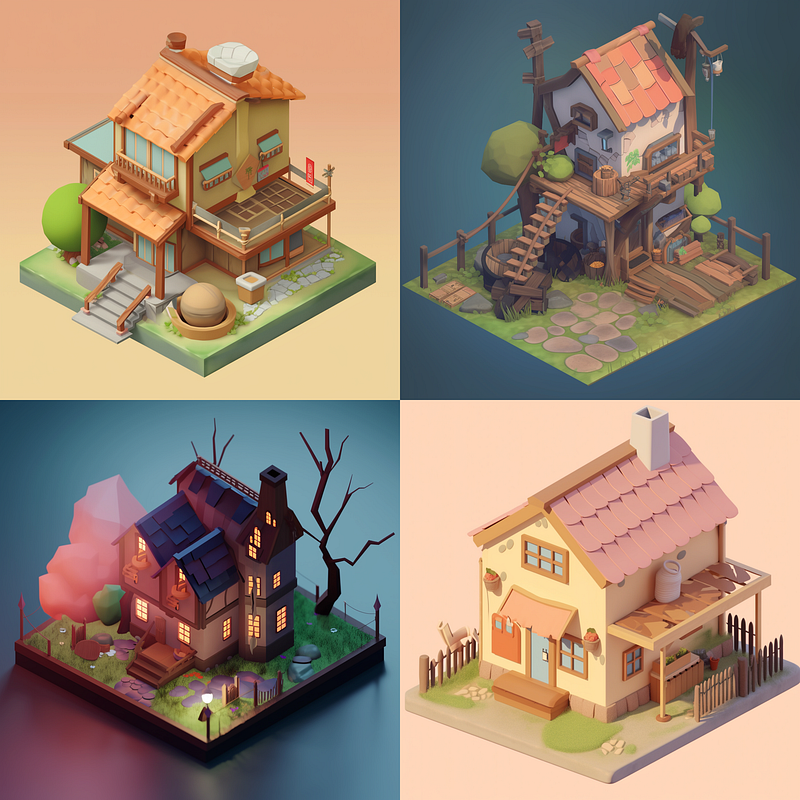
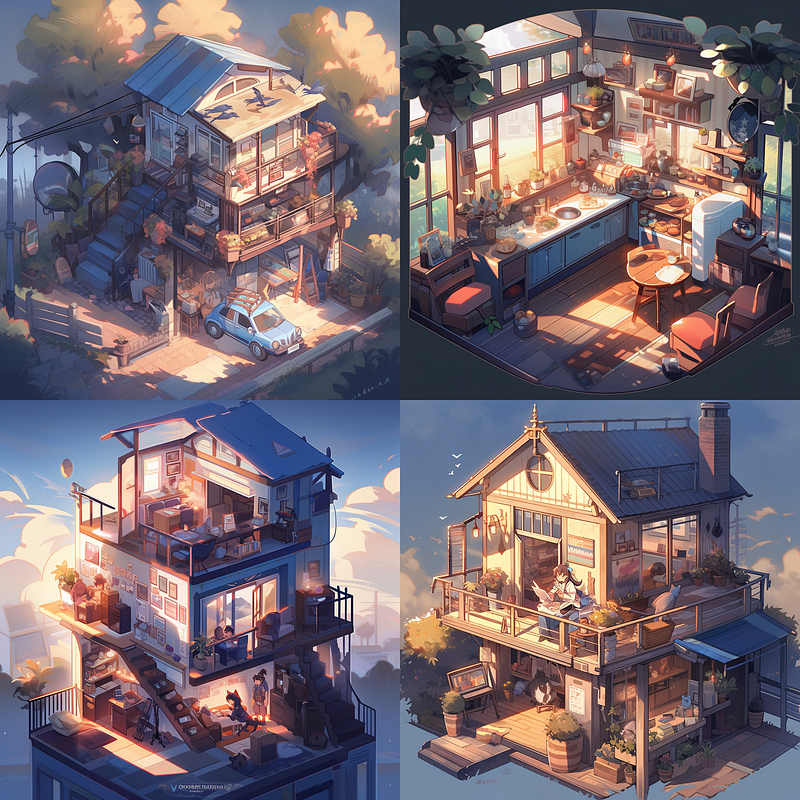
Here’s the same prompt + permutation for “isometric house”:
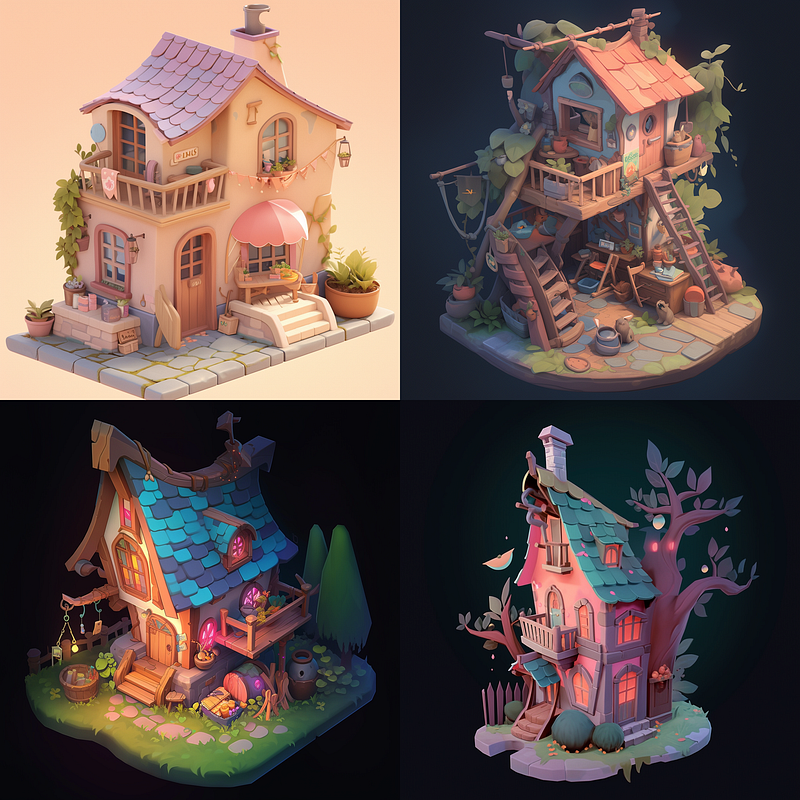
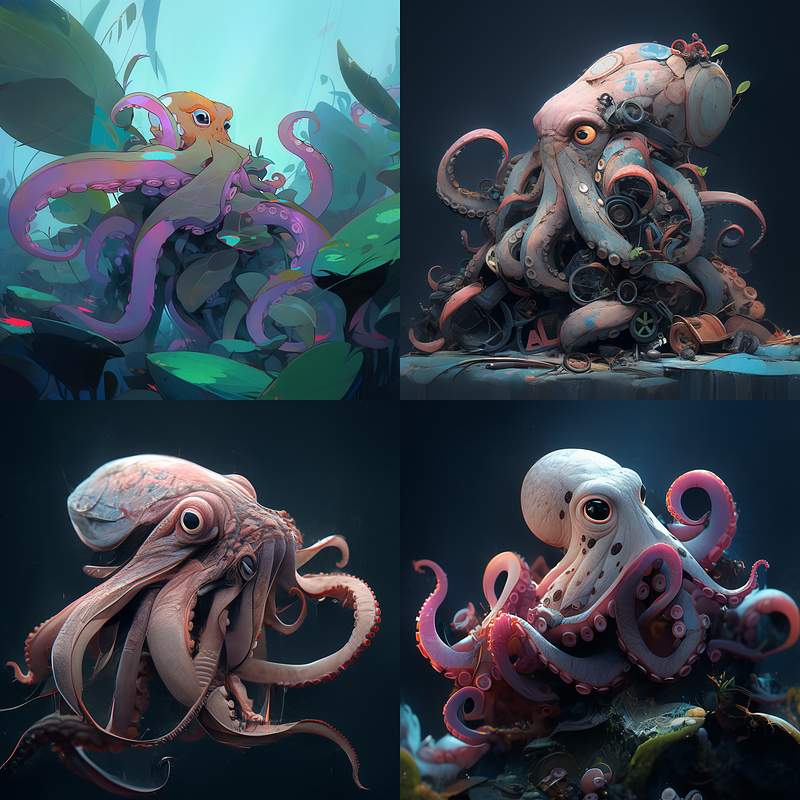
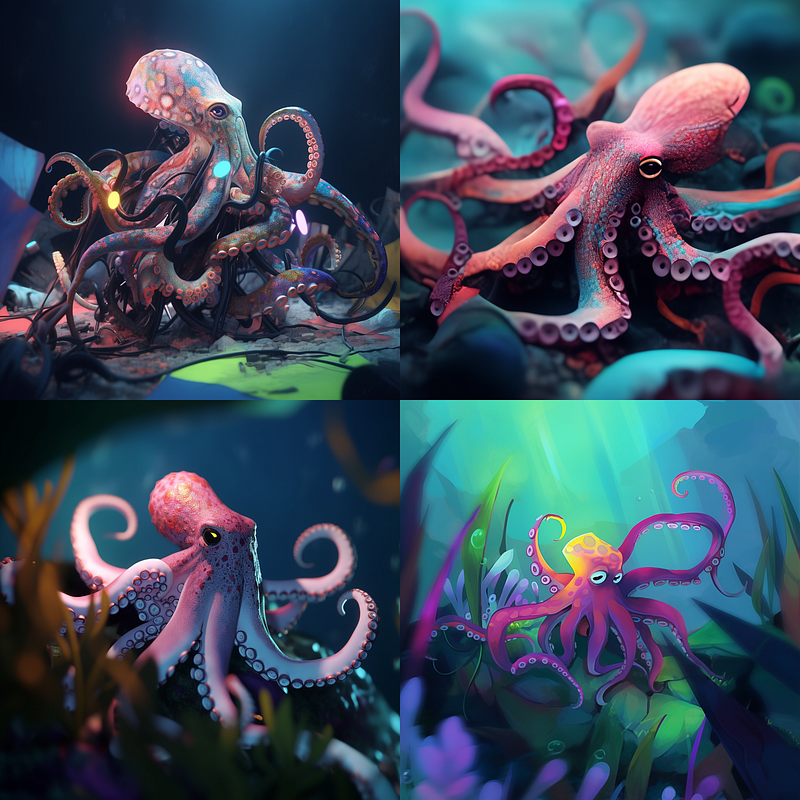
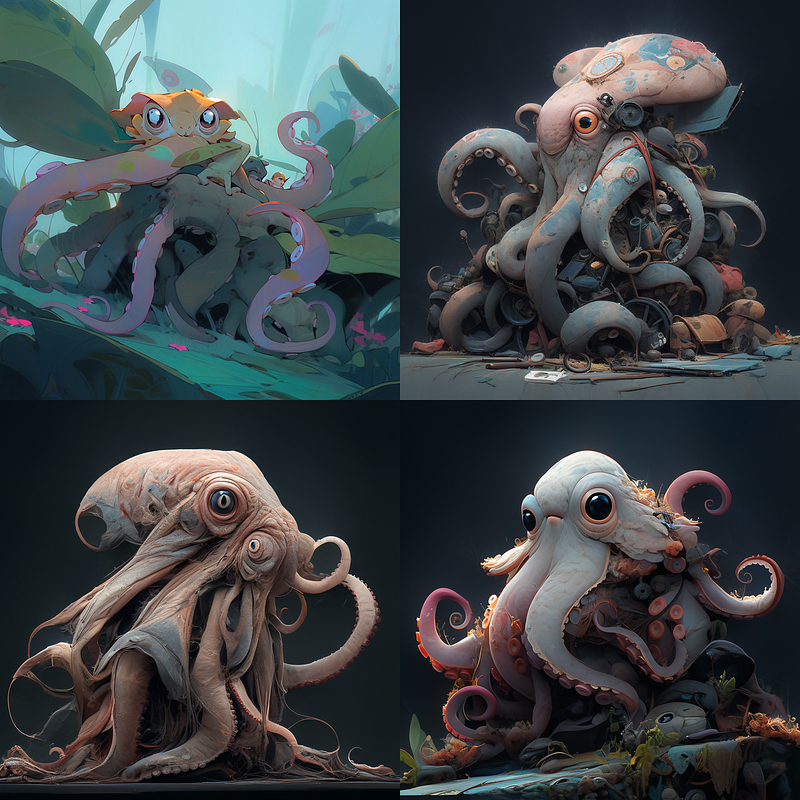
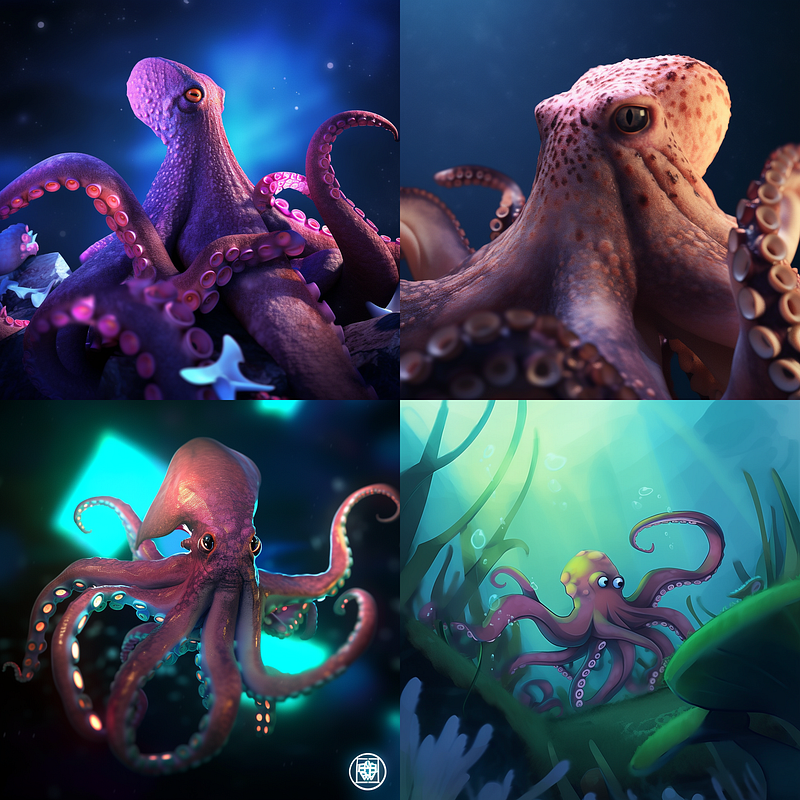
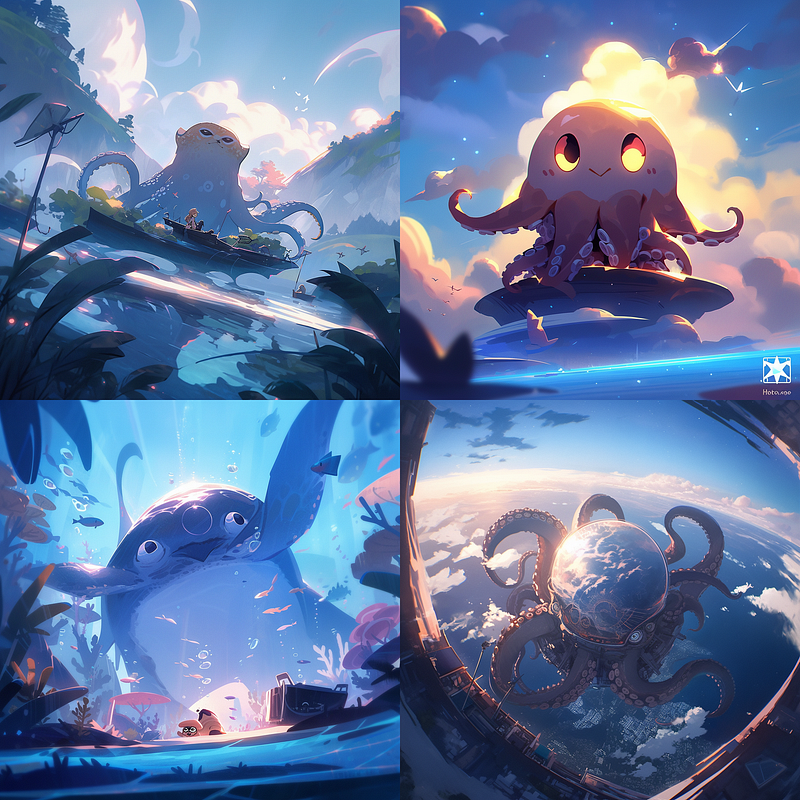
And one more for “cinematic shot of an octopus”:
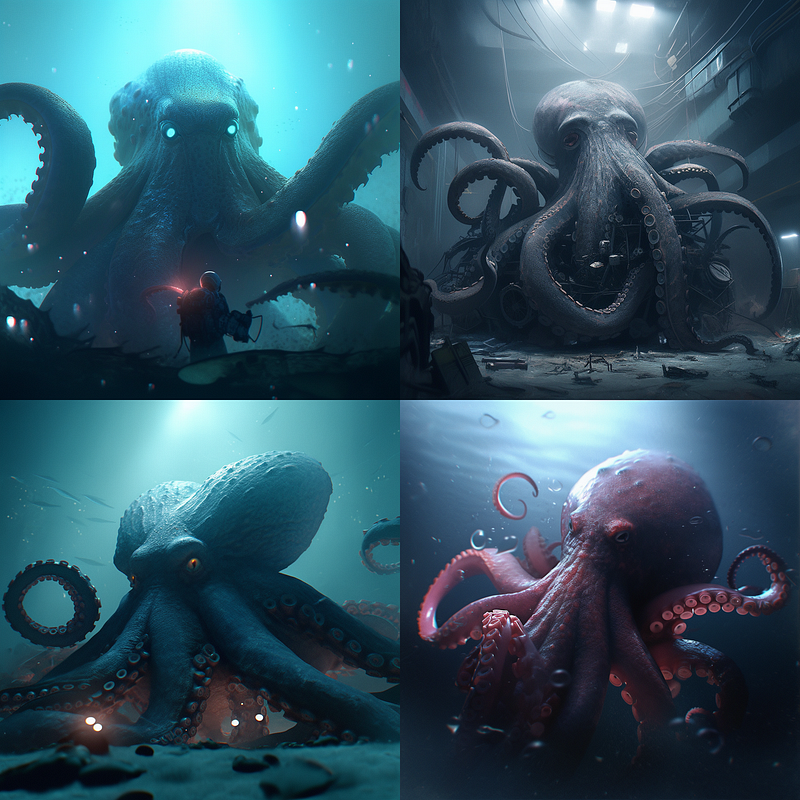
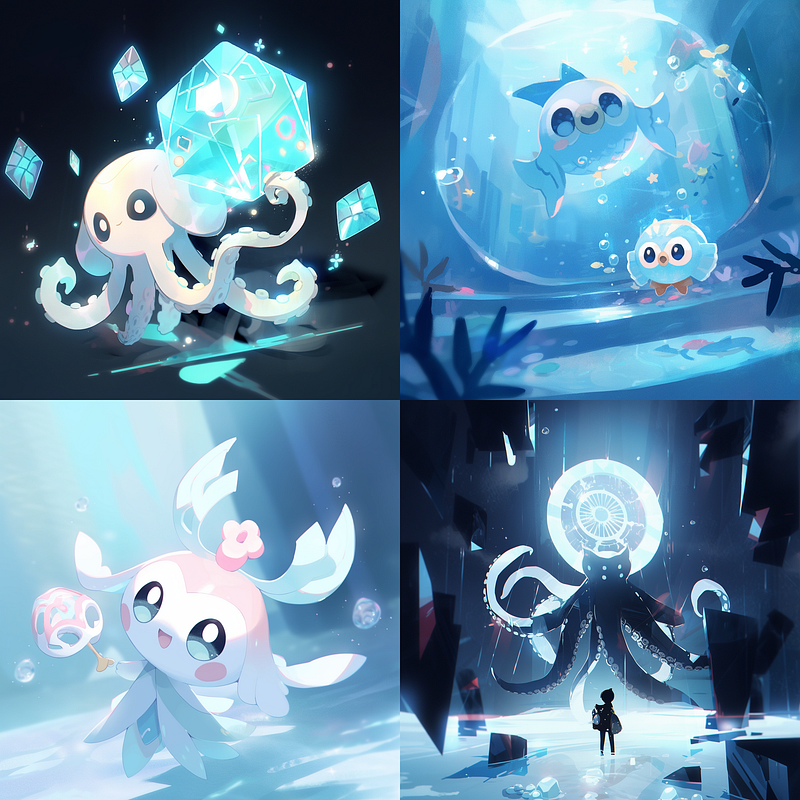
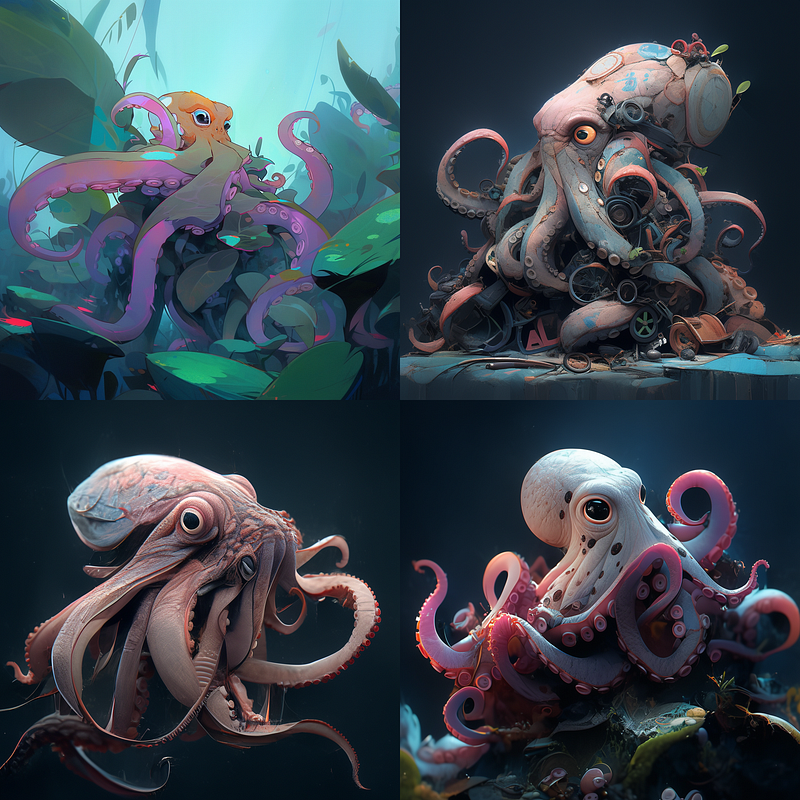
Stylizing effects
Obviously, the new style settings offer a vast field for experimentation and creative exploration. Stylizing these style presets may become crucial to making the results fit your specific use case.
So, let’s create another permutation to explore settings for the stylize parameter.
Since the default value for “ — stylize” is 100, which is already present in our examples above, we will examine alternative values to see how they affect the “cute,” “expressive,” and “scenic” style presets.
We can use
--stylize {0, 20, 50}as part of this prompt:
portrait of an old man --style {cute, expressive, scenic}
--stylize {0, 20, 50} --niji 5 --seed 1000
And
--stylize {250, 500}as part of this prompt:
portrait of an old man --style {cute, expressive, scenic}
--stylize {250, 500} --niji 5 --seed 1000
(we could increase the stylize value up to 1000, but effects beyond 500 are often very subtle)
Stylizing “Cute”
Here are the default (stylize = 100) results from above with style setting “cute”:
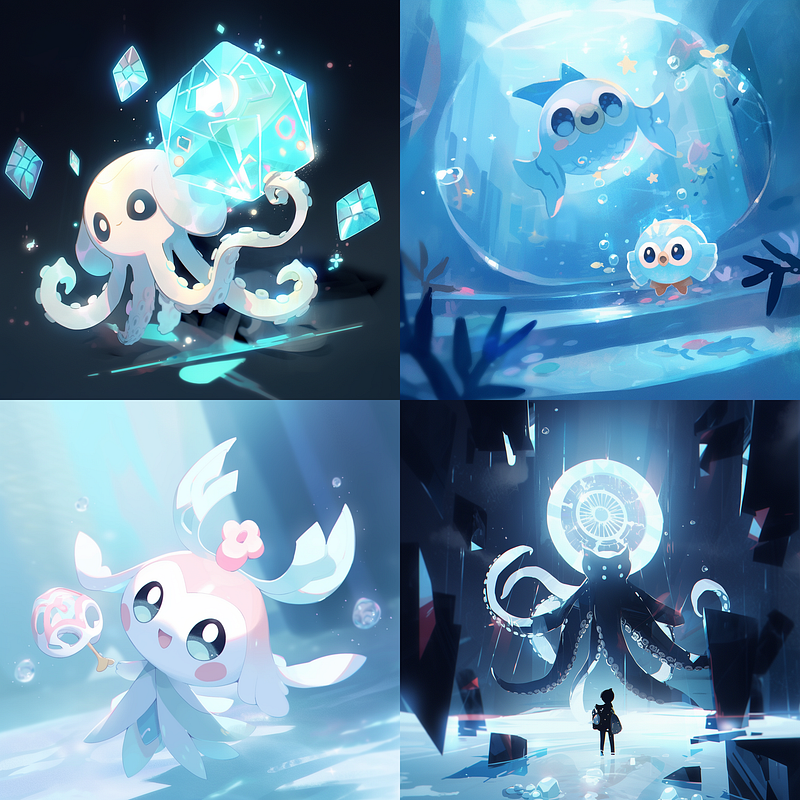
Now let’s have a look at them with the stylize parameter changed (style setting is still “cute”):
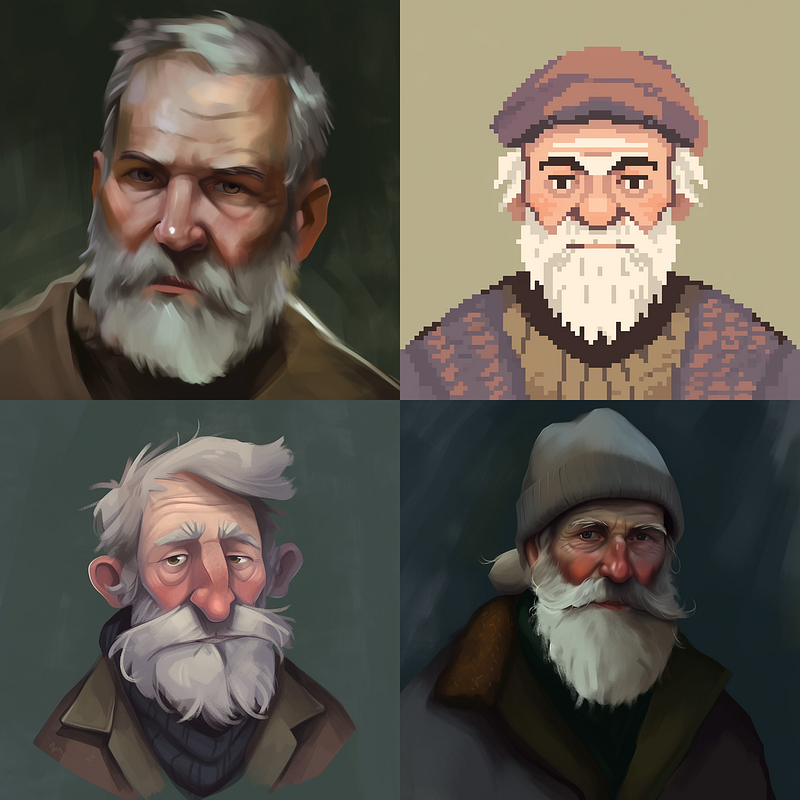
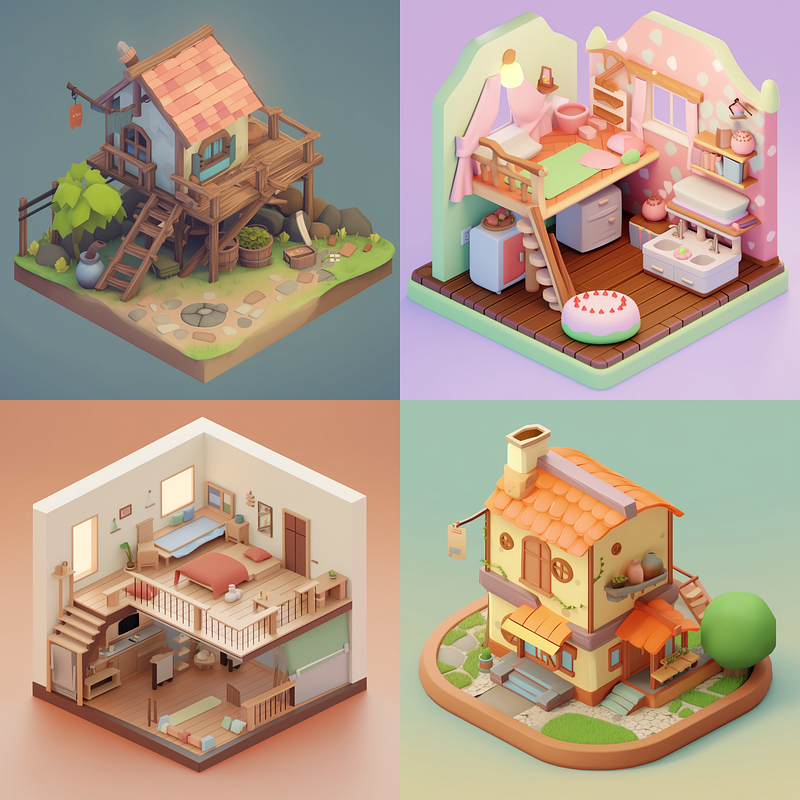

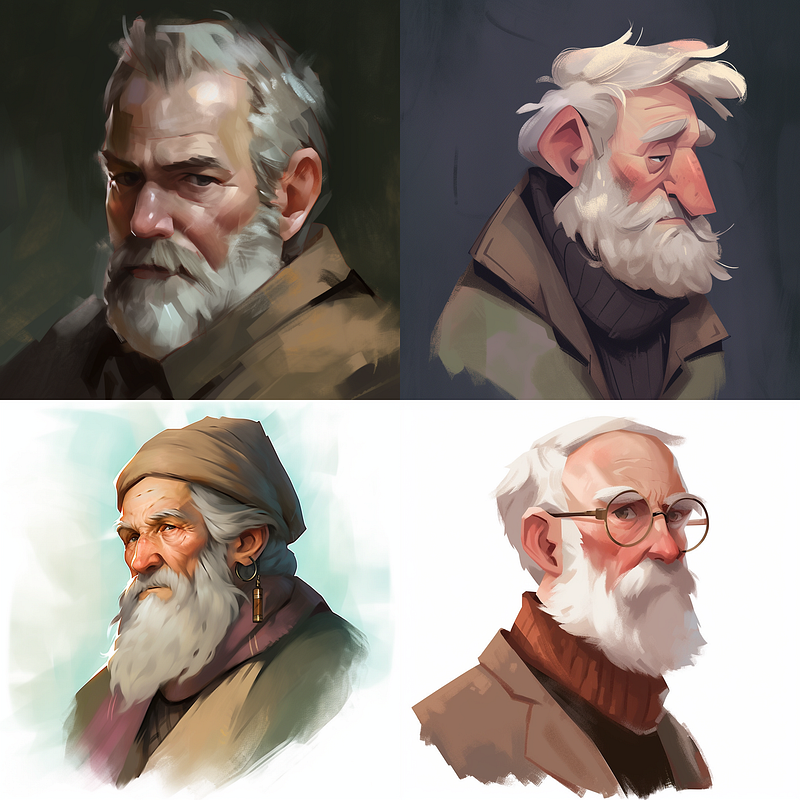
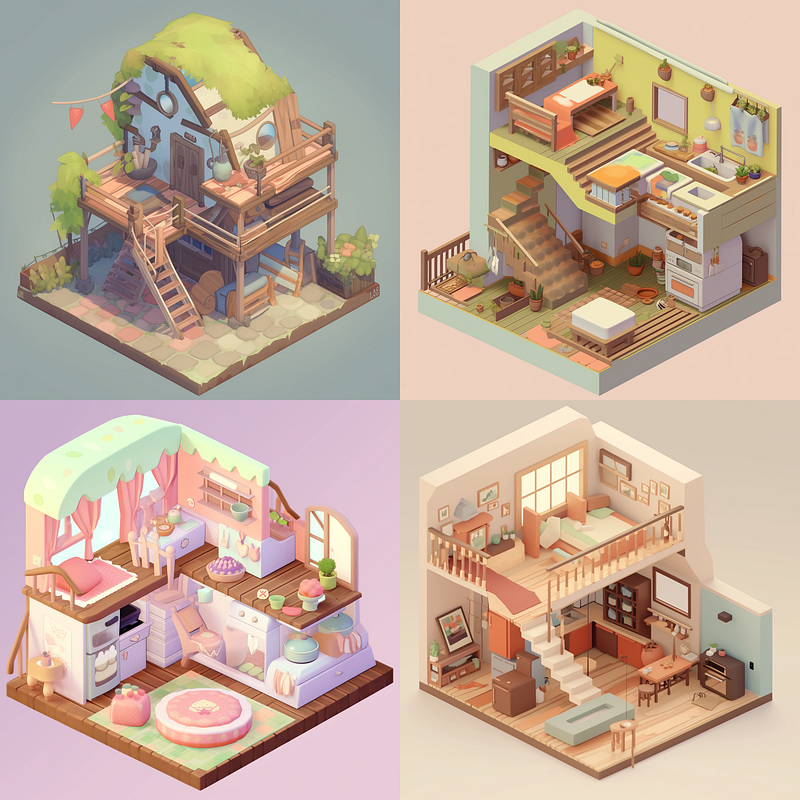
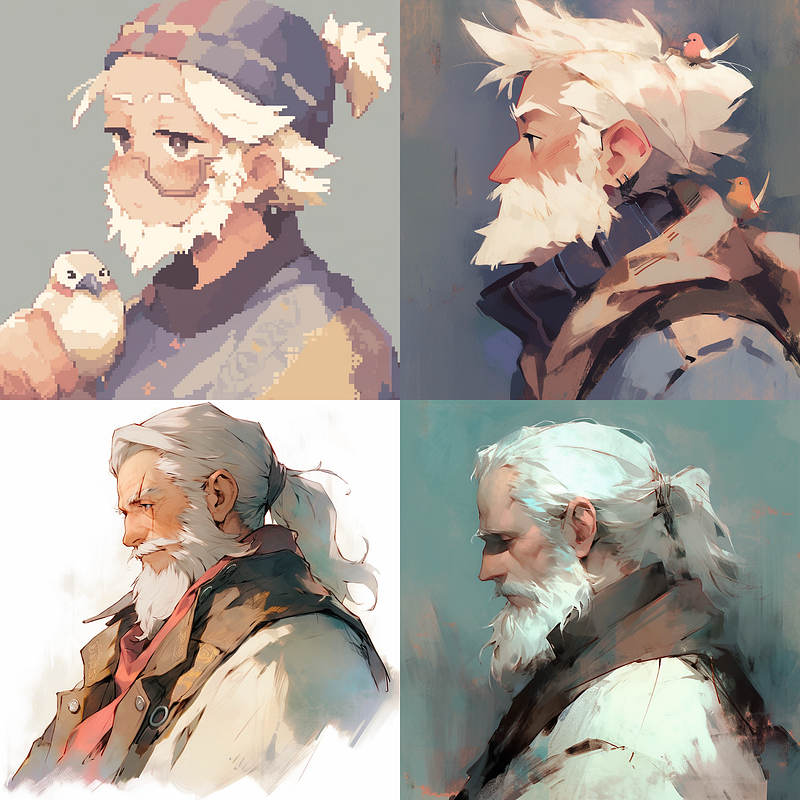

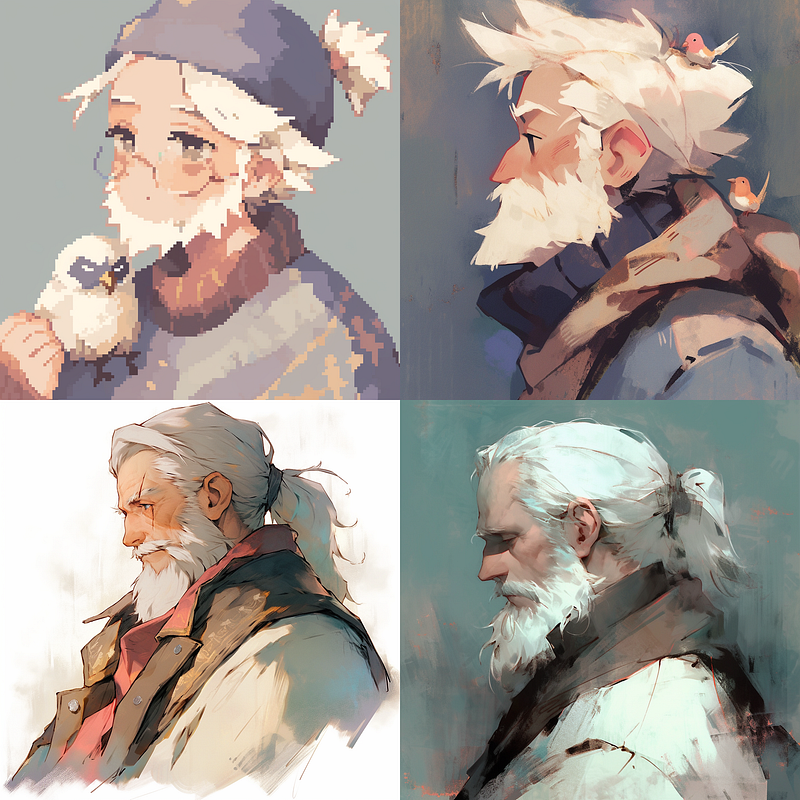
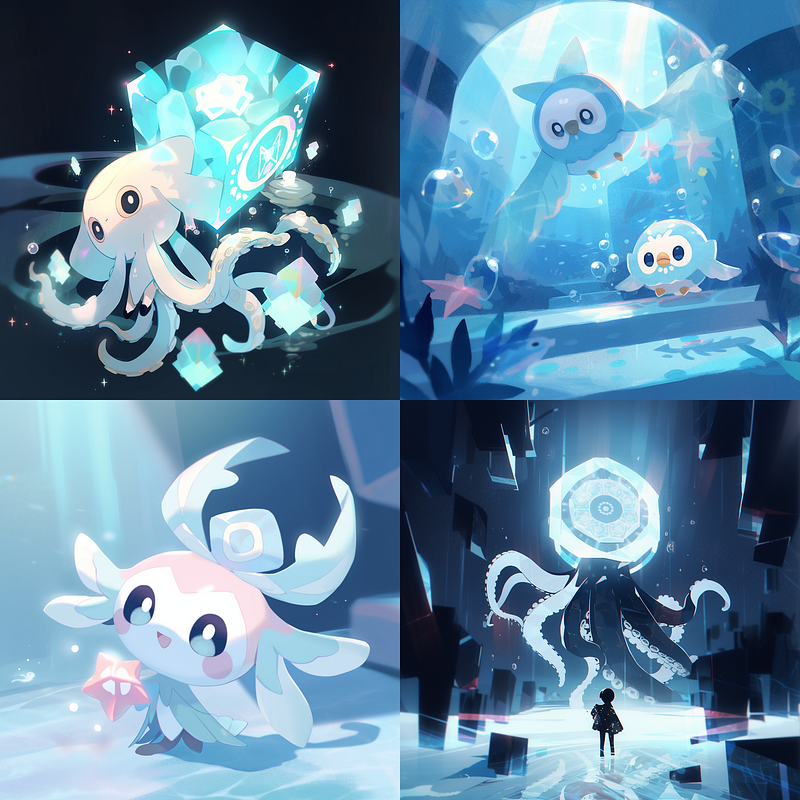
Stylizing “Expressive”
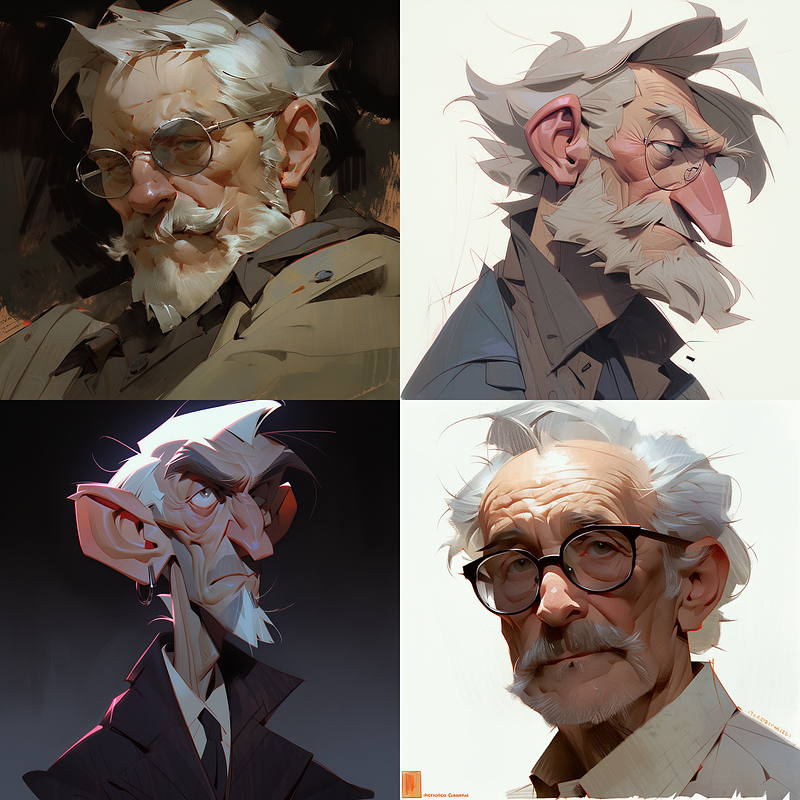
Here are the default (stylize = 100) results from above with style setting “expressive”:
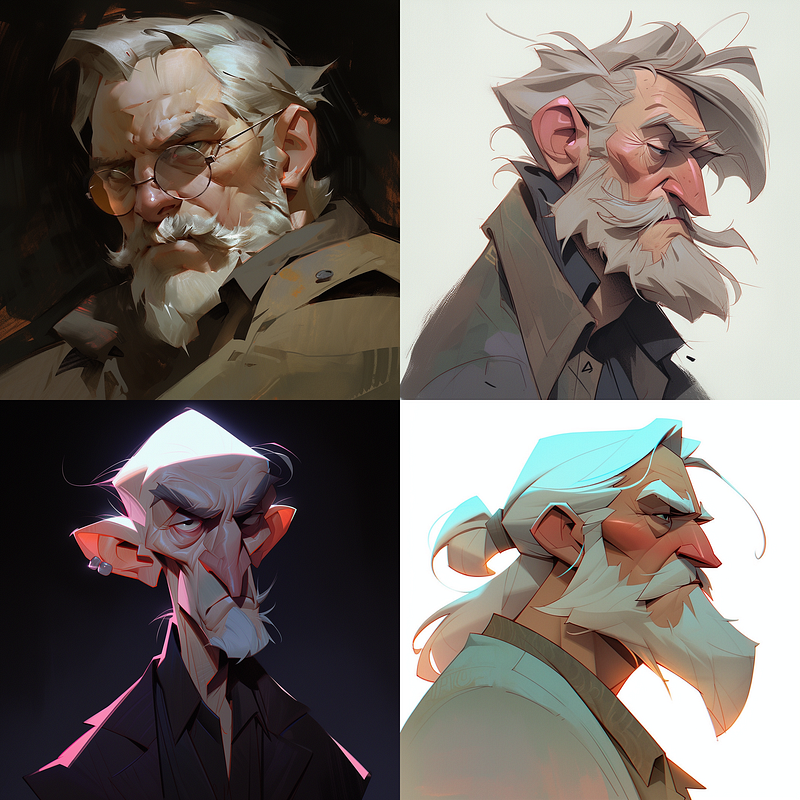
Again, with the stylize parameter changed (style setting is still “expressive”):
Stylizing “Scenic”
Finally, the same comparison of default (stylize = 100) and changing stylize parameter values with style setting “scenic”:
Style transfers
Finally, let’s compare the results of “portrait of an old man” without any style setting (default) on the left, and “portrait of an old man” with the “cute” style setting on the right:
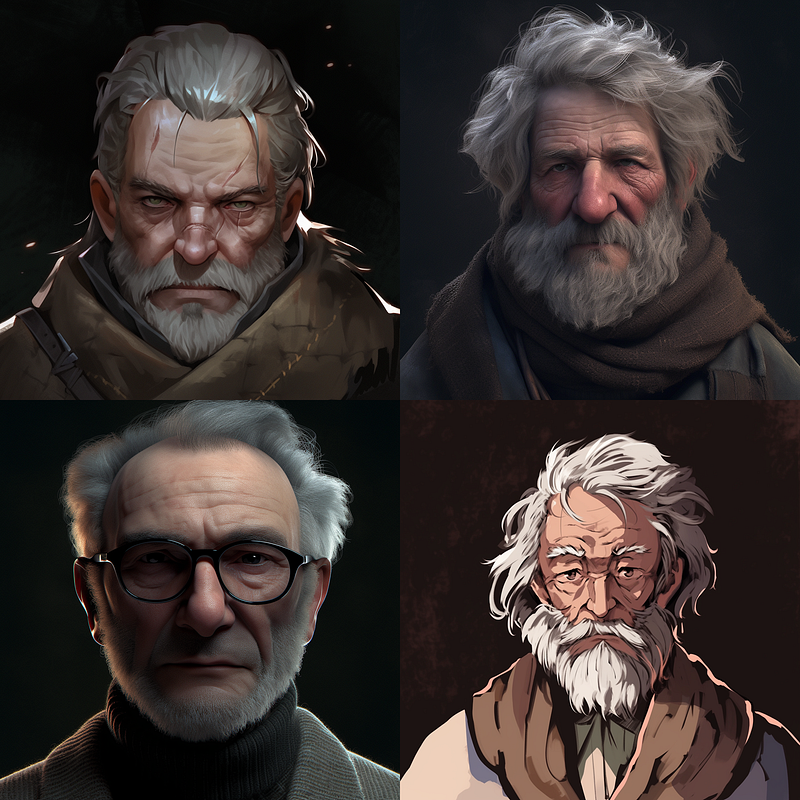
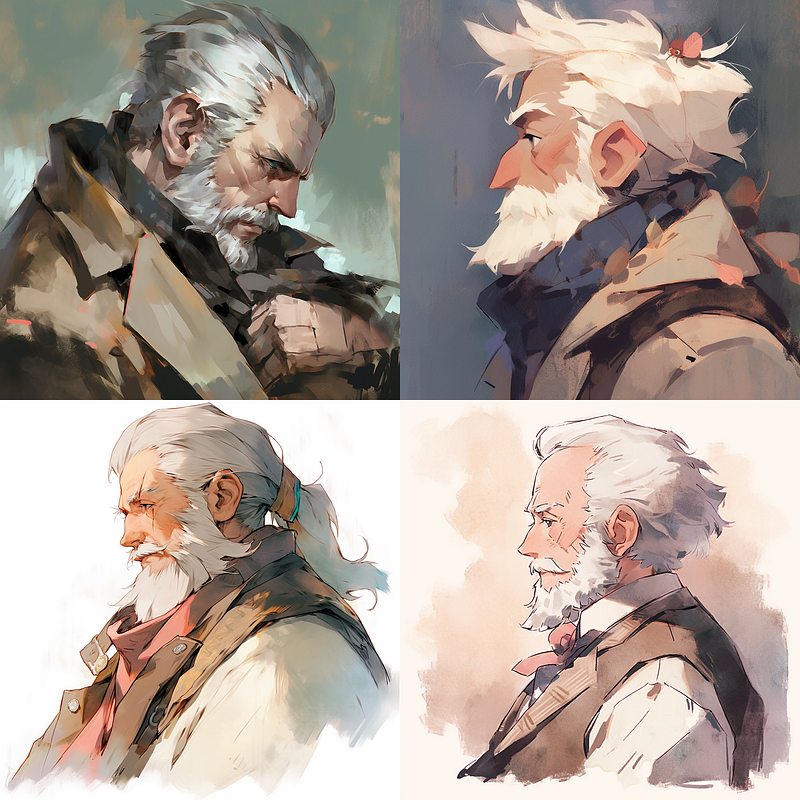
If we look at these as two ends of a style spectrum, we can smoothen the transition by using one of the default images from the left side as an image prompt that asks for a transfer to “ — style cute”.
<LINK_OF_IMAGE> portrait of an old man --style cute --niji 5 --seed 1000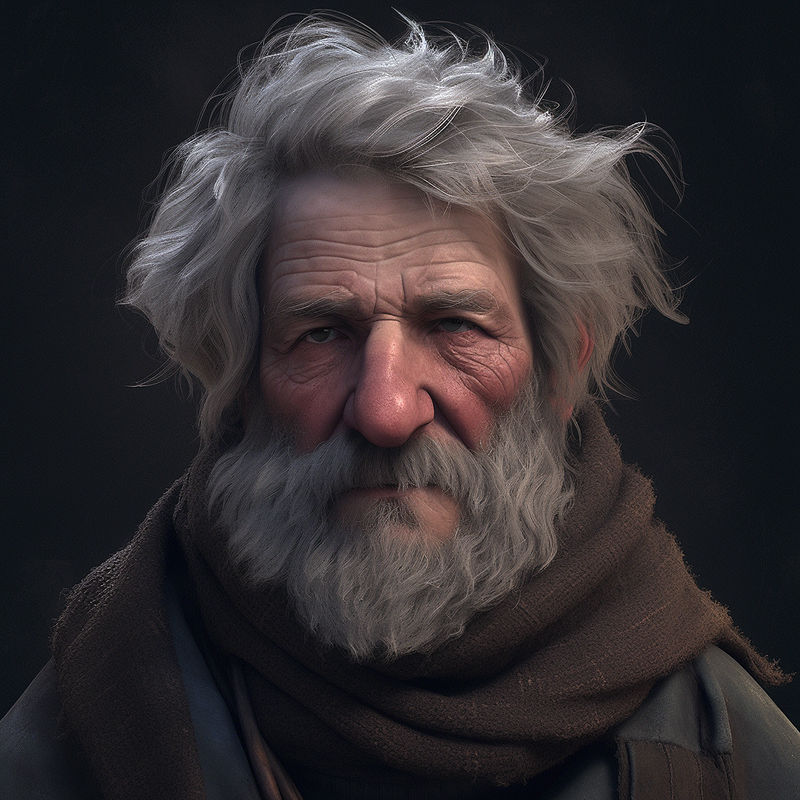
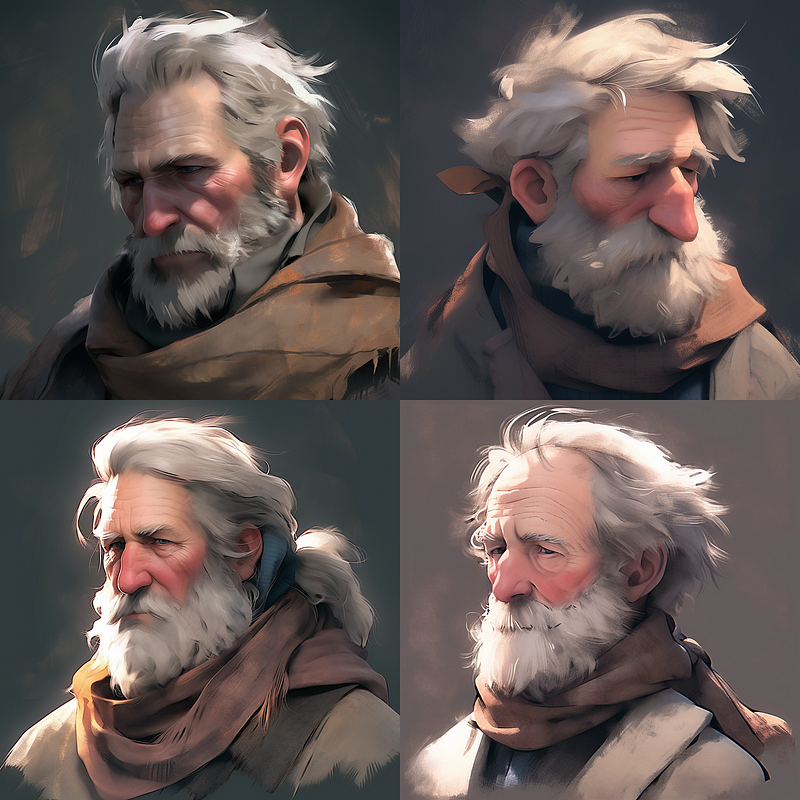
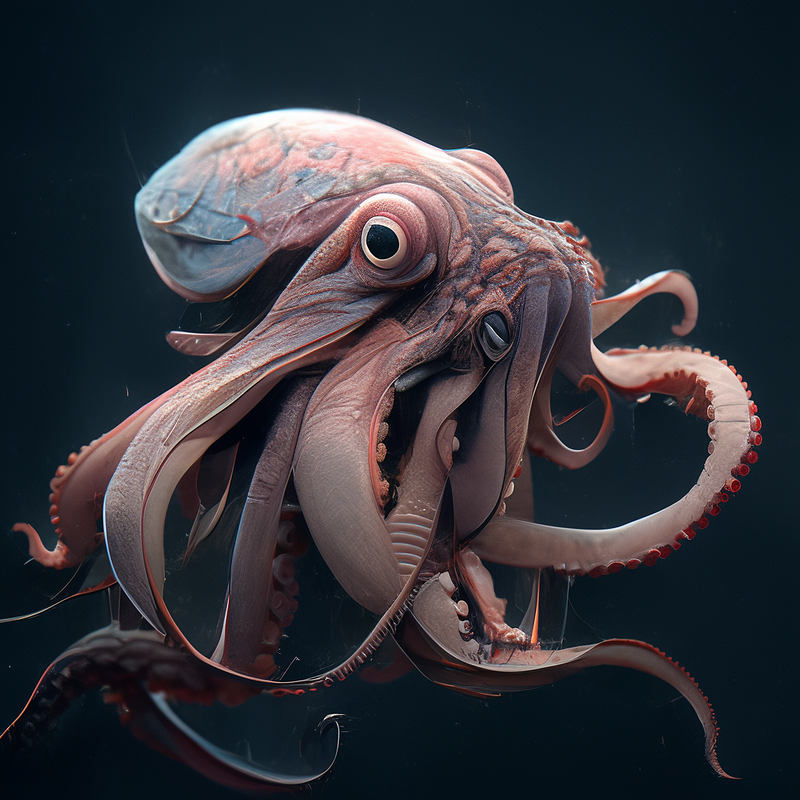
Remember this guy from one of our “expressive results?
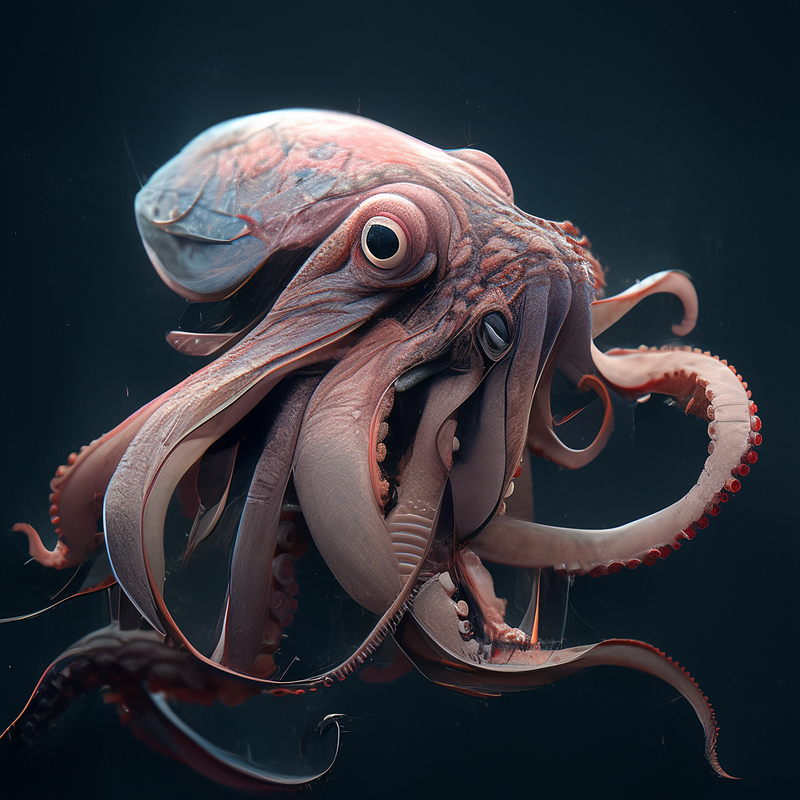
If we use it as an image prompt like this:
<LINK_TO_IMAGE> cinematic shot of an octopus --niji 5 --style cuteWe get a decent style transfer from “expressive” to “cute”:
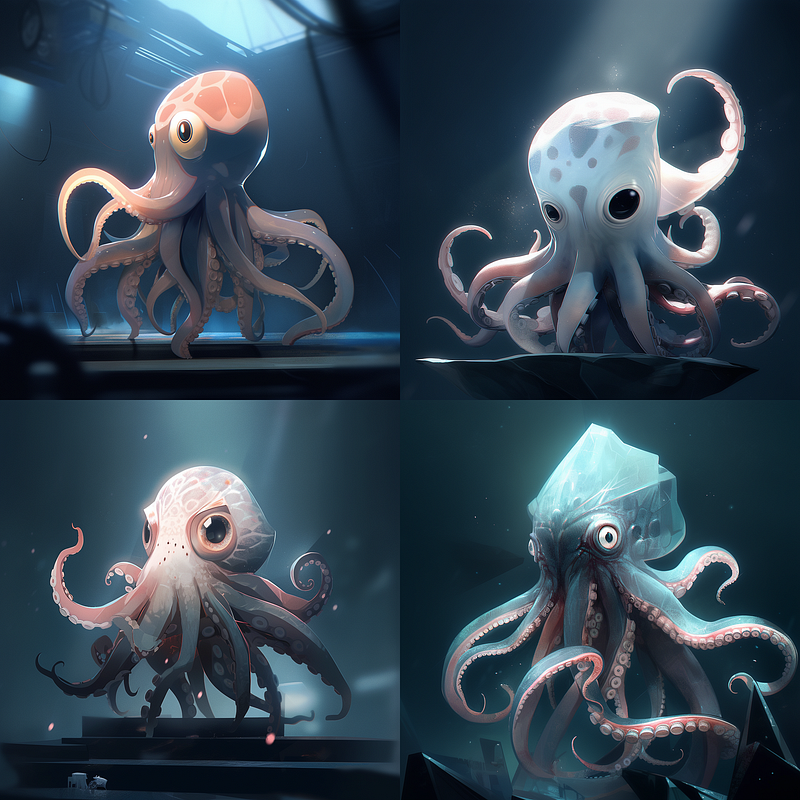
Similarly, we can use this “cute” original:
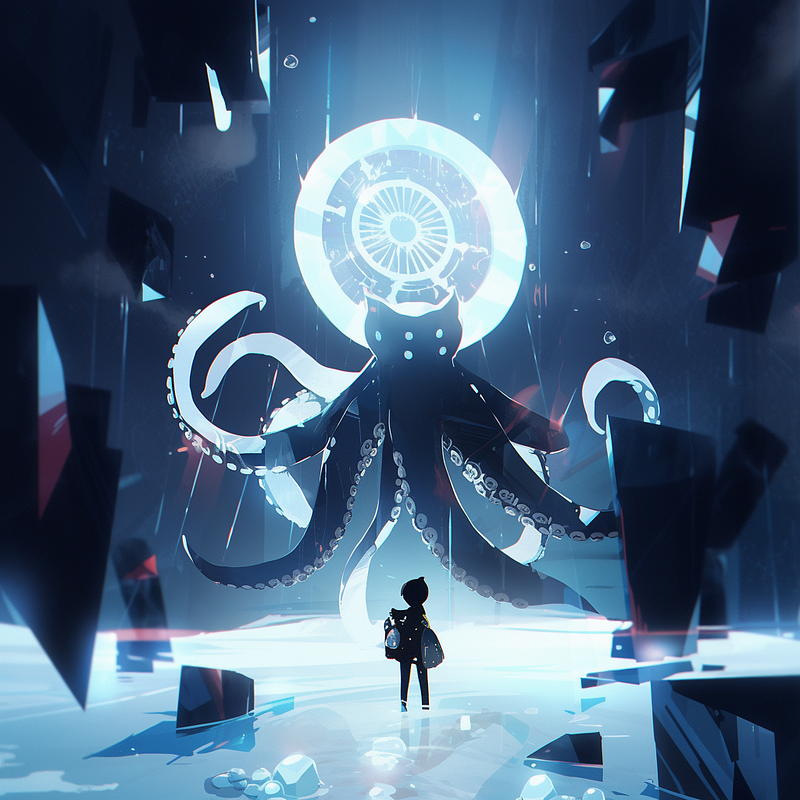
And get transfer it from cute into expressive style like so:
<LINK_TO_IMAGE> cinematic shot of an octopus --niji 5 --style expressive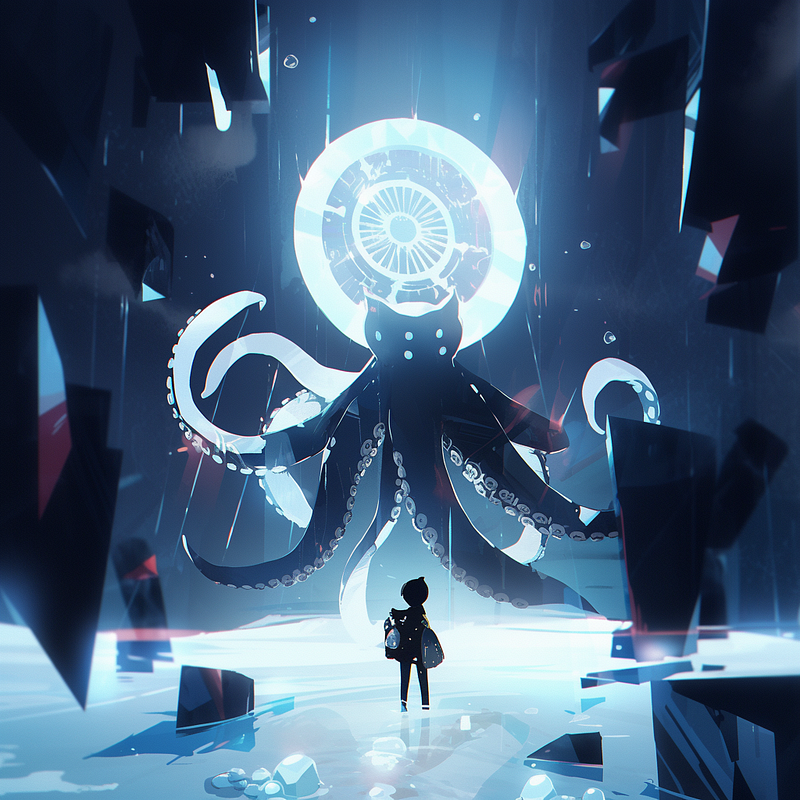
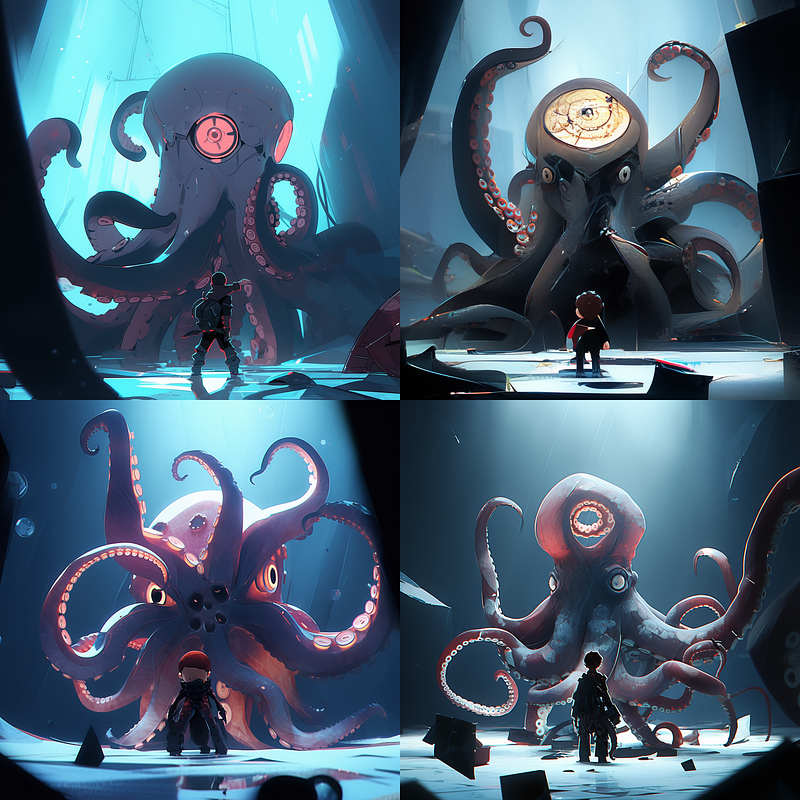
By using image prompts, we can also start transferring styles between models, e.g. NIJI/expressive and V5.1/default:
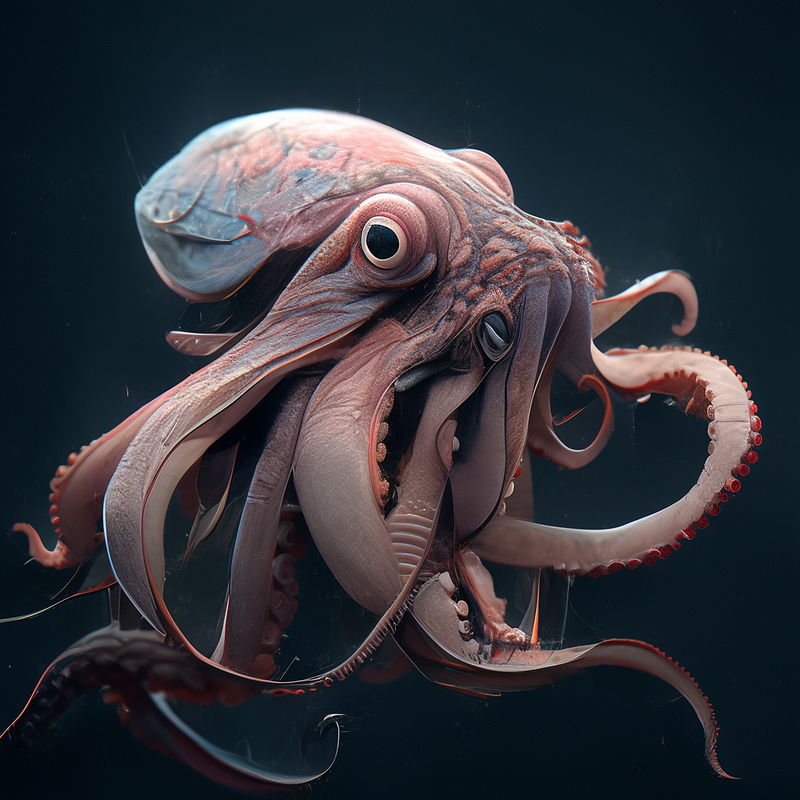
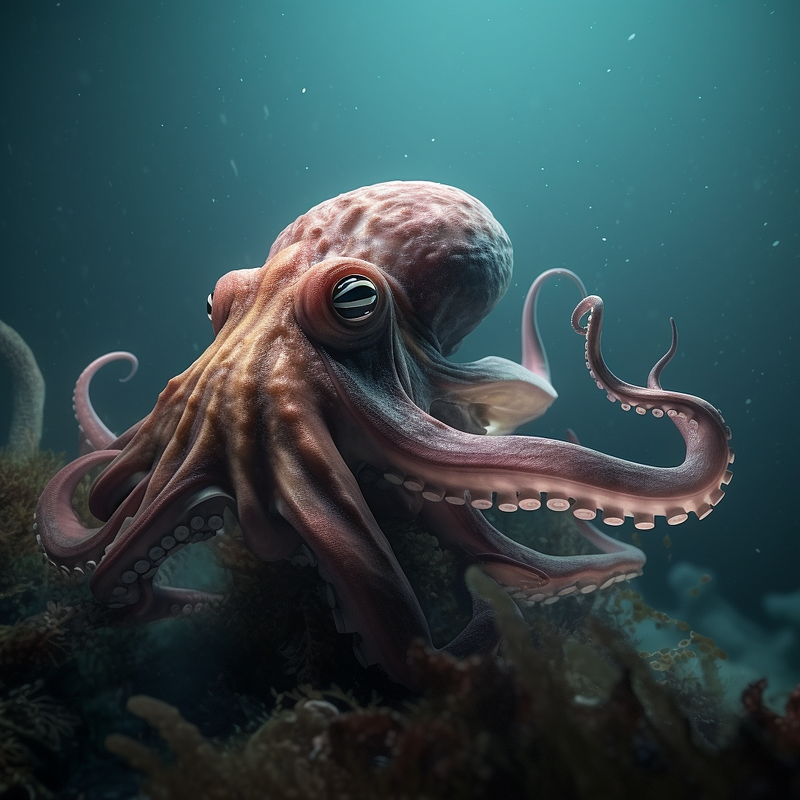
And here is NIJI/“cute” to V5.1/default
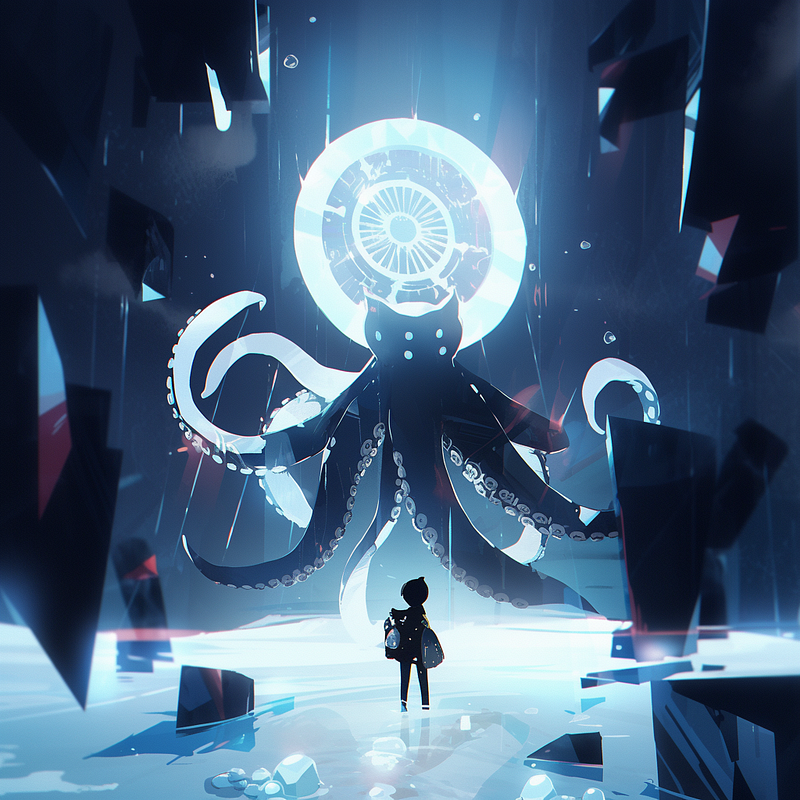

And finally V 5.1/default to to NIJI/cute:
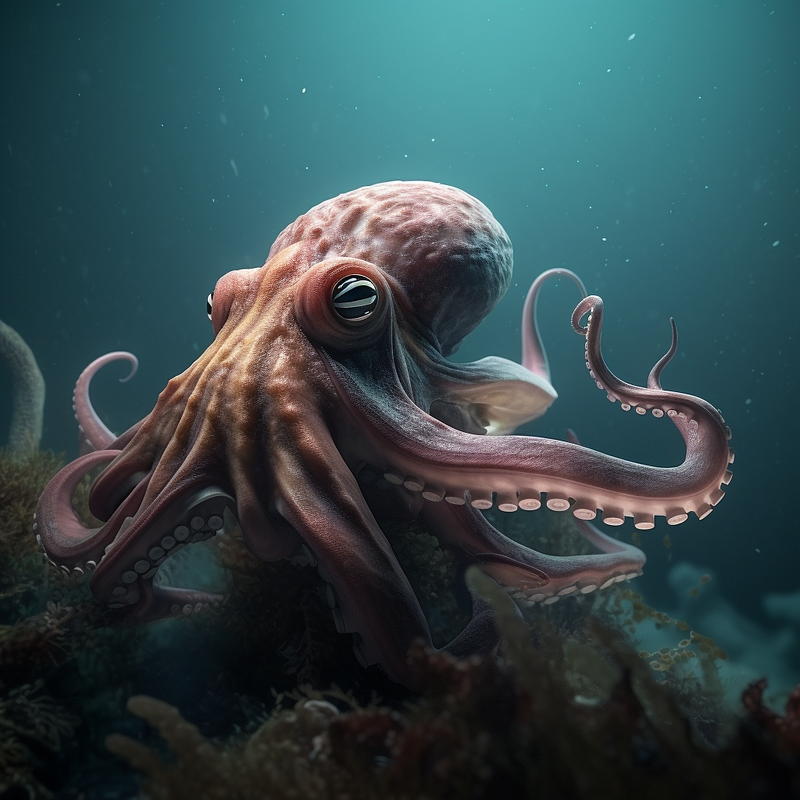
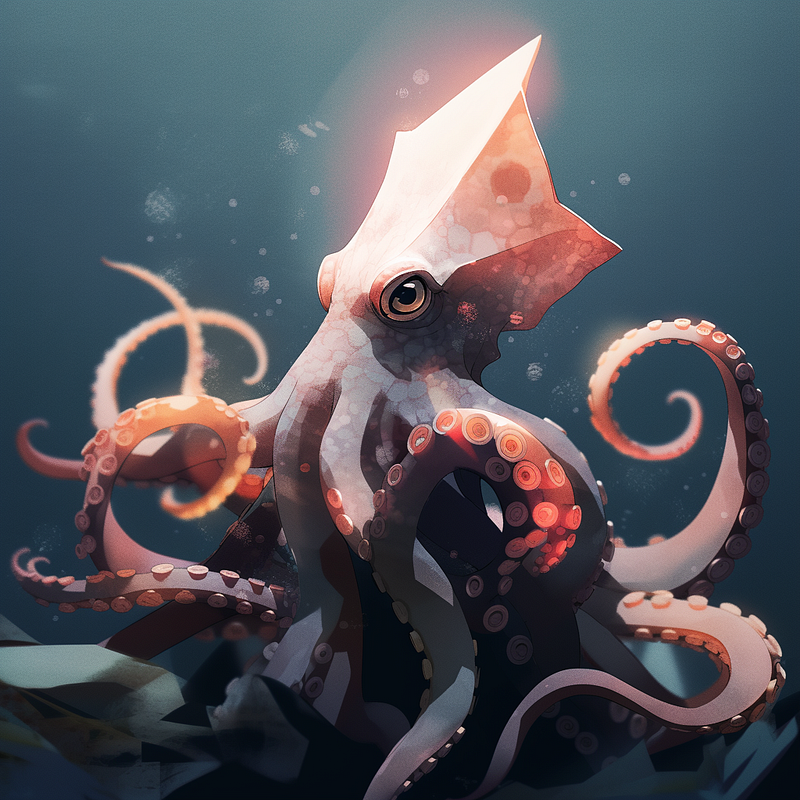
… possibilities are endless! 🤯
Have fun exploring!
➡️ For more information about AI & Creativity, follow me on Twitter or Medium (use my referral link to get full access to all my articles and those of thousands of other writers).
➡️ If you like my content, why not leave a “clap” at the end of this article, so more people can see it?


