avatarClark

Free AI web copilot to create summaries, insights and extended knowledge, download it at here

6779

Abstract

ndows. One of them is the ability to snap a window into different sections on your monitor. As a user who seeks productivity, it would be a great addition to your user experience, having the window snapping feature on your Mac.</p><p id="80eb">Rectangle is a free app that provides window snapping with ease. You can simply drag a window to the left or right side of the screen and drop it to have more screen available to increase your productivity.</p><p id="b83e">You can also use keyboard shortcuts to place windows on any corner of the screen. Rectangle is a small utility app that shows on your Menubar, which can be hidden if you prefer a cleaner look for your operating system.</p><p id="a492">🔐 Privacy: No data collection</p><p id="c72f">💳 Price: Free!</p><p id="5670">☑️ Compatibility: 💻 Mac</p><p id="16d6">🧩 Design: Decent looking</p><p id="9c69">🔗 Download: Not available on the AppStore</p><p id="9a31">🌐 Research: <a href="https://rectangleapp.com">Website</a></p><h2 id="5fd0">#5. Pock</h2><p id="7d8a">I don’t own a MacBook Pro with TouchBar. However, that shouldn’t stop me from introducing apps that might bring more customizability to those who own better MacBooks.</p><p id="587b">I came across Pock some time ago, and it seems to be very promising. Here are some of the great features of Pock:</p><ul><li>Widget that put all your Dock in the Touch Bar and hide it on your desktop to bring more immersive experience.</li><li>Now playing widget that allows you to control the music you are listening to.</li><li>Status widget to show battery, Wi-Fi, and other system icons for more information.</li><li>An ESC button.</li><li>Weather and control center widgets.</li></ul><p id="7a00">🔐 Privacy: Some personal data collection</p><p id="e187">💳 Price: Free!</p><p id="6113">☑️ Compatibility: 💻 Mac</p><p id="8ee8">🧩 Design: Decent looking</p><p id="621c">🔗 Download: Not available on the AppStore</p><p id="bb79">🌐 Research: <a href="https://pock.dev">Website</a></p><figure id="8e22"><img src="https://cdn-images-1.readmedium.com/v2/resize:fit:800/1*0y815IgbJOmnE0GC8sGZ8A.png"><figcaption></figcaption></figure><h2 id="cbff">#6. Dropover</h2><p id="f451">Moving files from one place to another is easy. Moving a couple of files from different locations to a certain directory can be difficult, specially if you are trying to move folders, images, documents and different types of files.</p><p id="8564">One of the easiest and most intuitive solutions for moving files is by an app called Dropover. Using the app is super easy. Simply select the file and drag your mouse, shake the cursor for half a second, then you’ll be presented with a small window where you drop the files onto.</p><p id="5969">Once you have all your files in one place, you will be presented with options such as:</p><ul><li>Dropping them at a specific location</li><li>Sharing them via Airdrop</li><li>Generate a link to share it with people</li></ul><p id="37a5">The app offers so many features alongside keyboard shortcuts which will help you become more productive with fewer clicks.</p><p id="fccd">I, personally, use Dropover when I want to airdrop a couple of files from different locations onto my iPad.</p><p id="3a1c">🔐 Privacy: No personal data collection</p><p id="ebc6">💳 Price: 3.99</p><p id="f33b">☑️ Compatibility: 💻 Mac</p><p id="a30e">🧩 Design: Decent looking</p><p id="0dd1">🔗 Download: <a href="https://apps.apple.com/us/app/dropover/id1355679052?mt=12">AppStore</a></p><p id="f69f">🌐 Research: <a href="https://apps.apple.com/us/app/dropover/id1355679052?mt=12">Website</a></p><figure id="e162"><img src="https://cdn-images-1.readmedium.com/v2/resize:fit:800/1*9jG1TTfNEdf9FfoQrqTehQ.png"><figcaption></figcaption></figure><h2 id="3158">#7. Swish</h2><p id="99fd">Interacting with multiple windows on your Mac is simple yet unintuitive. Swish makes the experience fun, and useful. With a simple gesture using your trackpad or Magic Mouse, you can customize more than 30 functionalities of your Mac’s menubar, titlebar, and Dock.</p><p id="f174">Simply hover the cursor over the titlebar and use two finger gestures to pin it to the left or right side of the screen. Another use case would be minimizing any app by swiping down from the toolbar. It would be best checking the website and see these utility’s functionalities in action.</p><p id="b5c6">Once you are used to using gestures for managing your everyday apps with Swish, it will become a must-have app for your Mac. I wouldn’t really recommend Swish for Magic Mouse, but for the trackpad, it works like magic. I’m not a fan of the Magic Mouse, and you can read about it in my review of great replacement mouse below.</p><div id="eaa7" class="link-block"> <a href="https://cercinus.medium.com/mx-master-3-will-make-you-more-productive-a-designers-perspective-e93024c42aaf"> <div> <div> <h2>MX Master 3 Will Make You More Productive, A Designer’s Perspective</h2> <div><h3>Using this mouse for more than a year, I never got wrist pain. The ergonomic design…</h3></div> <div><p>cercinus.medium.com</p></div> </div> <div> <div style="background-image: url(https://miro.readmedium.com/v2/resize:fit:320/1*YIlYTZGvr0HIUlGZmljhAg.jpeg)"></div> </div> </div> </a> </div><p id="dd7d">If you want to improve the way you interact with macOS using your trackpad, then give Swish a try.</p><p id="b336">🔐 Privacy: No personal data collection</p><p id="50f6">💳 Price: 15</p><p id="e76f">☑️ Compatibility: 💻 Mac</p><p id="b400">🧩 Design: Decent looking</p><p id="9783">🔗 Download: Not available on the AppStore</p><p id="1c83">🌐 Research: <a href="https://highlyopinionated.co/swish/">Website</a></p><figure id="0065"><img src="https://cdn-images-1.readmedium.com/v2/resize:fit:800/1*[email protected]"><figcaption></figcaption></figure><h2 id="d4ad">#8. Bartender 4</h2><p id="764a">Once you install utility apps on your Mac, many will leave unnecessary (and sometimes necessary) icons in your menubar. One of the best apps that will hide those icons is Bartender 4.</p><p id="1c46">I have written an exclusive review about this app, which I’ll link below.</p><div id="d5fe" class="link-block"> <a href="https://readmedium.com/bartender-4-will-make-your-mac-more-minimal-a-review-2aa588a0029a"> <div> <div> <h2>Bartender 4 Will Make Your Mac More Minimal! — A Review</h2> <div><h3>a helpful utility where you’ll be able to temporarily hide the menu bar apps and still have quick access to them in a…</h3></div> <div><p>medium.

Options

com</p></div> </div> <div> <div style="background-image: url(https://miro.readmedium.com/v2/resize:fit:320/1*[email protected])"></div> </div> </div> </a> </div><p id="75b7">One of the ways that we could make our macs more minimal is to reduce the distractions. If an app doesn’t provide an option to hide its icon from the menubar, you can instead utilize the capabilities of Bartender 4.</p><p id="fe91">The app offers a great deal of customization alongside an intuitive user interface. Using the app is simple. Once configured, you can simply hover your cursor on the menubar, and it will reveal a small menu showing all the apps and their icons.</p><p id="89b8">Lastly, the Bartender 4 is extremely light. It doesn’t push the processor and in fact, it is optimized for Macs with Apple Silicon processors.</p><p id="db2d">If you like to minimize the visual clutter on your Mac, then give Bartender 4 a try.</p><p id="fba2">🔐 Privacy: Data is not yet provided</p><p id="3e19">💳 Price: 15</p><p id="5c58">☑️ Compatibility: 💻 Mac</p><p id="85c6">🧩 Design: Decent looking</p><p id="dcde">🔗 Download: Not available on the AppStore</p><p id="bcc5">🌐 Research: <a href="https://www.macbartender.com/Bartender4/">Website</a></p><figure id="91cf"><img src="https://cdn-images-1.readmedium.com/v2/resize:fit:800/1*XNrHrtetCqb0oQmeLCfA7g.png"><figcaption></figcaption></figure><h2 id="7396">#9. PhotoMill</h2><p id="6385">Depending on your use case on Mac, you might find the need to work on more than one photo. The PhotoMill by Overmacs is a batch photo editor that will help you change many things for your photos.</p><p id="07a3">PhotoMill at its core is a photo editor which extends its functionalities to browse photos, convert images, modify the metadata, resize, watermark, adjust color, and rename photos.</p><p id="ec13">I once had to upload some sample wallpaper photos to a WordPress blog, and the plugin I was using didn’t support the image format of my photos. I used PhotoMill to not only convert the format, but also resize them, put watermarks and rename all the files into a neat group of photos that were ready to upload.</p><p id="85b8">You will be amazed by the power of this app. It works fast, and doesn’t collect any data from your Mac. I think the privacy practices of this app should be a symbol to many apps on the App Store to learn how powerful apps can continue to profit without collecting users data.</p><p id="7801">If you want to quickly modify the settings of your photos and convert them to a format supported by the app, then give PhotoMill a try.</p><p id="7d5b">🔐 Privacy: No data collection</p><p id="2c0b">💳 Price: 9.99</p><p id="c294">☑️ Compatibility: 💻 Mac</p><p id="0694">🧩 Design: Decent looking</p><p id="20f9">🔗 Download: <a href="https://apps.apple.com/us/app/photomill-the-image-converter/id778590574?mt=12">AppStore</a></p><p id="a4af">🌐 Research: <a href="https://overmacs.com/?p=photomill">Website</a></p><figure id="b0c0"><img src="https://cdn-images-1.readmedium.com/v2/resize:fit:800/1*pvvMgMLvhRcc2j_gpr-tEA.png"><figcaption></figcaption></figure><h2 id="f622">#10. PhotoSweeper</h2><p id="f3d7">PhotoSweeper is another great app from Overmacs that primarily finds duplicate photos for you. Many people have hundreds and thousands of photos that are mostly duplicates and don’t know how to get rid of them.</p><p id="83f9">Thanks to PhotoSweeper, you can scan an entire library of photos, find the duplicates, and clean them. The app is not limited to PhotoSweeper, you can add photos from apps like Adobe Lightroom, Apple Photos, and Aperture.</p><p id="d75b">There is a panel that asks you what it is that you specifically want to find. You can change the filters based on your preference. For example:</p><p id="907a"><code>I want photos with different file names that have the same aspect ratio with 10 minutes time gap</code></p><p id="2384">Using the simple user interface in the app’s search panel, you can find the duplicates and then use the <code>Enter</code> key to mark them for deletion.</p><p id="5754">If you would like to clear storage on your device, and have lots of duplicate photos, then give PhotoSweeper a try.</p><p id="8307">🔐 Privacy: No data collection</p><p id="506a">💳 Price: $9.99</p><p id="ccd5">☑️ Compatibility: 💻 Mac</p><p id="61ad">🧩 Design: Decent looking</p><p id="d359">🔗 Download: <a href="https://apps.apple.com/app/photosweeper/id463362050?ls=1&amp;mt=12">AppStore</a></p><p id="b1cc">🌐 Research: <a href="https://overmacs.com/?p=photosweeper">Website</a></p><p id="5095">Thank you for reading this story. As always, I would love to hear your thoughts and recommendations for this story in the response section.</p><p id="7811">Here are more stories from the previous months.</p><div id="02e3" class="link-block"> <a href="https://readmedium.com/10-mac-apps-for-june-55a6ff7ab4c"> <div> <div> <h2>10 Mac Apps For June</h2> <div><h3>June is an important month for many people who love tech. In this story I’ll introduce 10 apps that are useful to…</h3></div> <div><p>medium.com</p></div> </div> <div> <div style="background-image: url(https://miro.readmedium.com/v2/resize:fit:320/1*1m_h8lVvaEzw7hOJKTVP7Q.jpeg)"></div> </div> </div> </a> </div><div id="d1a0" class="link-block"> <a href="https://readmedium.com/mac-apps-for-the-month-of-may-25e9741dc427"> <div> <div> <h2>Mac Apps For The Month Of May</h2> <div><h3>The number of useful Mac apps to help me become more productive always amazes me. Seeing how far the Mac has gone, I am…</h3></div> <div><p>medium.com</p></div> </div> <div> <div style="background-image: url(https://miro.readmedium.com/v2/resize:fit:320/1*MXFcFGORdoTivPIxjGhIZA.png)"></div> </div> </div> </a> </div><div id="a497" class="link-block"> <a href="https://readmedium.com/10-minimal-apps-for-mac-d693d83d6425"> <div> <div> <h2>10 Minimal Apps for Mac</h2> <div><h3>Ten Mac apps designed with minimalism in mind.</h3></div> <div><p>medium.com</p></div> </div> <div> <div style="background-image: url(https://miro.readmedium.com/v2/resize:fit:320/1*5d5Gmw5hlIu55wGbzheZ7Q.jpeg)"></div> </div> </div> </a> </div></article></body>

10 Mac Apps For July
I love writing these editions of monthly apps. Specially those for Mac. They bring so much fun into my life and I can see how the use of Mac can extend to more areas other than productivity.

Last month, we had Apple’s WWDC 21 where they introduced the new version of macOS Monterey and people are generally loving the new release. Good news, me too! I love how Apple has progressed with updating continuity for the ecosystem. You can read my story covering the new features below.

In this story, we are going to introduce apps in the category of productivity, utility, and addons.
#1. Timemator

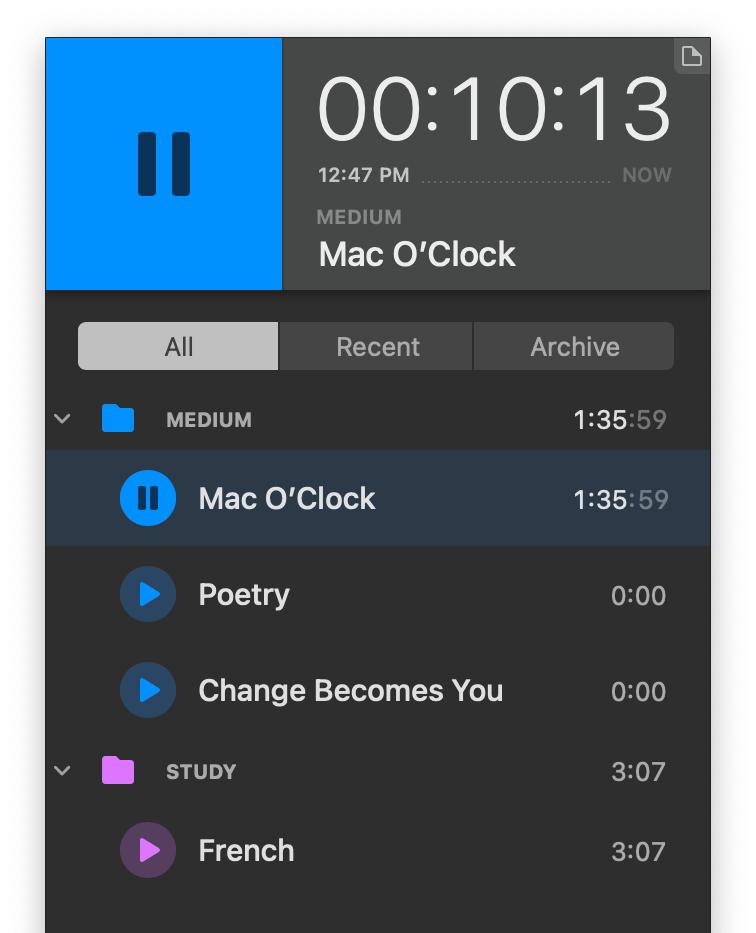
One of the productivity hacks everyone can benefit from is the analysis of time management. Those who are proud of being productive individuals use methods like calendar time-block, or things that divide their time throughout the day based on activities. As much as I love being precise with my time, Honestly though, I am not a robot and the best method I’ve found so far is logging my time with tools and apps.

One of those apps that is plenty helpful to recognize how productive I’ve been throughout the day is Timemator.

Timemator is unlike other time tracking applications. A feature that makes Timemator unique is how it can automatically log your usage based on a set of rules you define. For example, you can say: whenever I open Sketch, and I’m working on this particular client’s file, start logging my time.

Timemator supports a range of apps for developers, designers, filmmakers, and other professionals in the industry.

You can bill every hour you work on a project and receive detailed view and reports based on your work. If you want to get a better perspective on how you manage your time, then give Timemator a chance.

🔐 Privacy: Collects personal data

💳 Price: $39.99

☑️ Compatibility: 📱iPhone, 📱iPad, 💻 Mac

🧩 Design: Aesthetically pleasing

🔗 Download: Not available on the AppStore

🌐 Research: Website
#2. Typora

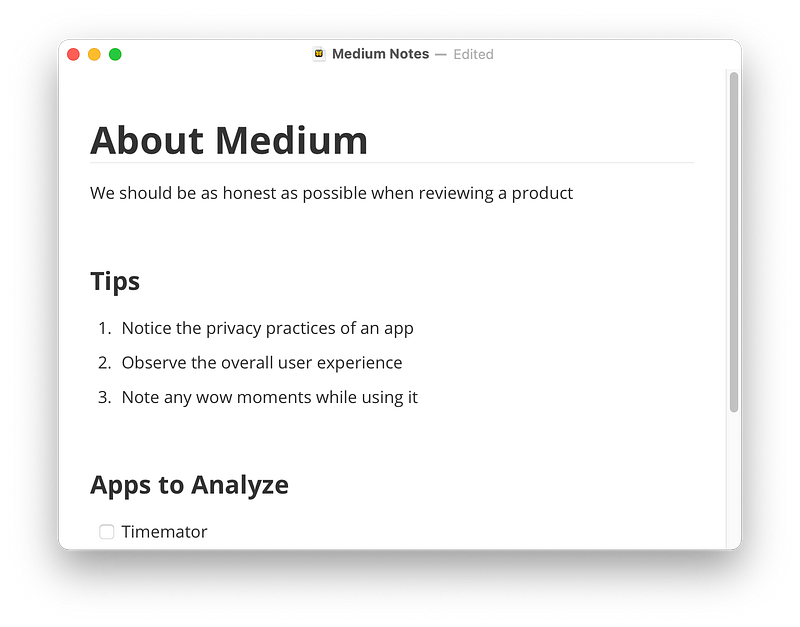
What is the most minimal text-editing experience you ever had? How does the default TextEdit app satisfy your needs? These are some of the questions that I asked myself while writing about the replacement apps for the default Text-Edit.

A replacement app for the default TextEdit should have the following features:

  • Super simple to use, as minimal as it gets
  • Open quickly. Faster than the default app
  • Support for Markdown language
  • Support for organization tools
  • Customizability and beautiful user interface

The Typora is a wonderful text editing and note-taking app that brings much more functionality than the default TextEdit app on the Mac.

The features I have found plenty useful are:

  • Support for list, tasks, and indentation
  • Different types of headers using hashtags
  • Table support with easy management tools
  • In-line code editor that supports over 100 languages
  • Support for mathematical formulas
  • Diagrams, stylings, and so much more

If you are looking for a minimal app with support for extensions, then give Typora a chance. It will be the best TextEditor replacement for your Mac.

🔐 Privacy: Some personal data collection

💳 Price: Free during beta

☑️ Compatibility: 💻 Mac

🧩 Design: Aesthetically pleasing

🔗 Download: Not available on the AppStore

🌐 Research: Website
#3. QLVideo

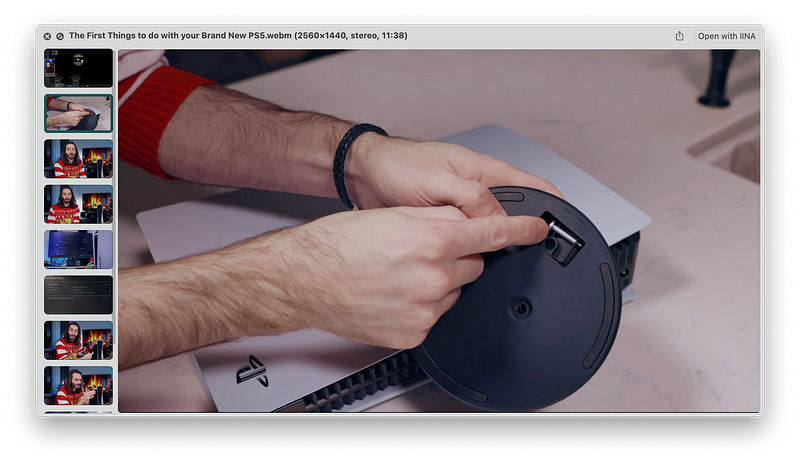
One of the reasons why I prefer macOS to other operating systems is a feature called QuickLook. Using the force touch on the trackpad or the space key on your keyboard, you can preview almost (almost) any file. It can be a PDF file, or an MP4 video. No matter the size, it works flawlessly.

What if we could extend the support of QuickLook to even more files? Imagine getting a preview of an MKV or an AVI video file. That would be extremely useful, and QLVideo is an app or rather a supplemental app that will help you get a preview of some file formats that are uncommon.

🔐 Privacy: Data is not yet provided

💳 Price: Free!

☑️ Compatibility: 💻 Mac

🧩 Design: Decent looking

🔗 Download: Not available on the AppStore

🌐 Research: Website
#4. Rectangle

Many people don’t switch to macOS for simple features that exist on Microsoft Windows. One of them is the ability to snap a window into different sections on your monitor. As a user who seeks productivity, it would be a great addition to your user experience, having the window snapping feature on your Mac.

Rectangle is a free app that provides window snapping with ease. You can simply drag a window to the left or right side of the screen and drop it to have more screen available to increase your productivity.

You can also use keyboard shortcuts to place windows on any corner of the screen. Rectangle is a small utility app that shows on your Menubar, which can be hidden if you prefer a cleaner look for your operating system.

🔐 Privacy: No data collection

💳 Price: Free!

☑️ Compatibility: 💻 Mac

🧩 Design: Decent looking

🔗 Download: Not available on the AppStore

🌐 Research: Website

#5. Pock

I don’t own a MacBook Pro with TouchBar. However, that shouldn’t stop me from introducing apps that might bring more customizability to those who own better MacBooks.

I came across Pock some time ago, and it seems to be very promising. Here are some of the great features of Pock:

  • Widget that put all your Dock in the Touch Bar and hide it on your desktop to bring more immersive experience.
  • Now playing widget that allows you to control the music you are listening to.
  • Status widget to show battery, Wi-Fi, and other system icons for more information.
  • An ESC button.
  • Weather and control center widgets.

🔐 Privacy: Some personal data collection

💳 Price: Free!

☑️ Compatibility: 💻 Mac

🧩 Design: Decent looking

🔗 Download: Not available on the AppStore

🌐 Research: Website

#6. Dropover

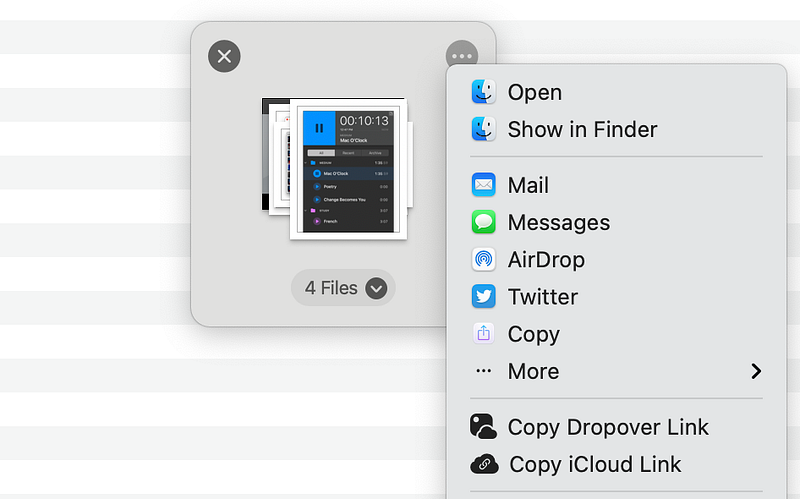
Moving files from one place to another is easy. Moving a couple of files from different locations to a certain directory can be difficult, specially if you are trying to move folders, images, documents and different types of files.

One of the easiest and most intuitive solutions for moving files is by an app called Dropover. Using the app is super easy. Simply select the file and drag your mouse, shake the cursor for half a second, then you’ll be presented with a small window where you drop the files onto.

Once you have all your files in one place, you will be presented with options such as:

  • Dropping them at a specific location
  • Sharing them via Airdrop
  • Generate a link to share it with people

The app offers so many features alongside keyboard shortcuts which will help you become more productive with fewer clicks.

I, personally, use Dropover when I want to airdrop a couple of files from different locations onto my iPad.

🔐 Privacy: No personal data collection

💳 Price: $3.99

☑️ Compatibility: 💻 Mac

🧩 Design: Decent looking

🔗 Download: AppStore

🌐 Research: Website
#7. Swish

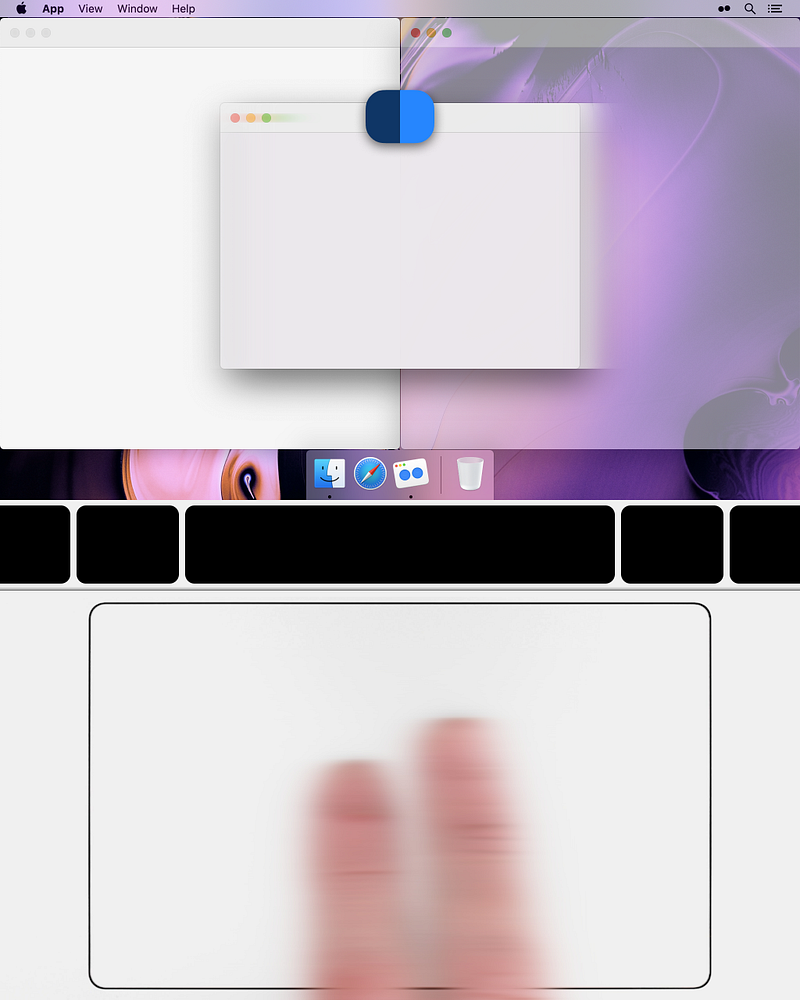
Interacting with multiple windows on your Mac is simple yet unintuitive. Swish makes the experience fun, and useful. With a simple gesture using your trackpad or Magic Mouse, you can customize more than 30 functionalities of your Mac’s menubar, titlebar, and Dock.

Simply hover the cursor over the titlebar and use two finger gestures to pin it to the left or right side of the screen. Another use case would be minimizing any app by swiping down from the toolbar. It would be best checking the website and see these utility’s functionalities in action.

Once you are used to using gestures for managing your everyday apps with Swish, it will become a must-have app for your Mac. I wouldn’t really recommend Swish for Magic Mouse, but for the trackpad, it works like magic. I’m not a fan of the Magic Mouse, and you can read about it in my review of great replacement mouse below.

If you want to improve the way you interact with macOS using your trackpad, then give Swish a try.

🔐 Privacy: No personal data collection

💳 Price: $15

☑️ Compatibility: 💻 Mac

🧩 Design: Decent looking

🔗 Download: Not available on the AppStore

🌐 Research: Website
#8. Bartender 4

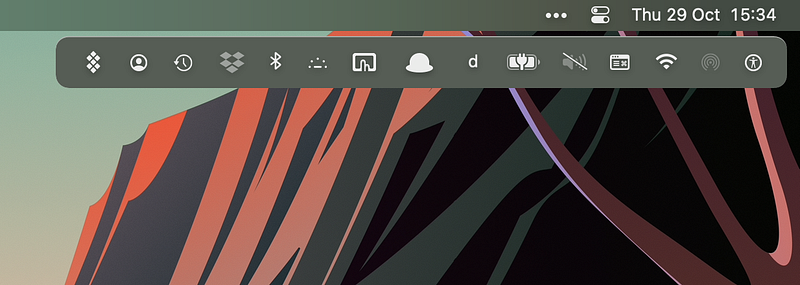
Once you install utility apps on your Mac, many will leave unnecessary (and sometimes necessary) icons in your menubar. One of the best apps that will hide those icons is Bartender 4.

I have written an exclusive review about this app, which I’ll link below.

One of the ways that we could make our macs more minimal is to reduce the distractions. If an app doesn’t provide an option to hide its icon from the menubar, you can instead utilize the capabilities of Bartender 4.

The app offers a great deal of customization alongside an intuitive user interface. Using the app is simple. Once configured, you can simply hover your cursor on the menubar, and it will reveal a small menu showing all the apps and their icons.

Lastly, the Bartender 4 is extremely light. It doesn’t push the processor and in fact, it is optimized for Macs with Apple Silicon processors.

If you like to minimize the visual clutter on your Mac, then give Bartender 4 a try.

🔐 Privacy: Data is not yet provided

💳 Price: $15

☑️ Compatibility: 💻 Mac

🧩 Design: Decent looking

🔗 Download: Not available on the AppStore

🌐 Research: Website
#9. PhotoMill

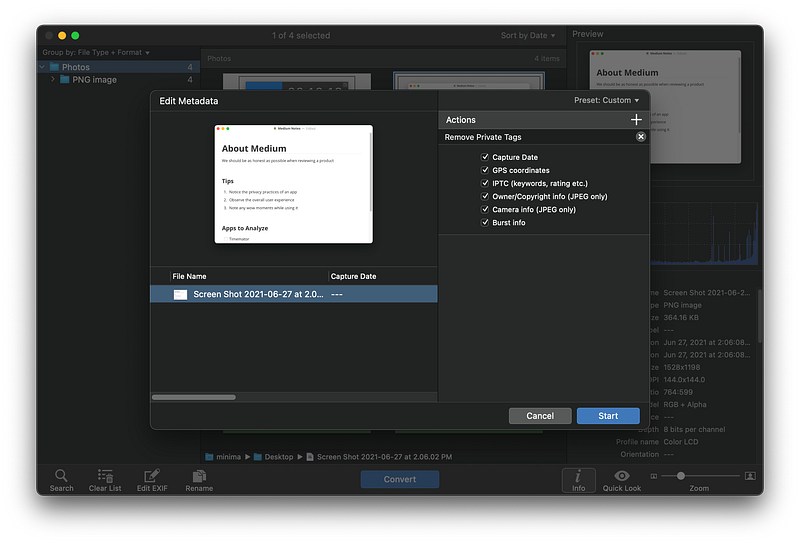
Depending on your use case on Mac, you might find the need to work on more than one photo. The PhotoMill by Overmacs is a batch photo editor that will help you change many things for your photos.

PhotoMill at its core is a photo editor which extends its functionalities to browse photos, convert images, modify the metadata, resize, watermark, adjust color, and rename photos.

I once had to upload some sample wallpaper photos to a WordPress blog, and the plugin I was using didn’t support the image format of my photos. I used PhotoMill to not only convert the format, but also resize them, put watermarks and rename all the files into a neat group of photos that were ready to upload.

You will be amazed by the power of this app. It works fast, and doesn’t collect any data from your Mac. I think the privacy practices of this app should be a symbol to many apps on the App Store to learn how powerful apps can continue to profit without collecting users data.

If you want to quickly modify the settings of your photos and convert them to a format supported by the app, then give PhotoMill a try.

🔐 Privacy: No data collection

💳 Price: $9.99

☑️ Compatibility: 💻 Mac

🧩 Design: Decent looking

🔗 Download: AppStore

🌐 Research: Website
#10. PhotoSweeper

PhotoSweeper is another great app from Overmacs that primarily finds duplicate photos for you. Many people have hundreds and thousands of photos that are mostly duplicates and don’t know how to get rid of them.

Thanks to PhotoSweeper, you can scan an entire library of photos, find the duplicates, and clean them. The app is not limited to PhotoSweeper, you can add photos from apps like Adobe Lightroom, Apple Photos, and Aperture.

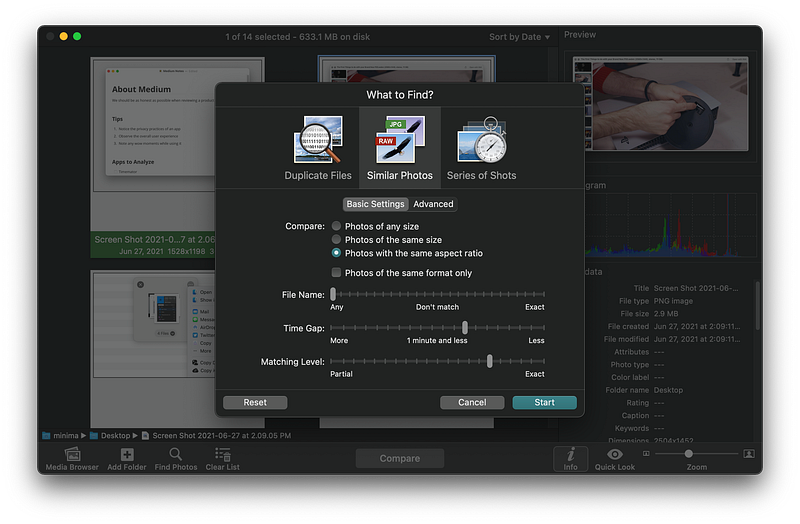
There is a panel that asks you what it is that you specifically want to find. You can change the filters based on your preference. For example:

I want photos with different file names that have the same aspect ratio with 10 minutes time gap

Using the simple user interface in the app’s search panel, you can find the duplicates and then use the Enter key to mark them for deletion.

If you would like to clear storage on your device, and have lots of duplicate photos, then give PhotoSweeper a try.

🔐 Privacy: No data collection

💳 Price: $9.99

☑️ Compatibility: 💻 Mac

🧩 Design: Decent looking

🔗 Download: AppStore

🌐 Research: Website

Thank you for reading this story. As always, I would love to hear your thoughts and recommendations for this story in the response section.

Here are more stories from the previous months.

Apple
Apps
Mac
Tech
Technology
Recommended from ReadMedium