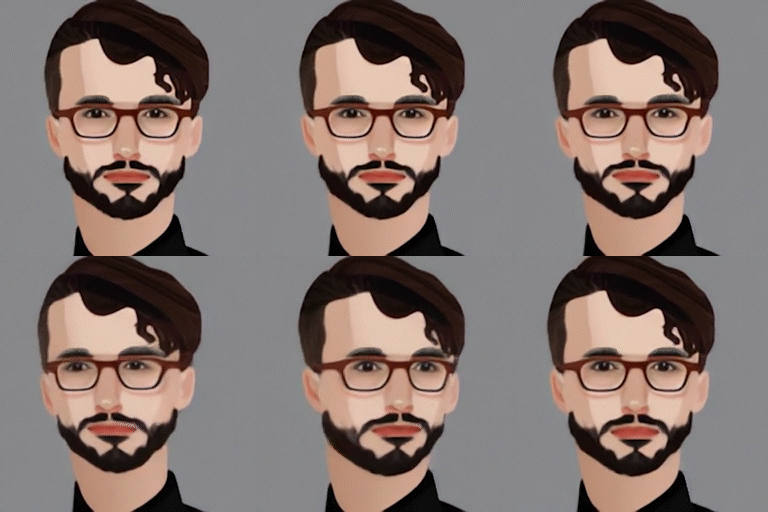
AI Art Generators, Technology, Culture, and Digital Art
You can download a free GFP-GAN to improve your AI-generated faces
Using BaseTen and the Google Colab version of GFP-GAN
For tons of advice from myself and others, visit the Jasper Facebook group!

Abnormal eyes are the part of an AI-generated image that’s most likely to creep people out and betray its uncanny origins. But before you ditch your latest creation, let’s see if there’s a solution! Here’s how to fix portraits of AI-generated people. Even near-perfect images can benefit from it. A little boost to the eyes makes all the difference between fake and photorealistic:

Using BaseTen to Correct AI-Generated Faces
BaseTen is a face restoration model that uses OpenAI to restore old and damaged photos. The software is a GFPGAN (Generative Facial Prior — Generative Adversarial Network). These networks are designed to improve the realism of generated faces by learning how to better parse and fill in facial features from partial data. You can read more about GFP-GANs here.
BaseTen can improve your results in two ways:
1. Sharpening the overall image; and
2. Correcting specific problems like eyes or teeth.
In addition to restoring images, BaseTen increases the image’s resolution, which is helpful if you plan to print or use it for high-resolution purposes.
To use BaseTen, simply visit their website, upload your horrible mutant image, and click “restore photo”. Then just let the software do its thing.
Keep in mind BaseTen doesn’t work with all images —your results will vary depending on the quality of the original image, but in general, you can expect an overall improvement in sharpness and detail.
Here’s an example using some crappy experimental AI images from 2015 that I’ve enhanced with BaseTen in 2022:


At the moment BaseTen is freeware, but reportedly the developers (Chinese tech conglomerate Tencent) are working on a subscription model that will offer additional features. This might restrict future use to pro users. That’s why I suggest downloading a Python version of GFP-GAN on Google Colab.
Don’t make me code!
Relax. It might not be as prettily packaged as BaseTen, but the Google Colab version is essentially the same process: Upload a crappy image, download an improved image. But here’s a more guided walkthrough:
Downloading the GFP-GAN via Google Colab
If you’ve never used Google Colab before, it’s a free Jupyter Notebook environment that runs in the Cloud. It requires no installation. You simply use your Google Drive to execute Python code in your web browser.
- First, go to the GFPGAN Colab page.
- You’ll need to go to FILE and “Save a copy in Drive”.
- This will open a copy of the software in a new tab.
- Go ahead and close the original tab.
Next, you’ll need to assign a Google GPU to your notebook. No sweat!
- Hit CONNECT (top right)
- Confirm it’s set to GPU mode by going MENU>Runtime>Change runtime type (to GPU under Hardware Accelerator).
And you’re ready to go! It couldn’t be easier. Here comes the fun part:
Instructions for how to use the GFP-GAN
There are five simple steps to running the GFP-GAN: Preparations, Upload Images, Interference, Visualize, and Download Results.
1. The first cell sets up the Preparations. Hit play and wait for it to execute:

2. The second cell is where you Upload your images. Again, hit play: wait for the green check, and then upload your image. Voila!

3. Inference is the exciting bit where you see the software do its thing. Simply hit play.

4. The fourth cell is Visualize, so you can see the results. And again, hit play. Behold your improved AI-generated images in wonderment.

5. The final step is to Download your results. Just hit play again, and it will start to download a zip file.

Your download.zip folder of image results
The zip contains four subdirectories: cmp, cropped_faces, restored_faces, restored_imgs. Let’s examine each of these more closely:
- cmp: a side-by-side comparison of before and after images
- cropped_faces: a cropped version of the area that was corrected
- restored_faces: the corrected version of the cropped area
- restored_imgs: the corrected version of the overall image*
*this is the one you want.
And that’s it! You’re all done. If you want to run another image, simply repeat the steps from cell two. You can also process a bunch of images by uploading multiple files, but this slows down the process. I recommend processing them one at a time. Now go forth and improve those images!
For tons of advice from myself and others, visit the Jasper Facebook group!
Jasper Art is now only $20/mo for unlimited image generations!
You can start to generate AI art right away — no waitlist!
The Jasper Whisperer offers advanced training in how to use AI generators like Dall-E and OpenAI to create original content for your site and stunning visuals. If you’re interested in learning more, please feel free to contact me.
Ready to join Medium?
Unlock the entire Medium catalogue with my referral link, and you’ll also be supporting my writing here at no extra cost to you. I’d appreciate it.


