
Using Embedchain — A powerful LangChain Python wrapper to build Chat Bots even faster!
CHAT with ANY ONLINE RESOURCES using EMBEDCHAIN and Databutton!

Not a medium member? Use this link to read the article for free !
👨🏾💻 GitHub ⭐️| 🐦 Twitter | 📹 YouTube | ☕️ BuyMeaCoffee | Ko-fi💜
Introduction:
In our earlier blog posts, we’ve explored building user-friendly and intuitive chatbots using LangChain, combined with large language models (LLMs) APIs and Databutton (an online workspace with a Streamlit front-end to deploy web apps instantaneously! ).
How about this time we explore a new Python package that simplifies LangChain implementation even further? With just literally 3–4 lines of code, we will be able to communicate with any online resource effortlessly! Thanks to Embedchain!⭐
What is Embedchain and how it works
Embedchain is a versatile framework that makes it easy to create powerful LLM-powered chatbots over any dataset.
The framework takes care of the complex tasks, such as loading data from various sources like web pages, PDFs, and blog posts. It then chunks the data into meaningful pieces, generates embeddings for efficient querying, and stores these chunks in a vector database for quick retrieval.
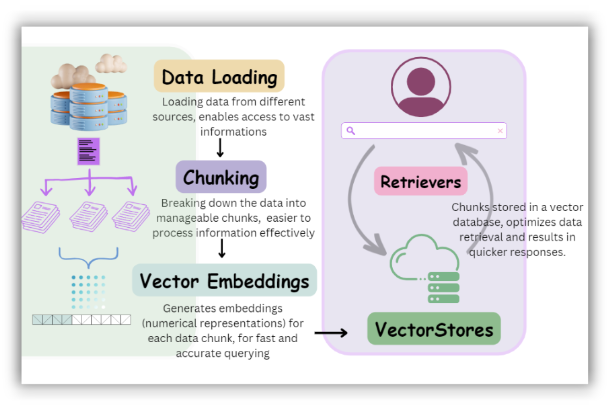
In brief the simple workflow while using embedchain based chatbots — when a user interacts with the chatbot and sends any queries, the user’s query is converted into an embedding representation (create an embedding for the query). Further, embedchain searches the vector database to find similar documents related to the user’s query (find similar documents). And finally, similar documents are given to the Language Model (LLM) as context, helping it generate the best possible answer (passing context to LLM)
👾 Building the Online Chat Bot using Streamlit Chat Elements
Let’s create a simple web app that allows users to interact with online resources using Embedchain’s powerful natural language processing capabilities to provide relevant and accurate responses to any given queries — in our use case, the query is passed in a form of web url.
As an additional treat, we’ll also dive into the latest major release of Streamlit API — streamlit chat elements 💬🛠️
🔨 We start with importing required libraries:
import databutton as db
import streamlit as st
import os
os is used to interact with the operating system and set environment variables.
🛈 Further, we add some relevant app related informations using simple streamlit APIs,
st.subheader(" Create Instant ChatBot 🤖 using `embedchain`")
st.markdown(" Repo : [Embdedchain](https://github.com/embedchain/embedchain)")
Next, we also create a text input widget to enable our end-user to enter the OpenAI API keys for leveraging OpenAI’s LLMs. This allows the application to access the key and make API calls to the OpenAI service.
OPENAI_API_KEY = st.text_input("Enter your OPEN AI API Key", type="password")If the user provides an OpenAI API key, it is stored in the environment variable OPENAI_API_KEY.
if OPENAI_API_KEY:
    os.environ["OPENAI_API_KEY"] = OPENAI_API_KEY
Next, we import the additional libraries and functions,
import time
import openai
from embedchain import App
📍 Defining a local function to Initialize the ChatBot:
The functoin takes a URL as input and creates a new instance of the ChatBot from the embedchain library. It embeds the provided URL as a web page to the ChatBot.
@st.cache_resource
def botadd(URL):
# # Create a bot instance
    databutton_bot = App()
    databutton_bot.add("web_page", URL)
    return databutton_bot
The initialized ChatBot object is returned for further uses in the rest of the app. We named the instantiated bot here as
databutton_app
This function, botadd, is defined with a decorator @st.cache_resource. The decorator caches the resources to avoid re-initializing it with the same URL if the user reloads the web application.
🏁 Getting User Input for the URL and Initializing the ChatBot:
prompt = st.text_input(
    "Enter a URL: ",
    placeholder="https://docs.databutton.com/howto/store-and-load-faiss-vectordb",
)
btn = st.button("Initialize Bot")
if btn or st.session_state.btn_state:
    st.session_state.btn_state = True
    databutton_bot = botadd(prompt)
    st.success("Bot Ready ☑️! ")
The user is prompted to enter a URL using the st.text_input() widget box. A button labeled “Initialize Bot” is displayed using st.button(). If the “Initialize Bot” button is clicked or the chatbot is already initialized (st.session_state.btn_state is True), the ChatBot is initialized using the URL provided by the user, and a success message is shown.
( Usage of session state to control the button’s state in active form acts more of an workaround to keep the default state of the button true / active, which in usual state returns back to inactive state once the app reruns i.e. in False state. This aspect of controlling widget state is elaborated in this blog post. )
🎉 Usage of newly release Streamlit API — Chat elements
Streamlit in their new release > v1.25.0, introduced two new APIs called st.chat_message and st.chat_input 🎈
🎈 Here’s the details related to the new release, Chat elements — Streamlit Docs
This section is more about on how to wrap the embedchain functionality, i.e, query method and later dump the responses from the LLM back in the UI within the chat-container ! In order to keep a continuation of a chat-like conversation, the messages are stored and fetched via session state API of Streamlit,
# Initialize chat history
        if "messages" not in st.session_state:
            st.session_state.messages = []

        # Display chat messages from history on app rerun
        for message in st.session_state.messages:
            with st.chat_message(message["role"]):
                st.markdown(message["content"])
The user query is accepted via the st.chat_input widget, which behaves very similarly to the st.text_input widget.
Once the query is passed , it is saved within a session state variable for later usage in a chat-like continuation form for the chat interface.
Note a container is created to dump the full response. The container behaves more of a placeholder while responses gets updated!
# Accept user input
        if prompt := st.chat_input("What is up?"):
            # Add user message to chat history
            st.session_state.messages.append({"role": "user", "content": prompt})
            # Display user message in chat message container
            with st.chat_message("user"):
                st.markdown(prompt)
            # Display assistant response in chat message container
            with st.chat_message("assistant"):
                message_placeholder = st.empty()
                full_response = ""
📢 Using embedchain Query method
👉 The next line of code is the crucial one, as it is relevant to embedcode usage — it performs the query and obtains response via the embedchain metho
d query
assistant_response = databutton_bot.query(prompt)
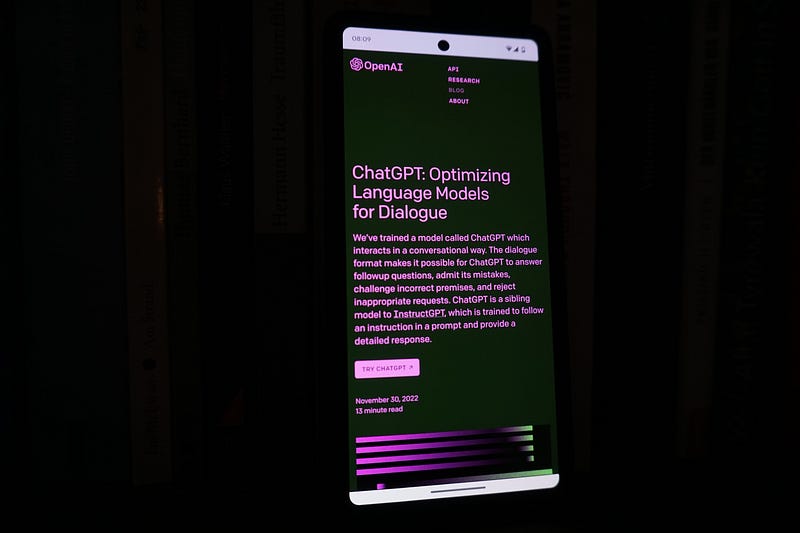
Now, once we have the response generated , rest of the codes, mainly plays a pivotal role in streaming the response more like the very popular ChatGPT — like style! 📃
# Simulate stream of response with milliseconds delay
            for chunk in assistant_response.split():
                full_response += chunk + " "
                time.sleep(0.05)
                # Add a blinking cursor to simulate typing
                message_placeholder.markdown(full_response + "▌")
            message_placeholder.markdown(full_response)
            # Add assistant response to chat history
            st.session_state.messages.append(
                {"role": "assistant", "content": full_response}
            )
else:
        st.info("Initiate a bot first!")
Also, we add the response generated back to our session_state to dump later as chat history ⌛
You can find a quick demo of the app in action over this tweet,
Conclusion
Embedchain provides us with a very powerful wrapper to build and prototype a chat-with-online resources with just few lines of code. Let’s highlight those three line which did the trick while building this web app,
# Initiate the Bot instance
databutton_bot = App()

# Embed Online Resources
databutton_bot.add("web_page", URL)
databutton_bot = botadd(prompt) # In case of our app

# Query the bot
assistant_response = databutton_bot.query(prompt)
🚀🌌 The live deployed app in can be accessed here. The entire code here!
More content at PlainEnglish.io. Sign up for our free weekly newsletter. Follow us on Twitter, LinkedIn, YouTube, and Discord. Interested in Growth Hacking? Check out Circuit.
Hi there ! I’m always on the lookout for sponsorship, affiliate links and writing/coding gigs to keep broadening my online contents. Any support, feedback and suggestions is very much appreciated ! Interested ? Drop an email here : [email protected]
Resources
- App in action — https://databutton.com/v/h3e680h9
- Code — https://databutton.com/v/h3e680h9/Code
- Embedchain — https://github.com/embedchain/embedchain
- Databutton — https://www.databutton.io/
- Streamlit Chat Elements — https://docs.streamlit.io/library/api-reference/chat
- LangChain — Introduction | 🦜️🔗 Langchain
Related Blogs
- Getting Started with LangChain — https://readmedium.com/getting-started-with-langchain-a-powerful-tool-for-working-with-large-language-models-286419ba0842
- Workaround to avoid re-running of Streamlit App — https://readmedium.com/streamlit-python-tips-how-to-avoid-your-app-from-rerunning-on-every-widget-click-cae99c5189eb
- Getting started with LangSmith — https://readmedium.com/getting-started-with-langsmith-integrating-langsmith-with-web-applications-chatbots-cf0268f3eafb
- ChatBot with Memory — https://readmedium.com/how-to-build-a-chatbot-with-chatgpt-api-and-a-conversational-memory-in-python-8d856cda4542
- Personal PDF Chat Bot with Memory Blog — https://readmedium.com/how-to-build-a-personalized-pdf-chat-bot-with-conversational-memory-965280c160f8


