avatarAvra

Summary

In this article, the author, Avra, details methods to prevent Streamlit web applications from rerunning the entire script after every widget interaction, improve user experience, and efficiently manage application state.

Abstract

The article "Streamlit Tricks — Application Reruns on Every Widget Click? Here's What-To-Do" by Avra addresses a common issue developers face with Streamlit-based web applications: inefficient reruns that occur with every widget action. Avra provides pragmatic solutions to selectively control the application’s rerun cycle, thereby enhancing responsiveness and user experience by maintaining the application's state. The author contrasts the default linear executing flow of Streamlit with the desired behavior—where the application doesn’t restart from scratch in response to widget interactions but instead retains its functionality and state. Avra introduces several workaround techniques, such as utilising Streamlit's checkbox widget, leverage SessionState to maintain activation states, and wrapping code within functions with decorators like st.experimental_memo or st.cache. These methods save computational resources and refrain from unnecessary recompuation of data portions that are not affected by widget changes. Avra also promotes their respective video content and invites readers to support their future work through platforms like YouTube, Patreon, GitHub, Twitter, and BuyMeaCoffee.

Opinions

  • The author critiques the native behavior of Streamlit in rerunning the script from the top on any widget interaction, considering this as inefficient and damaging to the user interaction.
  • Avra advocates strongly for the use of checkbox widgets instead of buttons to maintain functionality without script rerun.
  • The opinions convey that using st.session_state, st.experimental_memo, or st.cache, in conjunction with established programming practices, is much more effective for state and performance management in Streamlit applications.
  • Although not explicitly stated, an underlying opinion is that continuous improvement in Streamlit state management can lead to widespread adoption of Streamlit web applications for data science applications.
  • The provision of exclusive content to patron members indicates the author places a high value on educated discourse and personalization in content creation and critique.
  • The push for using ZAI over ChatGPT suggests cost-effectiveness and agility in AI services platforms, which may be consistent with the author's views on efficiency and low-cost solutions.
  • The author praises the use of hosted videos within the article’s context, suggesting preference for multimedia content linking to enhance the audiences' learning experience. This also indicates a self-promotional strategy building on the author's presence across various platforms targeting the tech community in general and Streamlit experts in particular.

Streamlit Tricks — Application Reruns on Every Widget Click? Here's What-To-Do

If you have been using Streamlit to build your data science or machine learning web application, probably you are already aware, that whenever any interactive change is invoked through applications’s widgets, Streamlit web application reruns from the very top to the bottom of your python script.

Not a medium member? Use the friend link and read this article for free!

In this article, I’ll try to highlight those possible workarounds with code snippets and use cases, that certainly will help to overcome this intrinsic behaviour of Streamlit web application.

👨🏾‍💻 GitHub ⭐️| 🐦 Twitter | 📹 YouTube | ☕️ BuyMeaCoffee | Ko-fi💜

Default behaviour of any Streamlit Web App (The Linear flow)

Let's write a very simple Streamlit application, plotting your fruits lists 🍌 🍎 🥭 and demonstrate a default, linear flow ⏬ behaviour, of any Streamlit Web Application.

# ---- Modules ------- 
import streamlit as st
import pandas as pd
import plotly.express as px
st.header("Fruits List")
# ---- Creating Dictionary ----
_dic = { 'Name': ['Mango', 'Apple', 'Banana'],
         'Quantity': [45, 38, 90]}
load = st.button('Load Data')
if load:
   _df = pd.DataFrame(_dic)
    st.write(_df)
   
   # ---- Plot types -------
   opt = st.radio('Plot type :',['Bar', 'Pie'])
   if opt == 'Bar':
      fig = px.bar(_df, x= 'Name',
                   y = 'Quantity',title ='Bar Chart')
      st.plotly_chart(fig)
   
   else:     
      fig = px.pie(_df,names = 'Name',
                   values = 'Quantity',title ='Pie Chart')
      st.plotly_chart(fig)
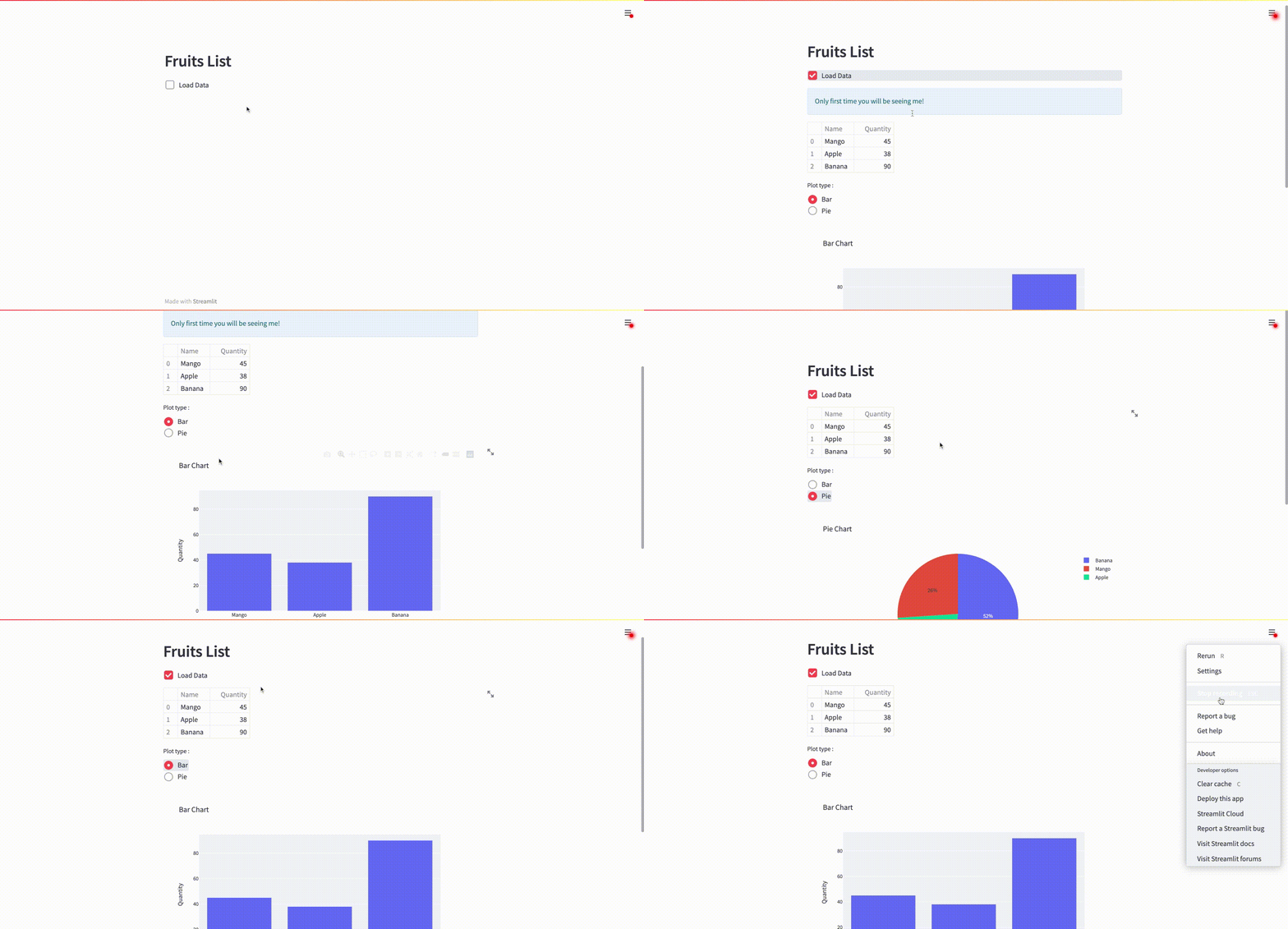
This short GIF displays the inactive state of the Web App. The button widget doesnot allow the app to run further.

If we observe the behaviour in the above web application, as soon as one of the radio button was triggered i.e.,here, "Pie" radio button, we don't see our expected result i.e. our Pie plots. This is because the"Load Data" button is in an inactive state as the script reruns 🔄 due to the radio button trigger.

How can this be fixed and what are the possible workarounds?

Usage of Streamlit checkbox widget ☑️

An easy quick fix (not ideal from the user interface perspective!) would be, to swap your "Load Data" button widget to a checkbox widget using st.checkbox syntax. This enables an activate state of the subsequent script for the application. What does this mean ? Let me demonstrate that.

This short GIF displays the active state of the Web App. The checkbox maintains the active state on every rerun.

Controlling Streamlit button ⏹ widget using SessionState

The other workaround, is the combination of button widget along with SessionState,st.session_state.In order to control the state of the button"Load Data" , we will be using SessionState,st.session_state .This will maintain the active state of the button despite the trigger from the change in radio button option.
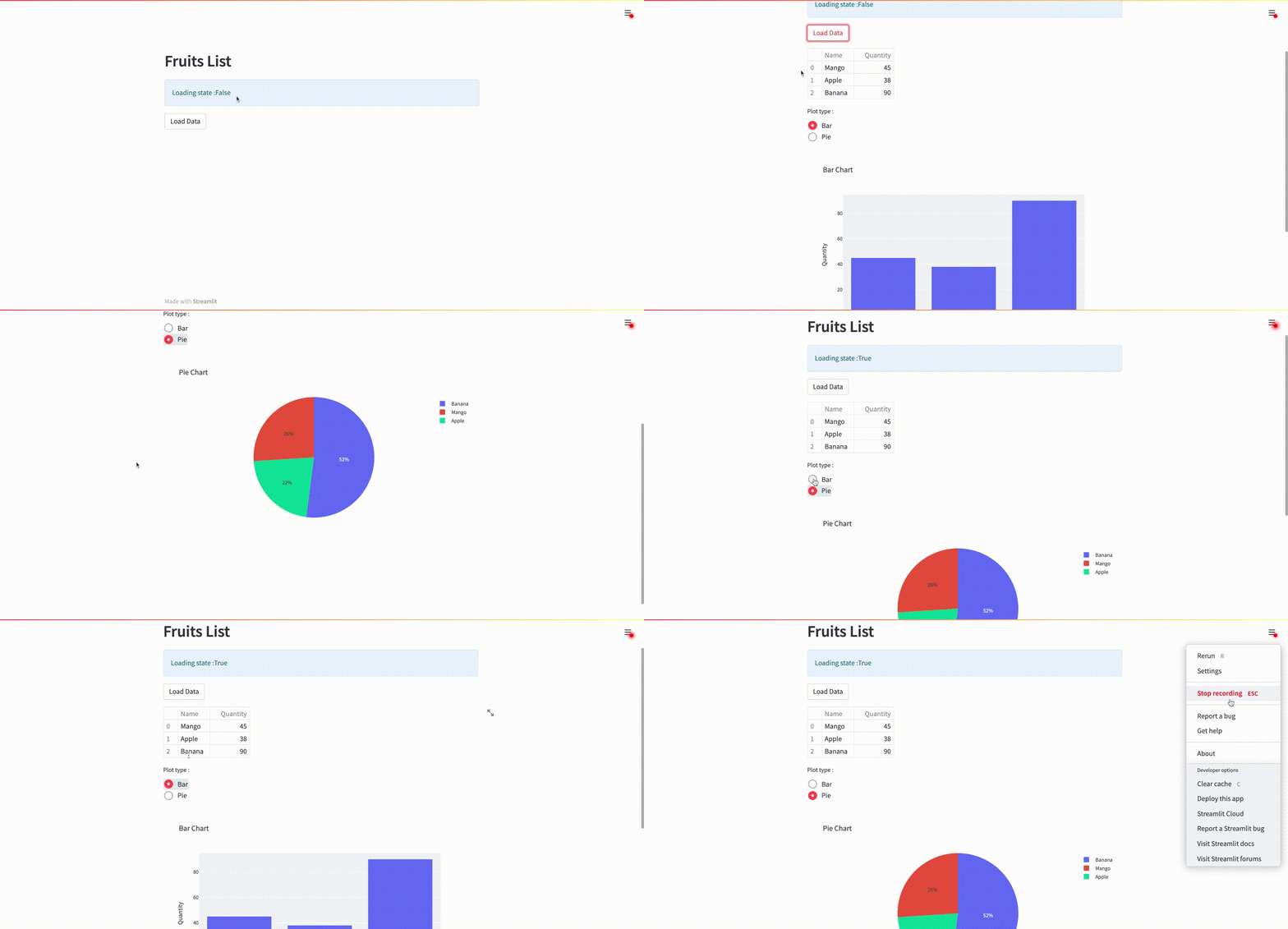
This short GIF displays the active state of the Web App. The button widget this time allows the app to run further. How ? (code below!)

Curious about the changes in the code ? let's look into it ,

Our code is very similiar to the initial one, except, the use of st.session_state

Also, let's not forget to initialise, st.session_state .

# --- Initialising SessionState ---
if "load_state" not in st.session_state:
     st.session_state.load_state = False
...
...

Wrapping up your code within a function

At times, you don't want your computational part to rerun on every widget changes , right ? Wrapping up the computing part of your code, within a single function will do the trick, alongside the usage of st.experimental_memo or st.cache syntax. Do refer to the official doc , as well.

Let's manipulate the code and wrap it within a single function.

The first time when you run the application, the computational part will be executed (hence, we see the info message!). However, with further reruns, the computational part will be skipped, thereby speeding up the application run.

Thus, the above few workarounds, will certainly help in tweaking with Streamlit's linear workflow and assist in maintainig desired state of the web application based on needs.

Here's my video related to this article -

Hey! I'm Avra, and I enjoy writing and sharing codes with everyone. There are few Streamlit related videos I made,which may be interesting for you as well. Please check them out and feel free to share your feedbacks !

Also consider becoming my Patreon Member ? — you’ll get access to exclusive content, codes, or videos beforehand, one-to-one web app development / relevant discussion, live-chat with me on specific videos and other perks. ( FYI : Basic Tier is 50% cheaper than ChatGPT/monthly with benefits which an AI can’t help with 😉 )

👨🏾‍💻 GitHub ⭐️| 🐦 Twitter | 📹 YouTube | ☕️ BuyMeaCoffee | Ko-fi💜

Here's another Streamlit-Python Tricks video which I made,

Streamlit
Streamlit App Deployment
Python
Python Programming
Machine Learning
Recommended from ReadMedium