
How to Build a Personalized PDF Chat Bot with Conversational Memory
🧠 Memory to your Personal Chat Bot 🤖 — powered by ChatGPT API, LangChainAI and Databutton
Not a medium member? Use this link to read the article for free !
Introduction
With the advancement of AI technologies, we are continually finding ways to utilize them in innovative ways. One such way is through the use of Large Language Models (LLMs) like GPT-3, which have the capability to understand natural language processing and generate responses to user inputs. The applications of these language models are vast, and one of the most promising aspects is the ability to build powerful chatbots. However, while these chatbots can provide real human-like interactions, they lack conversational memory, making them unable to remember past conversations.
“Conversation without context is like a book without a plot — it lacks direction, purpose, and depth.” — anonymous
In one of our previous blog post, we successfully built a memory-enabled chatbot powered with
EntityMemorymodule from LangChain that is well aware of the conversations and context. You can find the live app here.
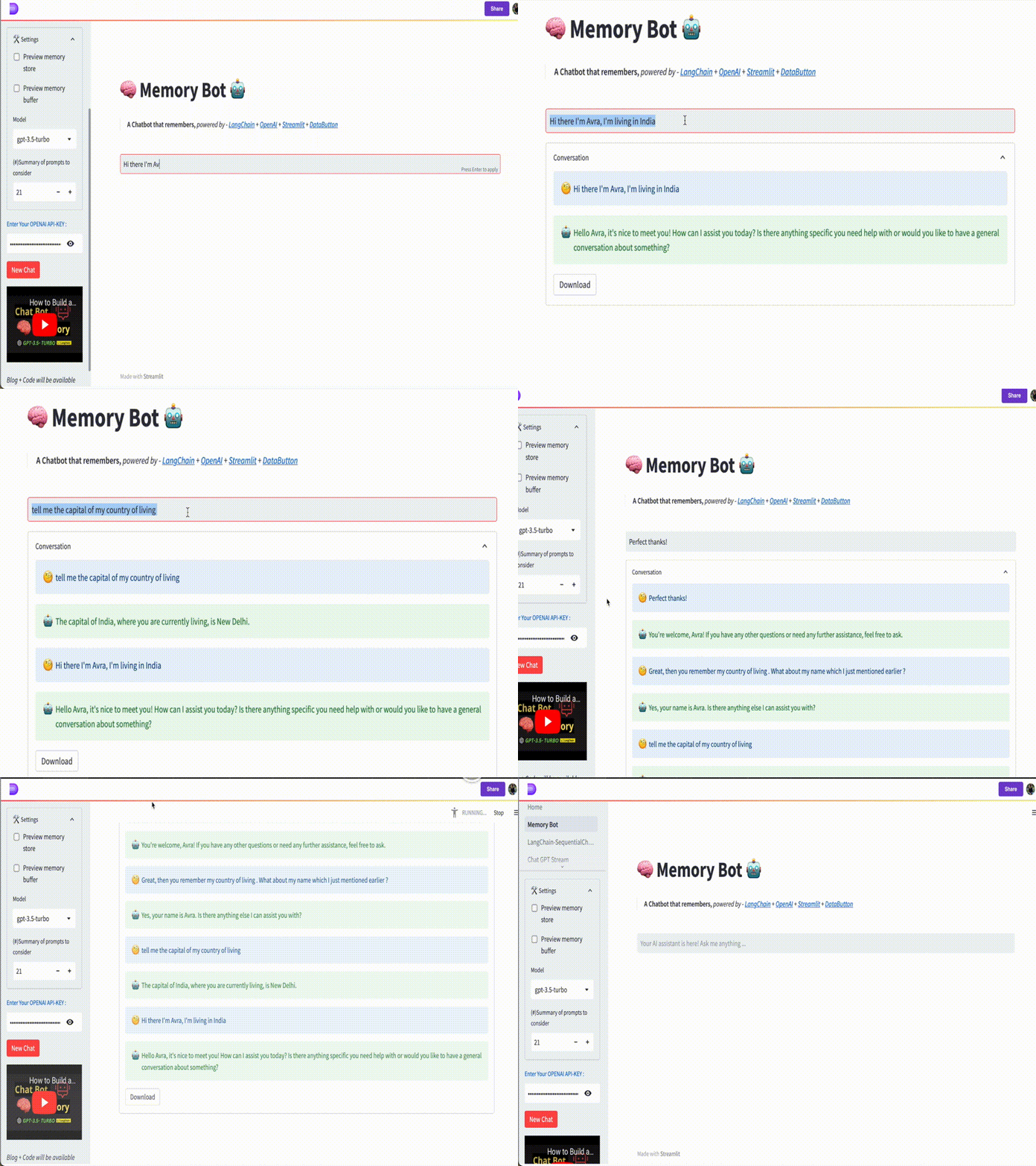
Instead of relying on an LLM to answer our queries, we want to create a chatbot that is tailored to our personal datasets. In this blog post, we will discuss how to develop a customized chatbot with memory.
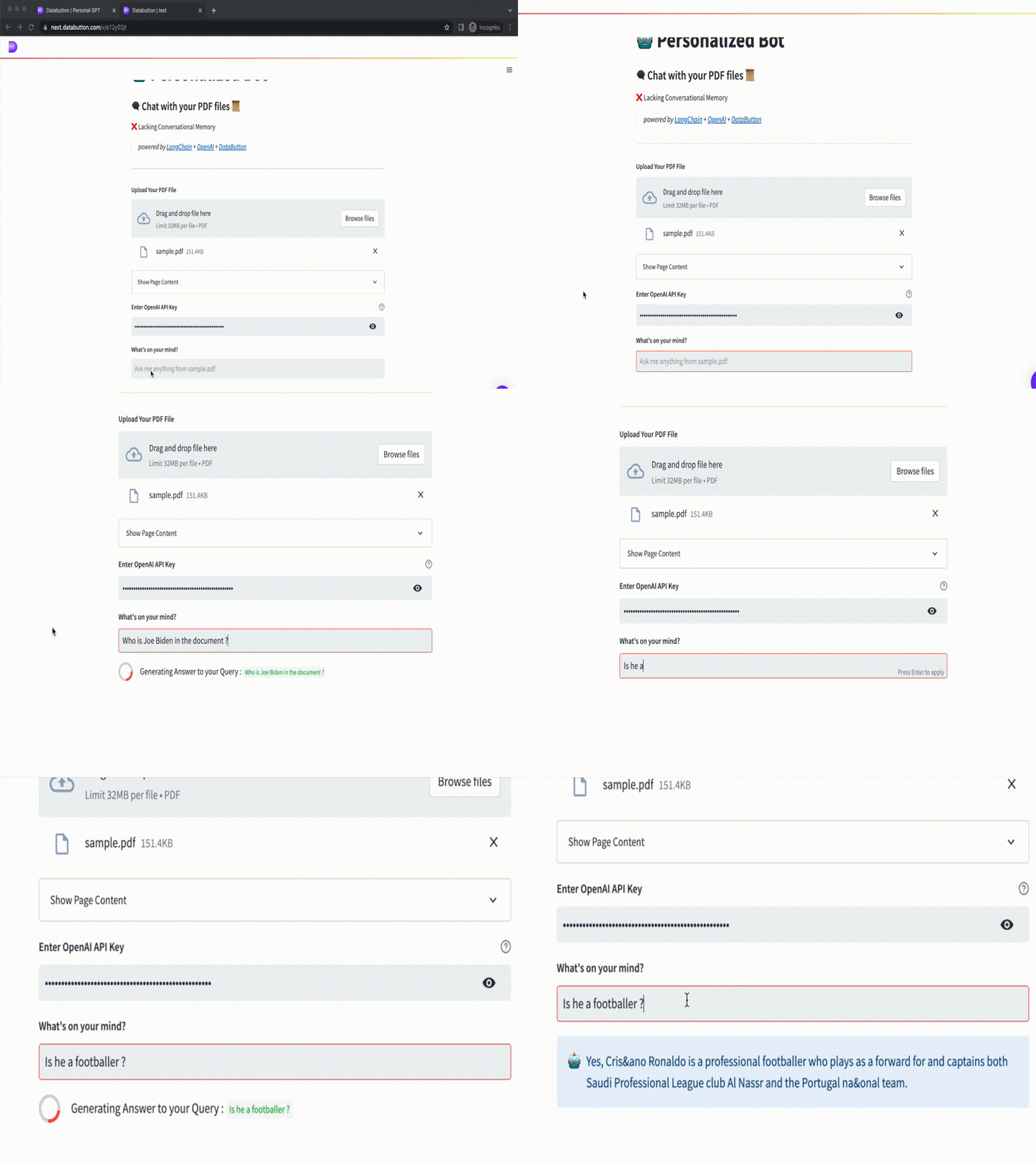
But let's first understand how a basic personal chatbot can conduct Q&A using information extracted from an uploaded file. In a typical workflow, conventional chatbots like this are deficient in one crucial aspect : memory. Without the capacity to recall past conversations and context, they are unable to provide genuinely personalized interactions.

A typical personalized chatbot workflow — parse text, embed information, and perform Q&A using semantic search and vector databases.
Taking this a step further, we can enhance our personalized chatbot by adding memory to it.
We can accomplish this using the LangChain AI Python package ( refer to my earlier blog post on getting started with LangChain ). This will enable our chatbot to recall previous conversations and contextual information, resulting in more personalized and engaging interactions. LangChain’s Conversational Buffer Memory comes in as revolutionary tool that allows chatbots to store and recall past conversations and interactions.
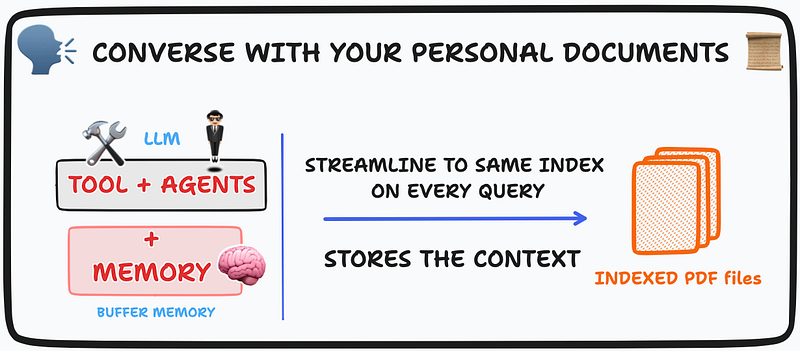
Alongside LangChain's AI ConversationalBufferMemory module, we will also leverage the power of Tools and Agents . 🛠️
Let's see how LangChain's documentation mentions each of them,
- Tools — A specific abstraction around a function that makes it easy for a language model to interact with it. Specifically, the interface of a tool has a single text input and a single text output
- Agent — An Agent is a wrapper around a model, which takes in user input and returns a response corresponding to an “action” to take and a corresponding “action input”
- Agent Executor — is an Agent and set of Tools. The agent executor is responsible for calling the agent, getting back and action and action input, calling the tool that the action references with the corresponding input, getting the output of the tool, and then passing all that information back into the Agent to get the next action it should take
Okay, let me simplify this further,
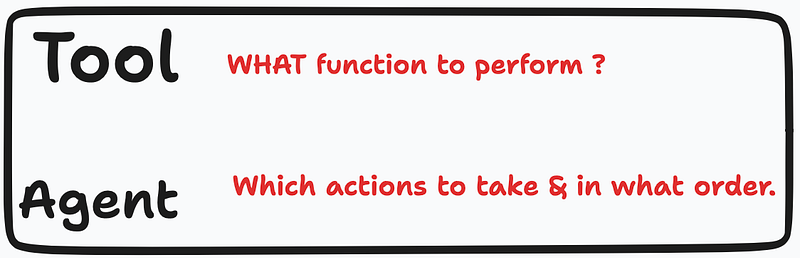
Now keeping the above-mentioned aspects in mind, let's start writing the codes and build a Personal Memory Bot! 🤖
App Development
We will use Databutton to build and deploy our web app. Briefly, Databutton is the AI-powered workspace to build and share data apps. You can find more on how to start with and its components in my earlier blog post.
With Databutton, we can skip the laborious process of configuring Python environments and navigating IDE complexities with ease. This approach frees up our time and helps us to concentrate on our primary objectives — coding and deploying the application in no time 🕰️
Importing necessary modules: The required modules are introduced briefly ,
openai: The OpenAI API library, used to generate embeddings and perform question-answering on the text.streamlit: The Streamlit library, used to build the app's user interface.langchain: A library for natural language processing and machine learning, used to preprocess the text and generate embeddings.FAISS: A class in the LangChain library that represents a vector store that uses the FAISS library for indexing.PdfReader: A class in the pypdf library that reads PDF files.
Dependencies can be added to the Databuttons configuration space present within our working app ( refer to this blogpost on how-to work with databutton)
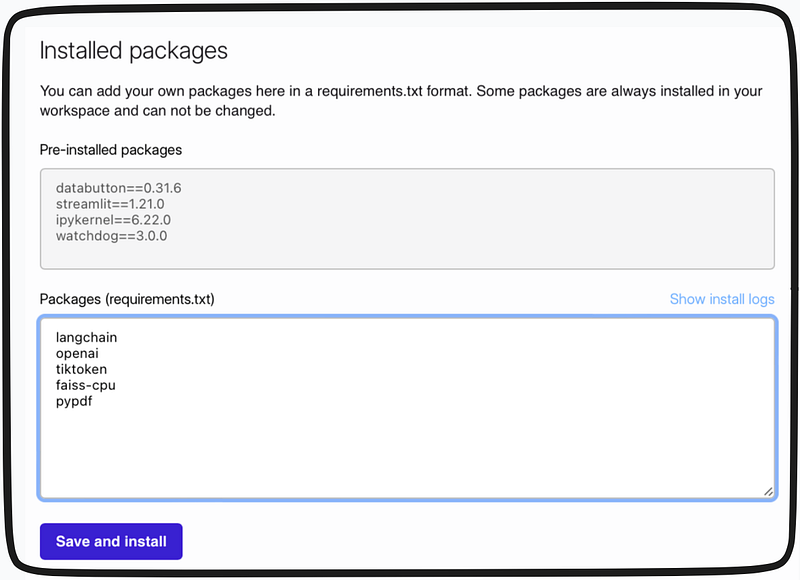
We write the code within the integrated IDE of Databutton.
import re
import time
from io import BytesIO
from typing import Any, Dict, List

# Modules to Import
import openai
import streamlit as st
from langchain import LLMChain, OpenAI
from langchain.agents import AgentExecutor, Tool, ZeroShotAgent
from langchain.chains import RetrievalQA
from langchain.chains.question_answering import load_qa_chain
from langchain.docstore.document import Document
from langchain.document_loaders import PyPDFLoader
from langchain.embeddings.openai import OpenAIEmbeddings
from langchain.llms import OpenAI
from langchain.memory import ConversationBufferMemory
from langchain.text_splitter import RecursiveCharacterTextSplitter
from langchain.vectorstores import VectorStore
from langchain.vectorstores.faiss import FAISS
from pypdf import PdfReader
Local functions : We need a couple of local functions which would help us in the process.
- The
parse_pdf()function takes a PDF file object, extracts its text, and cleans it up by merging hyphenated words, fixing newlines in the middle of sentences, and removing multiple newlines. The resulting text is returned as a list of strings, one for each page of the PDF. - The
text_to_docs()function converts a list of strings (e.g., the output ofparse_pdf()) to a list of LangChainDocumentobjects. EachDocumentrepresents a chunk of text of up to 4000 characters (configurable). TheDocumentobjects also store metadata such as the page number and chunk number from which the text was extracted. - Function for embeddings: The
test_embed()function uses the LangChain OpenAI embeddings by indexing the documents using the FAISS vector store. The resulting vector store is returned.
@st.cache_data
def parse_pdf(file: BytesIO) -> List[str]:
    pdf = PdfReader(file)
    output = []
    for page in pdf.pages:
        text = page.extract_text()
        # Merge hyphenated words
        text = re.sub(r"(\w+)-\n(\w+)", r"\1\2", text)
        # Fix newlines in the middle of sentences
        text = re.sub(r"(?<!\n\s)\n(?!\s\n)", " ", text.strip())
        # Remove multiple newlines
        text = re.sub(r"\n\s*\n", "\n\n", text)
        output.append(text)
    return output


@st.cache_data
def text_to_docs(text: str) -> List[Document]:
    """Converts a string or list of strings to a list of Documents
    with metadata."""
    if isinstance(text, str):
        # Take a single string as one page
        text = [text]
    page_docs = [Document(page_content=page) for page in text]

    # Add page numbers as metadata
    for i, doc in enumerate(page_docs):
        doc.metadata["page"] = i + 1

    # Split pages into chunks
    doc_chunks = []

    for doc in page_docs:
        text_splitter = RecursiveCharacterTextSplitter(
            chunk_size=4000,
            separators=["\n\n", "\n", ".", "!", "?", ",", " ", ""],
            chunk_overlap=0,
        )
        chunks = text_splitter.split_text(doc.page_content)
        for i, chunk in enumerate(chunks):
            doc = Document(
                page_content=chunk, metadata={"page": doc.metadata["page"], "chunk": i}
            )
            # Add sources a metadata
            doc.metadata["source"] = f"{doc.metadata['page']}-{doc.metadata['chunk']}"
            doc_chunks.append(doc)
    return doc_chunks


@st.cache_data
def test_embed():
    embeddings = OpenAIEmbeddings(openai_api_key=api)
    # Indexing
    # Save in a Vector DB
    with st.spinner("It's indexing..."):
        index = FAISS.from_documents(pages, embeddings)
    st.success("Embeddings done.", icon="✅")
    return index
The st.cache_data is used to avoid rerunning the same function. (Refer here to know more about caching)
Basic UI set up First, we set the app title and add the necessary descriptive context to our app,
st.title("🤖 Personalized Bot with Memory 🧠 ")
st.markdown(
    """
        ####  🗨️ Chat with your PDF files 📜 with `Conversational Buffer Memory`
        > *powered by [LangChain]('https://langchain.readthedocs.io/en/latest/modules/memory.html#memory') +
        [OpenAI]('https://platform.openai.com/docs/models/gpt-3-5') + [DataButton](https://www.databutton.io/)*
        ----
        """
)
st.sidebar.markdown(
    """
    ### Steps:
    1. Upload PDF File
    2. Enter Your Secret Key for Embeddings
    3. Perform Q&A
**Note : File content and API key not stored in any form.**
    """
)
Load PDF files
The next section of code allows the user to upload a PDF file using the file_uploader function. It checks whether the file was uploaded and calls the parse_pdf function to extract the text from the file. If the PDF contains multiple pages, it prompts the user to select a page number.
uploaded_file = st.file_uploader("**Upload Your PDF File**", type=["pdf"])
if uploaded_file:
    name_of_file = uploaded_file.name
    doc = parse_pdf(uploaded_file)
    pages = text_to_docs(doc)
    if pages:
        with st.expander("Show Page Content", expanded=False):
            page_sel = st.number_input(
                label="Select Page", min_value=1, max_value=len(pages), step=1
            )
            pages[page_sel - 1]
Perform Embeddings
Then, we ask the user to input their OpenAI API key using the text_input function, which is further used to create embeddings and index them using Faiss.
        api = st.text_input(
            "**Enter OpenAI API Key**",
            type="password",
            placeholder="sk-",
            help="https://platform.openai.com/account/api-keys",
        )
        if api:
            index = test_embed()
Implementing Retrieval Q&A Chain We then use the retrieval-based question-answering (QA) system using the RetrievalQA class from the LangChain library. It uses an OpenAI language model (LLM) to answer questions, with a chain type of “stuff”. The retriever is defined using an index that was previously created, and it is all stored in the ‘qa’ variable. More about Retrieval here ( Recommended for better understanding.)
qa = RetrievalQA.from_chain_type(
            llm=OpenAI(openai_api_key=api),
            chain_type="stuff",
            retriever=index.as_retriever(),
        )
Using Tools and Agents ( Key part of the app )
Further, we define our Tool which will ensure running the qa chain we just defined! This tool is given a name, function, and description, and is stored in the ‘tools’ variable as a list. However, feel free to tweak the name and description strings.
tools = [
            Tool(
                name="State of Union QA System",
                func=qa.run,
                description="Useful for when you need to answer questions about the aspects asked. Input may be a partial or fully formed question.",
            )
        ]
Next, we work with the prompt,
prefix = """Have a conversation with a human, answering the following questions as best you can based on the context and memory available.
                You have access to a single tool:"""
suffix = """Begin!"
{chat_history}
Question: {input}
{agent_scratchpad}"""The next lines of code create a prompt for the ZeroShotAgent class. The create_prompt method takes in several arguments.
prompt = ZeroShotAgent.create_prompt(
            tools,
            prefix=prefix,
            suffix=suffix,
            input_variables=["input", "chat_history", "agent_scratchpad"],
        )
Similar to our previous blog post where we store the entity memory, here we create a ‘memory’ variable in the st.session_state dictionary using the ConversationBufferMemory class. This allows the chatbot to store previous conversation history to help inform future responses.
if "memory" not in st.session_state:
            st.session_state.memory = ConversationBufferMemory(
                memory_key="chat_history"
            )
An instance of the LLMChain class is created, which represents a language model chain. The LLMChain class takes in several arguments:
llm: An instance of a language model, in this case, an instance of theOpenAIclass.prompt: A string that represents the prompt that the language model will use during the conversation.
The OpenAI class is initialized with several arguments. For detailed understanding refer to my earlier blog post.
The LLMChain class represents a chain of language models that can be used to generate text. In this case, the chain consists of a single language model, which is an instance of the OpenAI class.
llm_chain = LLMChain(
            llm=OpenAI(
                temperature=0, openai_api_key=api, model_name="gpt-3.5-turbo"
            ),
            prompt=prompt,
        )
Next, a block of codes creates an instance of the AgentExecutor class, which is responsible for executing the conversational agent. The AgentExecutor takes in the ZeroShotAgent, tools, verbose, and memory variables as arguments.
agent = ZeroShotAgent(llm_chain=llm_chain, tools=tools, verbose=True)
agent_chain = AgentExecutor.from_agent_and_tools(
                agent=agent, tools=tools, verbose=True, memory=st.session_state.memory
            )
Query and running Agent Chain
A text input field using the st.text_input function, which prompts the user to enter a query. If the user enters a query, the AgentExecutor is used to generate a response to the query using the run method. The response is then displayed to the user using the st.info function.
The code also creates an expander using the st.expander function, which allows the user to view the conversation history and other information stored in the agent's memory. The conversation history is stored in the ConversationBufferMemoryobject, which is stored in the st.session_state.memory .
query = st.text_input(
                "**What's on your mind?**",
                placeholder="Ask me anything from {}".format(name_of_file),
            )

            if query:
                with st.spinner(
                    "Generating Answer to your Query : `{}` ".format(query)
                ):
                    res = agent_chain.run(query)
                    st.info(res, icon="🤖")

            with st.expander("History/Memory"):
                st.session_state.memory
Let's test the app! We can see how well the app can remember the context of the conversation!
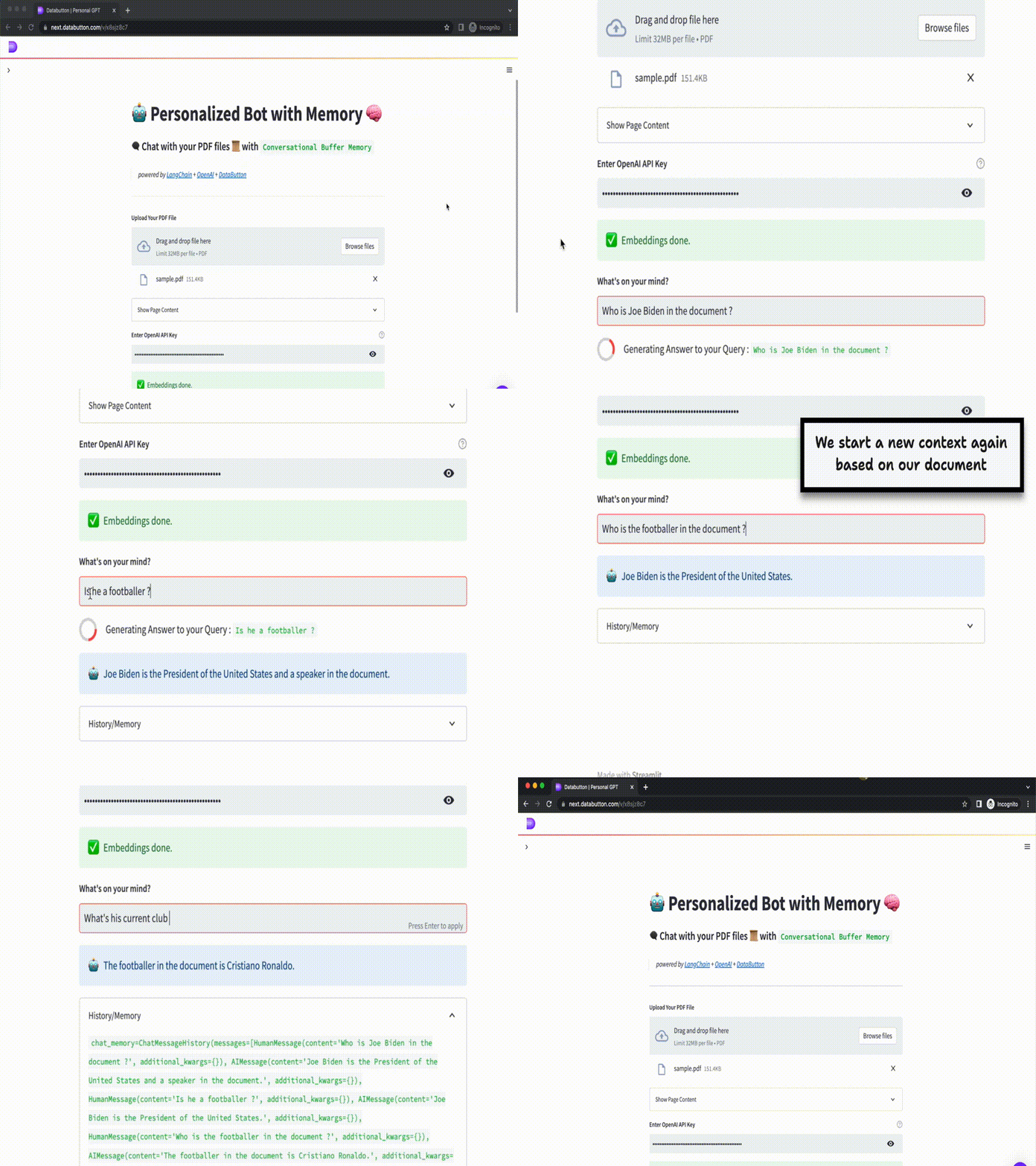
Conclusion
Now it’s time to publish and share our personalized chatbot with the world! 🎉 You can find the demo live app here.
Thus, in this tutorial, we have successfully built a personalized chatbot that can perform Q&A on the uploaded PDF file. The bot is powered by OpenAI’s GPT-3.5-turbo model, LangChain AI, and DataButton. The app can be further extended in different ways. For instance — we can use a Vector database such as Pinecone or Chroma DB to store our embeddings! Probably we will try such, in our next tutorial 😉
You will find the full code here.
👨🏾💻 GitHub ⭐️| 🐦 Twitter | 📹 YouTube | ☕️ BuyMeaCoffee | Ko-fi💜
Links, references, and credits:
- LangChain docs : https://langchain.readthedocs.io/en/latest/index.html
- LangChain Prompt Memory module: https://langchain.readthedocs.io/en/latest/modules/memory.html#memory
- LangChain Repo : https://github.com/hwchase17/langchain
- Databutton: https://www.databutton.io/
- Databutton docs: https://docs.databutton.com/
- Streamlit docs: https://docs.streamlit.io/
- Knowledge GPT : https://github.com/mmz-001/knowledge_gpt
- Open AI GPT3.5 model — https://platform.openai.com/docs/models/gpt-3-5
Related blogs:
- How to build a Chatbot with ChatGPT API and a Conversational Memory in Python
- Getting started with LangChain — A powerful tool for working with Large Language Models
- Summarizing Scientific Articles with OpenAI ✨ and Streamlit
- Build Your Own Chatbot with OpenAI GPT-3 and Streamlit
- Build a Personal Search Engine Web App using Open AI Text Embeddings
Recommended YouTube playlists:
Thank you for your time in reading this post!
Make sure to leave your feedback and comments. See you in the next blog, stay tuned 🤖
Hi there! I’m always on the lookout for sponsorship, affiliate links, and writing/coding gigs to keep broadening my online content. Any support, feedback, and suggestions are very much appreciated! Interested? Drop an email here: [email protected] | Become a Patreon — link


