
Mastering Chaos: Complete Guide to Midjourney’s Chaos Parameter & Its Applications
Enhancing Workflows with Midjourney’s Hidden Gem

I think the Chaos command is one of the most useful parameters (along with Midjourney’s permutation function) when it comes to exploring ideas and fine-tuning images.
In this article, I will show some of the applications that the Chaos parameter offers:
- Deviating from Midjourney’s default prompt interpretation for more “creative” results
- Leveraging chaos & constraints
- Fine-tuning images by using “chaos baselines”
- Chaos values & permutation
- Chaos values & stylize values
Let there be chaos!
Basic Usage
For example, if you have a prompt like this:
/imagine prompt: penguins chilling on a couch --seed 1000You can apply a chaos value by adding a double-dash plus the parameter name “chaos” and the value (here: 10)
/imagine prompt: penguins chilling on a couch --seed 1000 --chaos 10… or by using the shorter form with double-dash plus parameter shortcut “c” and the value (here: 10):
/imagine prompt: penguins chilling on a couch --seed 1000 --c 10(note: we use a seed value to keep the initial grid the same for all applied chaos values so that the generations become comparable)
Results
Here you can see the image grids resulting from the above prompt “Penguins chilling on a couch”, without a chaos value (left grid) and with a chaos value of 10 (right grid):
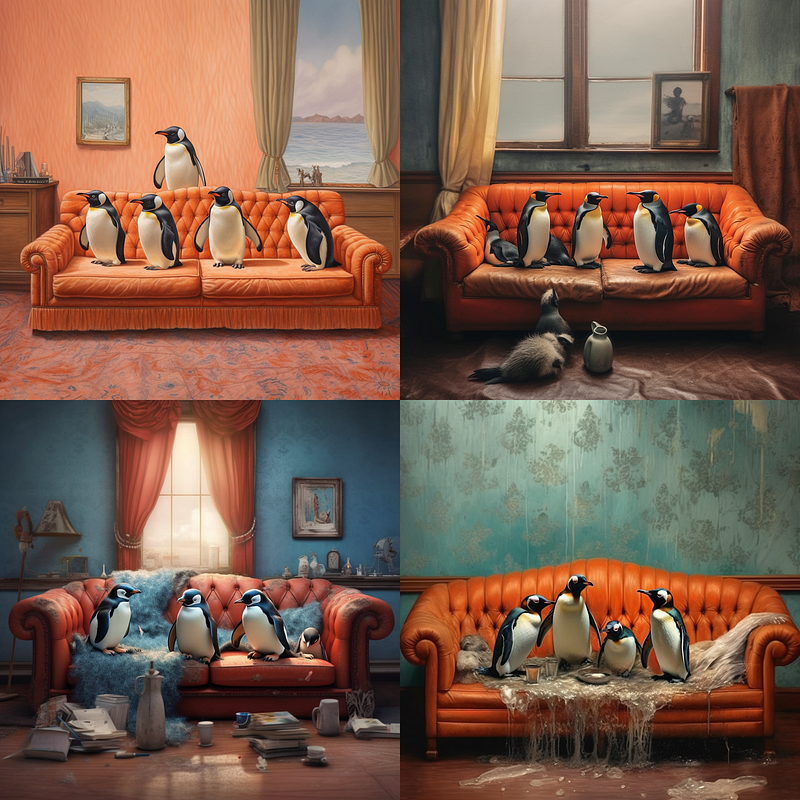
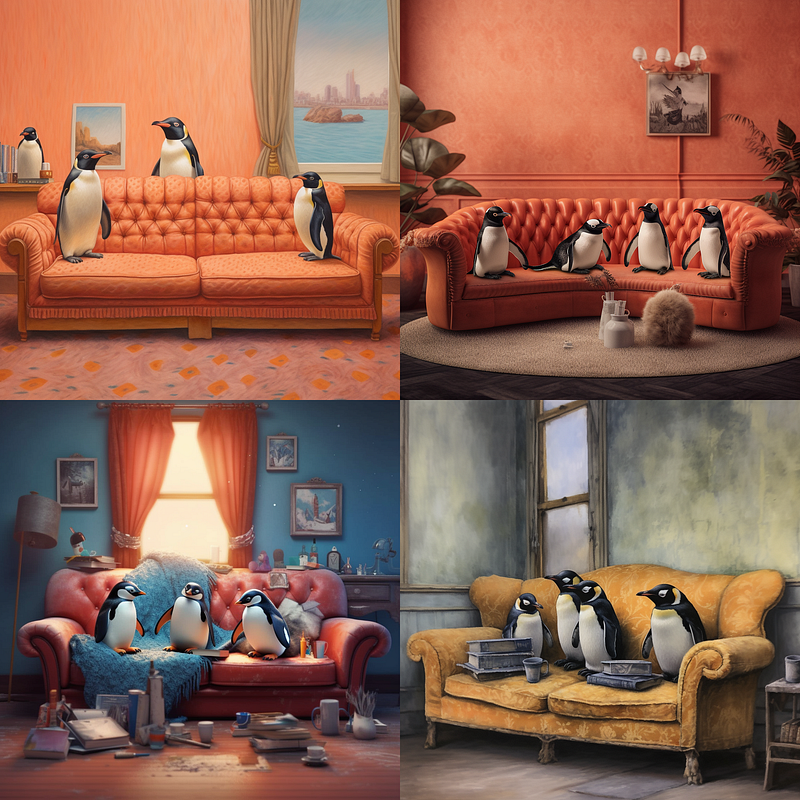
Obviously, the chaos value affects image generation by increasing the versatility of the generation grid as a whole, leading to the following results:
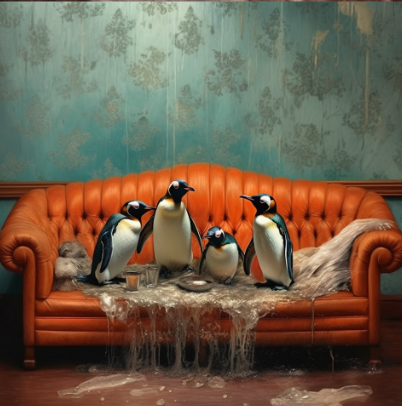
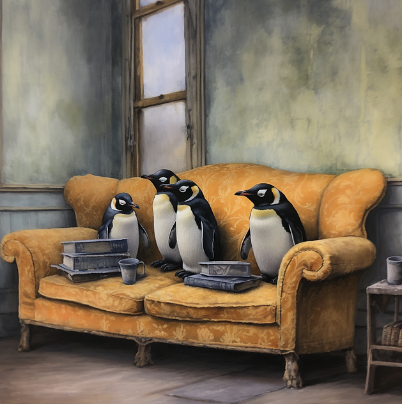
a) minor compositional changes like this


and b) whole new images within the initial grid like this
Chaos from 0 to 100
The chaos values can be between 0 and 100.
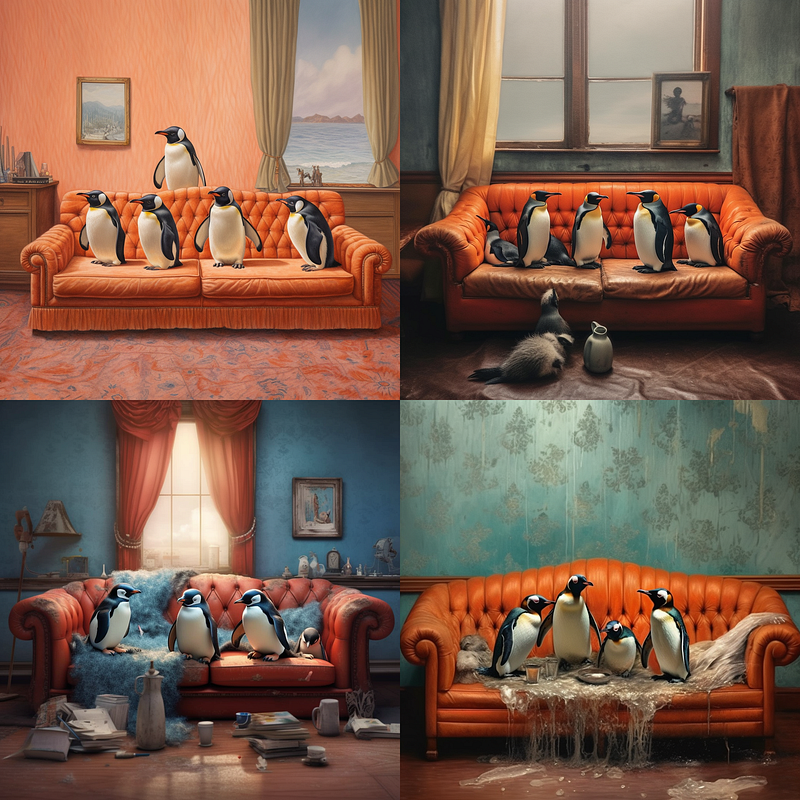
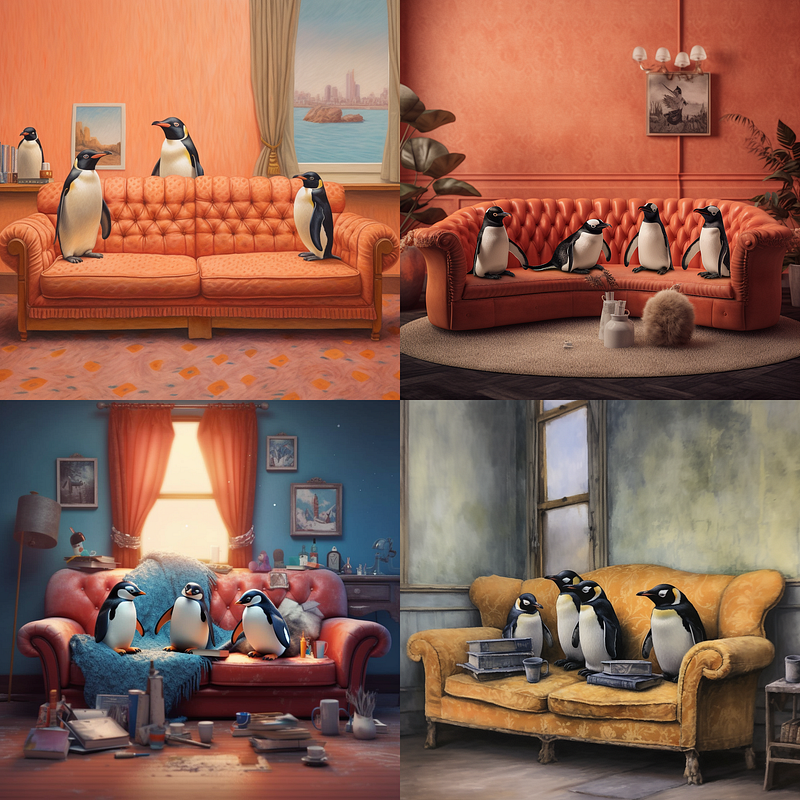
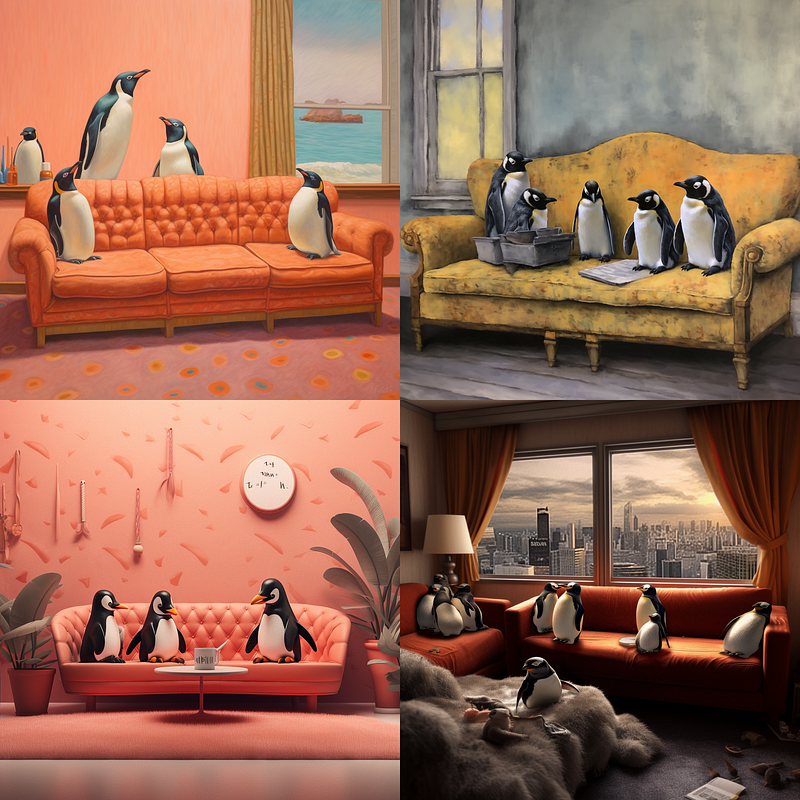
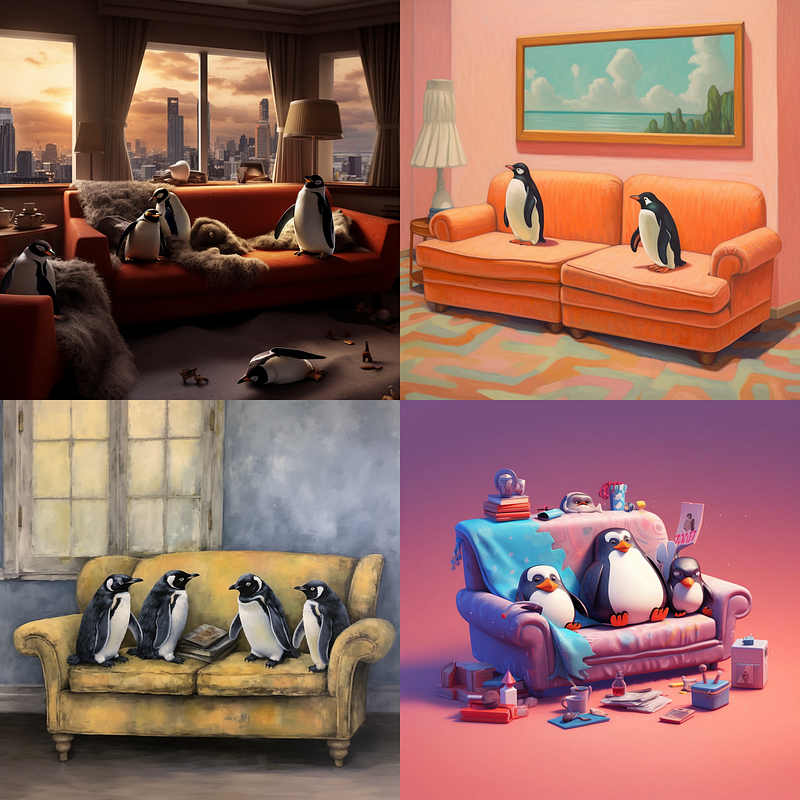
Here is our penguin prompt with different chaos values in increments of 10:
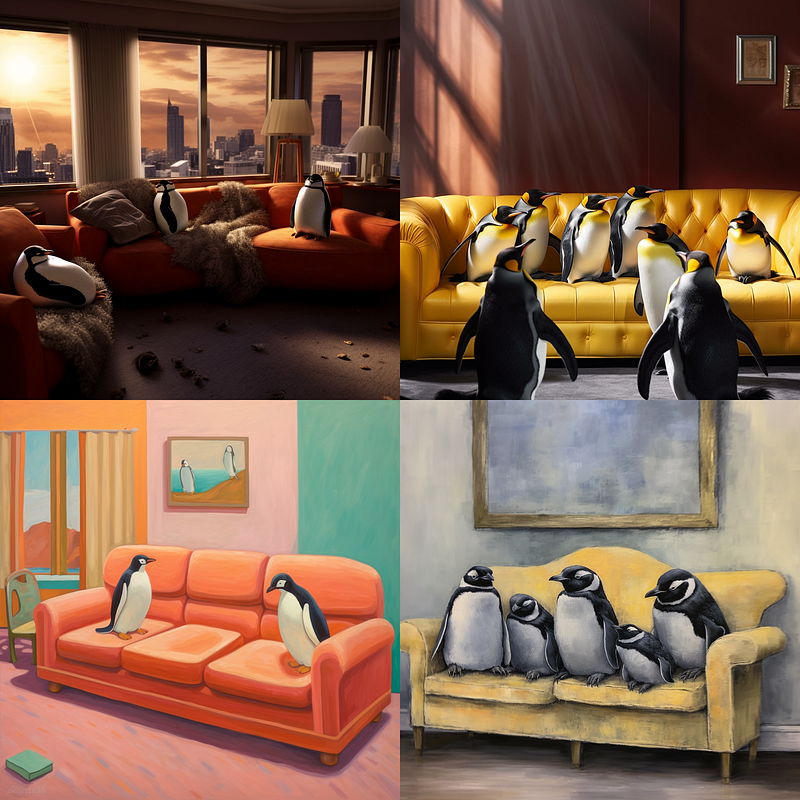
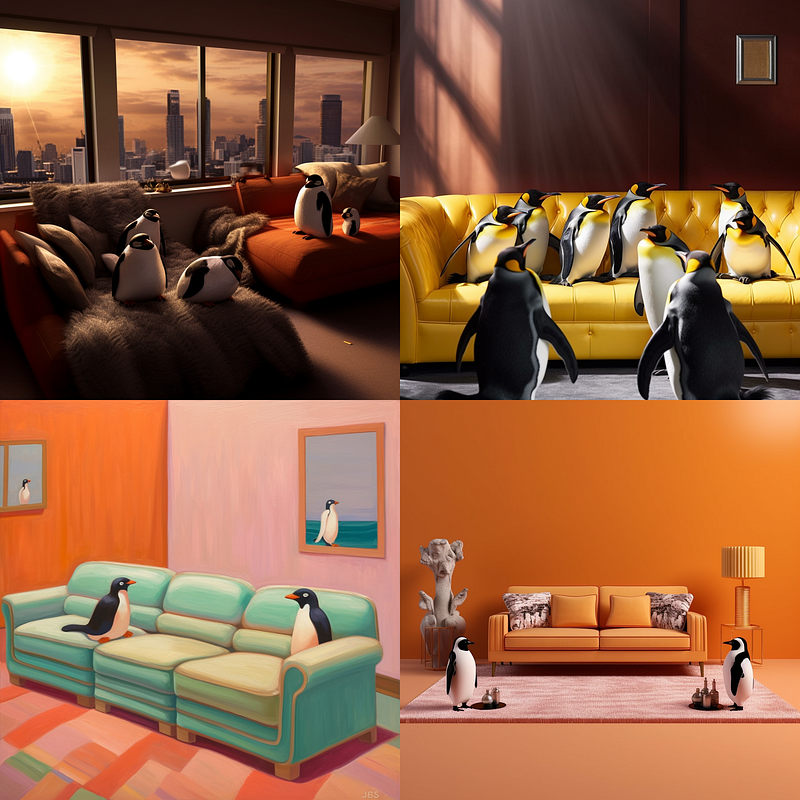
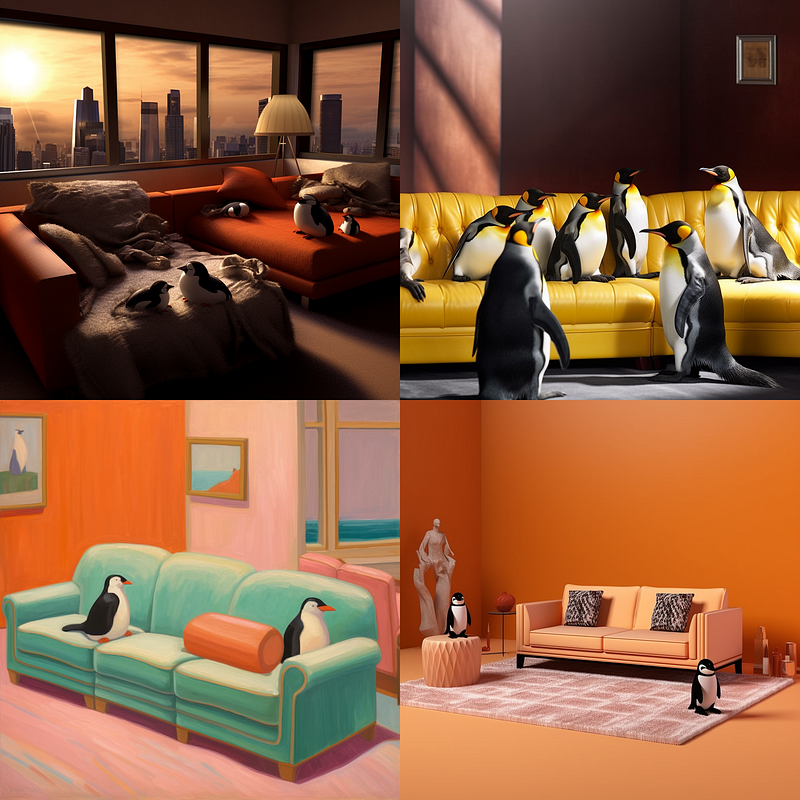

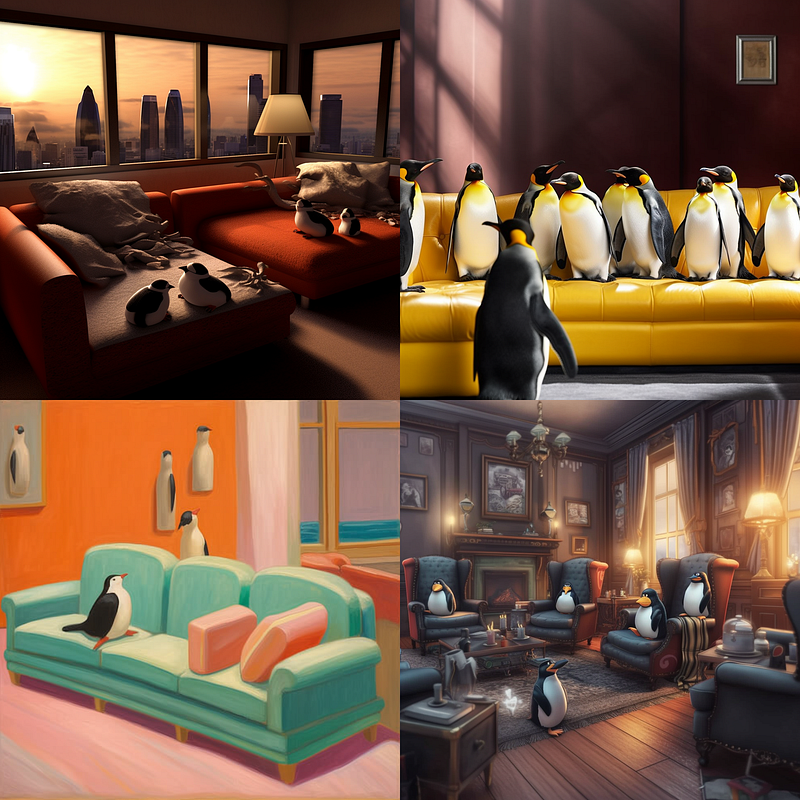
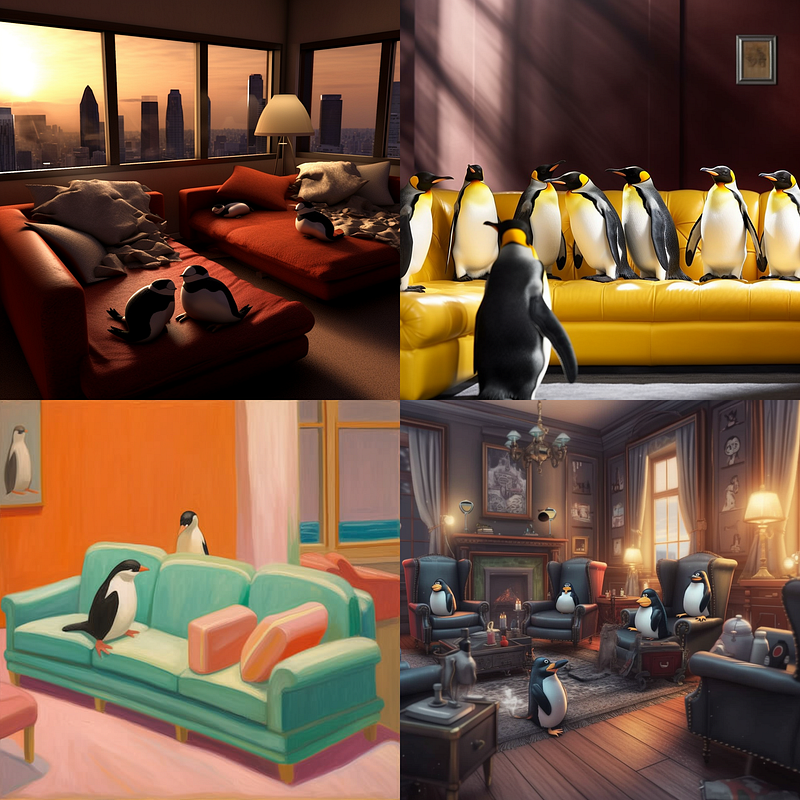
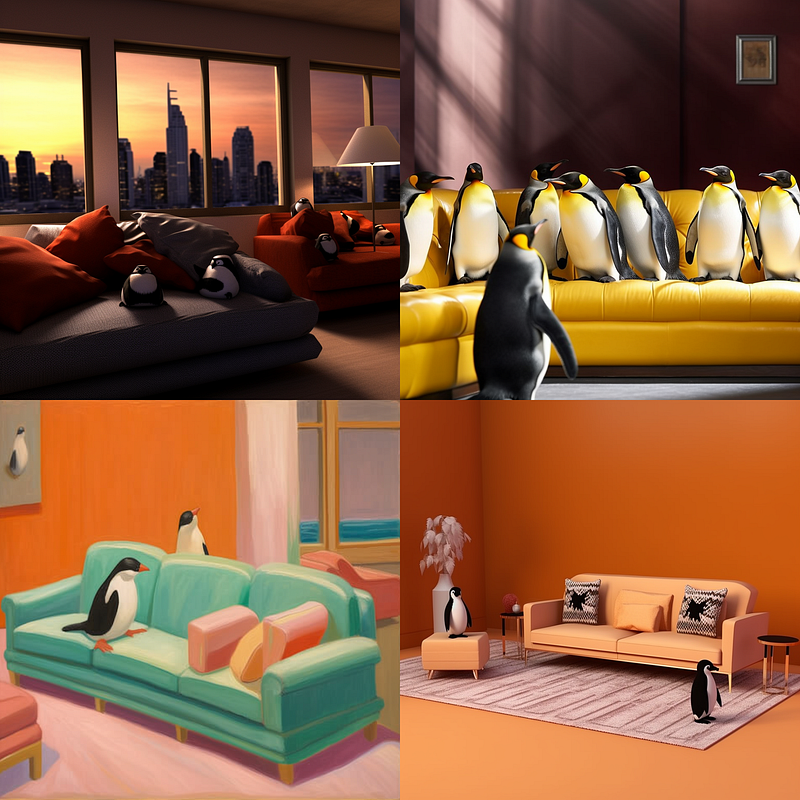
Chaos and constraints
See how the Chaos parameter not only changes the scenery and composition, but sometimes also swaps the images in the grid? The Chaos value adds variety to everything it can, which means: everything the prompt allows it to manipulate.
This in turn means that the chaos values cannot cause the generation to become so chaotic when using a more “restrictive” prompt.
For example, the prompt
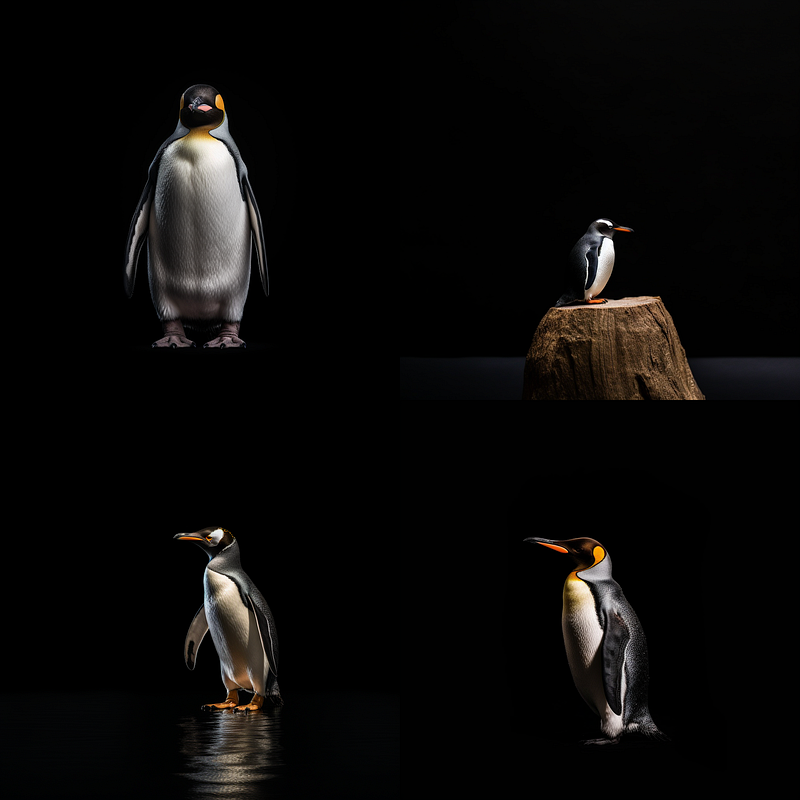
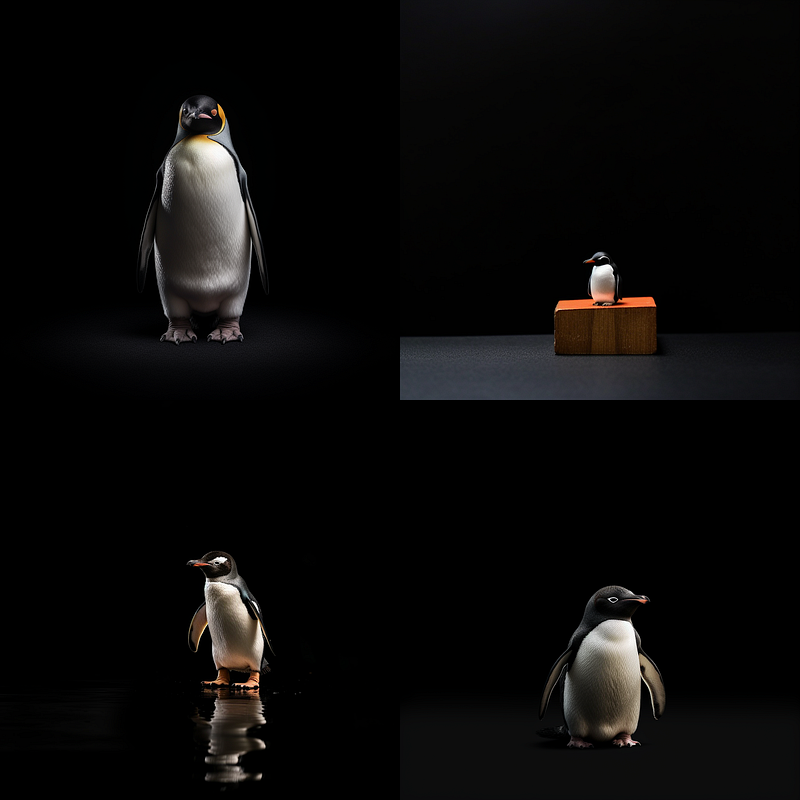
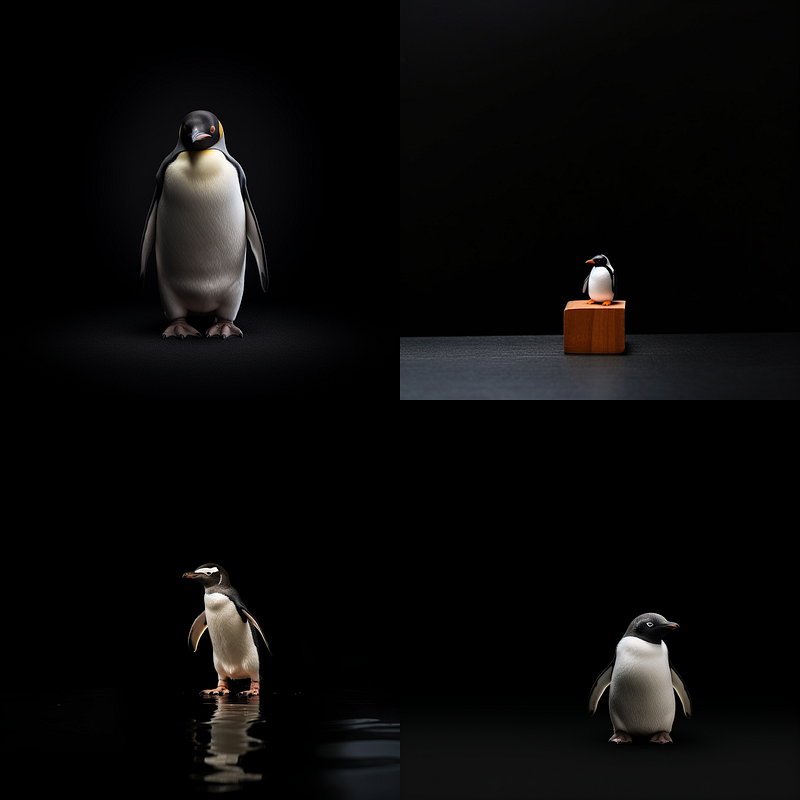
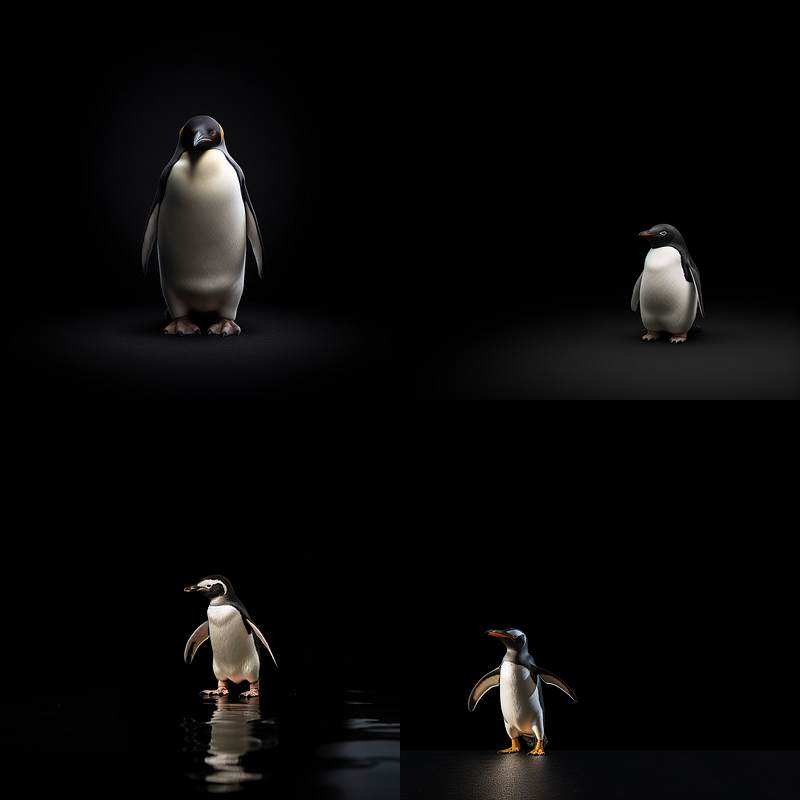
/imagine prompt: studio photography of a penguin, minimalism,
black background
is quite restrictive, as it does not allow many changes to be made because its context is very narrow.
The chaos value has a different effect in such cases, because it cannot change the motif so much. Instead, it tries to vary the view, positioning, and size of the shot:
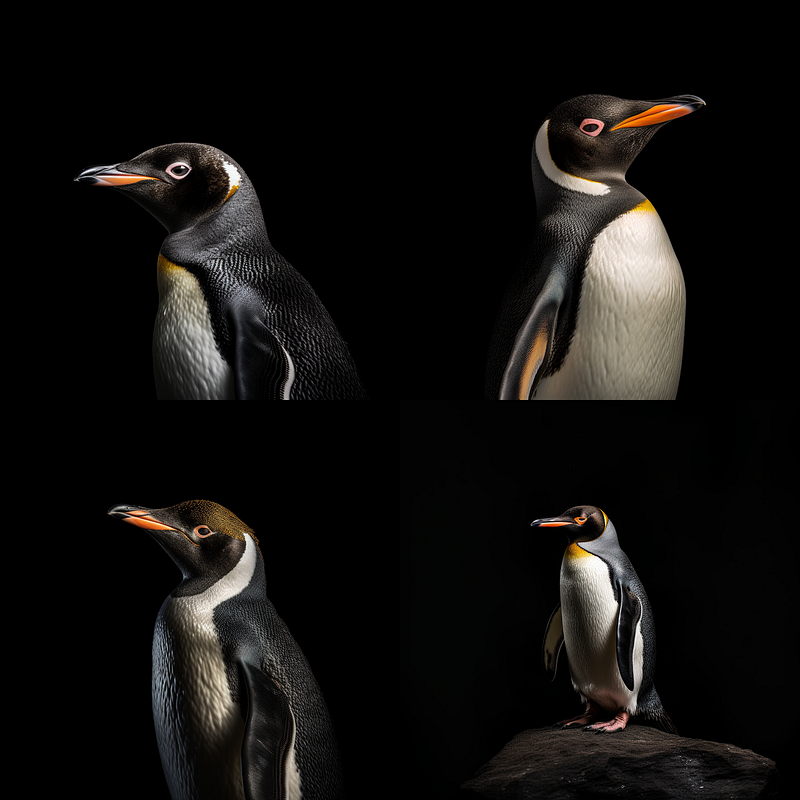
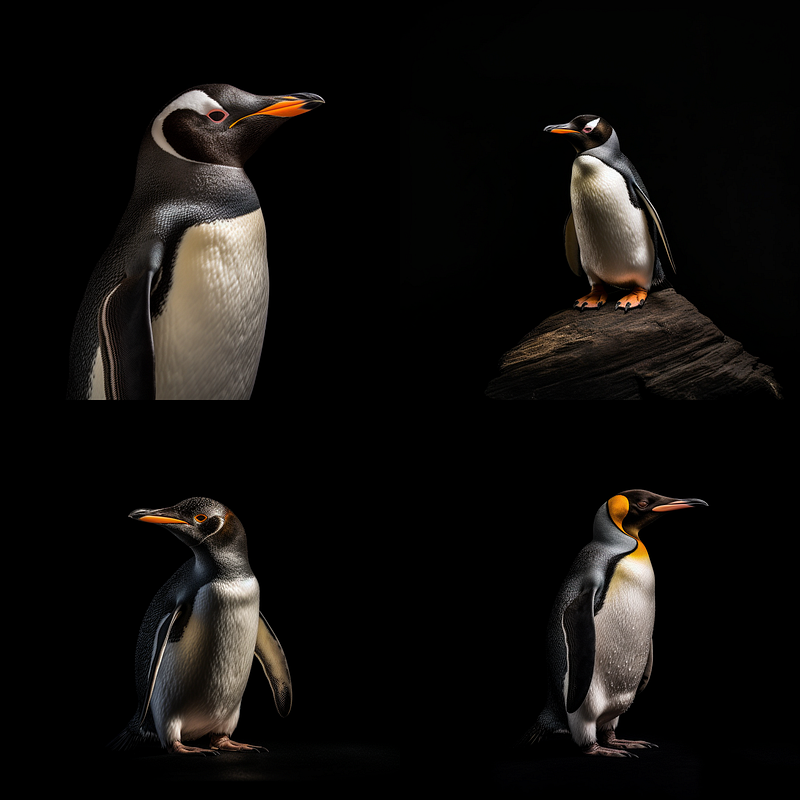
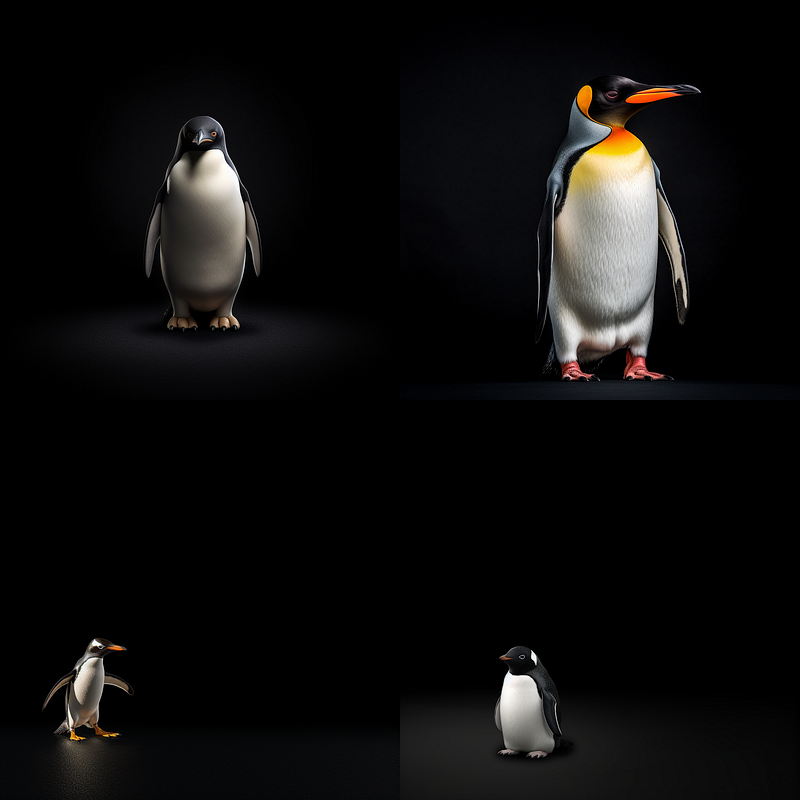
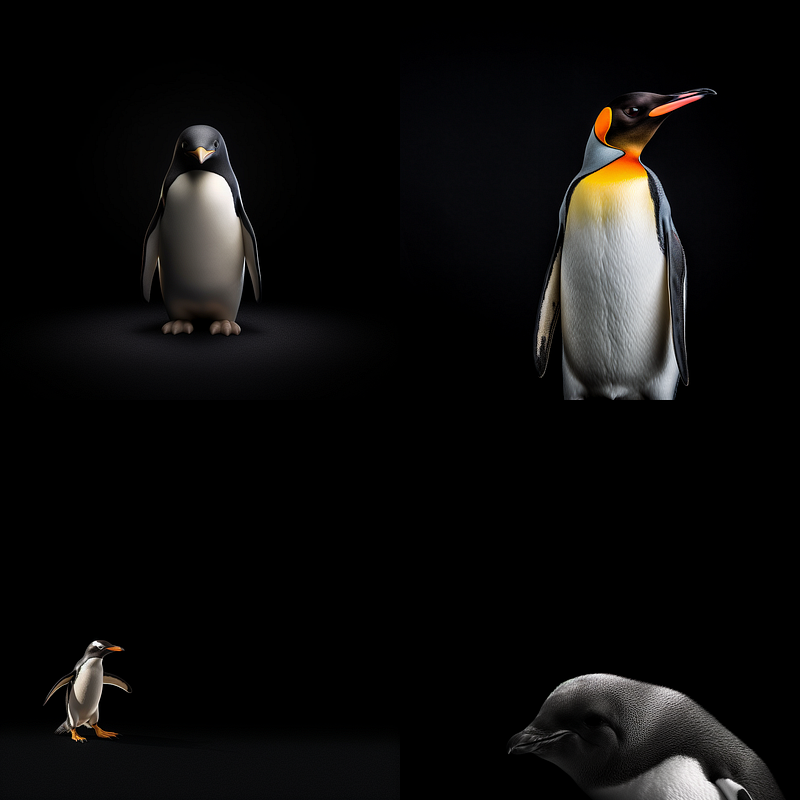
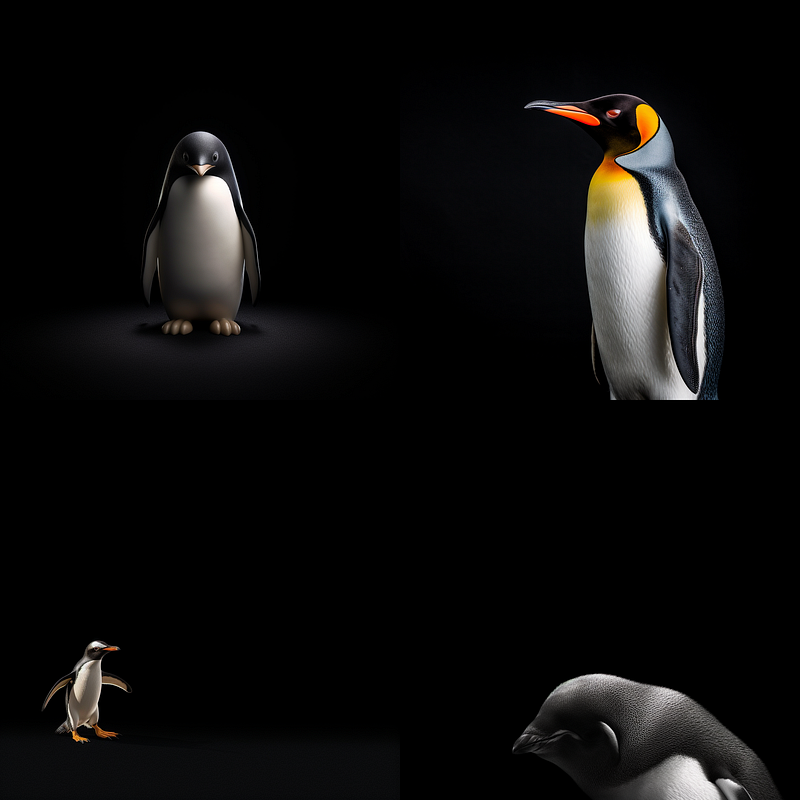
Fine-tuning with Chaos Baselines
Few have noticed that the chaos value is not an integer, but a floating point number. This means that you can increase/decrease your chaos value in smaller increments, which gives you the ability to fine-tune your images.
Remember how the chaos value affected the stuff inside the image and its composition?
By setting a Chaos baseline to a value that doesn’t have a big impact on your image, but is high enough to allow for small increments when increasing/decreasing, we can start fine-tuning.
For example, let’s work with this prompt:
/imagine prompt: studio photography of a penguin, minimalism,
black background --seed 1000
… which gives us this initial grid:
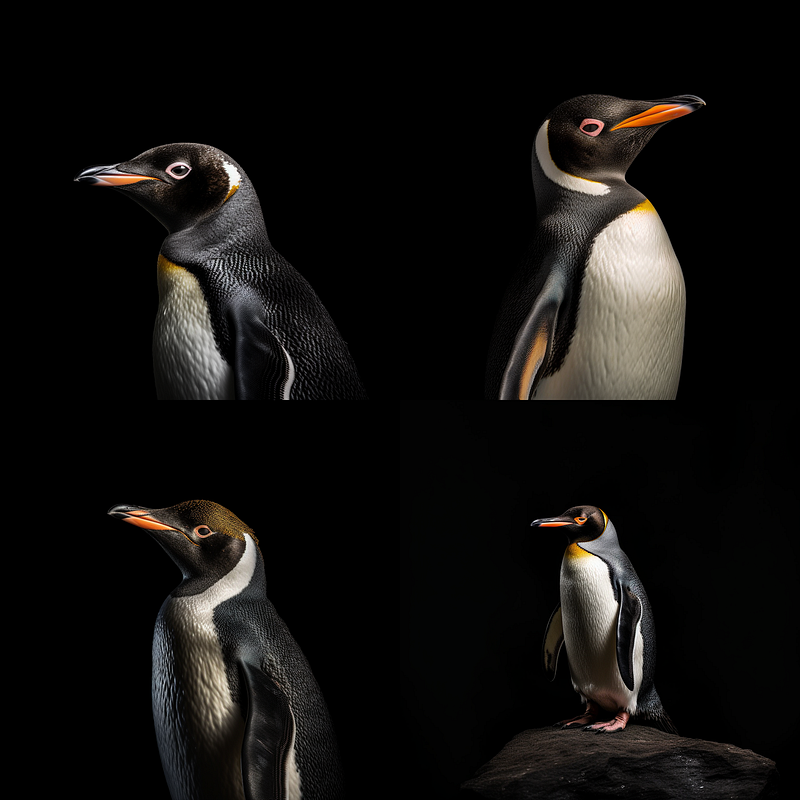
Now let’s set a chaos baseline at the value of “3” which shouldn’t affect our initial grid that much:
/imagine prompt: studio photography of a penguin, minimalism,
black background --seed 1000 --chaos 3
We get:
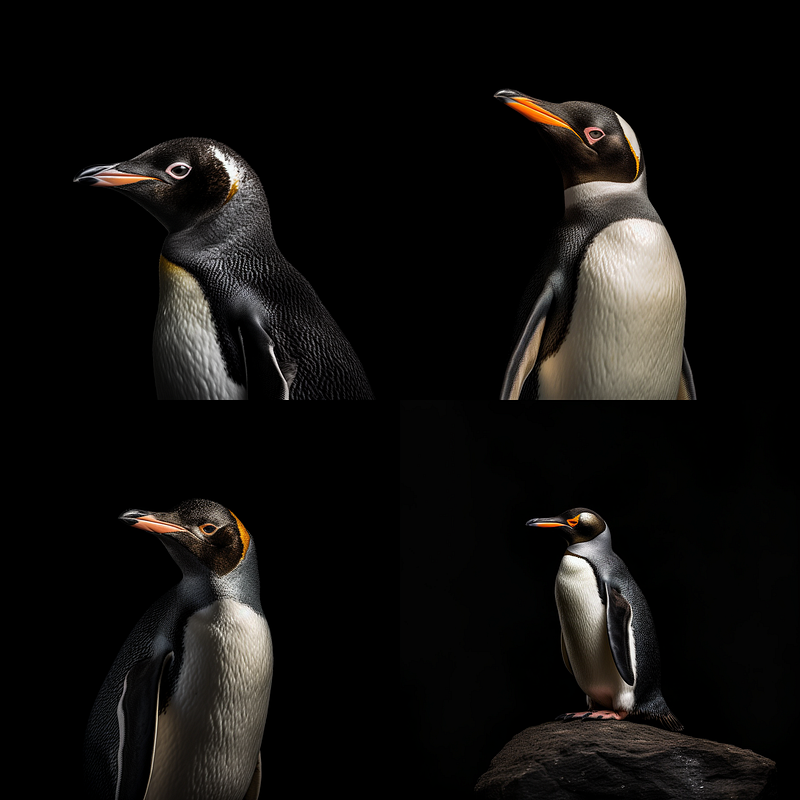
As expected, only minor changes in composition and details, right?
Now comes the interesting part.
We deviate from the Chaos baseline at “3" in increments of “.2” to fine tune the images. We use
studio photography of a penguin, minimalism, black background
--seed 1000 --chaos 2.8
and
studio photography of a penguin, minimalism, black background
--seed 1000 --chaos 3.2
Here are the results, from left to right with chaos values “2.8”, “3” and “3.2”:
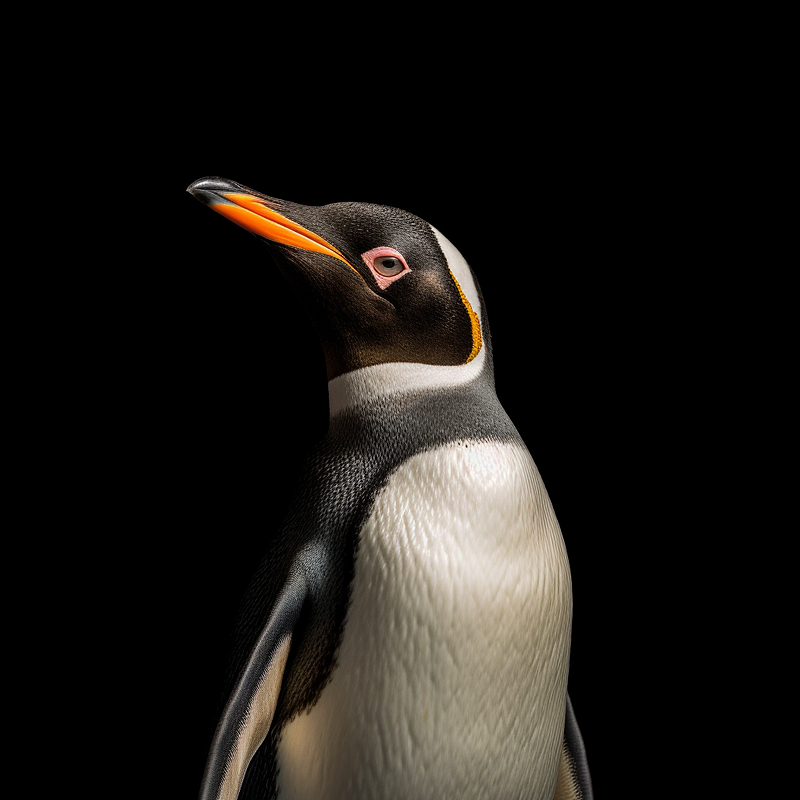
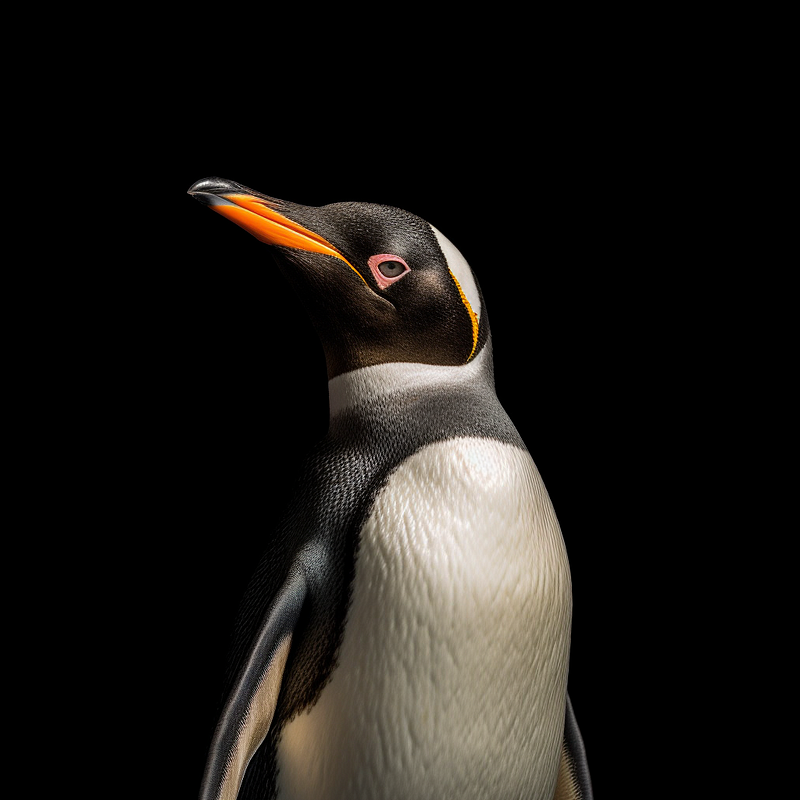
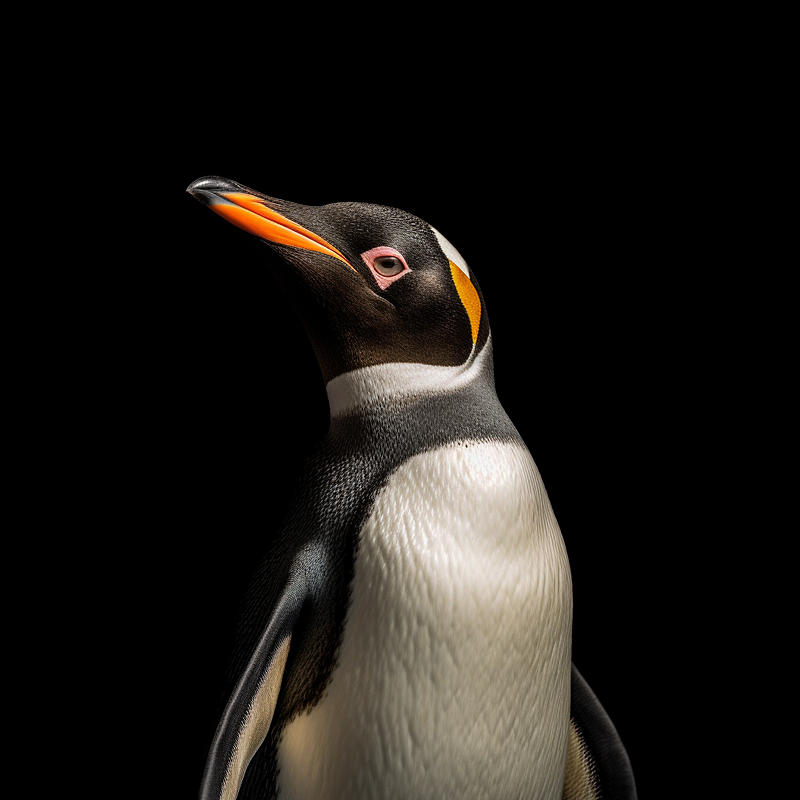
Can you see the subtle changes?
This technique can be very useful when you need to control details or create slight variations.
Here are some more examples:
Explorative Use Of Chaos & Permutation
Midjourney’s permutation feature makes a lot of things super easy. For example, iterating over chaos values.
All you need to do is create a comma-separated list of values in curly braces, like this
/imagine prompt: a penguin --c {10,50,80} --seed 1000and Midjourney will interpret it as three separate prompts that it can then run individually (after asking for your confirmation to do so):
/imagine prompt: a penguin --c 10 --seed 1000
/imagine prompt: a penguin --c 50 --seed 1000
/imagine prompt: a penguin --c 80 --seed 1000
If you need a reference image without chaos value simply add “0” within the permutation string like so:
/imagine prompt: a penguin --c {0,10,50,80} --seed 1000Stylize & Chaos
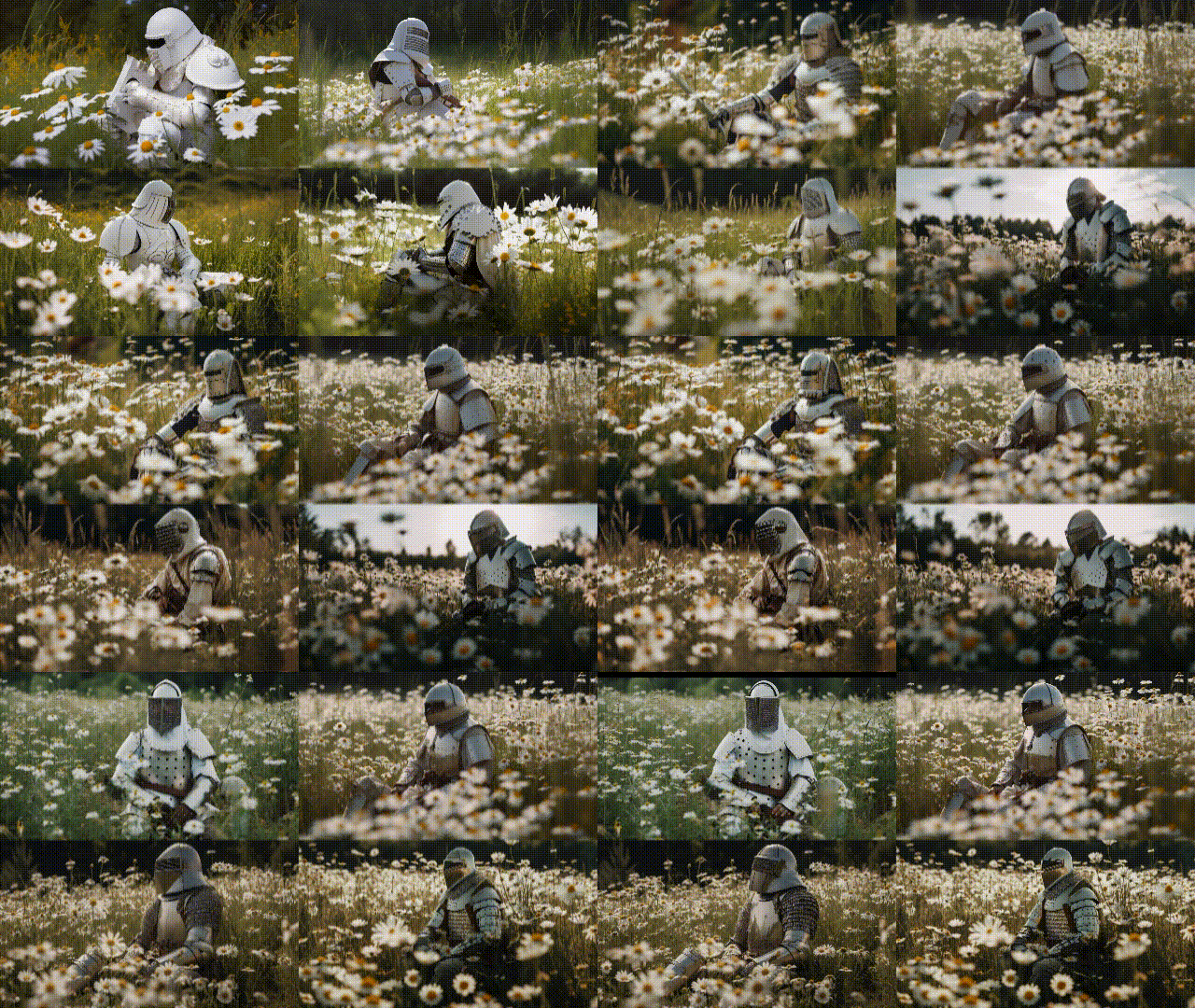
The stylize parameter is an interesting sparring partner for chaos values.
Basically, it lets you manipulate the composition of an image “two-dimensionally”, either along the chaos value or the stylization value. By combining these two values, you can achieve interesting results:

If you want to read more about it, check out this article:
➡️ For more information about AI & Creativity, follow me on Twitter or Medium (use my referral link to get full access to all my articles and those of thousands of other writers).
➡️ If you like my content, why not leave a “clap” at the end of this article, so more people can see it?


