Artificial Intelligence, Art, Creativity & Design
How to use Zoom Out in Midjourney V5.2 to stop AI cropping off heads
Including how to alter the aspect ratio of generated images
Months ago, I wrote a prompt engineering/AI whisperer guide to help get AI image generators to stop cutting the tops of heads out of images. You all remember back when all we could generate were squares? Those days are gone, so it’s time to update my tips with the MidJourney Zoom Out Feature.
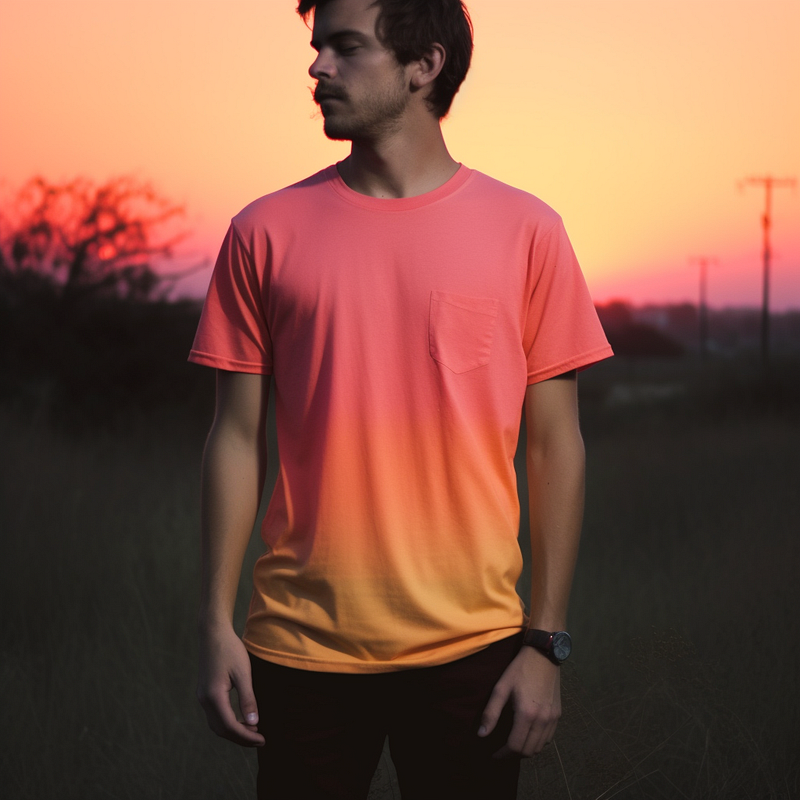
But first, let’s quickly recap why AI Art generators hated human foreheads:
Why AI image generators crop out the top of heads
Back in the dark ages of 2022, AI image cropping was due to two things:
1) The cropping of the training data.
All images were squared for consistency when they were intially processed by CLIP (Contrastive Language-Image Pre-training). Image classifiers use a CNN-based model (Convolutional Neural Networks) that prefers to resize non-square images to square dimensions so they can be compared. There are so many photographic ratios that it needed to trim images. Most human portraits are rectangular, and most faces are about 70% as wide as they are tall, so effectively the top parts of heads were missing from training data.
Theoretically, that’s also why the top part of hair, even now, can be a little inconsistent. Poor texture synthesis is often more noticeable on top, with smudged, clumpy, disconnected strands being a dead-giveaway of AI art:
(It’s even more noticeable if an image has been “corrected” with a GFP-GAN, as these often isolate a solid square around the main features and only regenerate within that isolated frame. If you’re using a GFP-GAN, I always recommend blending the edges before and after in Photoshop).
2) AI assumed cropped images were more attractive
A lot of prompt engineering and AI Whispering is working out the discrepancies in human-AI communications, and why AI thinks it’s completed a task correctly when humans are screaming “That’s not what I asked for!” It’s a disconnect; usually the AI has taken your request literally.
I call this the “Ironic Genie Paradox”: You get precisely what you ask for 🧞
The same applies for cropped images: y’all asked for them! Research from Stanford by Andrej Karpathy found that when machine learning analyzed and scored 2 million selfies, it (correctly) classified the images that would receive the most Likes from humans were cropped at the forehead. It’s just something we—and now AI—have a visual bias for on social media/dating.
Back when, every time you asked for a ‘gorgeous’ or ‘beautiful’ image, AI assumed you actually wanted a cropped forehead. It makes the face more prominent. Interestingly, the selfie effect is more biased towards women, and anecdotally it was females that were more cut off in AI generated art.
None of that matters now, because we have Zoom Out in Midjourney 5.2!
Quick fix: Use the Zoom Out button to see more, and stop the crop!
The introduction of “Zoom Out” in Midjourney 5.2 is a game-changer for those of us frustrated with AI’s relentless cropping of our AI-generated portraits. This feature allows us to expand the field of view of AI images, allowing us see a broader perspective and, you know, the tops of heads!
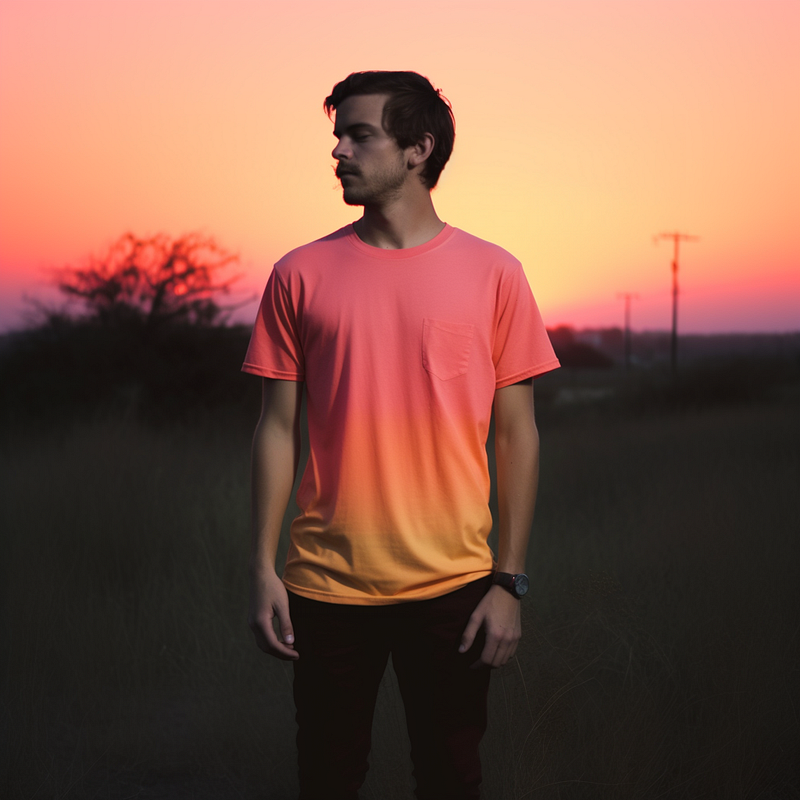
Here’s how you can effectively use the “Zoom Out” feature:
- Generate an image using Midjourney. Check you’re on V 5.2 first.
- Upscale the image.
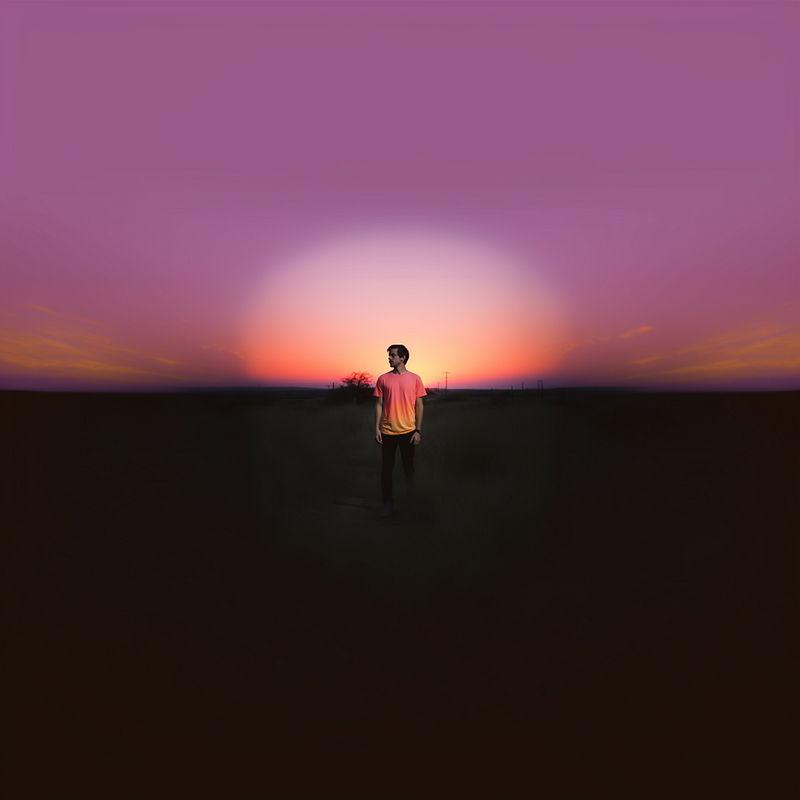
- Select the “Zoom Out 1.5x” or “Zoom Out 2x” Button: After upscaling the image, two options will appear below the generated image: the “Zoom Out 1.5x” and “Zoom Out 2x” buttons. These options offer different levels of zoom to widen the field of view. It expands the borders evenly; your original image is centered. The AI effectively generates around the empty spaces using the center for context.
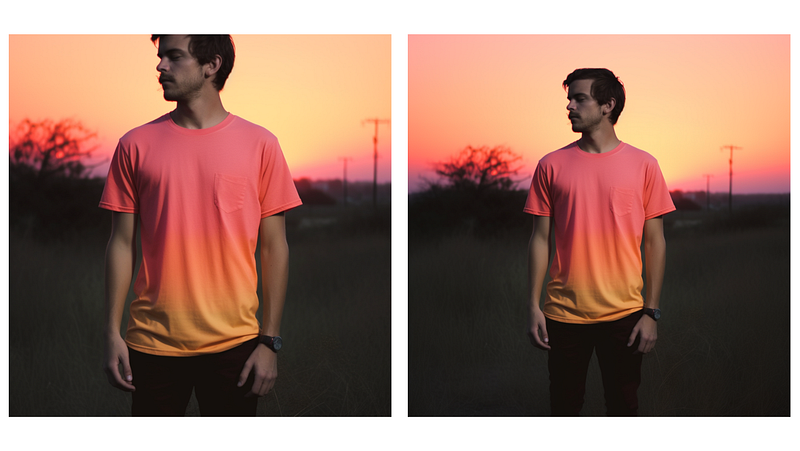
You can Zoom Out infinitely; just keep clicking the button each time.
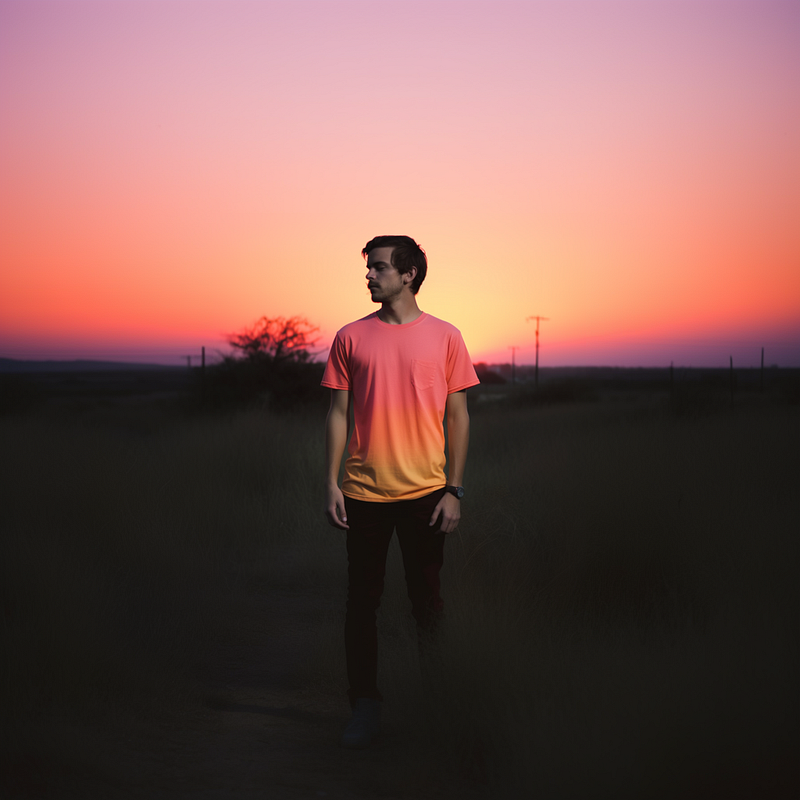
Exploring Custom Zoom Options:
Midjourney 5.2 also offers a “Custom Zoom” button. This lets you modify text prompts (and adjust the aspect ratio—more on this below!). Click on the button beneath the upscaled generated image, and you can enter a custom value for the “--Zoom” parameter with a value from 1 to 2. This resubmits the request to the Midjourney bot, just like the Remix button.
What about the loss of resolution when Midjourney zooms out?
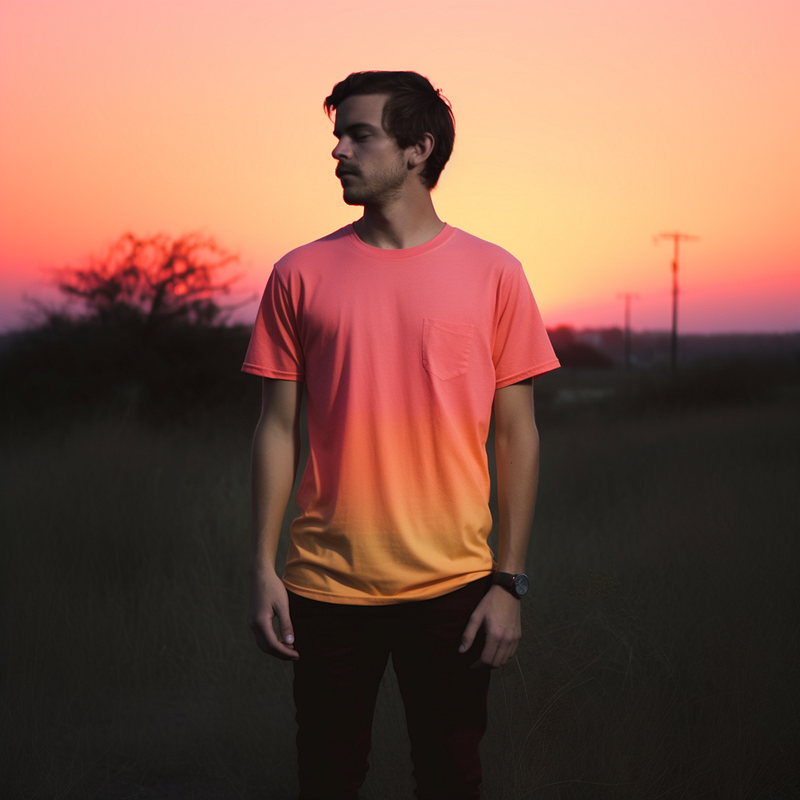
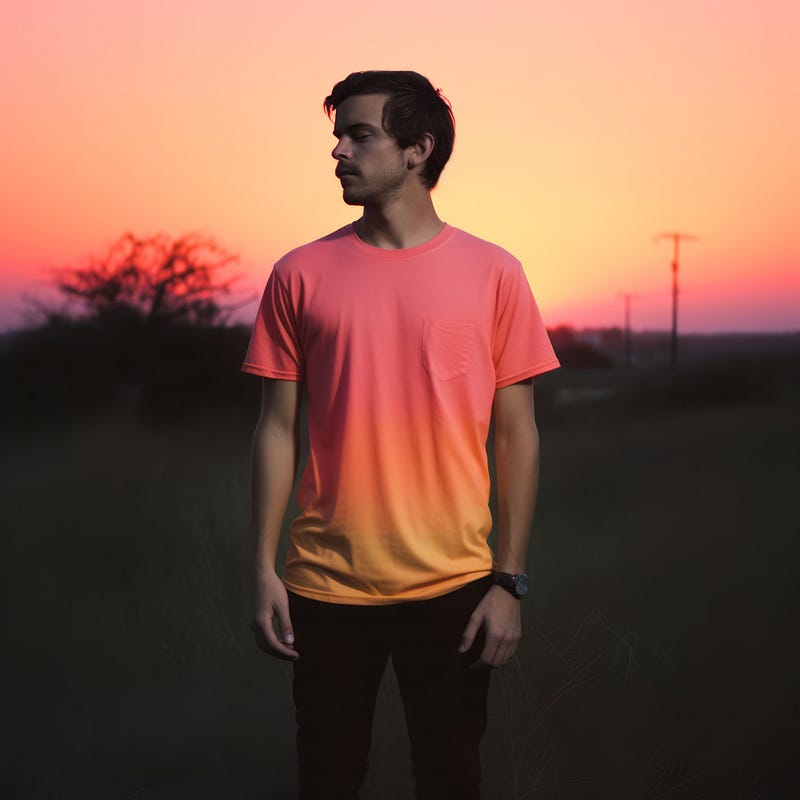
You will lose a little definition by zooming out, because the dimensions of the image (1024 x 1024) stay the same. So the subject becomes less focused the more you zoom out. But you don’t have to sacrifice detail to get the whole picture. Just run it through Topaz AI to restore the resolution!
Here’s a before-and-after to show you how combining Midjourney zoom out with Topaz Photo AI lets you “avoid the crop”—while keeping the clarity in!
Changing the Aspect Ratio of a Generated Image:
Want to make a generated image wider or taller? Well now you can.
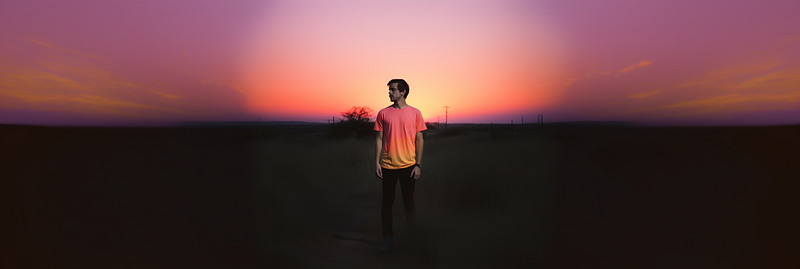
Midjourney has offered variable aspect ratios for a while now (they were limited in V.4, but have been back with a vengeance since V.5). But one of the things that sucked in the previous versions was that if you remixed aspect ratios after the fact, it tended to warp the image. Fear no more!
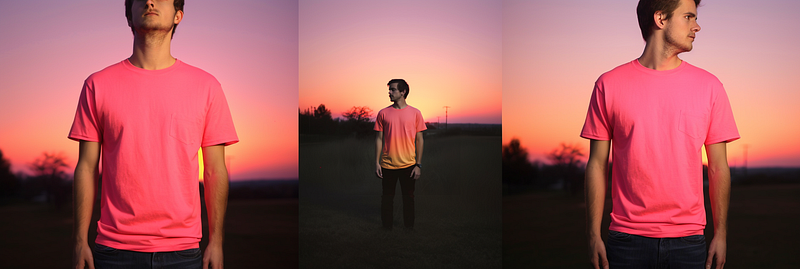
Just click the Custom Zoom button, and when it comes to the aspect ratio parameter (-- ar), put in your settings (w:h). Midjourney will fill in the “missing” space at the sides or bottom with content from the image:
Just don’t mess around with custom aspect ratio and zoom at the same time. Or do. Just know it’s experimental and has unpredictable results:
Squaring things away
Sometimes you might want to revert a custom aspect ratio to a square image—or a variety of dimensions that match your original generation, especially if you’re using AI images for online content and want, say, a banner or a cover image (16:6) and a square accompanying profile pic.
Midjourney has you covered. You can either tweak the parameter in the text prompt to 1:1, or click the “Make Square” button. This has emojis, either ↔️ or ↕️ to show in which direction it will extend the image.
Using Zoom Out on a prexisting image you didn’t make on MJ
Zoom Out works exclusively with images generated within Midjourney and is not compatible with images sourced from external platforms or sources.
I guess you could cheat a little if you used an image prompt, and weighted it highly. You’ll need to upload the image into your Discord chat with the Midjourney bot, then add the URL to your text prompt. Finally, use the “Image Weight” parameter (--iw”) and then experiment with Zoom and Aspect Ratio (either in the text prompt, or resubmitting with buttons).
Results will vary, and you’ll have to put up with a little creativity in the output (it won’t be the exact same image), but if you have an image you created elsewhere, or in real life, it’s a great way to expand on it artistically.
“What about images I made previously on MJ. Can I Zoom Out?”
Yes! It’s a little bit trickier if they weren’t generated on V5.2 (i.e. pre the release of the Zoom Out feature). Find the image, and Upscale it in V5.2. Now it will have the Buttons enabled! Click away to your heart’s content.
However, if it’s an image you’ve already Upscaled, Midjourney won’t let you Upscale again in V5.2. This sucks, but there are a couple of workarounds:
- Hit the Remix Button. This will make a fresh generation of your image set in V.5. Note, they won’t be exactly the same as the originals, but you can now play with Zoom Out.
- Hit the Variation Button. Same as the above, but it will be closer to the chosen image.
“Can I use Same Seed to regenerate an identical image in V5.2?”
Same Seed is a great way to replicate an earlier result. Unfortunately, using “Same Seed” won’t help resurrect old images in V5.2, because Seeds don’t remain static across sessions. So sadly, if you have an image that you upscaled previously, it is currently excluded from an exact Zoom out.
Who is Jim the AI Whisperer?
Jim the AI Whisperer offers private training in how to use AI generators to create stunning visuals, as well as how to write original and compelling content. If you’re interested in discovering more, feel free to contact me.
I’m also available for podcasts, interviews, fine-tuning AI prompts, and creating custom prompt libraries and AI images for companies.


