avatarBhargav Bachina

Free AI web copilot to create summaries, insights and extended knowledge, download it at here

6732

Abstract

ass="hljs-title">the</span> project git <span class="hljs-keyword">clone</span> <span class="hljs-title">https</span>://github.com/bbachi/react-java-ecs.git</pre></div><div id="827c"><pre><span class="hljs-string">//</span> change directory <span class="hljs-keyword">cd</span> react-java-ecs</pre></div><div id="dde1"><pre><span class="hljs-comment">// install</span> <span class="hljs-keyword">mvn</span> clean install</pre></div><div id="70aa"><pre><span class="hljs-comment">// Run the app</span> java -jar <span class="hljs-keyword">target</span>/users<span class="hljs-number">-0.0</span><span class="hljs-number">.2</span>-SNAPSHOT.jar</pre></div><h1 id="8210">Dockerize the Project</h1><p id="d21f">AWS App Runner is an AWS service that provides a fast, simple, and cost-effective way to deploy straight from source code or a container image directly to a scalable and secure web application in the AWS Cloud.</p><p id="a5d8">Make sure your Java API runs on port 80.</p> <figure id="8038"> <div> <div>

            <iframe class="gist-iframe" src="/gist/bbachi/7e26ed9333011a67aa177576be7b1344.js" allowfullscreen="" frameborder="0" height="undefined" width="undefined">
          </div>
        </div>
    </figure></iframe></div></div></figure><p id="ab9e">we need to create a Dockerfile that creates a Docker image. Here is the file which starts with FROM command and with the base image <b><i>openjdk:8-jre-alpine. </i></b>Copy the generated war file and finally<b><i> CMD </i></b>command that runs when the image is instantiated.</p>
    <figure id="14d0">
        <div>
          <div>
            
            <iframe class="gist-iframe" src="/gist/bbachi/173f9ef2b4e3d5f99df914fd4292c311.js" allowfullscreen="" frameborder="0" height="undefined" width="undefined">
          </div>
        </div>
    </figure></iframe></div></div></figure><p id="240f">Here are the commands to build the image and run it on the Docker engine on your local machine.</p><div id="377c"><pre>// <span class="hljs-keyword">package</span> <span class="hljs-title">the app</span>

mvn clean <span class="hljs-keyword">package</span></pre></div><div id="f4b7"><pre><span class="hljs-string">//</span> change the directory <span class="hljs-keyword">cd</span> docker</pre></div><div id="3e2a"><pre><span class="hljs-comment">// build the image</span> docker build -t react-java-image .</pre></div><div id="769d"><pre><span class="hljs-comment">//list the images</span> docker images</pre></div><h1 id="95bd">Running the WebApp on Docker</h1><p id="6269">Now, we have the docker image and let’s run the container and once it is up and running you can access the web app at <a href="http://localhost/"><b>http://localhost:80</b></a><b>. Make sure your app runs on port 80.</b></p><div id="3da6"><pre><span class="hljs-comment">// running on Image</span> docker run -d -it -p <span class="hljs-number">80</span>:<span class="hljs-number">80</span> --name react-java-ui react-java-image</pre></div><div id="ef5b"><pre><span class="hljs-comment">// list the container</span> docker ps</pre></div><div id="9c28"><pre><span class="hljs-comment">// logs</span> docker logs react-java-ui</pre></div><div id="88ea"><pre><span class="hljs-operator">/</span><span class="hljs-operator">/</span> <span class="hljs-keyword">exec</span> <span class="hljs-keyword">into</span> <span class="hljs-keyword">running</span> container docker <span class="hljs-keyword">exec</span> <span class="hljs-operator">-</span>it react<span class="hljs-operator">-</span>java<span class="hljs-operator">-</span>ui <span class="hljs-operator">/</span>bin<span class="hljs-operator">/</span>sh</pre></div><figure id="6462"><img src="https://cdn-images-1.readmedium.com/v2/resize:fit:800/1*8g0-mMZql4Z2OIKAs-64TQ.png"><figcaption><b>Running Container on the Docker</b></figcaption></figure><figure id="96c0"><img src="https://cdn-images-1.readmedium.com/v2/resize:fit:800/1*r7KdzJGuMygm6Btc1wIeQA.png"><figcaption><b>Web App Running on Port 80</b></figcaption></figure><h1 id="ce45">Pushing Docker Image To Container Registry</h1><p id="38a5">Container Registry is a single place for your team to manage Docker images, perform vulnerability analysis, and decide who can access what with fine-grained access control. Existing CI/CD integrations let you set up fully automated Docker pipelines to get fast feedback. <a href="https://cloud.google.com/container-registry">You can check the whole documentation here.</a></p><p id="2468">GCP Cloud Run works with any Docker registry such as Docker Hub, etc. But, in this post, we see how we can use a GCP container registry to store our Docker images. Make sure you enable the relevant API on GCP. If you log in and go to the Container Registry you can see the empty registry.</p><figure id="ea96"><img src="https://cdn-images-1.readmedium.com/v2/resize:fit:800/0*r6_MAlpAPRbB_Na4.png"><figcaption><b>Container Registry Console</b></figcaption></figure><p id="34c6">The first thing we need to do is to enable the API with the following command.</p><div id="5da6"><pre>gcloud services <span class="hljs-built_in">enable</span> containerregistry.googleapis.com</pre></div><p id="4ff0">You need to configure docker with the following command. <a href="https://cloud.google.com/container-registry/docs/advanced-authentication">You can see the full documentation here.</a></p><div id="a378"><pre><span class="hljs-attribute">gcloud auth configure-docker</span></pre></div><figure id="72d8"><img src="https://cdn-images-1.readmedium.com/v2/resize:fit:800/0*EOmG13pDbrQ8mZmd.png"><figcaption><b>Configuring Docker</b></figcaption></figure><p id="545d">As we have seen in the Example Project section, let’s build the Docker image with the following command.</p><div id="3681"><pre>docker <span class="hljs-keyword">build </span>-t <span class="hljs-keyword">cloud-run-webapp </span>.</pre></div><figure id="3e9b"><img src="https://cdn-images-1.readmedium.com/v2/resize:fit:800/1*L_bJ1Ity8tCiz298drQWCA.png"><figcaption><b>Building Docker Image</b></figcaption></figure><p id="e5c4">Let’s tag the local docker image with the registry name by using the command:</p><div id="9578"><pre>docker tag <span class="hljs-comment">[SOURCE_IMAGE]</span> <span class="hljs-comment">[HOSTNAME]</span>/<span class="hljs-comment">[PROJECT-ID]</span>/<span class="hljs-comment">[IMAGE]</span>:<span class="hljs-comment">[TAG]</span></pre></div><div id="f153"><pre>// <span class="hljs-keyword">run</span><span class="language-bash"> this <span class="hljs-built_in">command</span></span> docker tag cloud-<span class="hljs-keyword">run</span><span class="lan

Options

guage-bash">-webapp gcr.io/staticweb-test/cloud-run-webapp:v1</span></pre></div><p id="ebfb">Finally, push the image into the GCP container registry</p><div id="9666"><pre><span class="hljs-symbol">docker</span> <span class="hljs-keyword">push</span> gcr.io/staticweb-test/cloud-run-webapp:<span class="hljs-built_in">v1</span></pre></div><figure id="7b98"><img src="https://cdn-images-1.readmedium.com/v2/resize:fit:800/1*ZDrR7GBndAb9NV07gOp29Q.png"><figcaption><b>docker push</b></figcaption></figure><p id="ec09">You can see the repository in the console as well.</p><figure id="2537"><img src="https://cdn-images-1.readmedium.com/v2/resize:fit:800/1*epwJPXdjmUZk63AO9kwBLA.png"><figcaption><b>Container Registry</b></figcaption></figure><h1 id="79db">Creating a Cloud Run Service</h1><p id="46e8">We have pushed the Docker image into the container registry and it’s time to create a Cloud Run Service. You can create the Service by going to the appropriate service in the console.</p><figure id="be90"><img src="https://cdn-images-1.readmedium.com/v2/resize:fit:800/1*7wAzIvgSo7ZPzT02LL1fmw.png"><figcaption><b>Cloud Run Service</b></figcaption></figure><p id="650c">You can see the above window when you search Cloud Run and go to the page. You can click on the button Create Service. On the next page, you should choose the container image that we just pushed to the container registry.</p><figure id="03bd"><img src="https://cdn-images-1.readmedium.com/v2/resize:fit:800/1*lwovYE85etBNcMHzsdRy0Q.png"><figcaption><b>Selecting the Container Image</b></figcaption></figure><p id="1ba7">Choose the repository that we just pushed to the registry.</p><figure id="fe43"><img src="https://cdn-images-1.readmedium.com/v2/resize:fit:800/1*beSVMPhp8CS7NHSAIztNqA.png"><figcaption><b>Selecting the Container Image</b></figcaption></figure><p id="ca7a">We know you are running the service on port 8080. You can put that in the advanced settings section as below. You can choose to run your Docker container on any port and make sure that port and the port we put here should match.</p><figure id="6a7f"><img src="https://cdn-images-1.readmedium.com/v2/resize:fit:800/1*md3lJUX0KmFCuP-b0ySb9A.png"><figcaption><b>Advanced Settings</b></figcaption></figure><p id="bb26">On the next screen, you should check the radio button <b><i>Allow all traffic</i></b> under the Ingress section and this allows all the incoming traffic to reach your container.</p><p id="a774">check the radio button <b><i>Allow unauthenticated invocations</i></b> under the Authentication section and this makes your API public.</p><figure id="0659"><img src="https://cdn-images-1.readmedium.com/v2/resize:fit:800/1*ck7SsGTTriqzzh18UzwSEA.png"><figcaption><b>Configure Settings</b></figcaption></figure><p id="6745">Finally, you can click on the Create button and you can see the service running after some time as below.</p><figure id="2e66"><img src="https://cdn-images-1.readmedium.com/v2/resize:fit:800/1*xuWZ1feZFu69mUJ1AAqPog.png"><figcaption><b>Service Running</b></figcaption></figure><h1 id="958c">Testing The WebApp</h1><p id="7428">You can take the default domain URL from the below location and hit it in the browser with the actual path.</p><div id="c5c4"><pre>https://cloud-<span class="hljs-built_in">run</span>-webapp-yqqv4xo2ca-uc.a.<span class="hljs-built_in">run</span>.app/</pre></div><figure id="08a0"><img src="https://cdn-images-1.readmedium.com/v2/resize:fit:800/1*Uzk9N2lyq-bYJmIbEbsOcw.png"><figcaption><b>Cloud Run Service</b></figcaption></figure><figure id="9933"><img src="https://cdn-images-1.readmedium.com/v2/resize:fit:800/1*pQpaAwf6UPADvrAlF0CTlA.png"><figcaption><b>Testing the WebApp</b></figcaption></figure><h1 id="7e9a">Application Logs</h1><p id="b446">The application logs can be seen under the logs section as below.</p><figure id="5d40"><img src="https://cdn-images-1.readmedium.com/v2/resize:fit:800/1*gl7NEsKNed7JXgfZnFST5w.png"><figcaption><b>Application Logs</b></figcaption></figure><p id="eaa1">You can click on the link to see the logs in detail. You can even see these logs in Monitoring as well.</p><figure id="51ed"><img src="https://cdn-images-1.readmedium.com/v2/resize:fit:800/1*zEvl92uIQd1tEQSlk5HQzw.png"><figcaption><b>Logs</b></figcaption></figure><figure id="fcee"><img src="https://cdn-images-1.readmedium.com/v2/resize:fit:800/1*hCSIy7Epe1IYej6LSr0tgw.png"><figcaption><b>Cloud Logging</b></figcaption></figure><h1 id="ada9">Deleting the Service</h1><p id="ceec">We have deployed the service and see it running. You can delete the service if you don’t want to incur any charges. You can click on the delete button as below.</p><figure id="057c"><img src="https://cdn-images-1.readmedium.com/v2/resize:fit:800/1*mjVvR4DD1d4uv4as6GP4ag.png"><figcaption><b>Delete the service</b></figcaption></figure><figure id="b936"><img src="https://cdn-images-1.readmedium.com/v2/resize:fit:800/1*n-ma4T5I_mQLIfe3J0Hzkg.png"><figcaption><b>Confirm</b></figcaption></figure><p id="ddda">You can delete the image as well from the container registry as below.</p><figure id="5fee"><img src="https://cdn-images-1.readmedium.com/v2/resize:fit:800/1*GD2zjmvvj_wDn55oD5dIuA.png"><figcaption><b>Deleting the image</b></figcaption></figure><figure id="bdb5"><img src="https://cdn-images-1.readmedium.com/v2/resize:fit:800/1*zIR-_fFb259u9BsdO1nyLg.png"><figcaption><b>Confirmation</b></figcaption></figure><h1 id="d4b4">Summary</h1><ul><li>If you want to develop and deploy highly scalable containerized applications on a fully managed serverless platform, GCP Cloud Run is the right choice.</li><li>You can run the whole WebApp with Docker runtime without any worry about the configuration from your side.</li><li>GCP Cloud Run is a GCP service that you can write code your way by deploying any code or container that listens for requests or events. Build applications in your favorite language, with your favorite dependencies and tools, and deploy them in seconds.</li><li>You can select the Java runtime or you can dockerize the WebApp and deploy that in the Docker runtime. The Docker images can be pulled from the Container registry, etc.</li><li>Container Registry is a single place for your team to manage Docker images, perform vulnerability analysis, and decide who can access what with fine-grained access control.</li><li>Make sure your container port and the port in the advanced settings section match.</li></ul><h1 id="f1f4">Conclusion</h1><p id="de1a">We have seen how to run the React with Java Backend with Docker Runtime on GCP Cloud Run. In future posts, we can see how to do automatic deployments, configure environment variables, link custom domains, etc, and other configuration stuff.</p></article></body>

How To Run React With Java Backend on GCP Cloud Run

A step by step guide with an example project With Docker Runtime
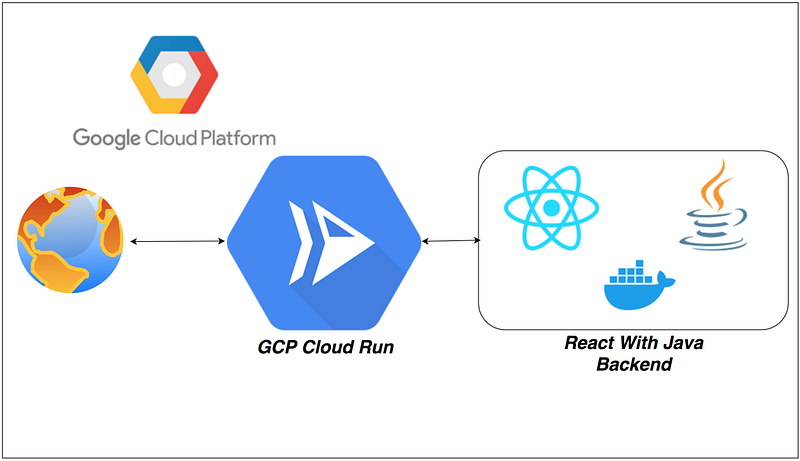
If you want to develop and deploy highly scalable containerized applications on a fully managed serverless platform, GCP Cloud Run is the right choice. You can run the whole WebApp with Docker runtime without any worry about the configuration from your side. GCP Cloud Run is a GCP service that you can write code your way by deploying any code or container that listens for requests or events. Build applications in your favorite language, with your favorite dependencies and tools, and deploy them in seconds.

You can select the Java runtime or you can dockerize the WebApp and deploy that in the Docker runtime. The Docker images can be pulled from the Container registry, etc. In this post, we will see how to run WebApp with Docker runtime.

  • Prerequisites
  • Install gcloud CLI and Configure
  • Example Project
  • Dockerize the Project
  • Running the API on Docker
  • Pushing Docker Image To Container Registry
  • Creating a Cloud Run Service
  • Testing The WebApp
  • Application Logs
  • Deleting the Service
  • Summary
  • Conclusion

Prerequisites

  • If you are new to React please go through the below link on how to develop and build the React project with Java backend.

How To Develop and Build React App With Java Backend

The other prerequisites to this post are Docker essentials. We are not going to discuss the basics such as what is a container or Docker. Below are the prerequisites you should know before going through this article

Docker Essentials

You need to understand Docker concepts such as creating images, container management, etc. Below are some of the links that you can understand about Docker if you are new.

GCP Prerequisites

  • Create a New project
  • You need to create a Billing Account
  • Link Billing Account With this project
  • Enable All the APIs that we need to run the dataflow on GCP
  • Download the Google SDK

Service Account

Need to create a service account so that when you run the application from your local machine it can invoke the GCP dataflow pipeline with owner permissions.
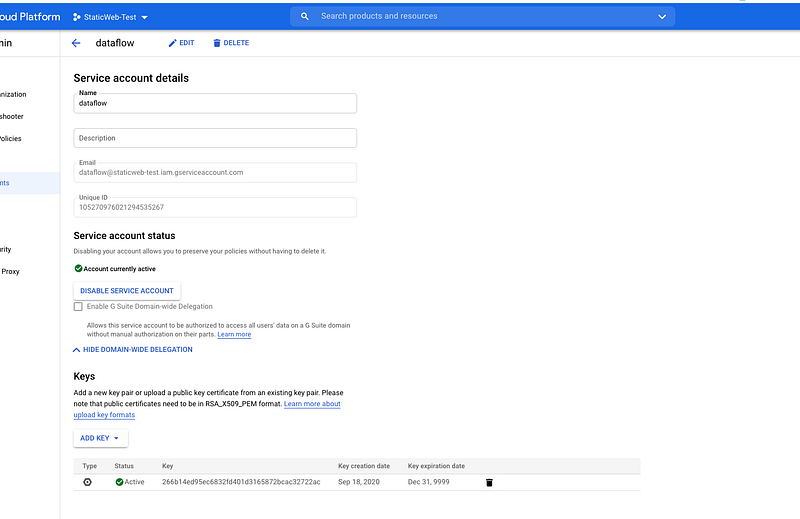
Service Account

You have to generate the key and download and set the environment variable called GOOGLE_APPLICATION_CREDENTIALS.

export GOOGLE_APPLICATION_CREDENTIALS="/Users/bhargavbachina/gcp-credentials/gcp-dataflow-service-account.json"

Finally, you can run the following command to log in to your GCP account.

gcloud auth login

Install gcloud CLI and Configure

Once you have the GCP Account you can install the gcloud command-line tool. You can go to the below documentation and install gcloud CLI based on your operation system. You can configure gcloud CLI with your project.

The gcloud CLI is a part of the Google Cloud SDK. You must download and install the SDK on your system and initialize it before you can use the gcloud command-line tool

// initializing
gcloud init
// auth login
gcloud auth login

Once you run the above command, it opens up a browser for you to login into your GCP and you get the response as below.
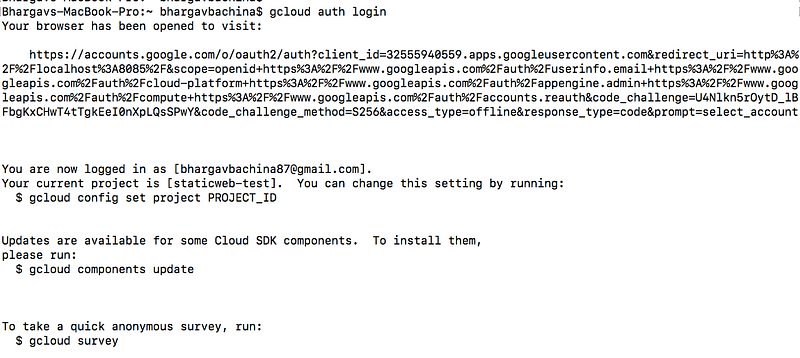
gcloud auth login

You can list the projects with the following command.

gcloud projects list

You can set the current project with the following command.

gcloud config set project staticweb-test
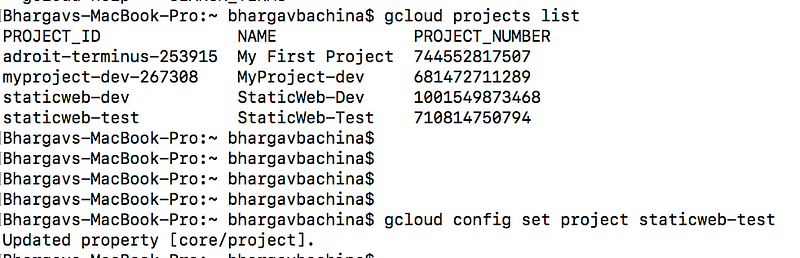
Configuring the project

Example Project

This is a simple project which demonstrates developing and running React applications with Java. We have a simple app in which we can add users, count, and display them at the side, and retrieve them whenever you want.
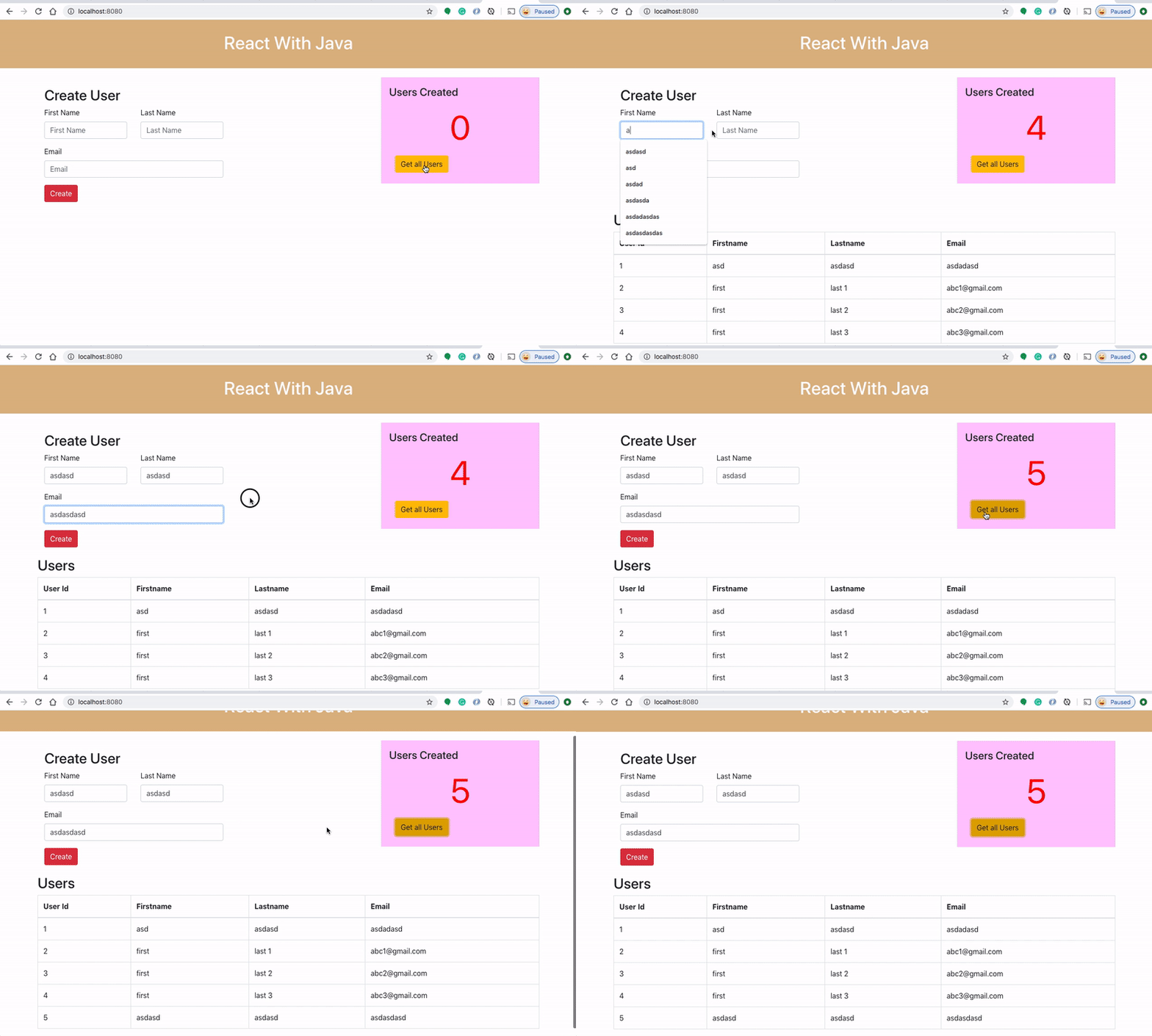
Example Project

If you want to practice your own here is a Github link to this project. You can clone it and run it on your machine as well.

// clone the project
git clone https://github.com/bbachi/react-java-ecs.git
// change directory
cd react-java-ecs
// install
mvn clean install
// Run the app
java -jar target/users-0.0.2-SNAPSHOT.jar

Dockerize the Project

AWS App Runner is an AWS service that provides a fast, simple, and cost-effective way to deploy straight from source code or a container image directly to a scalable and secure web application in the AWS Cloud.

Make sure your Java API runs on port 80.

we need to create a Dockerfile that creates a Docker image. Here is the file which starts with FROM command and with the base image openjdk:8-jre-alpine. Copy the generated war file and finally CMD command that runs when the image is instantiated.

Here are the commands to build the image and run it on the Docker engine on your local machine.

// package the app
mvn clean package
// change the directory
cd docker
// build the image
docker build -t react-java-image .
//list the images
docker images

Running the WebApp on Docker

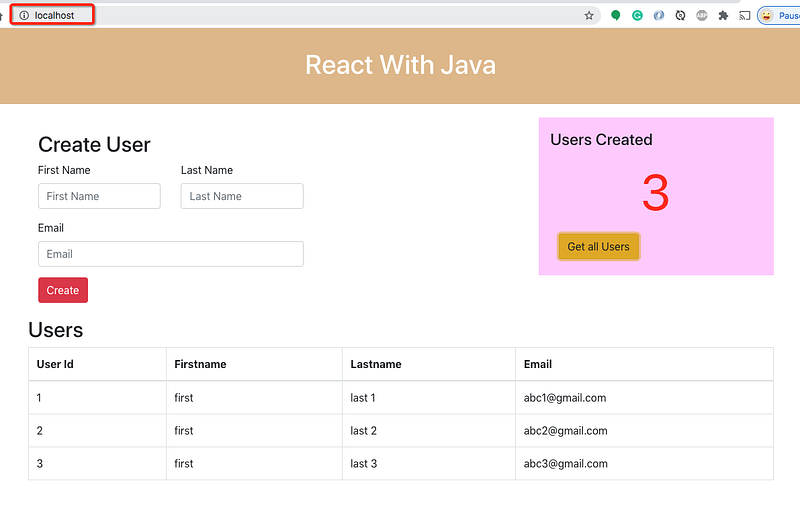
Now, we have the docker image and let’s run the container and once it is up and running you can access the web app at http://localhost:80. Make sure your app runs on port 80.

// running on Image
docker run -d -it -p  80:80 --name react-java-ui react-java-image
// list the container
docker ps
// logs
docker logs react-java-ui
// exec into running container
docker exec -it react-java-ui /bin/sh
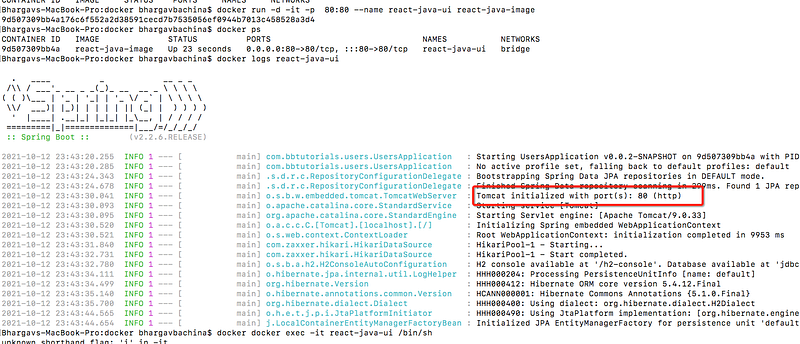
Running Container on the Docker
Web App Running on Port 80

Pushing Docker Image To Container Registry

Container Registry is a single place for your team to manage Docker images, perform vulnerability analysis, and decide who can access what with fine-grained access control. Existing CI/CD integrations let you set up fully automated Docker pipelines to get fast feedback. You can check the whole documentation here.

GCP Cloud Run works with any Docker registry such as Docker Hub, etc. But, in this post, we see how we can use a GCP container registry to store our Docker images. Make sure you enable the relevant API on GCP. If you log in and go to the Container Registry you can see the empty registry.
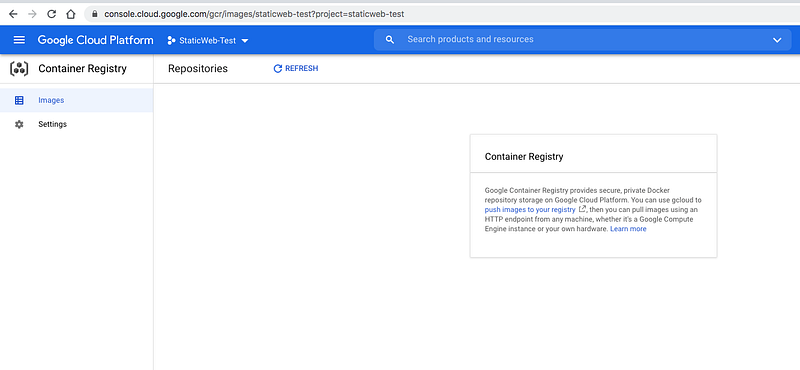
Container Registry Console

The first thing we need to do is to enable the API with the following command.

gcloud services enable containerregistry.googleapis.com

You need to configure docker with the following command. You can see the full documentation here.

gcloud auth configure-docker
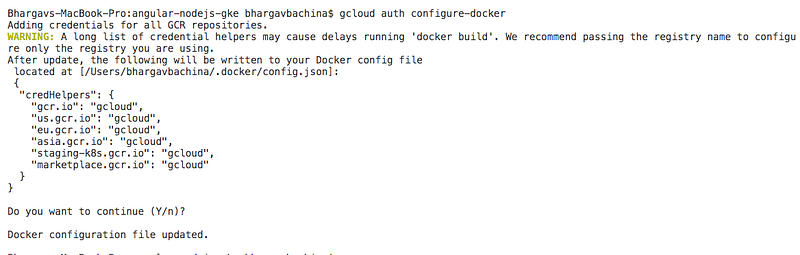
Configuring Docker

As we have seen in the Example Project section, let’s build the Docker image with the following command.

docker build -t cloud-run-webapp .
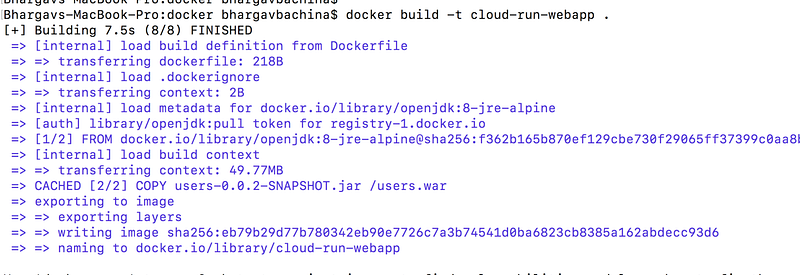
Building Docker Image

Let’s tag the local docker image with the registry name by using the command:

docker tag [SOURCE_IMAGE] [HOSTNAME]/[PROJECT-ID]/[IMAGE]:[TAG]
// run this command
docker tag cloud-run-webapp gcr.io/staticweb-test/cloud-run-webapp:v1

Finally, push the image into the GCP container registry

docker push gcr.io/staticweb-test/cloud-run-webapp:v1

docker push

You can see the repository in the console as well.
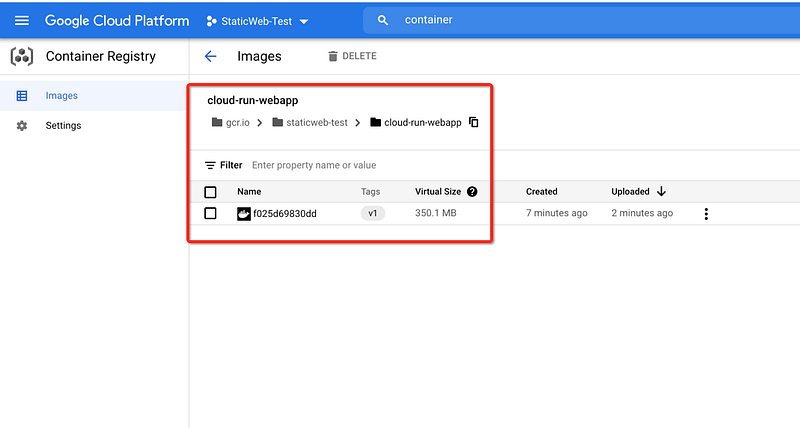
Container Registry

Creating a Cloud Run Service

We have pushed the Docker image into the container registry and it’s time to create a Cloud Run Service. You can create the Service by going to the appropriate service in the console.
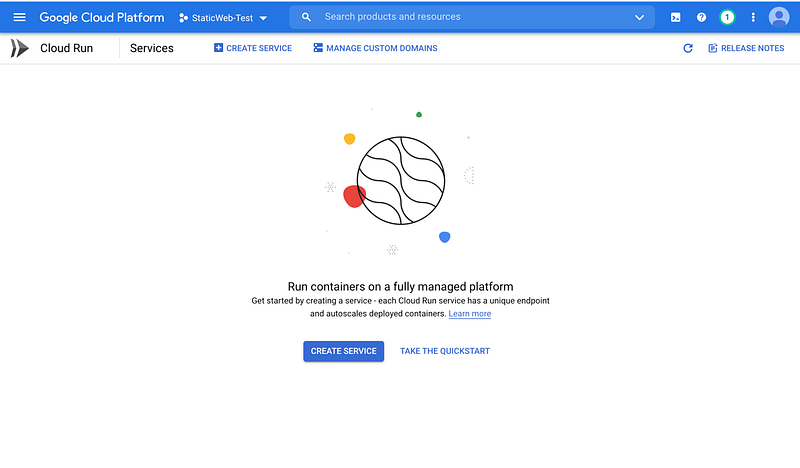
Cloud Run Service

You can see the above window when you search Cloud Run and go to the page. You can click on the button Create Service. On the next page, you should choose the container image that we just pushed to the container registry.
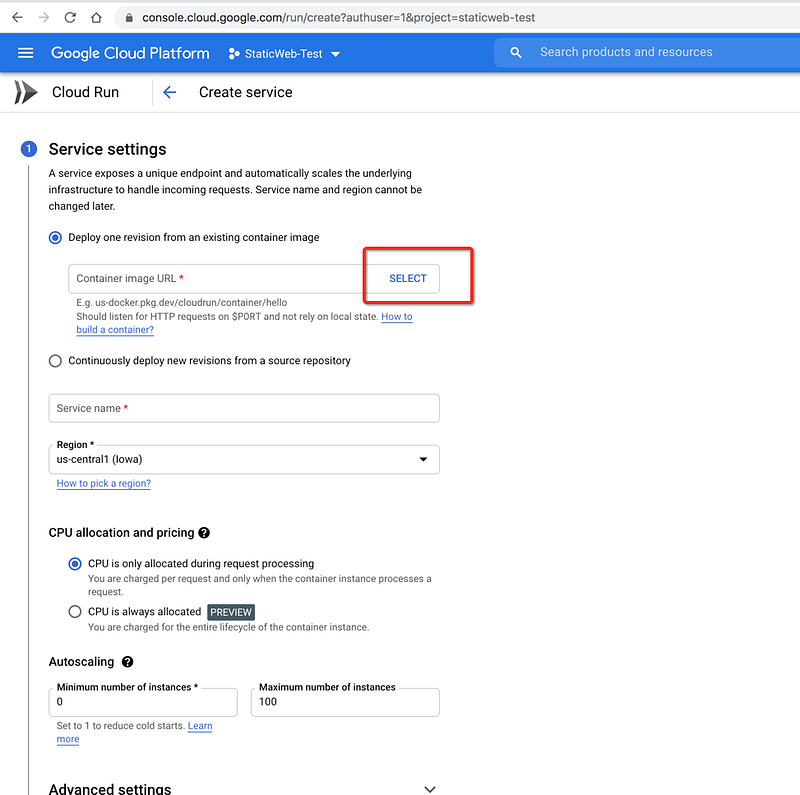
Selecting the Container Image

Choose the repository that we just pushed to the registry.
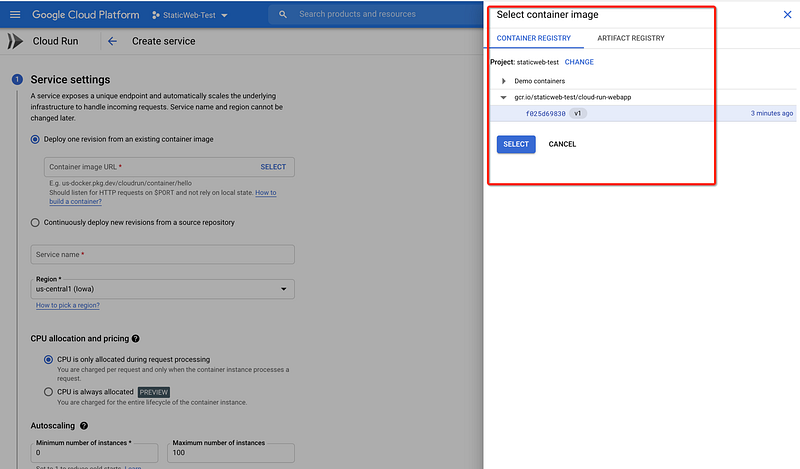
Selecting the Container Image

We know you are running the service on port 8080. You can put that in the advanced settings section as below. You can choose to run your Docker container on any port and make sure that port and the port we put here should match.
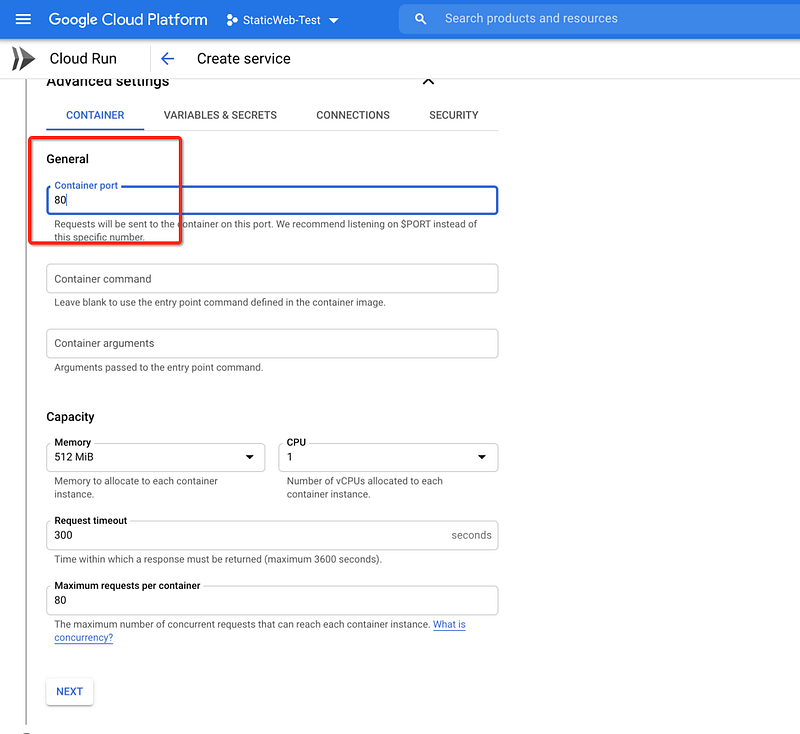
Advanced Settings

On the next screen, you should check the radio button Allow all traffic under the Ingress section and this allows all the incoming traffic to reach your container.

check the radio button Allow unauthenticated invocations under the Authentication section and this makes your API public.
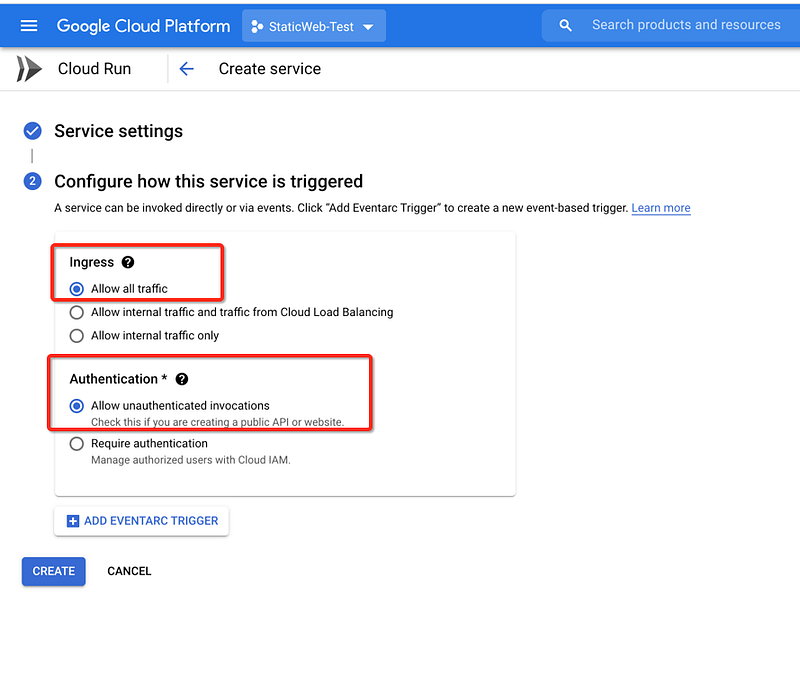
Configure Settings

Finally, you can click on the Create button and you can see the service running after some time as below.
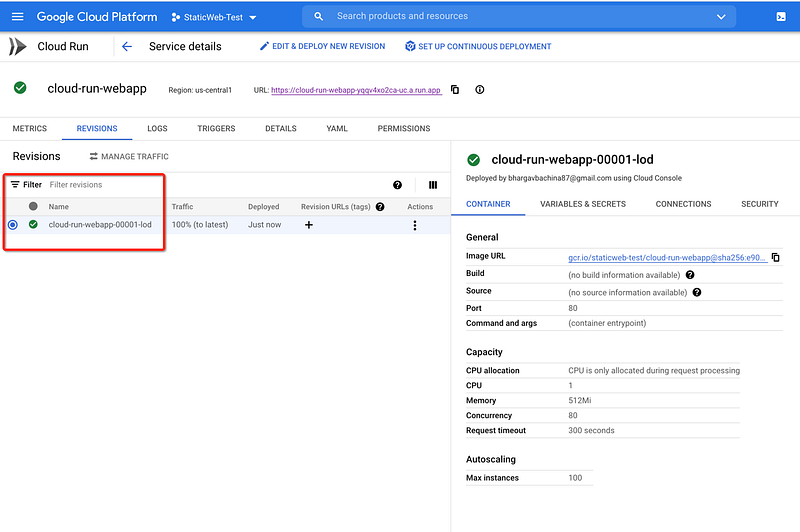
Service Running

Testing The WebApp

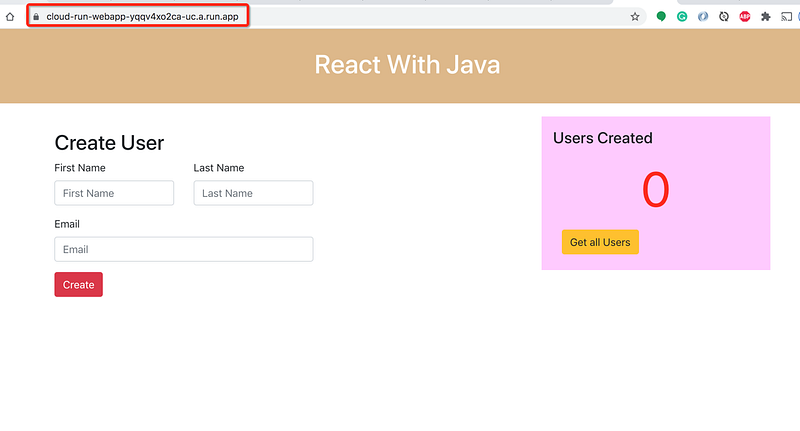
You can take the default domain URL from the below location and hit it in the browser with the actual path.

https://cloud-run-webapp-yqqv4xo2ca-uc.a.run.app/
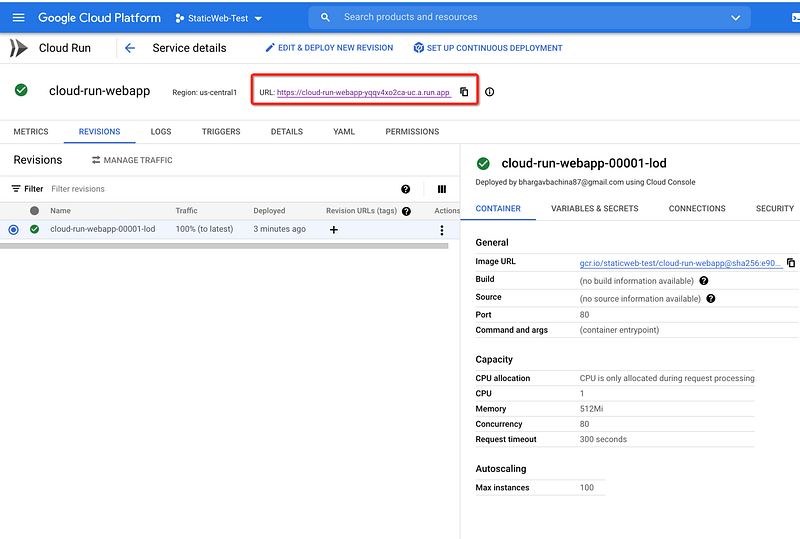
Cloud Run Service
Testing the WebApp

Application Logs

The application logs can be seen under the logs section as below.
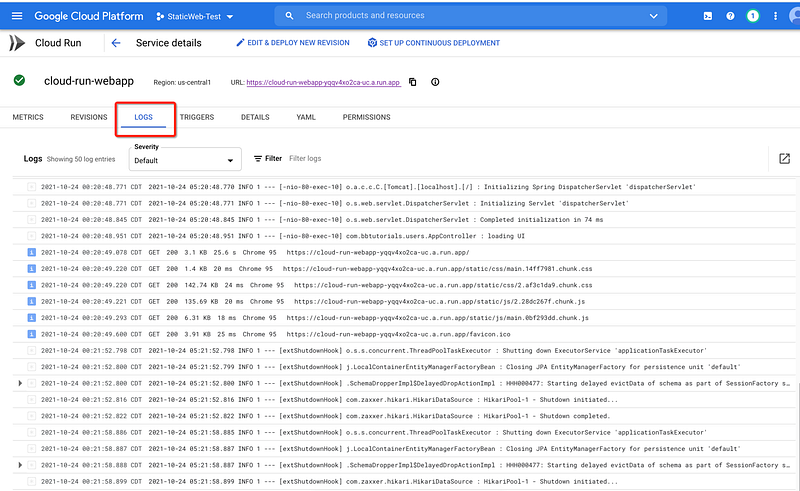
Application Logs

You can click on the link to see the logs in detail. You can even see these logs in Monitoring as well.

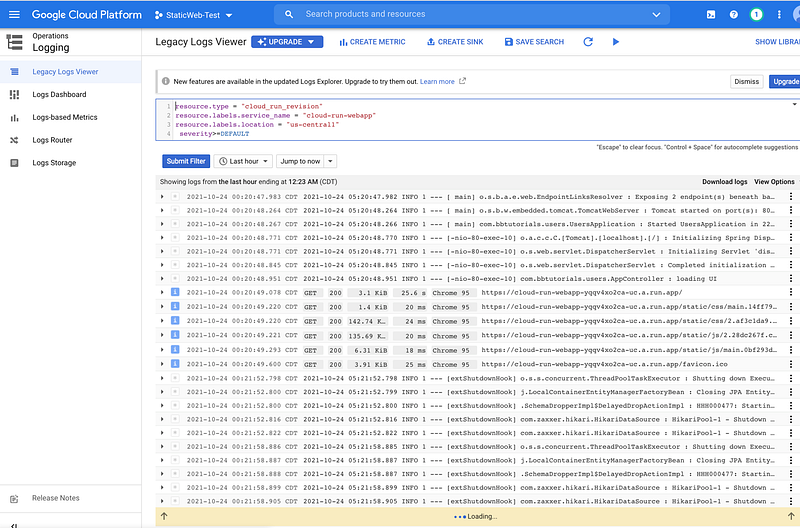
Logs
Cloud Logging

Deleting the Service

We have deployed the service and see it running. You can delete the service if you don’t want to incur any charges. You can click on the delete button as below.
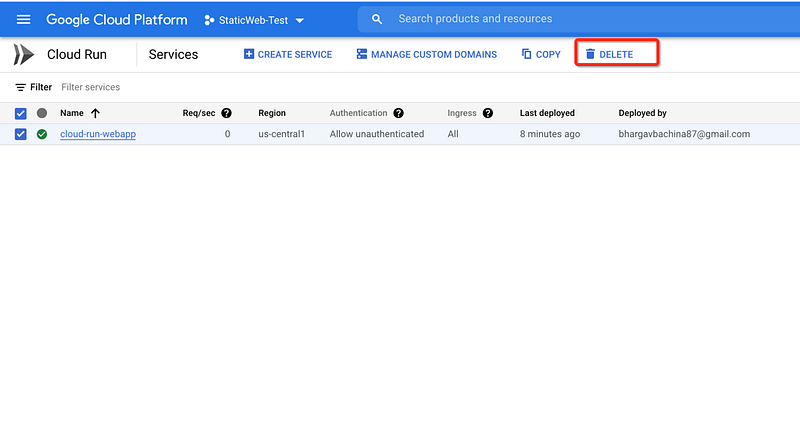
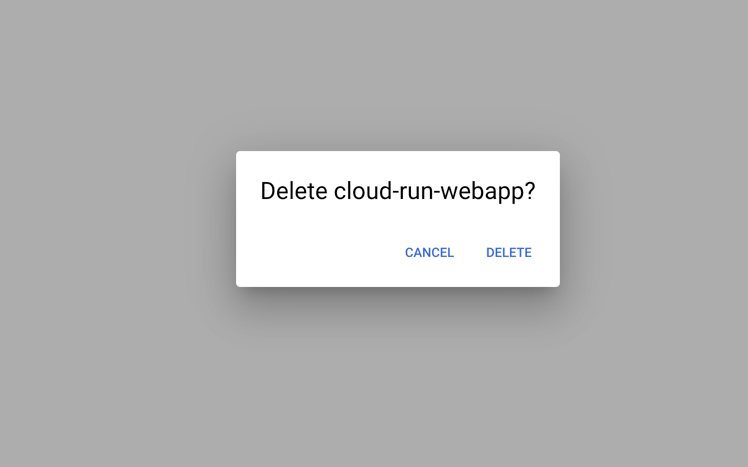
Delete the service
Confirm

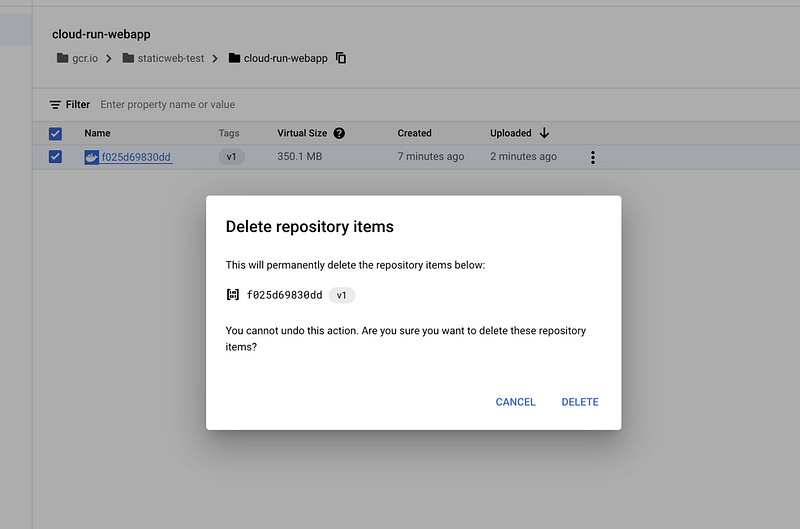
You can delete the image as well from the container registry as below.
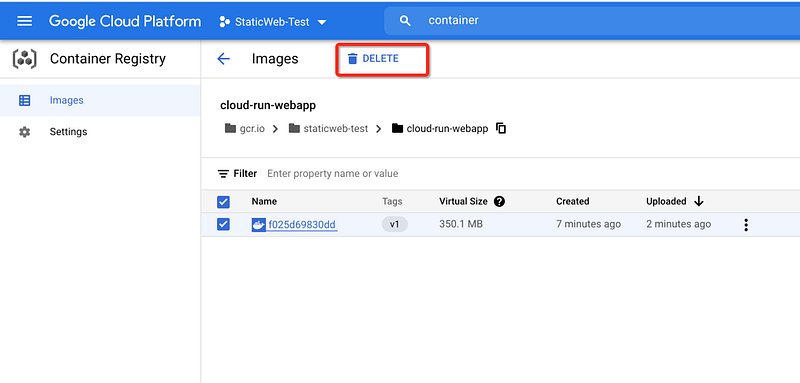
Deleting the image
Confirmation

Summary

  • If you want to develop and deploy highly scalable containerized applications on a fully managed serverless platform, GCP Cloud Run is the right choice.
  • You can run the whole WebApp with Docker runtime without any worry about the configuration from your side.
  • GCP Cloud Run is a GCP service that you can write code your way by deploying any code or container that listens for requests or events. Build applications in your favorite language, with your favorite dependencies and tools, and deploy them in seconds.
  • You can select the Java runtime or you can dockerize the WebApp and deploy that in the Docker runtime. The Docker images can be pulled from the Container registry, etc.
  • Container Registry is a single place for your team to manage Docker images, perform vulnerability analysis, and decide who can access what with fine-grained access control.
  • Make sure your container port and the port in the advanced settings section match.

Conclusion

We have seen how to run the React with Java Backend with Docker Runtime on GCP Cloud Run. In future posts, we can see how to do automatic deployments, configure environment variables, link custom domains, etc, and other configuration stuff.

Programming
Cloud Computing
Google Cloud Platform
Software Development
Docker
Recommended from ReadMedium