avatarBhargav Bachina

Free AI web copilot to create summaries, insights and extended knowledge, download it at here

3330

Abstract

src="https://cdn-images-1.readmedium.com/v2/resize:fit:800/1*rCz8x-6oIm2AygtEV6uzPQ.png"><figcaption>docker info</figcaption></figure><p id="0fef">we can actually list only image ids with -q flag.</p><div id="f195"><pre><span class="hljs-comment">// list only ids</span> docker images -q</pre></div><div id="0ee4"><pre><span class="hljs-comment">// no truncate outout</span> docker images --<span class="hljs-keyword">no</span>-<span class="hljs-built_in">trunc</span></pre></div><div id="c03f"><pre><span class="language-xml">// usage of format docker images --format "</span><span class="hljs-template-variable">{{<span class="hljs-name">.ID</span>}}</span><span class="language-xml">: </span><span class="hljs-template-variable">{{<span class="hljs-name">.Repository</span>}}</span><span class="language-xml">"</span></pre></div><figure id="936c"><img src="https://cdn-images-1.readmedium.com/v2/resize:fit:800/1*TAgiJqoaogzYMZ5Mn86DJg.png"><figcaption></figcaption></figure><h2 id="1b42">Image History</h2><p id="aa0f">Find out the image history with the following command.</p><div id="56a9"><pre>docker <span class="hljs-keyword">history</span> <span class="hljs-symbol"><image></span> docker <span class="hljs-keyword">history</span> <span class="hljs-symbol"><image></span>:<span class="hljs-symbol"><tag></span></pre></div><figure id="99e3"><img src="https://cdn-images-1.readmedium.com/v2/resize:fit:800/1*MVHRwDw-Lsmdv2Ajn8ru3A.png"><figcaption>docker history ubuntu</figcaption></figure><h2 id="8e53">Inspecting Image</h2><p id="12f0">you can inspect the image with the following command. you can actually see a lot of information about the image like the longest version of image id, tags, created date, instantiation command etc..</p><div id="51d8"><pre>docker inspect <image><span class="hljs-symbol">:<tag></span></pre></div><figure id="d0b9"><img src="https://cdn-images-1.readmedium.com/v2/resize:fit:800/1*P5ETNP3UzyqL9IlgKYx9dQ.png"><figcaption></figcaption></figure><p id="39d5">you can use a pipe ( | ) or — format option to obtain specific settings</p><div id="b55a"><pre>docker <span class="hljs-keyword">inspect</span> ubuntu | <span class="hljs-keyword">grep</span> Id</pre></div><figure id="67fd"><img src="https://cdn-images-1.readmedium.com/v2/resize:fit:800/1*84jHw53V6wXFC27f_l_uSQ.png"><figcaption></figcaption></figure><div id="5705"><pre><span class="language-xml">docker inspect ubuntu --format "</span><span class="hljs-template-variable">{{<span class="hljs-name">json</span> .Config}}</span><span class="language-xml">"</span></pre></div><figure id="e0c2"><img src="https://cdn-images-1.readmedium.com/v2/resize:fit:800/1*NnledKL_b93CMZXpkcb6AQ.png"><figcaption></figcaption></figure><h2 id="201e">Creating Images</h2><p id="e3d0">We can pull images from docker hub and we can automate creating docker images with the help of Dockerfile.</p><h2 id="5e79">Dockerfile</h2><p id="2abf">A Dockerfile can be used to automate the creation of a Docker container image. Here is the detailed Dockerfile article.</p><div id="8268" class="link-block"> <a href="https://readmedium.com/docker-a-beginners-guide-to-dockerfile-with-a-sample-project-6c1ac1f17490"> <div> <div> <h2>Docker — A Beginner’s guide to Dockerfile wit

Options

h a sample project</h2> <div><h3>Dockerfile is used to automate the Docker image creation. Docker builds images by reading instructions from the…</h3></div> <div><p>medium.com</p></div> </div> <div> <div style="background-image: url(https://miro.readmedium.com/v2/resize:fit:320/1*DXY4IoYbDhLrI9q6Z3LuYw.png)"></div> </div> </div> </a> </div><h2 id="5776">Sharing Images</h2><p id="f569">we can share and push changes to docker hub in the same way as Github or we can create our own private registry. Sometimes we want to share images without publishing to any repository. Here is the link for it.</p><div id="f3a0" class="link-block"> <a href="https://readmedium.com/how-to-share-docker-images-without-docker-hub-or-any-registry-6cb7aade1783"> <div> <div> <h2>How to share docker images without Docker hub or any registry</h2> <div><h3>There are some instances where you can’t publish your image to docker hub or any private registry. This story gives you…</h3></div> <div><p>medium.com</p></div> </div> <div> <div style="background-image: url(https://miro.readmedium.com/v2/resize:fit:320/1*YLyDzTT9ahS1axah6sjRXw.png)"></div> </div> </div> </a> </div><h2 id="440a">Pushing Images</h2><p id="0b33">We can push images to docker hub or any private repository. Let’s see the example of pushing images to the docker hub. It is customary to push docker images with docker hub username <b><i><dockeruserid>/<repo-name>.</i></b></p><div id="85af"><pre>// docker <span class="hljs-keyword">login</span> docker <span class="hljs-keyword">login</span></pre></div><div id="d3f6"><pre>// <span class="hljs-keyword">build</span> an image <span class="hljs-keyword">with</span> <dockeruserid>/<repo-name> docker <span class="hljs-keyword">build</span> -t bbachin1/sampledocker -f Dockerfile3 .</pre></div><div id="c688"><pre><span class="hljs-comment">// list images</span> docker images</pre></div><div id="1a95"><pre><span class="hljs-comment">// docker push</span> docker <span class="hljs-built_in">push</span> bbachin1/sampledocker</pre></div><figure id="fb99"><img src="https://cdn-images-1.readmedium.com/v2/resize:fit:800/1*HuItu_9btnTtqTIPghIPsQ.png"><figcaption><b>Docker hub account</b></figcaption></figure><figure id="7bf6"><img src="https://cdn-images-1.readmedium.com/v2/resize:fit:800/1*S7GKGouBzne3HUE6Eig1sg.png"><figcaption><b>docker login</b></figcaption></figure><figure id="8dfe"><img src="https://cdn-images-1.readmedium.com/v2/resize:fit:800/1*mwGnPm3TMwdmhqTlS6VdfQ.png"><figcaption><b>docker push</b></figcaption></figure><figure id="541d"><img src="https://cdn-images-1.readmedium.com/v2/resize:fit:800/1*L8sdH-rBGRVeU2N-YeuDjA.png"><figcaption><b>docker hub account after push</b></figcaption></figure><h1 id="cad7">Conclusion</h1><p id="cd92">This is enough docker for creating and managing images.</p><p id="c0ed"><b><i>Thank you for reading and If you find this useful, Please give it a clap and help others to find it. Please follow me for more interesting stories:)</i></b></p></article></body>

Docker — Image creation and Management
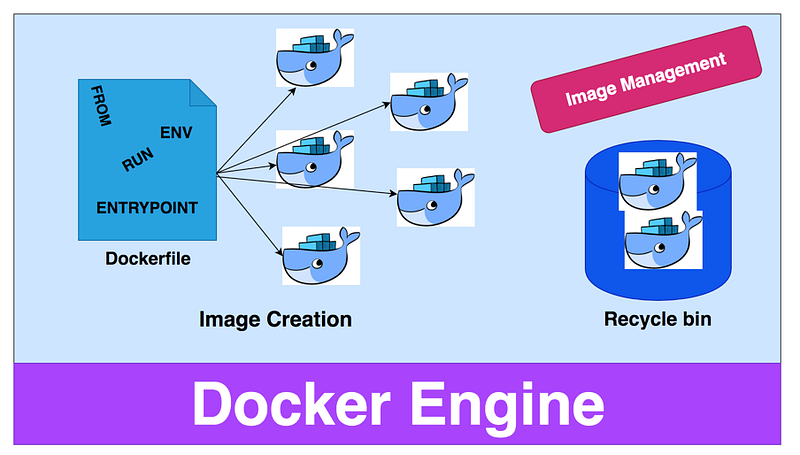
Image creation and management

Docker is a platform where developers can run, develop and deploy container-based applications. we have images and containers in docker world. An image is an executable package that includes everything needed to run an application — the code, a runtime, libraries, environment variables, and configuration files. A Container is the running instance of the image means you can create as many containers as possible from a single image.

This article is all about Images.

Once you install docker you can check the version, info with the following commands just to make sure you installed correctly.

docker --version
docker info

Agenda

  • where to start
  • pulling images from docker hub
  • Listing images
  • Image History
  • Inspecting image
  • Creating an Image
  • Dockerfile
  • Removing images
  • Sharing images
  • Pushing Images

Where to start

Once you install docker in your machine, the first thing you could do is create an image or pull an image from the docker hub so that you can run the containers out of it.

Pulling images from docker hub

with the docker pull command, you can pull the image from the docker hub if it's not available in the local system. Let’s pull ubuntu.

docker pull ubuntu
docker pull ubuntu:<tag>
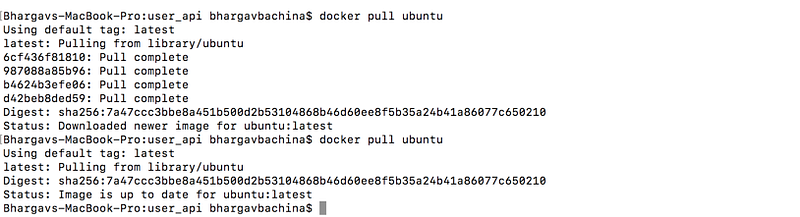
docker pull

if you look at the above image with the first pull it actually downloads all the layers necessary to build the image from the docker hub. But, from the second time onwards it actually pulls from the local system.

by default, it will pull the latest tag. you can specify which tag you want to pull. Let’s pull the image with another tag.

docker pull ubuntu: cosmic

Listing images

There are two ways to see the number of images that we have in the system. docker images will give all the details about the image, tag, image id, size, and created date etc.

docker images

docker images

Another way is to use docker info. But, you can only see a number of images

docker info

we can actually list only image ids with -q flag.

// list only ids
docker images -q
// no truncate outout
docker images --no-trunc
// usage of format
docker images --format "{{.ID}}: {{.Repository}}"

Image History

Find out the image history with the following command.

docker history <image>
docker history <image>:<tag>
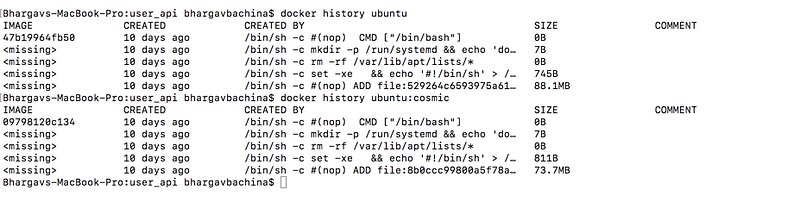
docker history ubuntu

Inspecting Image

you can inspect the image with the following command. you can actually see a lot of information about the image like the longest version of image id, tags, created date, instantiation command etc..

docker inspect <image>:<tag>
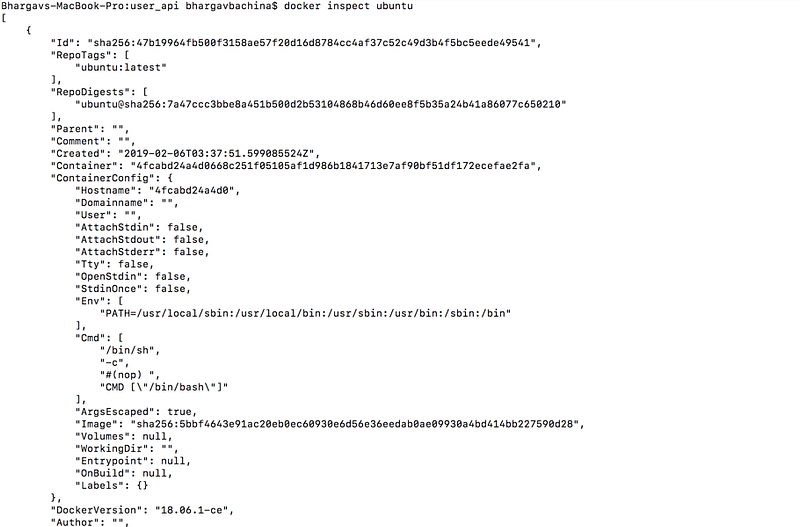
you can use a pipe ( | ) or — format option to obtain specific settings

docker inspect ubuntu | grep Id

docker inspect ubuntu --format "{{json .Config}}"

Creating Images

We can pull images from docker hub and we can automate creating docker images with the help of Dockerfile.

Dockerfile

A Dockerfile can be used to automate the creation of a Docker container image. Here is the detailed Dockerfile article.

Sharing Images

we can share and push changes to docker hub in the same way as Github or we can create our own private registry. Sometimes we want to share images without publishing to any repository. Here is the link for it.

Pushing Images

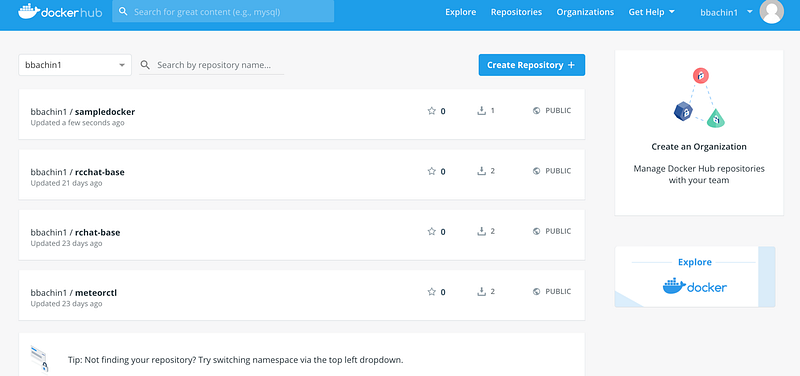
We can push images to docker hub or any private repository. Let’s see the example of pushing images to the docker hub. It is customary to push docker images with docker hub username <dockeruserid>/<repo-name>.

// docker login
docker login
// build an image with <dockeruserid>/<repo-name>
docker build -t bbachin1/sampledocker -f Dockerfile3 .
// list images
docker images
// docker push
docker push bbachin1/sampledocker
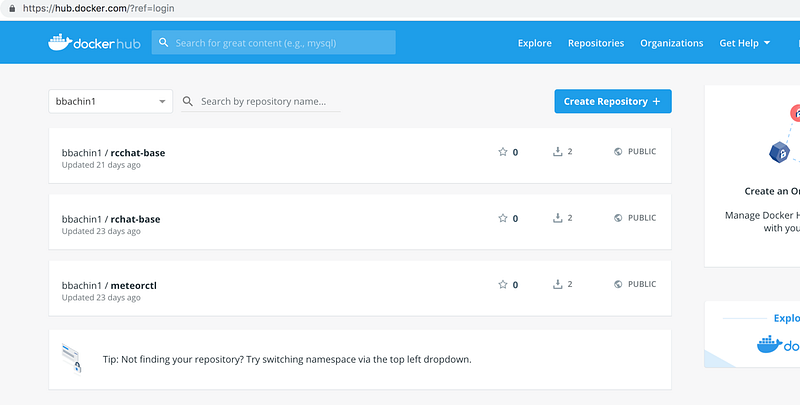

Docker hub account
docker login
docker push
docker hub account after push

Conclusion

This is enough docker for creating and managing images.

Thank you for reading and If you find this useful, Please give it a clap and help others to find it. Please follow me for more interesting stories:)

Docker
Docker Image
Web Development
Programming
Software Development
Recommended from ReadMedium