avatarBhargav Bachina

Free AI web copilot to create summaries, insights and extended knowledge, download it at here

2981

Abstract

0</figcaption></figure><p id="3a75">Let’s stop the container and start it again. we can still see the changes that we made. what if we stop this container and start another one and load the page. There is no way that we could access the file that we have changed in another container.</p><figure id="d047"><img src="https://cdn-images-1.readmedium.com/v2/resize:fit:800/1*0jn_pHrOx2_tFqAc3_gfJA.png"><figcaption>localhost:80</figcaption></figure><figure id="195a"><img src="https://cdn-images-1.readmedium.com/v2/resize:fit:800/1*b9H8U9M91yd8LSXbmSfHMA.png"><figcaption>docker run command</figcaption></figure><h2 id="8312">How Volumes can solve above issues</h2><p id="4fc6"><b><i>Volumes </i></b>are saved in the host filesystem <b><i>(/var/lib/docker/volumes/) </i></b>which is owned and maintained by docker. Any other nondocker process can’t access it. But, As depicted in the below other docker processes/containers can still access the data even container is stopped since it is isolated from the container file system.</p><figure id="689d"><img src="https://cdn-images-1.readmedium.com/v2/resize:fit:800/1*OjLt-kgJ8fHKxcnFJVwXCA.png"><figcaption></figcaption></figure><h2 id="f74c">How to create a Volume</h2><p id="b406">We can create a volume with the below command or while container/service creation and it is created in the directory of the docker host and When you mount the volume into a container, this directory is what is mounted into the container. we should notice the difference between creation and mounting.</p><div id="f956"><pre>docker <span class="hljs-built_in">volume</span> <span class="hljs-keyword">create</span> <volumeName></pre></div><h2 id="7252">How to remove a Volume</h2><div id="f6cb"><pre>docker <span class="hljs-keyword">volume</span><span class="language-bash"> prune</span></pre></div><h2 id="7cb2">Let’s put Theory into practice</h2><p id="d55e">Let’s run these commands and see how it works!!. we can see the location of volumes in the docker area of the host file system with the inspect command.</p><div id="ade3"><pre><span class="hljs-comment">// create a volume</span> docker <span class="hljs-built_in">volume</span> <span class="hljs-keyword">create</span> new_vol</pre></div><div id="9572"><pre>// list volumes docker <span class="hljs-keyword">volume</span><span class="language-bash"> <span class="hljs-built_in">ls</span></span></pre></div><div id="0814"><pre><span class="hljs-comment">// inspect volumes</span> docker volume inspect <span class="hljs-keyword">new</span><span class="hljs-number"></span>vol</pre></div><div id="ae38"><pre><span class="hljs-comment">// removing volumes</span> docker volume rm <span class="hljs-keyword">new</span><span class="hljs-number"></span>vol</pre></div><figure id="743c"><img src="https://cdn-images-1.readmedium.com/v2/resize:fit:800/1*OyBunpzInxZfJKUs8xtKwg.png"><figcaption>docker volumes</figcaption></figure><p id="b77d">login into docker VM and check the filesystem a

Options

nd volumes location. We can see docker volumes location in the below image.</p><div id="e046"><pre>screen <span class="hljs-variable">$HOME</span><span class="hljs-regexp">/Library/</span>Containers<span class="hljs-regexp">/com.docker.docker/</span>Data<span class="hljs-regexp">/vms/</span><span class="hljs-number">0</span>/tty</pre></div><figure id="8811"><img src="https://cdn-images-1.readmedium.com/v2/resize:fit:800/1*CgEMj_ksBJ2Yz34FeVm6jg.png"><figcaption></figcaption></figure><h2 id="a08f">Let’s see the same example with volumes</h2><p id="3efb">Let’s run the nginx container with the below command. we are starting nginx container with the welcome page mounted to volume<b><i> new_vol </i></b>that we created above and exposing the port 80.</p><p id="5c84">Once we run this command and ssh into docker volumes, we can see that volume prepopulated with default welcome page from nginx location <b><i>/usr/share/nginx/html</i></b></p><div id="8f1b"><pre>docker <span class="hljs-built_in">run</span> -d <span class="hljs-attribute">--name</span>=webApp1 --mount <span class="hljs-attribute">source</span>=new_vol,destination=/usr/share/nginx/html -p 80:80 nginx</pre></div><figure id="1b5b"><img src="https://cdn-images-1.readmedium.com/v2/resize:fit:800/1*0hnHzxpXXCut37GaJXLw8w.png"><figcaption>welcome page localhost:80</figcaption></figure><p id="9d7c">Let’s go and change the index.html from the <b><i>new_vol</i></b> location by ssh into the docker.</p><figure id="2f70"><img src="https://cdn-images-1.readmedium.com/v2/resize:fit:800/1*50mjb0XyMxoZL4_XoEdGKQ.png"><figcaption>editing the file in the volume</figcaption></figure><figure id="dea3"><img src="https://cdn-images-1.readmedium.com/v2/resize:fit:800/1*BBA24tJVzs_wswju8KvYMA.png"><figcaption></figcaption></figure><p id="51be">Let’s stop this container and start another one with the same command</p><div id="30c7"><pre>docker stop webApp1</pre></div><div id="40da"><pre>docker <span class="hljs-built_in">run</span> -d <span class="hljs-attribute">--name</span>=webApp2 --mount <span class="hljs-attribute">source</span>=new_vol,destination=/usr/share/nginx/html -p 80:80 nginx</pre></div><p id="66d5">we can load the page again <b><i>localhost:80 </i></b>and still see the html file that we edited in the volume.</p><p id="3d2f">So, with the help of volumes, we can easily access the data even we stop the container and it’s very easy to access data and import the data to anywhere.</p><h2 id="7ca5">Don’t forget to remove volumes</h2><p id="487d">if you stop the container and remove it, you should remove volume <b><i>new_vol </i></b>manually. stopping or removing the containers doesn’t delete the volumes.</p><h1 id="53dd">Conclusion</h1><p id="3357">Volumes can be more safely shared among multiple containers. We can prepopulate the volume with the run command and we can even backup, restore and remove volumes.</p><p id="40d1">if you found this helpful. give it a clap :)</p></article></body>

Understanding Docker Volumes with an example

Before going deep into volumes, Let’s understand how containers persist data in the host filesystem.
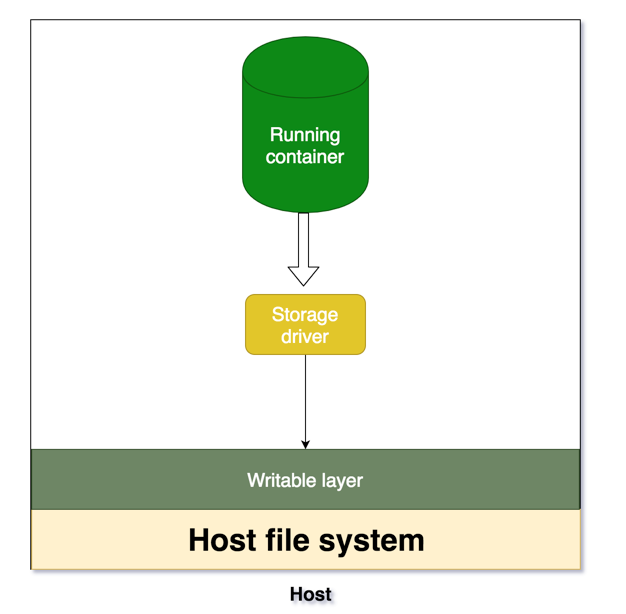
If we look at the above diagram, whenever running container wants to persist data, it actually put that data into the writable layer through storage driver. well, we have some problems with that!!!

What are the problems

  • Data is no longer persisted and difficult to access if container stops as shown in the following diagram
  • As we can see writable layer is tightly coupled with host filesystem and difficult to move the data.
  • We have an extra layer of abstraction with a storage driver which reduces the performance.
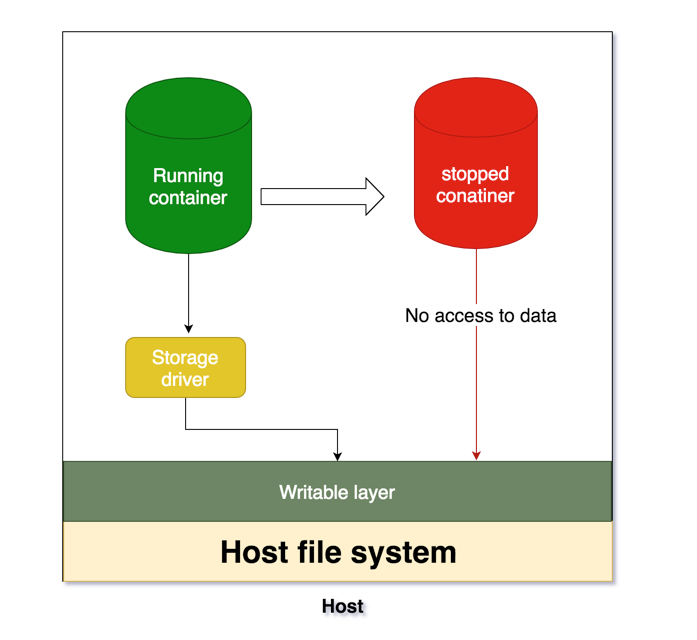
Let’s see in action

Let’s pull the latest nginx image from the docker hub and run the container and load the home page which listens on port 80.

// pull the nginx image
docker pull nginx
// run the container
docker run -it --name=webApp -d -p 80:80 nginx

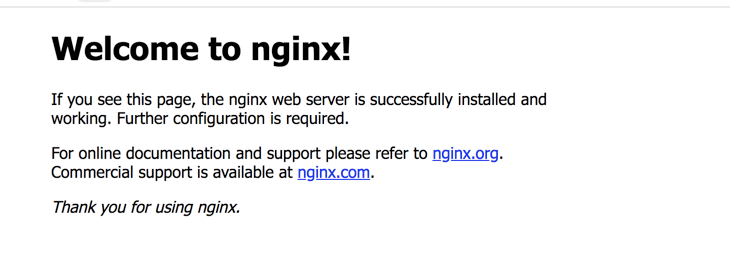
docker container
localhost:80

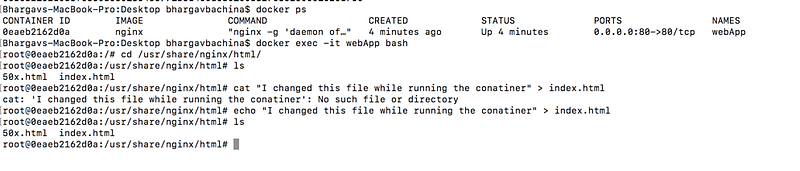
Let’s use the docker exec command to edit the welcome page and load it.

// list the running containers
docker ps
// exec command
docker exec -it webApp bash
// cd to welcome page and edit it
cd /usr/share/nginx/html
echo "I changed this file while running the conatiner" > index.html

localhost:80

Let’s stop the container and start it again. we can still see the changes that we made. what if we stop this container and start another one and load the page. There is no way that we could access the file that we have changed in another container.
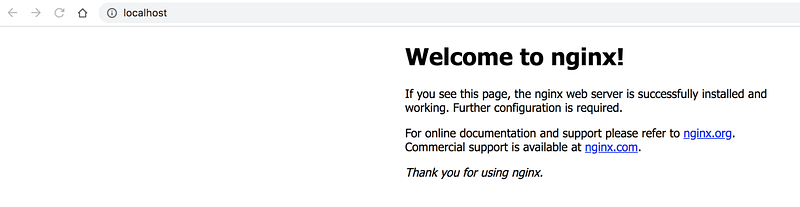

localhost:80
docker run command

How Volumes can solve above issues

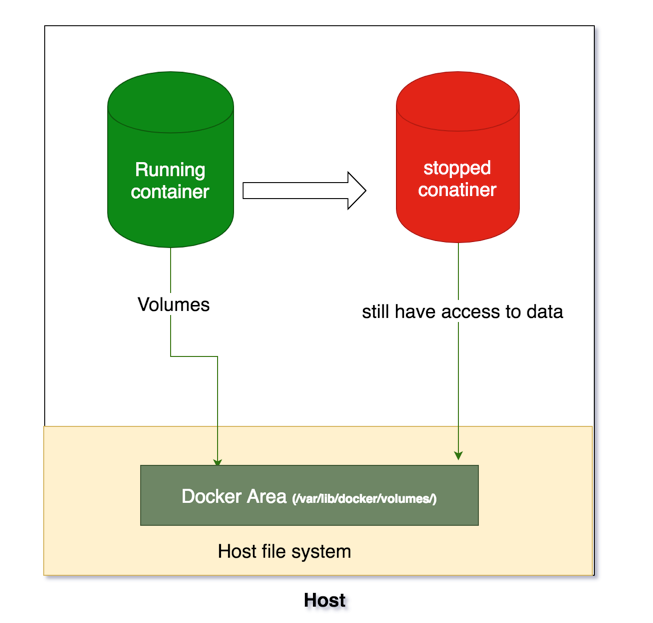
Volumes are saved in the host filesystem (/var/lib/docker/volumes/) which is owned and maintained by docker. Any other nondocker process can’t access it. But, As depicted in the below other docker processes/containers can still access the data even container is stopped since it is isolated from the container file system.
How to create a Volume

We can create a volume with the below command or while container/service creation and it is created in the directory of the docker host and When you mount the volume into a container, this directory is what is mounted into the container. we should notice the difference between creation and mounting.

docker volume create <volumeName>

How to remove a Volume

docker volume prune

Let’s put Theory into practice

Let’s run these commands and see how it works!!. we can see the location of volumes in the docker area of the host file system with the inspect command.

// create a volume
docker volume create new_vol
// list volumes
docker volume ls
// inspect volumes
docker volume inspect new_vol
// removing volumes
docker volume rm new_vol
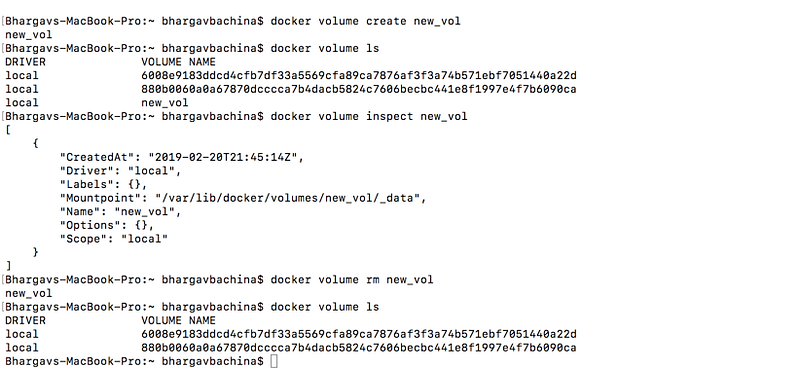
docker volumes

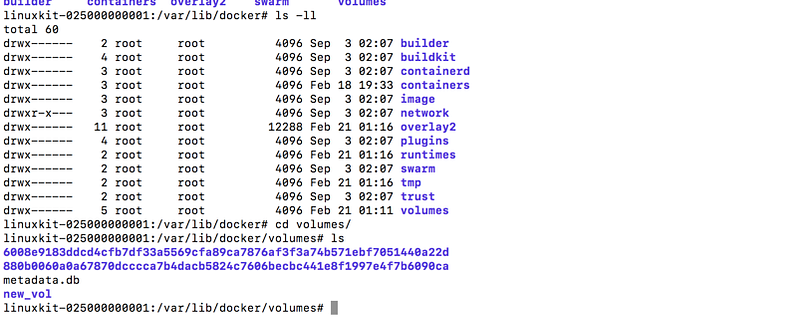
login into docker VM and check the filesystem and volumes location. We can see docker volumes location in the below image.

screen $HOME/Library/Containers/com.docker.docker/Data/vms/0/tty
Let’s see the same example with volumes

Let’s run the nginx container with the below command. we are starting nginx container with the welcome page mounted to volume new_vol that we created above and exposing the port 80.

Once we run this command and ssh into docker volumes, we can see that volume prepopulated with default welcome page from nginx location /usr/share/nginx/html

docker run -d --name=webApp1 --mount source=new_vol,destination=/usr/share/nginx/html -p 80:80 nginx
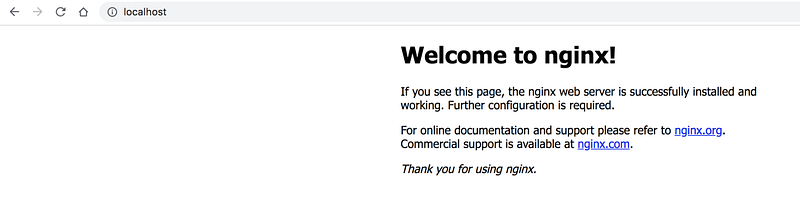
welcome page localhost:80

Let’s go and change the index.html from the new_vol location by ssh into the docker.
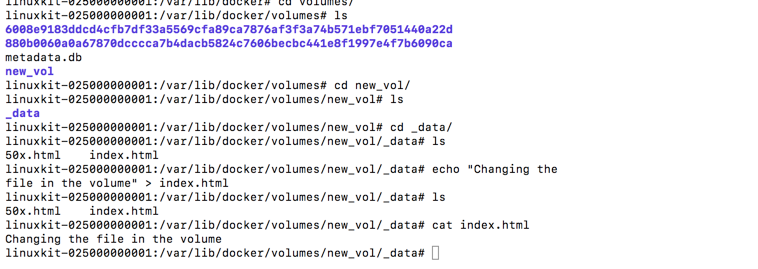
editing the file in the volume

Let’s stop this container and start another one with the same command

docker stop webApp1
docker run -d --name=webApp2 --mount source=new_vol,destination=/usr/share/nginx/html -p 80:80 nginx

we can load the page again localhost:80 and still see the html file that we edited in the volume.

So, with the help of volumes, we can easily access the data even we stop the container and it’s very easy to access data and import the data to anywhere.

Don’t forget to remove volumes

if you stop the container and remove it, you should remove volume new_vol manually. stopping or removing the containers doesn’t delete the volumes.

Conclusion

Volumes can be more safely shared among multiple containers. We can prepopulate the volume with the run command and we can even backup, restore and remove volumes.

if you found this helpful. give it a clap :)

Docker
Docker Volume
Docker Container
Docker Tutorial
Containers
Recommended from ReadMedium
