
How to Inspect Network Traffic
A few tips on finding what matters on your home network
~~~~~~~~~~~~~~~~~~~~~~~~~~~~~~~~~~~~~~~~~~~~~~~~~~~~~~~~~~~
⚙️ Check out my series on Automating Cybersecurity Metrics. The Code.
🔒 Related Stories: Network Security | Cybersecurity
💻 Free Content on Jobs in Cybersecurity | ✉️ Sign up for the Email List
~~~~~~~~~~~~~~~~~~~~~~~~~~~~~~~~~~~~~~~~~~~~~~~~~~~~~~~~~~~
In my cloud security class, I teach students how network architecture can make a difference when trying to spot malicious traffic on your network. The same applies to your home network. You need to weed out the noise to drill down to what your systems are doing and what could be a true threat. You may also just be curious what traffic your systems are sending to vendors and why.
One of the problems people will have on a home network is that it’s difficult to inspect traffic on a WiFi network using most consumer-grade products. They may not provide a firewall, and if they do, you might not be able to get the detail you need. There is also the issue that consumer-grade WiFi products often have security issues themselves.
You can try to get a WiFi device that shows you that traffic. Alternatively, or in addition, you might want to double up with another traffic inspection device outside of that. If you use a firewall between your local network and the Internet that captures all traffic at that boundary. Connect your WiFi device to that. The WiFi traffic will likely come across in your logs as a single IP address of the WiFi router, as I explained in a previous blog post on home routers committing crimes.
Presuming your firewall or network security appliance supports it, you can then plug devices directly into it in case you want to view that traffic in the logs separately from your WiFi traffic. Presuming this firewall or network appliance offers DHCP, and it is enabled, each device will get an IP from it when they connect to the network. Any IP address assigned by that network device will have that IP in its logs so you can view the traffic for each device.
In some cases, you can put another device between your hosts and the firewall such as a switch or a hub, and configure that to pass DHCP requests to your firewall. You want the device logging the traffic to assign the IP address or have the device IP address forwarded to it for logging purposes. The description I provided is just an example of how to view your IPs on your network. There are many different ways to configure networks and get traffic related to particular devices and IP addresses. More complex networks would have other types of devices and segregation.
Network Level Traffic
One of the benefits of segregating IOT devices and other traffic into different subnetworks or run on different network interfaces is that you can prevent those devices from communicating with each other. The other benefit is that it makes it easier to filter out the logs to see only the traffic for a particular subnetwork, interface, or IP address. Capturing that traffic at the network layer captures the traffic at a point where the host can’t alter it. For the traffic to reach its intended destination, the source and destination IP addresses have to be accurate otherwise the traffic won’t get to where the application (or an attacker) wants it to go.
In addition, you can view all the traffic going from your network to the Internet. There are cases where a host gets compromised in such a way it does not accurately report information in logs, or the logs are deleted. In these cases, a network-level firewall is beneficial. In addition, a network-level firewall gives you more control around devices that you can’t run a firewall on directly such as Internet of Things devices.
Host Level Traffic
The next thing you can do is run a host-based firewall on your laptop or other devices that allow it. That software can alert you each time a new connection is made if you configure it to do so. Most end-users won’t want to do this because it’s annoying to approve or deny every network connection. But some who are curious like me might want to see what’s going on. Once you have visibility at the host and network level, you can use both sources to validate that your network logs are reporting accurately and any network rules are working as expected.
Packet Level Network Detail
The level of traffic logging will generally be NetFlow level logging with the IP address and ports for the traffic. It won’t show you the data sent along with each packet, only the high-level connection information. It may or may not include response traffic if it is only monitoring one side of a stateful connection. A stateful connection is one in which the response traffic for any successful initial connection is allowed. I explain that concept in more detail in my class and why it matters when selecting a cloud provider.
You may want to go beyond NetFlow and get packet-level details. I explained how to use Wireshark previously if you want to further inspect those packets and try to figure out what they are doing. When you capture the full packet you can get more information about what is in the packet. How much information you can get out of that will depend on where the traffic gets captured and whether the traffic is encrypted. Wireshark can put some packets back together so you can view the entire message. You can also look at individual payloads, data, and check network headers for tampering and data exfiltration.
If the traffic is encrypted, you can capture some of it at the host level where the packet originated or is unencrypted, depending on the top of encryption and the point at which the packet gets encrypted. Some network security devices also allow you to use a certificate that you install on the devices in your network to allow the security appliance to decrypt the packet for inspection and then re-encrypt it before sending it along.
Traffic to Your ISP
If you inspect the traffic to your ISP, you’ll see that there’s typically some DHCP traffic on ports 67 and 68 to get the IP address assigned to your router (unless you’re using a static IP address). In one case, a firewall did not log that traffic until I created explicit rules for ports 67 and 68. You want to make sure you’re getting your IP address from the correct host, not some man-in-the-middle attacker.
The other thing I noticed with one ISP is that the network was trying to assign the external address to my laptop, instead of the network device. I had to work that out. The ISP has to assign every device on their network an IP address. That IP address should generally be assigned to your home router or whatever device is connected to the Internet, not your laptop. The ISP shouldn’t be connecting directly to your laptop.
IPV4 vs. IPV6
When inspecting network traffic you’ll need to understand both IPV4 and IPV6 if you have them enabled. You’ll also want to make sure all the security devices on your network are not using MAC addresses to identify devices on your network to enforce security or get software updates if those get routed over the Internet.
I find it easier to eliminate IPV6 on my network so I can focus on a smaller subset of network traffic. Then I also don’t have to worry about attacks that can bypass security products that don’t correctly handle IPV6. It’s also easier for me to inspect the traffic and puts less load on my firewall, as I will explain.
Whenever I mention this, such as whenever I post this article on how to turn of IPV6 on a Mac, I get flamed on Twitter by numerous network professionals. It feels like an IPV6 propaganda campaign but maybe they are just really passionate about IPV6. My account gets bombarded with people informing me that my choice is terrible, but they never clearly articulate why. I don’t think they fully understand my reason for using IPV4. I can only make the following guesses as to why they want everyone to use IPV6.
The reason IPV6 was created, is that there is a set number of available IP addresses available when using IPV4. Every device connecting to the Internet used to get its own IP address. The Internet was running out of IPs. A group of people engineered IPV6 to solve that problem. IPV6 has many, many more IP address numbers than IPV4. If you don’t have that problem you may not need IPV6.
Network changes introduced a way to put devices in an internal network behind a network device and assign them IP addresses that don’t need to be routable or known over the Internet. That design change and others negated the need for companies to move to IPV6 so adoption was slow. I explain other reasons for that below, but first, why some companies may still feel the need to use IPV6.
Large companies may be using IPV4 internally and have so many inter-connected private networks that need to communicate with each other than they are facing IP exhaustion. Such was the case at Capital One where I worked on the cloud network team building subnets and networking for applications built for over 11,000 developers across many lines of business and acquisitions.
I feel like some network architecture changes could have alleviated that problem, but it’s not my problem so I’m not going to think about it much further. In any case, some companies do hit limits with IPV4 and have a valid reason for choosing IPV6 on their internal networks. A home network is not going to have that problem, nor will a small to medium sized business.
ISPs may face issues with the number of IPs they have available to assign to the external devices that connect to their networks. Many home routers need to connect to an ISP, and maybe they are afraid they will run out of IP addresses to support that if everyone uses IPV4. That could be a valid reason to force everyone to use IPV6 for their external IP address. So far, they have not.
That issue does not affect local devices within an internal network. The ISP has no business interacting with your internal network behind whatever device is connecting you to the Internet. So they should not care whether or not you turn IPV6 off on your laptop within your internal network or you don’t use it for devices on your internal network. That’s none of their business.
The reason some operating system manufacturers may want to stop supporting IPV4 (I’m guessing) is that they have to support two separate networking stacks and two different sets of code. That’s a pain. I understand. I’m a software engineer too. They’d like to simplify things and only support IPV6 most likely since it’s the newer version, and in theory newer versions should be better.
The problem is that IPV6 is that it sends details that should be private to your local network over the Internet (MAC addresses). Is this a design flaw? I’ve been looking for a good reason why the designers of IPV6 made this choice and still have not discovered one. Perhaps I’ll find it someday.
Pretty soon IPV6 extensions came along to solve that problem. All your devices and networking equipment need to be configured to use those extensions to properly prevent falling back to exposing MAC addresses. The fact that these extensions exist lead me to believe that the exposure of MAC addresses really was a design flaw. Also, for a long time those IPV6 extensions were subject to known security flaws. They are still new-ish due to low adoption rates and subject to CVEs.
At the time of this writing, security researchers, vendors, and attackers have discovered 28 CVEs in IPV6 so far in 2021 with only 35% adoption by companies according to Google. Compare that to a more tried and true version with much wider adoption, and likely a bigger target for attackers. 15 CVEs in IPV4 exist so far this year. The risk seems to be lower for the latter if you don’t have full time network staff inspecting your IPV6 traffic. IPV6 can be implemented securely but before you do, make sure you know what your doing and do a proper threat analysis and assess any security gaps in your implementation.
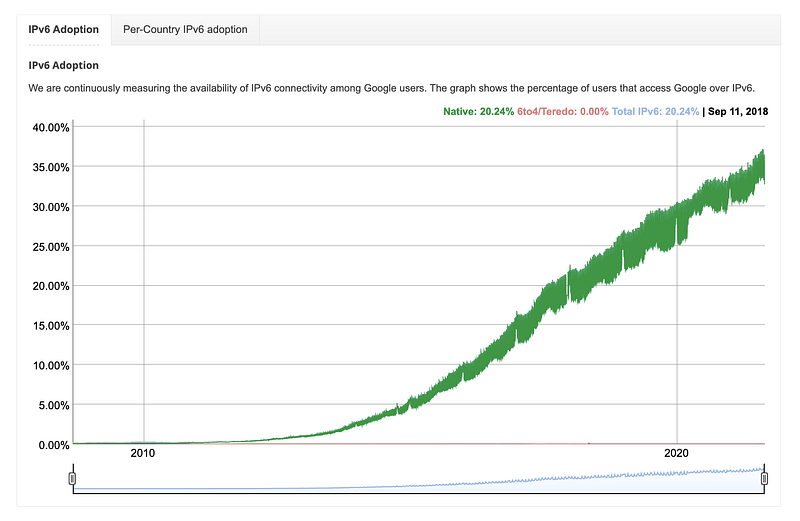
I know from personally vetting security products in the past that they don’t yet all work correctly with IPV6. Additionally, some attacks work on networks where IPV6 is enabled by firewall rules only cover IPV4, or the person who made the rules didn’t correctly formulate them for IPV6. Advanced penetration testing classes go over various attacks on IPV6 as well.
Additionally, I’m just used to IPV4. Unless there’s a compelling need to switch, it’s easier for me to analyze IPV4 network traffic. It’s much less complicated and after dealing with it for years I recognize certain malicious IP ranges on sight. Switching over to IPV6 will create a lot more work for me from that regard, on top of increasing the attack vector (gazillions more IP addresses).
Using IPV4 makes it easier for me to inspect my network traffic. So I’ll keep using it as long as I can. I suspect when I am forced to switch to IPV6 for some reason (if that day comes), I’ll stop using IPV4 altogether if possible and focus on IPV6, so I have less to manage and reduce the attack surface of my network. Right now, I don’t have to do that.
One other benefit of IPV4 is that I create rules to block various network ranges that send me unwanted traffic. The number of rules I have to create for IPV4 ranges is significantly lower than the number of rules I would have to create for IPV6, and I would likely have to create many more if I have to deal with IPV4 and IPV6. My firewall is already taxed by the number of rules I create to whittle down my traffic and inspect what matters. Adding both versions or even IPV6 alone, I suspect, will create performance issues. I’ll avoid it as long as possible.
Someday, the operating system vendors may force all users to use IPV6 IP addresses, but that is likely not because IPV6 is required on home networks. More likely, it is so they don’t have to support two codebases. There is no technical reason why they need to know what IP addresses or protocols you are using on your local private network, nor do they need to know the MAC address of all your devices. That provides some additional information about the network hardware in your environment. MAC addresses can be spoofed, but otherwise, they provide information about the manufacturer of the device.
Traffic to Operating System Vendors
The list in Figure 2 shows several services on a Macintosh laptop that make network requests back to the Apple network.
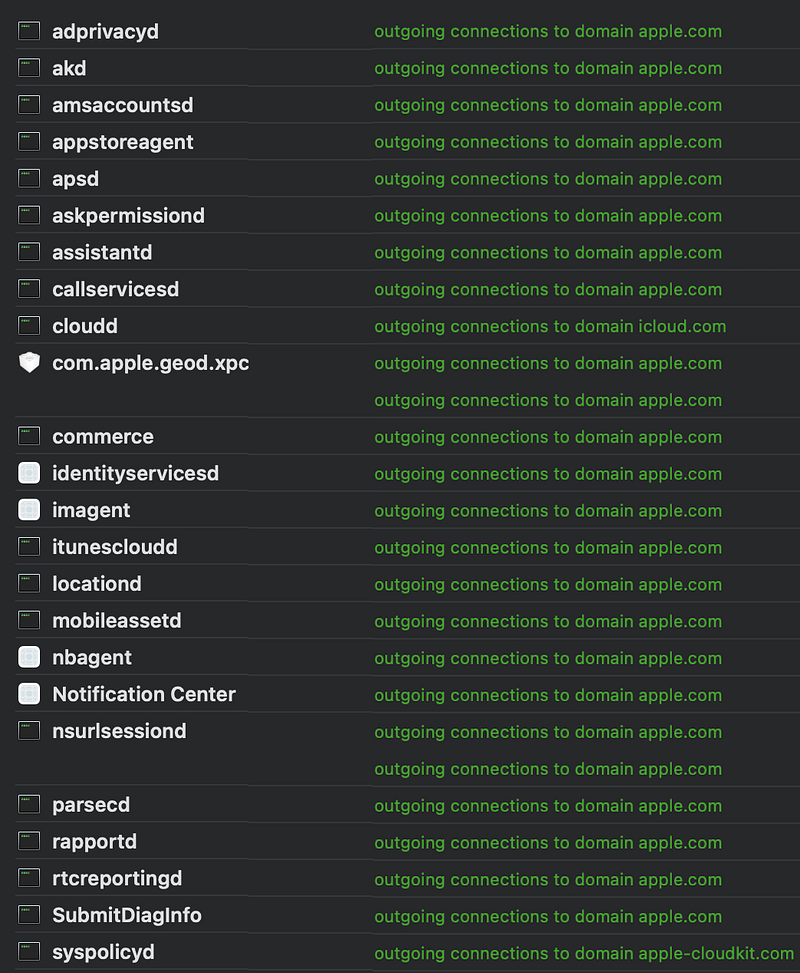
Once you start looking at your traffic logs, you’ll notice that your operating system sends a whole lot of data back to the OS vendor. Some of the domain names your laptop contacts will be more or less documented.
You may try to turn some services off if you don’t want Apple, Microsoft, or someone else knowing every time you turn on your computer. Sometimes it’s difficult to turn off certain traffic-generating parts of the operating systems. The traffic may be required for one reason or another.
How many different systems and people at the operating system vendor are getting your network traffic details? Why do they constantly need to poll and send traffic back and forth? I started looking into it but have better things to do at the moment. I may spend more time on it later. But when I am performing certain work functions, I avoid this traffic. Of course, you’ll need to allow it to get software updates, which is important to keep systems secure.
Traffic to Browser Vendors
Browsers also generate a lot of traffic. When penetration testing it’s sometimes annoying because it fills logs with unwanted noise. I have to take various measures to disable certain browser functionality and limit what gets into logs so I can focus on what I’m testing for my clients.
Pentesting tools provide various mechanisms for defining the scope of the test. But sometimes, I find interesting traffic and clues in the traffic related to the things I’m testing, but the connections may go to something out of scope. I want that traffic, but not all the noisy browser traffic.
When you’re using a browser on a home network, you may want those connections. They may be safe browsing functionality, make your searches faster, provide software updates, or allow you to connect to cloud accounts. I just wish that the browser vendors would be more transparent in defining each domain name to which browsers are connecting, and their purpose. I also want to know why I’ve seen curl traffic from Google Chrome a few times now. Once it was a firewall alert in the middle of teaching a class. Curious.
IOT Devices
Your IOT devices are going to generate a lot of noise. They are connecting all the time and sometimes not in ideal ways. Generally, network traffic should always be outbound. Devices that do otherwise get the boot from my network because they require me to open ports in ways I do not want. Unfortunately, trying to set up Google’s WiFi product gave me grief because it requires ports and protocols I don’t want to use. Other products will constantly ping IPs all over the world. I just read that Samsung can shut off devices remotely. The intention is good, but that could definitely be abused.
If you use various media protocols on your network, you’re going to see a whole lot of traffic filling your logs. Disallowing this traffic will break nifty functionality that lets you easily connect your IPad to your TV to play a video, for example. I’m not going into my thoughts on all of that right now, but I choose to put all my IOT devices on a separate network so they can talk amongst themselves without bothering my laptop. I used to simply block most of those protocols because I didn’t use them, but when you share a house with a tv-a-holic, you have to figure out ways to segregate the traffic to your liking.
The other traffic you’ll want to be aware of is packets flowing to and from printers. I talk about how printers have been a source of attacks in my book on cybersecurity. If you use a standard printer protocol, you may have both inbound and outbound traffic. That’s another design choice I don’t understand. I’ve found that you can allow the traffic temporarily, and once connected, you don’t need the bidirectional traffic after that. You also may be using a protocol such as the noisy media protocols I mentioned earlier to connect to your printer over a wireless network. It’s a good idea to understand and monitor your printer network traffic.
External Incoming Traffic
Generally, when you see external traffic hitting your firewall that is not a response from a request you made, someone is trying to scan your network. Scanning in and of itself is not problematic other than a potential performance hit and noise in your logs. The problem occurs when they find that open port and then use it to attack your systems in some way. Large corporate networks are complex and may require some of that traffic. But on a home network, you can probably block most of the scanning IP addresses permanently. I’ve done it here with (so far) limited complaints from the non-technical users of my network.
The benefit of blocking all that noise is that you can simply exclude it when reviewing your network logs. When I create aliases and rules to block unwanted scanners from hitting my network, I am left with a small handful of IPs to evaluate that get blocked at any given point in time. That blocked traffic may be a misconfigured device on my network or a new type of attack I need to inspect. I know that the scanner networks are permanently blocked, and I no longer care about them (presuming my firewall works as advertised). They are also immediately dropped, and no connection occurs, which helps reduce the load on my firewall.
Figuring Out What Matters
When looking at your network logs, you can simply ignore all the scanners you already identified. If you become familiar with what your IOT devices normally do you can eliminate that from inspection as well. You can filter out the operating system noise if you have created rules to identify that traffic. You may also weed out the traffic generated by browsers going to the browser vendor. You may have identified other types of known and acceptable traffic on your network that you created firewall rules for and can exclude that.
The remaining traffic after filtering out everything you expect is what matters: The unidentified things and anomalies.
- Lookup IP addresses and network ranges to decide if the traffic is wanted or unwanted using ARIN or one of the other registries (RIPE, LACNIC, AFRINIC, APNIC).
- Reverse DNS lookups will sometimes give you the domain name associated with the IP address.
Mac/Linux:dig -x [IP address]Windows:nslookup [IP address]- Sometimes the reverse IP lookup returns a domain name for a CDN, not the actual domain name you visited in your browser. I wrote about how I wish CDNs would fix that domain lookup problem previously.
- Putting the IP address in the URL bar of your browser will take you to a web page sometimes that helps you identify the source. (Be careful that it is not a malicious website. I usually open it in a cloud VM locked down with tight networking.)
- HTTPS://[IP address] may yield a more specific domain. When you go the the IP address with HTTPS you’ll get an invalid certificate error. The error message that pops up has the domain name that the certificate got registered for — if one exists. Try different browsers. I noticed that on chrome it didn’t provide the certificate information for update.google.com but Safari did.
- You can correlate the IP address with the DNS lookup in your Wireshark traffic logs. Unless, of course, you are using DNS over HTTPS. Then you’ll have to find the lookup in the DOH traffic and be able to decrypt the traffic. DNS over HTTPS is a good idea except that when it rolled out it broke a lot of security products that could not longer inspect the traffic. Make sure your security tools work with DOH if you choose to use it.
- Review the protocol in Wireshark. For some protocols, you can right-click on the packet and choose to follow the stream. Depending on the protocol, the point of capture, and whether or not the packet is encrypted you may be able to view what is in the packets going back and forth on your network.
- Use the statistics menu in Wireshark to view information about conversations, IP addresses, and domain names on your network.
These are just a few of the things you can do to inspect your own network traffic. By evaluating your network traffic, you can learn what is normal and expected and what is unusual. Inspecting your network traffic can help create traffic rules to prevent known malicious scanner network ranges. By filtering out the noise in your network logs, you can reduce the amount of traffic you need to inspect to find potentially malicious activity that requires deeper analysis.
Follow for updates.
Teri Radichel | © 2nd Sight Lab 2021
About Teri Radichel:
~~~~~~~~~~~~~~~~~~~~
⭐️ Author: Cybersecurity Books
⭐️ Presentations: Presentations by Teri Radichel
⭐️ Recognition: SANS Award, AWS Security Hero, IANS Faculty
⭐️ Certifications: SANS ~ GSE 240
⭐️ Education: BA Business, Master of Software Engineering, Master of Infosec
⭐️ Company: Penetration Tests, Assessments, Phone Consulting ~ 2nd Sight Lab
Need Help With Cybersecurity, Cloud, or Application Security?
~~~~~~~~~~~~~~~~~~~~~~~~~~~~~~~~~~~~~~~~~~~~~~~~~~~~~~~~~~~~~
🔒 Request a penetration test or security assessment
🔒 Schedule a consulting call
🔒 Cybersecurity Speaker for PresentationFollow for more stories like this:
~~~~~~~~~~~~~~~~~~~~~~~~~~~~~~~~~~~~~~~~~~~~~~~~~~~~~~~~~~~~~
❤️ Sign Up my Medium Email List
❤️ Twitter: @teriradichel
❤️ LinkedIn: https://www.linkedin.com/in/teriradichel
❤️ Mastodon: @teriradichel@infosec.exchange
❤️ Facebook: 2nd Sight Lab
❤️ YouTube: @2ndsightlab