
Digital Bullet Journaling with Notion
A famous bullet journal + the Notion app = ❤️
Bullet Journaling is an excellent system for organizing your life. Notion is a popular productivity app with notes, databases, kanban boards, wikis, calendars, and reminders. Combine these two together and you’ll get an amazing digital system that can be used to improve any area of your life. Here is only one amazing example of how Notion can optimize the writing routine:
For more creative ideas for your next Notion page, check out this article.
Today, I wanted to cover my favorite use-case for this simple yet super-efficient app — a digital Bullet Journal. I’ve been a fan of bullet journaling for years, but I rarely show my journals or even talk about them. The reason is simple — I hate how they look.
Merging Digital with Analog
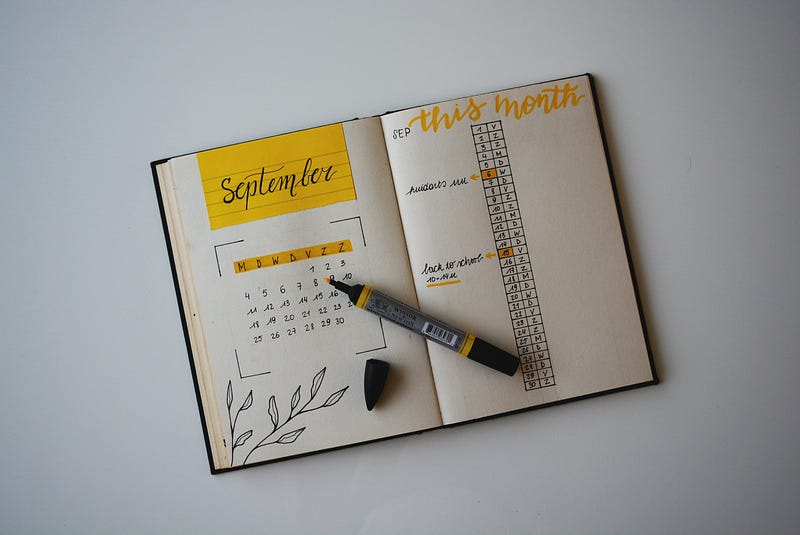
Usually, bullet journals are constructed using a physical notebook where you can keep track of all to-dos, add a monthly calendar, write down long-term goals, journal, draw, and more. When I first discovered the system years ago, I was really hoping that my first bullet journal will look like this:

Guess what? I was trying to keep it really nice for 2, maybe 3 days. On the fourth day, I forgot about my colored pencils and stickers. Instead, I used a bright green marker to write a quick to-do list (and my handwriting when I’m in a rush is awful, believe me). Since then, I was using the same ugly marker for months. Should I mention that all four of my bullet journals look terrible?
Then, I found Notion, with its clean interface, add-ons, formatting options, and templates (oh I love their templates). It took me less than 10 minutes to find an amazing Notion template for Bullet Journaling and even customize it a bit.
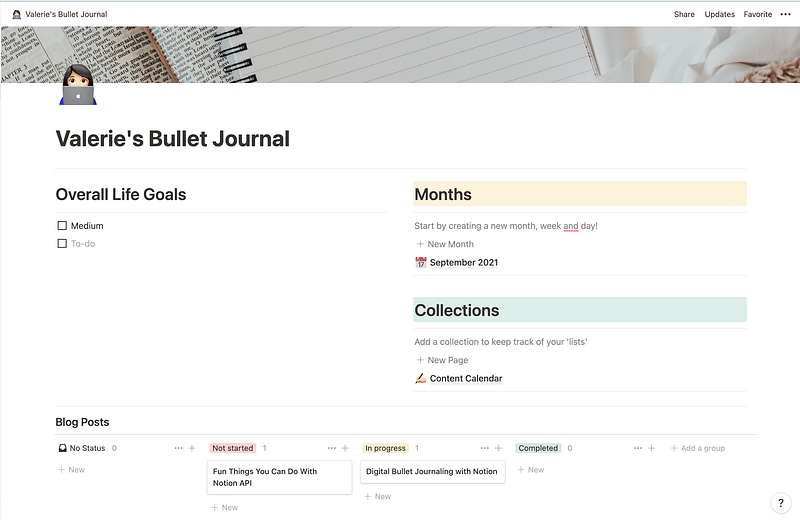
Oh, this page with its simple design makes me so happy. It’s time to say our goodbyes: bye-bye, an ugly green marker.
Bullet Journal Basics
- Rapid Logging is the language in which the Bullet Journal is written. To put it simply, it’s a way of capturing information as bulleted lists.
- Bullets are the syntax of a Bullet Journal. Think about them as short sentences paired with symbols that visually categorize your entries into different categories. The most popular ones are Tasks, Events, and Notes.
- You can mix and match your bullets, nest them inside each other, or color-code your notes.
- Always number your pages and add them to the Index — the first page of your journal. It will help you locate the content in your Bullet Journal quickly.
- Bullet Journal is great for habit or mood tracking.
- Use symbols called signifiers to add additional context to your notes. The star symbol (“*”) indicates priority, while “!” means inspiration. You can always add more symbols to your journal, but don’t forget to add a legend to the Index page.
These are just some basic things needed to get started. To learn more, I would recommend visiting their official website:
Notion Basics
The simple, straightforward schema of bullet journaling can be easily translated into a digital format. Bullet Journal has its official iOS and Android app for digital bullet journaling, but personally, I could never use it. It’s not very pretty, hard to customize, and just not intuitive enough. Notion is completely different.
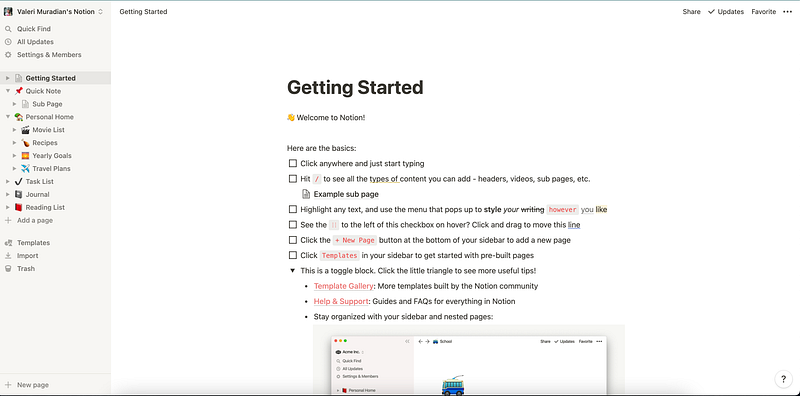
Now, let's discuss the second piece of the curious puzzle. In short, the Notion app reminds me of Lego blocks. It’s like being a kid again when an adult gives you all those nice building blocks and shows you what’s possible. Then, he leaves you alone so you can have fun and build whatever you want.
As you can see on the screenshot above, the Notion already comes with some pre-defined pages: Movie List, Recipes, Reading List… In the middle, there is an interactive tutorial that explains how to use their fancy formatting options. If you feel like it’s still not enough, there are also templates. A lot of templates:
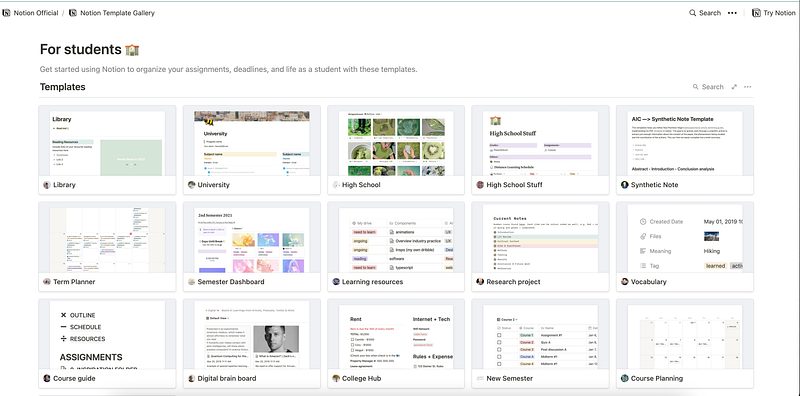
Notion gives you a lot of freedom. You can build your ideal Bullet Journal from scratch and share the template with the world. Or you can use the ready-to-use template I linked above. Alternatively, you can use a different template. Gosh, you can even take a page from every template they have and link them all together (Why would you do this though? I don’t know. It’s your journal, not mine.)
All in all, I think Notion is the best platform to keep a digital bullet journal. I tried a few other apps before, but none of them were as simple and customizable as Notion. I use a free Personal Plan and it’s more than enough for me. Other highlights include:
- Kanban board!
- Easy to use calendars and reminders.
- You can add emojis and background images (both built-in and from Unsplash) to any page.
- To copy someone’s template, all you need to do is to click Duplicate, and it’s all yours.
- Your bullet journal will be always pretty, even if you have zero drawing skills and ugly handwriting.
- It can be used both in a browser or on your phone. The Notion app works with both iOS and Android.
The final verdict:
A famous bullet journal + the Notion app = ❤️
If you liked this article, here are some other articles you may enjoy:
Check out my free Notion Components that you can use to build your next Notion website:
…or this Notion template, made specifically for self-learners. Popular Notion OS Systems usually cost hundreds of dollars. This one is free. Enjoy!


