
A Beginner’s Guide to Creating a Medium Knowledge Base in Obsidian
Save all your articles and notes in one place, find connections, and get inspired.
Recently, I stumbled upon a curious note-taking app called Obsidian and immediately got an idea:
What if I create a single knowledge database of all my Medium articles, blog posts, notes, and ideas for future articles?
I write not only on Medium so I have a lot of content here and there (and I’m pretty sure you do too!). My old blog, notes on my phone, links, Word documents, ideas for future articles in Trello, a few notebooks, random pieces of paper, even a few napkins…you got the idea. It’s time to get organized. Another cool thing to have would be a database of all my lecture notes, links to technical documentation I use the most, and other exciting stuff I use at work almost daily.
Here is how I want my database to look like eventually…
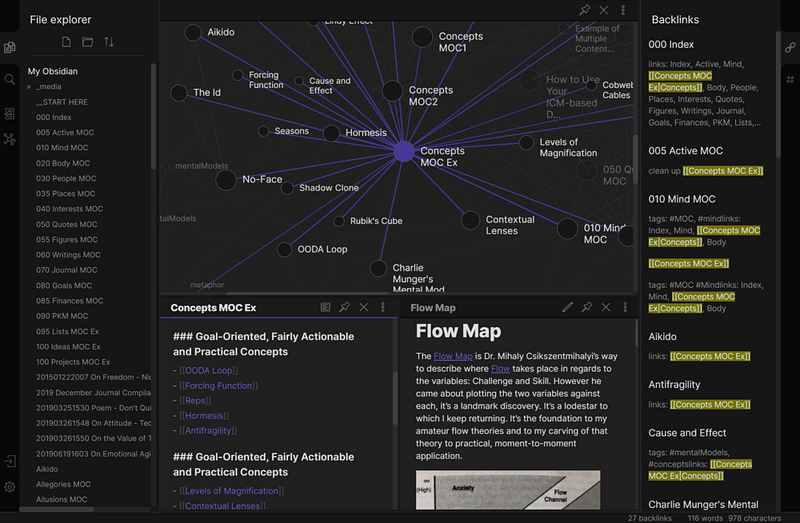
But let’s start small by getting all my Medium articles and storing them in an Obsidian database. Exporting, tagging, and linking 30+ articles is already going to take a while. But it brings me comfort to know that everything I ever wrote will be securely stored on my server and if something ever happens to Medium (I hope not), I’ll still have all my content. I also imagine that seeing different pieces of my writing in one place, organized in clusters, color-coded, easily linkable and searchable, can be a great source of inspiration for my future articles. I can also add audio, video, images, drawings, and anything I want to my Obsidian notes. Cool, huh?
As a bonus, an average Obsidian knowledge base looks really nice. Just click on any node and you’ll be able to see a whole article:
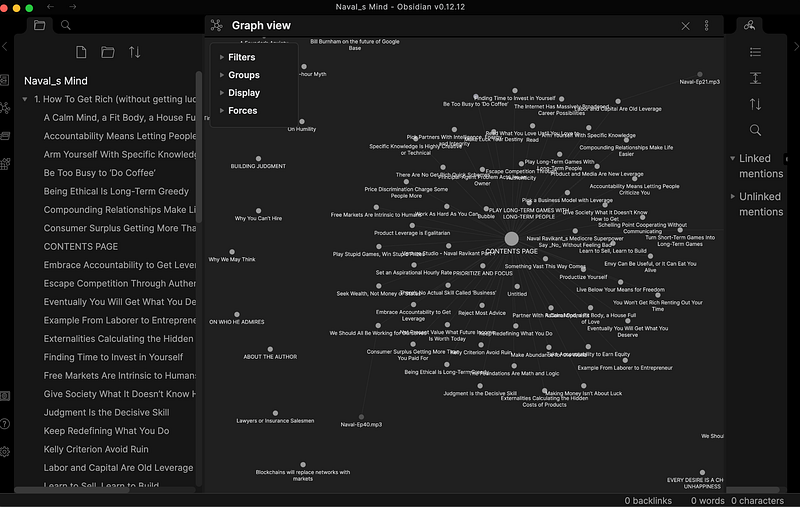
Obsidian is definitely not your average note-taking app. Let’s just hope I’ll have enough patience to finish the writing database and move on to creating another one, fully devoted to programming.
I already covered the basics of Markdown and Obsidian in another article, so let’s move on straight to this project.
Export your content
First things first. Let’s create a folder that will later become an Obsidian vault and add all our Medium articles there. Don’t worry about creating sub-folders for now, you can easily do that inside Obsidian.
I used this article to export five of my articles in a Markdown format and save them on my computer:
The author mentions that there are browser extensions that you can use to do it but none of them worked for me. The first method works like a charm though. And don’t worry if you have never used a terminal, node, and bash commands. The guide above has all the details.
The only thing I would mention is that the link you will be using is not the same link that you see in a browser. It’s always going to be:
https://medium.com/p/{the last part of the link you see in a browser}And here is an example of the full command:
mediumexporter https://medium.com/p/ai-that-can-write-code-is-here-73e5bef687e0 > medium_post.md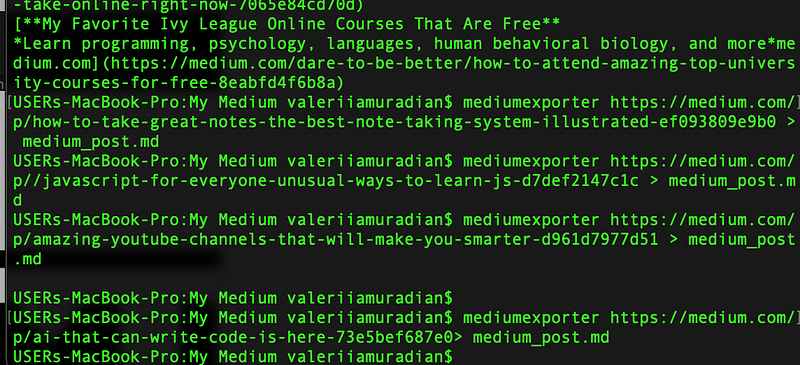
Start a new vault
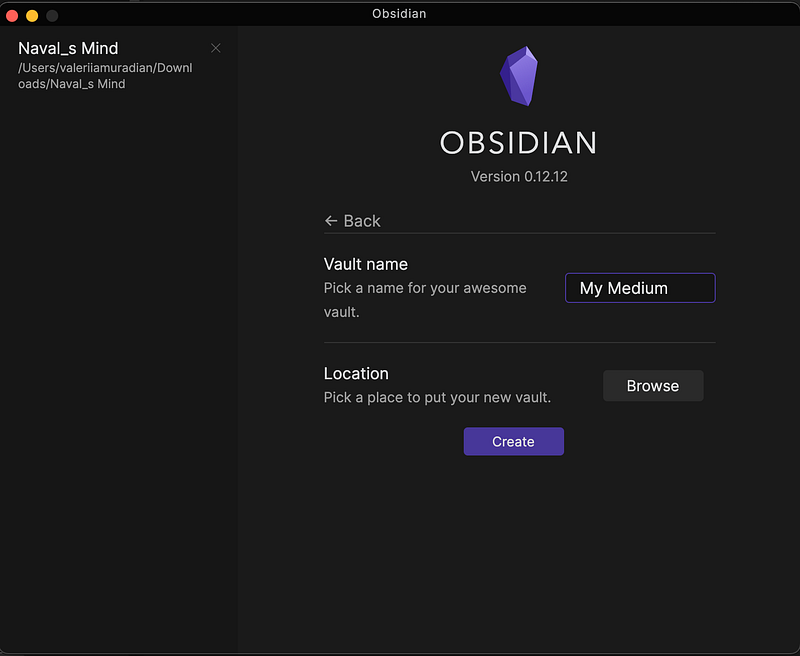
When you have at least a few of your articles saved on your computer, it’s time to create a new vault and use your new folder as its location. Immediately, you’ll see all your content inside. Use the buttons on the left panel to switch between views and enjoy your graph. At first, it won’t look too fancy because you still have some work to do.
Link and tag your content
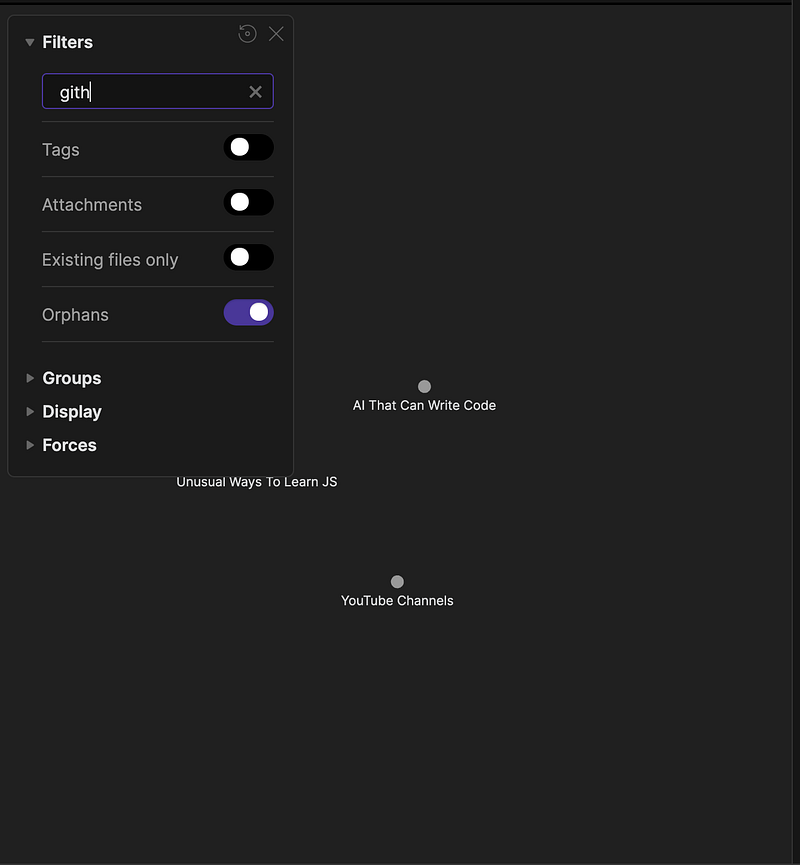
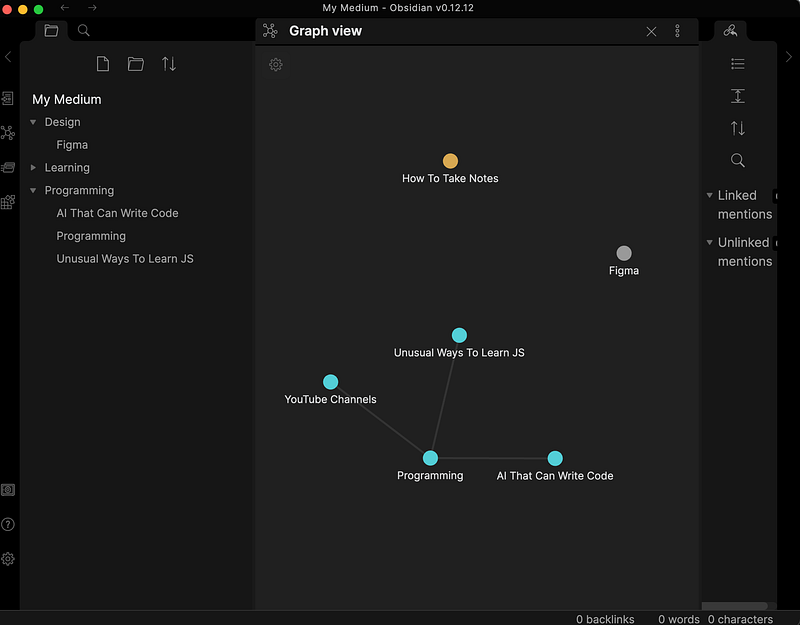
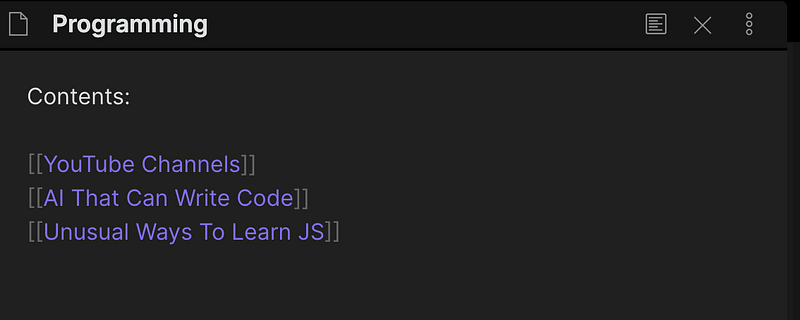
Here comes the fun part — filtering, color-coding, grouping, and adjusting your view. If you want to organize articles around the same topic, I would recommend separating everything into folders and creating a content page in every folder. That page will contain a list of links to other articles in that folder. Below, you can see that I created a new page called Programming that links three of my articles together.
To create a link, start by typing “[[“ and selecting the name of the article you want to link:
Color-coding is going to be even easier. Select Groups on your Graph view and choose a color for all articles that contain a specific keyword. Obsidian is pretty smart and will help you to organize your notes. I would also recommend adding hashtags and keywords but a Medium article has some of those already.
Helpful Links:
- To learn more about all the amazing features that Obsidian has to offer refer to their official documentation.
- A beginner-friendly guide to creating Obsidian notes
- Obsidian’s website
- Interactive Markdown tutorial
- Markdown Guide
I hope that this article inspired you to start your own personal project and create a database of things that matter to you the most. If you have images, ideas, and files to share, please do so in the comments below. I would love to see what you were able to create!
If you liked this article, here are some other articles you may enjoy:
If you love learning about new stuff as much as I do, consider subscribing to my weekly Becoming Better Newsletter.


