avatarTeri Radichel

Free AI web copilot to create summaries, insights and extended knowledge, download it at here

9805

Abstract

ption></figure><h2 id="6f9e">Create the RemoteAdmin group</h2><p id="fa1c">Now I can call my group creation code in the usual way, calling the deploy_group and add_users_to_group functions.</p><figure id="0494"><img src="https://cdn-images-1.readmedium.com/v2/resize:fit:800/1*7ShdpZgfDJ06O3yftoixzw.png"><figcaption></figcaption></figure><p id="cae6">Verify the group exists:</p><figure id="f592"><img src="https://cdn-images-1.readmedium.com/v2/resize:fit:800/1*_bvf9hn4shf70NjmxT7vMg.png"><figcaption></figcaption></figure><p id="a07e">And that the SandboxAdmin user is a member of the Group:</p><figure id="5419"><img src="https://cdn-images-1.readmedium.com/v2/resize:fit:800/1*UHPaW8jTuO_K-xMURA4VAw.png"><figcaption></figcaption></figure><h2 id="9910">Function to create an AWS CLI profile for roles we need to assume</h2><p id="f655">We need two different roles for what I’m about to do:</p><p id="e751"><b>Account A </b>has the users assuming the role.</p><p id="984f"><b>Account B </b>has the role the users will assume.</p><ul><li>A <b>role in account A </b>has permission to query the users.</li><li>One <b>role in account B </b>has permission to deploy the cross-account role.</li></ul><p id="0404">Two different accounts, so two different roles.</p><p id="bf8f">For each role I want to create a role profile in my AWS CLI configuration to assume the role using a role profile.</p><p id="594c">Recall that I created a function to create a role profile for the AWS CLI for our organizational role. A role profile is used to assume a role.</p><p id="1e6c">I’m using the aws set configure functionality described in this post:</p><div id="c7df" class="link-block"> <a href="https://readmedium.com/using-the-aws-cli-to-configure-a-role-with-mfa-104bc31012fd"> <div> <div> <h2>Using the AWS CLI to Configure a Role Profile With MFA</h2> <div><h3>ACM.226 Automating CLI configuration for an IAM role that requires MFA</h3></div> <div><p>medium.com</p></div> </div> <div> <div style="background-image: url(https://miro.readmedium.com/v2/resize:fit:320/1*8DIBkP8uCEDrHB6fG5Y9jQ.png)"></div> </div> </div> </a> </div><p id="1114">In a reusable function:</p><figure id="9d4a"><img src="https://cdn-images-1.readmedium.com/v2/resize:fit:800/1*6T-9rywwnjqwiDwbEg1aPA.png"><figcaption></figcaption></figure><p id="9a25">You can find the whole function and explanation in this post:</p><div id="84c2" class="link-block"> <a href="https://readmedium.com/creating-functions-to-use-assumed-role-credentials-6fabca51d8f2"> <div> <div> <h2>Creating Functions to Use Assumed Role Credentials</h2> <div><h3>ACM.207 Creating functions to assume roles using AWS CLI role profiles</h3></div> <div><p>medium.com</p></div> </div> <div> <div style="background-image: url(https://miro.readmedium.com/v2/resize:fit:320/1*E2aCcrYuJPFrkglwE86VEg.png)"></div> </div> </div> </a> </div><p id="d5c0">That function has undergone some changes to make it more flexible and to include MFA:</p><figure id="076b"><img src="https://cdn-images-1.readmedium.com/v2/resize:fit:800/1*fOb5BRzpw8coOTGC8cEjsA.png"><figcaption></figcaption></figure><p id="afe5">I can call this function to configure the AWS CLI with whatever roles I need.</p><p id="7e5b">I think I initially tested the last function in CloudShell, which has temporary credentials in environment variables, if I recall correctly. Now I’m run scripts on an EC2 instance.</p><p id="e569">I noticed this time around while testing I did need to check the existing profile for the region.</p><figure id="bdb0"><img src="https://cdn-images-1.readmedium.com/v2/resize:fit:800/1*81S_TAPY_pR2vS9AzJ59jQ.png"><figcaption></figcaption></figure><h2 id="5a32">A function to deploy a cross-account role</h2><p id="93cb">I created a common function in organization_functions.sh file to deploy the role. Remember the AWS Organizations cross account role does not require MFA:</p><figure id="497a"><img src="https://cdn-images-1.readmedium.com/v2/resize:fit:800/1*qoPbwalae-1qPC1QPmHUnA.png"><figcaption></figcaption></figure><h2 id="7cee">A function to get the default organization admin role name</h2><p id="416c">I created a function to retrieve the organizations admin role name for an account since we need it in a couple of places now. Recall that we are not using the default AWS role name when we deploy our accounts. Since we control the name or role we can create a function to retrieve it using the same logic. Perhaps I should change the code that sets the role name to use this same function so we don’t end up with a mismatch later.</p><figure id="4bea"><img src="https://cdn-images-1.readmedium.com/v2/resize:fit:800/1*ilATVOHAh1x4W6ix5mp0Xw.png"><figcaption></figcaption></figure><h2 id="66f4">Cache the OrgPrefix value retrieved from Parameter Store</h2><p id="0e56">I added a local variable to store the OrgPrefix and only retrieve it again if not set to save us a few hits on AWS Parameter Store.</p><figure id="294d"><img src="https://cdn-images-1.readmedium.com/v2/resize:fit:800/1*v4V0pILdd15tX6Zqvo1Grw.png"><figcaption></figcaption></figure><h2 id="5d63">Test the role profile that leverages the default org admin role</h2><p id="c017">I tested out creating an AWS IAM account org admin role profile like this (in the same directory as the organization_functions.sh file:</p><figure id="3a69"><img src="https://cdn-images-1.readmedium.com/v2/resize:fit:800/1*rAK-oLckd414EvlXryGApw.png"><figcaption></figcaption></figure><p id="26ca">That worked.</p><p id="308d">If you want to very first check the aws config file and you’ll see the new profile at the end:</p><div id="491f"><pre><span class="hljs-built_in">cat</span> ~/.aws/config</pre></div><figure id="204a"><img src="https://cdn-images-1.readmedium.com/v2/resize:fit:800/1*_7mrZjWT1EPCR1gcQrXsBg.png"><figcaption></figcaption></figure><p id="e68a">Then check the aws credentials file and you’ll see that the temporary credentials are set:</p><figure id="9787"><img src="https://cdn-images-1.readmedium.com/v2/resize:fit:800/1*R5aA_GGcrdEjKBKpV1n6Rw.png"><figcaption></figcaption></figure><p id="555c">Run the aws iam list-roles command with the new profile:</p><figure id="25b3"><img src="https://cdn-images-1.readmedium.com/v2/resize:fit:800/1*UBpAiGroOqyzxN5BNMOGxg.png"><figcaption></figcaption></figure><p id="cbe1">It works!</p><h2 id="5d28">Create remote and target account role profiles for the two roles</h2><p id="27cd">I explained above that we need two role profiles to assume the default Organization role in two accounts: account A (the account containing the users that assume the cross account role) and account B (the account that contains the cross-account role).</p><p id="bad9">Now that we know that function to assume the default Organization cross-account role works, I can use it in my deployment script for the cross account role in account B.</p><p id="7c24">I added the Organization directory to the role switching function:</p><figure id="c6f7"><img src="https://cdn-images-1.readmedium.com/v2/resize:fit:800/1*Fv9yXbLGee38p-iPatlVcw.png"><figcaption></figcaption></figure><p id="50bc">I use my function to create two organization role profiles for the two accounts where I want to deploy resources.</p><figure id="daea"><img src="https://cdn-images-1.readmedium.com/v2/resize:fit:800/1*X1mhxV6GVXPXGTKSFqtINA.png"><figcaption></figcaption></figure><h2 id="4510">Refreshing credentials when assumed role session times out</h2><p id="f6a2">Eventually the session that provided the temporary credentials for the assumed role will time out. When the session times out, the OrgRoot user can run the command to create the CLI profiles again to refresh the credentials.</p><h2 id="ad17">Function to create a cross-account group role</h2><p id="ff49">Next I copy and paste the function that creates a <b>group role </b>and modify it to create a<b> cross account group role</b>. As noted the roles are essentially the same with the exception of the trust policy, which allows users in an external account to assume the role.</p><p id="da79">The code only needs a few adjustments.</p><ol><li>I pass in the two profiles.</li><li>I use the first profile to get the list of users in the group in account A</li><li>I use the second profile to create the role in the account B, passing in the users in the remote account that are allowed to assume the role.</li></ol><figure id="819f"><img src="https://cdn-images-1.readmedium.com/v2/resize:fit:800/1*IcZas_4nxvDepPR4HWm42Q.png"><figcaption></figcaption></figure><p id="f721">To call this function I need to switch over to the IAM Role directory and call the function with the OrgRoot user.</p><figure id="27f7"><img src="https://cdn-images-1.readmedium.com/v2/resize:fit:800/1*DJBA2Xe9Rc3G9Na76WSPuw.png"><figcaption></figcaption></figure><p id="3dad">It is at this point where I get frustrated with two things.</p><ol><li>Why must a CloudFormation stack start with a letter but an S3 bucket and other resources can start with a number? This makes no sense.</li><li>It’s too much to track which profiles should get IAM capabilities. That’s what SCPs, Permission Boundaries, and IAM roles should be doing, not CloudFormation.</li></ol><p id="b8eb">I created a hokey work around for #1 and put an ‘a’ in front of any stacks that start with a number.</p><figure id="f154"><img src="https://cdn-images-1.readmedium.com/v2/resize:fit:800/1*EFbKGDQO56KiSMS_NUFPFg.png"><figcaption></figcaption></figure><p id=

Options

"df26">I gave all stacks IAM capabilities. Will probably delete some of these comments later.</p><figure id="d985"><img src="https://cdn-images-1.readmedium.com/v2/resize:fit:800/1*MufWW8MsUSmv7S4DyjbKsQ.png"><figcaption></figcaption></figure><p id="13b9">OK now I can run the deploy script I created and test that it correctly deploys my cross account role and policy in the target account using the two role profiles.</p><p id="3a1f">And it does. We can list the role and take a look at the details, such as the trust policy, to make sure they are correct.</p><div id="4315"><pre><span class="hljs-selector-tag">aws</span> <span class="hljs-selector-tag">iam</span> <span class="hljs-selector-tag">list-roles</span> <span class="hljs-selector-tag">--profile</span> <span class="hljs-selector-attr">[org admin profile]</span>| <span class="hljs-selector-tag">grep</span> <span class="hljs-selector-tag">Remote</span> <span class="hljs-selector-tag">-A20</span> <span class="hljs-selector-tag">-B20</span></pre></div><figure id="8851"><img src="https://cdn-images-1.readmedium.com/v2/resize:fit:800/1*HsfZP2b9PrWrgyl-uf7whw.png"><figcaption></figcaption></figure><h2 id="9730">Create a role profile to use the new role</h2><p id="43b7">Next I repeat the steps above to create a new role profile to use the role in the target account.</p><p id="2850">Recall that I added my SandBox user to the RemoteAdmin group and members of that group have permission to assume the role.</p><p id="d44a">I have a profile named SandBox configured for the AWS CLI for my SandboxAdmin user which I can use to create the nw role profile. The profile has a mfa_serial configured so the profile can use MFA when required.</p><p id="c6ff">I’m not assuming an organization role so I’ll use the shared function directly.</p><figure id="f168"><img src="https://cdn-images-1.readmedium.com/v2/resize:fit:800/1*i-DO_S2uHm2oJYbE4NRt-g.png"><figcaption></figcaption></figure><p id="f74e">This role requires MFA so I have to get the MFA serial number to pass to the function. My user has more than one MFA device so I need to list and select the MFA device to use.</p><p id="df90">The following command will list the MFA devices for a user:</p><div id="cfd1"><pre><span class="hljs-string">aws</span> <span class="hljs-string">iam</span> <span class="hljs-built_in">list-mfa-devices</span> <span class="hljs-built_in">--user-name</span> <span class="hljs-string">remoteAdminUser</span> \ <span class="hljs-built_in">--profile</span> <span class="hljs-string">profile</span> <span class="hljs-built_in">--query</span> <span class="hljs-string">MFADevices</span>[*].<span class="hljs-string">SerialNumber</span> <span class="hljs-built_in">--output</span> <span class="hljs-string">text</span></pre></div><p id="837d">I’ll ask the user to copy and past in whichever device they want to use. I could make this nicer but everything takes so long. Have to get other things done.</p><figure id="1875"><img src="https://cdn-images-1.readmedium.com/v2/resize:fit:800/1*9VPXzYJ6HuQE5me5PwW1fA.png"><figcaption></figcaption></figure><p id="ae43">OK run that and we get the following.</p><figure id="d14b"><img src="https://cdn-images-1.readmedium.com/v2/resize:fit:800/1*Qfr3-o-6gQz0QtXT80BfQA.png"><figcaption></figcaption></figure><p id="4283">What’s the problem?</p><p id="3b04">The user ARN is correct. I can verify that with the following command.</p><figure id="367a"><img src="https://cdn-images-1.readmedium.com/v2/resize:fit:800/1*v7BppOI09Ia10YzRpcbKHQ.png"><figcaption></figcaption></figure><p id="3e4a">I already listed and reviewed the remote role. Recall that the trust policy requires MFA.</p><p id="fdbe">Take a look at the command we are using to assume the role.</p><figure id="3e44"><img src="https://cdn-images-1.readmedium.com/v2/resize:fit:800/1*J6esWV7SIcq-criuG6Cirw.png"><figcaption></figcaption></figure><p id="c1b0">Check the documentation for assume-role:</p><div id="7c52" class="link-block"> <a href="https://awscli.amazonaws.com/v2/documentation/api/latest/reference/sts/assume-role.html"> <div> <div> <h2>assume-role - AWS CLI 2.11.16 Command Reference</h2> <div><h3>undefined</h3></div> <div><p>undefined</p></div> </div> <div> <div style="background-image: url(https://miro.readmedium.com/v2/resize:fit:320/)"></div> </div> </div> </a> </div><p id="2448">We need to pass in a serial number and a token (MFA code from an authenticator app):</p><figure id="7a3e"><img src="https://cdn-images-1.readmedium.com/v2/resize:fit:800/1*sk9bFAIbTrHcP4l0lUbGaA.png"><figcaption></figcaption></figure><p id="4cb4">Using the following command line options:</p><figure id="20a9"><img src="https://cdn-images-1.readmedium.com/v2/resize:fit:800/1*kASMwzN9Z78CtoOpHE7thQ.png"><figcaption></figcaption></figure><p id="d72a">We only want to pass these values if an MFA serial number is provided.</p><p id="4f1a">Here’s the updated code:</p><figure id="a70a"><img src="https://cdn-images-1.readmedium.com/v2/resize:fit:800/1*vjhojE6vTQiohXlE-Fz6xw.png"><figcaption></figcaption></figure><p id="74f3">Now when you run the deployment script, first you enter or copy your MFA serial number, then you’ll be asked for a token.</p><figure id="513f"><img src="https://cdn-images-1.readmedium.com/v2/resize:fit:800/1*NDiiZ6N84NxOttj8Wgny8w.png"><figcaption></figcaption></figure><p id="175f">And it works! You can check that the role exists by running the following command:</p><div id="b4aa"><pre>aws configure list <span class="hljs-attr">--profile</span> RemoteAdminGroup</pre></div><p id="b788">You can also look in the config file to see that the profile has been added to the end:</p><div id="5934"><pre><span class="hljs-built_in">cat</span> ~/.aws/config</pre></div><p id="f256">Now I have a profile to run commands in the remote account and the role requires MFA.</p><p id="22ae">I mentioned in a prior post that we might want to create a safer AWS Organizations role.</p><div id="8a18" class="link-block"> <a href="https://readmedium.com/a-safer-aws-organizations-management-role-e3aa50d543c9"> <div> <div> <h2>A Safer AWS Organizations Management Role</h2> <div><h3>ACM.156 Altering the AWS Organizations default management role to reduce risk</h3></div> <div><p>medium.com</p></div> </div> <div> <div style="background-image: url(https://miro.readmedium.com/v2/resize:fit:320/1*AksvUKW8sI-dLhnFd5JhQA.png)"></div> </div> </div> </a> </div><p id="e9fa">This post shows you how to create an administrative role in an account in your organization that requires MFA. You can replace the existing AWS organizations roles with roles that require MFA for additional security. I will eventually add that for all new accounts but for now I have to move on to a couple of other things that are costing me money unnecessarily.</p><p id="ad11">Follow for updates.</p><p id="bbde">Teri Radichel | <i>© <a href="https://2ndsightlab.com/?source=post_page---------------------------">2nd Sight Lab</a> 2023</i></p><p id="86b1"><i>The best way to support this blog is to sign up for the email list and clap for stories you like. That also helps me determine what stories people like and what to write about more often. Other ways to follow and support are listed below. Thank you!</i></p><div id="a3cb" class="link-block"> <a href="https://2ndsightlab.medium.com/subscribe"> <div> <div> <h2>Get an email whenever Teri Radichel publishes.</h2> <div><h3>Get an email whenever Teri Radichel publishes. By signing up, you will create a Medium account if you don’t already…</h3></div> <div><p>2ndsightlab.medium.com</p></div> </div> <div> <div style="background-image: url(https://miro.readmedium.com/v2/resize:fit:320/0*fjWIo-Np_47AWPAn)"></div> </div> </div> </a> </div><div id="8334"><pre><span class="hljs-section">About Teri Radichel:

Author: Cybersecurity for Executives in the Age of Cloud
Presentations: Presentations by Teri Radichel
Recognition: SANS Difference Makers Award, AWS Security Hero, IANS Faculty
Certifications: SANS
Education: BA Business, Master of Software Engineering, Master of Infosec
Company: Cloud Penetration Tests, Assessments, Training ~ 2nd Sight Lab</pre></div><div id="46f6"><pre><span class="hljs-section">Like this story? Use the options below to help me write more!
~~~~~~~~~~~~~~~~~~~~~~~~~~~~~~~~~~~~~~~~~~~~~~~~~~~~~~~~~~~~~</span>
❤️ Clap
❤️ Referrals
❤️ Medium: Teri Radichel
❤️ Email List: Teri Radichel
❤️ Twitter: @teriradichel
❤️ Mastodon: @[email protected]
❤️ Facebook: 2nd Sight Lab
❤️ YouTube: @2ndsightlab
❤️ Buy a Book: Teri Radichel on Amazon
❤️ Request a penetration test, assessment, or training
<span class="hljs-code"> via LinkedIn: Teri Radichel </span>
❤️ Schedule a consulting call with me through IANS Research</pre></div><p id="5a42">My Cybersecurity Book: <a href="https://www.amazon.com/Cybersecurity-Executives-Cloud-Teri-Radichel/dp/1652474811/ref=as_li_ss_tl?_encoding=UTF8&amp;qid=1601801560&amp;sr=1-1&amp;linkCode=ll1&amp;tag=2ndsightlab-20&amp;linkId=3204d6389211538a20eabff16973183e&amp;language=en_US">Cybersecurity for Executives in the Age of Cloud</a></p><figure id="faf5"><img src="https://cdn-images-1.readmedium.com/v2/resize:fit:800/0*H9Ew1KCl-29nZiPR.jpeg"><figcaption></figcaption></figure></article></body>

Deploy a Cross Account Role that Requires MFA Using CloudFormation

ACM.210 Using default organizations role deploy a trust policy allowing users in one account to assume a role in another

~~~~~~~~~~~~~~~~~~~~~~~~~~~~~~~~~~~~~~~~~~~~~~~~~~~~~~~~~~~

⚙️ Check out my series on Automating Cybersecurity Metrics. The Code.

🔒 Related Stories: Cloud Governance | IAM | AWS Security

💻 Free Content on Jobs in Cybersecurity | ✉️ Sign up for the Email List

~~~~~~~~~~~~~~~~~~~~~~~~~~~~~~~~~~~~~~~~~~~~~~~~~~~~~~~~~~~
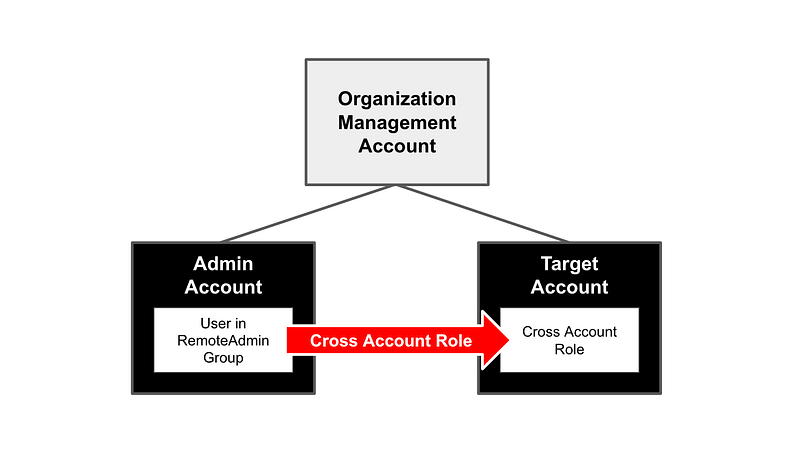
In the last post I looked at some issues with KMS policies. But that was kind of a rabbit hole. On to something more useful.

Prior to that, I created some functions to assume cross account roles.

Create a cross account role with MFA for cross-account deployments

In this post I’m going to create a cross account role that can deploy resources in a target account, but that requires MFA, unlike the default AWS Organizations policy.

Deploy from an account other than the root account

We’re also going to deploy from an account other than the AWS root management account, since that account is not governed by SCPs. I am going to use the SandBoxAdmin user SandBox account to deploy resources into another account.

Except …the Initial CrossAccount Role using the default Org admin role

But in order to deploy our new role, we have to start somewhere. When you deploy a new organization and an account in that organization, what you have to work with in terms of automation is the default AWS Organizations role in each new account.

We will use the OrgRoot user we created in the management account to assume the organization role in two accounts and create an AWS CLI profile for each account using a common organizations role profile function (added in this post).

Deploy SandBox Admin, Group, Role in Sandbox Account

Then we we will use the AWS CLI profile for our SandBox account to deploy a RemoteAdmin group that has permission to assume a cross account role in the target account. We will add the SandboxAdmin user to the group. This allows the SandboxAdmin user to assume the cross account role.

Then we will get a list of users in the RemoteAdmin group using the Sandbox AWS CLI profile. We can pass that into our existing Group Role CloudFormation template the same way we did for users in the same account as the deployed role. Then we will use the second CLI profile to deploy a role in the target account.

Recall that our generic group role template deploys a role that requires MFA. After we create the cross account role, we will deploy an AWS CLI profile for the cross account role that requires MFA and test it.

How a trust policy to assume a cross-account role works

What do we need in place to allow someone to assume a cross account role? The trust policy needs to allow the principle in a remote account to assume a role. I’m going to be very specific about which principals I allow to assume the role.

What does our assume role policy look like currently in our CloudFormation template?
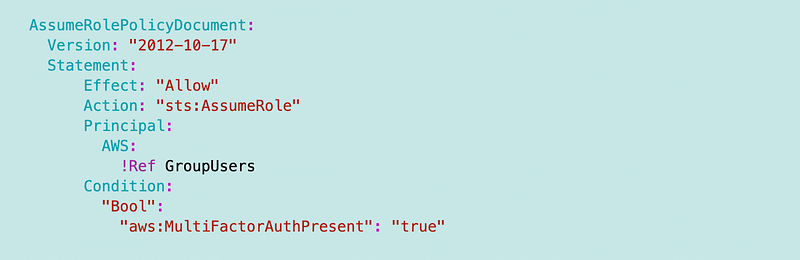
Remember we are looking up users in a group in the current account, obtaining a list of users, and allowing them to assume the role in the trust policy.

A cross account role works essentially the same way, except that we need to look up the users in a role in one account, and then assign those users to the role in the other account. Here are the changes I made to make that work.

Creating a Remote Admin Group to use the cross account role in the SandBox account

For this test I’m going to create a RemoteAdmin group in the Sandbox account we’ve been using for our testing. I’m going to add the SandboxAdmin to the RemoteAdmin group in that account. Simple enough. We just did that for our KMS admin group.

The code to create the group remains almost the same. The only difference is that we need to add the option to pass in a role ARN for a remote account to use in the group policy.

[NOTE: I updated the policy for the group in the next post to allow users of the group to assume the role in the remote account. This involved an optional account parameter passed into the policy template.]

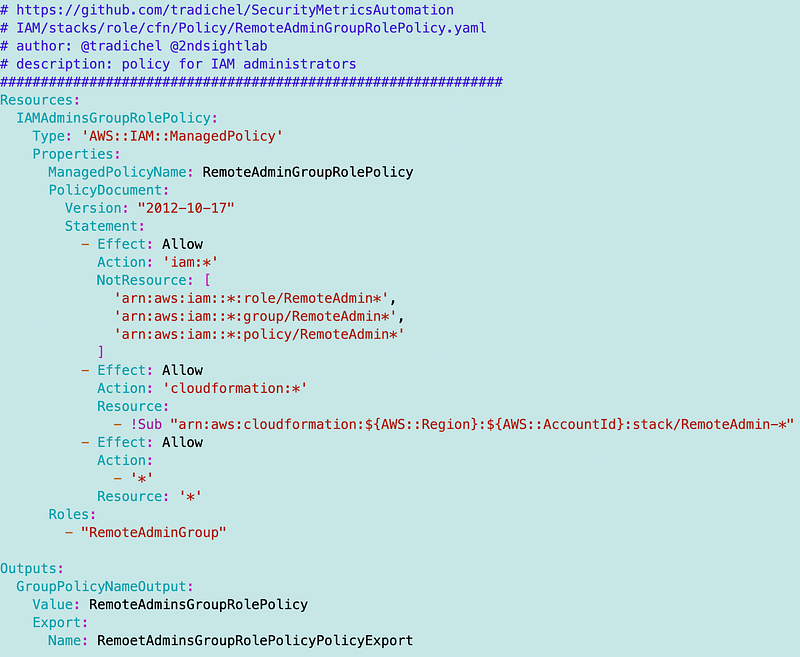
Add the Remote Admin Group Policy to the Remote Admin Role

I’m going to need to add a policy for the Remote Admin Group Role. This policy is very broad and would like to restrict it further but for now it looks like this. The RemoteAdmin Group should not have permission to modify their own role in this case but you’ll need to test that. I haven’t actually tested it yet.
Add the SandBox Admin to the Remote Admin Group

I’m going to use the same function call to add the RemoteAdmin Group and add a user.
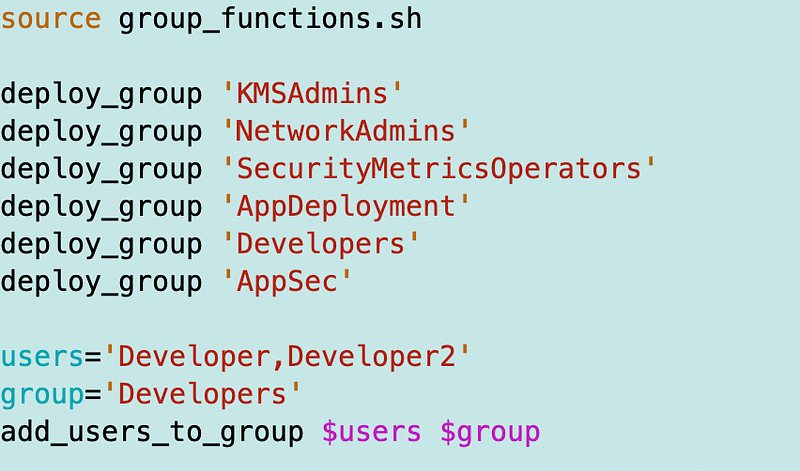
Note: this code is not all in my GitHub repo

In this case, I’m testing the code from a separate code base as I explained in another post as I don’t want all the code to become part of the framework. I will add some of it in later posts.

Role Switching Functions

I created a function that switches roles within the my framework. It does this by:

  • Switching to the directory that has the code I want to run
  • Sources it
  • Sets the appropriate role profile that has necessary permissions
  • Once the role profile is set I can execute the functions in that directory

In other words, if I want to create a KMS key, I can change to the KMS directory, source the code, and assume the KMS role. Then I can deploy KMS keys with the assumed role.

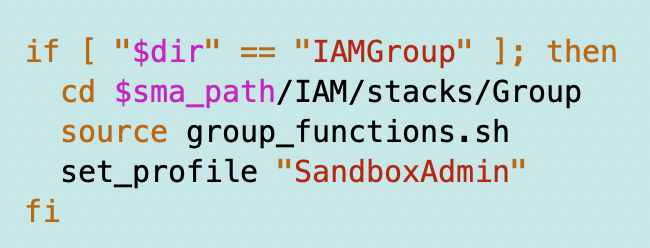
In this case, I want to create a group so change to the IAM Group folder, source the group functions, and set the appropriate profile. Then I can I call my the IAM functions.

This code below changes to the IAM Group folder, sets the profile to SandBoxAdmin which on my EC2 instance has the neccessary permissions to run the code I want to execute in the Sandbox account.
Create the RemoteAdmin group

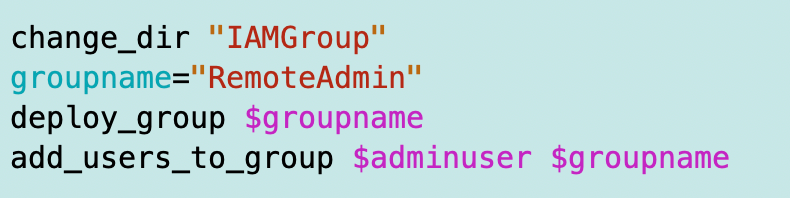
Now I can call my group creation code in the usual way, calling the deploy_group and add_users_to_group functions.
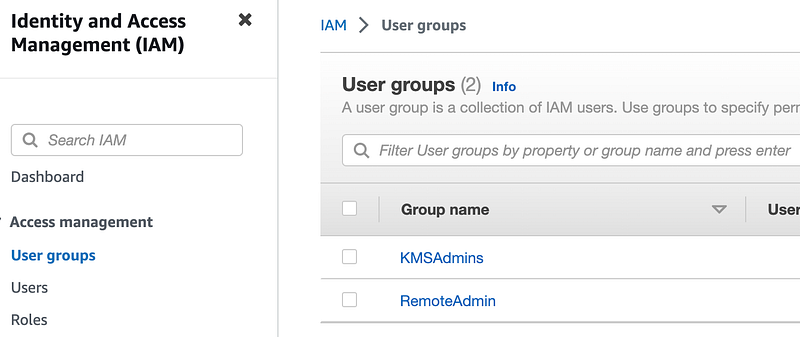
Verify the group exists:
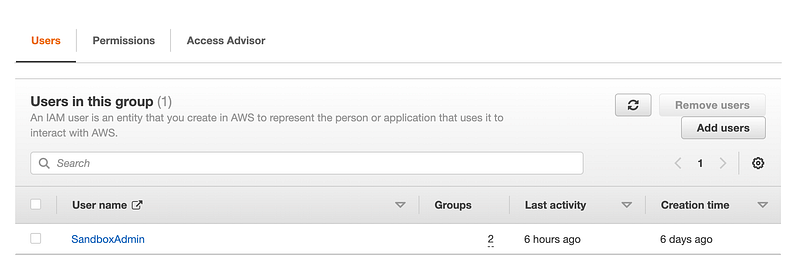
And that the SandboxAdmin user is a member of the Group:
Function to create an AWS CLI profile for roles we need to assume

We need two different roles for what I’m about to do:

Account A has the users assuming the role.

Account B has the role the users will assume.

  • A role in account A has permission to query the users.
  • One role in account B has permission to deploy the cross-account role.

Two different accounts, so two different roles.

For each role I want to create a role profile in my AWS CLI configuration to assume the role using a role profile.

Recall that I created a function to create a role profile for the AWS CLI for our organizational role. A role profile is used to assume a role.

I’m using the aws set configure functionality described in this post:

In a reusable function:
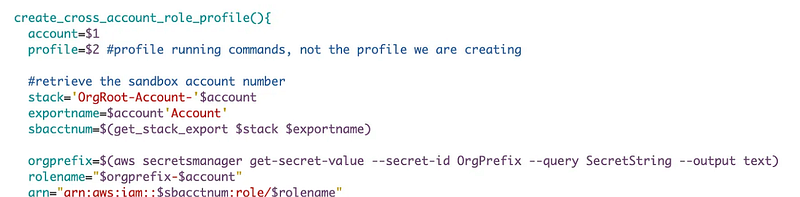
You can find the whole function and explanation in this post:

That function has undergone some changes to make it more flexible and to include MFA:
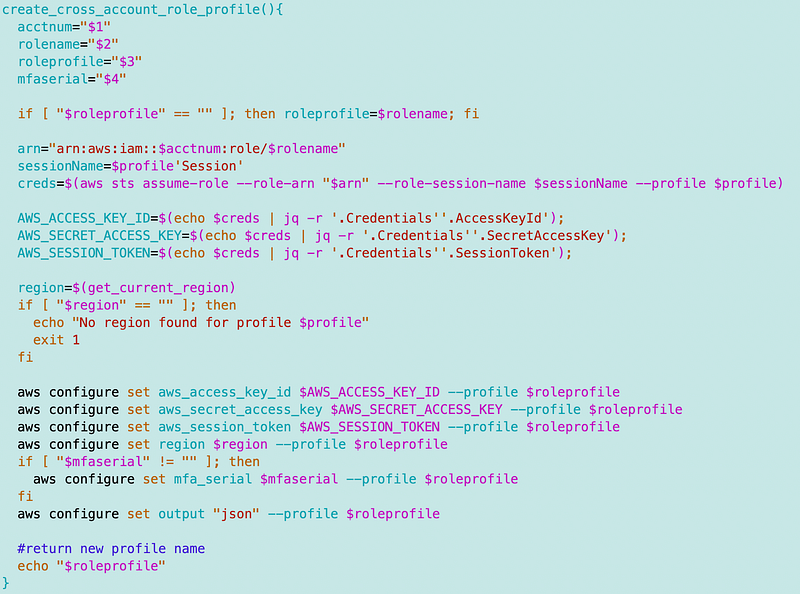
I can call this function to configure the AWS CLI with whatever roles I need.

I think I initially tested the last function in CloudShell, which has temporary credentials in environment variables, if I recall correctly. Now I’m run scripts on an EC2 instance.

I noticed this time around while testing I did need to check the existing profile for the region.
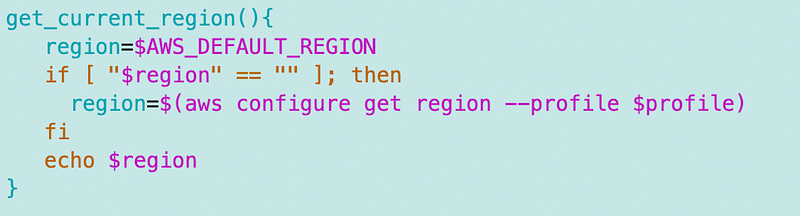
A function to deploy a cross-account role

I created a common function in organization_functions.sh file to deploy the role. Remember the AWS Organizations cross account role does not require MFA:
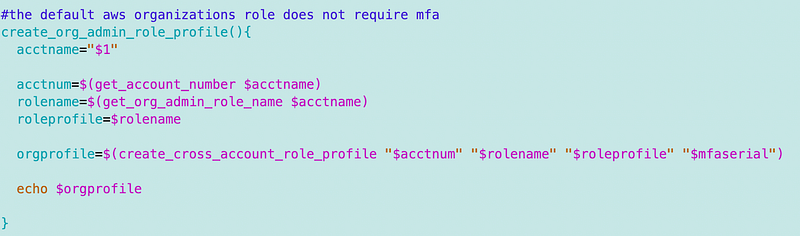
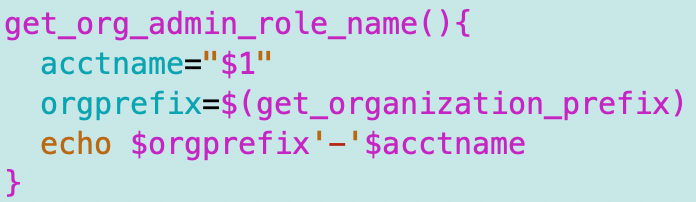
A function to get the default organization admin role name

I created a function to retrieve the organizations admin role name for an account since we need it in a couple of places now. Recall that we are not using the default AWS role name when we deploy our accounts. Since we control the name or role we can create a function to retrieve it using the same logic. Perhaps I should change the code that sets the role name to use this same function so we don’t end up with a mismatch later.
Cache the OrgPrefix value retrieved from Parameter Store

I added a local variable to store the OrgPrefix and only retrieve it again if not set to save us a few hits on AWS Parameter Store.

Test the role profile that leverages the default org admin role

I tested out creating an AWS IAM account org admin role profile like this (in the same directory as the organization_functions.sh file:
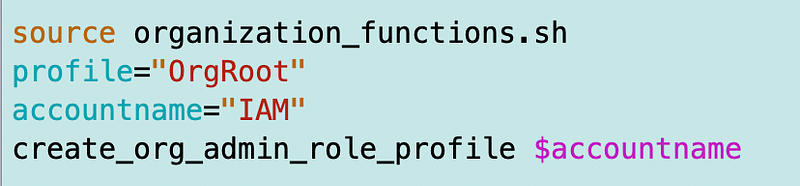
That worked.

If you want to very first check the aws config file and you’ll see the new profile at the end:

cat ~/.aws/config
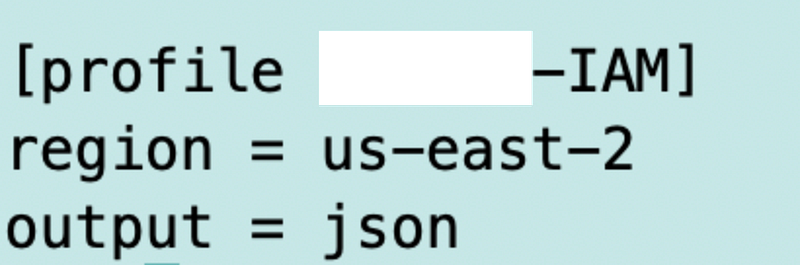
Then check the aws credentials file and you’ll see that the temporary credentials are set:

Run the aws iam list-roles command with the new profile:

It works!

Create remote and target account role profiles for the two roles

I explained above that we need two role profiles to assume the default Organization role in two accounts: account A (the account containing the users that assume the cross account role) and account B (the account that contains the cross-account role).

Now that we know that function to assume the default Organization cross-account role works, I can use it in my deployment script for the cross account role in account B.

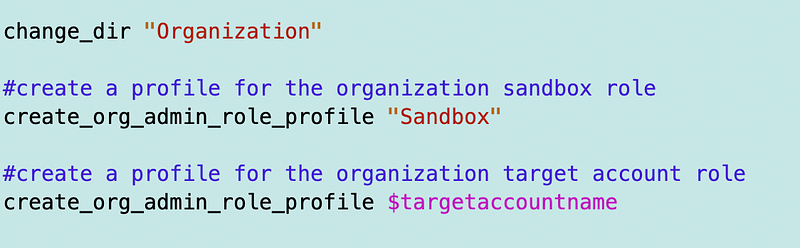
I added the Organization directory to the role switching function:
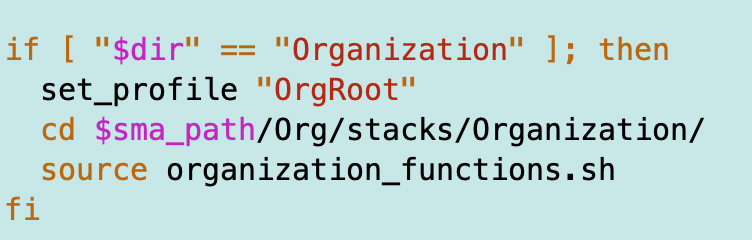
I use my function to create two organization role profiles for the two accounts where I want to deploy resources.
Refreshing credentials when assumed role session times out

Eventually the session that provided the temporary credentials for the assumed role will time out. When the session times out, the OrgRoot user can run the command to create the CLI profiles again to refresh the credentials.

Function to create a cross-account group role

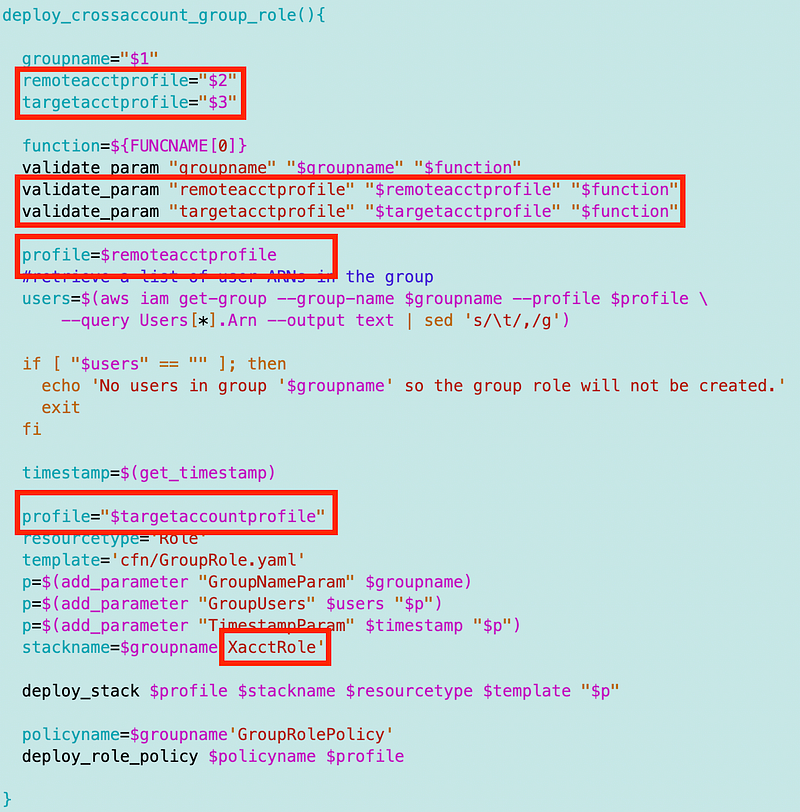
Next I copy and paste the function that creates a group role and modify it to create a cross account group role. As noted the roles are essentially the same with the exception of the trust policy, which allows users in an external account to assume the role.

The code only needs a few adjustments.

  1. I pass in the two profiles.
  2. I use the first profile to get the list of users in the group in account A
  3. I use the second profile to create the role in the account B, passing in the users in the remote account that are allowed to assume the role.
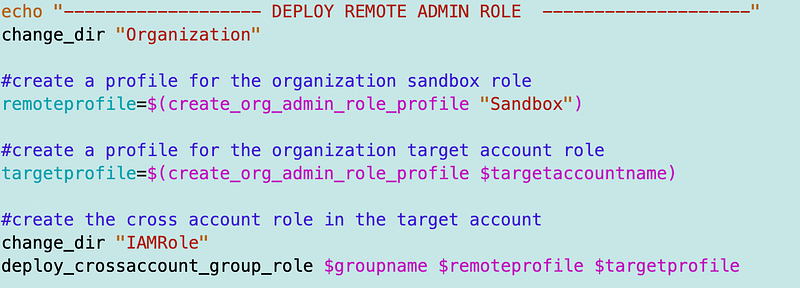
To call this function I need to switch over to the IAM Role directory and call the function with the OrgRoot user.
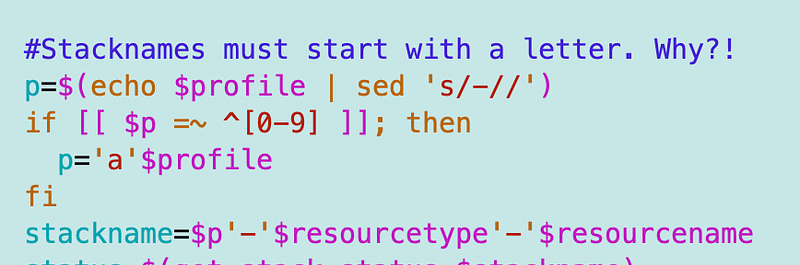
It is at this point where I get frustrated with two things.

  1. Why must a CloudFormation stack start with a letter but an S3 bucket and other resources can start with a number? This makes no sense.
  2. It’s too much to track which profiles should get IAM capabilities. That’s what SCPs, Permission Boundaries, and IAM roles should be doing, not CloudFormation.

I created a hokey work around for #1 and put an ‘a’ in front of any stacks that start with a number.
I gave all stacks IAM capabilities. Will probably delete some of these comments later.
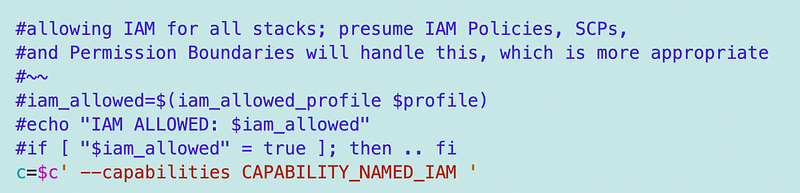
OK now I can run the deploy script I created and test that it correctly deploys my cross account role and policy in the target account using the two role profiles.

And it does. We can list the role and take a look at the details, such as the trust policy, to make sure they are correct.

aws iam list-roles --profile [org admin profile]| grep Remote -A20 -B20

Create a role profile to use the new role

Next I repeat the steps above to create a new role profile to use the role in the target account.

Recall that I added my SandBox user to the RemoteAdmin group and members of that group have permission to assume the role.

I have a profile named SandBox configured for the AWS CLI for my SandboxAdmin user which I can use to create the nw role profile. The profile has a mfa_serial configured so the profile can use MFA when required.

I’m not assuming an organization role so I’ll use the shared function directly.

This role requires MFA so I have to get the MFA serial number to pass to the function. My user has more than one MFA device so I need to list and select the MFA device to use.

The following command will list the MFA devices for a user:

aws iam list-mfa-devices --user-name $remoteAdminUser \
 --profile $profile --query MFADevices[*].SerialNumber --output text

I’ll ask the user to copy and past in whichever device they want to use. I could make this nicer but everything takes so long. Have to get other things done.
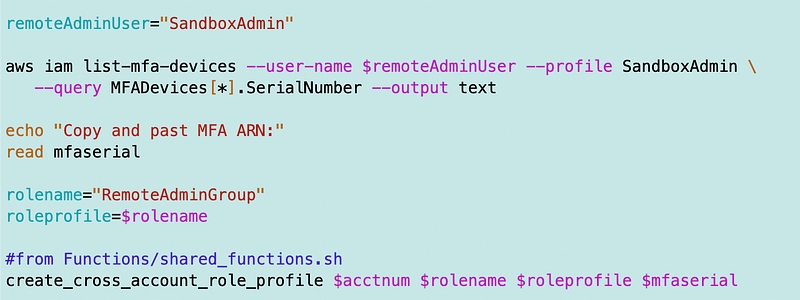
OK run that and we get the following.

What’s the problem?

The user ARN is correct. I can verify that with the following command.
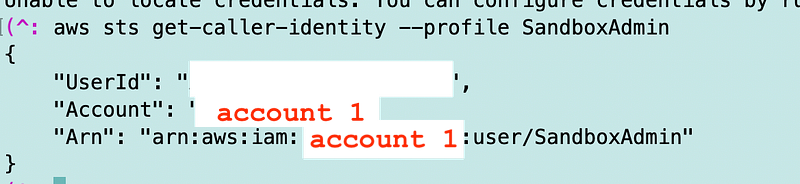
I already listed and reviewed the remote role. Recall that the trust policy requires MFA.

Take a look at the command we are using to assume the role.

Check the documentation for assume-role:

We need to pass in a serial number and a token (MFA code from an authenticator app):

Using the following command line options:
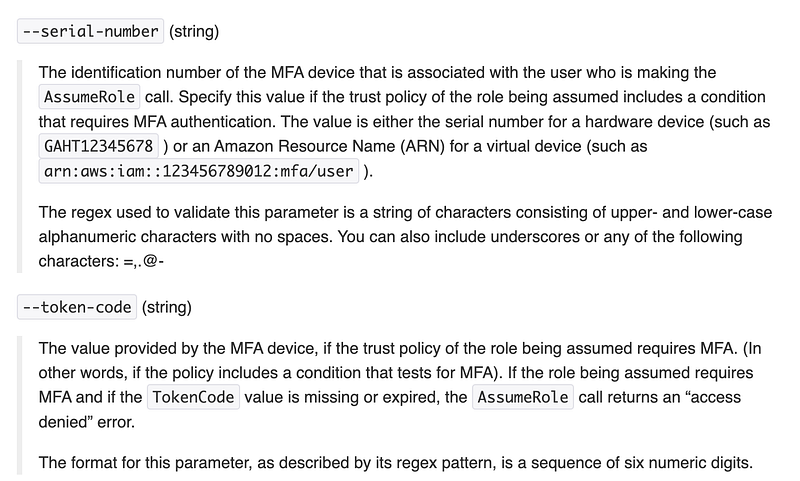
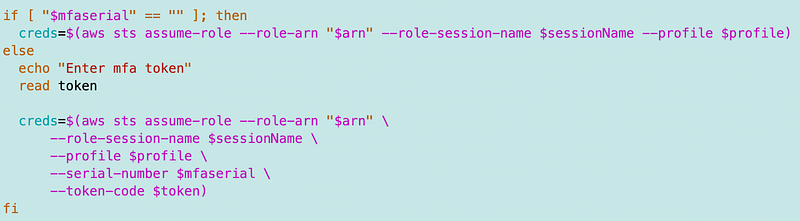
We only want to pass these values if an MFA serial number is provided.

Here’s the updated code:
Now when you run the deployment script, first you enter or copy your MFA serial number, then you’ll be asked for a token.

And it works! You can check that the role exists by running the following command:

aws configure list --profile RemoteAdminGroup

You can also look in the config file to see that the profile has been added to the end:

cat ~/.aws/config

Now I have a profile to run commands in the remote account and the role requires MFA.

I mentioned in a prior post that we might want to create a safer AWS Organizations role.

This post shows you how to create an administrative role in an account in your organization that requires MFA. You can replace the existing AWS organizations roles with roles that require MFA for additional security. I will eventually add that for all new accounts but for now I have to move on to a couple of other things that are costing me money unnecessarily.

Follow for updates.

Teri Radichel | © 2nd Sight Lab 2023

The best way to support this blog is to sign up for the email list and clap for stories you like. That also helps me determine what stories people like and what to write about more often. Other ways to follow and support are listed below. Thank you!

About Teri Radichel:
~~~~~~~~~~~~~~~~~~~~
Author: Cybersecurity for Executives in the Age of Cloud

Presentations: Presentations by Teri Radichel
Recognition: SANS Difference Makers Award, AWS Security Hero, IANS Faculty
Certifications: SANS
Education: BA Business, Master of Software Engineering, Master of Infosec
Company: Cloud Penetration Tests, Assessments, Training ~ 2nd Sight Lab
Like this story? Use the options below to help me write more!
~~~~~~~~~~~~~~~~~~~~~~~~~~~~~~~~~~~~~~~~~~~~~~~~~~~~~~~~~~~~~
❤️ Clap
❤️ Referrals
❤️ Medium: Teri Radichel
❤️ Email List: Teri Radichel
❤️ Twitter: @teriradichel
❤️ Mastodon: @[email protected]
❤️ Facebook: 2nd Sight Lab
❤️ YouTube: @2ndsightlab
❤️ Buy a Book: Teri Radichel on Amazon
❤️ Request a penetration test, assessment, or training
 via LinkedIn: Teri Radichel 
❤️ Schedule a consulting call with me through IANS Research

My Cybersecurity Book: Cybersecurity for Executives in the Age of Cloud

Cross Account Role
AWS
Iam
Cloudformation
MFA
Recommended from ReadMedium