avatarJason Knight

Free AI web copilot to create summaries, insights and extended knowledge, download it at here

20087

Abstract

: <span class="hljs-keyword">data</span>.title } ); e.dataset.text = <span class="hljs-keyword">data</span>.text; <span class="hljs-keyword">if</span> (<span class="hljs-keyword">data</span>.className) e.className = <span class="hljs-keyword">data</span>.className; }

} <span class="hljs-comment">// END isolating scope block for "flags"</span></pre></div><p id="a09b">We loop through flagData, we then make the LI with the correct title applied. We can’t set dataset from make — <i>I need to work on that — </i>so we have to set that manually… and checking for “if” prevents class=”undefined” showing up on the DOM.</p><p id="6e4f">This line:</p><div id="5afc"><pre><span class="hljs-built_in">let</span> e = flagData[name].element = flags.element.__make(</pre></div><p id="6f59">Might confuse people not used to passing assignments. Again this is something some folks say “don’t do that it confuses beginners”. And again I say that if you want those beginners to advance you have to show them stuff outside their comfort zone. <i>And seriously, if you can’t keep the difference between “=”, “==” and “===” straight in your head, maybe JavaScript isn’t for you.</i></p><p id="f430">That’s basically the same as saying:</p><div id="3074"><pre><span class="hljs-keyword">let</span> e = flags.element.__make(<span class="hljs-comment">/* whatever */</span>); flagData[name].element = e;</pre></div><p id="fee3">You can test on assignment. You can assign on assignment. And maybe if people started embracing that they wouldn’t think that extra steps and more to learn like TypeScript is doing them any favors.</p><p id="6b0c">Moving on. That’s the flags system up and running. Next are the button handlers that perform the actual calculations and actions, which are then called by the actual event handlers. I keep “handlers” and “events” separate so that the actual math logic is separated from the event logic.</p><p id="9020">Handlers are broken into two groups, operators and actions.</p><div id="37a9"><pre> <span class="hljs-keyword">const</span>

handlers = {
  
  action : {

    clear : <span class="hljs-function">() =&gt;</span> {
      flags.<span class="hljs-title function_">clear</span>();
      calculator.<span class="hljs-property">entry</span> = calculator.<span class="hljs-property">operator</span> = <span class="hljs-string">""</span>;
      calculator.<span class="hljs-property">total</span> = <span class="hljs-number">0</span>;
    }, <span class="hljs-comment">// handlers.action.clear</span>

    clearEntry : <span class="hljs-function">() =&gt;</span> calculator.<span class="hljs-property">entry</span> = <span class="hljs-string">""</span>,

    negate : <span class="hljs-function">() =&gt;</span> {
      <span class="hljs-keyword">let</span> i = flags.<span class="hljs-property">entry</span> ? <span class="hljs-string">"entry"</span> : <span class="hljs-string">"total"</span>;
      calculator[i] = - calculator[i];
    }, <span class="hljs-comment">// handlers.action.negate</span>

    percent : <span class="hljs-function">() =&gt;</span> calculator[ flags.<span class="hljs-property">entry</span> ? <span class="hljs-string">"entry"</span> : <span class="hljs-string">"total"</span> ] /= <span class="hljs-number">100</span>,

    sqrt : <span class="hljs-function">() =&gt;</span> {
      <span class="hljs-keyword">let</span> i = flags.<span class="hljs-property">entry</span> ? <span class="hljs-string">"entry"</span> : <span class="hljs-string">"total"</span>;
      calculator[i] = <span class="hljs-title class_">Math</span>.<span class="hljs-title function_">sqrt</span>(calculator[i]);
    } <span class="hljs-comment">// handlers.action.sqrt</span>

  }, <span class="hljs-comment">// handlers.action</span></pre></div><p id="cc57">Actions are pretty simple. Clear simply sets entry and operator to empty and zero’s the total. ClearEntry lives up to its name. Negate inverts the sign of whatever is currently displayed, the total or the entry. Percent divides currently displayed by 100, and sqrt turns the currently displayed into … well, its square root.</p><p id="8f86">Operators are simpler:</p><div id="28dd"><pre>      operator : {

    add : <span class="hljs-function">() =&gt;</span> calculator.<span class="hljs-property">total</span> = +calculator.<span class="hljs-property">total</span> + +calculator.<span class="hljs-property">entry</span>,

    subtract : <span class="hljs-function">() =&gt;</span> calculator.<span class="hljs-property">total</span> -= calculator.<span class="hljs-property">entry</span>,

    multiply : <span class="hljs-function">() =&gt;</span> calculator.<span class="hljs-property">total</span> *= calculator.<span class="hljs-property">entry</span>,

    divide : <span class="hljs-function">() =&gt;</span> {
      <span class="hljs-keyword">if</span> (!<span class="hljs-title class_">Number</span>(calculator.<span class="hljs-property">entry</span>)) {
        flags.<span class="hljs-property">divideByZero</span> = <span class="hljs-literal">true</span>;
        calculator.<span class="hljs-property">total</span> = <span class="hljs-title class_">Infinity</span>;
      }
      <span class="hljs-keyword">else</span> calculator.<span class="hljs-property">total</span> /= calculator.<span class="hljs-property">entry</span>
    }

  } <span class="hljs-comment">// handlers.operator</span>
  
}, <span class="hljs-comment">// handlers</span></pre></div><p id="d407">From what you can see adding more math routines or buttons becomes pretty simple, add their math or actions here, add them to the button list (later on) and boom, done.</p><p id="4eb0">The next function:</p><div id="df24"><pre>    testEntryClear = <span class="hljs-function">() =&gt;</span> {
  <span class="hljs-keyword">if</span> (clearNextEntry) {
    calculator.<span class="hljs-property">entry</span> = <span class="hljs-string">""</span>;
    clearNextEntry = <span class="hljs-literal">false</span>;
  }
}, <span class="hljs-comment">// testEntryClear</span></pre></div><p id="8043">Performs that “clearEntryNext” where/as needed. This is called a number of places so no reason not to put it in application scope.</p><p id="da85">One of the big places this is used is in the events object. If you couldn’t guess these are assigned as the event handlers. Each property is either a function that will become the related event, or an object of function broken into the separate “actions”.</p><div id="5705"><pre>    events = {

  action : <span class="hljs-function">(<span class="hljs-params">e</span>) =&gt;</span> {
    <span class="hljs-title function_">testEntryClear</span>();
    handlers.<span class="hljs-property">action</span>[e.<span class="hljs-property">currentTarget</span>.<span class="hljs-property">value</span>]();
  }, <span class="hljs-comment">// events.action</span>

  entry : <span class="hljs-function">(<span class="hljs-params">e</span>) =&gt;</span> {
    <span class="hljs-title function_">testEntryClear</span>();
    <span class="hljs-keyword">let</span>
      strEntry = <span class="hljs-title class_">String</span>(calculator.<span class="hljs-property">entry</span>);
      hasPoint = strEntry.<span class="hljs-title function_">indexOf</span>(<span class="hljs-string">"."</span>) !== -<span class="hljs-number">1</span>,
      maxLength = hasPoint ? <span class="hljs-number">13</span> : <span class="hljs-number">12</span>,
      entryPoint = e.<span class="hljs-property">currentTarget</span>.<span class="hljs-property">textContent</span> === <span class="hljs-string">"."</span>
    <span class="hljs-keyword">if</span> (
      (strEntry.<span class="hljs-property">length</span> &gt;= maxLength) ||
      (hasPoint &amp;&amp; entryPoint)
    ) <span class="hljs-keyword">return</span>;
    calculator.<span class="hljs-property">entry</span> = (
      !calculator.<span class="hljs-property">entry</span> &amp;&amp; entryPoint ?
      <span class="hljs-string">"0."</span> :
      strEntry + e.<span class="hljs-property">currentTarget</span>.<span class="hljs-property">textContent</span>
    );
  }, <span class="hljs-comment">// events.entry</span>

  memory : {

    add : <span class="hljs-function">(<span class="hljs-params">e</span>) =&gt;</span> {
      <span class="hljs-keyword">if</span> (flags.<span class="hljs-property">error</span>) <span class="hljs-keyword">return</span>;
      calculator.<span class="hljs-property">memory</span> += +output.<span class="hljs-property">textContent</span>;
    }, <span class="hljs-comment">// events.memory.add</span>

    clear : <span class="hljs-function">(<span class="hljs-params">e</span>) =&gt;</span> {
      <span class="hljs-keyword">if</span> (flags.<span class="hljs-property">error</span>) <span class="hljs-keyword">return</span>;
      calculator.<span class="hljs-property">memory</span> = <span class="hljs-literal">null</span>;
    }, <span class="hljs-comment">// events.memory.clear</span>

    subtract : <span class="hljs-function">(<span class="hljs-params">e</span>) =&gt;</span> {
      <span class="hljs-keyword">if</span> (flags.<span class="hljs-property">error</span>) <span class="hljs-keyword">return</span>;
      calculator.<span class="hljs-property">memory</span> -= +output.<span class="hljs-property">textContent</span>;
    }, <span class="hljs-comment">// events.memory.subtract</span>

    read : <span class="hljs-function">(<span class="hljs-params">e</span>) =&gt;</span> {
      <span class="hljs-keyword">if</span> (flags.<span class="hljs-property">error</span>) <span class="hljs-keyword">return</span>;
      clearNextEntry = <span class="hljs-literal">true</span>;
      calculator.<span class="hljs-property">entry</span> = calculator.<span class="hljs-property">memory</span>;
    } <span class="hljs-comment">// events.memory.read</span>

  }, <span class="hljs-comment">// events.memory</span>

  openModal : <span class="hljs-function">(<span class="hljs-params">e</span>) =&gt;</span> location.<span class="hljs-property">hash</span> = e.<span class="hljs-property">currentTarget</span>.<span class="hljs-property">value</span>,

  operator : <span class="hljs-function">(<span class="hljs-params">e</span>) =&gt;</span> {
    <span class="hljs-keyword">if</span> (flags.<span class="hljs-property">error</span>) <span class="hljs-keyword">return</span>;
    <span class="hljs-keyword">if</span> (calculator.<span class="hljs-property">operator</span>) {
      <span class="hljs-keyword">if</span> (
        !clearNextEntry ||
        (calculator.<span class="hljs-property">operator</span> == e.<span class="hljs-property">currentTarget</span>.<span class="hljs-property">value</span>)
      ) handlers.<span class="hljs-property">operator</span>[calculator.<span class="hljs-property">operator</span>]();
    } <span class="hljs-keyword">else</span> calculator.<span class="hljs-property">total</span> = calculator.<span class="hljs-property">entry</span>;
    clearNextEntry = <span class="hljs-literal">true</span>;
    calculator.<span class="hljs-property">operator</span> = e.<span class="hljs-property">currentTarget</span>.<span class="hljs-property">value</span>;
  }, <span class="hljs-comment">// events.operator</span>

  view : {
    total : <span class="hljs-function">(<span class="hljs-params">e</span>) =&gt;</span> calculator.<span class="hljs-property">total</span> = calculator.<span class="hljs-property">total</span>,
    entry : <span class="hljs-function">(<span class="hljs-params">e</span>) =&gt;</span> calculator.<span class="hljs-property">entry</span> = calculator.<span class="hljs-property">entry</span>
  } <span class="hljs-comment">// events.view</span>

}, <span class="hljs-comment">// events</span></pre></div><p id="977a">Notice that a big thing most of them do is abort prematurely if the error flag is set. Most of these shouldn’t need much explanation, so let’s focus on the odd men out.</p><p id="e0ad">The “entry” event handler is for numbers and the decimal point. We filter the entry by length and various other conditions to truncate floating point or to not allow entry when the whole number part is too large so as to be restricted by display length. None of JavaScript’s existing number formatting techniques match how a vintage calculator would handle it, so I brute forced it.</p><p id="0661">The two “view” methods might also look odd. Calculator.entry and Calculator.total will have a setter than when triggered updates the display and the related flag. Thus assigning them their own values triggers a display and flag state update.</p><p id="fe9c">Now it’s time to actually build the calculator frame. A LOT… no, <b>A LOT </b>of the DOM elements we want to keep track of for adding stuff later. Thus we create those inner ones before the outer framing section, and paste them in after.</p><div id="fb7b"><pre>    power = <span class="hljs-variable language_">document</span>.<span class="hljs-title function_">__make</span>(<span class="hljs-string">"div"</span>, { className : <span class="hljs-string">"power"</span> }, <span class="hljs-string">"POWER"</span>),

outputs = {
  sign : <span class="hljs-variable language_">document</span>.<span class="hljs-title function_">createElement</span>(<span class="hljs-string">"var"</span>),
  whole : <span class="hljs-keyword">new</span> <span class="hljs-title class_">Text</span>(),
  point : <span class="hljs-variable language_">document</span>.<span class="hljs-title function_">createElement</span>(<span class="hljs-string">"span"</span>),
  mantissa : <span class="hljs-keyword">new</span> <span class="hljs-title class_">Text</span>(),
},

output = <span class="hljs-variable language_">document</span>.<span class="hljs-title function_">__make</span>(<span class="hljs-string">"output"</span>, ...<span class="hljs-title class_">Object</span>.<span class="hljs-title function_">values</span>(outputs) );

fauxBody = <span class="hljs-variable language_">document</span>.<span class="hljs-title function_">getElementById</span>(<span class="hljs-string">"fauxBody"</span>),

calculator = {
  element : fauxBody.<span class="hljs-title function_">__make</span>(
    <span class="hljs-string">"section"</span>, { className : <span class="hljs-string">"calc"</span> },
    power,
    [ <span class="hljs-string">"h2"</span>, calcTitle, [ <span class="hljs-string">"span"</span>, calcVersion ] ],
    output,
    flags.<span class="hljs-property">element</span>
  )
};</pre></div><p id="57d4">“outputs” might look weird there, but by creating each of the subpieces as their own property in an object means we can assign those parts of the display more easily for our “show” routine. Also remember how we stored UL.flags as flags.element? Here we are plugging it into the calculator.</p><p id="476a">Which from a markup standpoint means everything but the <button> and <fieldset> are present.</fieldset></button></p><p id="fc3e">The events object gets a “get” method. Again remember that since this wants to use “this” inside it, you have to use a conventional function not an arrow one.</p><div id="58cc"><pre>    <span class="hljs-title class_">Object</span>.<span class="hljs-title function_">defineProperty</span>(events, <span class="hljs-string">"get"</span>, {
  value : <span class="hljs-keyword">function</span>(<span class="hljs-params">name, action</span>) {
    <span class="hljs-keyword">let</span> result = <span class="hljs-variable language_">this</span>[name];
    <span class="hljs-keyword">if</span> (<span class="hljs-string">"object"</span> === <span class="hljs-keyword">typeof</span> result) <span class="hljs-keyword">return</span> result[action];
    <span class="hljs-keyword">return</span> result;
  }
} );</pre></div><p id="5b49">Again storing this[name] as result since it’s there three times.</p><p id="0174">In the same vein,</p><div id="eedc"><pre>    Object.defineProperty(outputs, <span class="hljs-string">"set"</span>, {
  value : function(sign, whole, point = <span class="hljs-string">""</span>, mantissa = <span class="hljs-string">""</span>) {
    <span class="hljs-keyword">this</span>.sign.textContent = sign;
    <span class="hljs-keyword">this</span>.whole.textContent = whole;
    <span class="hljs-keyword">this</span>.point.textContent = point;
    <span class="hljs-keyword">this</span>.mantissa.textContent = mantissa;
  }
} );</pre></div><p id="13ff">“outputs” gets a set method to parse the four parts of a value into their appropriate fields. I made point and mantissa optional since if you have a whole number, they should be empty.</p><p id="b8d0">The “calculator” object itself starts out with the “show” method used to divide up whichever value we want to show into the parts to plug into outputs.set. This too gets its own isolation block.</p><div id="703e"><pre>  { <span class="hljs-comment">// START isolating scope block for "calculator"</span>

<span class="hljs-keyword">const</span>

  show = (value, isTotal) =&gt; {
    <span class="hljs-keyword">if</span> (flags.error) <span class="hljs-keyword">return</span>;
    <span class="hljs-keyword">if</span> (!value) outputs.<span class="hljs-keyword">set</span>(<span class="hljs-string">""</span>, <span class="hljs-string">"0"</span>);
    <span class="hljs-keyword">else</span> <span class="hljs-keyword">if</span> (!isFinite(value)) flags.overflow = <span class="hljs-literal">true</span>;
    <span class="hljs-keyword">else</span> {
      value = (
        isTotal ?
        Number(value).toFixed(<span class="hljs-number">11</span>).replace(/<span class="hljs-number">0</span>+$/g, <span class="hljs-string">''</span>) :
        String(value)
      );
      <span class="hljs-keyword">const</span> sign = value &lt; <span class="hljs-number">0</span> ? <span class="hljs-string">"-"</span> : <span class="hljs-string">""</span>;
      <span class="hljs-keyword">if</span> (sign) value = value.substr(<span class="hljs-number">1</span>);
      <span class="hljs-keyword">const</span> split = value.indexOf(<span class="hljs-string">"."</span>);
      <span class="hljs-keyword">if</span> (split &gt;= <span class="hljs-number">0</span>) {
        <span class="hljs-keyword">if</span> (value &lt; <span class="hljs-number">1</span>) {
          outputs.<span class="hljs-keyword">set</span>(sign, <span class="hljs-string">"0"</span>, <span class="hljs-string">"."</span>, value.substr(split + <span class="hljs-number">1</span>, <span class="hljs-number">11</span>) );
        } <span class="hljs-keyword">else</span> {
          <span class="hljs-keyword">const</span>
            whole = value.substr(<span class="hljs-number">0</span>, split),
            mantissa = value.substr(split + <span class="hljs-number">1</span>);
          <span class="hljs-keyword">if</span> (whole.length &gt; <span class="hljs-number">12</span>) <span class="hljs-keyword">return</span> flags.overflow = <span class="hljs-literal">true</span>;
          <span class="hljs-keyword">if</span> ((mantissa.length &gt; <span class="hljs-number">0</span>) || !isTotal) outputs.<span class="hljs-keyword">set</span>(
            sign, whole, <span class="hljs-string">"."</span>, mantissa.substr(<span class="hljs-number">0</span>, <span class="hljs-number">12</span> - whole.length)
          ); <span class="hljs-keyword">else</span> outputs.<span class="hljs-keyword">set</span>(sign, whole);
        }
      } <span class="hlj

Options

s-keyword">else</span> <span class="hljs-keyword">if</span> (value.length > <span class="hljs-number">12</span>) flags.overflow = <span class="hljs-literal">true</span>; <span class="hljs-keyword">else</span> outputs.<span class="hljs-keyword">set</span>(sign, value); } }; <span class="hljs-comment">// local calc show</span></pre></div><p id="09da">There are several conditions in which to set the output or flags and exit out and/or not run our formatting code. After those we base how to format the number based on if we’re working with “total” or “entry”. We then separate out sign, then split between the whole number and mantissa. <i>Technically not a real mantissa, but I’m using the name becuase honestly, I have no idea what the fraction in decimal is called. Damn I <b>HATE</b> decimal almost as much as I do metric. I don’t have pet peeves, I have rabid psychotic hatreds.</i></p><p id="0c06">Basically though if there is a period in the stringified value, we’re doing floating point output.</p><p id="1978">If it’s less than one “whole” might be entry, so trap that and force the output to sign, “0 “, “.”, and everything after the period. Otherwise we break the value string into everything before and after the decimal place.</p><p id="60fb">If the whole number is greater than 12 digits long enter an overflow state and bomb out prematurely. We can’t show that on the display.</p><p id="f82d">Otherwise we decide between showing the full value if there is a mantissa, or just the whole number if there is not.</p><p id="d009">After that we have the “else” handler for if there was no period, in which case just show the whole number, of course checking if it’s an overflow first.</p><p id="2617">Again, looks complex, it really isn’t.</p><p id="23b2">Next up we create some variables local to the “calculator” block.</p><div id="a2aa"><pre> <span class="hljs-keyword">let</span> <span class="hljs-keyword">operator</span> = <span class="hljs-string">""</span>, total = <span class="hljs-number">0</span>, entry = <span class="hljs-string">""</span>;</pre></div><p id="84dc">Our three primary values I determined we needed to track during planning. These are in a scope block so that they are NOT accessible public facing. To do that we use getters and setters on the calculator object itself.</p><div id="05b0"><pre> Object.defineProperties(calculator, {

  entry : {
    <span class="hljs-keyword">get</span> : () =&gt; entry,
    <span class="hljs-keyword">set</span> : (<span class="hljs-keyword">value</span>) =&gt; {
      entry = <span class="hljs-keyword">value</span>;
      flags.entry = <span class="hljs-literal">true</span>;
      show(<span class="hljs-keyword">value</span>);
      calculator.element.classList[
        entry == <span class="hljs-string">"55378008"</span> ? <span class="hljs-string">"add"</span> : <span class="hljs-string">"remove"</span>
      ](<span class="hljs-string">"flip"</span>);
    }
  }, <span class="hljs-comment">// calculator.entry</span>

  total : {
    <span class="hljs-keyword">get</span> : () =&gt; total,
    <span class="hljs-keyword">set</span> : (<span class="hljs-keyword">value</span>) =&gt; {
      total = <span class="hljs-keyword">value</span>;
      flags.total = <span class="hljs-literal">true</span>;
      show(<span class="hljs-keyword">value</span>, <span class="hljs-literal">true</span>);
    }
  }, <span class="hljs-comment">// calculator.total</span>

  <span class="hljs-keyword">operator</span> : {
    <span class="hljs-keyword">get</span> : () =&gt; <span class="hljs-keyword">operator</span>,
    <span class="hljs-keyword">set</span> : (<span class="hljs-keyword">value</span>) =&gt; {
      <span class="hljs-keyword">operator</span> = <span class="hljs-keyword">value</span>;
      <span class="hljs-keyword">if</span> (<span class="hljs-keyword">operator</span>) flags[<span class="hljs-keyword">operator</span>] = <span class="hljs-literal">true</span>;
    }
  }, <span class="hljs-comment">// calculator.operator</span></pre></div><p id="d0ed">The getters we can just flat return the values. Setters though we need to set the correct flag and assign the values as appropriate, and show if it’s “entry” or “total”.</p><p id="45e9">And thus if you do <code>calculator.total += 1;</code> the “T” indicator will get lit, and the result of that operation is shown on the display. No micromanaging output on the display.</p><p id="ecba">A final routine is added to calculator:</p><div id="f38d"><pre>      memory : {
    get : <span class="hljs-function">() =&gt;</span> <span class="hljs-title class_">Number</span>(<span class="hljs-variable language_">localStorage</span>.<span class="hljs-title function_">getItem</span>(<span class="hljs-string">"calculatorMemory"</span>)) || <span class="hljs-number">0</span>,
    set : <span class="hljs-function">(<span class="hljs-params">value</span>) =&gt;</span> {
      <span class="hljs-keyword">if</span> (value === <span class="hljs-literal">null</span>) {
        flags.<span class="hljs-property">memory</span> = <span class="hljs-literal">false</span>;
        <span class="hljs-variable language_">localStorage</span>.<span class="hljs-title function_">removeItem</span>(<span class="hljs-string">"calculatorMemory"</span>);
      } <span class="hljs-keyword">else</span> {
        <span class="hljs-variable language_">localStorage</span>.<span class="hljs-title function_">setItem</span>(<span class="hljs-string">"calculatorMemory"</span>, value);
        flags.<span class="hljs-property">memory</span> = <span class="hljs-literal">true</span>;
      }
    }
  } <span class="hljs-comment">// calculator.memory</span>

}); <span class="hljs-comment">// calculator properties</span>

} <span class="hljs-comment">// END isolating scope block for "calculator"</span></pre></div><p id="c639">This lets us use localStorage for the value. The getter makes sure the returned result is a number. If you pass null we turn off the indicator flag and delete the value from localStorage, otherwise we turn the indicator on and store the value to localStorage. Not rocket science.</p><p id="5bbc">Finally we need to make all the BUTTON and the FIELDSET around them. This gets its own scope block too, which starts out declaring information about the buttons and their sets.</p><div id="d6e8"><pre> { <span class="hljs-comment">// START isolating scope block for keys and buttons</span>

<span class="hljs-keyword">const</span>

  buttonSets = [
     <span class="hljs-comment">// text, key, type, action, className</span>
    [
      [ <span class="hljs-string">"VT"</span>, <span class="hljs-string">"T"</span>,        <span class="hljs-string">"view"</span>,   <span class="hljs-string">"total"</span> ],
      [ <span class="hljs-string">"VE"</span>, <span class="hljs-string">"E"</span>,        <span class="hljs-string">"view"</span>,   <span class="hljs-string">"entry"</span> ],
      [ <span class="hljs-string">"MC"</span>, <span class="hljs-string">"Delete"</span>,   <span class="hljs-string">"memory"</span>, <span class="hljs-string">"clear"</span>, <span class="hljs-string">"index"</span> ],
      [ <span class="hljs-string">"M+"</span>, <span class="hljs-string">"PageUp"</span>,   <span class="hljs-string">"memory"</span>, <span class="hljs-string">"add"</span>   ],
      [ <span class="hljs-string">"M-"</span>, <span class="hljs-string">"PageDown"</span>, <span class="hljs-string">"memory"</span>, <span class="hljs-string">"subtract"</span> ],
      [ <span class="hljs-string">"MR"</span>, <span class="hljs-string">"Insert"</span>,   <span class="hljs-string">"memory"</span>, <span class="hljs-string">"read"</span>  ]
    ], [
      [ <span class="hljs-string">"C"</span>,  <span class="hljs-string">"Escape"</span>,    <span class="hljs-string">"action"</span>,    <span class="hljs-string">"clear"</span>,      <span class="hljs-string">"clear wide"</span>        ],
      [ <span class="hljs-string">"CE"</span>, <span class="hljs-string">"Backspace"</span>, <span class="hljs-string">"action"</span>,    <span class="hljs-string">"clearEntry"</span>, <span class="hljs-string">"clear doubleDigit"</span> ],
      [ <span class="hljs-string">"?"</span>,  <span class="hljs-string">"F1"</span>,        <span class="hljs-string">"openModal"</span>, <span class="hljs-string">"help"</span> ]
    ], [
      [ <span class="hljs-string">"\u221A"</span>, <span class="hljs-string">"S"</span>, <span class="hljs-string">"action"</span>,   <span class="hljs-string">"sqrt"</span>    ],
      [ <span class="hljs-string">"\u00B1"</span>, <span class="hljs-string">"N"</span>, <span class="hljs-string">"action"</span>,   <span class="hljs-string">"negate"</span>  ],
      [ <span class="hljs-string">"%"</span>,      <span class="hljs-string">"P"</span>, <span class="hljs-string">"action"</span>,   <span class="hljs-string">"percent"</span> ],
      [ <span class="hljs-string">"\u00F7"</span>, <span class="hljs-string">"/"</span>, <span class="hljs-string">"operator"</span>, <span class="hljs-string">"divide"</span>  ]
    ], [
      [ <span class="hljs-string">"7"</span>, <span class="hljs-string">"7"</span>, <span class="hljs-string">"entry"</span> ],
      [ <span class="hljs-string">"8"</span>, <span class="hljs-string">"8"</span>, <span class="hljs-string">"entry"</span> ],
      [ <span class="hljs-string">"9"</span>, <span class="hljs-string">"9"</span>, <span class="hljs-string">"entry"</span> ],
      [ <span class="hljs-string">"X"</span>, <span class="hljs-string">"*"</span>, <span class="hljs-string">"operator"</span>, <span class="hljs-string">"multiply"</span> ]
    ], [
      [ <span class="hljs-string">"4"</span>, <span class="hljs-string">"4"</span>, <span class="hljs-string">"entry"</span> ],
      [ <span class="hljs-string">"5"</span>, <span class="hljs-string">"5"</span>, <span class="hljs-string">"entry"</span>, <span class="hljs-literal">null</span>, <span class="hljs-string">"index"</span> ],
      [ <span class="hljs-string">"6"</span>, <span class="hljs-string">"6"</span>, <span class="hljs-string">"entry"</span> ],
      [ <span class="hljs-string">"-"</span>, <span class="hljs-string">"-"</span>, <span class="hljs-string">"operator"</span>, <span class="hljs-string">"subtract"</span> ]
    ], [
      [ <span class="hljs-string">"1"</span>, <span class="hljs-string">"1"</span>, <span class="hljs-string">"entry"</span> ],
      [ <span class="hljs-string">"2"</span>, <span class="hljs-string">"2"</span>, <span class="hljs-string">"entry"</span> ],
      [ <span class="hljs-string">"3"</span>, <span class="hljs-string">"3"</span>, <span class="hljs-string">"entry"</span> ],
      [ <span class="hljs-string">"+\r\n="</span>, <span class="hljs-string">"+"</span>, <span class="hljs-string">"operator"</span>, <span class="hljs-string">"add"</span>, <span class="hljs-string">"tall"</span> ],
      [ <span class="hljs-string">"0"</span>, <span class="hljs-string">"0"</span>, <span class="hljs-string">"entry"</span>, <span class="hljs-literal">null</span>, <span class="hljs-string">"wide"</span> ],
      [ <span class="hljs-string">"."</span>, <span class="hljs-string">"."</span>, <span class="hljs-string">"entry"</span> ]
    ]
  ], <span class="hljs-comment">// buttonSets</span></pre></div><p id="fcea">I used arrays as it’s a bit less headache inducing than destructuring objects. With only five possible values — the last two optional — this should not be unmanageable.</p><p id="92bd">Next is a “keys” object that will contain a lookup list for our keyboard handlers to use to Element.click() the appropriate button.</p><div id="3379"><pre>      <span class="hljs-keyword">keys</span> = {},

  keyAliases = {
    <span class="hljs-string">"="</span> : <span class="hljs-string">"Enter"</span>,
    <span class="hljs-string">"X"</span> : <span class="hljs-string">"*"</span>
  }, <span class="hljs-regexp">//</span> keyAliases</pre></div><p id="37f4">keyAliases allowing certain keypresses to trigger the same calculator actions as others.</p><p id="2b74">This routine:</p><div id="45c2"><pre>      keyStateChange = <span class="hljs-function">(<span class="hljs-params">e</span>) =&gt;</span> {
    <span class="hljs-keyword">let</span> key = <span class="hljs-title function_">getKeyButton</span>(e.<span class="hljs-property">key</span>);
    <span class="hljs-keyword">if</span> (key) key.<span class="hljs-property">classList</span>[
      e.<span class="hljs-property">type</span> === <span class="hljs-string">"keydown"</span> ? <span class="hljs-string">"add"</span> : <span class="hljs-string">"remove"</span>
    ](<span class="hljs-string">"keyDown"</span>);
  }, <span class="hljs-comment">// keyStateChange</span></pre></div><p id="b065">Gets hooked by event handlers so that if you press down a key on your keyboard, the corresponding key in the calculator mimics your action. Same routine is used for keyup, thus the e.type detection.</p><div id="c6ed"><pre>      getKeyButton = <span class="hljs-function">(<span class="hljs-params">key</span>) =&gt;</span> {
    <span class="hljs-keyword">if</span> (key.<span class="hljs-property">length</span> == <span class="hljs-number">1</span>) key = key.<span class="hljs-title function_">toUpperCase</span>();
    <span class="hljs-keyword">return</span> keys[keyAliases[key] || key];
  }; <span class="hljs-comment">// getKeyButton</span></pre></div><p id="e5f1">I use this filtering routine in keyStateChange and the key click event to make the Event.key if a single letter be case insensitive, and to check for any aliases transforming them as appropriate… returning the element from the keys object.</p><p id="3073">Time to make the donuts… the donuts…</p><div id="14dd"><pre>    <span class="hljs-keyword">for</span> (<span class="hljs-keyword">const</span> <span class="hljs-keyword">set</span> of buttonSets) {
  <span class="hljs-keyword">const</span> fieldset = calculator.element.__make(<span class="hljs-string">"fieldset"</span>);
  <span class="hljs-keyword">for</span> (<span class="hljs-keyword">let</span> [textContent, key, buttonType, action, className] of <span class="hljs-keyword">set</span>) {
    keys[key] = fieldset.__make(
      <span class="hljs-string">"button"</span>,
      {
        className : buttonType + (className ? <span class="hljs-string">" "</span> + className : <span class="hljs-string">""</span>),
        onclick : events.<span class="hljs-keyword">get</span>(buttonType, action)
      },
      [ <span class="hljs-string">"span"</span>, textContent ]
    );
    <span class="hljs-keyword">if</span> (action) keys[key].<span class="hljs-keyword">value</span> = action;
  }
}</pre></div><p id="9539">Loop through buttonSets, make a fieldset for each, break down each set into named variables, and make the button based on that information. The buttons are stored in the keys object, which as I said before is used for the keyboard lookup to these elements. Finally the value gets optionally assigned as the “action” column to make it easier for the event handlers to pull that information from event.currentTarget.</p><p id="34dc">From there we finish off the calculator’s scope block by setting our event handlers.</p><div id="1a00"><pre>    addEventListener(<span class="hljs-string">"keydown"</span>, keyStateChange);
addEventListener(<span class="hljs-string">"keyup"</span>, keyStateChange);
addEventListener(<span class="hljs-string">"keypress"</span>, (e) =&gt; {
  <span class="hljs-keyword">if</span> (location.hash.length &gt; <span class="hljs-number">1</span>) <span class="hljs-keyword">return</span>;
  <span class="hljs-keyword">let</span> key = e.key;
  <span class="hljs-keyword">switch</span> (key) {
    <span class="hljs-keyword">case</span> <span class="hljs-string">"Enter"</span>:
      e.preventDefault();
      <span class="hljs-keyword">if</span> (flags.error) <span class="hljs-keyword">return</span>;
      flags.clear();
      <span class="hljs-keyword">if</span> (!calculator.<span class="hljs-keyword">operator</span>) <span class="hljs-keyword">operator</span> = <span class="hljs-string">"add"</span>;
      handlers.<span class="hljs-keyword">operator</span>[calculator.<span class="hljs-keyword">operator</span>]();
      clearNextEntry = <span class="hljs-literal">true</span>;
      <span class="hljs-keyword">return</span>;
  }
  <span class="hljs-keyword">let</span> button = getKeyButton(key);
  <span class="hljs-keyword">if</span> (button) {
    e.preventDefault();
    button.click();
  }
} );

} <span class="hljs-comment">// END isolating scope block for keys and buttons</span></pre></div><p id="a47d">Remember, anonymous functions for event handlers are fine if assigned ONCE. But if you’re assigning it more than once, make it a proper function.</p><p id="8768">The keypress function’s no big deal either. The hash length check is to make sure we’re not in a modal. There is no reason for a hash to be there if we’re using the calculator, so this simple check suffices. <i>Though I am tempted to add to location a “__isModal” getter.</i></p><p id="3c0f">If it’s the enter key I gave it the behavior of acting as the current operator, not plus. If there is no operator set, add is assumed. If you understood the normal event handlers, this is the same thing. I used switch instead of “if” so it’s easy to add more traps if desired.</p><p id="389e">Otherwise we get hold of the button element that corresponds to the keypress from the keys array using getButtonKey. If we find one, we prevent the default behavior of the keypress event and then send a “click” to that button.</p><p id="2cd6"><i>I am often surprised how many people would hard-code the events again or try to fake the Event object to call those handlers to avoid calling Button.click on the appropriate element.</i></p><p id="3d2c">So we’re back at the application level scoping. Before we end that, we configure the default app state.</p><div id="3b18"><pre> calculator.<span class="hljs-property">entry</span> = <span class="hljs-string">""</span>; <span class="hljs-keyword">if</span> (<span class="hljs-variable language_">localStorage</span>.<span class="hljs-title function_">getItem</span>(<span class="hljs-string">"calculatorMemory"</span>)) flags.<span class="hljs-property">memory</span> = <span class="hljs-literal">true</span>;

}</pre></div><p id="e5b5">Setting the entry to empty shows “0” and sets the “E” indicator. If there’s a value in localstorage, turn on the MEM indicator.</p><h1 id="c16a">DONE!</h1><p id="1cad"><a href="https://www.youtube.com/watch?v=KEodtWN7Xb0"><i>And that’s how the flowers grow!!!</i></a></p><p id="5107">In the next article I’ll summarize how the modal help system works.</p><h1 id="3182">Article Index</h1><p id="6c2c"><a href="https://readmedium.com/how-css-is-reducing-the-need-for-images-lets-style-a-calculator-ccf9332e56e">Part 1, Markup and Layout</a> <a href="https://readmedium.com/how-css-is-reducing-the-need-for-images-part-2-eye-candy-bd5ee628e849">Part 2, Eye Candy</a> <a href="https://readmedium.com/css-reduces-the-need-for-images-part-3-lets-script-it-5a466ae5930a">Part 3, Make it work with JS</a> <a href="https://readmedium.com/css-reduces-the-need-for-images-part-4-the-actual-application-script-127f3eeb492a">Part 4, Explaining the calculator JS</a> <a href="https://deathshadow.medium.com/css-reduces-the-need-for-images-part-5-modal-driven-help-1ed7b41b580e">Part 5, Explaining the Help Modals</a></p></article></body>

CSS Reduces The Need For Images — Part 4, The Actual Application Script
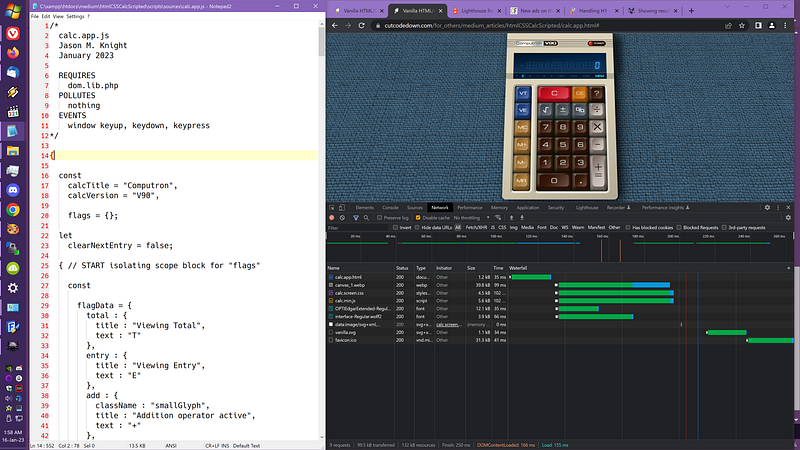
In the previous article I created the needed library script for DOM helping and modals. You can review that script here: https://cutcodedown.com/for_others/medium_articles/htmlCSSCalcScripted/scripts/sources/dom.lib.js

Now it’s time to build the actual application part of the scripting. I’ll be breaking this down piece by piece, but if you want to look at the whole thing that is here: https://cutcodedown.com/for_others/medium_articles/htmlCSSCalcScripted/scripts/sources/calc.app.js

***WARNING*** This article is about to get very dry.

As I said in the previous article I start out with a comment not just describing the file by name, author, and date, but also by what it changes in the browser just as I would when saying what registers and flags are required, and what is corrupted, polluted, or modified.

/*
 calc.app.js
 Jason M. Knight
 January 2023

 REQUIRES
  dom.lib.php
 POLLUTES
  nothing
 EVENTS
  window keyup, keydown, keypress
*/

A simple reference like this at the top of every file well maintained can really save you a lot of headaches when making disperate scripts work together. Much akin to how in the “old days” we’d use “cross-reference” software to make sense of other people’s Cobol, DiBol, Forth, BASIC or Assembly code.

I’m a little surprised cross reference utilities seem to have fallen from favor; though to be fair they are most useful when you have a metric arse-load of globals, something modern languages manage to steer us clear of.

As always I start with a scope isolating block. Inside that the first few things are:

{

 const
  calcTitle = "Computron",
  calcVersion = "V90",

  flags = {};
  
 let
  clearNextEntry = false;

The title and version of the calculator to be plugged into its heading are best defined right at the start. Likewise the “flags’ container object gets defined since almost every subsection of this code will need access to it.

clearNextEntry tracks if the next time you hit a number key or the decimal point if the current content of the entry (as opposed to the total) should be discarded. Hmm… how to explain that. If you hit an operator for a total — any works not just +/= — if you hit the operator — or another operator — that operation will be performed using the existing entry, changing the displayed total. Thus:

“2+++” shows 6. T indicator (total) lit

First time you hit the operator it sets the mode, subsequent times the “entry” is still two and it performs the addition.

But if you hit: “2+4" shows 4, E indicator (entry) lit

But if you hit “+/=” after that it will show 6 with the T indicator lit. If you hit VE (view entry) it shows you that 4 you last typed in.

That’s what clearNextEntry tracks. You perform an operator, memory read, or several other functions the next time you input a value “entry” gets erased. Thus we need a flag to track that and we might as well scope it to the entire application. Even if — or perhaps because — it drives the “functional purity” fanboys nuts.

After that I declare another scope block for implementing “flags” and declare the “flag data”

  { // START isolating scope block for "flags"

    const

      flagData = {
        total : {
          title : "Viewing Total",
          text : "T"
        },
        entry : {
          title : "Viewing Entry",
          text : "E"
        },
        add : {
          className : "smallGlyph",
          title : "Addition operator active",
          text : "+"
        },
        subtract : {
          className : "smallGlyph",
          title : "Subtraction operator active",
          text : "-"
        },
        multiply : {
          title : "Multiplication operator active",
          text : "X"
        },
        divide : {
          className : "smallGlyph",
          title : "Divide operator active",
          text : "\u00F7"
        },
        overflow : {
          title : "Overflow, result was too large for this calculator",
          text : "OVF"
        },
        divideByZero : {
          title : "Divide by zero",
          text : "DV0"
        },
        error : {
          title : "An error has occurred, you must hit 'clear' to continue.",
          text : "ERR"
        },
        memory : {
          title : "This is a value in memory",
          text : "MEM"
        }
      }, // flagData

Which if you couldn’t tell is the title tooltip for the flags describing them, the text to show inside the flag LI, and a className if any. We will do a for loop shortly to apply those. This object of objects will also have the LI element of each flag added to it, so we can look them up here instead of dicking around with getElementById or querySeleector.

Next are the flag set and unset functions, which are then called by getters and setters on “flags”

      flagSet = (name, value) => {
        // force to boolean
        value = !!value;
        const flag = flagData[name];
        flag.value = value;
        flag.element.textContent = value ? flag.text : "";
        return value;
      },  // flagSet

      operatorSet = (name) => {
        for (let operator of [ "add", "subtract", "multiply", "divide" ]) {
          const
            flag = flagData[operator],
            value = name == operator;
          flag.value = value;
          flag.element.textContent = value ? flag.text : "";
        }
      }, // operatorSet

      flagClear = (name) => {
        flagData[name].value = false;
        flagData[name].element.textContent = "";
      }; // flagSet

Nothing too fancy. The first function forces the passed value to boolean as a safety precaution, and grabs the index of flagData that matches the name. The value is then set, and then if the value is true we put the desired text into the element, othewise we empty it… then I return the processed value so that it can be used in conditionals later.

The operatorSet routine is similar but all you pass is the name as it assumes you’re trying to turn it on. Operators are like radio buttons as you would never have more than one on at once, so it’s simpler to just loop them, determine the boolean value if the names match, and then assign them the same way as flagSet did.

flagClear simply sets the value to false and the textContent to empty. Notice how in the first two I store the array lookup the variable “flag” and in the third I don’t? Array and Object index lookups are slow. They can also lead to some very wet code. Looking it up once and storing it in a variable can speed things up, result in cleaner code, and so forth. My rule of thumb is that if you’re going to use the result of the lookup more than twice, put it into a variable. Otherwise leave it be.

And before the know-nothing pedants chime in with Knuth, good practices that take no more or less time to code are not premature optimization. Jackasses.

Next I start attaching methods to flags using Object.defineProperties. I do it this way so that I can decalre if they are enumerable (aka iterable) or not. Functions to do things like clear all flags or the element that gets assigned to it I do not want showing up when I try to loop the properties. Thus these two:

    Object.defineProperties(flags, {

      clear : {
        value : function() {
          for (let name in this) flagClear(name);
          if (localStorage.getItem("calculatorMemory")) flags.memory = true;
        }
      }, // flags.clear
      
      element : {
        value : document.__make("ul", { className : "flags" })
      }, // flags.element

Get set normally. Hey look, we made our first element!

Whilst the actual flags are set up as enumerable with getters and setters.

      total : {
        enumerable : true,
        get : () => flagData.total.value,
        set : (value) => flagSet("entry", !flagSet("total", value))
      }, // flags.total

      entry : {
        enumerable : true,
        get : () => flagData.entry.value,
        set : (value) => flagSet("total", !flagSet("entry", value))
      }, // flags.entry

      add  : {
        enumerable : true,
        get : () => flagData.add.value,
        set : (value) => operatorSet("add", value)
      }, // flags.add

      subtract  : {
        enumerable : true,
        get : () => flagData.subtract.value,
        set : (value) => operatorSet("subtract", value)
      }, // flags.subtract

      multiply  : {
        enumerable : true,
        get : () => flagData.multiply.value,
        set : (value) => operatorSet("multiply", value)
      }, // flags.multiply

      divide  : {
        enumerable : true,
        get : () => flagData.divide.value,
        set : (value) => operatorSet("divide", value)
      }, // flags.divide

      overflow : {
        enumerable : true,
        get : () => flagData.overflow.value,
        set : function(value) {
          if (flagSet("overflow", value)) {
            calculator.total = 0;
            calculator.entry = "";
            this.error = true;
          }
        }
      }, // flags.overflow

      divideByZero : {
        enumerable : true,
        get : () => flagData.divideByZero.value,
        set : function(value) {
          if (flagSet("divideByZero", value)) this.error = true;
        }
      }, // flags.divideByZero

      error : {
        enumerable : true,
        get : () => flagData.error.value,
        set : (value) => {
          if (flagSet("error", value)) outputs.set("-", "------------");
        }
      }, // flags.error

      memory : {
        enumerable : true,
        get : () => flagData.memory.value,
        set : (value) => flagSet("memory", value)
      } // flags.memory

    } ); // flag properties

What this basically does is if we were to call flags.error = true; everything we need that flag to do is handled. We set the error, and if it’s true we make the display show all slashes. You can see most of these just need to call our “flags scoped” operatorSet or flagSet functions. I did not put either of those functions into the “flags” object as they are not meant to be called public facing. Likewise using flagData locally isolates it from the public space as well. All we’re exposing is “flags” and its properties.

Finally we need to create those LI elements and put them into flagData

    for (let [name, data] of Object.entries(flagData)) {
      let e = flagData[name].element = flags.element.__make(
        "li", { title : data.title }
      );
      e.dataset.text = data.text;
      if (data.className) e.className = data.className;
    }

  } // END isolating scope block for "flags"

We loop through flagData, we then make the LI with the correct title applied. We can’t set dataset from make — I need to work on that — so we have to set that manually… and checking for “if” prevents class=”undefined” showing up on the DOM.

This line:

let e = flagData[name].element = flags.element.__make(

Might confuse people not used to passing assignments. Again this is something some folks say “don’t do that it confuses beginners”. And again I say that if you want those beginners to advance you have to show them stuff outside their comfort zone. And seriously, if you can’t keep the difference between “=”, “==” and “===” straight in your head, maybe JavaScript isn’t for you.

That’s basically the same as saying:

let e = flags.element.__make(/* whatever */);
flagData[name].element = e;

You can test on assignment. You can assign on assignment. And maybe if people started embracing that they wouldn’t think that extra steps and more to learn like TypeScript is doing them any favors.

Moving on. That’s the flags system up and running. Next are the button handlers that perform the actual calculations and actions, which are then called by the actual event handlers. I keep “handlers” and “events” separate so that the actual math logic is separated from the event logic.

Handlers are broken into two groups, operators and actions.

  const

    handlers = {
      
      action : {

        clear : () => {
          flags.clear();
          calculator.entry = calculator.operator = "";
          calculator.total = 0;
        }, // handlers.action.clear

        clearEntry : () => calculator.entry = "",

        negate : () => {
          let i = flags.entry ? "entry" : "total";
          calculator[i] = - calculator[i];
        }, // handlers.action.negate

        percent : () => calculator[ flags.entry ? "entry" : "total" ] /= 100,

        sqrt : () => {
          let i = flags.entry ? "entry" : "total";
          calculator[i] = Math.sqrt(calculator[i]);
        } // handlers.action.sqrt

      }, // handlers.action

Actions are pretty simple. Clear simply sets entry and operator to empty and zero’s the total. ClearEntry lives up to its name. Negate inverts the sign of whatever is currently displayed, the total or the entry. Percent divides currently displayed by 100, and sqrt turns the currently displayed into … well, its square root.

Operators are simpler:

      operator : {

        add : () => calculator.total = +calculator.total + +calculator.entry,

        subtract : () => calculator.total -= calculator.entry,

        multiply : () => calculator.total *= calculator.entry,

        divide : () => {
          if (!Number(calculator.entry)) {
            flags.divideByZero = true;
            calculator.total = Infinity;
          }
          else calculator.total /= calculator.entry
        }

      } // handlers.operator
      
    }, // handlers

From what you can see adding more math routines or buttons becomes pretty simple, add their math or actions here, add them to the button list (later on) and boom, done.

The next function:

    testEntryClear = () => {
      if (clearNextEntry) {
        calculator.entry = "";
        clearNextEntry = false;
      }
    }, // testEntryClear

Performs that “clearEntryNext” where/as needed. This is called a number of places so no reason not to put it in application scope.

One of the big places this is used is in the events object. If you couldn’t guess these are assigned as the event handlers. Each property is either a function that will become the related event, or an object of function broken into the separate “actions”.

    events = {

      action : (e) => {
        testEntryClear();
        handlers.action[e.currentTarget.value]();
      }, // events.action

      entry : (e) => {
        testEntryClear();
        let
          strEntry = String(calculator.entry);
          hasPoint = strEntry.indexOf(".") !== -1,
          maxLength = hasPoint ? 13 : 12,
          entryPoint = e.currentTarget.textContent === "."
        if (
          (strEntry.length >= maxLength) ||
          (hasPoint && entryPoint)
        ) return;
        calculator.entry = (
          !calculator.entry && entryPoint ?
          "0." :
          strEntry + e.currentTarget.textContent
        );
      }, // events.entry

      memory : {

        add : (e) => {
          if (flags.error) return;
          calculator.memory += +output.textContent;
        }, // events.memory.add

        clear : (e) => {
          if (flags.error) return;
          calculator.memory = null;
        }, // events.memory.clear

        subtract : (e) => {
          if (flags.error) return;
          calculator.memory -= +output.textContent;
        }, // events.memory.subtract

        read : (e) => {
          if (flags.error) return;
          clearNextEntry = true;
          calculator.entry = calculator.memory;
        } // events.memory.read

      }, // events.memory

      openModal : (e) => location.hash = e.currentTarget.value,

      operator : (e) => {
        if (flags.error) return;
        if (calculator.operator) {
          if (
            !clearNextEntry ||
            (calculator.operator == e.currentTarget.value)
          ) handlers.operator[calculator.operator]();
        } else calculator.total = calculator.entry;
        clearNextEntry = true;
        calculator.operator = e.currentTarget.value;
      }, // events.operator

      view : {
        total : (e) => calculator.total = calculator.total,
        entry : (e) => calculator.entry = calculator.entry
      } // events.view

    }, // events

Notice that a big thing most of them do is abort prematurely if the error flag is set. Most of these shouldn’t need much explanation, so let’s focus on the odd men out.

The “entry” event handler is for numbers and the decimal point. We filter the entry by length and various other conditions to truncate floating point or to not allow entry when the whole number part is too large so as to be restricted by display length. None of JavaScript’s existing number formatting techniques match how a vintage calculator would handle it, so I brute forced it.

The two “view” methods might also look odd. Calculator.entry and Calculator.total will have a setter than when triggered updates the display and the related flag. Thus assigning them their own values triggers a display and flag state update.

Now it’s time to actually build the calculator frame. A LOT… no, A LOT of the DOM elements we want to keep track of for adding stuff later. Thus we create those inner ones before the outer framing section, and paste them in after.

    power = document.__make("div", { className : "power" }, "POWER"),

    outputs = {
      sign : document.createElement("var"),
      whole : new Text(),
      point : document.createElement("span"),
      mantissa : new Text(),
    },

    output = document.__make("output", ...Object.values(outputs) );

    fauxBody = document.getElementById("fauxBody"),

    calculator = {
      element : fauxBody.__make(
        "section", { className : "calc" },
        power,
        [ "h2", calcTitle, [ "span", calcVersion ] ],
        output,
        flags.element
      )
    };

“outputs” might look weird there, but by creating each of the subpieces as their own property in an object means we can assign those parts of the display more easily for our “show” routine. Also remember how we stored UL.flags as flags.element? Here we are plugging it into the calculator.

Which from a markup standpoint means everything but the

The events object gets a “get” method. Again remember that since this wants to use “this” inside it, you have to use a conventional function not an arrow one.

    Object.defineProperty(events, "get", {
      value : function(name, action) {
        let result = this[name];
        if ("object" === typeof result) return result[action];
        return result;
      }
    } );

Again storing this[name] as result since it’s there three times.

In the same vein,

    Object.defineProperty(outputs, "set", {
      value : function(sign, whole, point = "", mantissa = "") {
        this.sign.textContent = sign;
        this.whole.textContent = whole;
        this.point.textContent = point;
        this.mantissa.textContent = mantissa;
      }
    } );

“outputs” gets a set method to parse the four parts of a value into their appropriate fields. I made point and mantissa optional since if you have a whole number, they should be empty.

The “calculator” object itself starts out with the “show” method used to divide up whichever value we want to show into the parts to plug into outputs.set. This too gets its own isolation block.

  { // START isolating scope block for "calculator"

    const

      show = (value, isTotal) => {
        if (flags.error) return;
        if (!value) outputs.set("", "0");
        else if (!isFinite(value)) flags.overflow = true;
        else {
          value = (
            isTotal ?
            Number(value).toFixed(11).replace(/0+$/g, '') :
            String(value)
          );
          const sign = value < 0 ? "-" : "";
          if (sign) value = value.substr(1);
          const split = value.indexOf(".");
          if (split >= 0) {
            if (value < 1) {
              outputs.set(sign, "0", ".", value.substr(split + 1, 11) );
            } else {
              const
                whole = value.substr(0, split),
                mantissa = value.substr(split + 1);
              if (whole.length > 12) return flags.overflow = true;
              if ((mantissa.length > 0) || !isTotal) outputs.set(
                sign, whole, ".", mantissa.substr(0, 12 - whole.length)
              ); else outputs.set(sign, whole);
            }
          } else if (value.length > 12) flags.overflow = true;
          else outputs.set(sign, value);
        }
      }; // local calc show

There are several conditions in which to set the output or flags and exit out and/or not run our formatting code. After those we base how to format the number based on if we’re working with “total” or “entry”. We then separate out sign, then split between the whole number and mantissa. Technically not a real mantissa, but I’m using the name becuase honestly, I have no idea what the fraction in decimal is called. Damn I HATE decimal almost as much as I do metric. I don’t have pet peeves, I have rabid psychotic hatreds.

Basically though if there is a period in the stringified value, we’re doing floating point output.

If it’s less than one “whole” might be entry, so trap that and force the output to sign, “0 “, “.”, and everything after the period. Otherwise we break the value string into everything before and after the decimal place.

If the whole number is greater than 12 digits long enter an overflow state and bomb out prematurely. We can’t show that on the display.

Otherwise we decide between showing the full value if there is a mantissa, or just the whole number if there is not.

After that we have the “else” handler for if there was no period, in which case just show the whole number, of course checking if it’s an overflow first.

Again, looks complex, it really isn’t.

Next up we create some variables local to the “calculator” block.

    let
      operator = "",
      total = 0,
      entry = "";

Our three primary values I determined we needed to track during planning. These are in a scope block so that they are NOT accessible public facing. To do that we use getters and setters on the calculator object itself.

    Object.defineProperties(calculator, {

      entry : {
        get : () => entry,
        set : (value) => {
          entry = value;
          flags.entry = true;
          show(value);
          calculator.element.classList[
            entry == "55378008" ? "add" : "remove"
          ]("flip");
        }
      }, // calculator.entry

      total : {
        get : () => total,
        set : (value) => {
          total = value;
          flags.total = true;
          show(value, true);
        }
      }, // calculator.total

      operator : {
        get : () => operator,
        set : (value) => {
          operator = value;
          if (operator) flags[operator] = true;
        }
      }, // calculator.operator

The getters we can just flat return the values. Setters though we need to set the correct flag and assign the values as appropriate, and show if it’s “entry” or “total”.

And thus if you do calculator.total += 1; the “T” indicator will get lit, and the result of that operation is shown on the display. No micromanaging output on the display.

A final routine is added to calculator:

      memory : {
        get : () => Number(localStorage.getItem("calculatorMemory")) || 0,
        set : (value) => {
          if (value === null) {
            flags.memory = false;
            localStorage.removeItem("calculatorMemory");
          } else {
            localStorage.setItem("calculatorMemory", value);
            flags.memory = true;
          }
        }
      } // calculator.memory

    }); // calculator properties

  } // END isolating scope block for "calculator"

This lets us use localStorage for the value. The getter makes sure the returned result is a number. If you pass null we turn off the indicator flag and delete the value from localStorage, otherwise we turn the indicator on and store the value to localStorage. Not rocket science.

Finally we need to make all the BUTTON and the FIELDSET around them. This gets its own scope block too, which starts out declaring information about the buttons and their sets.

  { // START isolating scope block for keys and buttons

    const

      buttonSets = [
         // text, key, type, action, className
        [
          [ "VT", "T",        "view",   "total" ],
          [ "VE", "E",        "view",   "entry" ],
          [ "MC", "Delete",   "memory", "clear", "index" ],
          [ "M+", "PageUp",   "memory", "add"   ],
          [ "M-", "PageDown", "memory", "subtract" ],
          [ "MR", "Insert",   "memory", "read"  ]
        ], [
          [ "C",  "Escape",    "action",    "clear",      "clear wide"        ],
          [ "CE", "Backspace", "action",    "clearEntry", "clear doubleDigit" ],
          [ "?",  "F1",        "openModal", "help" ]
        ], [
          [ "\u221A", "S", "action",   "sqrt"    ],
          [ "\u00B1", "N", "action",   "negate"  ],
          [ "%",      "P", "action",   "percent" ],
          [ "\u00F7", "/", "operator", "divide"  ]
        ], [
          [ "7", "7", "entry" ],
          [ "8", "8", "entry" ],
          [ "9", "9", "entry" ],
          [ "X", "*", "operator", "multiply" ]
        ], [
          [ "4", "4", "entry" ],
          [ "5", "5", "entry", null, "index" ],
          [ "6", "6", "entry" ],
          [ "-", "-", "operator", "subtract" ]
        ], [
          [ "1", "1", "entry" ],
          [ "2", "2", "entry" ],
          [ "3", "3", "entry" ],
          [ "+\r\n=", "+", "operator", "add", "tall" ],
          [ "0", "0", "entry", null, "wide" ],
          [ ".", ".", "entry" ]
        ]
      ], // buttonSets

I used arrays as it’s a bit less headache inducing than destructuring objects. With only five possible values — the last two optional — this should not be unmanageable.

Next is a “keys” object that will contain a lookup list for our keyboard handlers to use to Element.click() the appropriate button.

      keys = {},

      keyAliases = {
        "=" : "Enter",
        "X" : "*"
      }, // keyAliases

keyAliases allowing certain keypresses to trigger the same calculator actions as others.

This routine:

      keyStateChange = (e) => {
        let key = getKeyButton(e.key);
        if (key) key.classList[
          e.type === "keydown" ? "add" : "remove"
        ]("keyDown");
      }, // keyStateChange

Gets hooked by event handlers so that if you press down a key on your keyboard, the corresponding key in the calculator mimics your action. Same routine is used for keyup, thus the e.type detection.

      getKeyButton = (key) => {
        if (key.length == 1) key = key.toUpperCase();
        return keys[keyAliases[key] || key];
      }; // getKeyButton

I use this filtering routine in keyStateChange and the key click event to make the Event.key if a single letter be case insensitive, and to check for any aliases transforming them as appropriate… returning the element from the keys object.

Time to make the donuts… the donuts…

    for (const set of buttonSets) {
      const fieldset = calculator.element.__make("fieldset");
      for (let [textContent, key, buttonType, action, className] of set) {
        keys[key] = fieldset.__make(
          "button",
          {
            className : buttonType + (className ? " " + className : ""),
            onclick : events.get(buttonType, action)
          },
          [ "span", textContent ]
        );
        if (action) keys[key].value = action;
      }
    }

Loop through buttonSets, make a fieldset for each, break down each set into named variables, and make the button based on that information. The buttons are stored in the keys object, which as I said before is used for the keyboard lookup to these elements. Finally the value gets optionally assigned as the “action” column to make it easier for the event handlers to pull that information from event.currentTarget.

From there we finish off the calculator’s scope block by setting our event handlers.

    addEventListener("keydown", keyStateChange);
    addEventListener("keyup", keyStateChange);
    addEventListener("keypress", (e) => {
      if (location.hash.length > 1) return;
      let key = e.key;
      switch (key) {
        case "Enter":
          e.preventDefault();
          if (flags.error) return;
          flags.clear();
          if (!calculator.operator) operator = "add";
          handlers.operator[calculator.operator]();
          clearNextEntry = true;
          return;
      }
      let button = getKeyButton(key);
      if (button) {
        e.preventDefault();
        button.click();
      }
    } );

  } // END isolating scope block for keys and buttons

Remember, anonymous functions for event handlers are fine if assigned ONCE. But if you’re assigning it more than once, make it a proper function.

The keypress function’s no big deal either. The hash length check is to make sure we’re not in a modal. There is no reason for a hash to be there if we’re using the calculator, so this simple check suffices. Though I am tempted to add to location a “__isModal” getter.

If it’s the enter key I gave it the behavior of acting as the current operator, not plus. If there is no operator set, add is assumed. If you understood the normal event handlers, this is the same thing. I used switch instead of “if” so it’s easy to add more traps if desired.

Otherwise we get hold of the button element that corresponds to the keypress from the keys array using getButtonKey. If we find one, we prevent the default behavior of the keypress event and then send a “click” to that button.

I am often surprised how many people would hard-code the events again or try to fake the Event object to call those handlers to avoid calling Button.click on the appropriate element.

So we’re back at the application level scoping. Before we end that, we configure the default app state.

  calculator.entry = "";
  if (localStorage.getItem("calculatorMemory")) flags.memory = true;

}

Setting the entry to empty shows “0” and sets the “E” indicator. If there’s a value in localstorage, turn on the MEM indicator.

DONE!

And that’s how the flowers grow!!!

In the next article I’ll summarize how the modal help system works.

Article Index

Part 1, Markup and Layout Part 2, Eye Candy Part 3, Make it work with JS Part 4, Explaining the calculator JS Part 5, Explaining the Help Modals

HTML
CSS
JavaScript
Web Development
Dom
Recommended from ReadMedium